Integrating GoDaddy Certificate Authority with Key Manager Plus Cloud
Key Manager Plus Cloud facilitates integration with GoDaddy SSL certificate authority (CA) and helps you achieve an end-to-end life cycle management of GoDaddy certificates installed on your domains from a single interface. This document explains the steps to establish connection with the GoDaddy account, acquire, deploy, renew and perform all certificate management-related operations from Key Manager Plus Cloud.
Follow the steps below to integrate GoDaddy with Key Manager Plus Cloud:
- Configure GoDaddy API Credentials in Key Manager Plus Cloud
- Import Existing Certificate Orders
- Creating New Certificate Orders
- Checking Order Status
- Managing Certificates Issued by GoDaddy CA
1. Configure GoDaddy API Credentials in Key Manager Plus Cloud
To begin managing certificate lifecycle issued by GoDaddy CA from Key Manager Plus Cloud, set up connection with your GoDaddy account initially by providing the API key details generated from the website. To generate your API key,
- Open to the GoDaddy developer portal on your web browser and switch to the API keys tab.
- Log in to your GoDaddy account if you have not logged in already.
- Once you log in, you will be redirected to the API keys page where you can create and manage API keys. Click Create New API Key.
- Provide the application name, select Production as the environment type, and click Next.
- The API key and its secret are generated. Copy and save the secret in a secure location as it cannot be viewed again.
- Under Login Info, you can find your GoDaddy Customer Number. Copy and save it as you need it when configuring the GoDaddy account in Key Manager Plus Cloud.
- Now, go to Key Manager Plus Cloud interface and navigate to Integrations >> Public CA Integrations >> GoDaddy.
- Click Account at the top-right corner of the page.
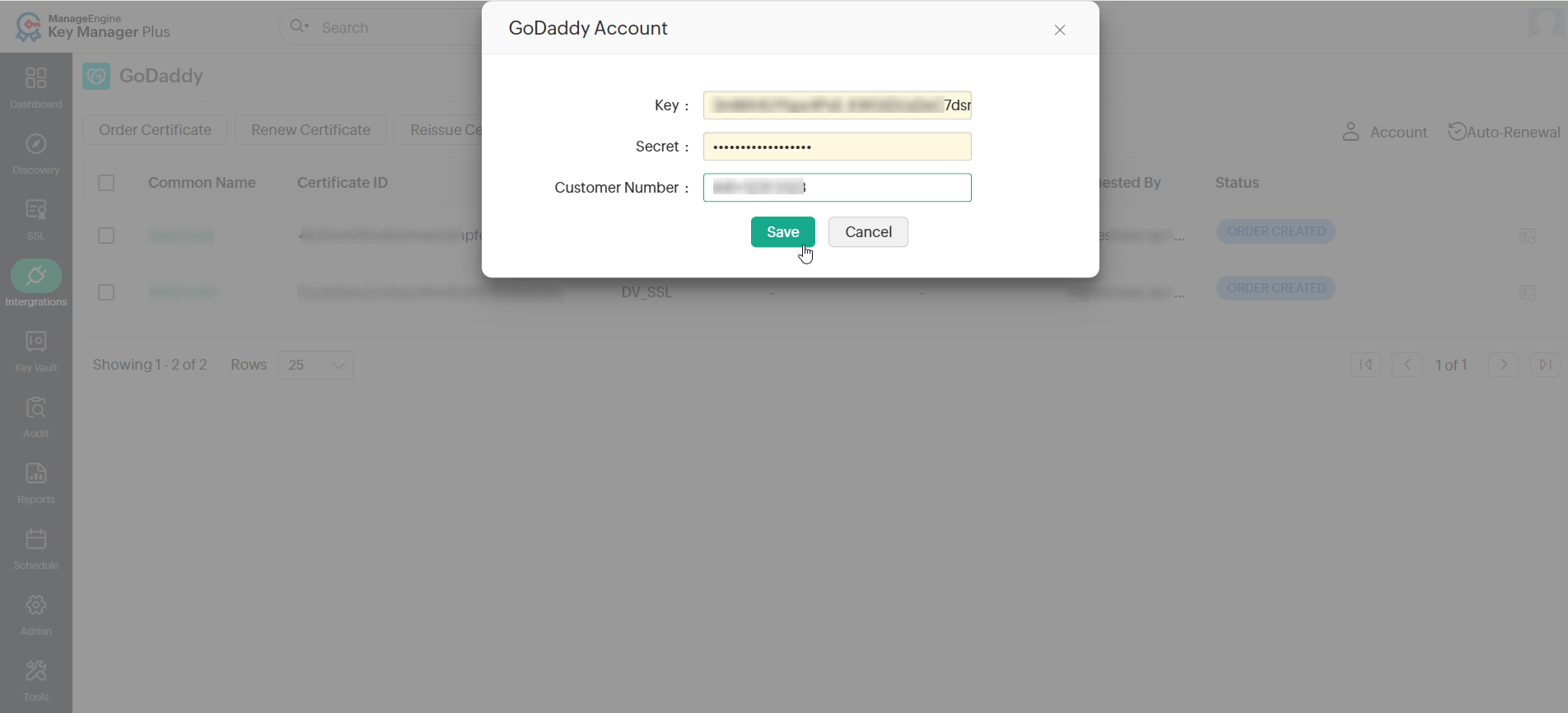
- Enter the Key (API key), Secret, and Customer Number in the pop-up dialog box that appears and click Save.
The key details are stored in Key Manager Plus Cloud. The account configuration is a one-time process. So, there is no need to provide the API details every time while placing a certificate order.
2. Importing Existing Certificate Orders
Key Manager Plus Cloud facilitates users to import the already existing certificate orders placed within their account from GoDaddy and track their statuses. Follow the steps below to import the existing certificate orders from GoDaddy to Key Manager Plus Cloud:
- Navigate to the Integrations >> Public CA Integrations >> GoDaddy tab.
- Click More >> Import Existing Orders from the top menu.
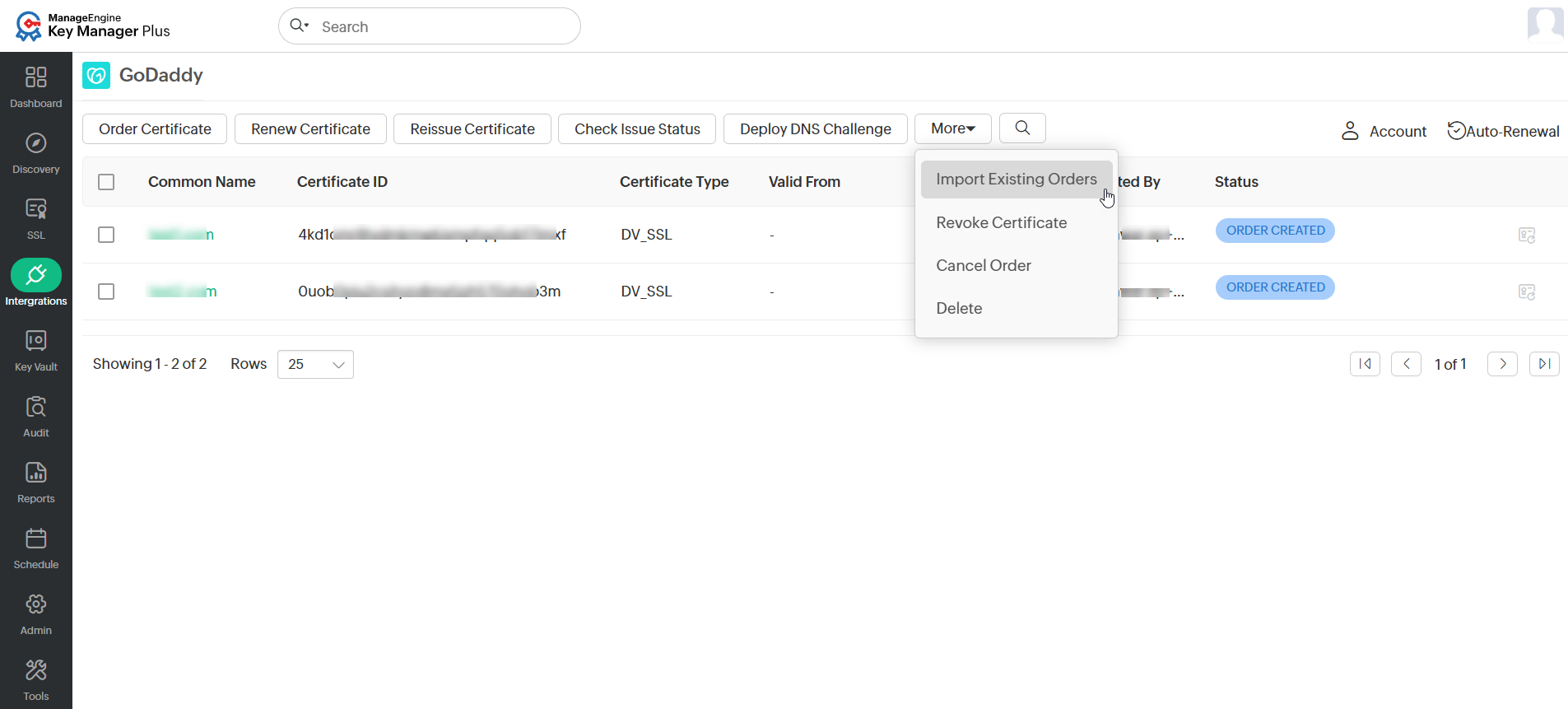
- In the pop-up dialog box that appears, choose to exclude the expired and revoked certificates.
- Click Import to complete the process.
Now, the GoDaddy certificates from the imported orders will be added to the inventory.
3. Creating New Certificate Orders
To create new GoDaddy certificate order request from the Key Manager Plus Cloud interface, follow the steps below:
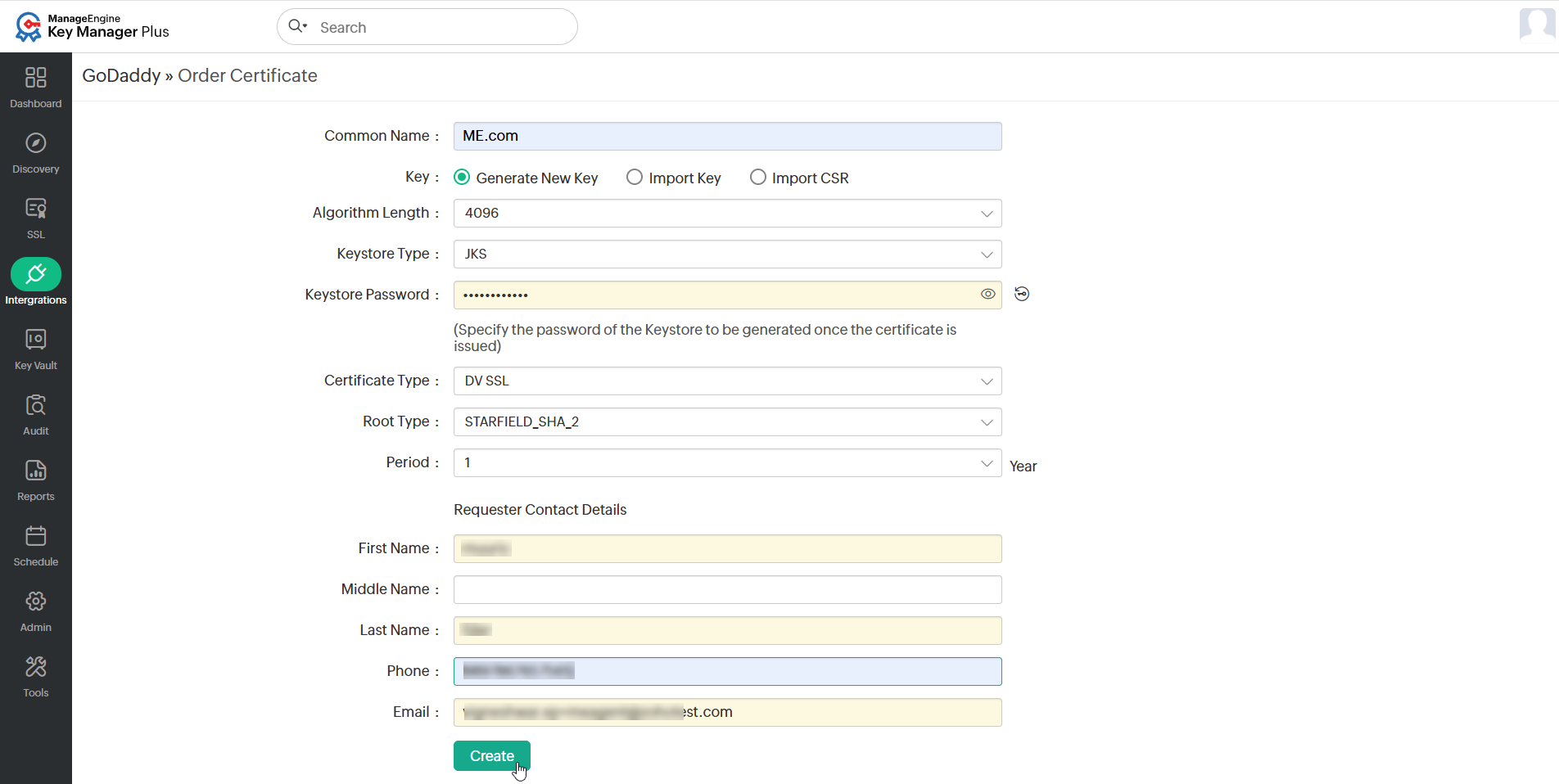
- Navigate to Integrations >> Public CA Integrations >> GoDaddy, and click on Order Certificate.
- In the form that appears, enter the Common Name and select the Generate New Key option for the certificate order.
- Enter or Generate Keystore Password and fill in the Requester Contact Details.
- After filling out the required details, click Create to create the certificate order.
Additional Details
- In addition to importing certificates, Key Manager Plus Cloud provides options to import an already existing private key / CSR file when creating new certificate orders.
- When raising certificate requests from Key Manager Plus Cloud, users can only raise as many requests as the number of set-up certificates purchased from GoDaddy.
Once you have created new certificate orders, validate your ownership of the domain by fulfilling certain challenges put forth by GoDaddy CA. The challenge IDs are mailed to the requester's and domain administrator's email IDs. For detailed information, refer to this document.
4. Checking Order Status
After performing the operations on your domain server and submitting for domain validation, navigate to Integrations >> Public CA Integrations >> GoDaddy in Key Manager Plus Cloud, select an order from the available list and click Check Issue Status from the top menu. If your domain verification is successful, GoDaddy issues the certificate which is fetched by Key Manager Plus Cloud and is added to the centralized certificate inventory.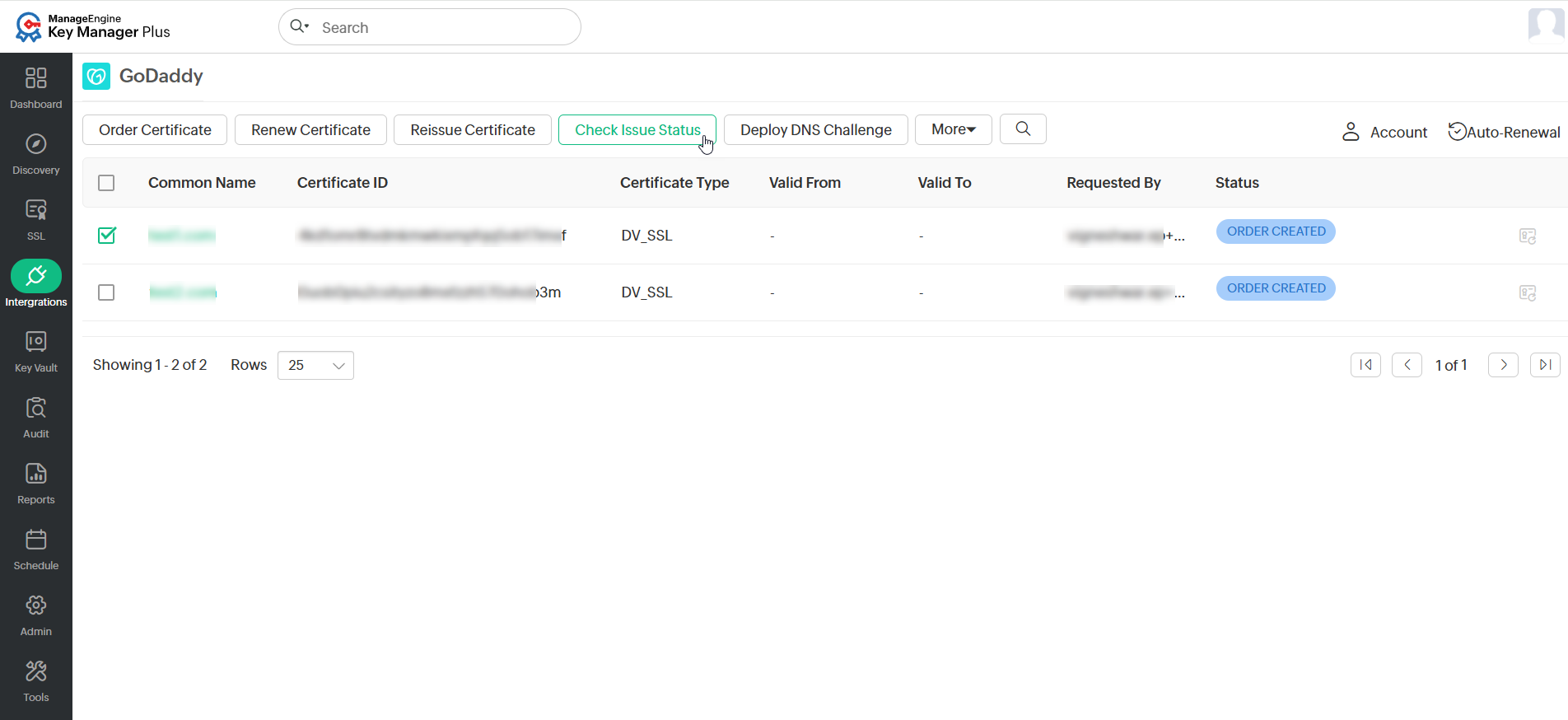
Caution
The certificate is automatically added to Key Manager Plus Cloud only when the license count is not exceeded. If so, renew your Key Manager Plus Cloud license and then attempt to add the issued certificate to the inventory.
5. Managing Certificates Issued by GoDaddy CA
Key Manager Plus Cloud allows administrators to renew, revoke, request reissue of certificates, cancel certificate orders, and delete certificate orders of GoDaddy certificate authority.
5.1 Canceling a Certificate Order
To cancel a certificate order from Key Manager Plus Cloud, follow these steps:
- Navigate to the Integrations >> Public CA Integrations >> GoDaddy.
- Select the required certificate from the list and click More from the top menu.
- Select the Cancel Order option from the drop-down list.
- In the pop-up that appears, confirm canceling the certificate order.
5.2 Renewing a Certificate
Users can renew a GoDaddy certificate either manually or automate the process.
5.2.1 Manual Certificate Renewal
To renew the desired certificates manually, perform the steps that follow:
- Navigate to Integrations >> Public CA Integrations >> GoDaddy.
- Select the required certificate and click Renew Certificate from the top menu.
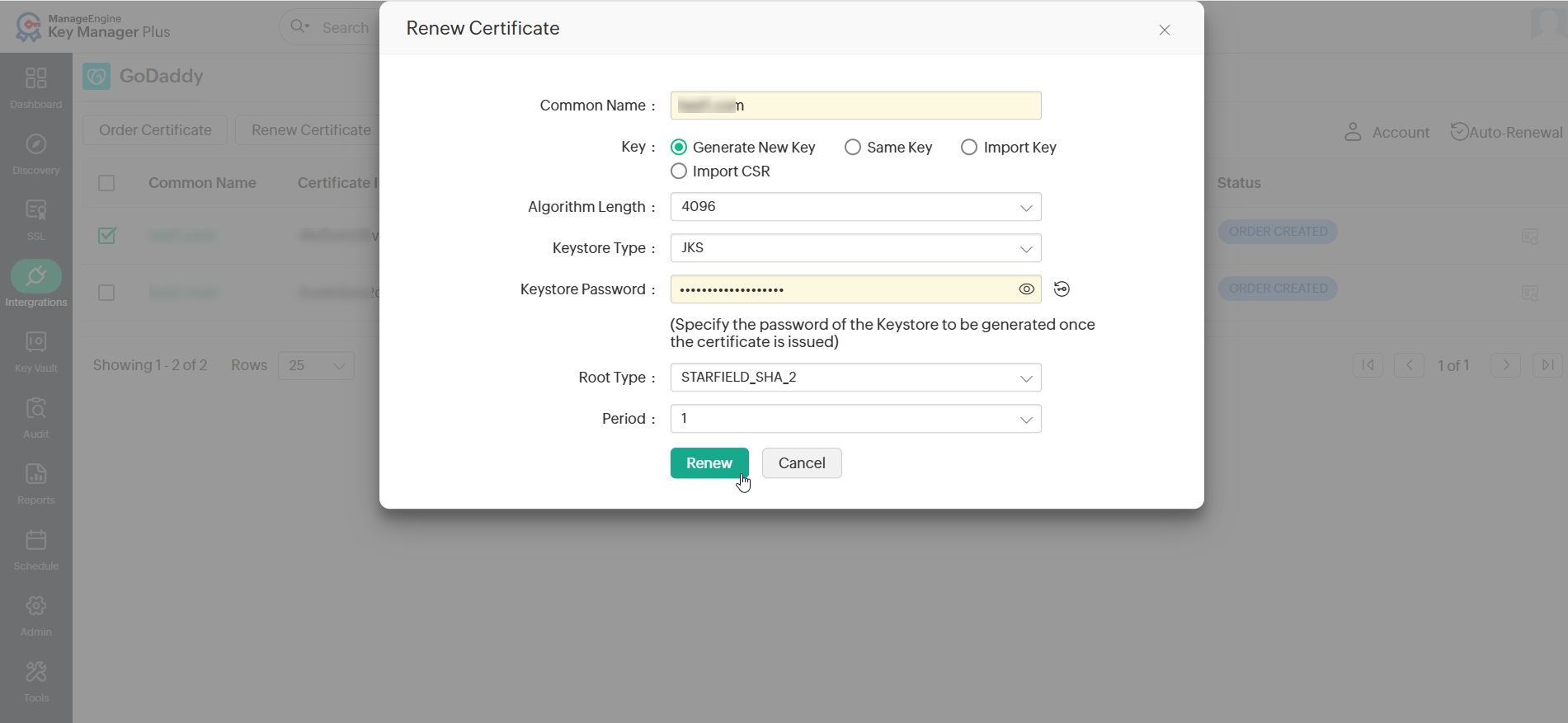
- In the window that appears, select the Key type and enter the required details to renew the certificate.
- You have to prove your ownership of the domain before every renewal by fulfilling the challenges put forth by GoDaddy CA. The challenges are mailed to the requester's and domain administrator's email IDs.
Upon successful validation, the certificate will be issued and automatically added to Key Manager Plus Cloud.
5.2.2 Automated Certificate Renewal
To configure the auto-renewal process for the desired certificates, perform the steps that follow:
- Navigate to Integrations >> Public CA Integrations >> GoDaddy and click Auto-Renewal from the top pane.
- On the page that appears, enable the Auto-Renew button.
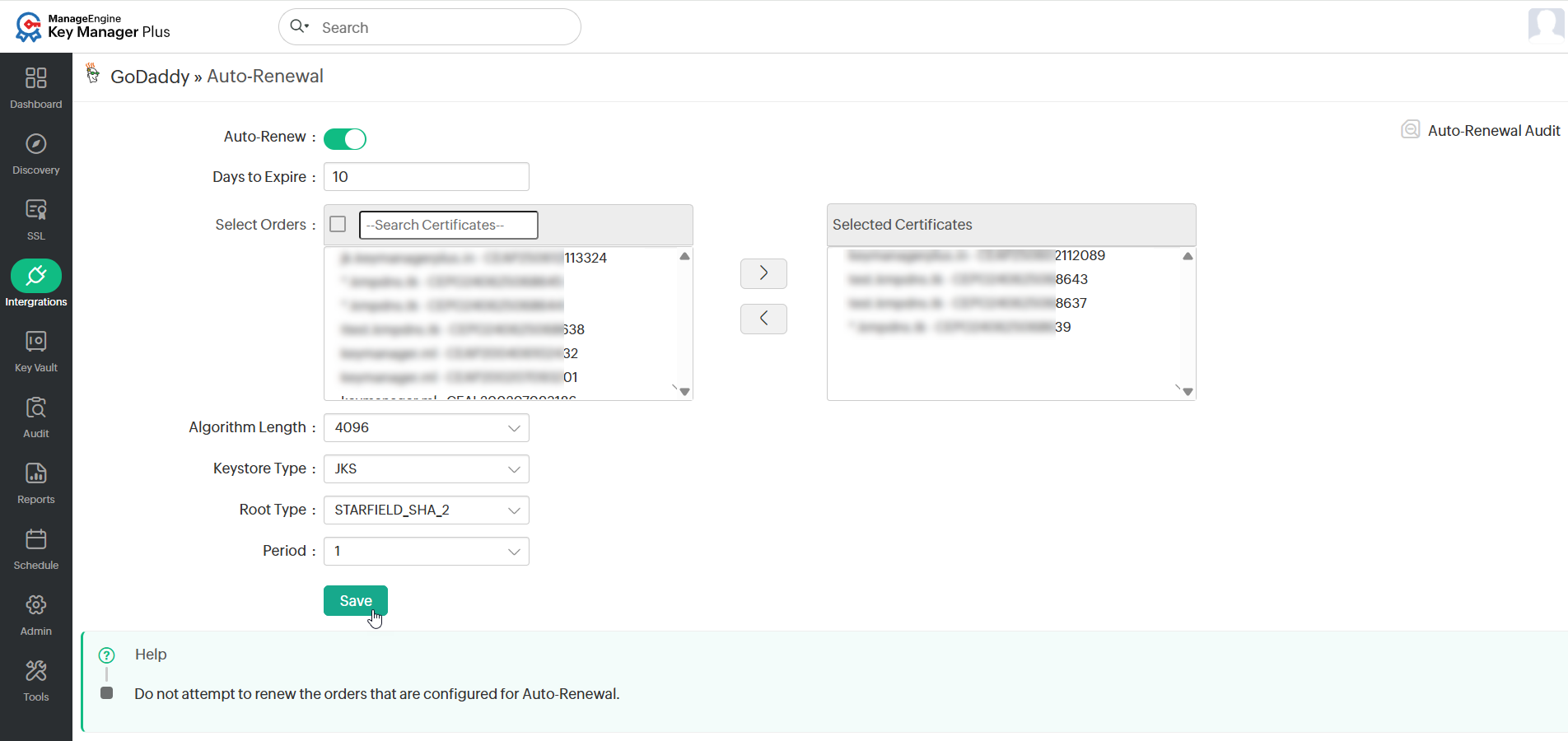
- Enter the number of days before expiry in which the auto-renewal process is to be carried out.
- Select the desired certificates that are to be auto-renewed.
- Select the Algorithm Length, Keystore Type, Root Type, and Period for the newly renewed certificate and click Save.
Best Practice
It is advised not to attempt to renew the orders that are configured for auto-renewal.
Based on the configured details, the auto-renewal process will be carried out. Click Auto-Renewal Audit at the top-right corner of the page to get insights about the certificates renewed through the auto-renewal process.
5.3 Reissuing a Certificate
To reissue the required certificates, follow the steps below:
- Navigate to Integrations >> Public CA Integrations >> GoDaddy.
- Select the required order and click Reissue Certificate from the top menu.
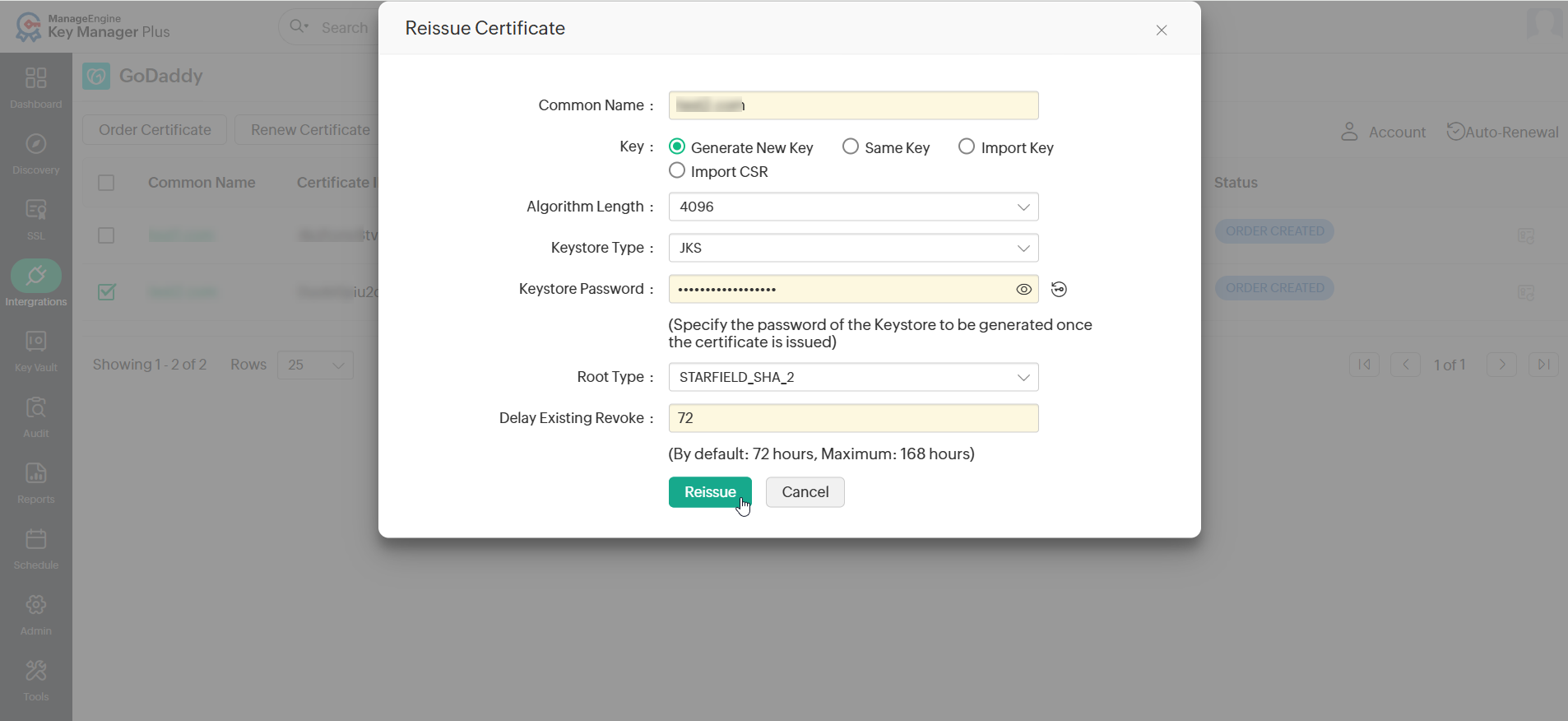
- In the window that appears, choose the Key type and enter the required details. Click Reissue.
- Here again, you have to prove your ownership of the domain before every fulfilling the challenges put forth by GoDaddy CA. The challenges are mailed to the requester's and domain administrator's email IDs.
Upon successful validation, the certificate will be reissued and automatically added to Key Manager Plus Cloud.
5.4 Revoking a Certificate
To revoke the certificates, follow the steps below:
- Navigate to Integrations >> Public CA Integrations >> GoDaddy.
- Select the required order and click More >> Revoke Certificate from the top menu.
- In the pop-up window that appears, select a reason to revoke from the dropdown and click Revoke.
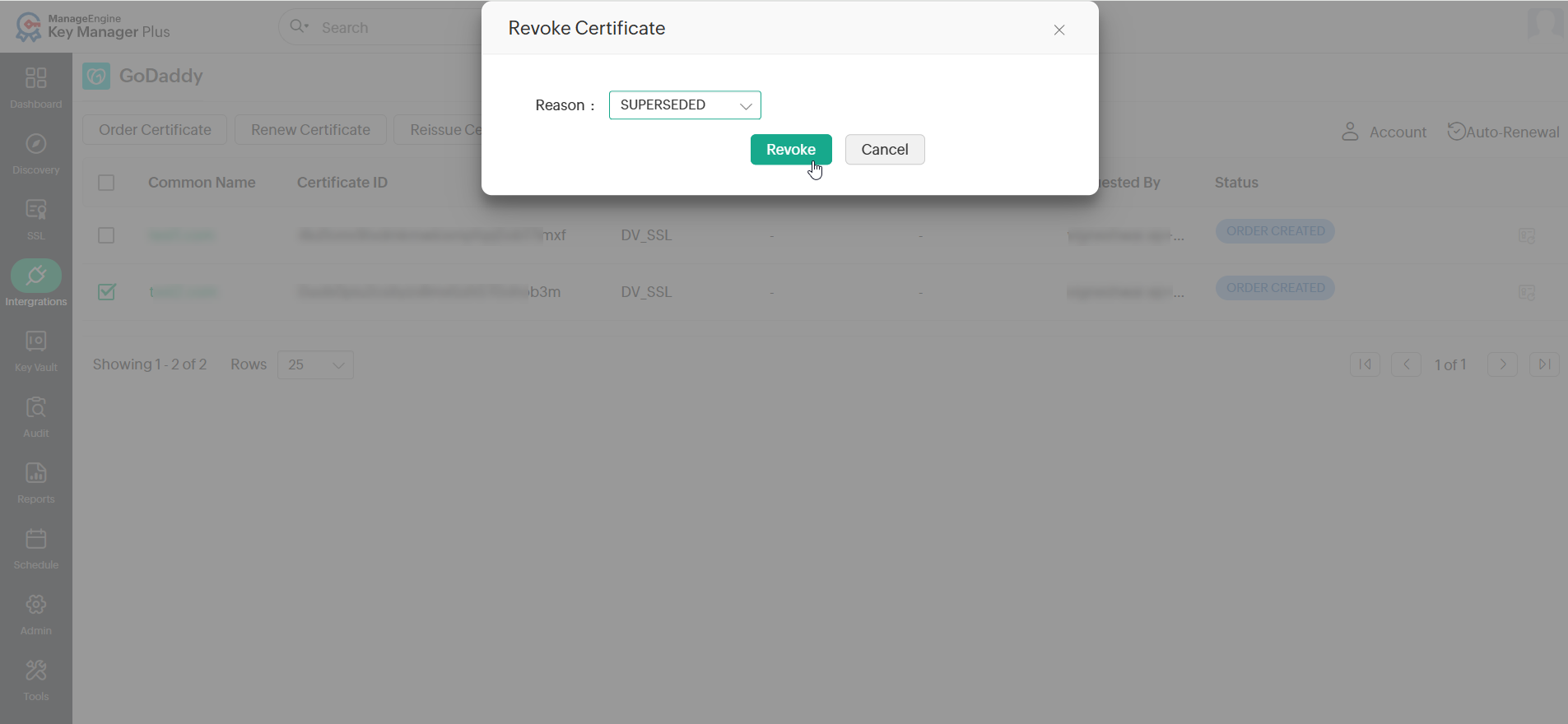
Now, the certificate will be revoked.
Caution
Revoking a certificate will remove the certificate as well as the corresponding SSL bought from GoDaddy website, and users cannot request another certificate for the same SSL. So, it is advised to use 'Reissue' instead of 'Revoke'.
5.5 Deleting a Certificate Order Request
To delete a certificate order request from Key Manager Plus Cloud, follow these steps:
- Navigate to Integrations >> Public CA Integrations >> GoDaddy.
- Select the required order from the list.
- Click the More dropdown from the top pane.
- Select the Delete option from the drop-down list and confirm your action in the pop-up that appears.
Additional Detail
To delete the certificate issued by GoDaddy from Key Manager Plus Cloud, switch to the SSL >> Certificates tab and delete the certificates.