Domain Control Validation for the Certificate Orders Issued by Third-Party CA
Domain Control Validation (DCV) is a process in which the Certificate Authority (CA) verifies that you have control over the requested domain before issuing the SSL certificate. This verification occurs when you place a certificate order with a third-party CA. To perform DCV, the CA issues a challenge to verify domain ownership. The challenge format varies depending on the validation method selected by you during the certificate order process:
- An approval email sent to a designated address,
- A challenge file that should be uploaded to the web server, or
- A DNS TXT record that should be added to the domain’s zone file.
Once you complete the challenge, the CA verifies it. If the verification succeeds, the CA issues the SSL/TLS certificate. Key Manager Plus Cloud then fetches the certificate and adds it to the certificate inventory, where it can be managed and further deployed to the endpoint servers.
Key Manager Plus Cloud supports the following DCV methods:
For DNS-based DCV, the DNS details should be preconfigured. Refer to this document for detailed instructions.
1. Email-based Domain Control Validation
Additional Detail
The CAs that supports the email-based DCV in Key Manager Plus Cloud are GoDaddy, The SSL Store, GlobalSign, and AWS-ACM.
In this method, the Certificate Authority sends a verification email to the approver email address specified during the certificate order request. The email contains instructions that should be followed to complete the validation process.
Additional Detail
For GoDaddy CA, the challenge IDs are mailed to the requester's email as well as the domain administrator's email.
After completing the steps in the email:
- Log in to Key Manager Plus Cloud.
- Go to the Integrations tab, select the required CA, and check the certificate order status.
If the validation is successful, the CA issues the certificate. The certificate is then automatically fetched into the certificate inventory of Key Manager Plus Cloud.
From the inventory, you can deploy the certificate directly to endpoint servers such as a Certificate Store or IIS server.
2. File or HTTPS-based Domain Control Validation
Additional Detail
The CAs that supports the file or HTTPS-based DCV in Key Manager Plus Cloud are The SSL Store, GlobalSign, Let's Encrypt, Buypass Go SSL, and ZeroSSL.
When you choose file (HTTP/HTTPS)-based DCV, the certificate authority generates a challenge file at the time of order creation. To validate the domain, this file should be placed in the specified path on the domain server.
For Windows servers, this can be performed directly from the Key Manager Plus Cloud interface. Otherwise, you have to place the file on the specified path manually.
Follow these steps to place the file directly from the Key Manage Plus Cloud interface:
Additional Detail
The Key Manager Plus Cloud Agent should be installed on the Windows server before proceeding. Refer to this document for installation instructions.
- Navigate to the Integrations tab and select the desired third-party CA.
- Click Manage >> Deploy and click Add.
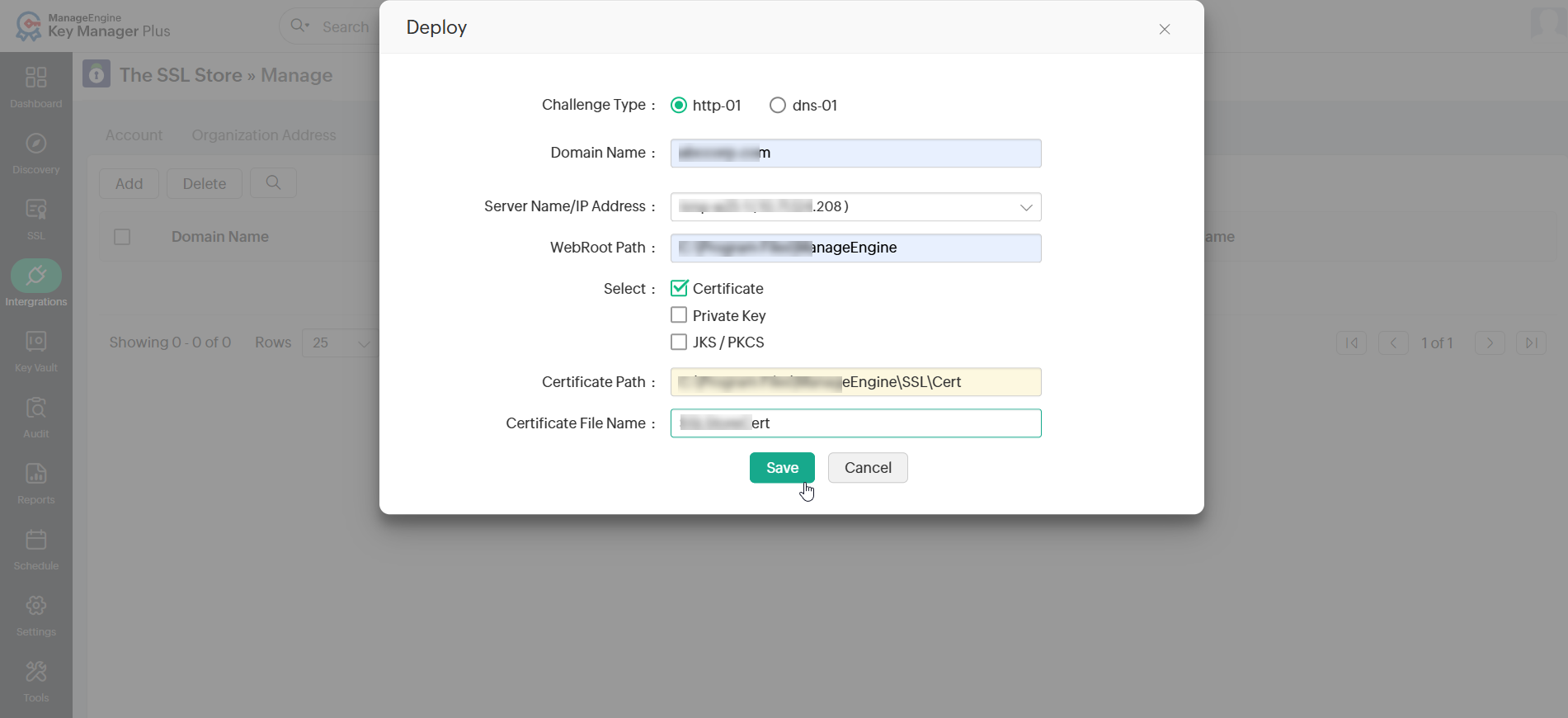
- In the pop-up that opens, choose the challenge type as 'http-01', specify the domain name, and choose the agent-installed server from the Server Name/IP Address dropdown.
- Enter the WebRoot Path and select Certificate, Private Key, or JKS/PKCS.
- Fill in the required details and click Save.
Once the challenge file is deployed, verify the order status of the certificate under the respective CA in Key Manager Plus Cloud. If the validation is successful, the CA issues the certificate. The issued certificate is then automatically fetched into the SSL >> Certificates inventory, from where it can be managed or deployed to endpoint servers.
Additional Detail
For DigiCert CA, you should pre-validate your domains and organizations in the CertCentral portal before placing certificate orders from Key Manager Plus. Once pre-validation is complete, certificate issuance and renewals for those domains and organizations are straightforward. Refer to this document for detailed instructions.
3. DNS-based Domain Control Validation
Caution
Ensure that the Key Manager Plus Cloud Agent is installed on the Windows server before proceeding. Refer to this document for installation instructions.
When you choose DNS-based DCV, the CA provides a DNS challenge value and text record at the time of order creation. You should copy these records and manually add them to the domain server. For Windows servers, this verification process can also be carried out from Key Manager Plus Cloud by configuring the server details under Manage >> Deploy.
Additional Detail
For DigiCert CA, users can pre-validate organizations and domains in CertCentral to automate DNS challenge deployment. Refer to this document for detailed instructions.
To perform the DNS-based DCV, follow the steps below:
- Navigate to the Integrations tab and select the required third-party CA.
- Click Manage >> Deploy >> Add.
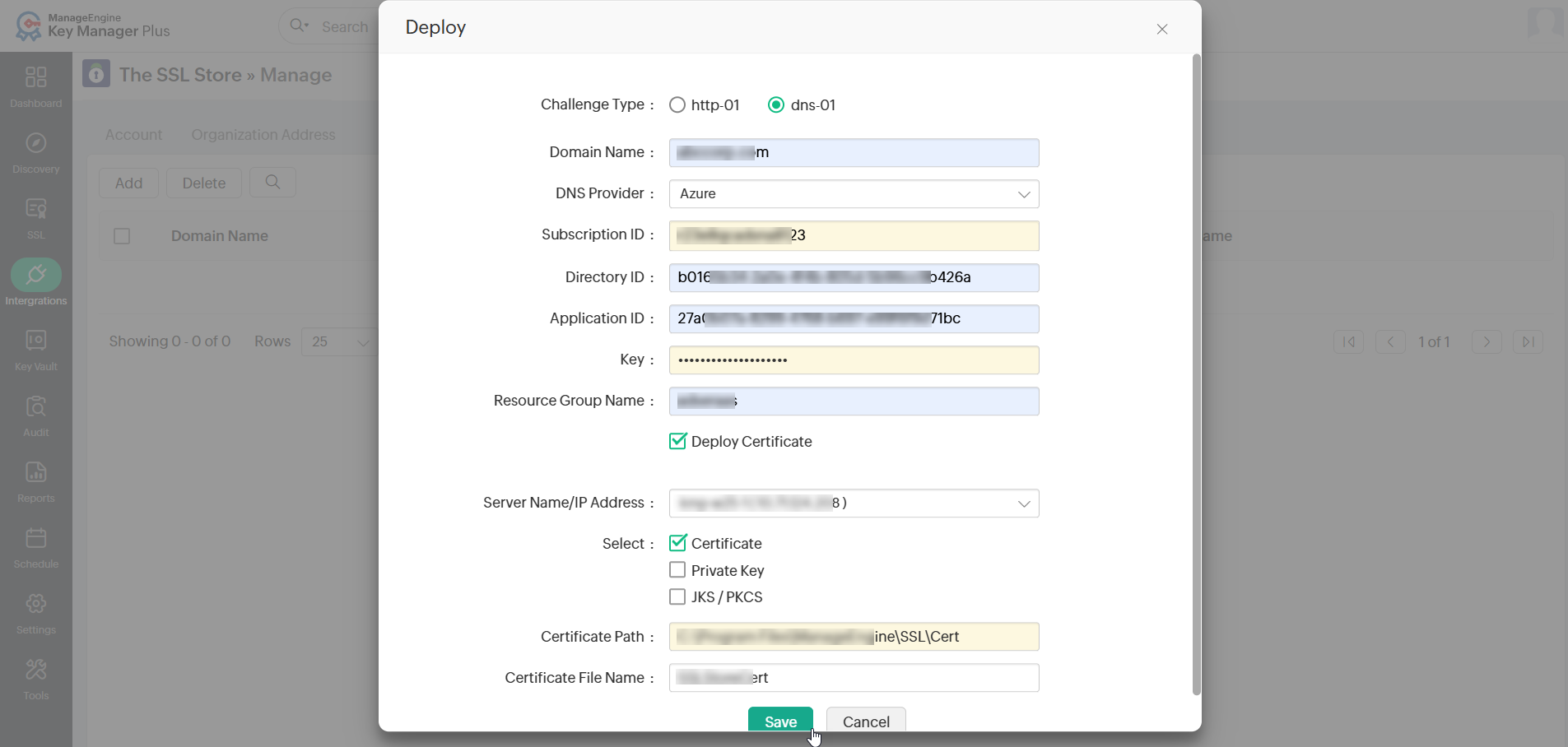
- In the pop-up window that opens, choose the challenge type as 'dns-01', specify the Domain Name, and choose the DNS provider (Azure, Cloudflare, Amazon Route 53 DNS, RFC 2136 Update, GoDaddy DNS, or ClouDNS) from the dropdown.
- Enter the required details and select the Deploy Certificate checkbox to deploy the certificate to the endpoint server after procurement.
- Select the agent-installed server from the dropdown and add the certificate, private key, or JKS/PKCS file path as needed.
- Click Save to complete the DNS challenge process.
The DNS challenge values and text records are automatically created in the configured DNS servers. After the records are validated, check the certificate order status under the respective CA in Key Manager Plus Cloud. If validation succeeds, the CA issues the certificate, which is then fetched and stored in the SSL >> Certificates tab. From here, you can deploy the certificate directly to endpoint servers such as a Certificate Store or IIS server. Click here for more details on certificate deployment.
Additional Details
- For DNS-based DCV, if you selected a DNS account configured under Manage >> DNS when creating the order, Key Manager Plus Cloud uses that account to perform the challenge verification. If instead you are going to configure the domain and server details under Manage >> Deploy, the verification and subsequent certificate deployment are carried out only for that specific domain and server.
- For RFC 2136 DNS updates:
- With Global DNS configuration, the domain name itself acts as the zone name. (This is possible only if the same Key Secret is used for all zones.)
- With Domain-Agent mapping, you should provide the Zone Name, Key Name, and Key Secret for each domain individually.
- For GoDaddy CA, after placing a certificate order, DNS-based DCV can be performed using the Deploy DNS Challenge option from the top menu. Before starting this step, add a TXT record with the challenge ID to your domain’s zone file. Refer to this document for detailed instructions.