Certificate Signing Requests
Key Manager Plus Cloud provides a comprehensive solution for managing Certificate Signing Requests (CSRs), enabling users to generate, import, export, and delete CSRs through a centralized, user-friendly interface. This functionality ensures streamlined certificate request workflows, enhanced security, and better lifecycle management for SSL/TLS certificates. With the built-in support for customizable templates and role-based permissions, Key Manager Plus Cloud simplifies complex certificate management tasks for administrators and operators alike.
This guide details the process of generating and managing CSRs within the Key Manager Plus Cloud interface.
1. Generating a CSR in Key Manager Plus Cloud
Key Manager Plus Cloud supports the generation of CSRs either manually or by using an existing Keystore file. Users can configure critical details such as cryptographic algorithms, validity period, organization details, and more during the CSR creation process.
The following steps will walk you through the process involved in generating a CSR directly from the user interface:
- Accessing the CSR Interface - Navigate to SSL >> CSR. Here, you will see all the available CSRs in a list view and their details such as Domain Name, Created By, Created Time, Key Size, Key Algorithm, etc.
- Initiating CSR Creation - Click Create to generate a new CSR.
- In the Create CSR form that opens, you will be prompted to choose between two methods: Create CSR or Create CSR From Keystore.
- Creating CSR from Keystore - If you choose to select the Create CSR From Keystore option, perform the following steps to create a CSR in Key Manager Plus Cloud:
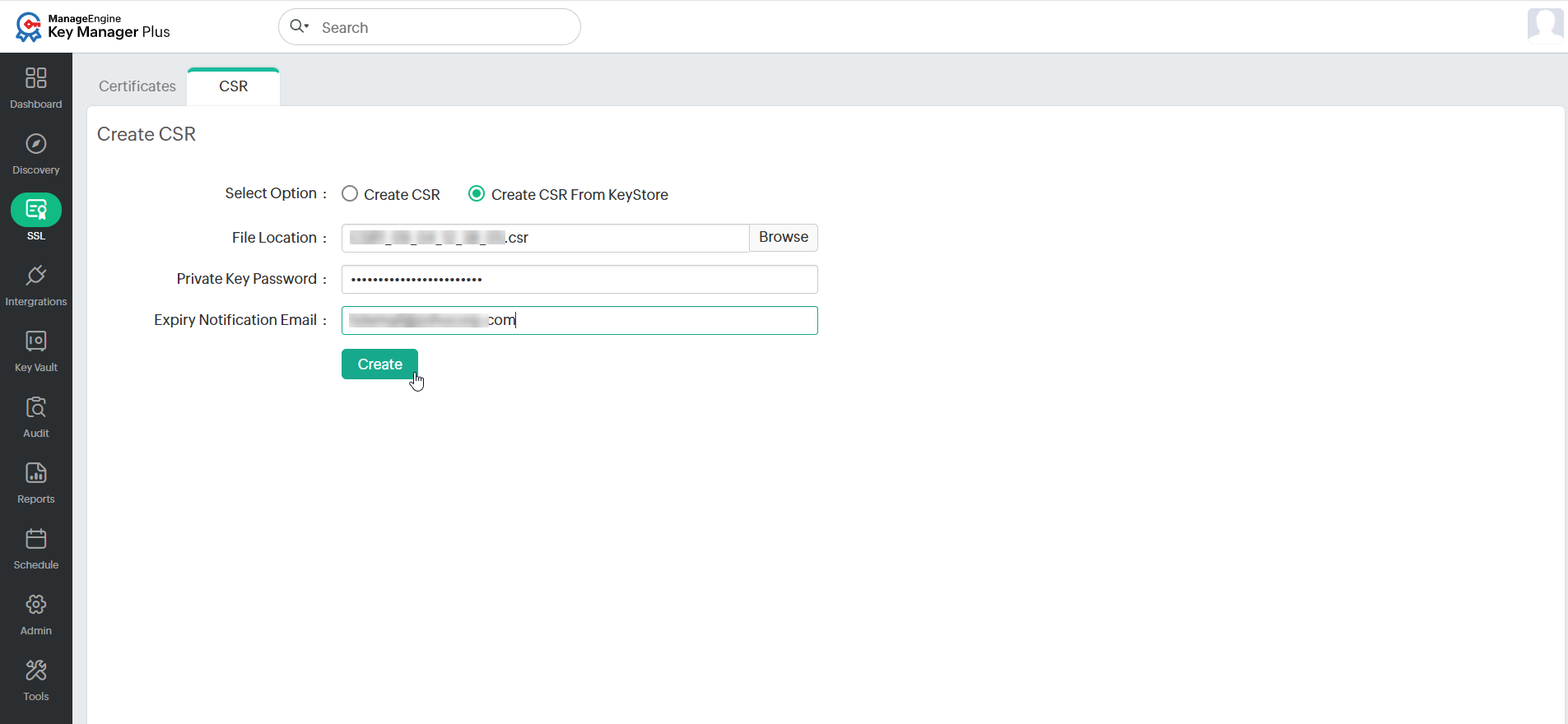
- Click Browse in the File Location field and browse the Keystore file from your device.
- Enter the Private Key Password of the selected Keystore file in the respective field.
- In the Expiry Notification Email field, enter your email address that will be used to notify the CSR expiry.
- Click Create to create the CSR.
- Creating CSR Manually - If you have selected the Create CSR option, perform the following actions:
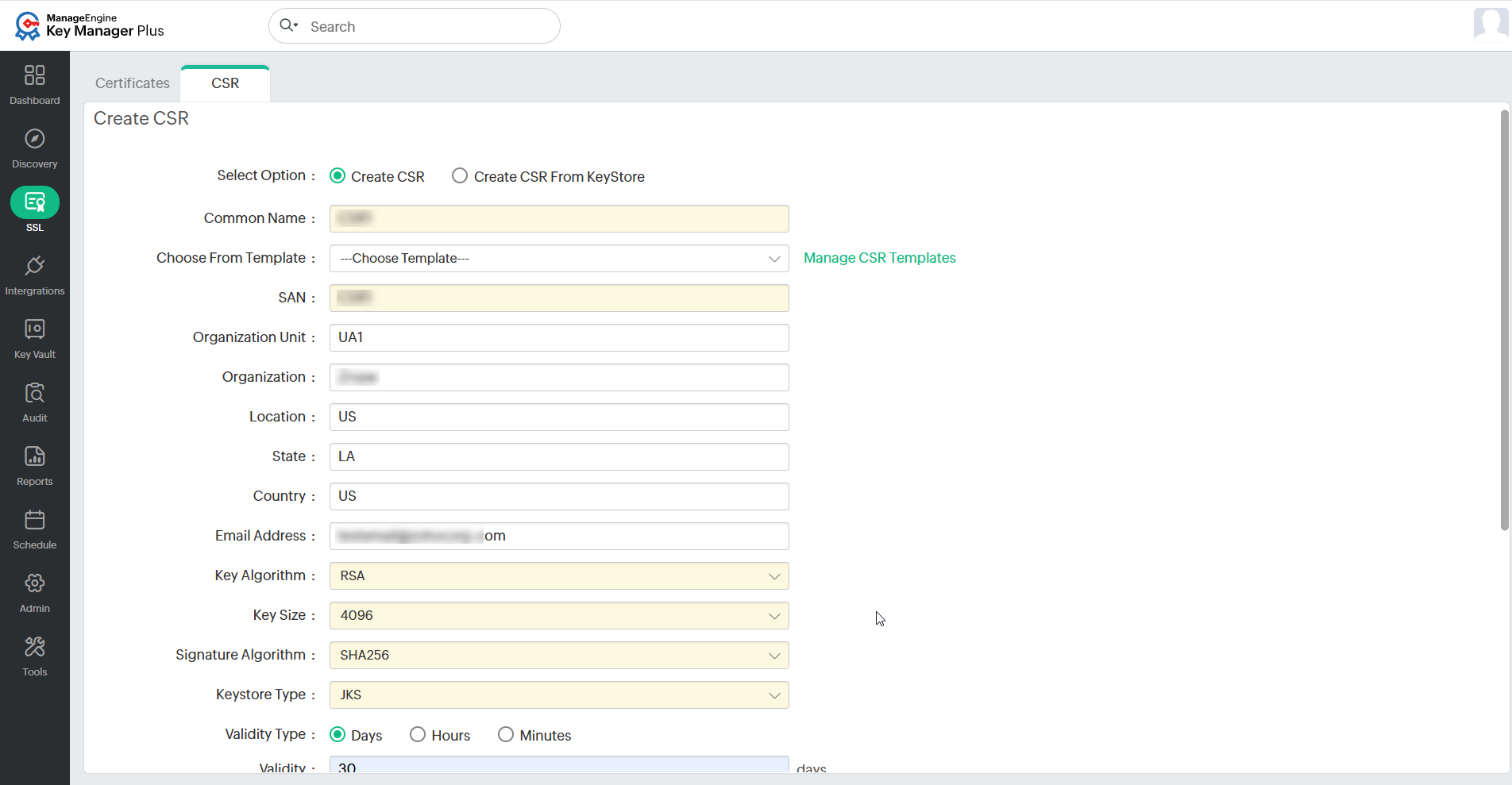
- Specify the required details such as Common Name, SAN, Organization Unit, Organization, Location, State, Country, and Email Address.
Additional Detail
You can also fill in the CSR details using the available templates from the Choose From Template dropdown. Click Manage CSR Templates beside the dropdown to manage the required sets of CSR templates.
- Select the Key Algorithm, Key Size, Signature Algorithm, and Keystore Type from the respective dropdowns.
- Choose a Validity Type (Days, Hours, or Minutes) and mention the Validity in days.
- Enter the Store Password or click the Generate icon to create one.
- Specify the Expiry Notification Email address in the next field.
- Select the Sign Type from the dropdown and enter the required details.
Additional Details
- For users with the operator role, tick the checkbox Already approved by the administrator to sign certificates and select the administrators to notify. This is applicable only if the administrator has enabled the signing permission for the operator role under Operator Settings.
- Do not select the Sign Type when opting to sign the CSR later. To know more about signing the CSR later, click here.
- Click Create. This will redirect the users to a CSR window where the CSR content is displayed.
- Specify the required details such as Common Name, SAN, Organization Unit, Organization, Location, State, Country, and Email Address.
1.1 Creating CSR from an Existing Certificate
To use the Keystore file from an SSL certificate present in the centralized certificate inventory, do the steps that follow:
- Navigate to the SSL >> Certificates tab.
- Select the SSL certificate from which the Keystore is to be used for creating a CSR and select Create CSR under the More option in the top menu.
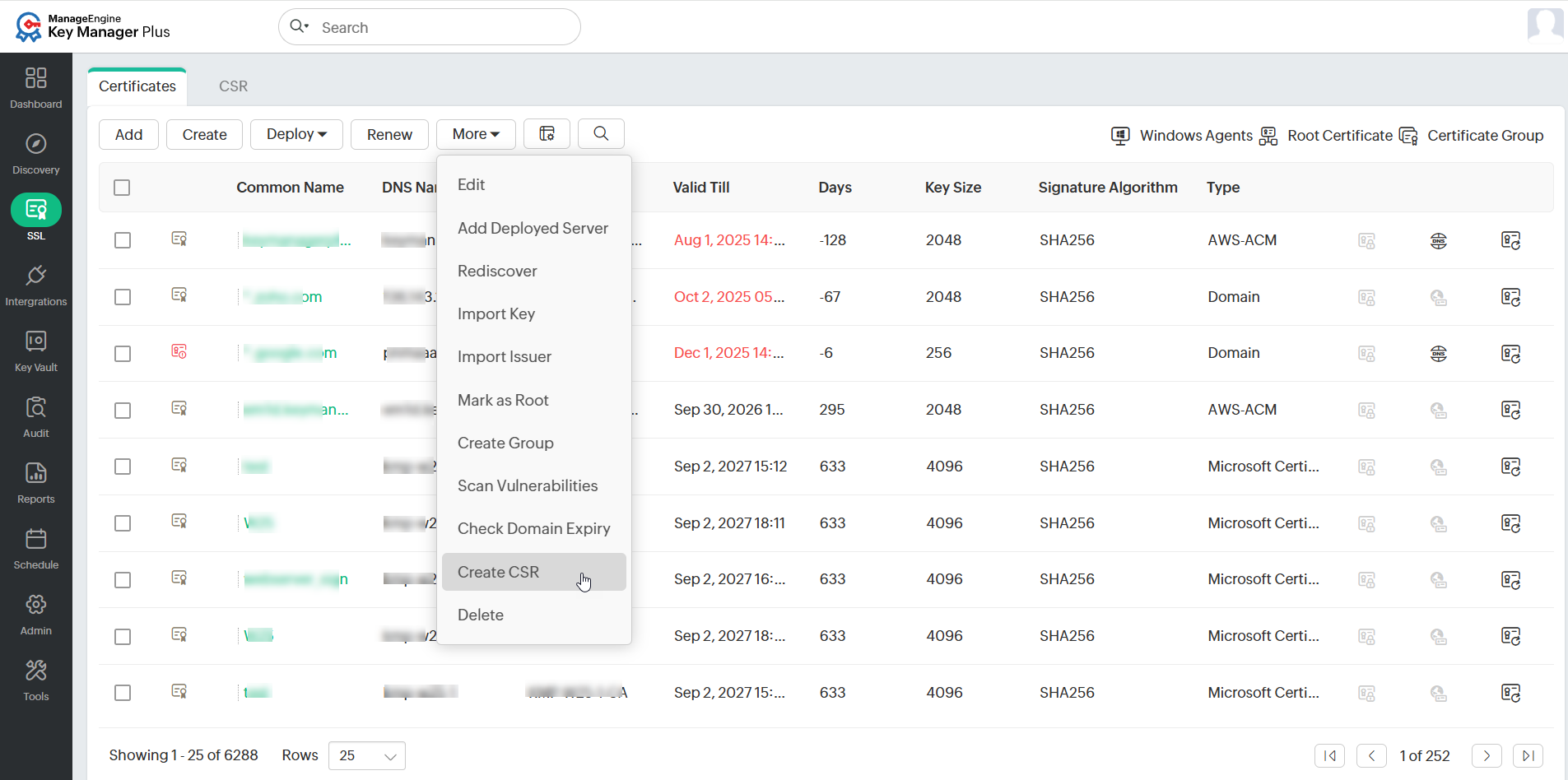
- In the pop-up that opens, add an expiry notification email.
- Click Create to create the CSR from the Keystore which is available in the centralized certificate inventory.
A CSR has been created and added to the list view. The CSR will be assigned to the user who created it.
Additional Details
- The Administrator can grant access to allow an operator to sign the CSR. To grant access for the operator globally, navigate to Admin >> SSL Settings >> Operator Settings, select Allow or Deny next to Certificate Signing Permission, and click Save.
- While creating a certificate, users can specify a wildcard domain either in the Common Name or in the SAN field. Wildcard certificates are useful for securing all subdomains under a base domain. For example, for the base domain zoho.com, a wildcard certificate for *.zoho.com can secure any-subdomain.zoho.com. The asterisk (*) is the wildcard that represents any valid subdomain.
2. Managing the CSRs from Key Manager Plus Cloud
In addition to generating CSRs, Key Manager Plus Cloud offers robust features for managing CSRs, including secure storage of private keys, export options, and import capabilities for CSRs created externally.
2.1 Viewing the Keystore Passwords
The Show Passphrase icon corresponding to every CSR allows administrators to view the Keystore passwords of respective CSR files.
2.2 Exporting CSRs
Use the Export icon next to a CSR to download it or email it to a designated recipient by clicking the Mail icon of the desired CSR. Users can specify the email address where the CSR should be sent.
2.3 Importing External CSRs
Key Manager Plus Cloud allows you to import CSRs created outside the application, ensuring centralized tracking and management. To import a CSR, follow the below steps:
- Navigate to SSL >> CSR.
- Click Import in the top menu.
- In the pop-up that appears, click Browse to select a CSR file and the corresponding key file.
- Enter the Private Key Password and click Import.
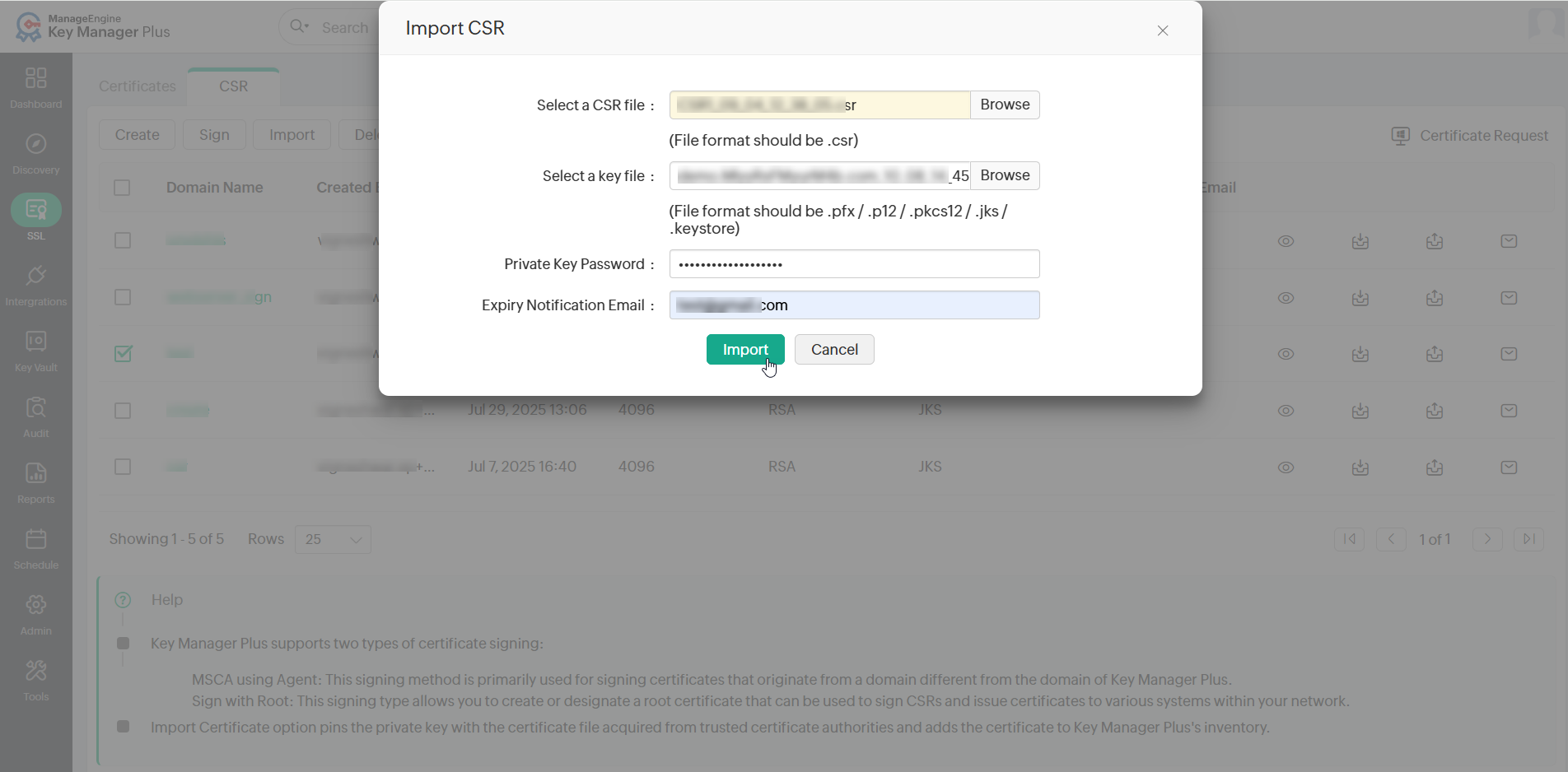
The CSR has been successfully imported and can be viewed in the list view. Key Manager Plus Cloud automatically pins the certificate file with its corresponding private key and adds it to its centralized inventory.
2.4 Deleting a CSR
To delete a CSR, select the CSR you wish to delete and click Delete. In the pop-up that appears, click OK. The selected CSR has now been successfully deleted.
2.5 Managing the CSR Templates
Click CSR Template to view and manage templates. Users can create, edit, delete, or manage the templates as needed. These templates allows users to pre-fill common CSR fields, speeding up the creation process for future requests.