Certificate Signing in Key Manager Plus Cloud
Key Manager Plus Cloud offers a centralized solution for managing and issuing digital certificates within your network. It provides flexible options to sign and distribute certificates, ensuring secure communication and identity validation across the IT infrastructure.
With Key Manager Plus Cloud, users can issue certificates using their Microsoft Certificate Authority (MSCA) integrated with an agent or a custom root certificate that is already trusted within the environment. This enables seamless certificate lifecycle management tailored to the organization’s internal policies and trust model.
To request and acquire certificates from a local CA, users should first generate a Certificate Signing Request (CSR) within Key Manager Plus Cloud. The generated CSR can then be signed using one of the following methods, allowing the users to issue valid certificates to clients and applications:
Caution
Ensure that you have created a CSR and have it ready in the Key Manager Plus Cloud to sign the CSR with MSCA using Agent or Root.
1. Certificate Signing with MSCA using Agent
Follow the steps below to sign SSL certificates using Microsoft Certificate Authority with agent:
- Navigate to SSL >> CSR.
- Select the required CSR from the list view and click Sign from the top menu.
- In the pop-up that appears,
- Select the Sign Type as MSCA using Agent.
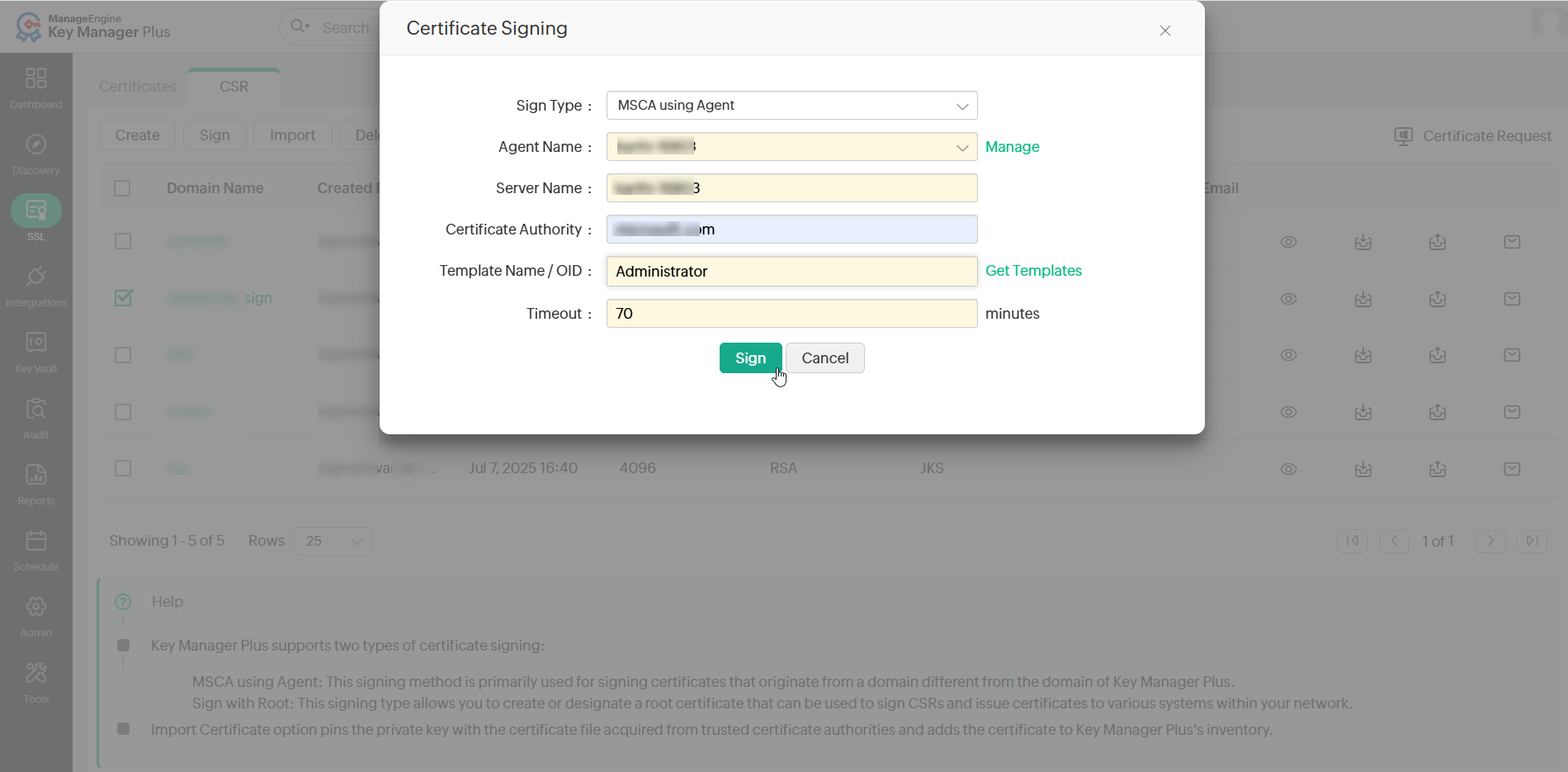
- Select the Agent from the list available in the dropdown. To manage Windows Agents, click Manage beside the field. For more information about managing the agent, refer to this document.
- Enter the Server Name and the Certificate Authority.
- Specify the Certificate Template or click Get Templates to get new templates.
- Mention the agent Timeout in seconds within which the agent should respond. If the agent does not respond within the timeout period, the operation will be audited as failed.
- Click Sign to sign the certificate.
- Select the Sign Type as MSCA using Agent.
The CSR is signed and the issued certificate can be viewed from SSL >> Certificates.
2. Certificate Signing with Root Certificate
For the organization that does not have a Microsoft Certificate Authority (MSCA) setup or prefers using an internal certificate trust model, Key Manager Plus Cloud allows them to sign certificates using a custom root certificate. This method is ideal for environments where a self-managed public key infrastructure (PKI) is preferred or where a trusted internal root certificate already exists.
To sign SSL certificates with custom root certificate, follow the steps below:
2.1 Create a Custom Root Certificate
To sign locally generated certificate requests with the root certificate, create a new custom root certificate initially by following the steps below:
- Navigate to the SSL >> Certificates tab.
- Select a certificate from the list view and click More >> Mark as Root.
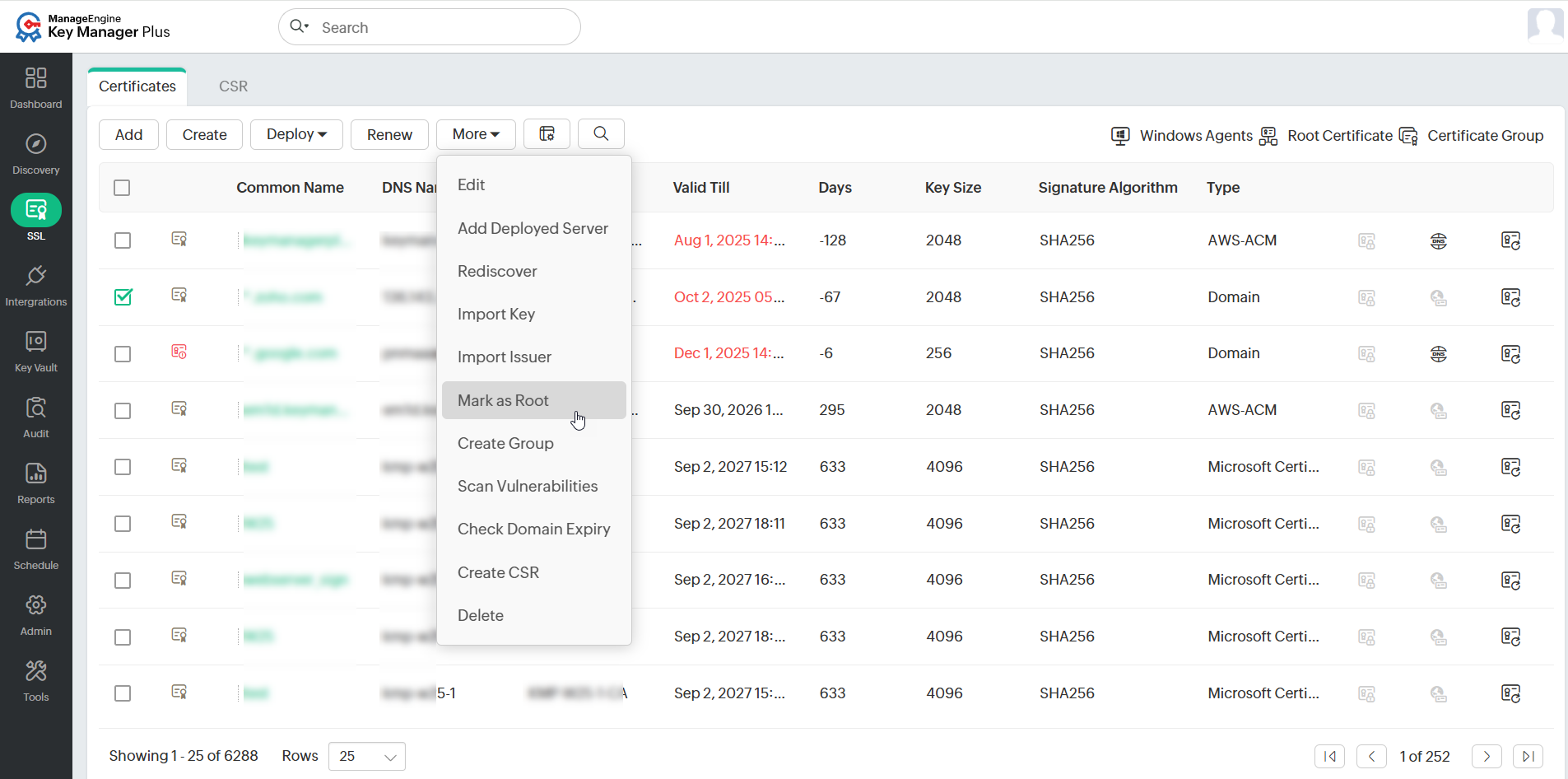
- The chosen certificate is successfully denominated as a root certificate and is listed on the Root Certificate page. Users can then use this certificate to sign locally generated certificate requests.
Additional Detail
Users can also generate a new root certificate from Key Manager Plus Cloud by enabling the Generate root certificate checkbox while creating an SSL certificate.
2.2 Sign Certificates with the Custom Root Certificate
After creating a custom root certificate, users can sign CSR by following the steps given below:
- Navigate to SSL >> CSR, select the required CSR, and click Sign from the top menu.
- In the pop-up window that appears, select the Sign with Root as the Sign Type.
- In the Select Certificate drop-down field, choose your root certificate and enter the Validity in days.
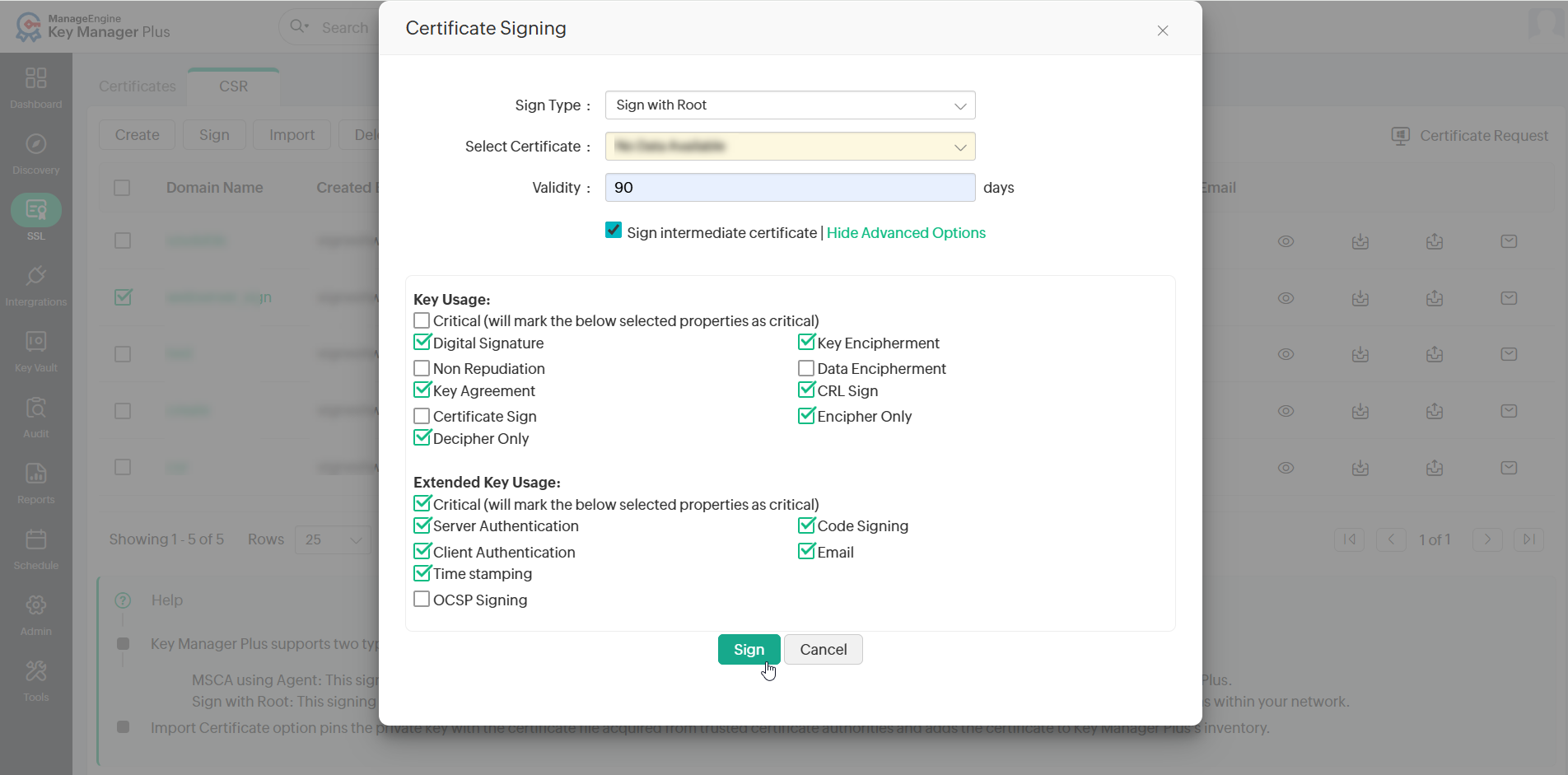
- Enable the Sign intermediate certificate checkbox to allow users to sign the certificates on behalf of a root certificate.
- To add optional properties to the new certificate, click Advanced Options to expand the menu. Here, there are two categories of options, Key Usage and Extended Key Usage. Select the required options to set the preferred flags for the certificate to denote the purpose for which the new certificate may be used. The Key Usage options include Non Repudiation, Digital Signature, Data or Key Encipherment, Server/Client Authentication, etc. Users can also choose the properties and mark them as critical by selecting the Critical checkbox.
- Click Sign to sign the certificate with the custom root certificate.