Integrating Kubernetes with Key Manager Plus Cloud for Secrets Management
Kubernetes (K8s) - Kubernetes is an open-source platform that automates containerized application deployment, scaling, and management. Containers are a lightweight way to run applications, and Kubernetes manages them at ease by handling tasks like load balancing and rolling updates.
Kubernetes Secrets - Kubernetes secrets provide a secure way to store sensitive information within a Kubernetes cluster. It is a prominent feature of Kubernetes that ensures secured storage of secrets, such as passwords, tokens, SSL certificates, and keys in the Kubernetes cluster.
The infrastructure of Kubernetes enables the secure management of Kubernetes secrets, allowing users to manage the sensitive information required for their applications. As a result of this integration, Key Manager Plus Cloud offers the capability to manage Kubernetes TLS secrets, including their rotation and updating based on expiry and necessity.
Additional Detail
The term TLS Secret mentioned in this document represents the SSL certificates stored in the Kubernetes cluster.
- Benefits of Kubernetes Integration with Key Manager Plus Cloud
- Configuring Kubernetes in Key Manager Plus Cloud
- Managing the TLS Secrets via Key Manager Plus Cloud
- Limitations in Managing the Kubernetes Secrets
1. Benefits of Kubernetes Integration with Key Manager Plus Cloud
- Collaborate on the management of Kubernetes TLS secrets in your enterprise.
- Fetch TLS secrets from Kubernetes clusters and manage them in Key Manager Plus Cloud.
- Manage TLS secrets from multiple Kubernetes clusters, including updation/rotation.
2. Configuring Kubernetes in Key Manager Plus Cloud
To begin the configuration process, you must first download the YAML file from the Key Manager Plus Cloud interface. The YAML file is a configuration file that contains the necessary commands that must be applied to the master node of the Kubernetes server.
2.1 Downloading the YAML File
To download the YAML file, do the steps that follow:
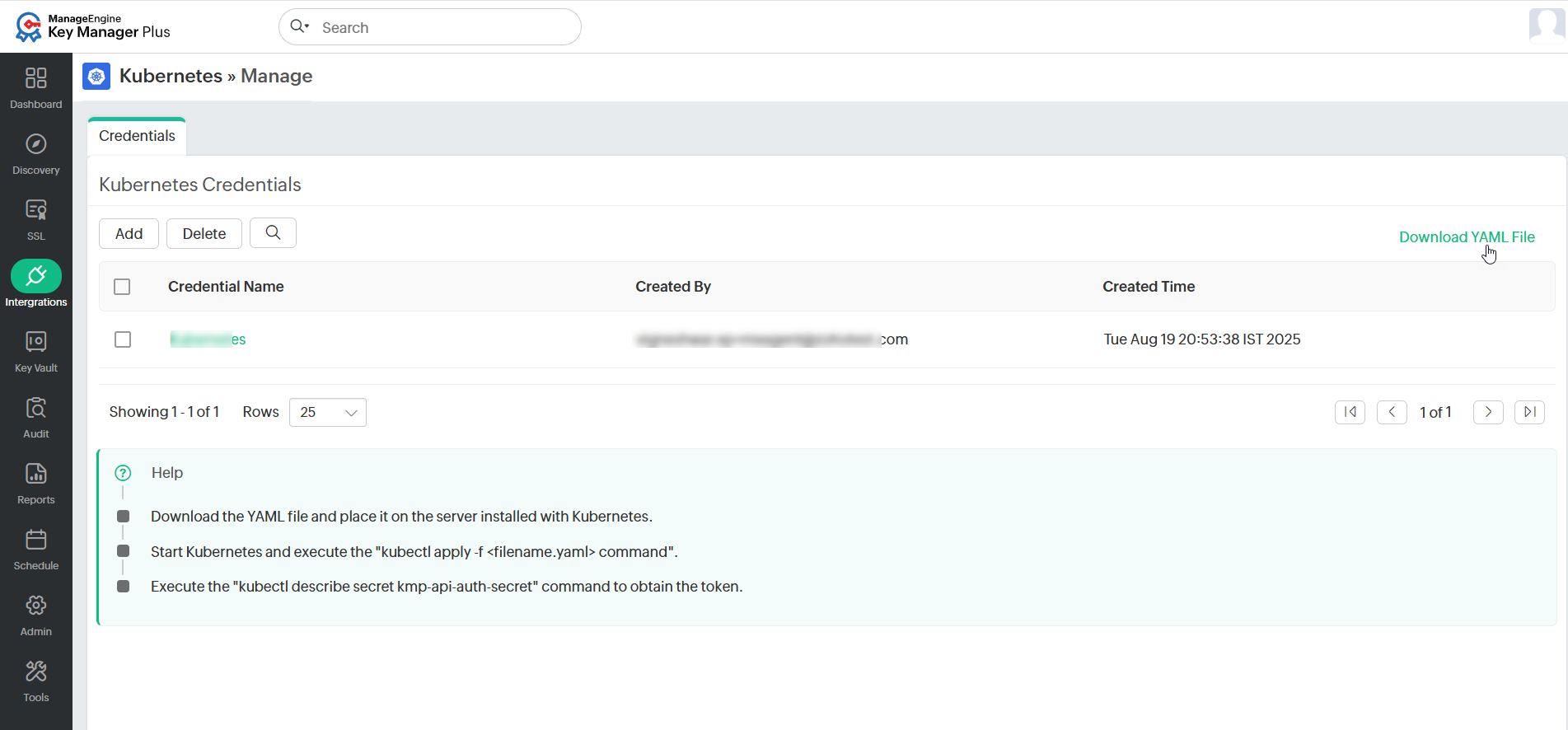
- Navigate to SSL >> Kubernetes >> Manage.
- On the page that appears, click Download YAML File to proceed.
2.2 Moving the YAML File to the Kubernetes Server
After downloading the YAML file, move it to the server where Kubernetes is running. To do so, follow these steps:
- Make sure that the Kubernetes server is started and running.
- Execute the following command to invoke the YAML configuration file into the Kubernetes server:This command will create a new token to authenticate the communication between Key Manager Plus Cloud and the master node.
kubectl apply -f <filename.yaml>
- Execute the following command to fetch the token from the Kubernetes server:
kubectl describe secret kmp-api-auth-secret
- A token will be generated after completing the above procedure.
- Copy or save this token value to configure the Kubernetes integration in Key Manager Plus Cloud.
2.3 Adding the Kubernetes Credential in Key Manager Plus Cloud
Follow the steps below to add the Kubernetes clusters available in the Kubernetes server into the Key Manager Plus Cloud:
- Navigate to SSL >> Kubernetes >> Manage.
- On the page that appears, click Add.
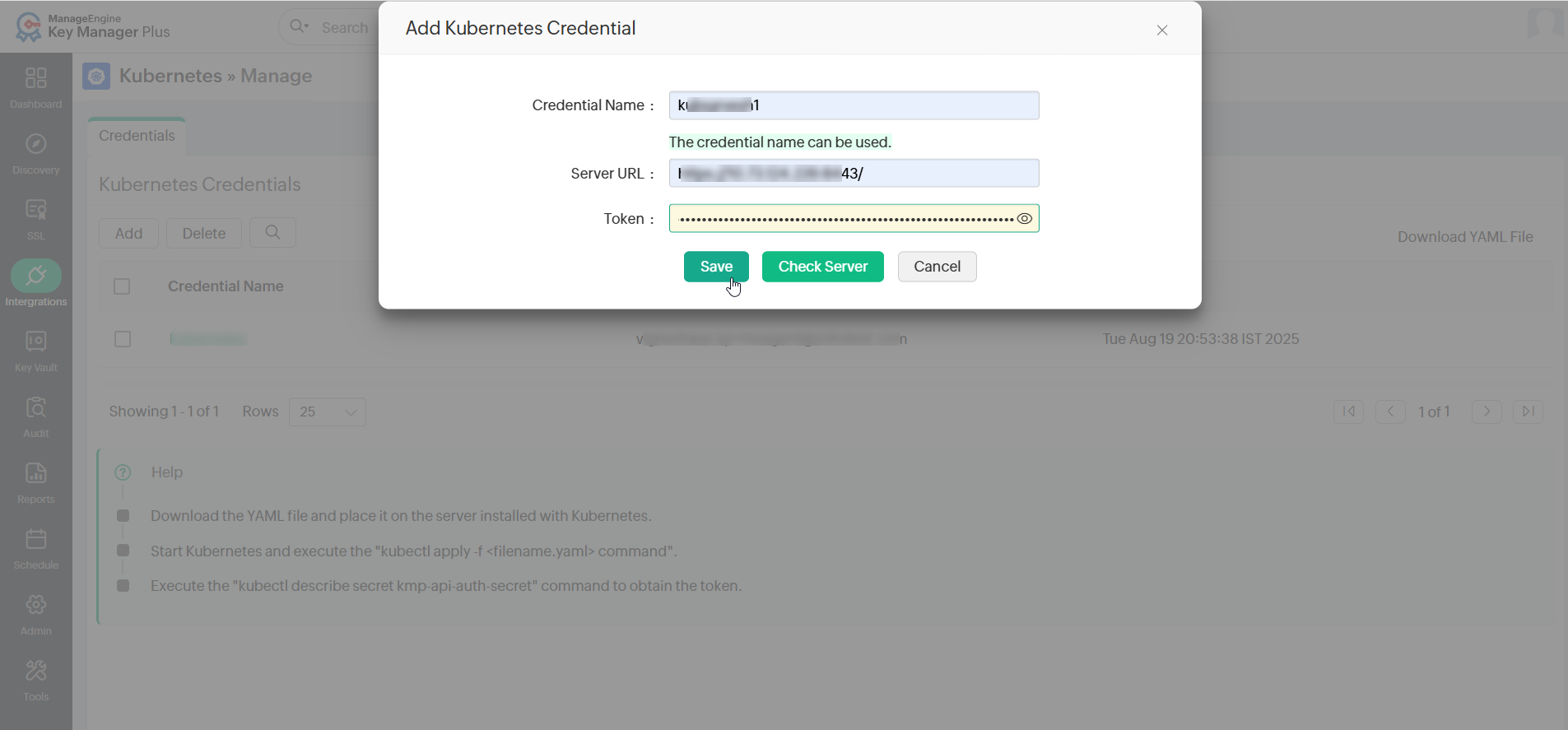
- In the pop-up that opens, enter a Credential Name, Server URL, and Token.
- Credential Name - Enter the name of your choice to identify the respective Kubernetes clusters (for example, Kub Cluster 1).
- Server URL - The URL where the Kubernetes server is running (for example, http://20.XX.XX.XXX:6445).
- Token - Enter here the token generated from the Kubernetes server.
- Now, click Check Server. This operation will validate the establishment of communication between the Kubernetes server and the Key Manager Plus Cloud.
- Click Save to complete the integration process.
The details will be saved only if the Kubernetes server is reachable to the Key Manager Plus Cloud. Furthermore, users can delete the Kubernetes credential using the Delete option in the UI.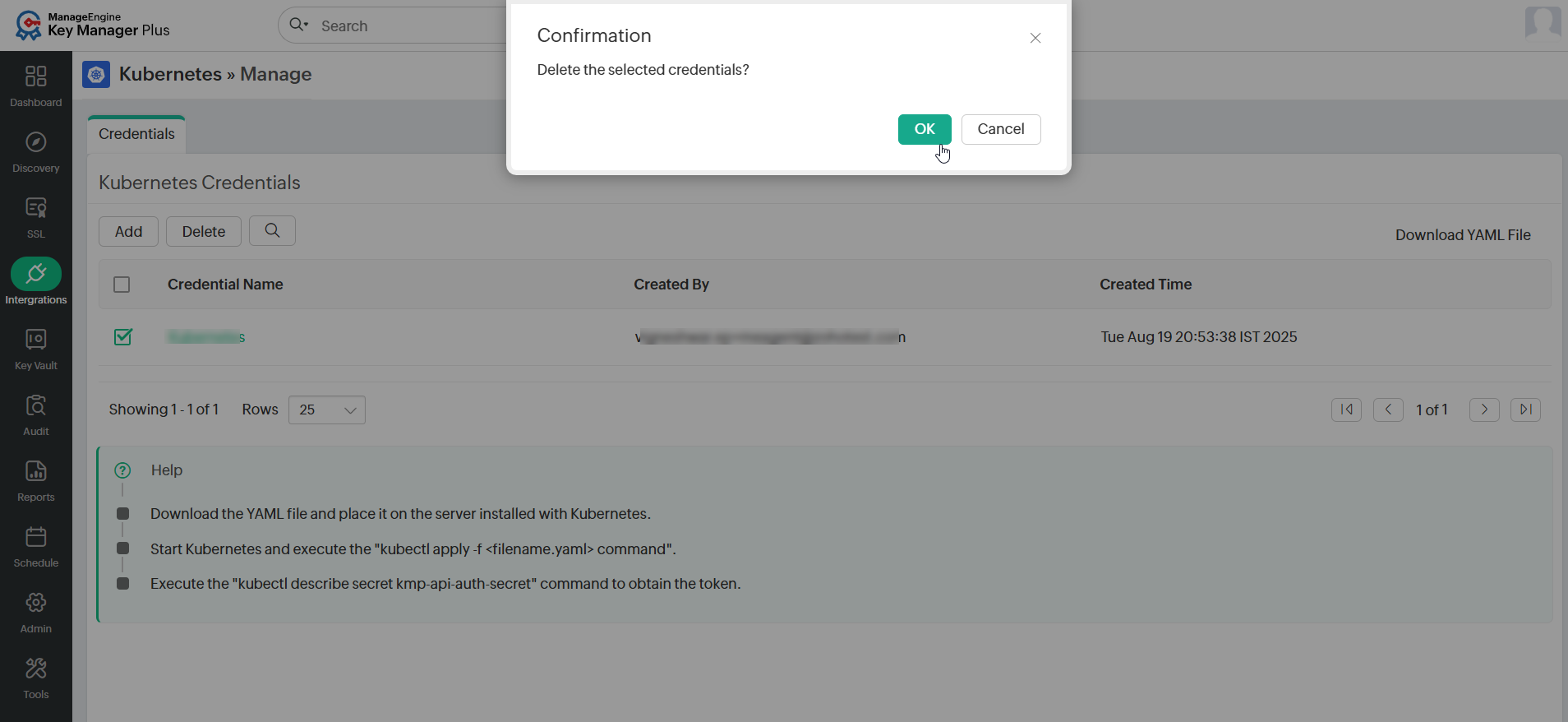
Additional Detail
The term Kubernetes credential mentioned here in this document represents the Kubernetes cluster added into the Key Manager Plus Cloud from the Kubernetes server.
3. Managing the TLS Secrets via Key Manager Plus Cloud
After adding the Kubernetes credential into the Key Manager Plus Cloud, users can perform four main operations with the added Kubernetes credential to manage the TLS secrets.
3.1 Fetch the TLS Secrets from the Kubernetes Credential
To fetch all the TLS secrets available in the Kubernetes credential into the Key Manager Plus Cloud, follow the steps below:
- Navigate to SSL >> Kubernetes and click Fetch TLS Secrets.
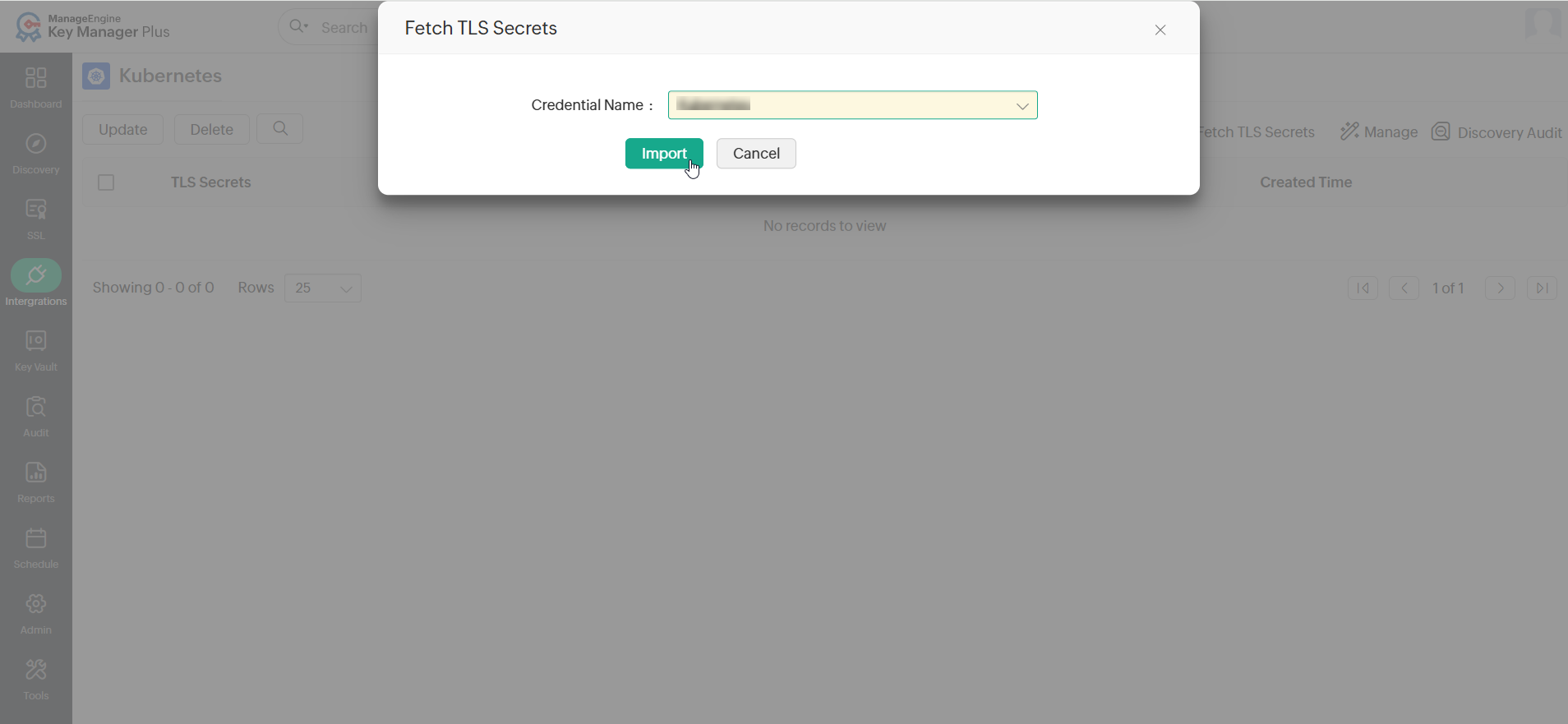
- In the pop-up that opens, select the required credential from where the TLS secrets are to be fetched and click Import.
- Now, from the selected Kubernetes credential, all the available TLS secrets will be fetched with the relevant information that includes the Credential Name (Kubernetes cluster name), Common Name, Namespace, Created Time, and Expiry Date.
3.2 Update the TLS Secrets from Key Manager Plus Cloud
When there is an expired or about-to-expire TLS secret in a Kubernetes credential, users can update it using the available Update option in the Kubernetes window. To update a TLS secret, do the steps that follow:
- Select the TLS secret that has to be updated and click Update.
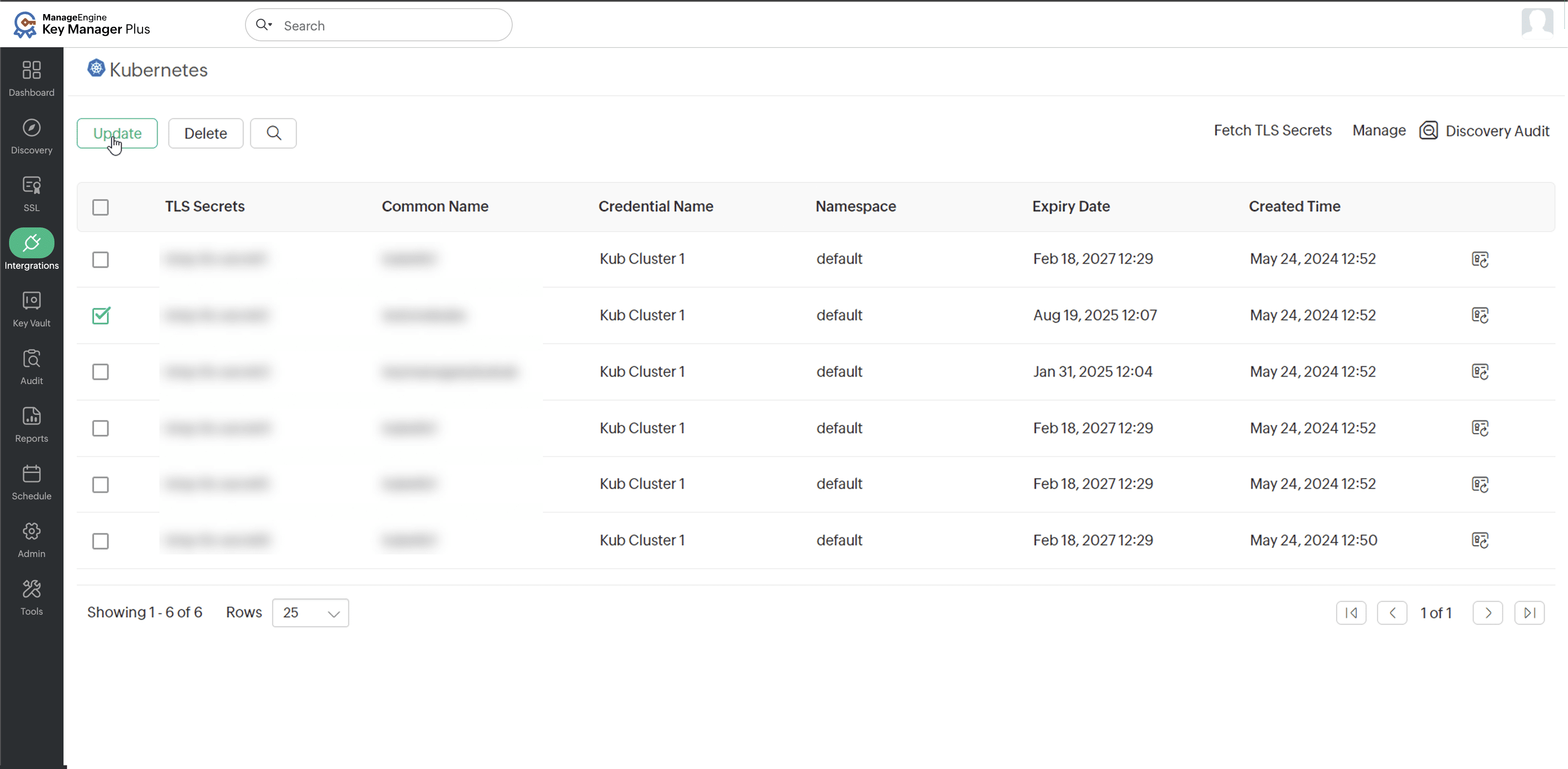
- On the page that opens, select the Kubernetes credential to which the secret has to be updated with the new TLS secret.
Additional Detail
The update operation performed in the Key Manager Plus Cloud inventory will automatically update the TLS secret in the respective Kubernetes credential (cluster).
- If there is an SSL certificate available in the Key Manager Plus Cloud inventory:
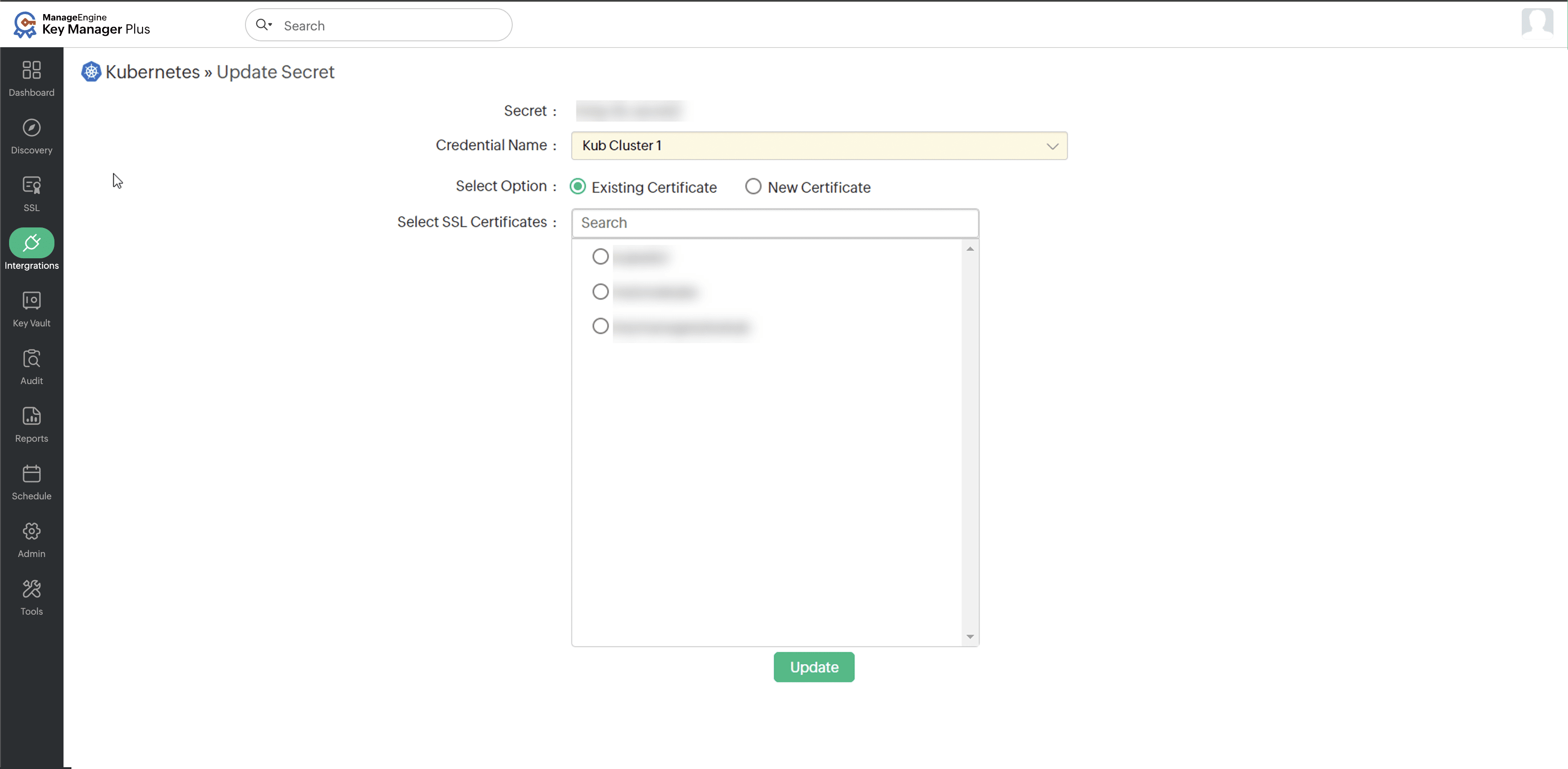
- Click Existing Certificate from the Update Secret window.
- Select the respective SSL certificate from the available list.
- Click Update to update the TLS secret.
- Using the New Certificate option, users can create new certificates using the Self-Signed or Certificate Request method.
- If you want to create a new self-signed certificate as your TLS secret:
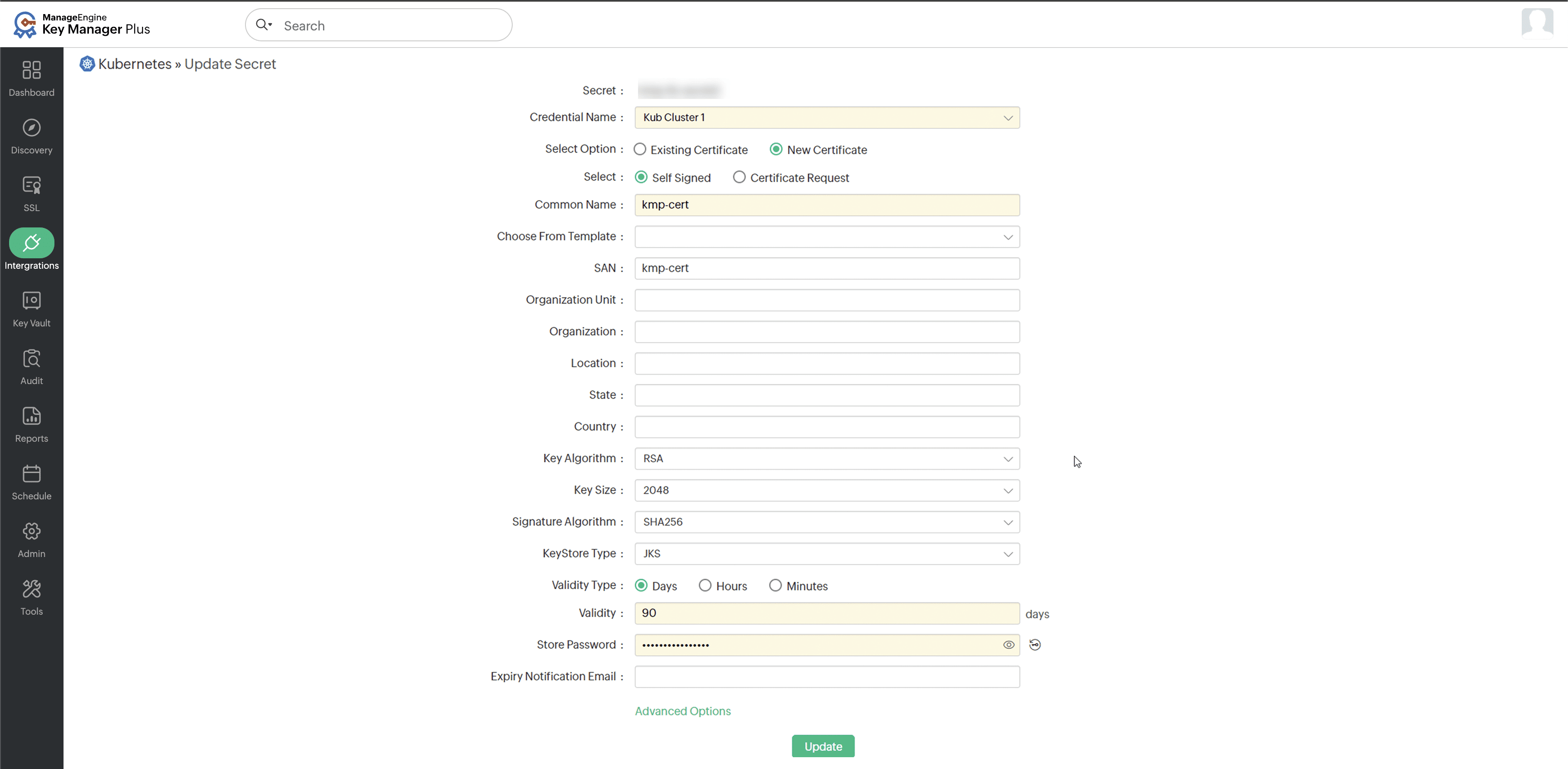
- Click Self-Signed from the Update Secret window.
- Enter the required fields such as Common Name, Key Algorithm, Key Size, Keystore Type, Validity Type, Validity, and Store Password, and click Update.
- Users can also select advanced options and enable the necessary field from the Key Usage and the Extended Key Usage as per your TLS secret requirements.
- To create a new certificate as your TLS secret signed by the Kubernetes cluster Certificate Authority, follow the below steps:
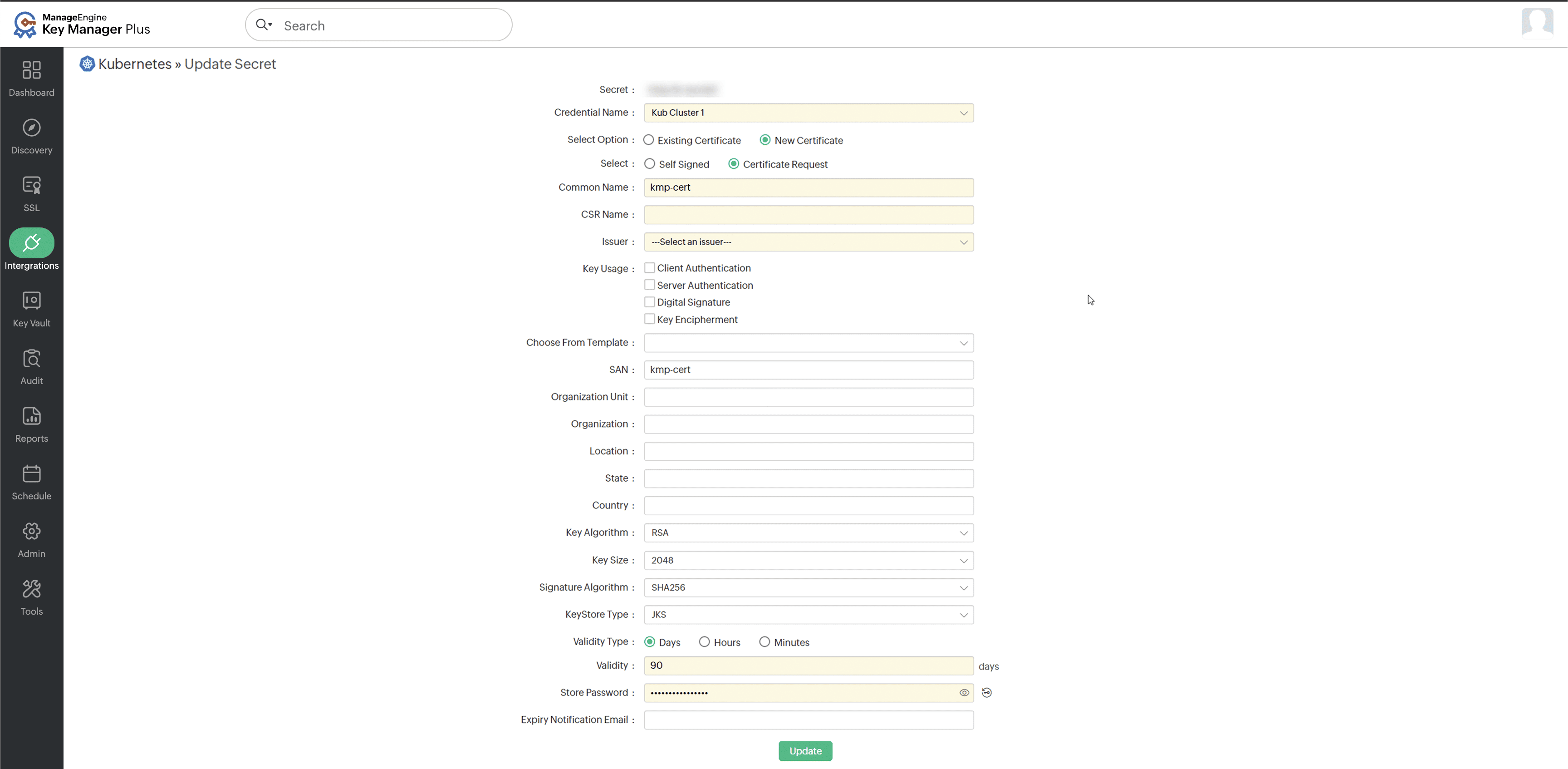
- Click Certificate Request from the Update Secret window.
- Enter the required fields such as Common Name, Key Algorithm, Key Size, Keystore Type, Validity Type, Validity, and Store Password.
- In the issuer field, select the respective Kubernetes cluster who signs the certificate based on your key usage requirement.
- Now, click Update to get the new certificate through the created request.
3.3 Delete the TLS Secrets from Key Manager Plus Cloud
Select the respective TLS secrets and click Delete to remove them from the stored Kubernetes credential in Key Manager Plus Cloud. To add the TLS secrets back, users should follow the above steps. Please note that the Delete operation will remove the secret only from the Key Manager Plus Cloud inventory and not from the Kubernetes cluster. We recommend the users to delete the TLS secret manually in the Kubernetes cluster if required.
3.4 Sync the TLS Secrets
Select the respective TLS secrets and click Delete to remove them from the stored Kubernetes credential in Key Manager Plus Cloud. To add the TLS secrets back, users should follow the above steps. Please note that the Delete operation will remove the secret only from the Key Manager Plus Cloud inventory and not from the Kubernetes cluster. We recommend the users to delete the TLS secret manually in the Kubernetes cluster if required.
4. Limitations in Managing the Kubernetes Secrets
- Key Manager Plus Cloud can only retrieve TLS secrets added to the Kubernetes cluster upon fetch. But it cannot delete/add TLS secrets that have been removed/added from/to the Kubernetes server post fetch. To keep the Kubernetes and the Key Manager Plus Cloud inventory in sync, a manual fetch is to be performed as and when required.
- Key Manager Plus Cloud does not have a built-in feature to sync with the Kubernetes server automatically at scheduled intervals.