Integrating Microsoft Certificate Authority with Key Manager Plus Cloud
Microsoft Certificate Authority (MSCA) is a vital component of Microsoft's security infrastructure, providing a robust framework for issuing, managing, and validating digital certificates across an organization. MSCA plays a pivotal role in ensuring secure communications by:
- Issuing Digital Certificates: These certificates authenticate users, devices, and services, safeguarding sensitive information by ensuring access is restricted to authorized entities.
- Managing Certificate Lifecycle: MSCA offers comprehensive tools to handle the issuance, renewal, and revocation of certificates, empowering organizations to maintain strict control over their security credentials.
By leveraging the MSCA integration, Key Manager Plus Cloud users can discover and import certificates from the MSCA server and efficiently manage the entire lifecycle of SSL certificates directly from the web interface.
Caution
Ensure that there is an existing MSCA server in the organization. Also, check if an agent is installed on the MSCA server before proceeding.
By the end of this document, you will have learned the following:
- Requesting Certificates
- Discovering Certificates
- Renewing Certificates
- Exporting Certificates
- Revoking Certificates
- Deleting Certificates
1. Requesting Certificates
To request a certificate from MSCA in Key Manager Plus Cloud, follow the steps below:
- Navigate to Integrations >> Others >> MSCA and click Request Certificate from the top menu.
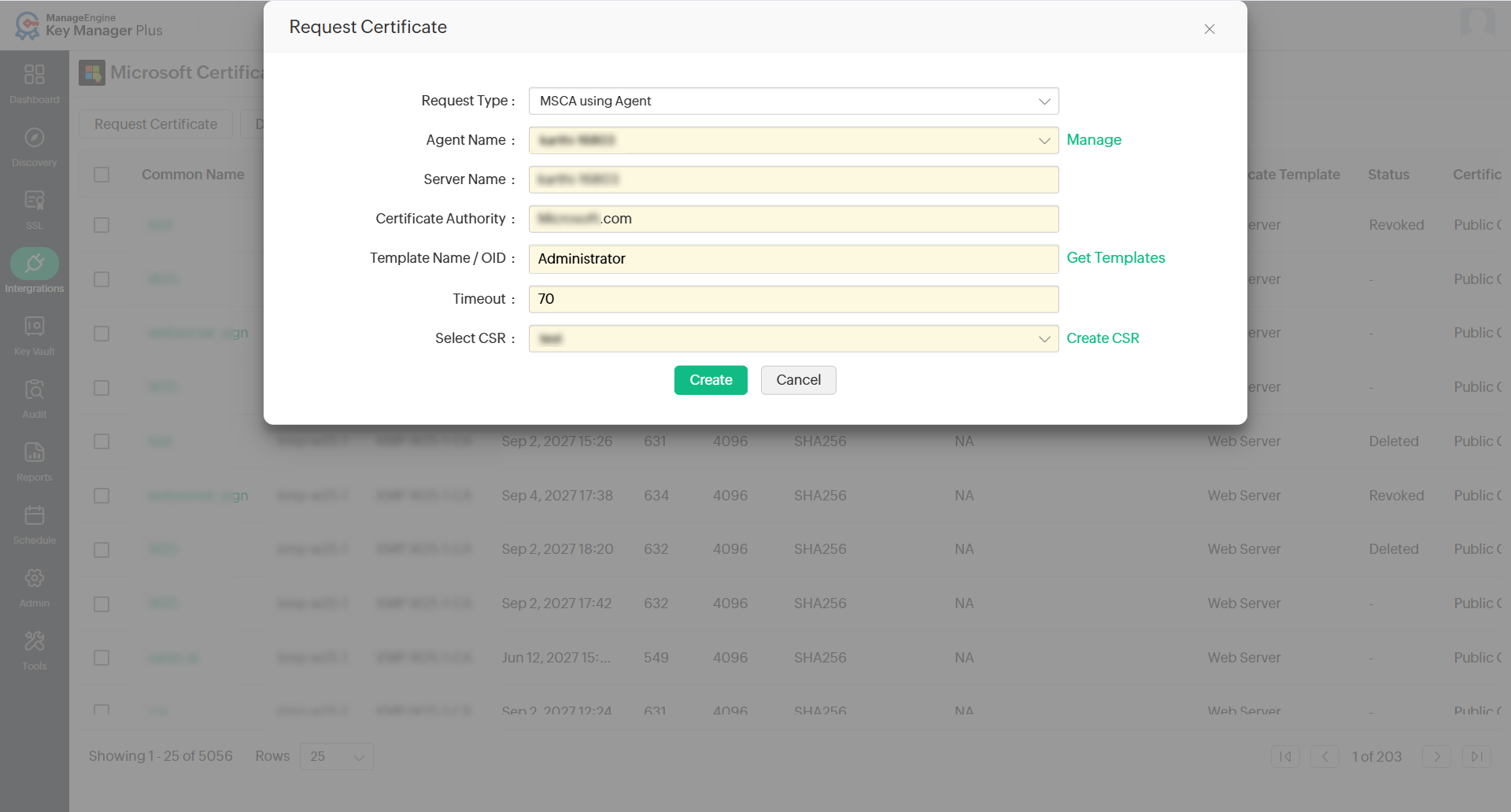
- In the pop-up window that appears,
- Select the Request Type as MSCA using Agent.
- Select the Agent from the list available in the dropdown. To manage the agents, click Manage beside the field. To know more about managing the agent, click here.
- Verify the Server Name and Microsoft Certificate Authority name that are auto-filled upon selecting the agent.
- Select the Template Name / OID based on your requirement or select any of the pre-defined templates by clicking the Get Templates link.
- Mention the agent Timeout in seconds within which the agent should respond. If the agent does not respond within the timeout period, the operation will be audited as failed.
- Select the CSR from the dropdown or click the Create CSR link to create new CSR and click Create.
2. Discovering Certificates
To discover the MSCA certificates via Key Manager Plus Cloud, follow the steps below:
- Navigate to Integrations >> Others >> MSCA and click Discover from the top menu.
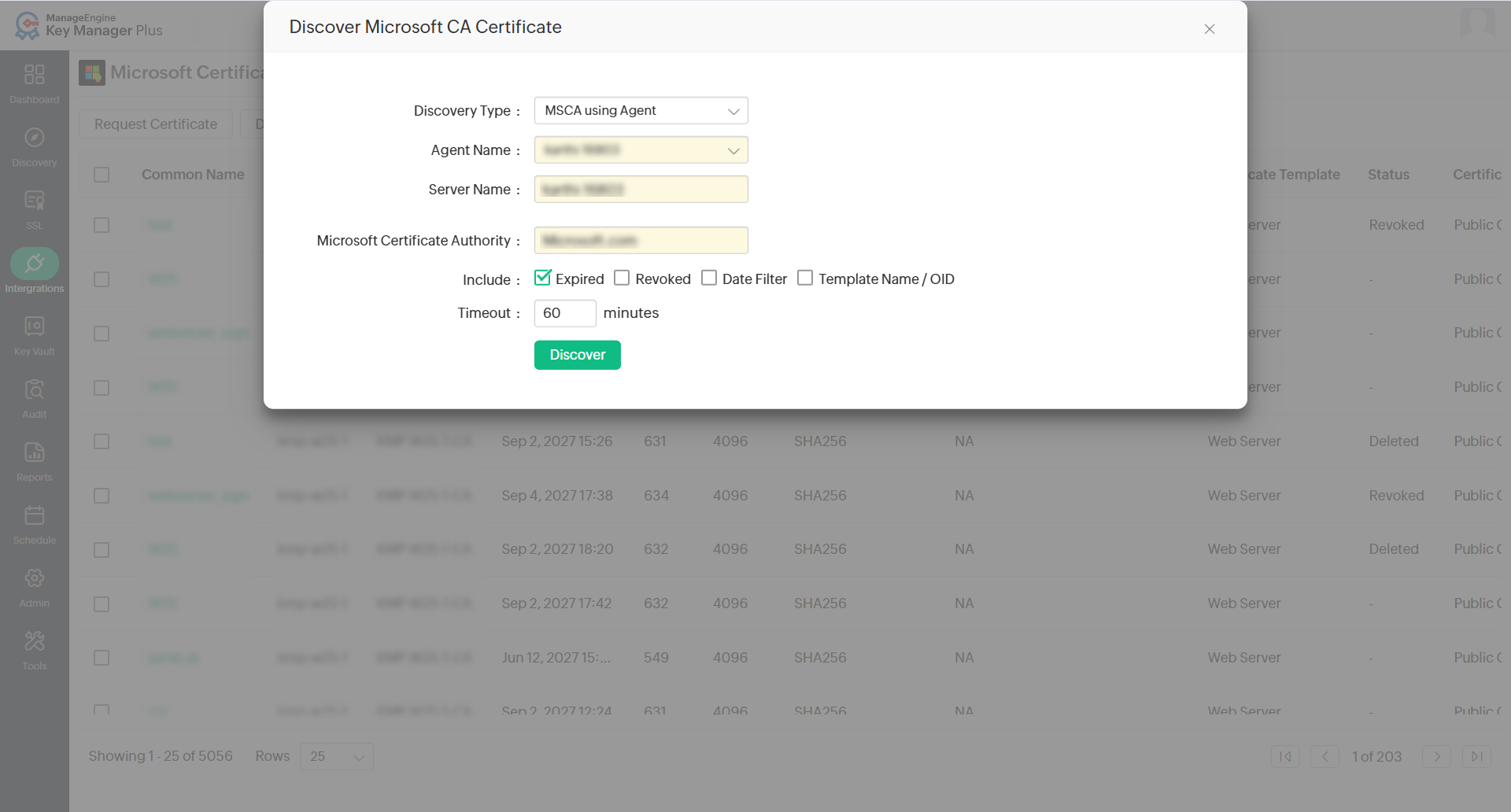
- In the pop-up that appears,
- Select the Discovery Type as MSCA using Agent.
- Select the Agent from the dropdown and mention the agent Timeout in seconds within which the agent should respond.
- Users can also choose to include Expired and/or Revoked certificates.
- To include the Date Filter, select the From and To dates.
- To include the template name or OID, select the Template Name / OID based on your requirement or select any of the pre-defined templates by clicking the Get Template link.
- Click Discover to discover the MSCA certificates. To view the discovered certificates, navigate to SSL >> Certificates.
3. Renewing Certificates
To renew an SSL certificate nearing expiry, follow the steps below:
- Select the certificate from the MSCA certificates list and click Renew from the top menu.
- If the certificate does not have a private key, create a new private key when prompted. Click OK in the pop-up that appears.
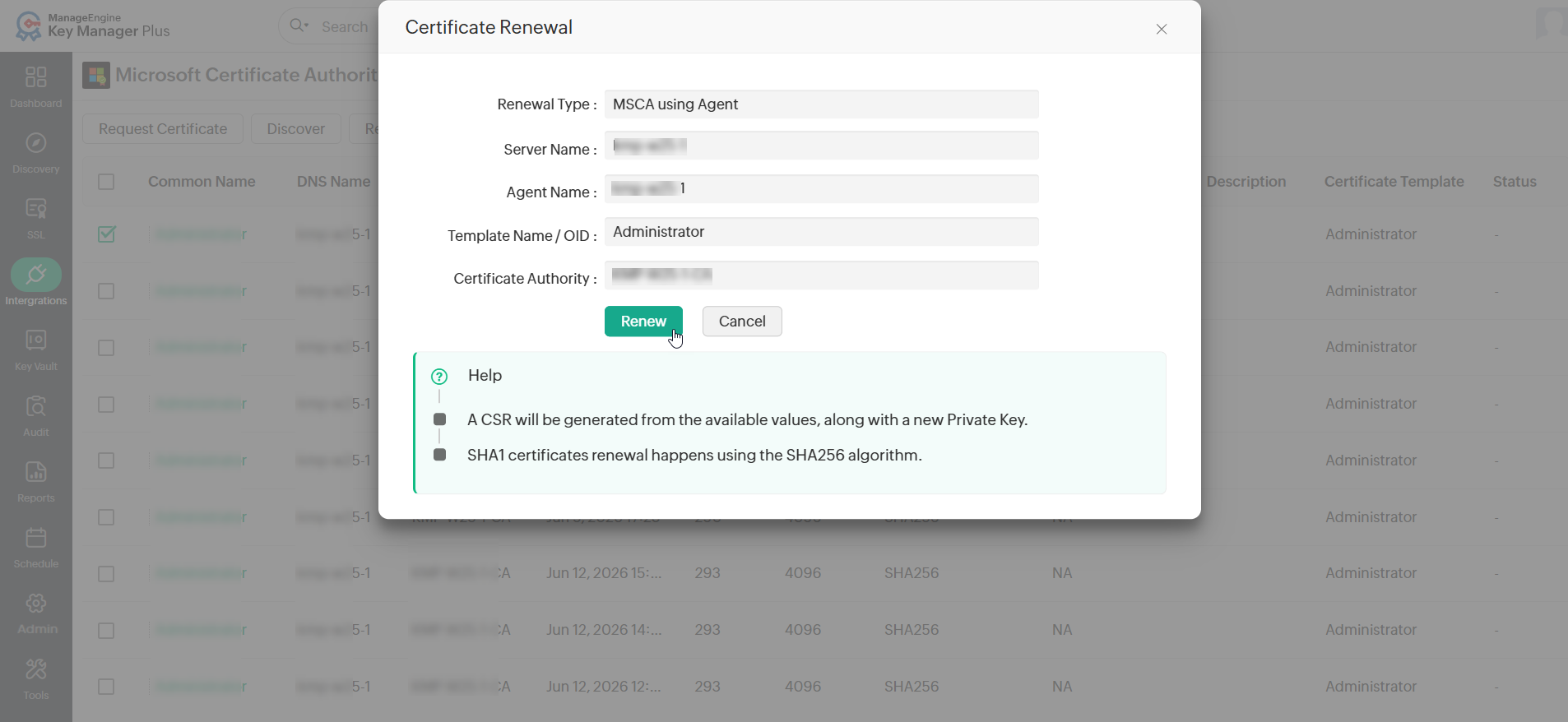
- Attributes such as Renewal Type, Server Name, Template Name / OID, Certificate Authority will be auto populated from the certificate details.
- The Server Name is the name of the Microsoft CA server which signed the certificate.
- Certificate Authority is the CA service that runs in the specified Microsoft CA server.
- For certificates signed by Microsoft CA directly or using the Key Manager Plus Cloud agent, validity days will be taken from the Microsoft CA server, and therefore, it cannot be entered manually during renewal. These types of certificates will be renewed only till the date specified in the Microsoft CA server.
Additional Details
- During the renewal process, a CSR will be generated from the available values, along with a new Private Key.
- SHA1 certificates will be renewed using the SHA256 algorithm.
Key Manager Plus Cloud also allows you to set up auto-renewal for certificates. To know how to auto-renew certificates in Key Manager Plus Cloud, click here.
4. Exporting Certificates
Key Manager Plus Cloud allows users to export the following certificate types: .cer, .crt, .pem, .der, .p7b, .pfx, .p12, .pkcs12, .jks, .keystore. To export an MSCA certificate, follow the steps below:
- Navigate to Integrations >> Others >> MSCA and click the certificate you want to export.
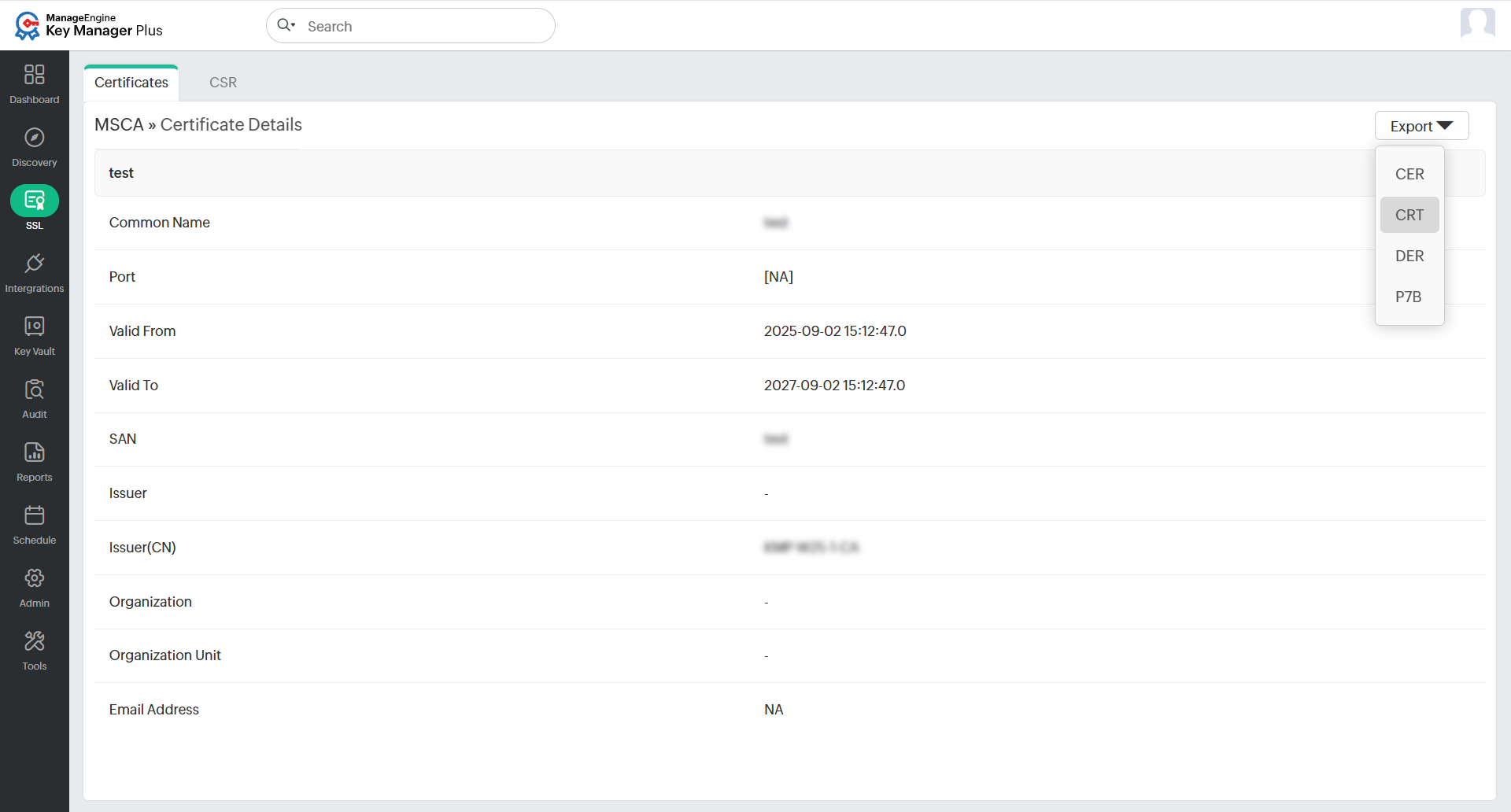
- In the Certificate Details window, click Export at the top-right corner and select the required format to export the certificate.
The certificate will be downloaded to your computer in the selected format.
5. Revoking Certificates
To revoke the MSCA certificates from Key Manager Plus Cloud, follow the steps below:
- Navigate to Integrations >> Others >> MSCA.
- Select the required certificates and click Revoke from the top menu.
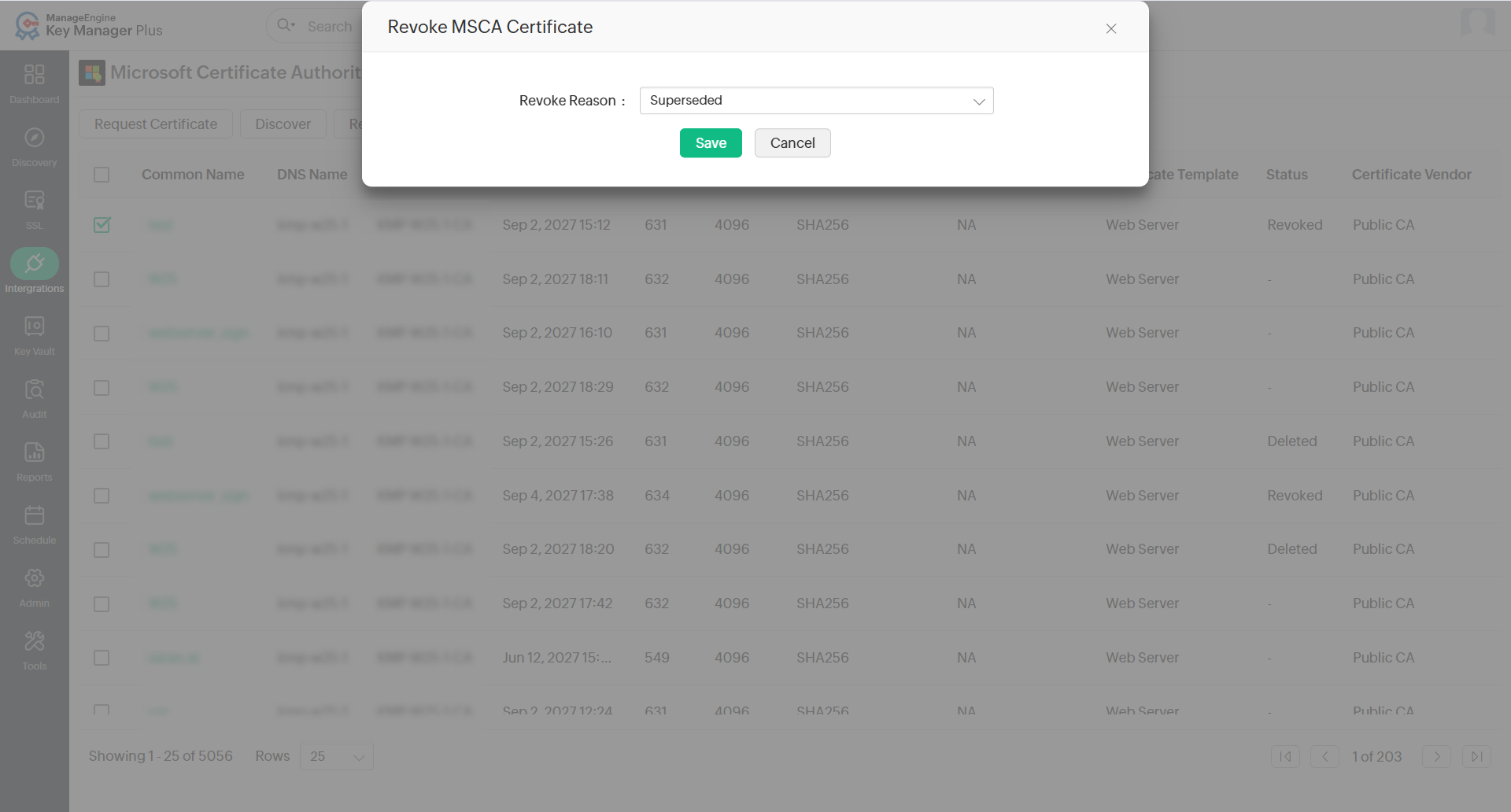
- In the pop-up window that appears, select the Revoke Reason and click Save.
6. Deleting Certificates
To delete the MSCA certificates from Key Manager Plus Cloud, follow the steps below:
- Navigate to Integrations >> Others >> MSCA.
- Select the required certificates and click Delete from the top menu.
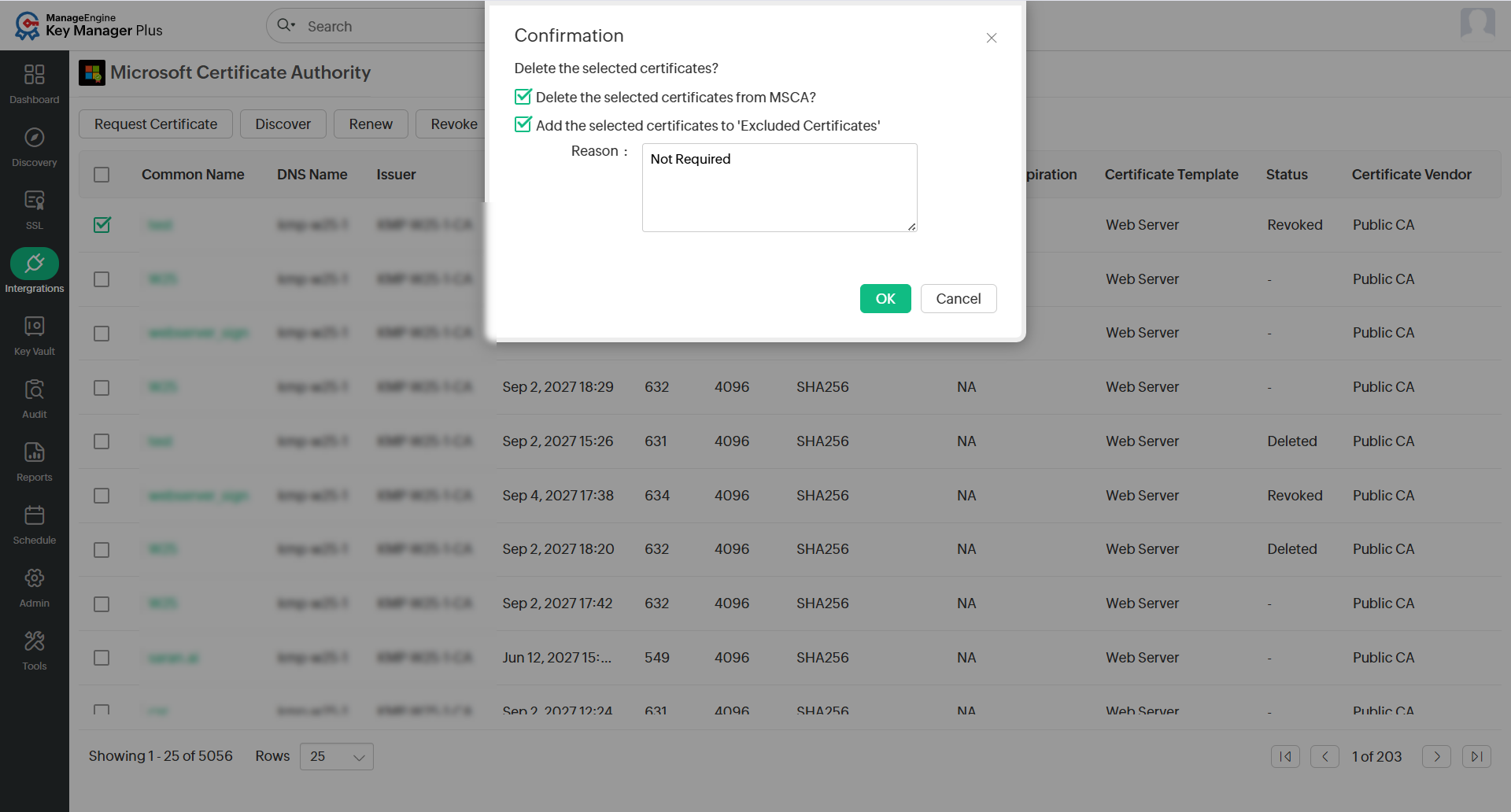
- In the pop-up window that appears, users have the following options to delete the selected certificates:
- Delete selected certificates from MSCA?
- Add selected certificates to 'Excluded certificates'
- Select the required option and click OK to delete the certificate.