Managing SSL Settings
Key Manager Plus Cloud provides a range of configurable settings designed specifically for managing SSL operations. These settings allow users to customize and optimize their security workflows to meet their organization's needs. The following key configurations are available within the SSL settings, enabling organizations to maintain secure and efficient management of SSL certificates. This reduces operational risks and ensures compliance with security best practices.
- Certificate History
- SSL Vulnerability
- SSL Fingerprint
- Certificate Renewal
- Certificate Sync Status
- ACME Providers
- Excluded Certificates
- IIS Binding
- Operator Settings
1. Certificate History
Key Manager Plus Cloud provides the option to manage the certificates by grouping them under a common name. Follow these steps to enable this feature:
- Navigate to Admin >> SSL Settings >> Certificate History.
- Choose to Enable or Disable the Group Certificates by Common Name option.
- Enabling the option will group the certificates under one Common Name.
- Disabling this option will create new certificates based on the unique Serial Numbers assigned to the certificate.
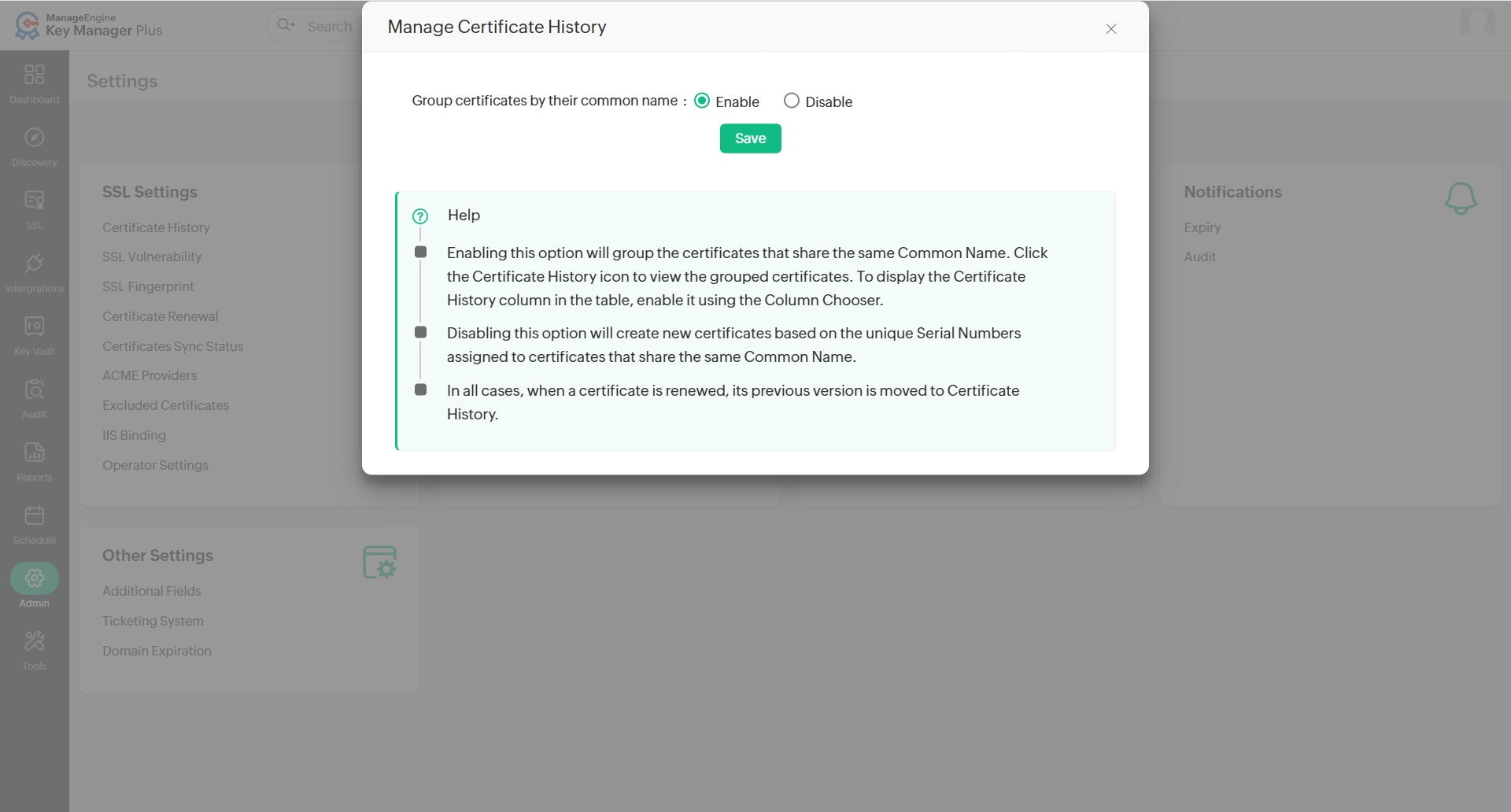
- To view these certificates, navigate to SSL >> Certificates and enable Certificate History from the column chooser.
- Next, click the Certificate History icon next to the desired certificate to access its history.
Additional Detail
When a certificate is renewed, the older version of the renewed certificate will be moved to the Certificate History section.
2. SSL Vulnerability
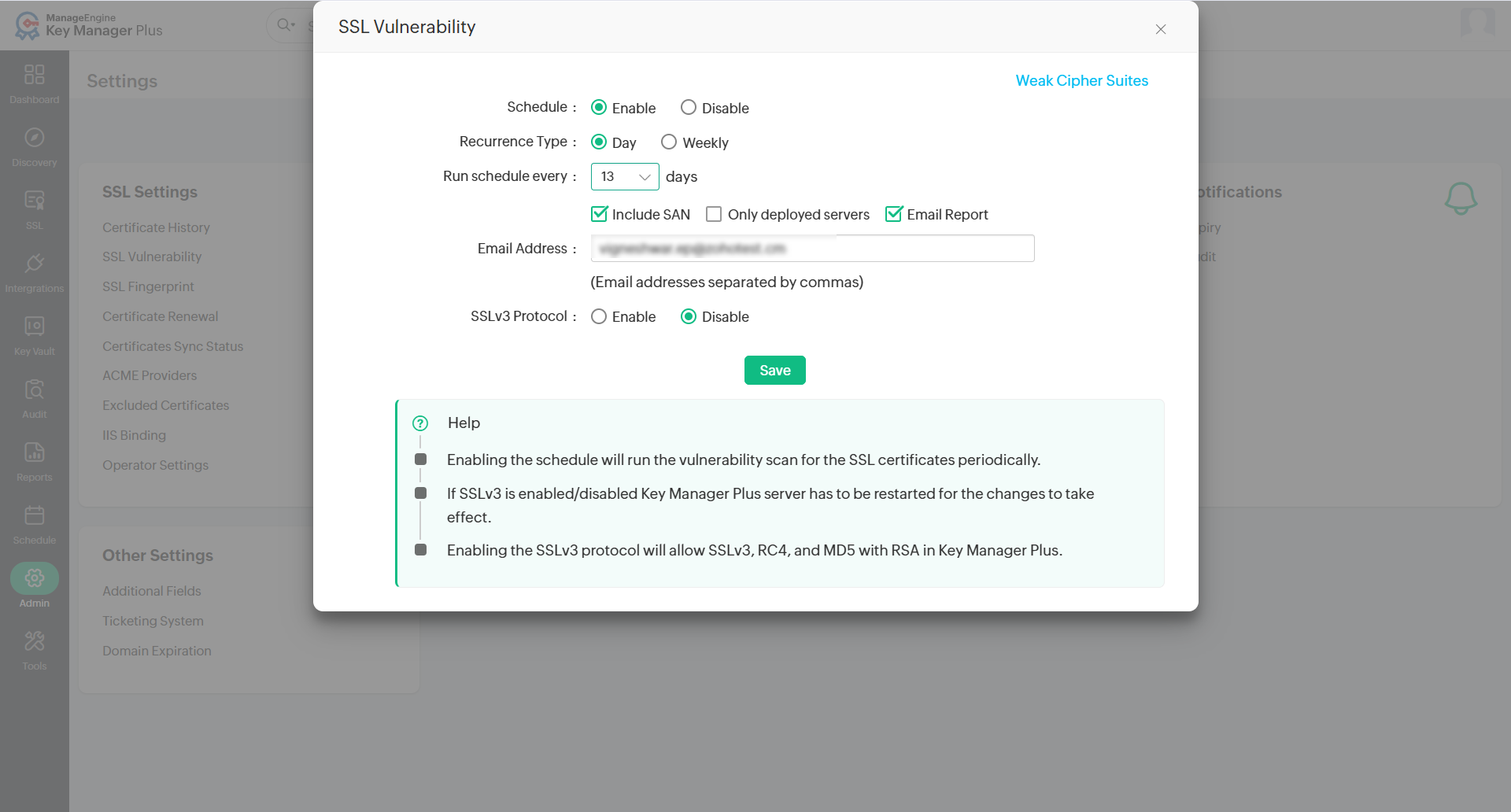
Key Manager Plus Cloud allows you to manage SSL vulnerability scanning as part of scheduled tasks. You can choose to enable or disable these vulnerability scans as needed. Additionally, you can control the use of the SSLv3 protocol on the Key Manager Plus Cloud server.
To configure these settings, follow the steps below:
- Navigate to Admin >> SSL Settings >> SSL Vulnerability.
- Under Schedule Task, select Enable to include SSL vulnerability scans in scheduled tasks, or Disable to exclude them.
- Choose the Recurrence Type as Day or Weekly, and set the interval in days for the scan under Run schedule every.
- Select the respective checkboxes Include SAN, Only deployed servers, and Email Report to customize the scan and email the results to specified addresses.
- Under SSLv3 Protocol, select Enable to allow the use of the SSLv3 protocol during scans, or Disable to turn it off.
Caution
The SSLv3 protocol should be enabled in Key Manager Plus Cloud server to perform SSL vulnerability scans on target resources. By default, this setting is disabled.
3. SSL Fingerprint
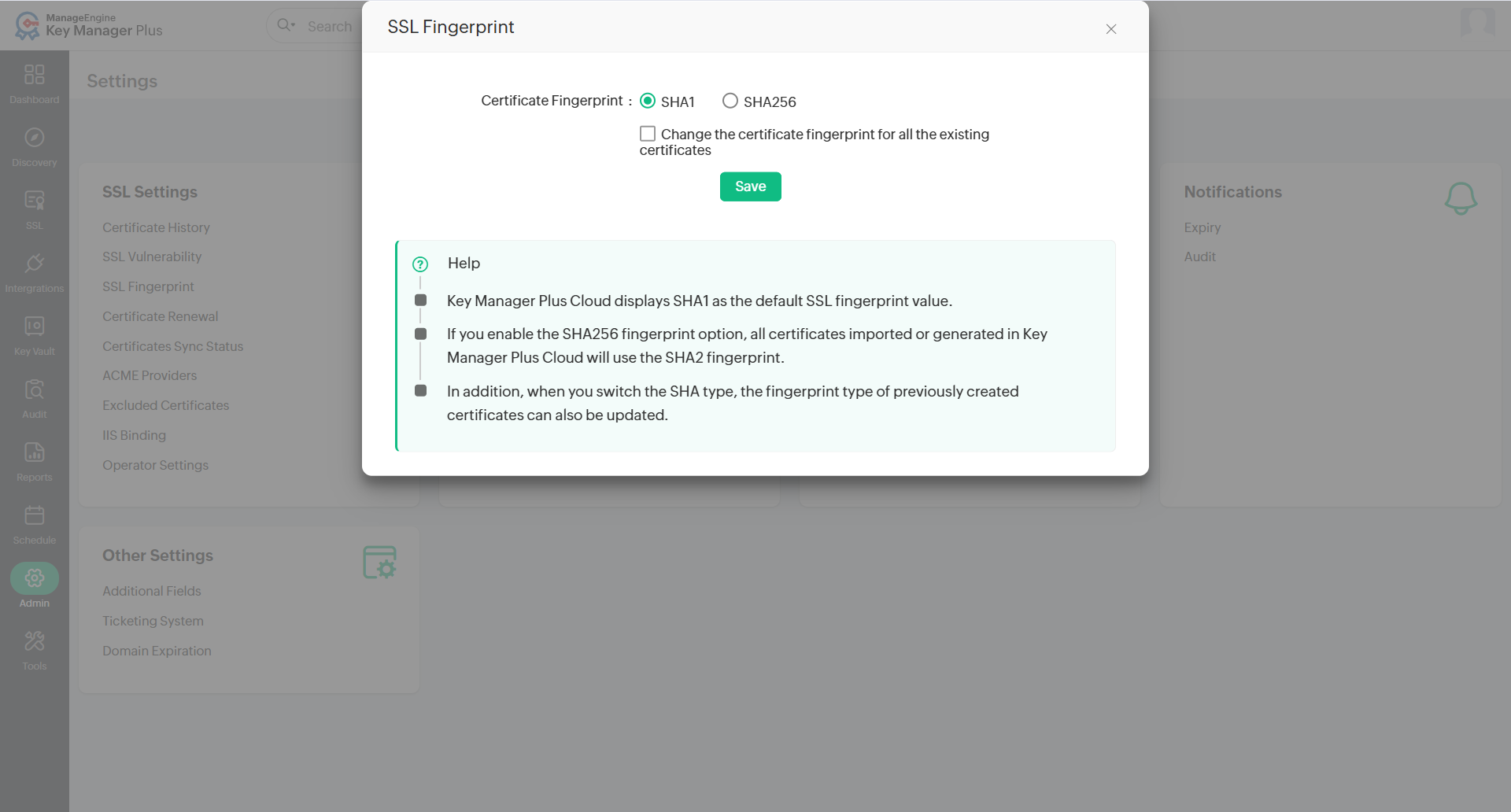
By default, SSL certificates in Key Manager Plus Cloud are configured with the SHA1 fingerprint value. For enhanced security, you can update the fingerprint algorithm to SHA256. To configure this setting, follow the steps below:
- Navigate to Admin >> SSL Settings >> SSL Fingerprint.
- Under Certificate Fingerprint, select SHA256.
- If you want to update existing certificates to use SHA256, enable the checkbox Change the certificate fingerprint for all the existing certificates.
- Click Save to apply the changes.
Additional Detail
After this change, all newly generated or imported SSL certificates will use the SHA256 fingerprint. Existing certificates will be updated only if the checkbox is enabled before saving.
4. Certificate Renewal
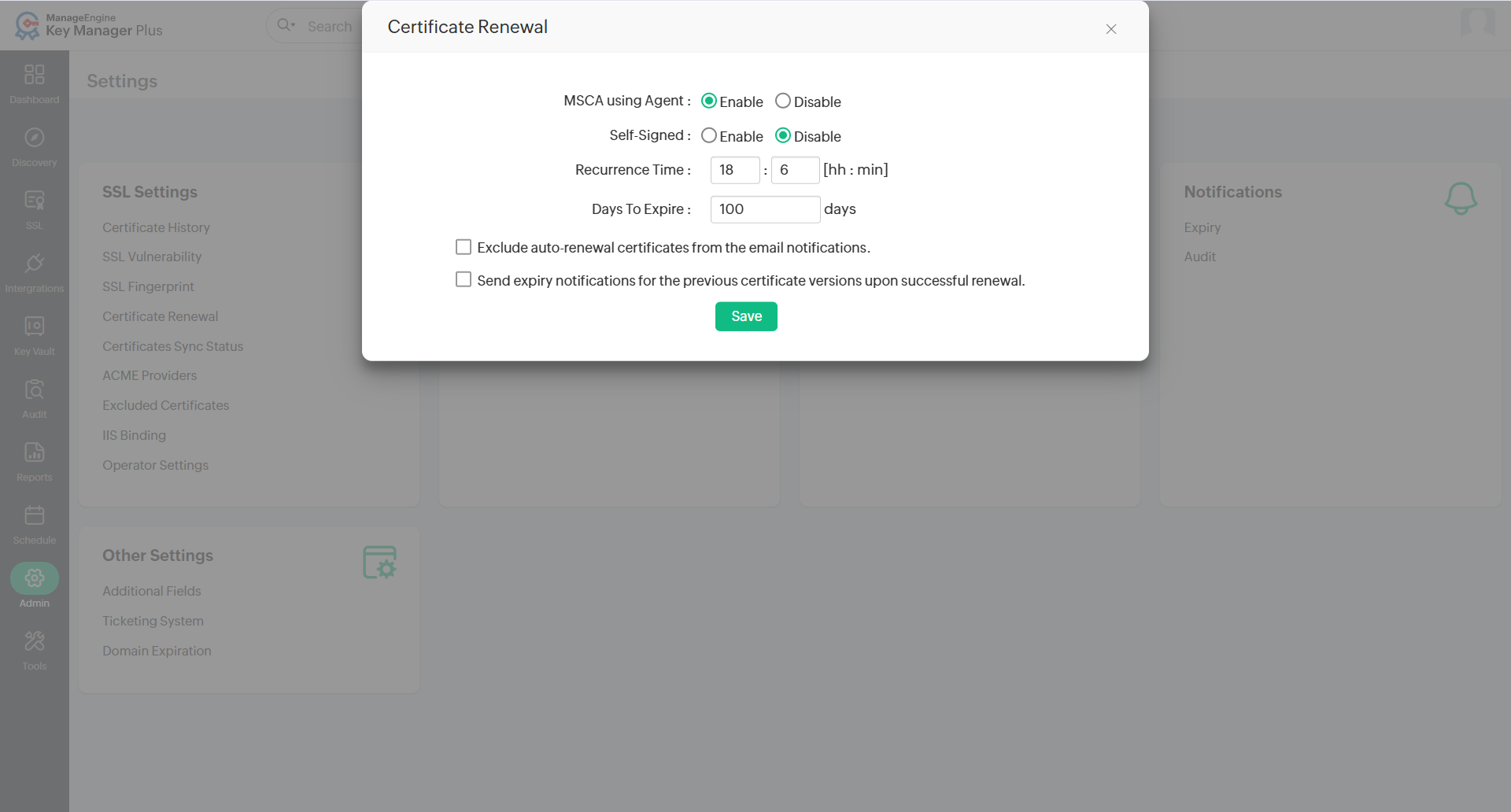
Key Manager Plus Cloud allows automatic renewal of SSL certificates issued by Microsoft Certificate Authority using an agent, and self-signed certificates created within the application. When enabled, the certificates are renewed automatically before expiration, ensuring continuous certificate validity without manual intervention.
To configure certificate renewal settings, follow the steps below:
- Navigate to Admin >> SSL Settings >> Certificate Renewal.
- Under MSCA using Agent, select Enable to allow automatic renewal of certificates issued by Microsoft Certificate Authority using agent, or Disable to turn it off.
- Under Self-Signed, select Enable to allow automatic renewal of self-signed certificates, or Disable to turn it off.
- Set the Recurrence Time for the renewal task to run and specify the number of Days to Expire to determine when certificates should be considered for renewal.
- Select the checkbox Exclude auto-renewal certificates from the email notifications to exclude auto-renewed certificates from notifications, and select the checkbox Send expiry notification for the previous certificate versions upon successful renewal to receive alerts for the old certificate after renewal.
- Click Save to apply the changes.
Caution
For successful auto-renewal of Microsoft CA certificates, ensure the Key Manager Plus Cloud agent is properly configured and has the necessary permissions.
5. Certificates Sync Status
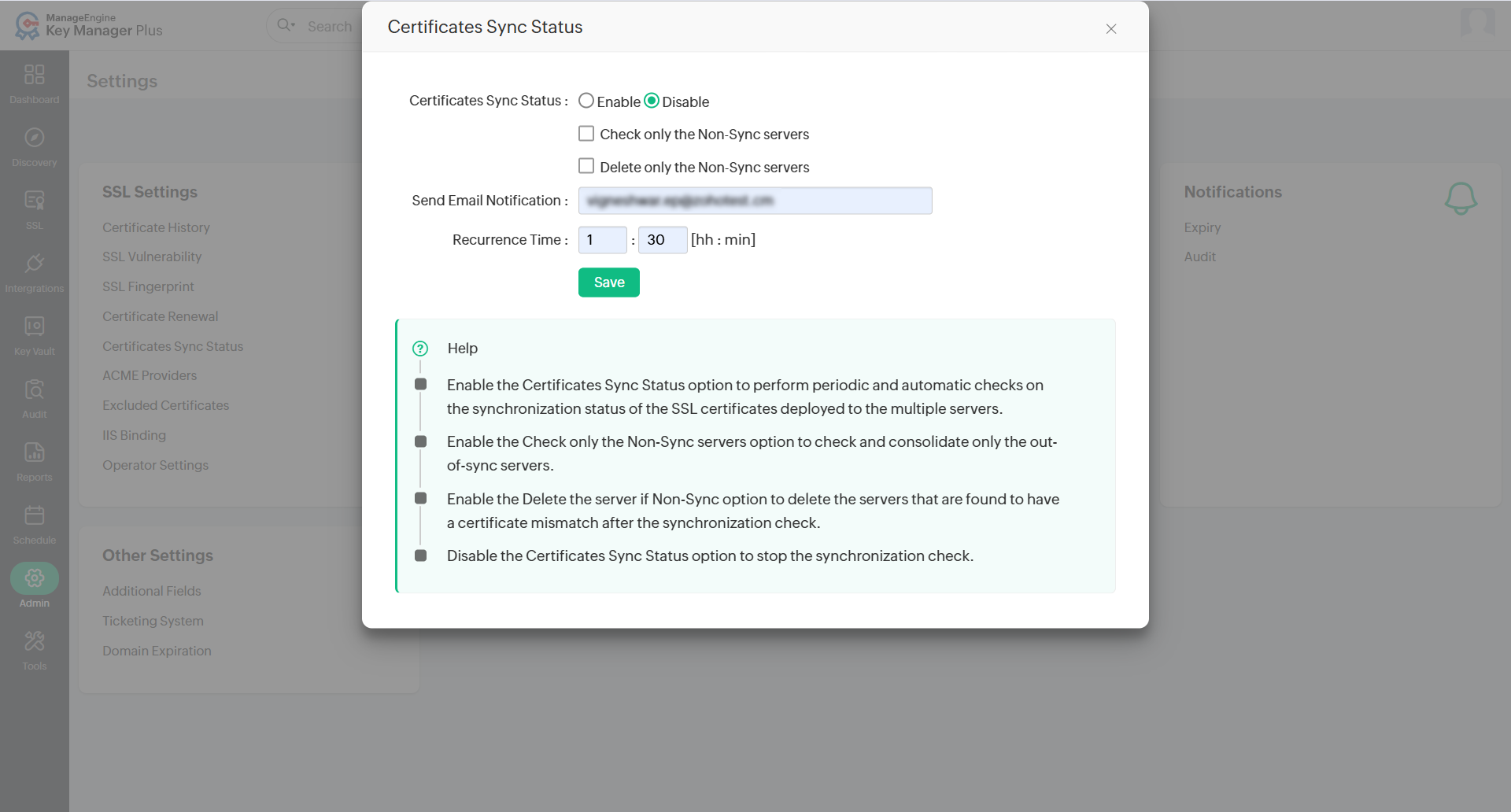
Key Manager Plus Cloud allows users to perform periodic and automatic checks on the synchronization status on the SSL certificates deployed to multiple servers. When enabled, Key Manager Plus Cloud gives you options to check for out-of-sync servers and delete the servers in which there is a certificate mismatch.
To configure the certificate sync status check, follow the steps below:
- Navigate to Admin >> SSL Settings >> Certificates Sync Status.
- Click Enable, then enter the desired recurrence time interval in hours or minutes.
- Check Only Non-Sync Servers - select this option to check and consolidate only the out-of-sync servers.
- Delete Non-Sync Servers - select this option to delete the servers that are found to have a certificate mismatch after the synchronization check.
- In the Send Email Notification field, enter the email address where sync status reports should be sent. The report will include details such as days to expire, expiry date, serial number, and fingerprint of the certificates.
- Click Disable to turn off the synchronization check.
6. ACME Providers
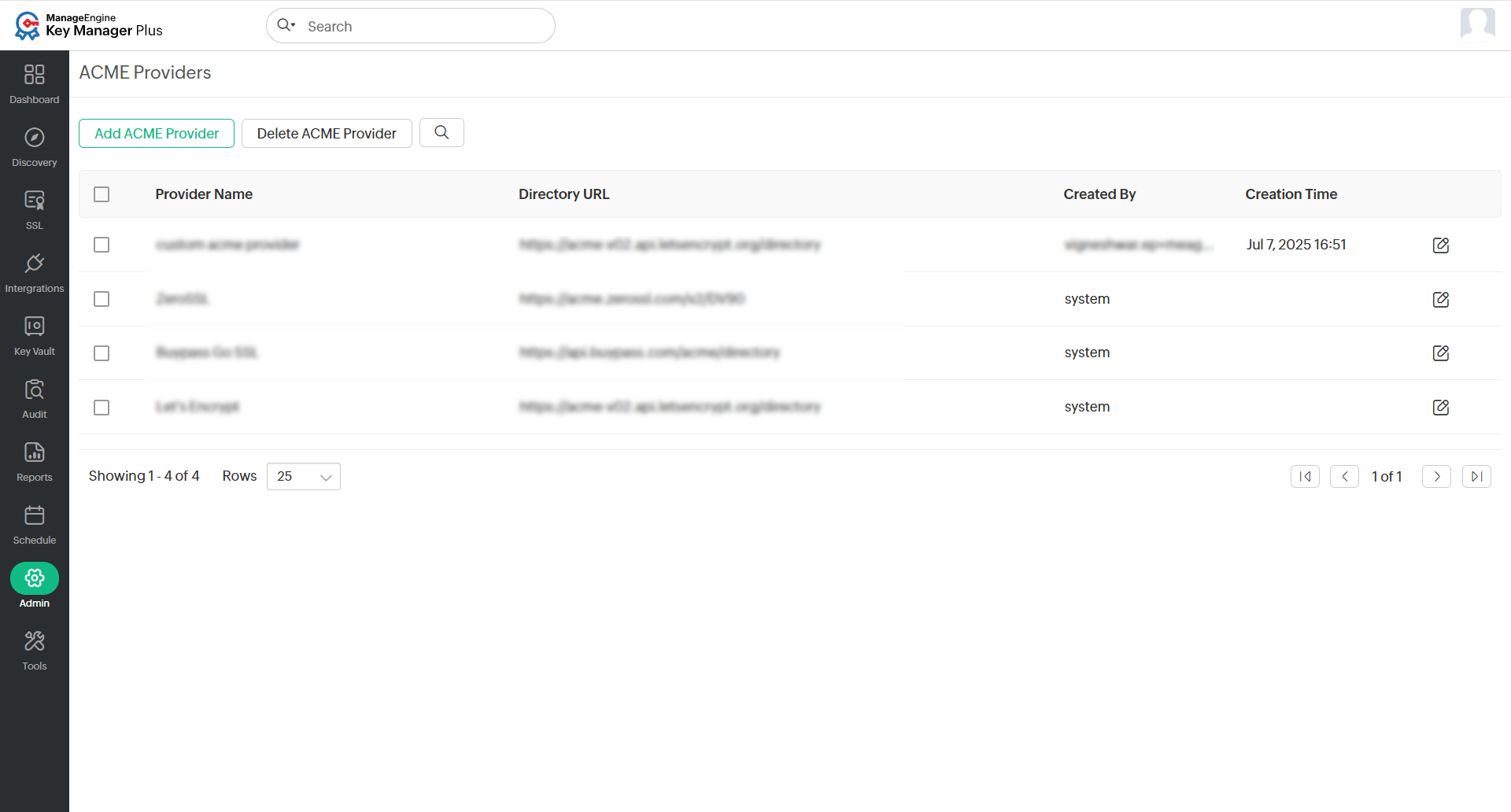
The Automated Certificate Management Environment (ACME) automates the process of managing SSL/TLS certificates. It simplifies the tasks of acquiring, renewing, and revoking certificates, reducing manual effort and minimizing the risk of expired certificates causing downtime. Key Manager Plus Cloud supports ACME integration, allowing you to add and manage trusted ACME service providers, including popular ones like Let’s Encrypt, Buypass Go SSL, and ZeroSSL. You can also add custom ACME providers used in your organization.
To configure ACME providers in Key Manager Plus Cloud, follow the steps below:
- Navigate to Admin >> SSL Settings >> ACME Providers.
- On the page that opens, you will see a list of default ACME providers.
- Click Add ACME Provider in the top-left corner.
- In the dialogue box that appears:
- Enter the ACME Provider Name.
- Enter a valid ACME Directory URL.
Additional Detail
If the directory URL is modified by the ACME provider, updating the modified URL here will retrieve all the URLs relevant to the ACME operations.
- Upload a logo as desired within the specified limit.
- Click Save to add the ACME provider to Key Manager Plus Cloud.
- After adding, select the newly added provider from the list.
- In the window that opens, follow the configuration process, such as account addition, challenge verification, and managing certificates similar to other third-party certificate authorities.
Additional Details
- Automatic certificate renewal is supported only for certificates stored in the Key Manager Plus Cloud certificate inventory.
- If agent mapping is configured, the renewal and deployment process happens automatically without manual intervention.
- All certificates issued by ACME providers will be automatically renewed 15 days before expiration, and an email notification will be sent to the corresponding account holder’s email address.
7. Excluded Certificates
Key Manager Plus Cloud allows users to exclude specific SSL certificates from being imported into the certificate inventory during discovery or manual addition. To add certificates to the exclusion list, follow these steps:
- Navigate to Admin >> SSL Settings >> Excluded Certificates.
- Click Add to add a new certificate to the excluded list.
- Provide the Common Name, Certificate Serial Number, and Reason for exclusion.
- Click Save to apply the changes.
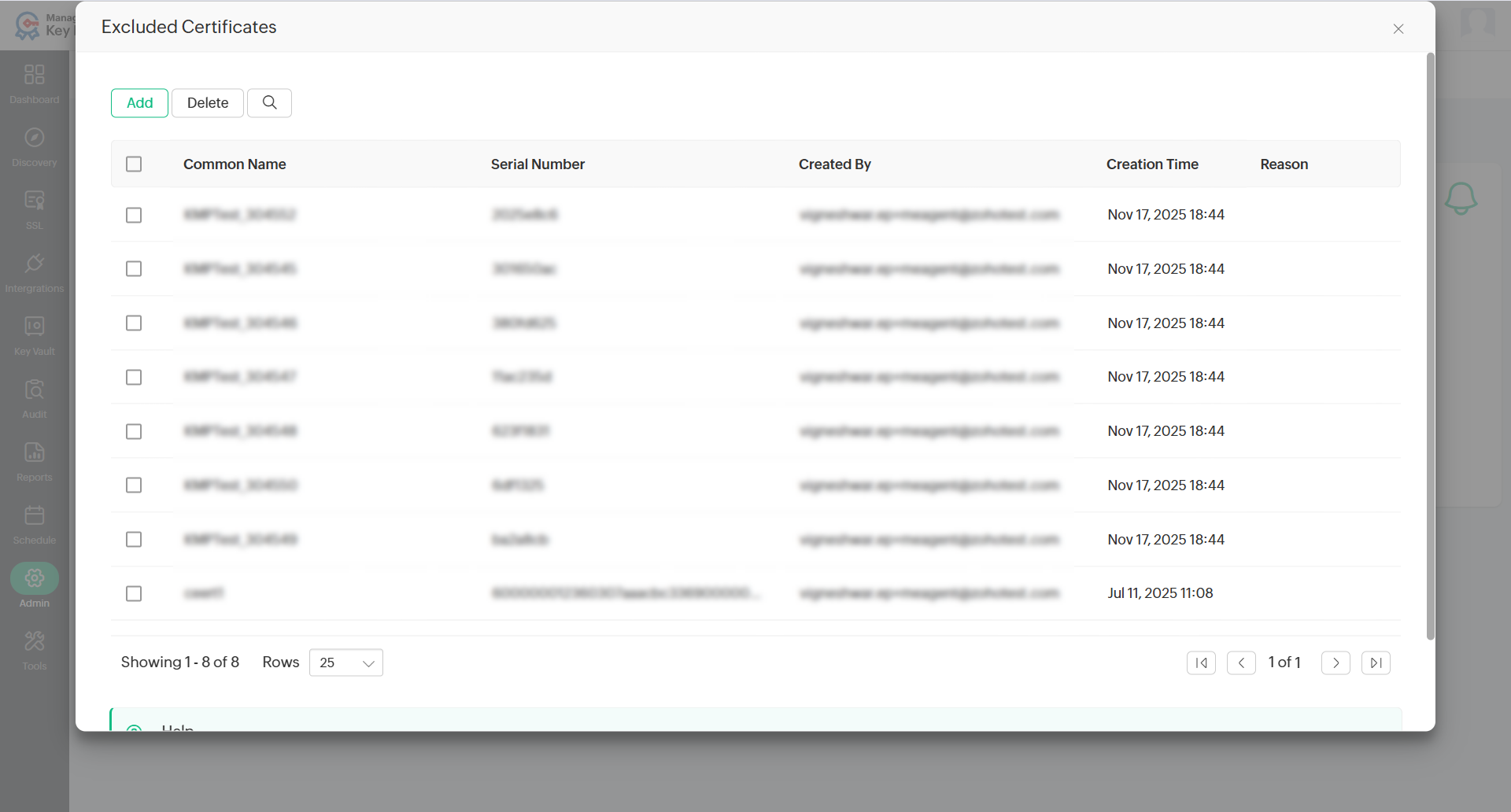
The specified certificate is excluded from being imported into Key Manager Plus Cloud certificate inventory during discovery / manual addition.
8. IIS Binding
Key Manager Plus Cloud allows users to deploy SSL certificates to the IIS server and also perform IIS binding. Click here for detailed steps on IIS binding. Once the server details are saved in the SSL tab, they will also be available in the Admin page.
To deploy and bind certificates in bulk, follow the steps below:
- Navigate to Admin >> SSL Settings >> IIS Binding.
- The servers to which certificates have been deployed will be listed. Click the Edit icon beside a server to edit attributes such as Hostname, Port, and Certificate. Select the Restart Site checkbox to restart the site automatically. Click Save to apply the changes.
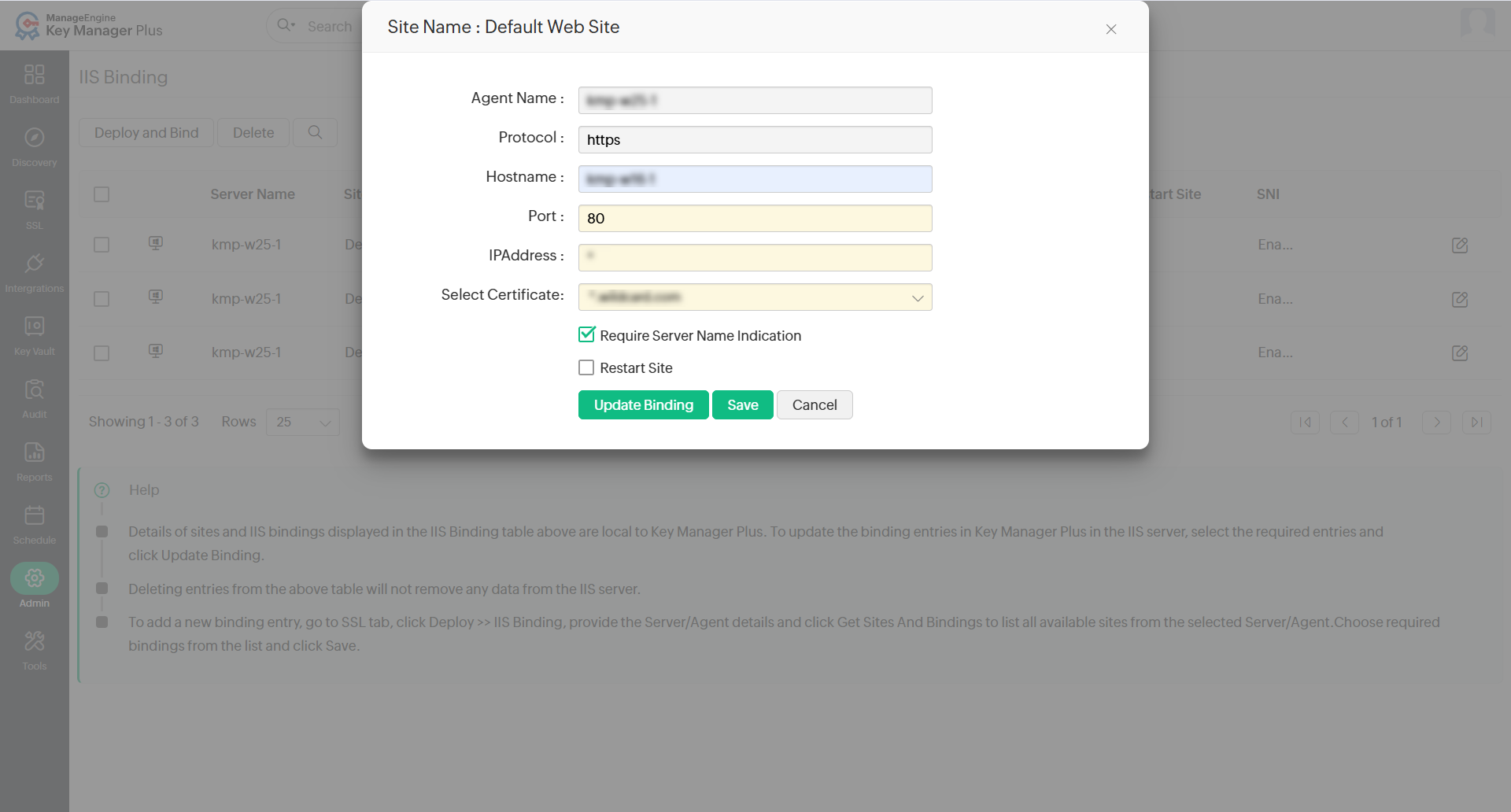
- To deploy and bind certificates in bulk, select multiple servers using the checkboxes beside them and click Deploy and Bind from the top bar.
The SSL certificates will be deployed to the associated servers, and IIS binding to the specified sites will be completed.
9. Operator Settings
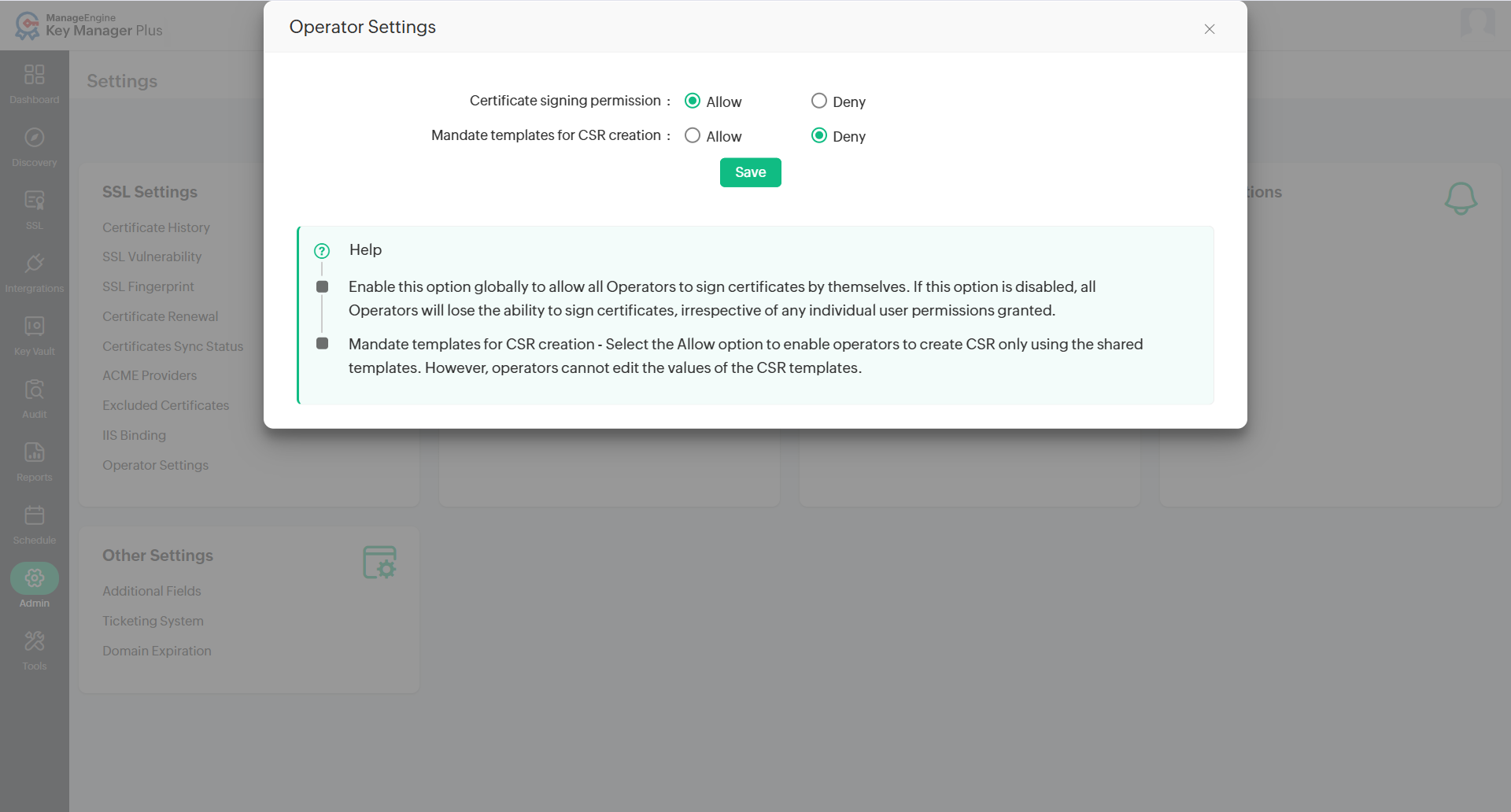
Key Manager Plus Cloud allows administrators to Allow or Deny operators the permission to sign CSRs they create and to mandate the use of CSR templates during request creation. To configure operator settings, follow the steps below:
- Navigate to Admin >> SSL Settings >> Operator Settings.
- In the Operator Settings pop-up:
- Certificate Signing Permission: Set this to Allow to enable users with the Operator role to sign the CSRs they create.
- Mandate Templates for CSR Creation: Set this to Allow to restrict operators to use only the CSR templates shared by administrators. With this option enabled, operators cannot modify the values in the templates.
- Click Save to apply the settings.
Additional Detail
By default, the Mandate Templates for CSR Creation option is set to Deny, allowing operators to create CSRs independently or use available templates with editable fields.