Managing SSL Certificates on Multiple Servers
Managing SSL certificates across multiple servers can be complex and time-consuming without the right tools. Key Manager Plus Cloud simplifies this process by offering a centralized platform to deploy, monitor, and maintain SSL certificates on multiple servers from a single interface. Whether you are deploying certificates to multiple systems, tracking deployment status, or modifying server configurations, the platform ensures a secure and scalable approach to certificate lifecycle management.
This help page provides step-by-step guidance on key operations such as deploying certificates to multiple servers, managing deployed server information, performing sync checks, setting up auto-deployment, customizing fields, and importing/exporting server credentials.
By the end of this document, you will understand how to perform the following operations:
- Deploying the Certificate to Multiple Servers
- Adding the Deployed Servers to a Certificate
- Modifying the Deployed Server Details
- Deleting a Deployed Server
- Auto-deploying a Certificate
- Checking the Sync Status
- Creating Additional Fields
1. Deploying the Certificate to Multiple Servers
To deploy a certificate to multiple servers,
- Navigate to the SSL >> Certificates tab.
- Select the certificate to which you want to deploy on multiple servers, click Deploy from the top pane, and select which server you want to deploy the certificate. Refer to this document to know more about deploying certificates.
- To view the servers on which the certificate is deployed, navigate to the SSL >> Certificates tab and click the Multiple Servers icon corresponding to the required certificate.
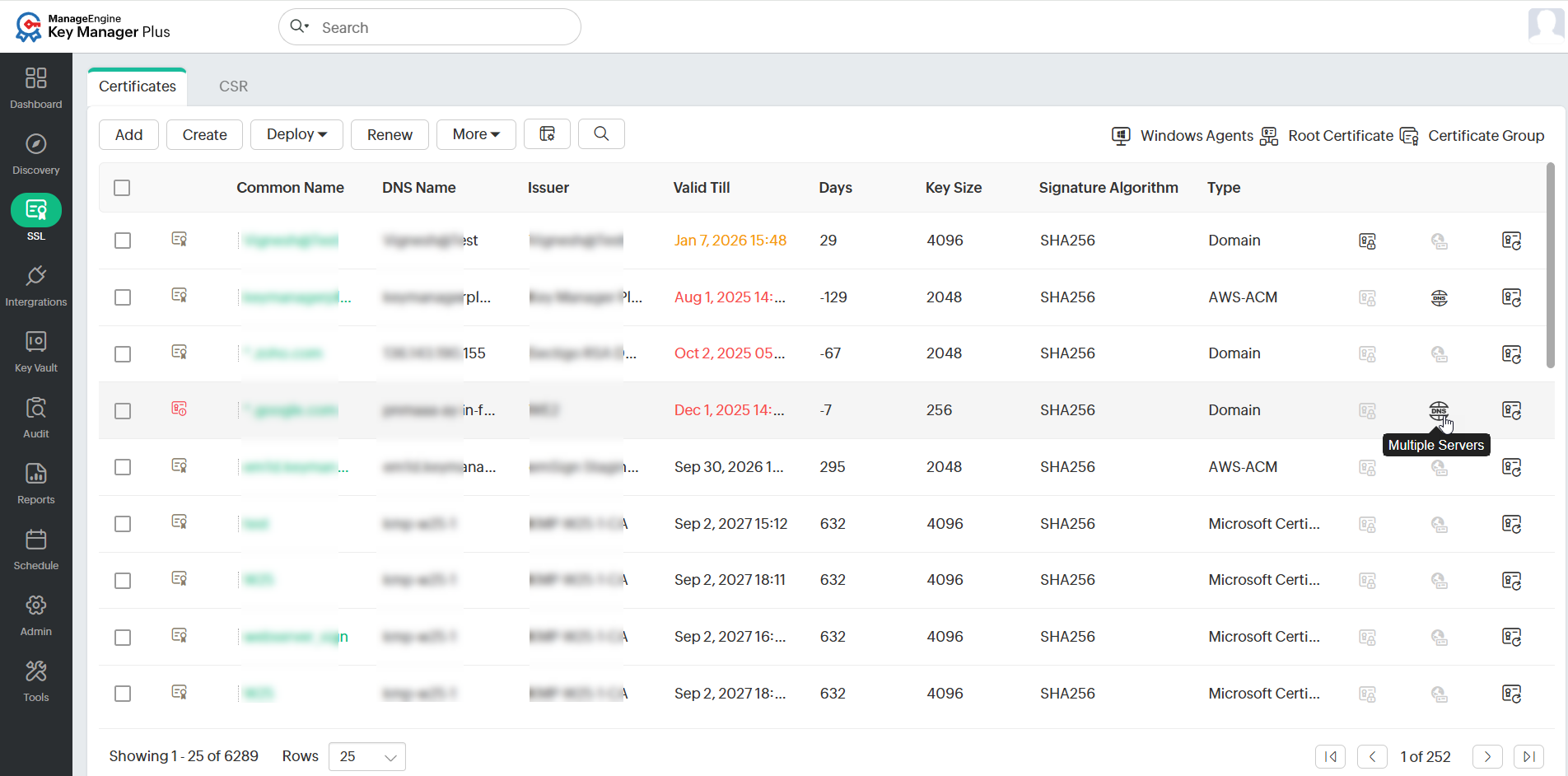
A window opens with the list of servers on which the certificate is deployed, along with other information, such as IP Address, Port, Certificate Validity, Hostname, Serial Number at Host, and Sync Status.
2. Adding the Deployed Servers to a Certificate
- Navigate to the SSL >> Certificates tab and click the Multiple Servers icon corresponding to the required certificate.
- Click Add from the top pane to further add deployed servers to the certificate. Alternatively, users can add deployed servers from SSL >> Certificates >> More >> Add Deployed Server.
- In the pop-up that appears, enter the DNS Name, IP Address, and Port.
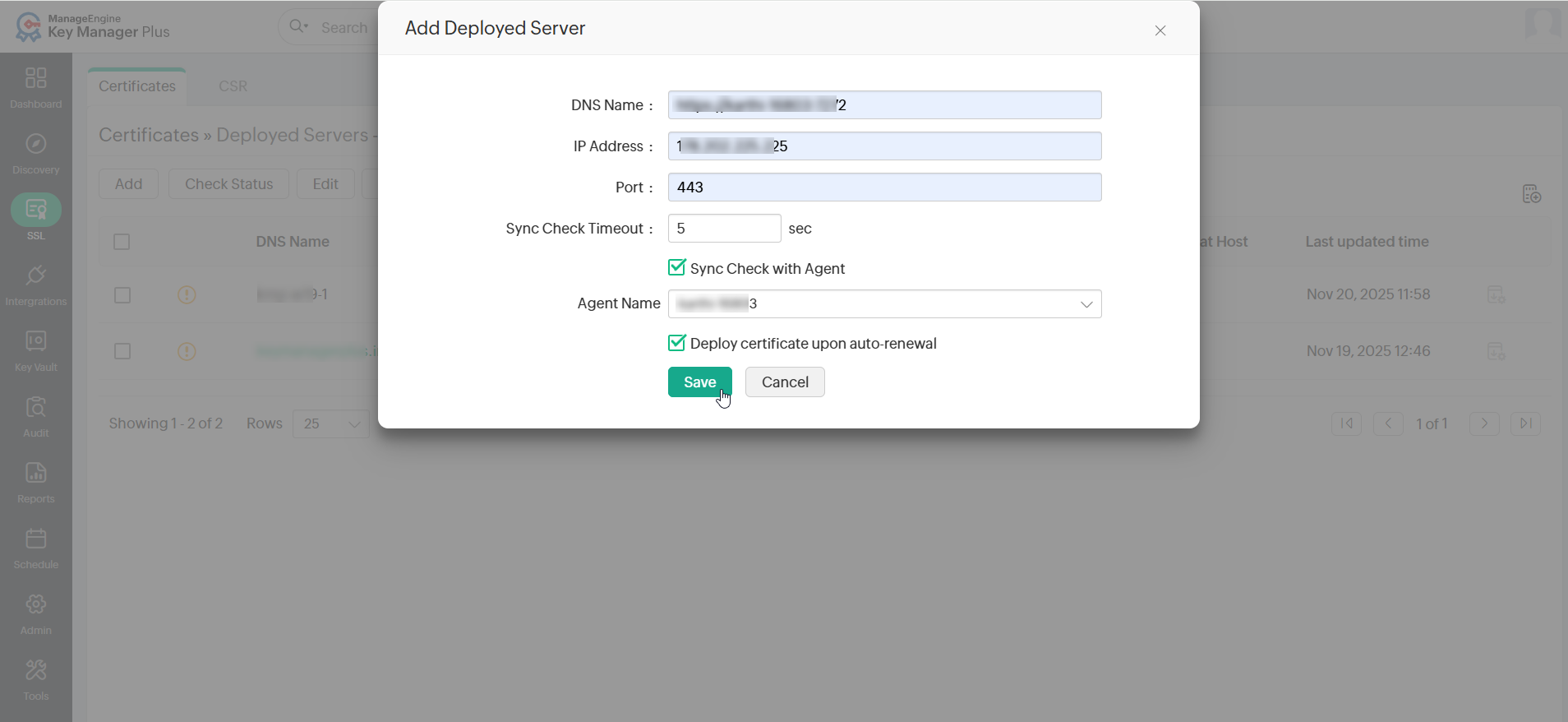
- Mention the Sync Check Timeout in seconds.
- Select the Sync Check with Agent checkbox (optional) and select the desired agent from the dropdown.
- To auto-deploy an SSL certificate to all servers during auto-renewal, enable the Deploy certificate upon auto-renewal checkbox.
- Click Save to add the deployed server to the certificate.
Now, the certificates are successfully deployed using agent. To know more about SSL certificate deployment click here.
3. Modifying the Deployed Server Details
Caution
- The DNS Name, IP Address, and Port of the primary server cannot be edited.
- SSL certificates can only be auto-deployed to all servers if the user credentials are available.
- Users can bulk edit the deployed servers only for the following options: Sync Check Timeout, Sync Check with Agent, and Deploying certificates upon auto-renewal.
To edit a deployed server in Key Manager Plus Cloud,
- Navigate to SSL >> Certificates. Click the Multiple Servers icon, select the server, and click Edit from the top menu.
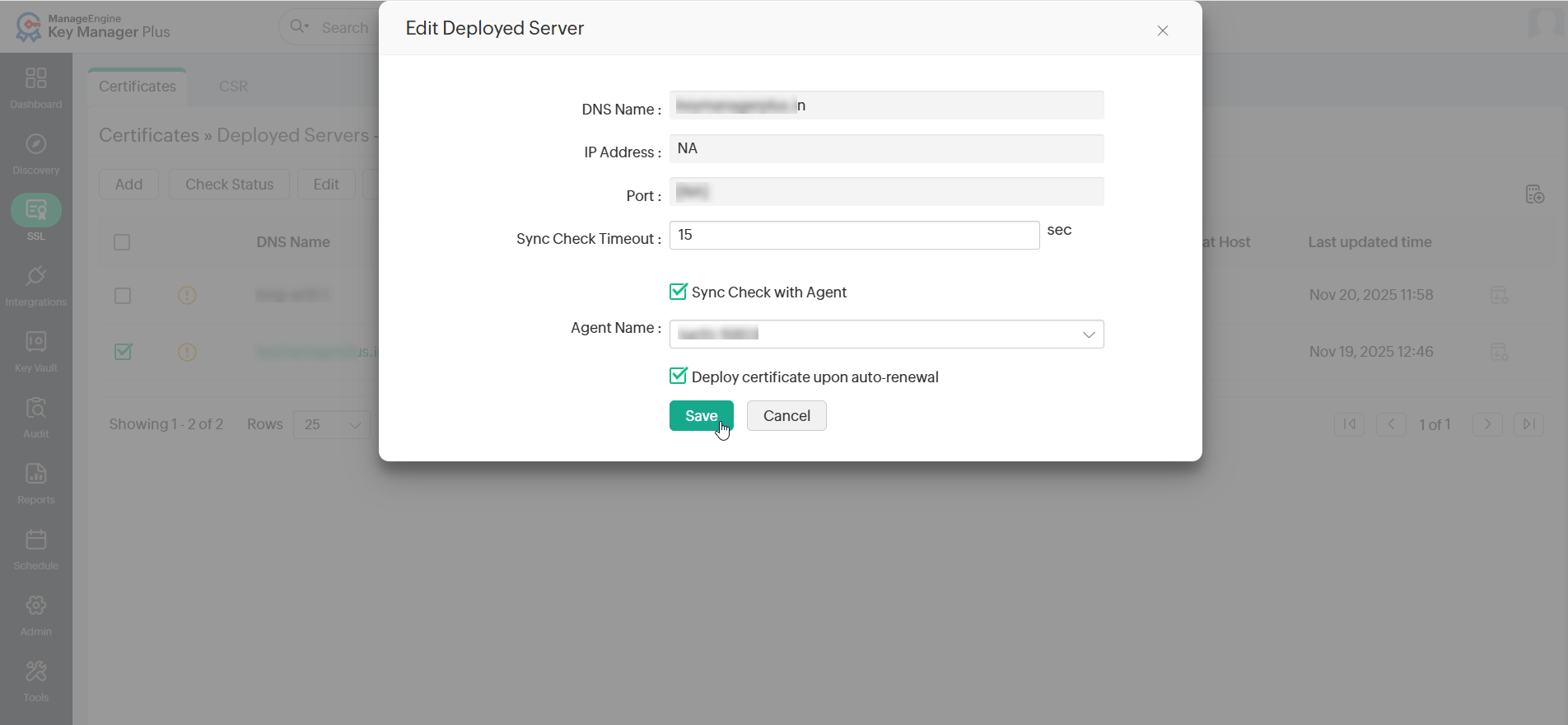
- In the pop-up window that appears, edit the DNS Name, IP Address, Port, and Sync Check Timeout.
- If the Sync Check with Agent checkbox is enabled, select the desired agent as needed.
- Enable or disable the Deploy certificate upon auto-renewal checkbox and click Save to apply the changes.
4. Deleting a Deployed Server
Caution
Users will not be allowed to delete the primary server. Choose an alternate primary server and then proceed to delete the server.
To delete a deployed server,
- Select the desired server and click Delete from the top pane.
- If the server to be deleted is a primary server, in the pop-up window that appears, select a new primary server from the drop-down list and click Apply. This will assign the selected server as the primary server.
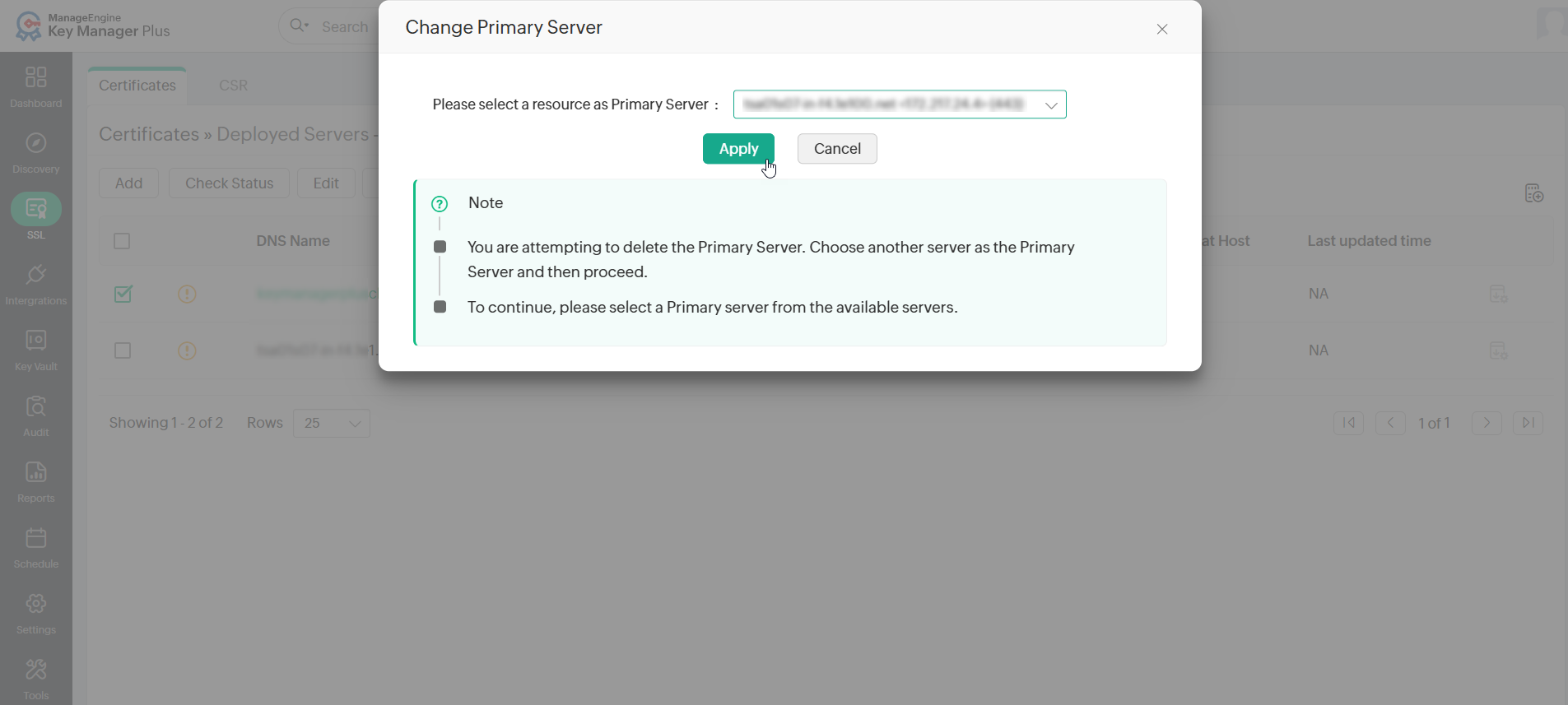
- Now, select the server again and click Delete.
- In the pop-up dialog box that appears, click OK to confirm the deletion of the server from Key Manager Plus Cloud.
5. Auto-deploying a Certificate
To configure auto-deployment after certificate renewal, select the desired certificates and click Edit from the top menu. In the pop-up window that appears, enable the Deploy certificate upon auto-renewal checkbox and click Save.
6. Checking the Sync Status
To check the sync status of the certificate using the agent, follow these steps:
- On the Certificates page, select the desired certificates and click Edit from the top menu.
- In the pop-up window that appears, enable the Sync Check With Agent checkbox and select the desired Agent.
- Click Save to apply the configuration for the selected certificates.
- To check the sync status of a deployed server, click the Multiple Servers icon, select a server from the list, and click Check Status from the top menu. Now, Key Manager Plus Cloud will check the sync status and display it beside the corresponding server's column.
7. Creating Additional Fields
From the Multiple Servers page of SSL certificates, users can add additional fields under three categories - Character, Date, and Email. Follow the below steps to add additional fields:
- Navigate to the SSL >> Certificates tab and click the Multiple Servers icon beside the required certificate.
- Click the Additional Fields icon at the top-right corner of the page.
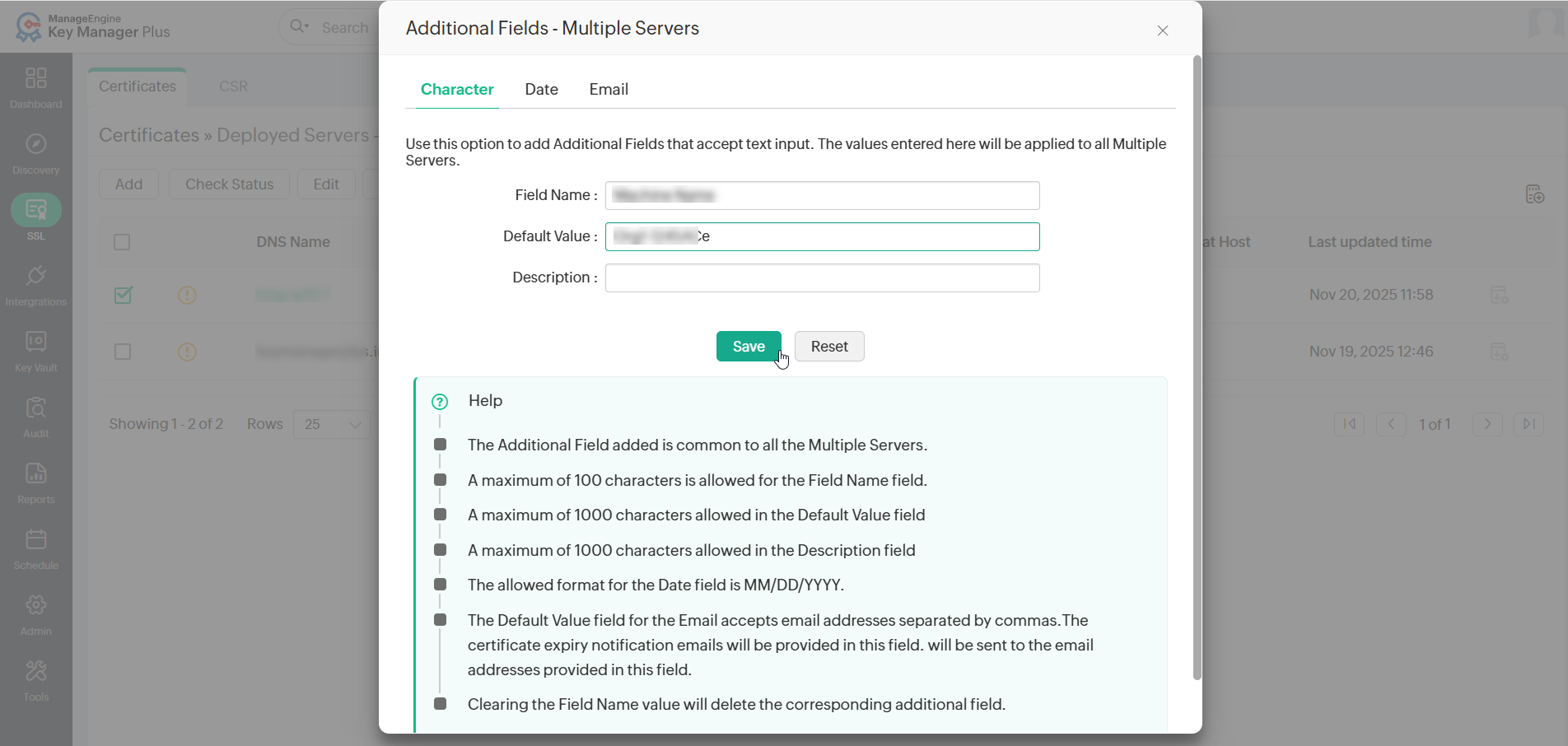
- In the pop-up window that appears, navigate to the required category (Character, Date, or Email) and enter the Field Name, Value, and Description as per your requirements.
- Click Save to add the additional field.
- Click Reset to remove the configured additional field.
Users can enable the newly added additional fields on the Multiple Servers page. In addition, users can edit the existing additional field value of the server.