Azure Integration for Certificates and Client Secrets Management from Azure Applications
Key Manager Plus seamlessly integrates with Azure applications registered in the Microsoft Azure portal, enabling centralized management of associated certificates and client secrets. Through this integration, you can discover Azure applications' certificates and secrets, create and store new client secrets securely, and manage the discovered certificates within the Key Manager Plus repository. The integration also supports scheduling automated secret expiry notifications and generating detailed reports and audit trails for improved governance and compliance.
Caution: Only the certificate details and client secret hints are imported into the Key Manager Plus repository; the complete secret values are not retrieved from Microsoft Azure.
By the end of this document, you will learn to perform the following operations:
- How Key Manager Plus—Azure Application Integration Works
- Discovering Azure Application Certificates and Client Secrets
- Managing the Azure Applications' Private Key and Passphrase
- Managing the Azure Applications' Certificates
- Managing the Azure Applications' Client Secrets
1. How Key Manager Plus—Azure Application Integration Works
Let’s say you have multiple applications registered in the Azure portal, and each of these applications is associated with SSL certificate and client secrets. In Key Manager Plus, when you add the Azure application credentials of your privileged application (with granted elevated Microsoft Graph API permissions - Application.ReadWrite.All), the product automatically discovers all other applications within your Entra ID tenant. Once the applications are discovered, all the certificate details and client secrets associated with the applications are fetched and listed in Key Manager Plus, allowing you to manage the certificates and client secrets within its interface.
The integration enables you to:
- Import certificates manually from Azure applications using the discovered certificate details to the Key Manager Plus and manage SSL certificates in the repository for centralized lifecycle management.
- View client secret details, such as the secret name and hint.
- Create new client secrets for the Azure application and store them securely via Key Manager Plus.
- Deploy SSL certificates from Key Manager Plus to Azure applications, provided that the applications are configured with appropriate private keys and passphrases.
Prerequisites
- To integrate Azure with Key Manager Plus, you should add the credential of an application registered in the Azure portal.
- To enable Key Manager Plus to discover and list all applications within your Entra ID tenant, the application associated with the provided credential must be granted the Application.ReadWrite.All API permission. Once the credential is added, Key Manager Plus will automatically retrieve and display all Azure applications registered under your tenant in the Azure portal.
- To perform the Key Manager Plus—Azure application integration, the following Azure application credentials are required: Application/Client ID, Directory/Tenant ID, Subscription ID, and Key (secret value). These can be retrieved from the respective Azure application in the Microsoft Azure portal.
2. Discovering Azure Application Certificates and Client Secrets
Key Manager Plus allows you to discover Azure applications registered in the Microsoft Azure portal and fetch their associated certificates and client secrets. You can perform this discovery directly from the Discovery tab or from the Integrations tab.
2.1 Discovering Azure Applications from the Integrations Tab
To discover the Azure applications' certificates and client secrets directly from the Integrations tab, perform the following steps:
- Navigate to the Integrations tab and select Azure >> Azure Application.
- Click Manage at the top-right corner of the page.
- Click the Add button in the Credentials tab.
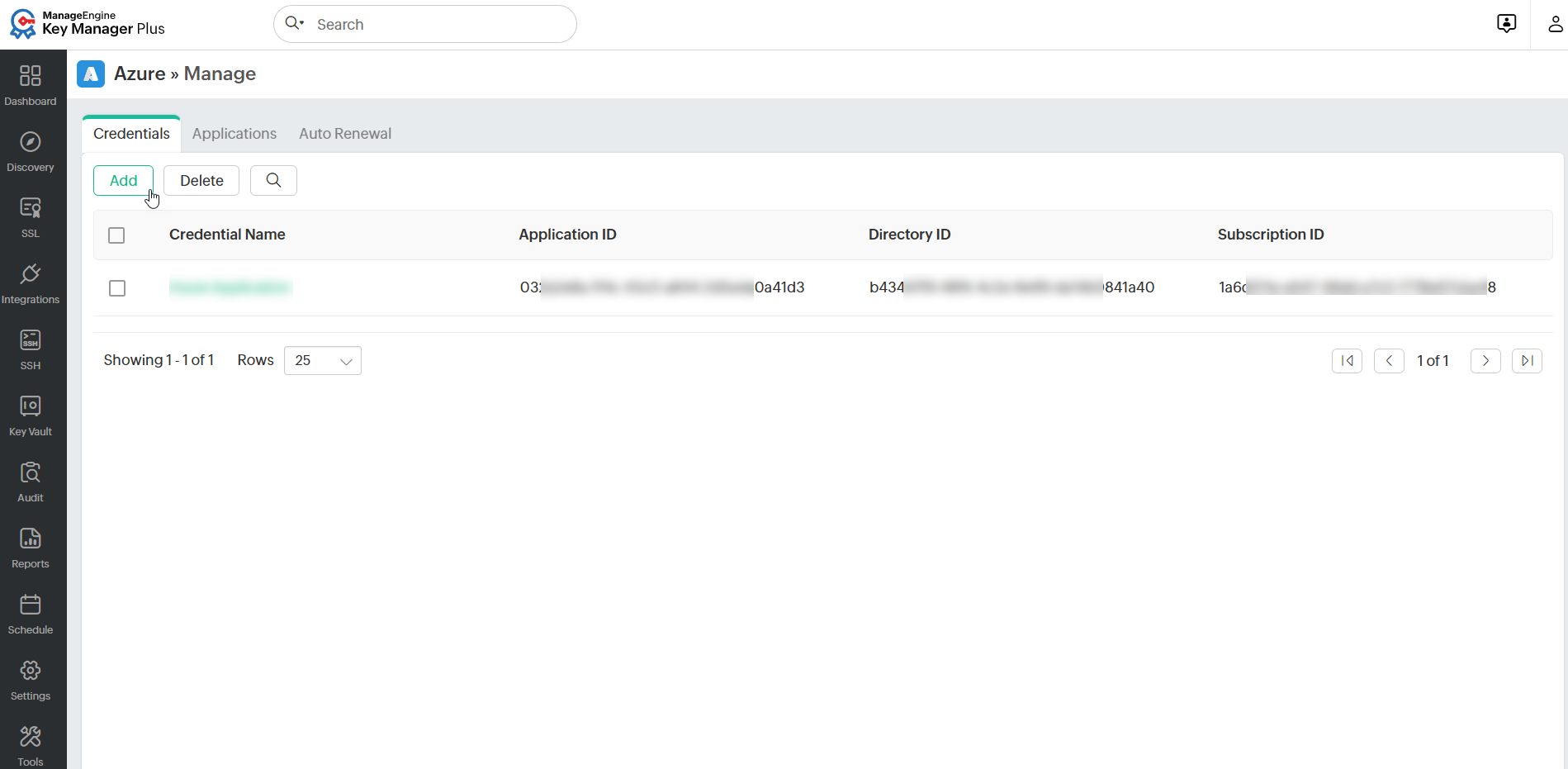
- In the window that appears, enter the Credential Name, Subscription ID, Directory ID, Application ID, and Key (secret value) details of the Azure application.
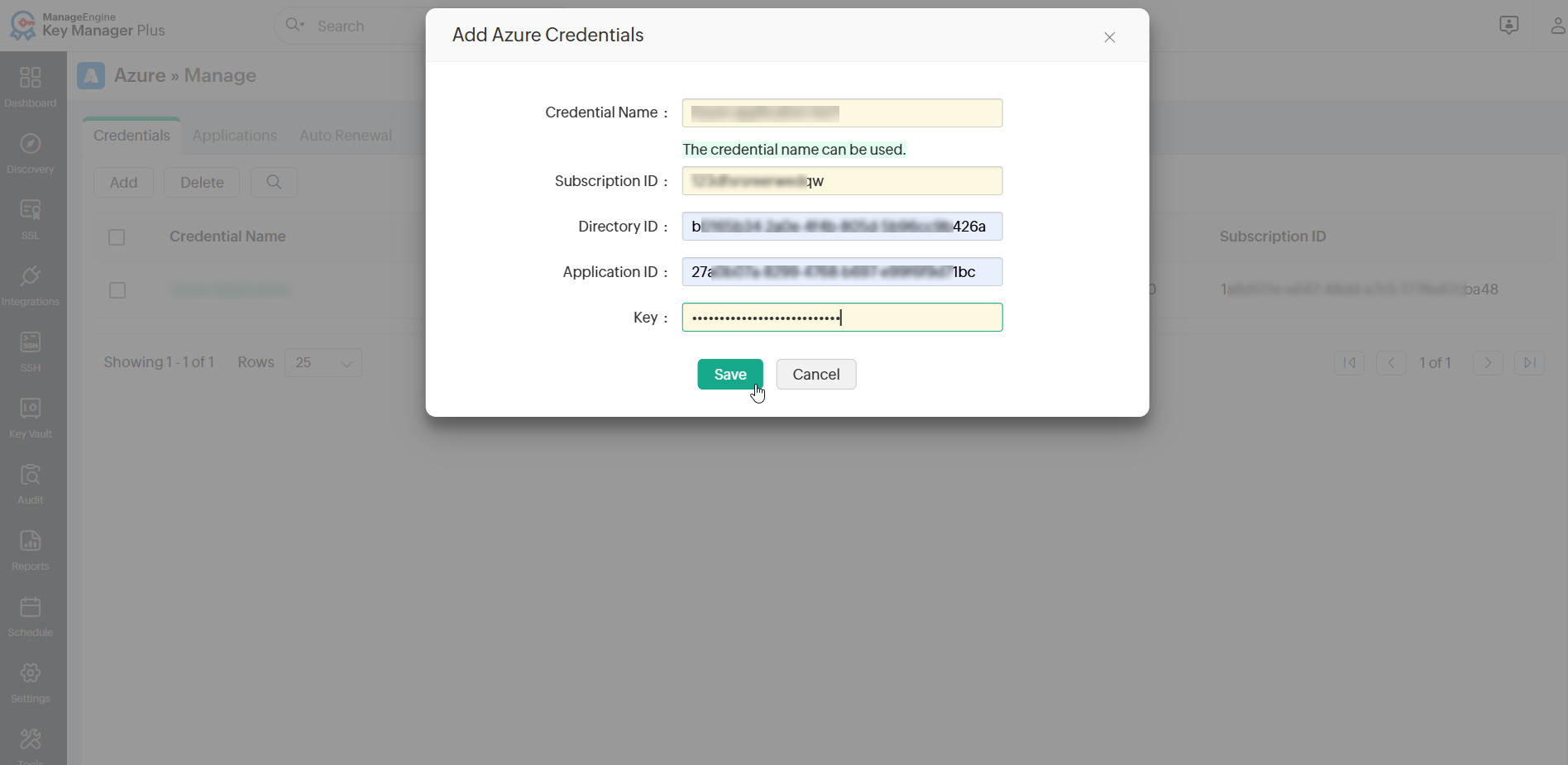
- Click Save to add the Azure application credential. To edit an existing credential, click the credential name from the list and update the required details.
- Return to Integrations >> Azure >> Azure Application >> Certificates and click Discovery at the top-right corner.
- In the dialog box that appears, select the saved Azure application credential from the Credential Name dropdown and click Discover.
The certificate details and client secrets associated with the Azure applications will be fetched and listed in the Certificates and Client Secrets tabs.
2.2 Discovering Azure Applications from the Discovery Tab
You can also discover Azure applications from the Discovery tab. To do so, follow these steps:
- Log in to the Key Manager Plus web interface and navigate to the Discovery tab.
- Click Azure from the left pane and select Azure Application from the Discovery Type dropdown.
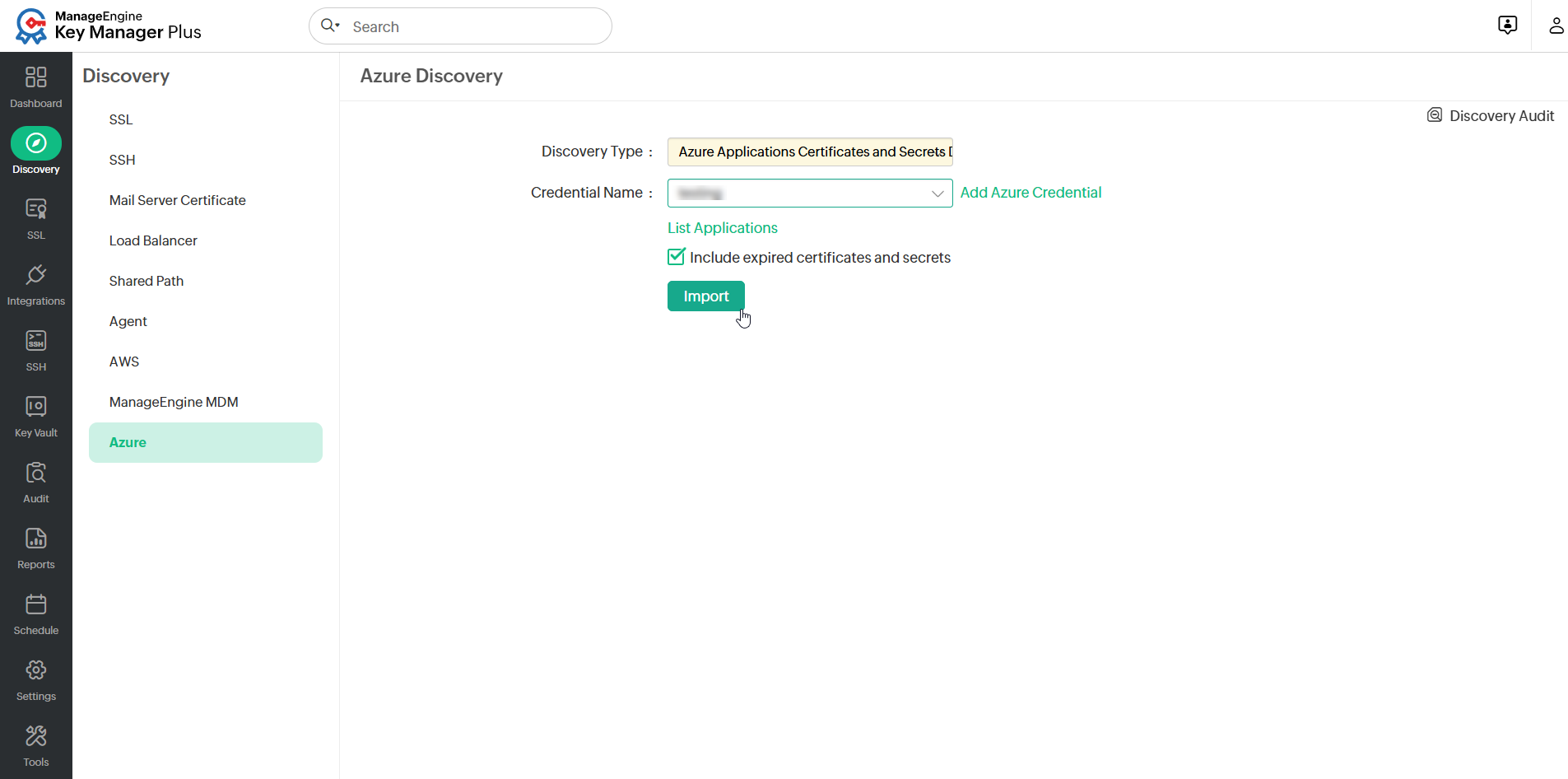
- Click Add Azure Credential beside the Credential Name field to add the Azure application credentials.
- In the window that appears, enter the Credential Name, Subscription ID, Directory ID, Application ID, and Key (secret value) details of the Azure application.
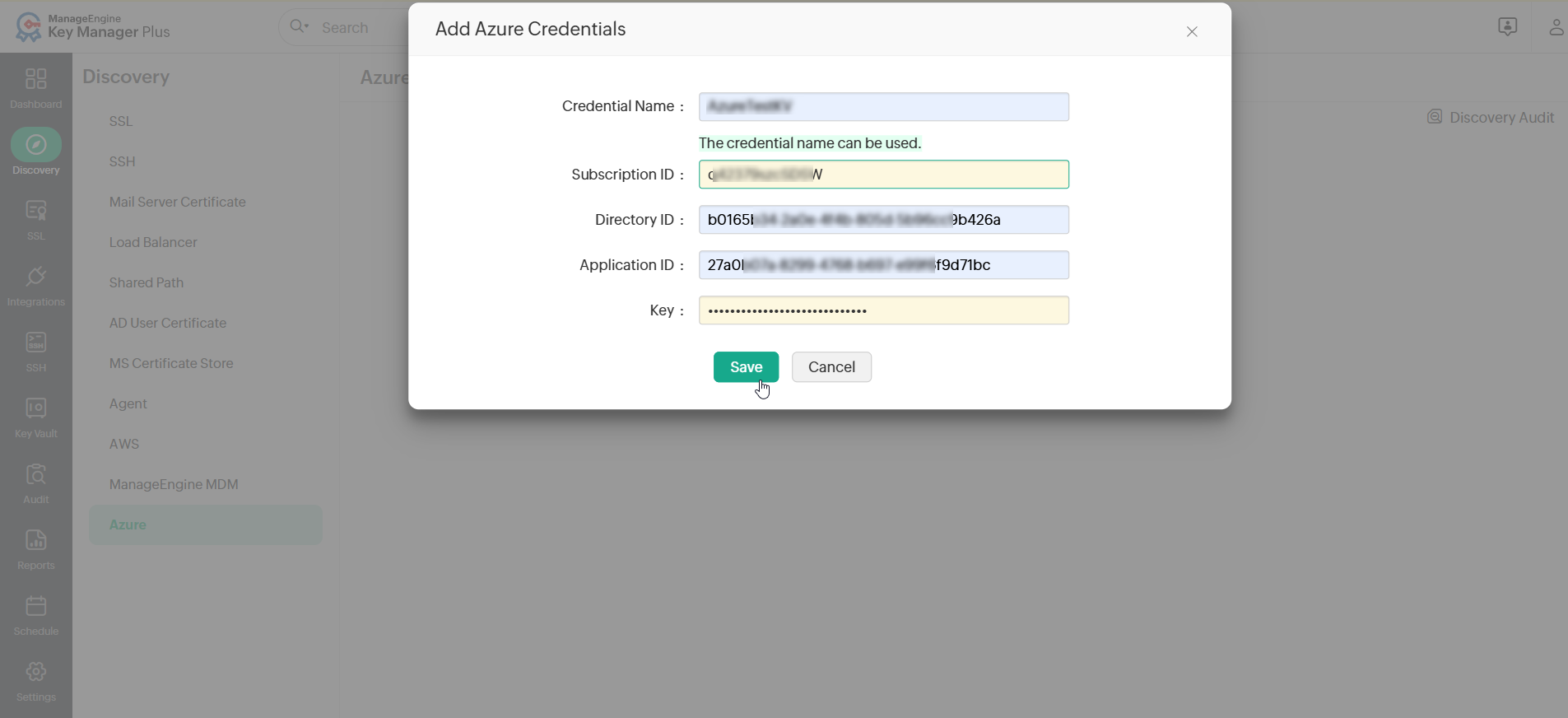
- Click Save to add the Azure application credential.
- Now, select the saved credential from the Credential Name dropdown and click Import to discover the certificates and client secrets of the Azure applications.
Note: The List Applications and Include expired certificates and secrets options are available from build 7200 and above only.
- Click List Applications to select specific Azure applications to be discovered as needed.
- Enable the Include expired certificates and secrets checkbox to include the expired Azure application certificates and secrets.
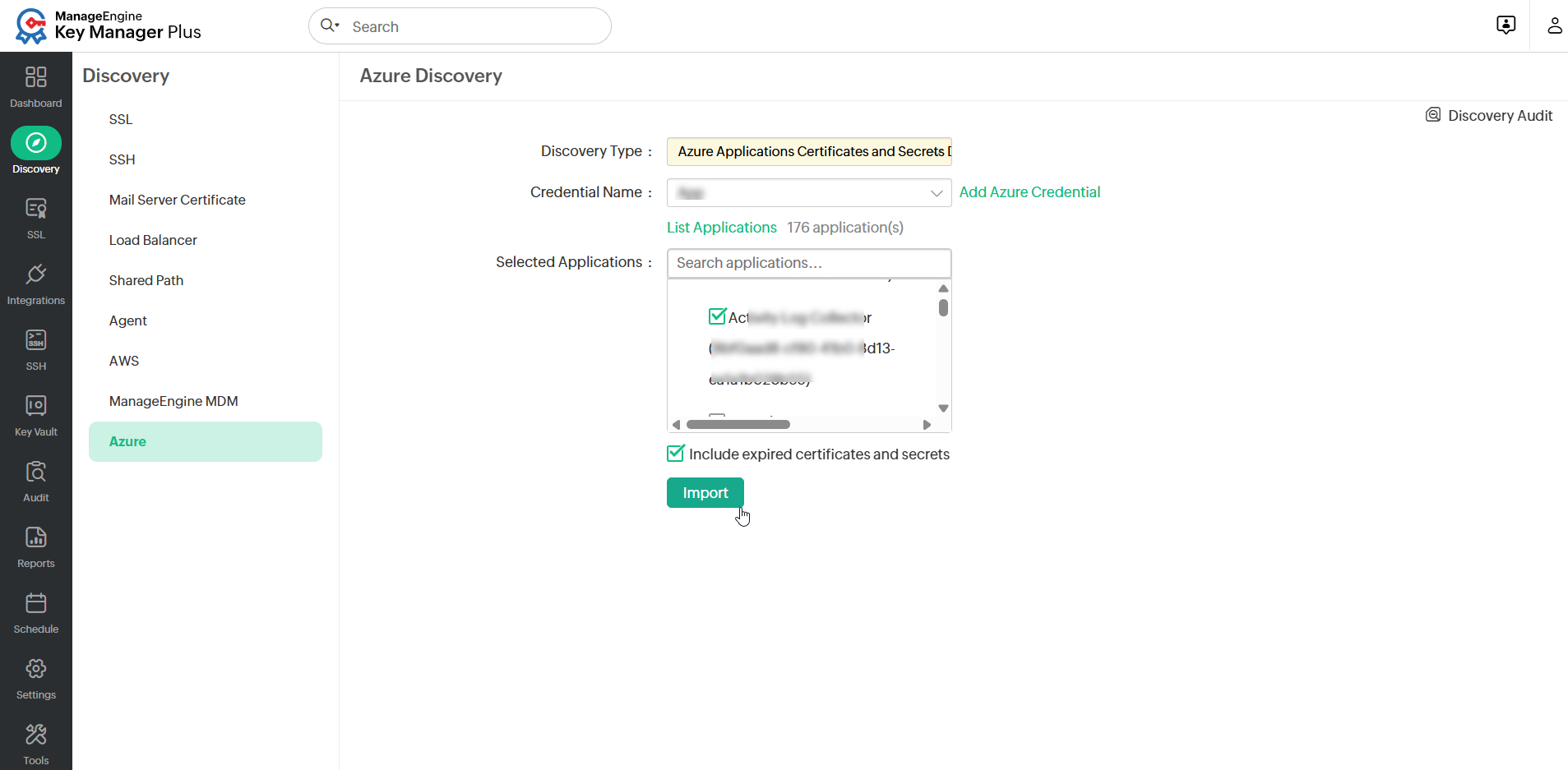
- Click Import to discover the certificates and client secrets of the Azure applications.
All the discovered certificate details and client secrets will be listed under Integrations >> Azure >> Azure Application.
3. Managing Azure Applications' Private Key and Passphrase
The Azure applications' private key and passphrase can be directly updated or deleted within the Key Manager Plus interface as follows:
3.1 Updating Azure Applications' Private Key
To update your Azure application private key and passphrase from the Key Manager Plus interface, perform the following steps:
- Navigate to Integrations >> Azure >> Azure Application.
- On the page that appears, click Manage in the top-right corner.
- In the Applications tab, select the required application from the list and click Update Private Key.
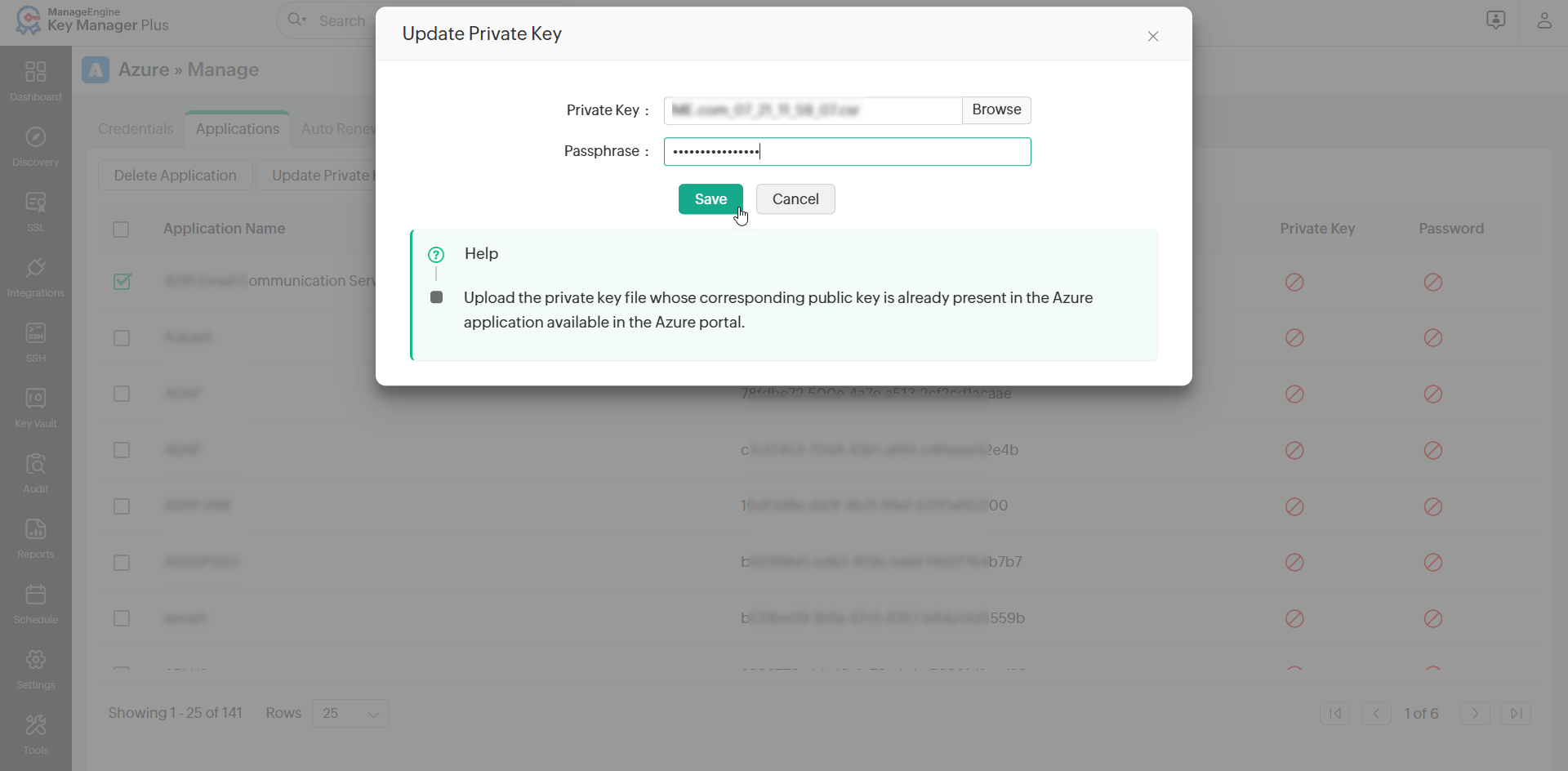
- In the Update Private Key window that appears, click Browse in the Private Key field and upload the private key file whose corresponding public key is already present in the Azure application in the Azure portal.
- In the Passphrase field, enter the private key encryption password.
- Click Save to update the private key of the application.
3.2 Deleting Azure Applications' or Private Key of the Applications
To delete an Azure application or the private keys of the Azure applications in Key Manager Plus, perform the following steps:
- Navigate to Integrations >> Azure >> Azure Application.
- On the page that appears, click Manage in the top-right corner.
- In the Applications tab, select the required applications from the list and click Delete Applications.
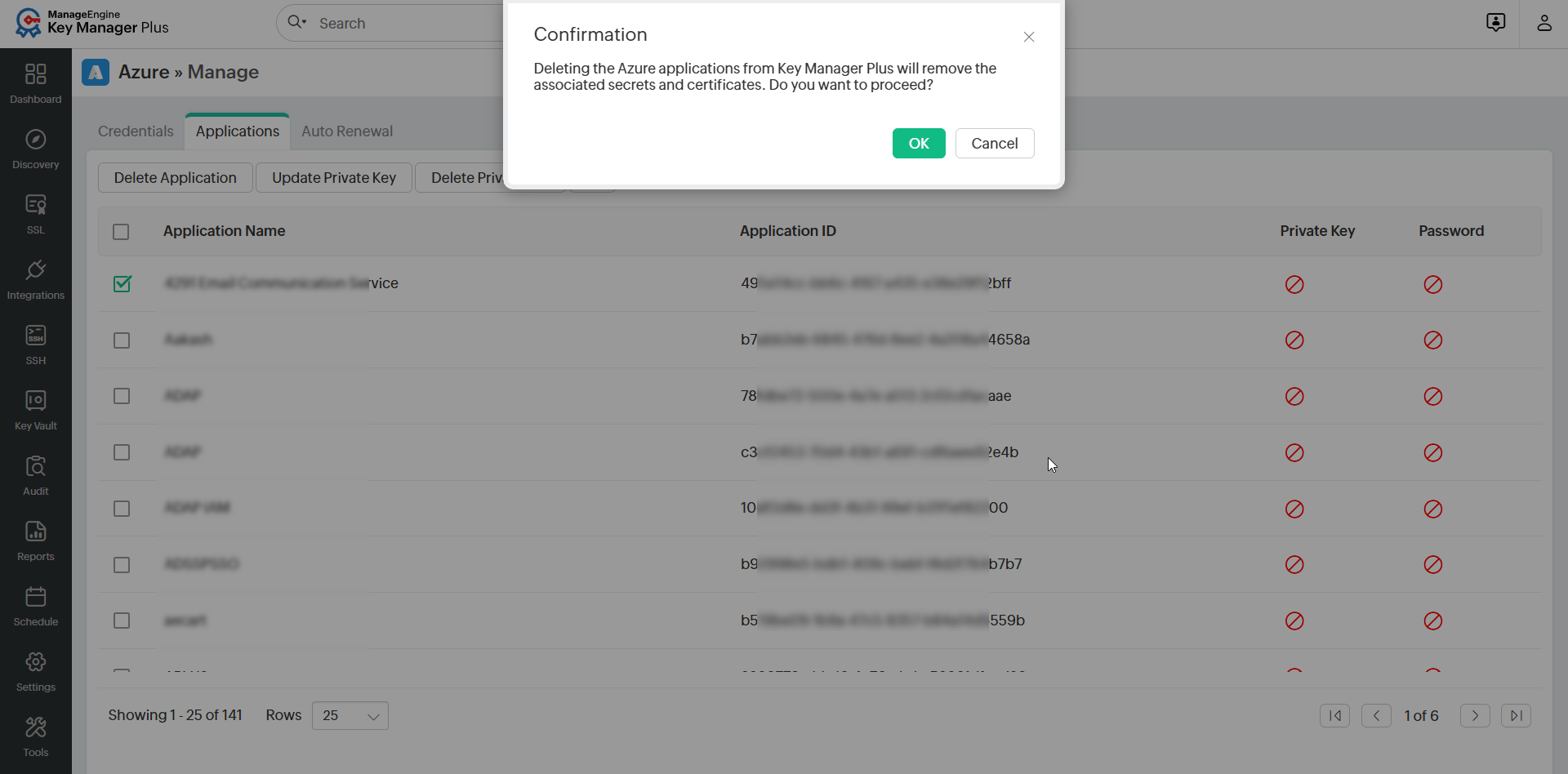
- In the confirmation dialog box that appears, click OK to delete the selected Azure applications from Key Manager Plus. This will also delete the certificates and client secrets associated with the applications.
- If you want to delete the private key of any Azure applications, select the required applications from the list and click Delete Private Key.
- In the confirmation dialog box that appears, click OK to confirm the deletion of the selected application credentials.
4. Managing the Azure Applications' Certificates
Using the discovered certificate details, Key Manager Plus enables users to manually import the SSL certificate of an Azure application through any of the following methods for certificate lifecycle management, directly from the Key Manager Plus interface: Certificates, Certificate Content, Keystore. Upon successful import, expiry alerts can be configured, the certificate can be renewed, and deployed to an Azure application directly from the Key Manager Plus interface.
In addition, users can also update the description of the certificate details fetched and displayed in Key Manager Plus using the Description Only option available on this page. However, this action will not import the certificate into the Key Manager Plus repository.
The below sections provide the detailed instructions about importing Azure application certificates and deleting the application certificates when they are no longer required.
Note: You can also deploy the SSL certificates to the Azure applications that are fetched in Key Manager Plus. Refer to this document for instructions.
4.1 Importing Azure Applications' Certificates to the Key Manager Plus Repository
To import and manage Azure application certificates via Key Manager Plus, follow these steps:
- Navigate to Integrations >> Azure >> Azure Applications >> Certificates page, where all the discovered Azure application certificate details are listed.
- Select the certificate from the table and click Import Certificate from the top menu.
- In the pop-up window that appears, select one of the following import methods:
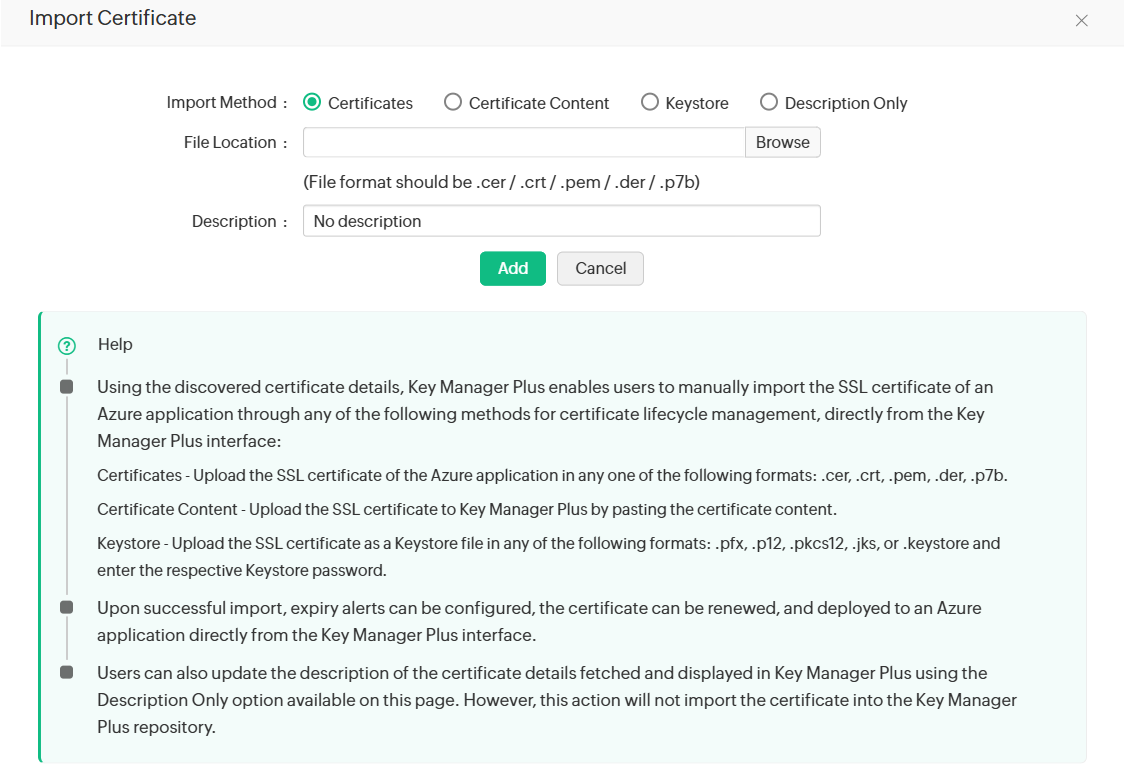
- Certificates - Upload the SSL certificate of the Azure application in any one of the following formats: .cer, .crt, .pem, .der, .p7b.
- Certificate Content - Upload the SSL certificate to Key Manager Plus by pasting the certificate content.
- Keystore - Upload the SSL certificate as a Keystore file in any of the following formats: .pfx, .p12, .pkcs12, .jks, or .keystore and enter the respective Keystore password.
Notes:
- The Description Only option allows users to update only the description of the Azure application certificate. Selecting this option will not add the certificate to the Key Manager Plus repository.
- The certificate details in Key Manager Plus are not counted in the SSL certificate license count. However, manually imported certificates from the Azure Application >> Certificates tab are taken into the license count.
4.2 Deleting the Azure Applications' Certificates
To delete the discovered Azure applications' certificates from Key Manager Plus, perform the following steps:
- Navigate to Integrations >> Azure >> Azure Application >> Certificates.
- On the page that appears, select the Azure application certificates you want to delete.
- Click Delete Certificate from the top menu.
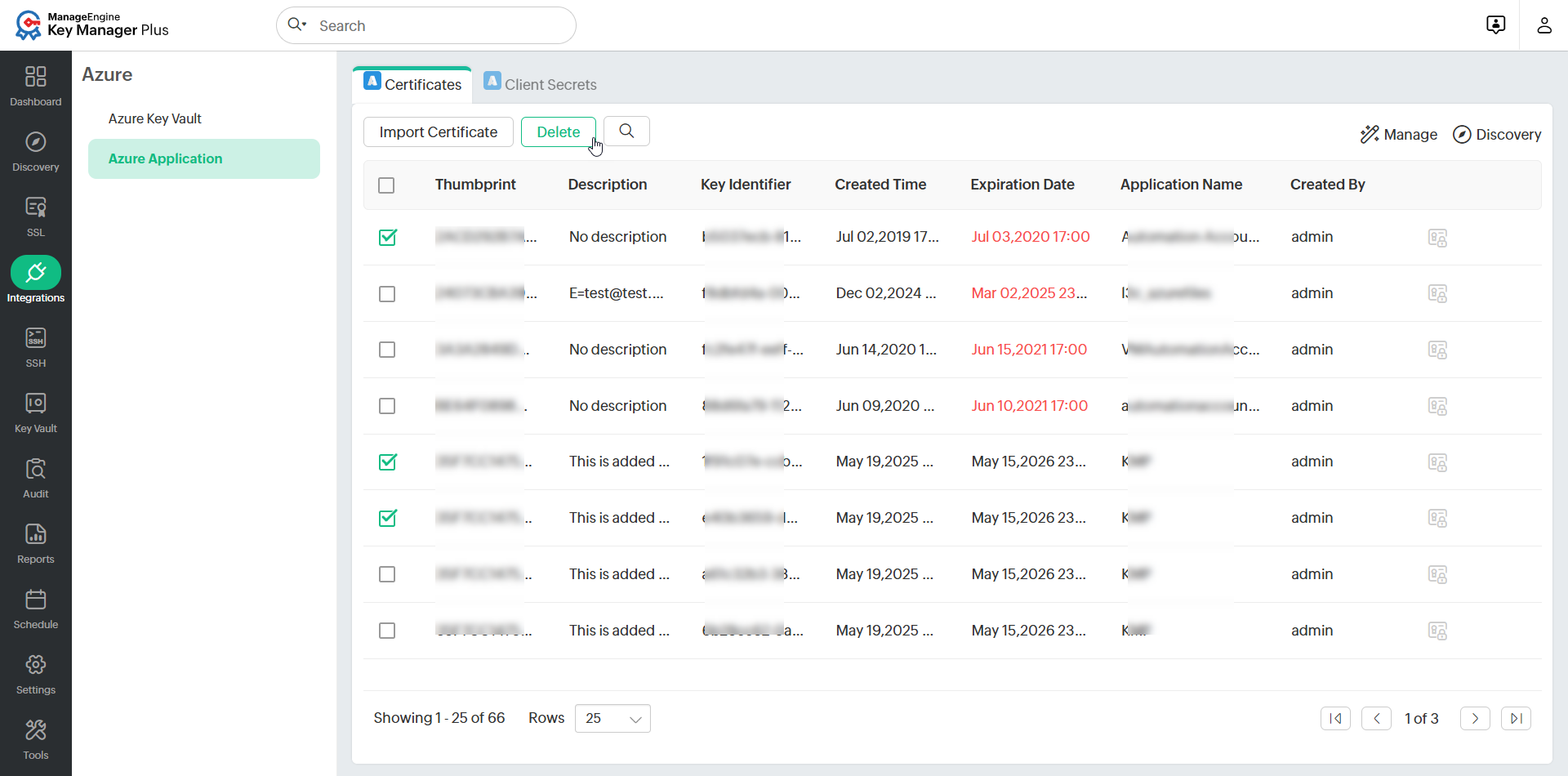
- In the dialog box that appears, click OK to confirm your action to delete the selected certificates. To add the certificate to the exclusion list before deleting it, select the Add selected certificates to Excluded Secrets checkbox and specify a Reason. The certificate will be added to the secret exclusion list and deleted from the Key Manager Plus repository.
Notes:
- Deleting Azure application certificates in Key Manager Plus does not remove them from the Microsoft Azure portal.
- Azure Application certificates that are moved to the exclusion list are considered as secrets and managed in the Excluded Secrets tab.
5. Managing the Azure Applications' Client Secrets
Upon discovery, client secrets associated with Azure applications can be seamlessly managed within Key Manager Plus. Users can create new client secrets, update existing ones, and even configure auto-renewal for secrets nearing expiration, ensuring continuous, secure access without manual intervention.
5.1 Creating a Client Secret for Azure Application
To create a client secret for an Azure application, follow the steps below:
- Navigate to Integrations >> Azure >> Azure Application.
- Switch to the Client Secrets tab and click Create Secret from the top menu.
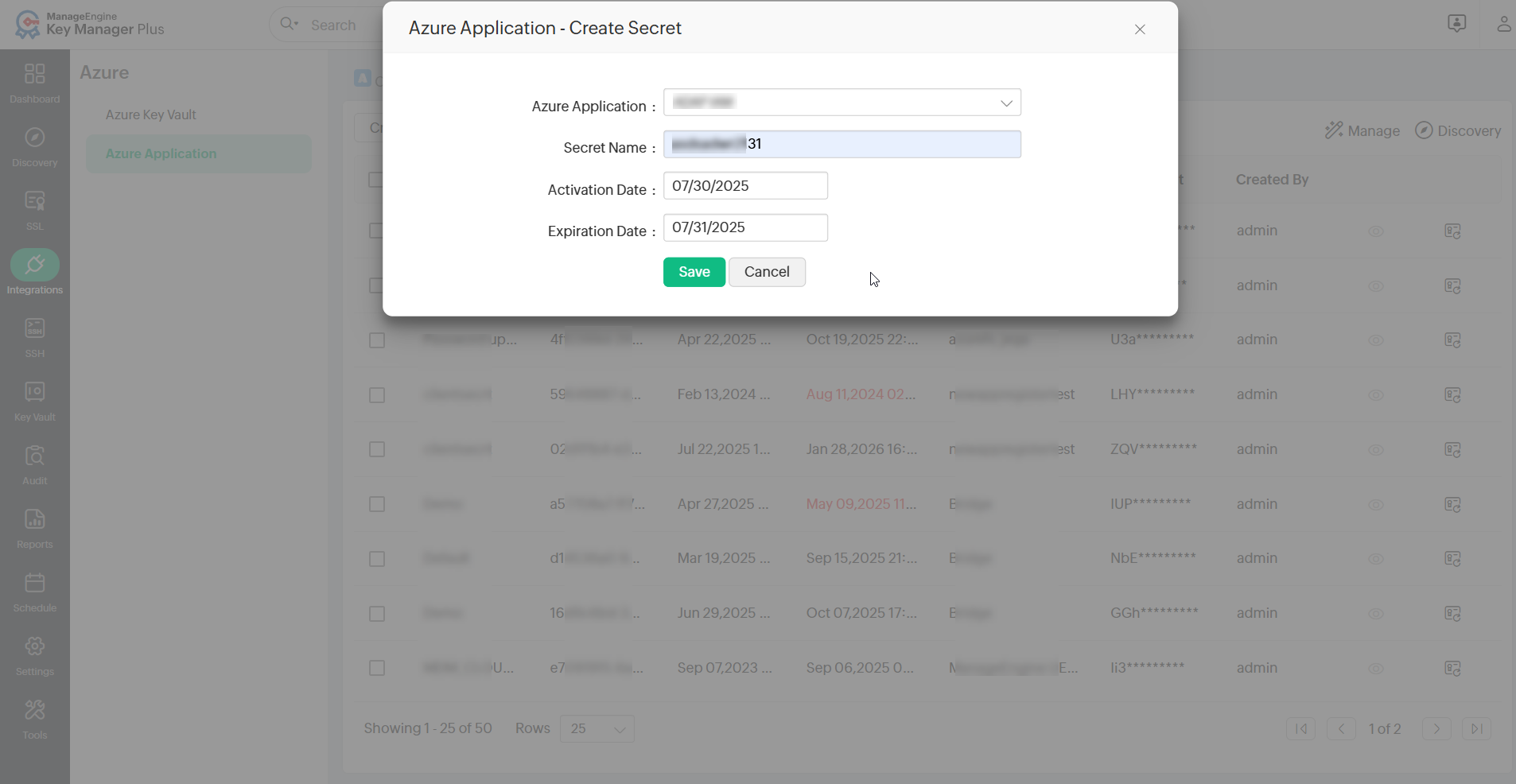
- In the window that appears, select an Azure application from the Azure Application dropdown.
- Enter a Secret Name, Activation Date, and Expiration Date in the respective fields.
- Click Save to create a client secret for the Azure application via the Key Manager Plus interface.
5.2 Creating a Client Secret Group
(Feature available from build 7200 and above only)
Key Manager Plus allows you to create client secret groups and add the required client secrets to them, making it easier to organize and manage client secrets.
To create a client secret group, follow these steps:
- Navigate to Integrations >> Azure >> Azure Application >> Client Secrets.
- On the page that appears, click the More icon at the top-right corner and select Secret Group from the drop-down list.
- Click Add Group and enter a name for the client secret group.
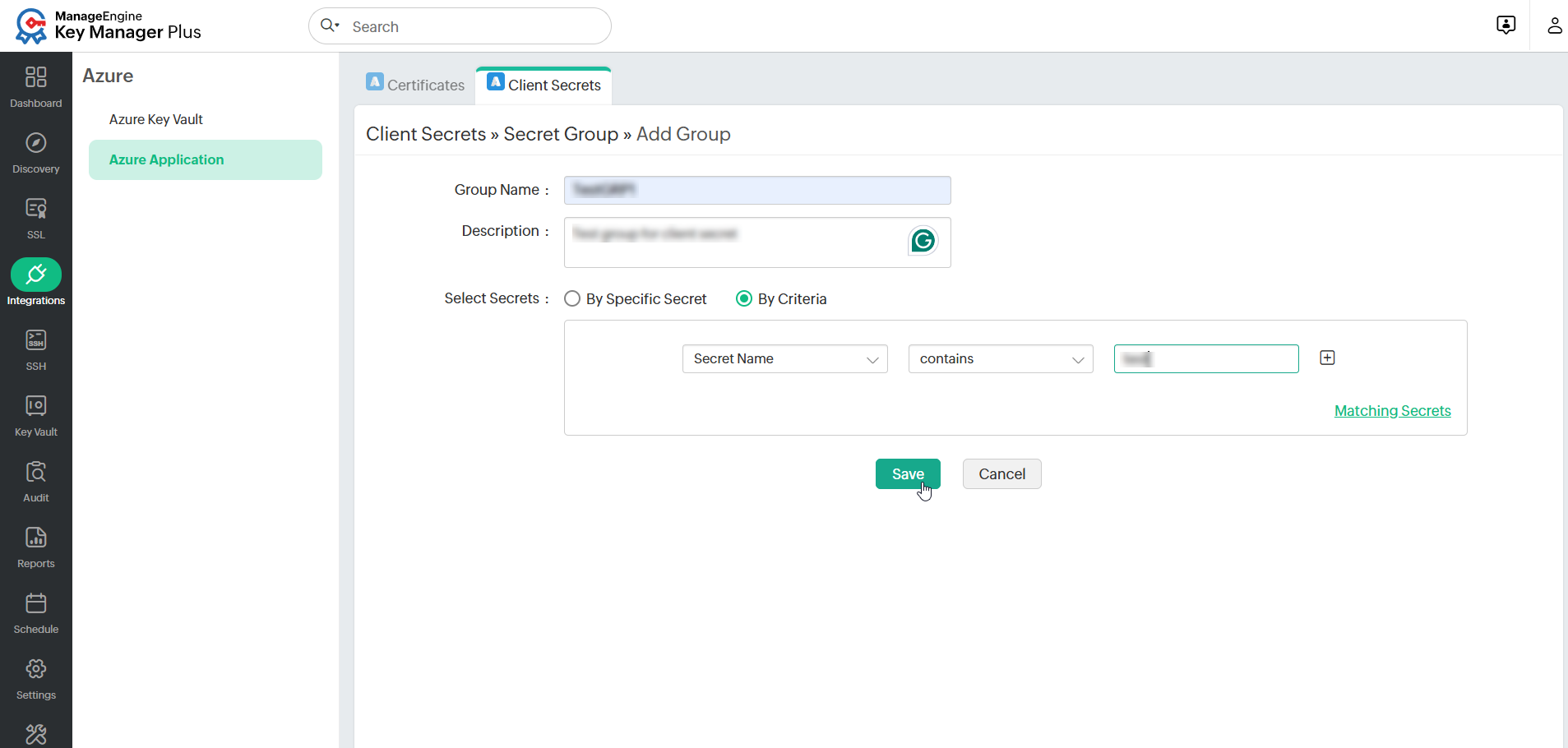
- Enter a Description and select the client secrets that you want to move into the group. You can also move client secrets into the group based on specified criteria. To view the secrets based on the criteria, click Matching Secrets.
- Click Save to create the client secret group.
You can filter client secrets using the Secret Group filter next to the More icon.
5.3 Importing Client Secrets
(Feature available from build 7200 and above only)
Key Manager Plus allows you to import Azure application client secrets in bulk using a CSV file directly from the web interface.
To import client secrets, follow the steps below:
- Navigate to Integrations >> Azure >> Azure Application >> Client Secrets.
- On the page that appears, click the More icon at the top-right corner and select Import Secrets from the drop-down list.
- In the window that appears, browser and upload the CSV file that contains the client secret information.
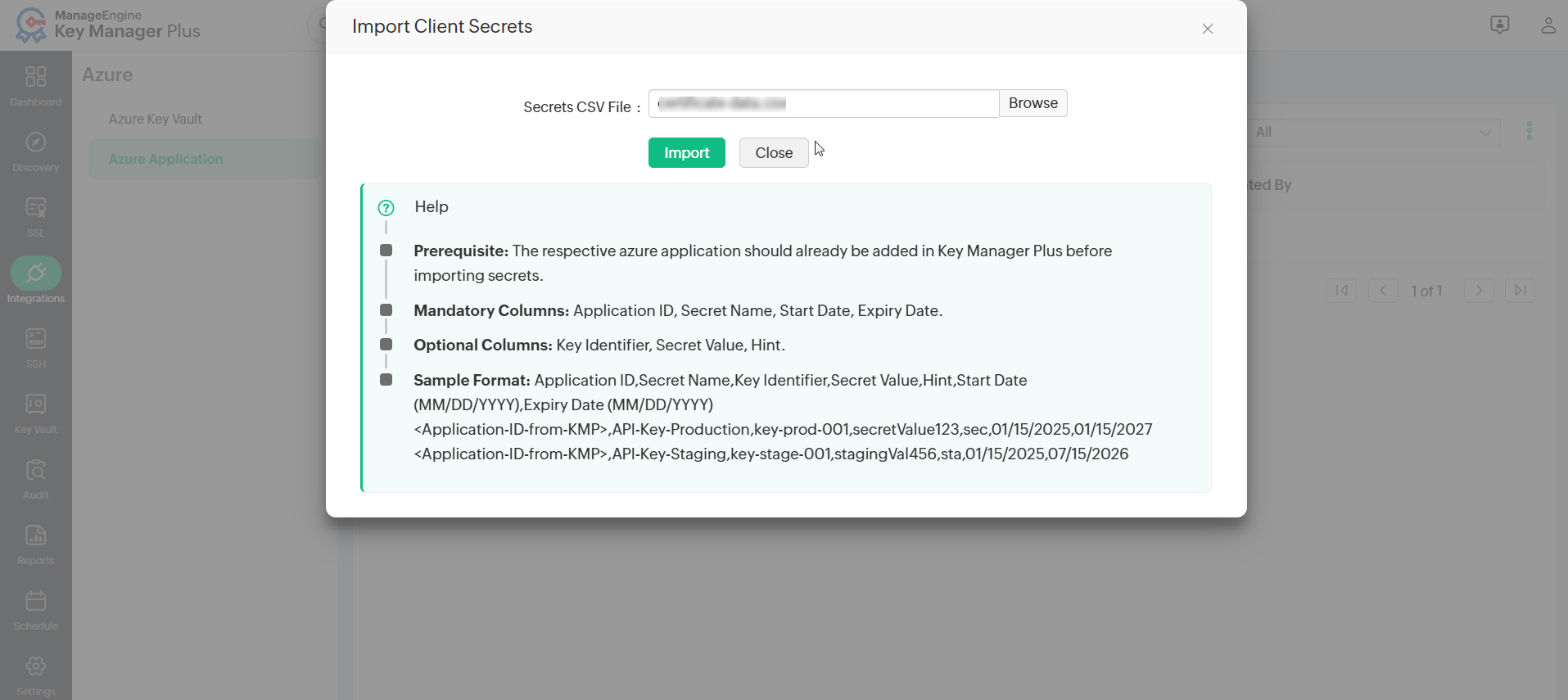
Note: Before importing client secrets, ensure that the Azure application associated with them is already registered in Key Manager Plus using the respective credentials. Also, ensure that the CSV file contains data in the correct format.
- Click Import to import the client secrets into Key Manager Plus.
You can also use this method to update the client secret values in bulk.
5.4 Updating a Client Secret of an Azure Application
To update and store the client secrets of an Azure application in Key Manager Plus, perform the following steps:
- Navigate to Integrations >> Azure >> Azure Application.
- Switch to the Client Secrets tab, select a client secret from the list, and click Update Secret from the top menu.
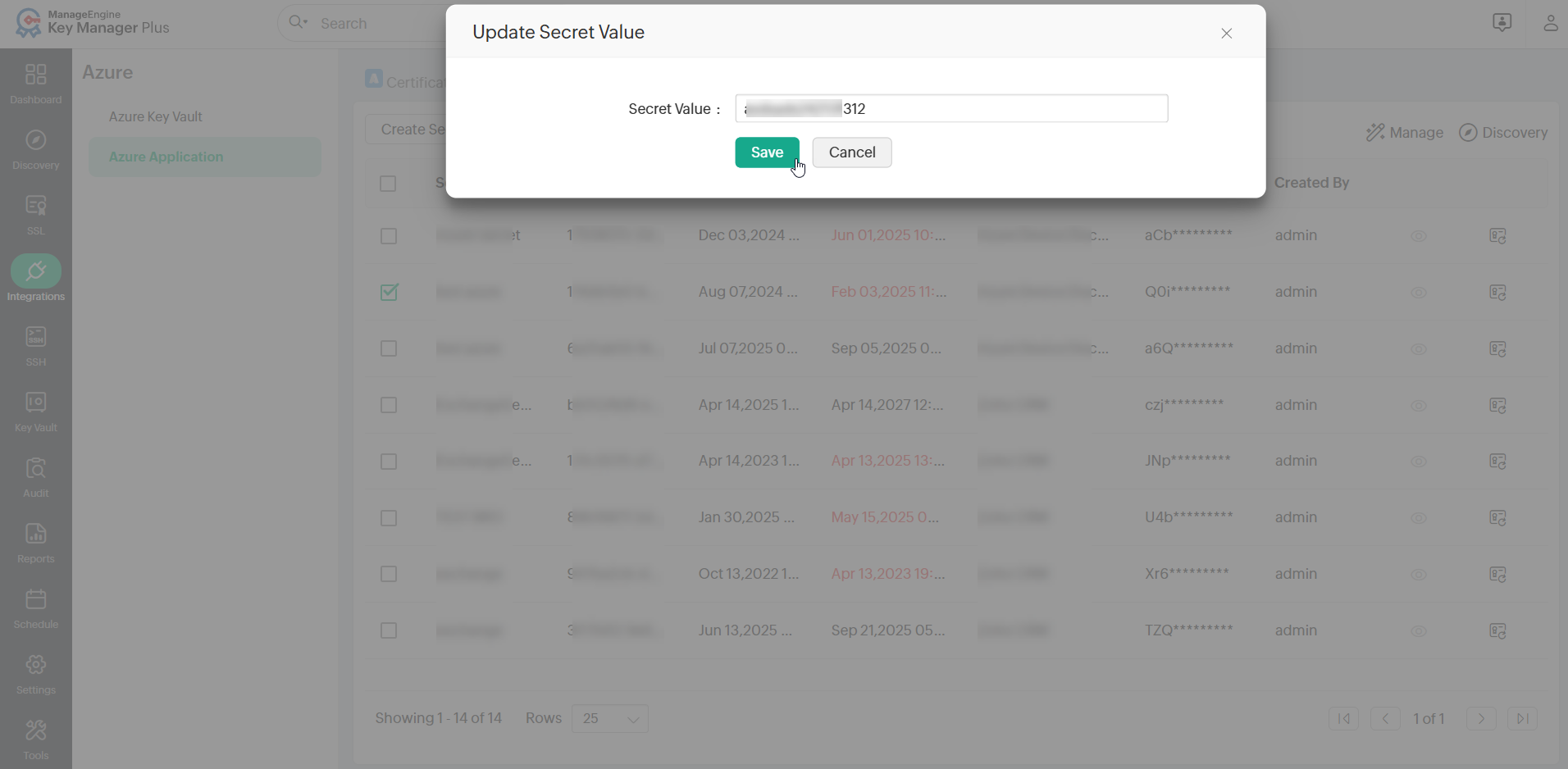
- In the window that appears, enter the client secret value to be updated in the Secret Value field.
- Click Save to save the secret value of the Azure application in Key Manager Plus.
Upon clicking the View Client Secret icon, you can view the stored secret value of the Azure application.
5.5 Auto-Renewing Azure Applications' Client Secrets
To configure auto-renewal of the client secrets of the Azure applications discovered in Key Manager Plus, follow the steps below:
- Navigate to the Integrations tab and select Azure >> Azure Application >> Manage.
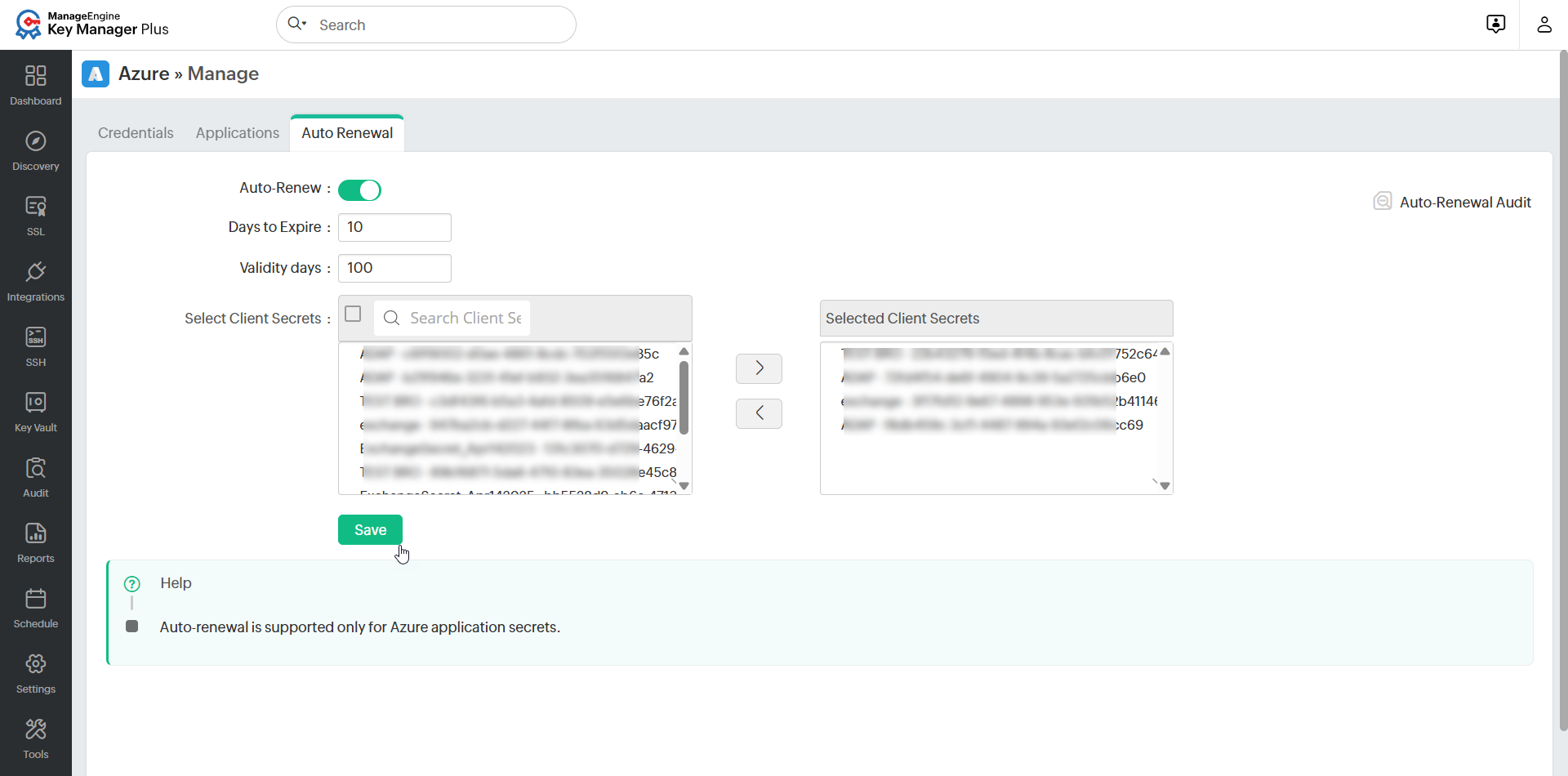
- Switch to the Auto-Renewal tab and enable the Auto-Renew radio button.
Note: Starting from build 7130, users can configure the recurrence interval for the auto-renewal of certificates issued by third-party Certificate Authorities (CAs). As this is a global configuration, any modifications will affect all enabled third-party CA auto-renewal configurations.
- Enter the Days to Expire and Validity days in the respective fields.
- Select and move the required client secrets that are to be renewed to the Selected Secrets box.
- Click Save to apply the auto-renewal configuration.
Auto-renewal audit details of the Azure application client secrets can be viewed later by clicking Auto-Renewal Audit at the top-right corner of the page.
5.6 Deleting Azure Applications' Client Secrets
To delete the discovered client secrets of the Azure applications in Key Manager Plus, perform the following steps:
- Navigate to Integrations >> Azure >> Azure Application >> Client Secrets.
- On the page that appears, select the client secrets that you wish to delete and click Delete.
- In the confirmation pop-up box that appears, click OK to confirm the deletion. To add the secret to the exclusion list before deleting it, select the Add selected certificates to Excluded Secrets checkbox and specify a Reason. The secret will be added to the exclusion list and deleted from the Key Manager Plus repository.
Note: Deleting client secrets within Key Manager Plus does not affect the secrets discovered from the Azure application in the Azure portal. However, any secret created and deployed via Key Manager Plus will be completely removed from the Azure application and Key Manager Plus as well.