
Agent settings
Last updated on:
In this page
Overview
The agent settings page allows you to configure how agents handle log collection when communication with the server is disrupted. By enabling offline log collection, you can define a maximum storage limit for logs collected during network disconnections, upload failures, or storage constraints.
This page explains how to configure the maximum data directory size for offline log collection, understand the default behavior when limits are reached, and manage agent settings to ensure critical logs are retained and uploaded once connectivity is restored.
Agent Settings
Log360 Cloud's agent configuration includes setting a maximum limit for log collection when the agent is disconnected from the network, or the logs upload failed or when the storage capacity is exhausted. Once this limit is reached, the agent will cease collecting additional logs until the connection is re-established. This ensures that critical logs are securely stored within the agent during communication gaps with the server.
| Configuration | Default value | Description |
|---|---|---|
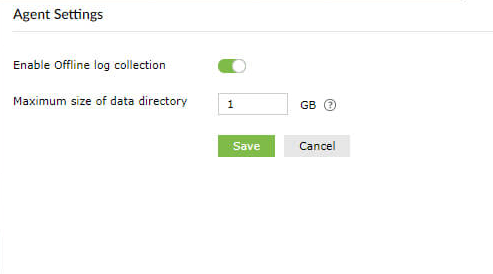
| Maximum size of data directory, when agent is unable to send data to server or storage is full | 0 | When an agent is disconnected from the network, log collection will be stopped. If the toggle is enabled and the value is configured, It collects and stores logs up to a configured limit. These logs are then uploaded when the connection is re-established |
To access and configure agent settings:
- Navigate to Settings → Log Source Configuration → Manage Agents →
 Agent Settings.
 - Click on the Toggle to enable offline Log collection and set the maximum data folder size in GB.
- After configuring the necessary changes, click Save.
Read also
This document described how to configure agent settings to manage offline log collection, define storage limits, and ensure reliable log retention during agent communication interruptions.