
Tags
Last updated on:
In this page
Overview
The Tags section lets you manage all the tags created for log search in Log360. Tags help you categorize and quickly identify logs that match specific queries. From this section, you can view, edit the criteria, or delete existing tags.
Each tag comprises:
- Criteria: The query that is associated with the tag to filter and group relevant logs.
- Notes: Additional information provided by the user to specify the purpose or context of the tag for future reference.
To create a new tag, refer to the Tagging Tool.
Viewing tags
- Log in to the product console and go to Settings tab.
- Navigate to Admin Settings. Under Others, select Tags.
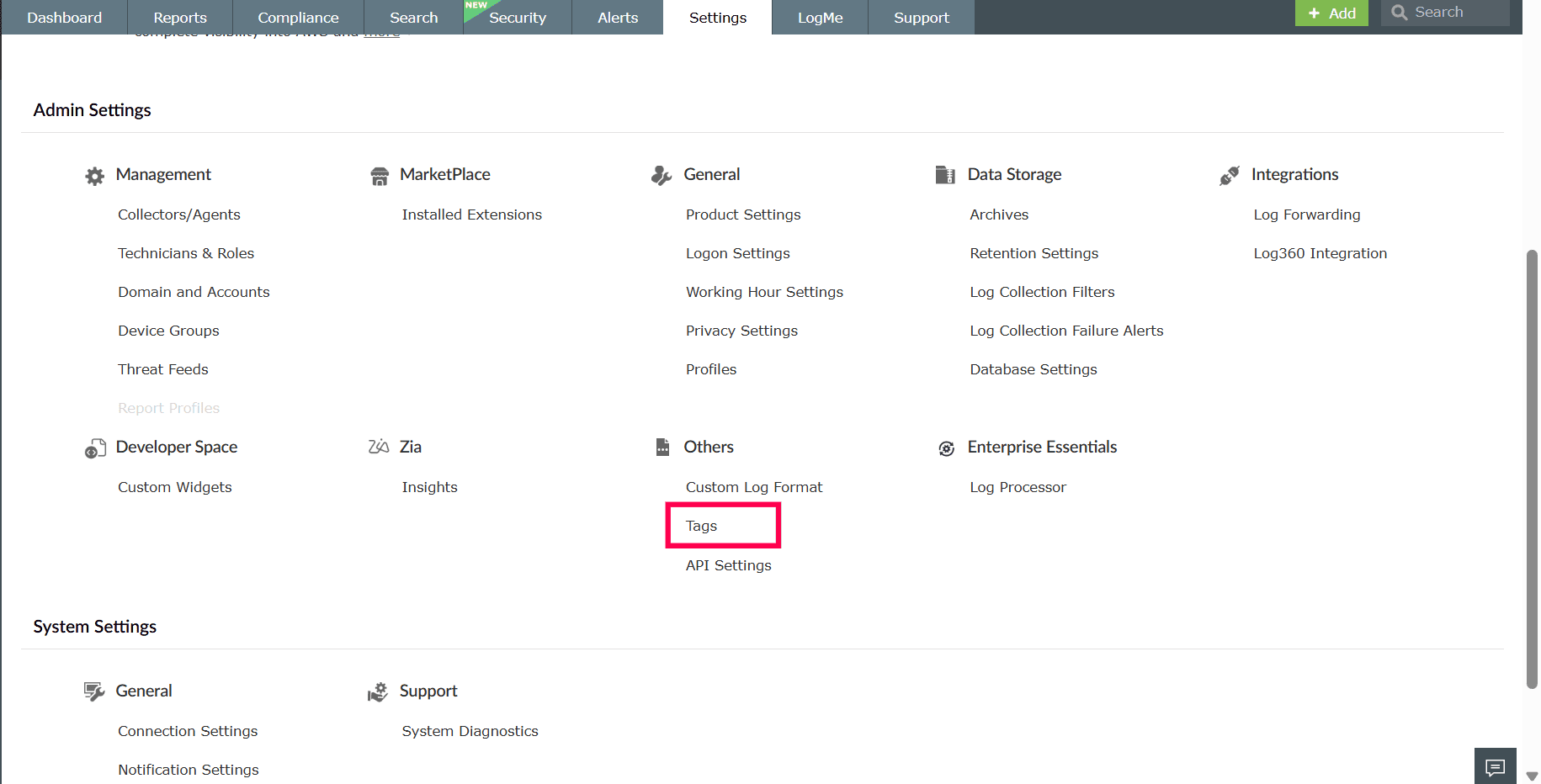
Figure 1: Navigating to Tags - Click the
 at the top of the page to search for a specific tag by name.
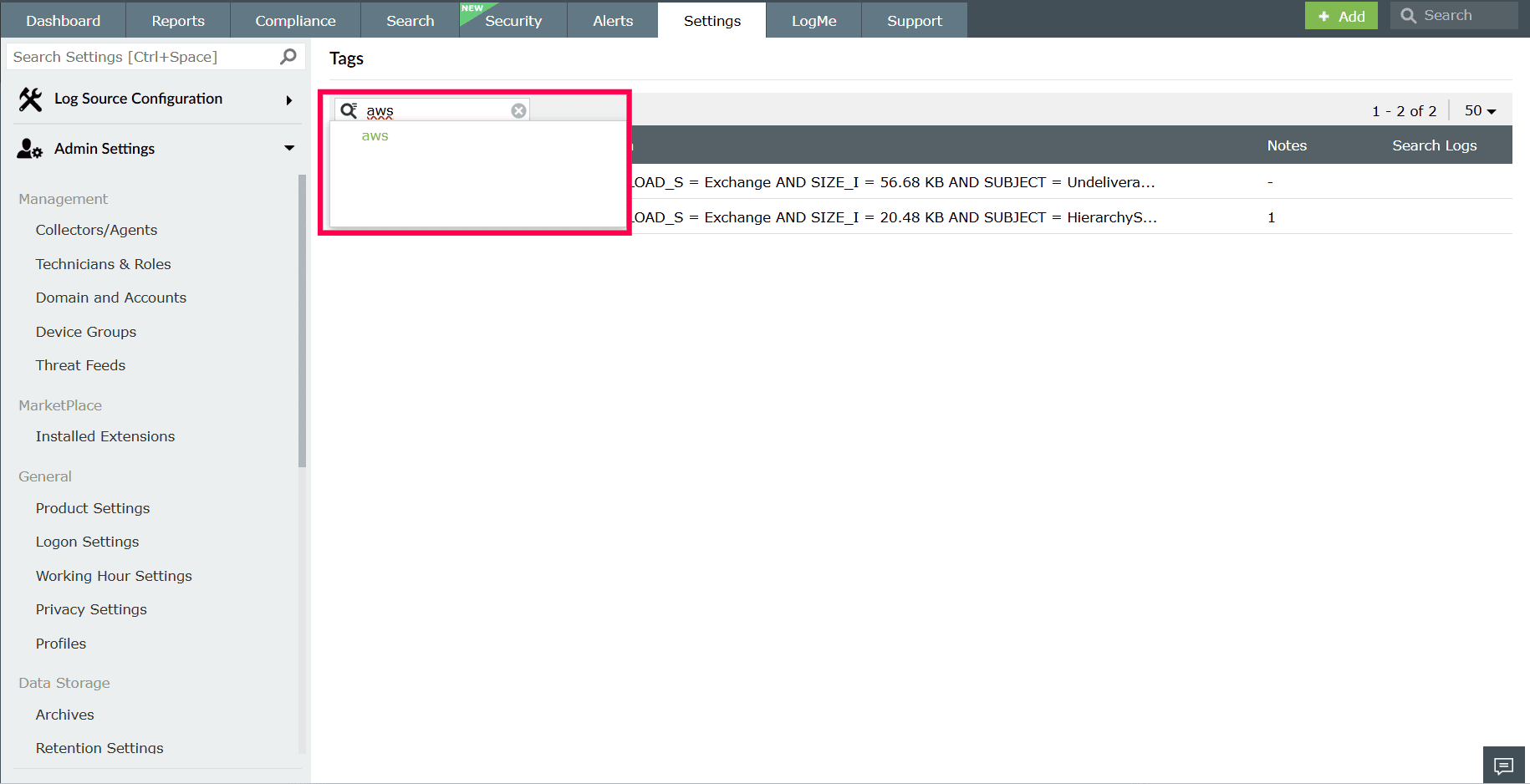
Figure 2: Locating a tag - In the Notes column, click the number displayed next to the tag name.
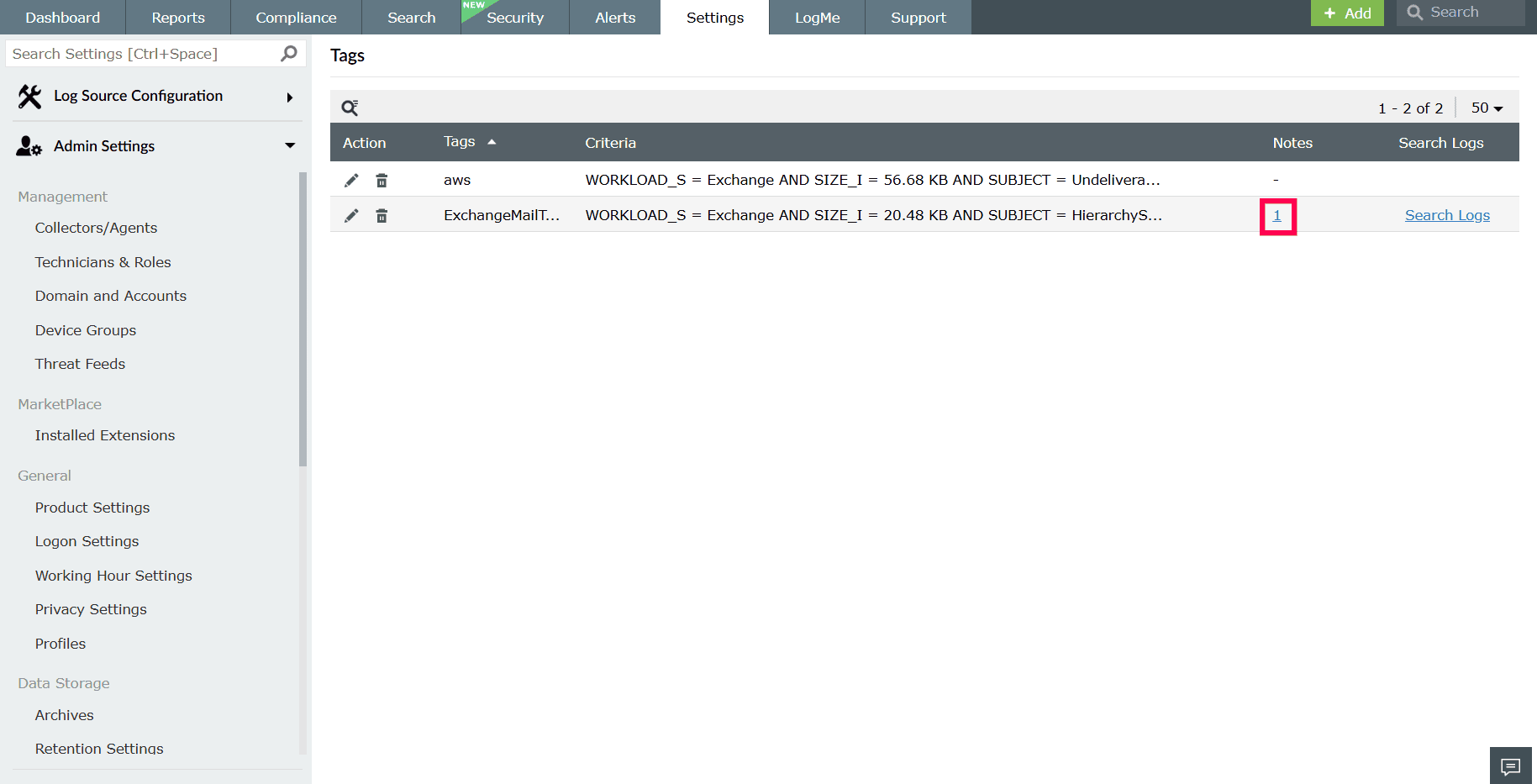
Figure 3: Viewing notes - A pop-up window appears displaying the existing notes.
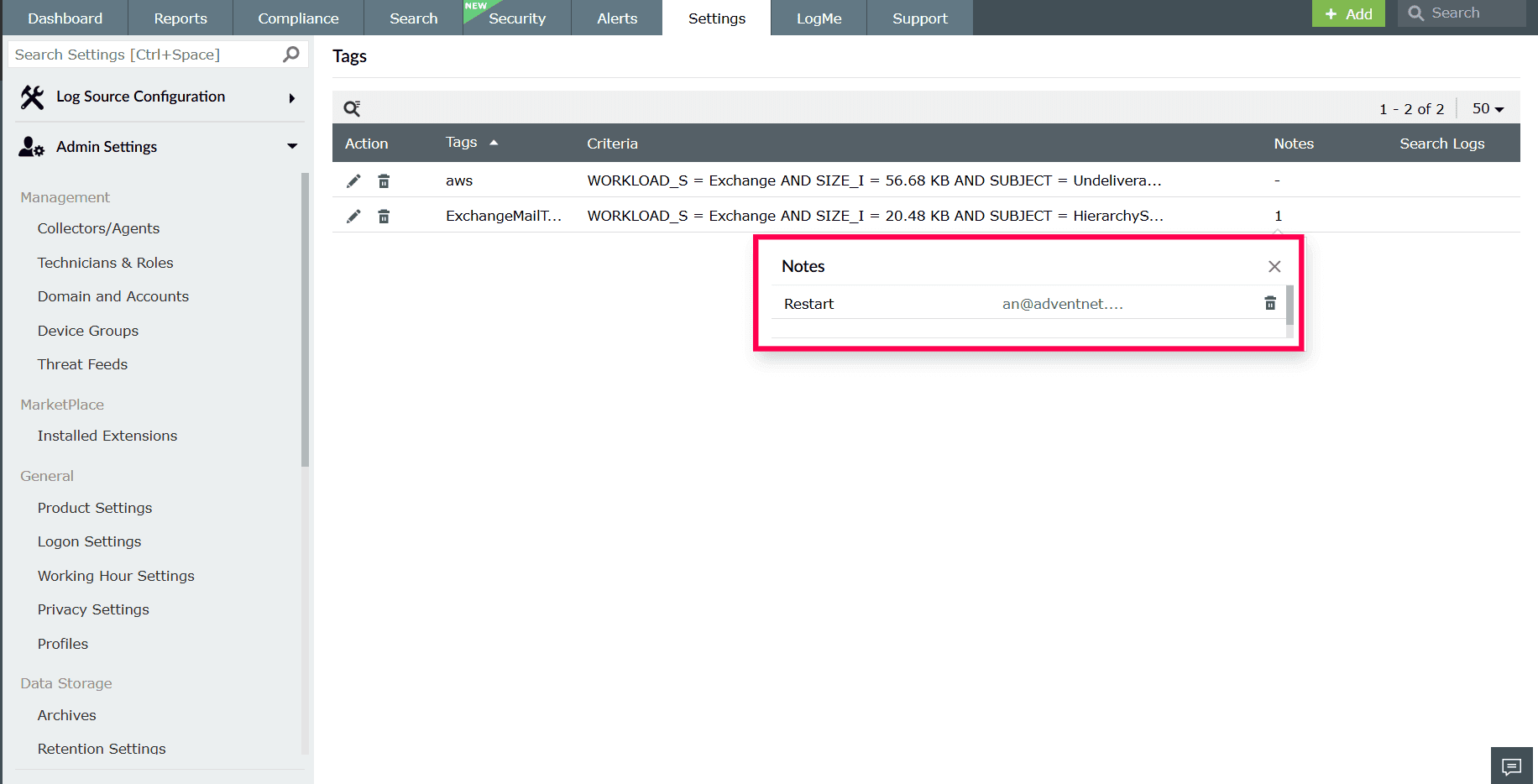
Figure 4: Viewing notes - You can view existing notes, or click the
 icon to delete any note if required.
NOTE Multiple notes can be added for a single tag.
icon to delete any note if required.
NOTE Multiple notes can be added for a single tag.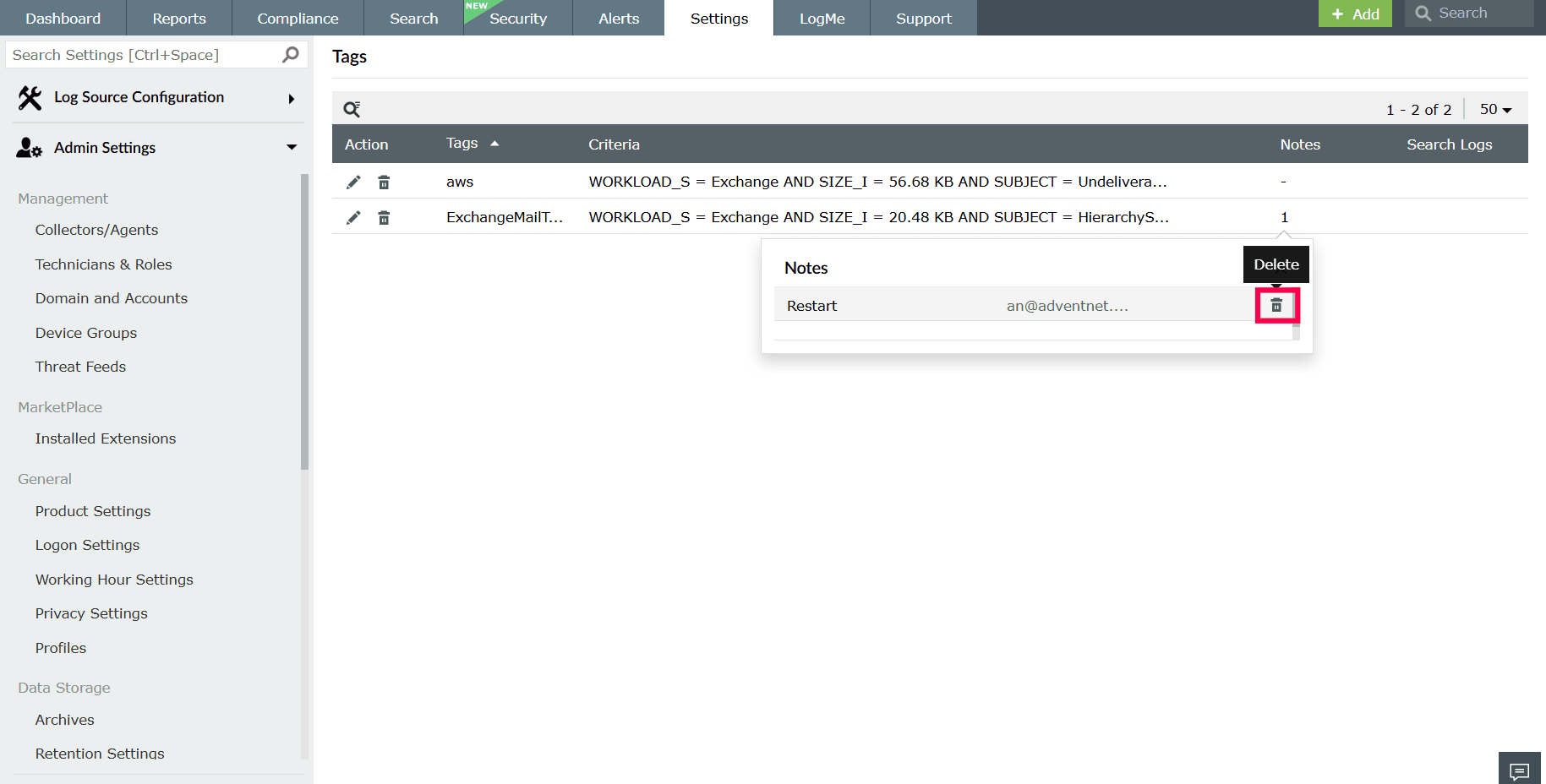
Figure 5: Deleting notes - In the confirmation pop-up, click Yes to proceed.
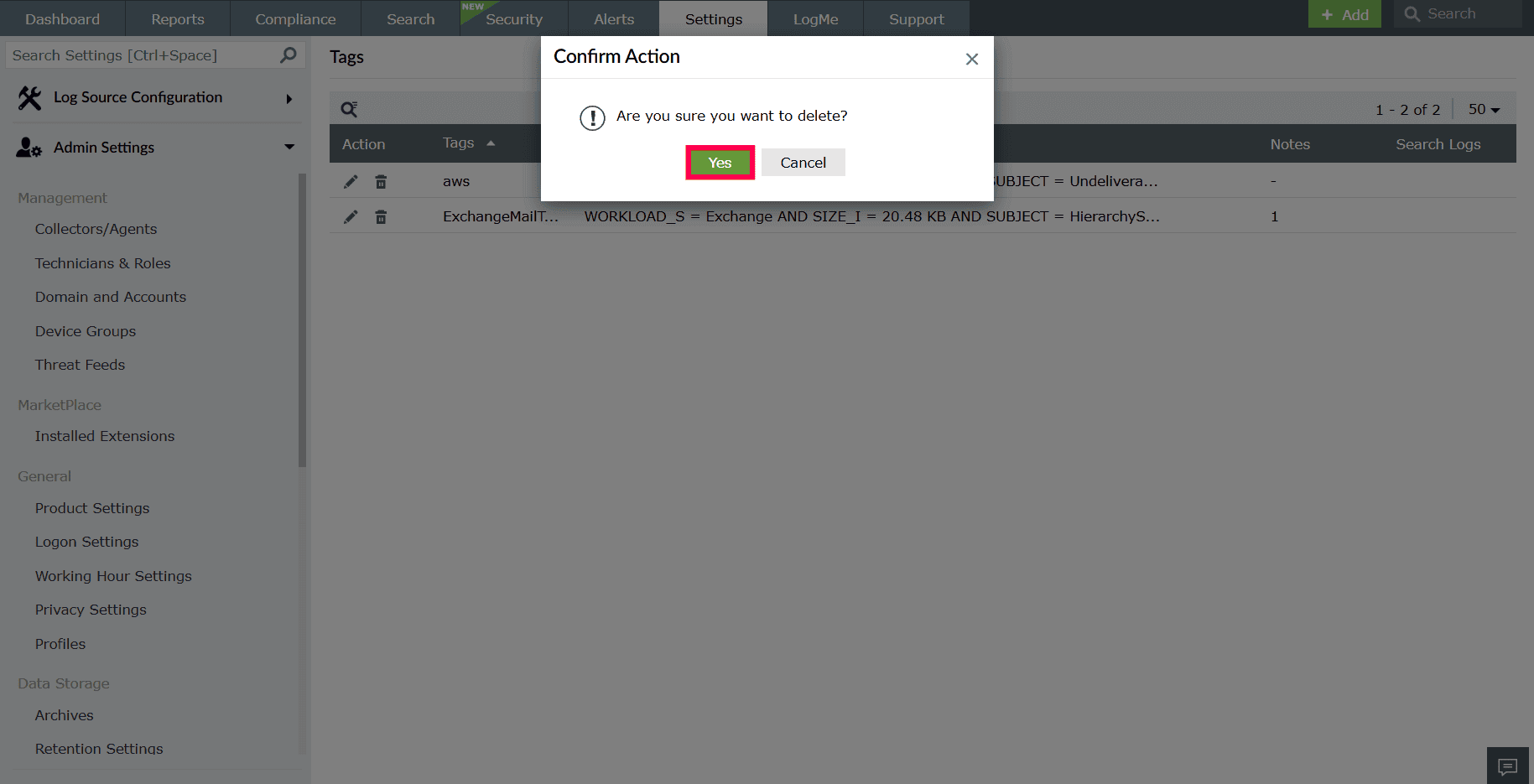
Figure 6: Confirming deletion - Hover over the Search Logs column, Search Logs will appear. Click it to open the Search page, where the logs matching the tag's criteria are displayed automatically.
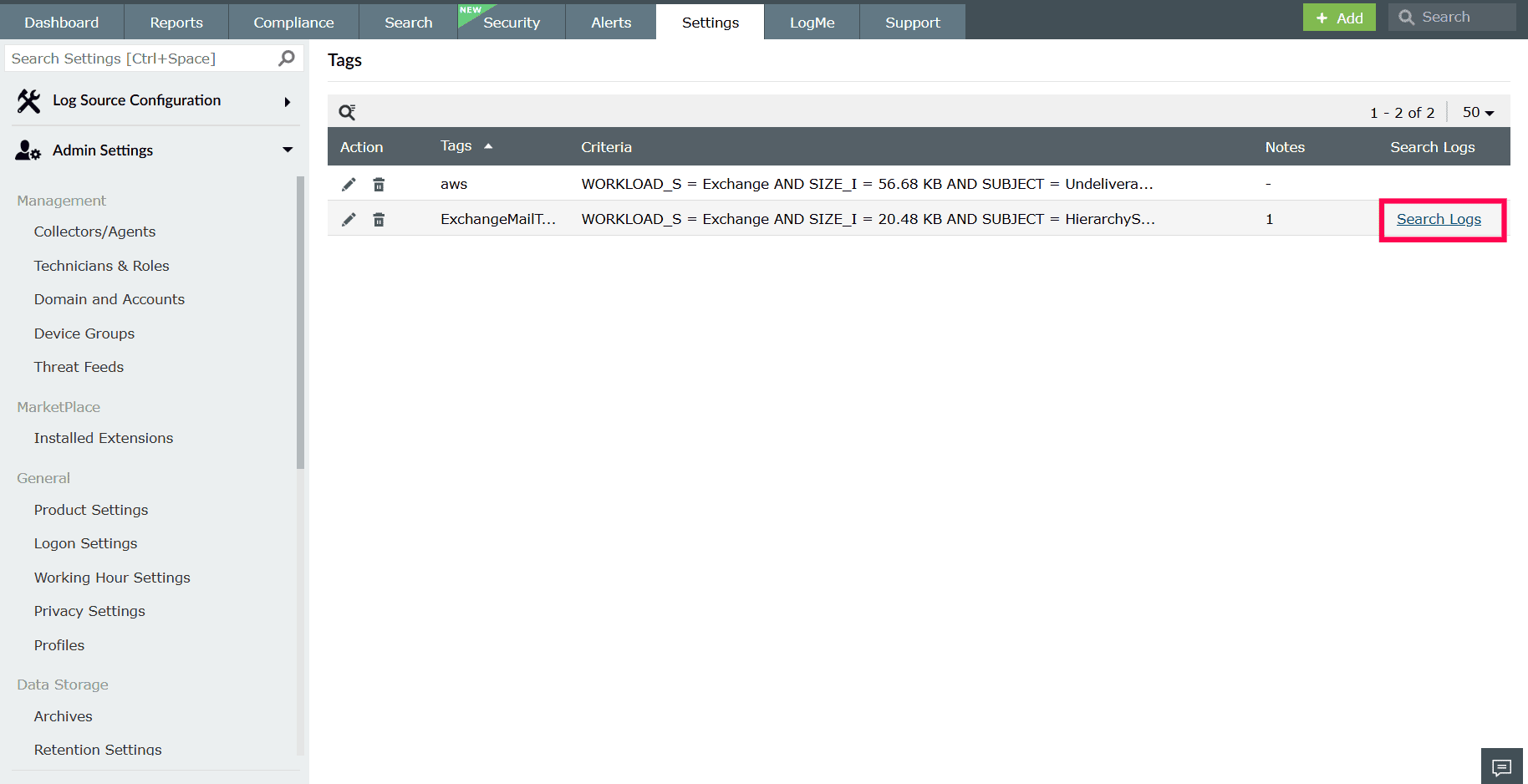
Figure 7: Viewing search logs
Editing the criteria
- In the Tags page, select
 the icon next to the tag you want to modify.
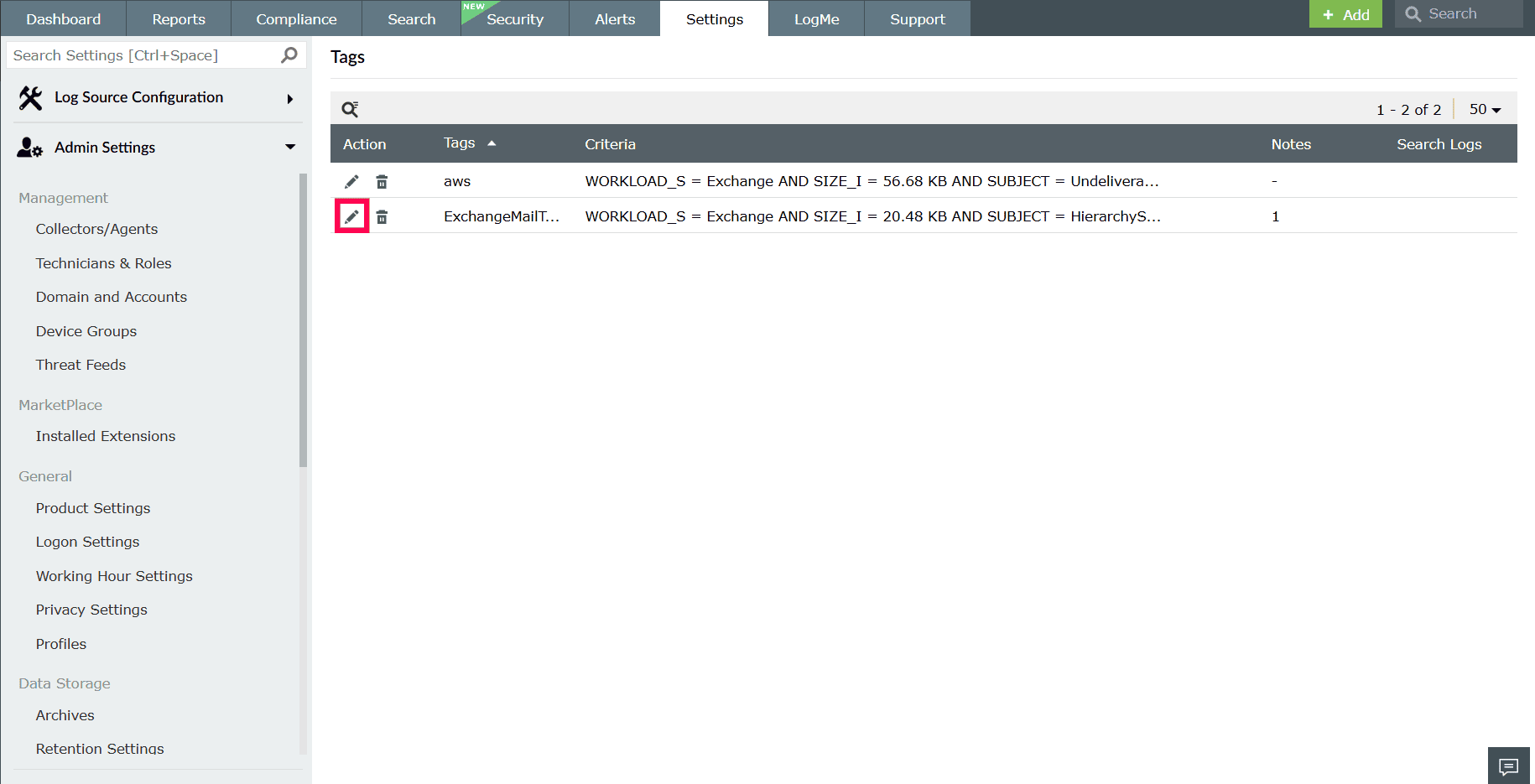
Figure 8: Modifying a tag - The Edit window opens, displaying the list of conditions currently associated with the tag.
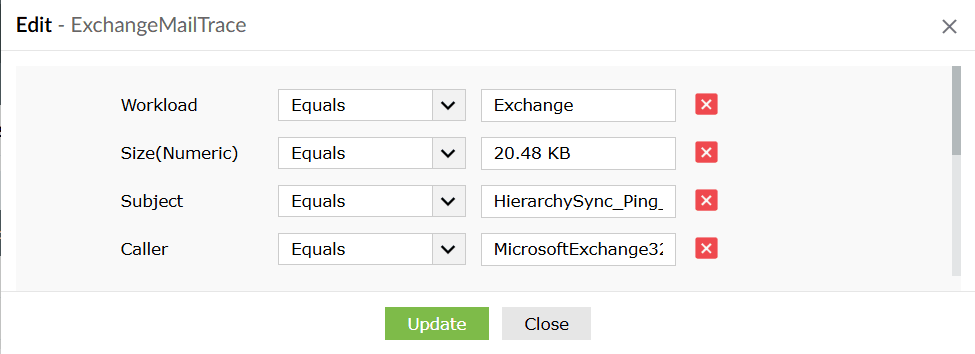
Figure 9: Modifying a tag - To update a condition:
- Select a different operator from the drop-down.
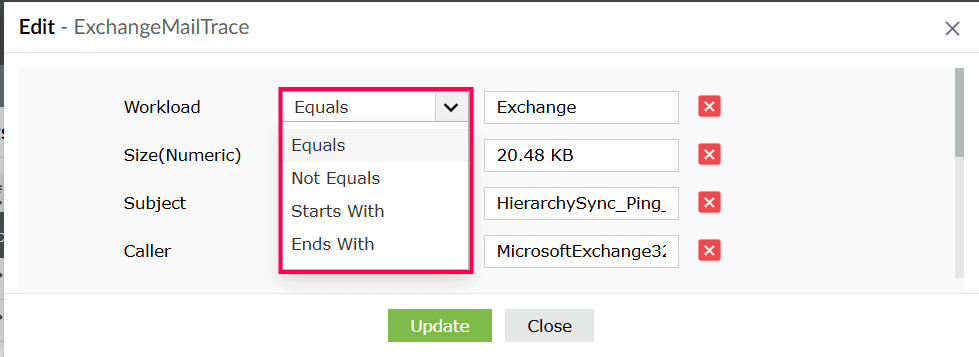
Figure 10: Modifying operators - Enter or update the value in the field next to operators.
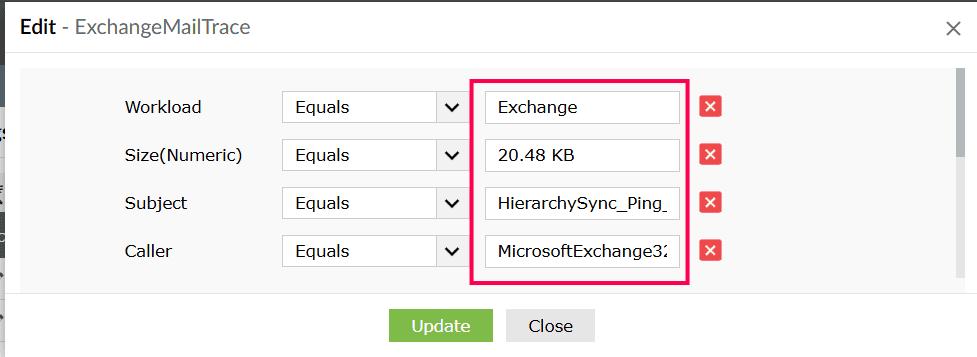
Figure 11: Editing a tag
- Select a different operator from the drop-down.
- To remove a condition, click the
 icon next to it.
 - After making the required changes, click Update to save the criteria.
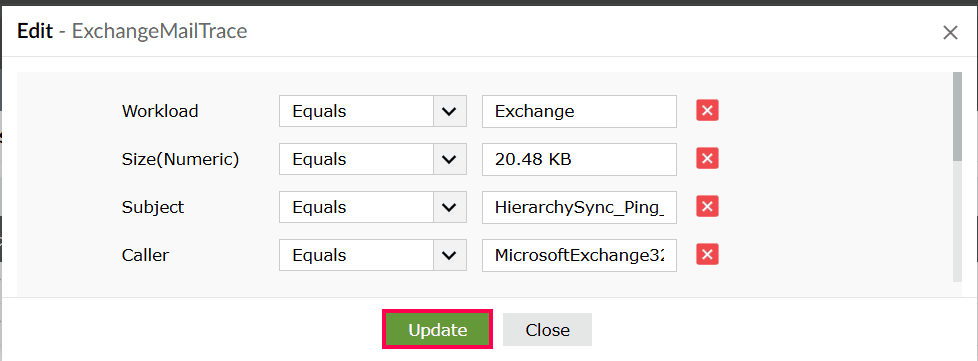
Figure 12: Updating changes
Deleting a tag
- In the Tags page, click the icon next to the tag you want to remove.
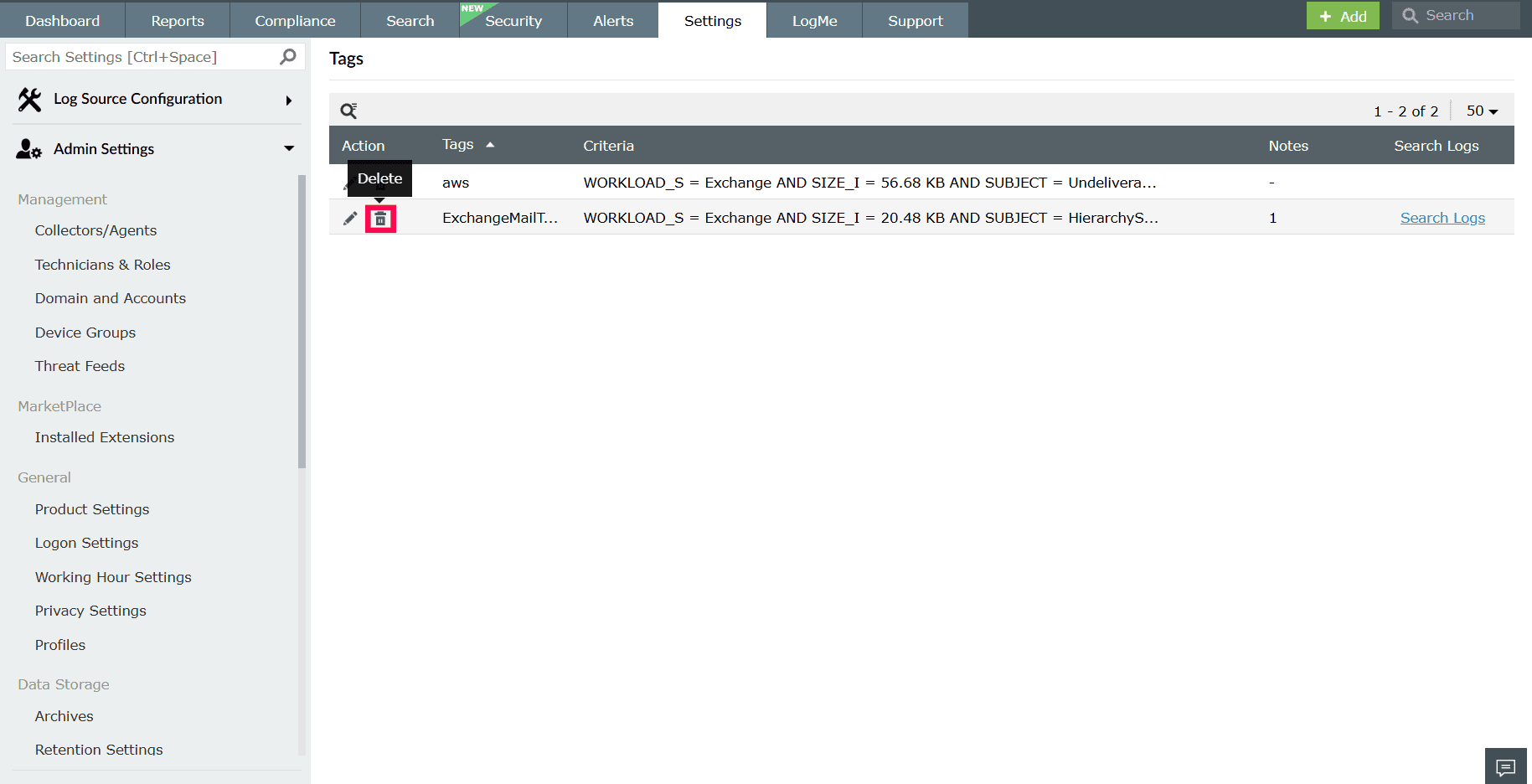
Figure 13: Deleting a tag - In the confirmation dialog, click Yes to proceed.
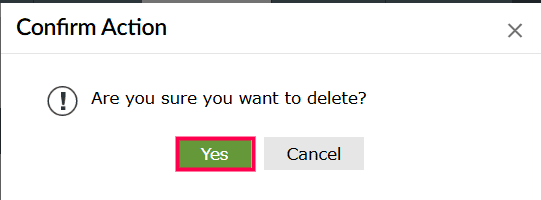
Figure 14: Confirming deletion
NOTE Deleting a tag removes it permanently from the product. The tag will no longer be available for filtering or grouping logs, but the logs associated with the tag remain unchanged.
Read also
This page explained how to manage tags in Log360. To learn more about creating and managing tags for log search in Log360, refer to the following article: