
Log Level Settings
Last updated on:
In this page
Overview
Log Level Settings is used to set the granularity level of EventLog Analyzer /Log360 server logs. The logs will form part of the Support Information File (SIF) generated for sending to ZOHO Corp. These logs will be used for debugging EventLog Analyzer /Log360 server issues.
This page outlines how to configure these log level settings. You can adjust the log granularity, set the retention period for internal logs, and apply filters to store only the necessary diagnostic information for troubleshooting.
NOTE
- This is a filter for server log data.
- Only the selected level of log data will be stored in the server log file.
Steps to configure the log level settings
- In the Settings tab, navigate to System Settings > System Diagnostics > Log Level Settings.
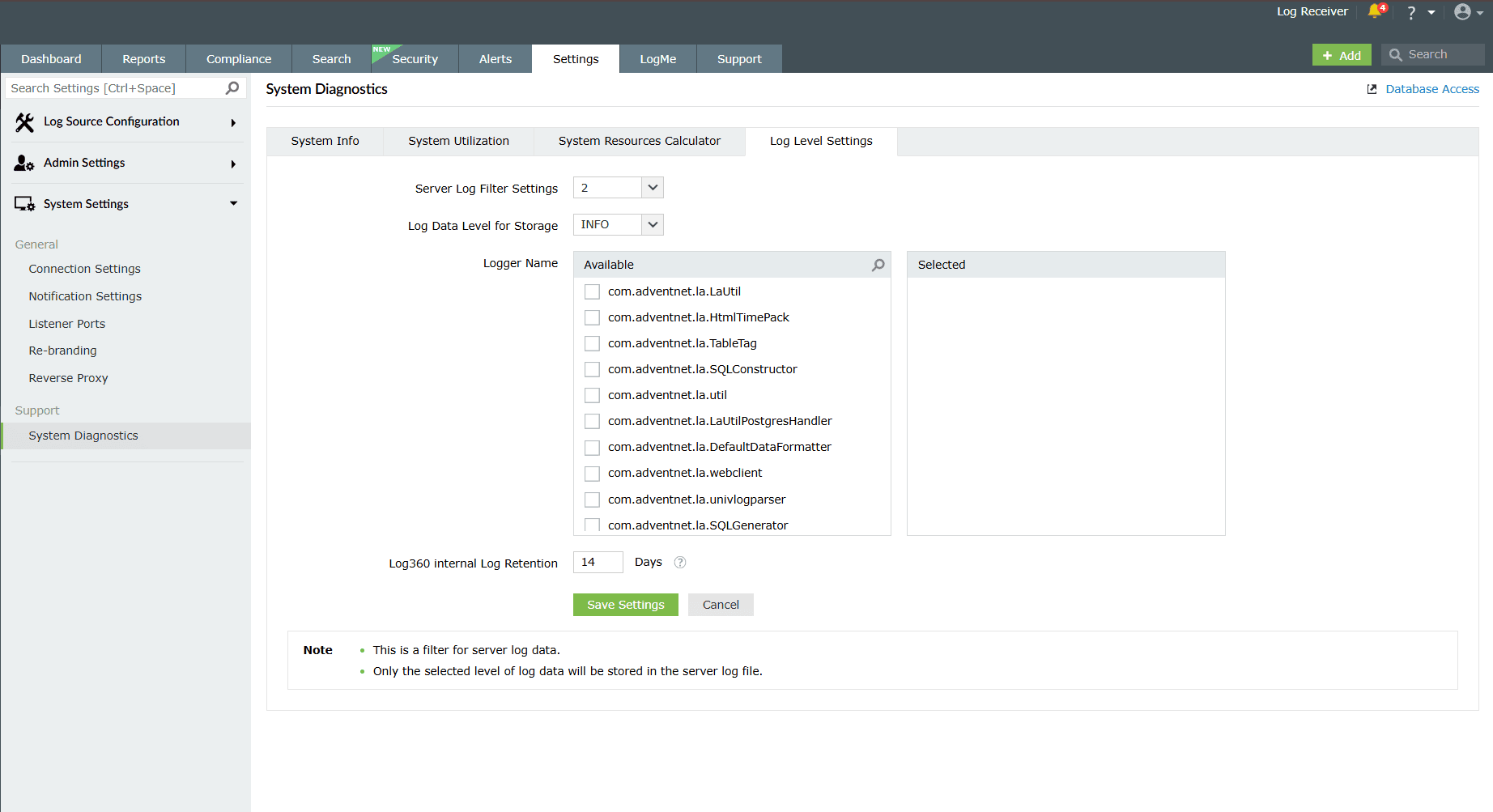
Image 1: Log level settings in system diagnostics settings - Select the Server Log Filter Settings (values from 2 to 5.)
- Select the Log Data Level for Storage. Available options in the drop-down are as follows:
- ALL
- FINEST
- FINER
- FINE
- CONFIG
- INFO
- WARNING
- SEVERE
- OFF
- Select the Logger Name from the list. For each available logger or set of loggers, you can set the log filter level and log level independently.
- Choose a value in days for Log360 internal Log Retention. This value will define the number of days the product's internal logs will be retained. The logs will be deleted once the specified number of days are over.
- Click Save Settings to save the selected log level settings.
Read also
This page outlined how to configure and manage log level settings under system diagnostics. To learn more about related configurations, see the following pages: