
Create alert profiles
Last updated on:
In this page
Overview
This page explains how to create and manage alert profiles. It covers setting predefined or custom criteria, choosing log sources, defining severity levels, and configuring notifications. You can also enable playbooks to automate actions for faster incident response.
Configuring alert profiles
- In the product dashboard, navigate to the Alerts tab as highlighted in the below image.
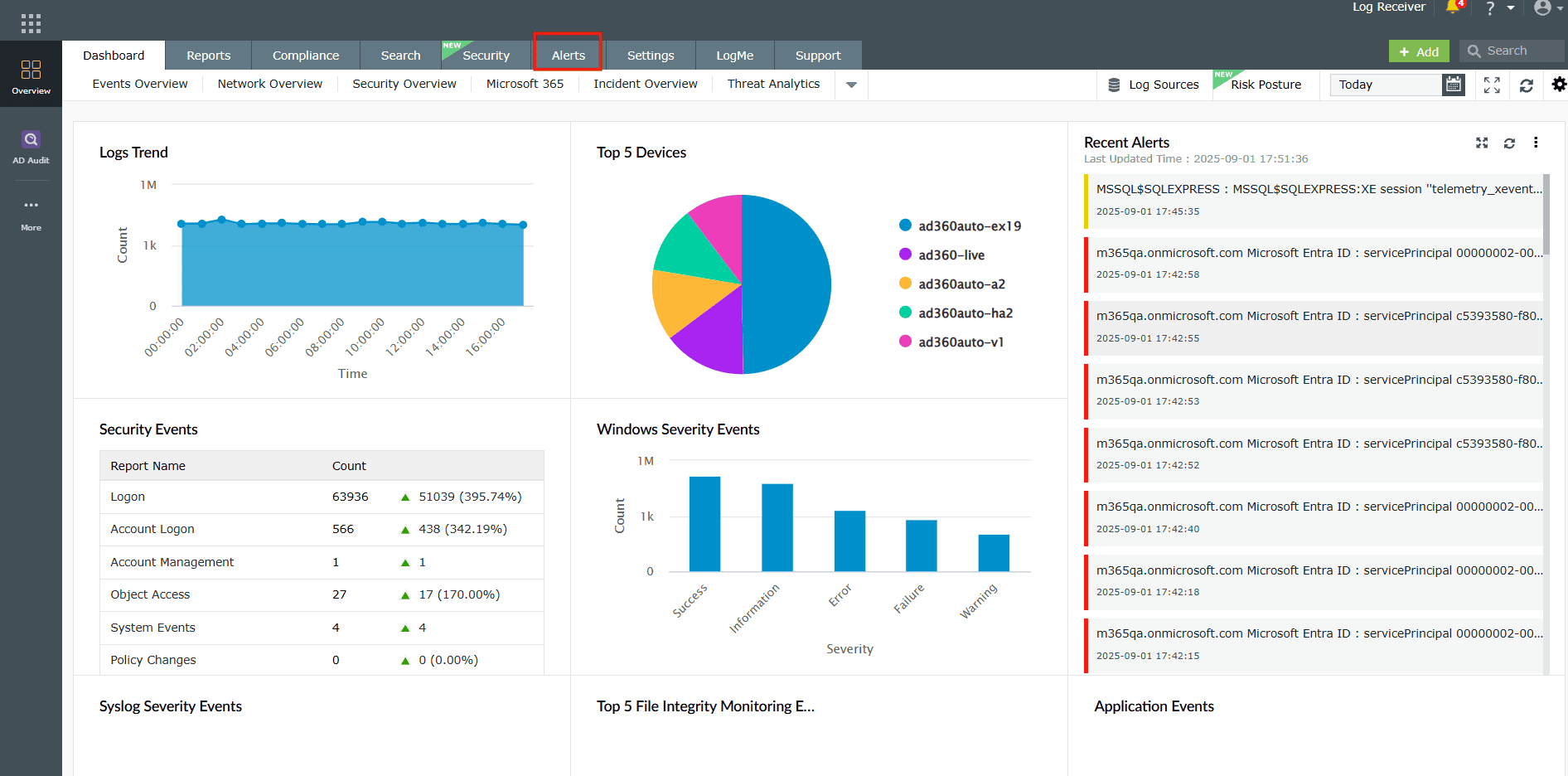
Image 1: Alerts tab in the dashboard - You will be taken to the Alerts module.
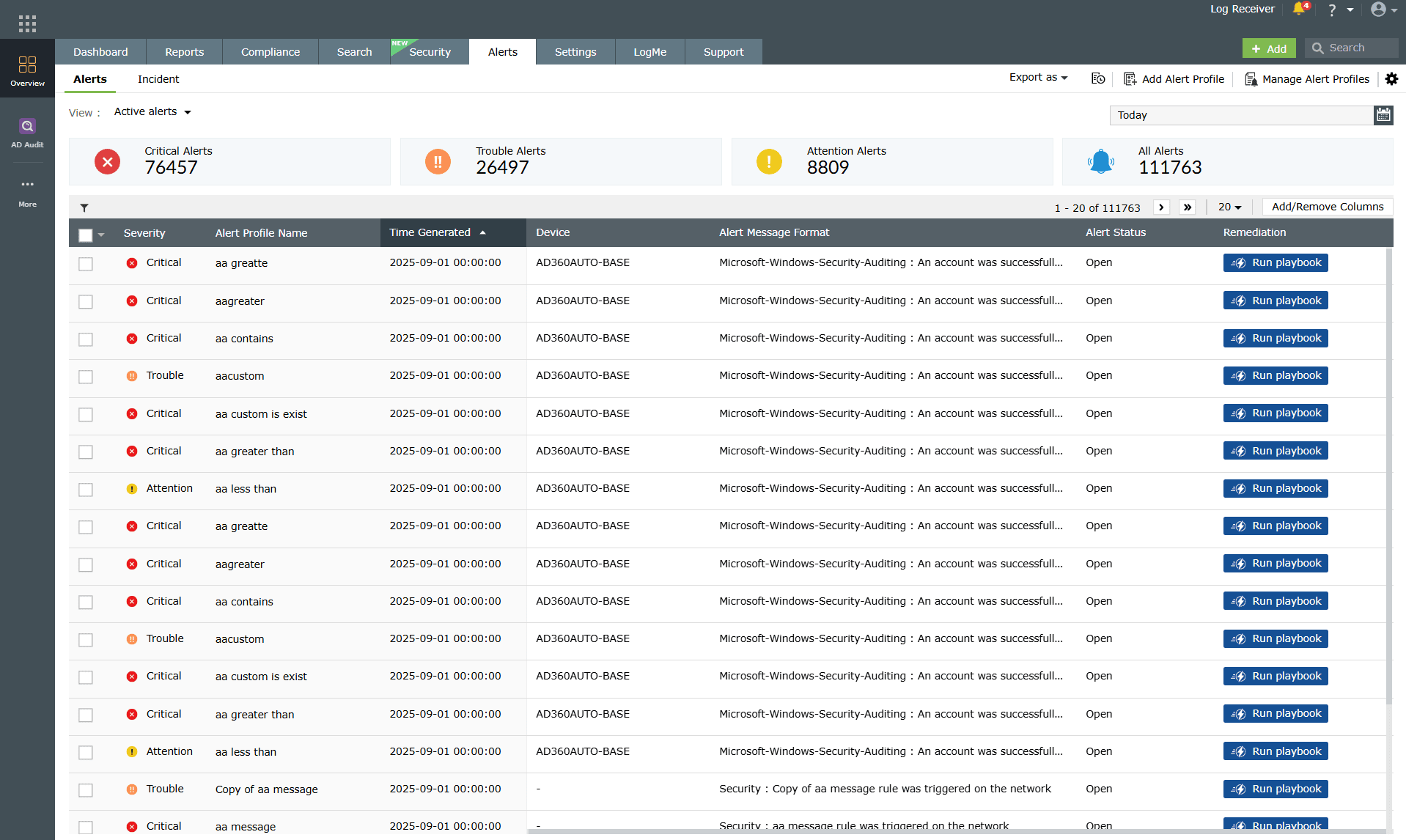
Image 2: Alerts module via the dashboard
From this module, you can create, manage, and configure alert profiles
Creating an alert profile
You can choose from the available predefined alert profiles and the also define customized criteria for specific requirements.
Steps to create an alert profile
- In the product console, navigate to the Alerts tab and click on the Add Alert Profile button at the top-right corner of the page as highlighted in the below image.
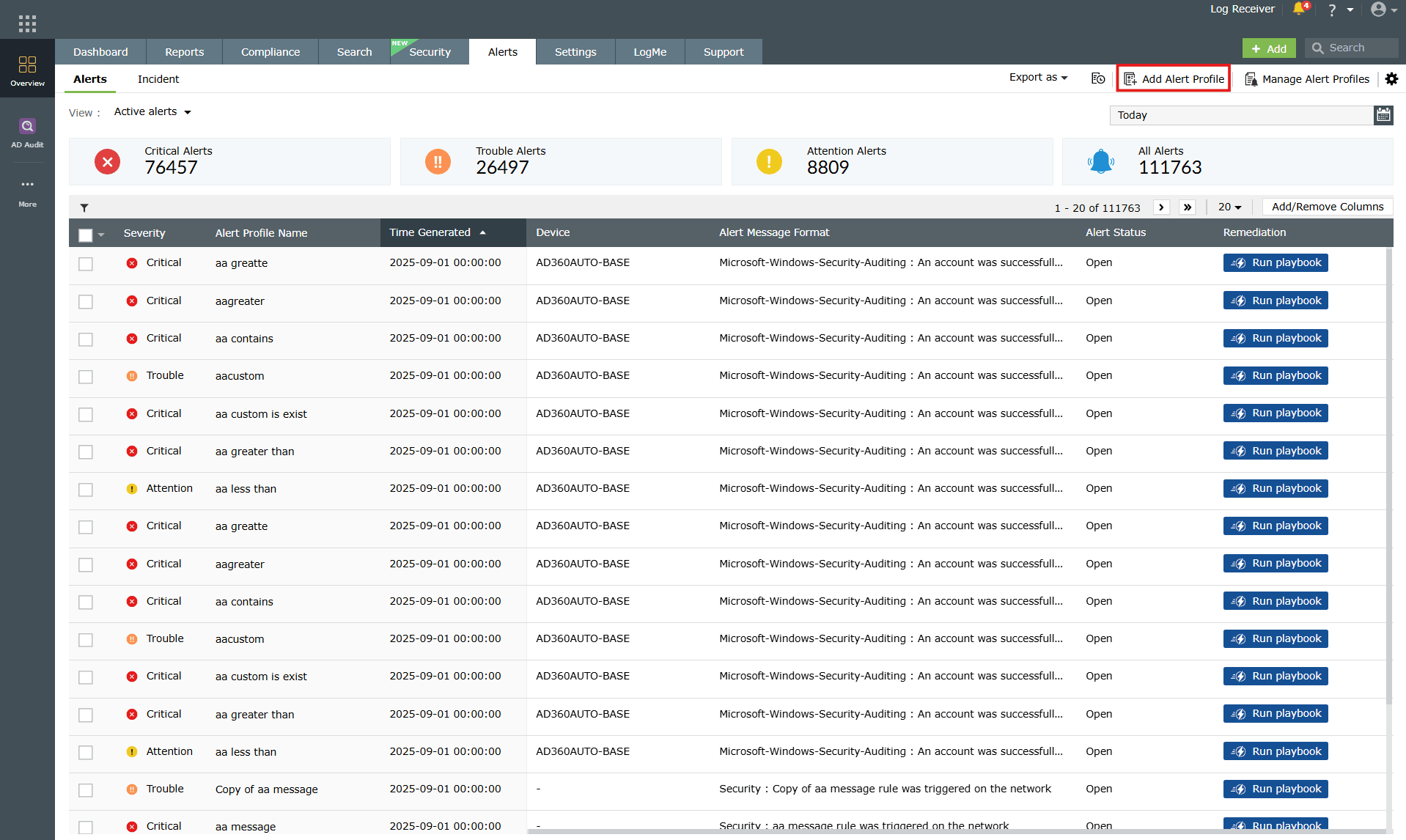
Image 3: Add Alert Profile button in the Alerts tab - The Add Alert Profile page opens. Enter a unique name for the alert profile in the Name field.
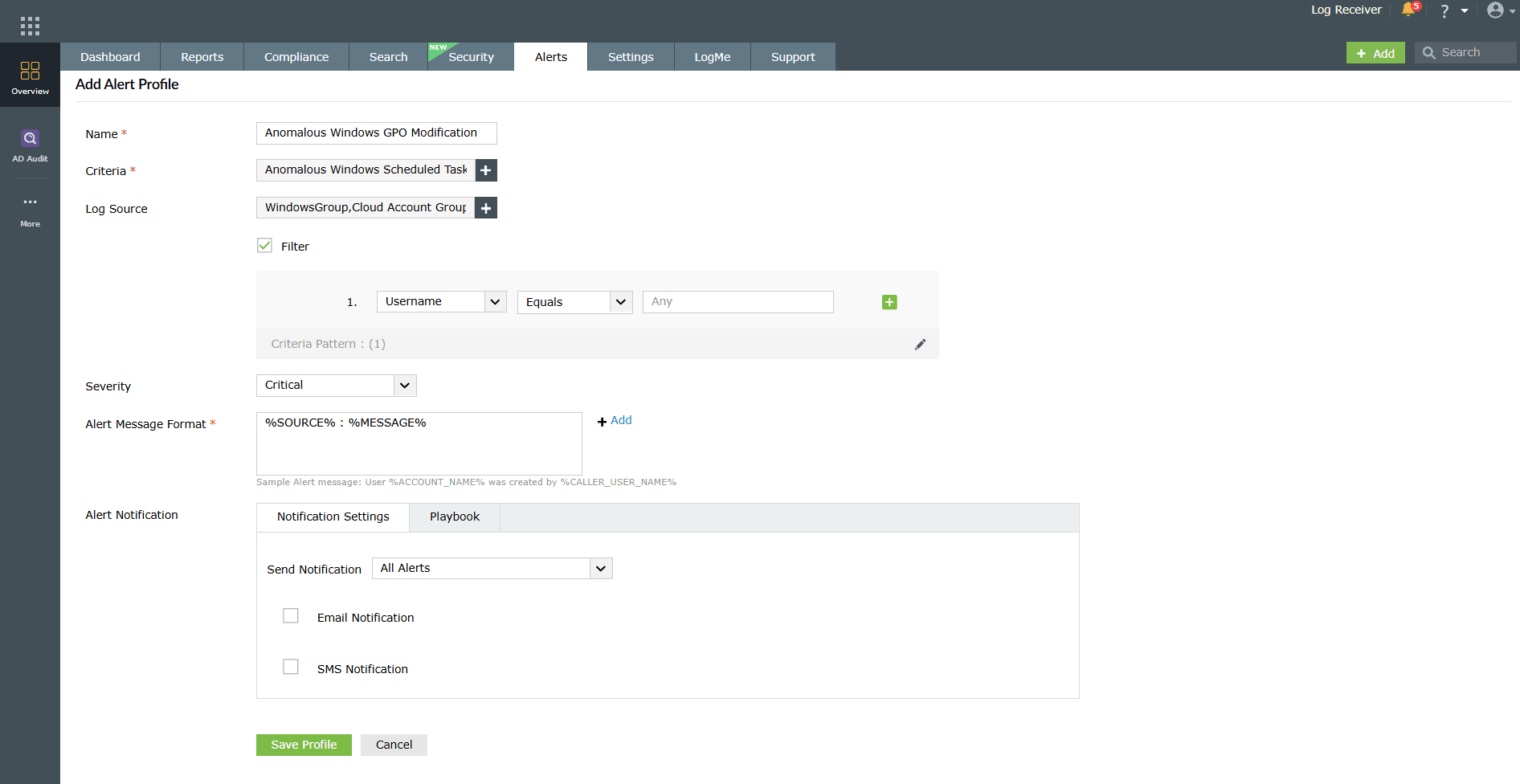
Image 4: Add alert profile module - In the Criteria field, click on the + icon to define the alert conditions. This opens the Alert Criteria Builder window. There are 4 sub-tabs available in the Alert Criteria Builder:
- Predefined Alert Criteria
- Rules
- Compliance Alert Criteria
- Custom Alert Criteria
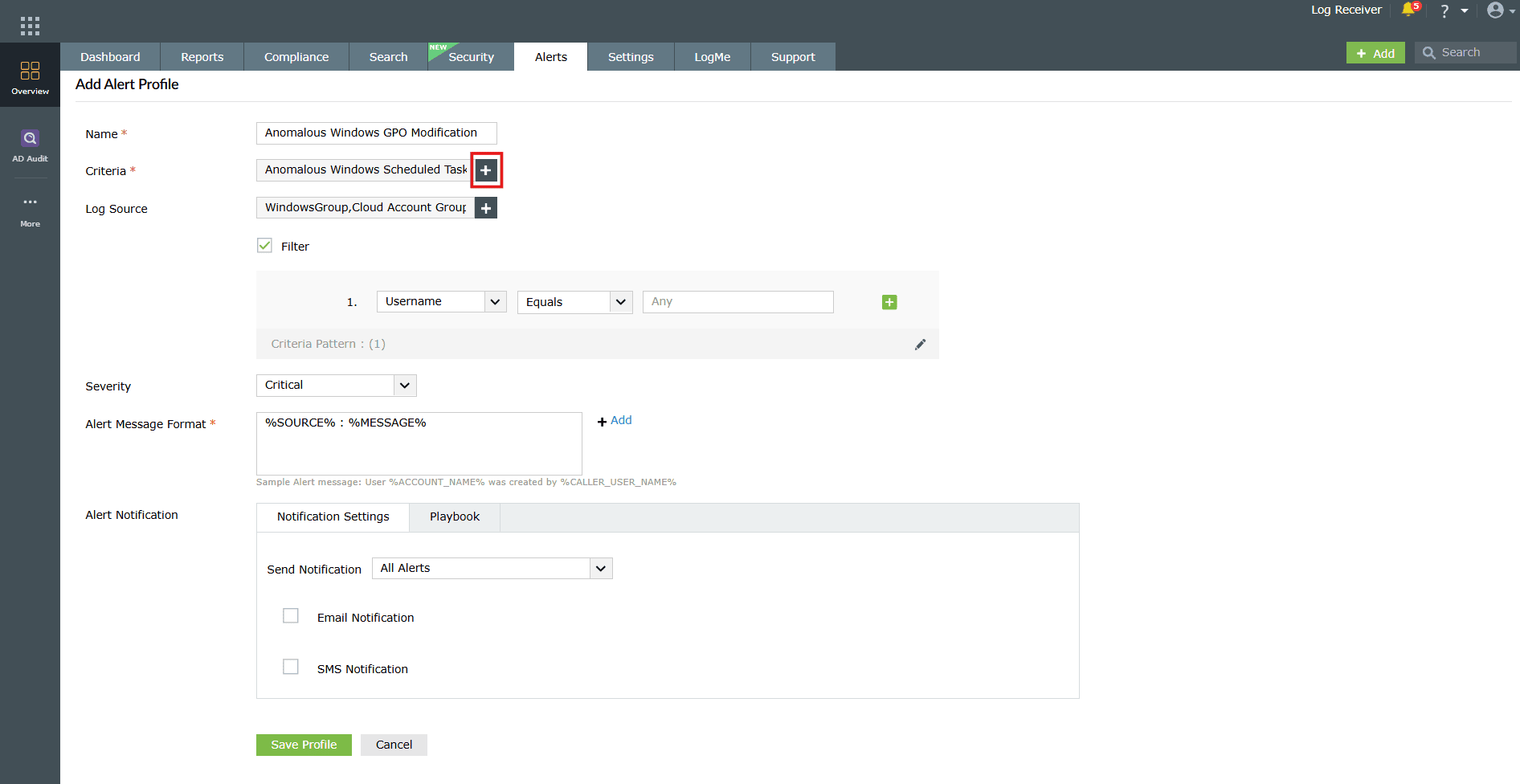
Image 5: Alerts criteria configuration - Defining alert criteria: When adding alert criteria, you can choose from four categories in the Alert Criteria Builder window.
- Predefined Alerts
- Select Predefined Alert Criteria in the criteria builder.
- You can also now add custom filter criteria using the Filter option, which replaces the earlier + Add Criteria button for easier access.
- Choose a log type from the Group drop-down and select the required category.
- Pick the desired alert condition by clicking the radio button next to it.
- This option allows you to quickly select from a wide collection of predefined alert conditions, saving time and effort.
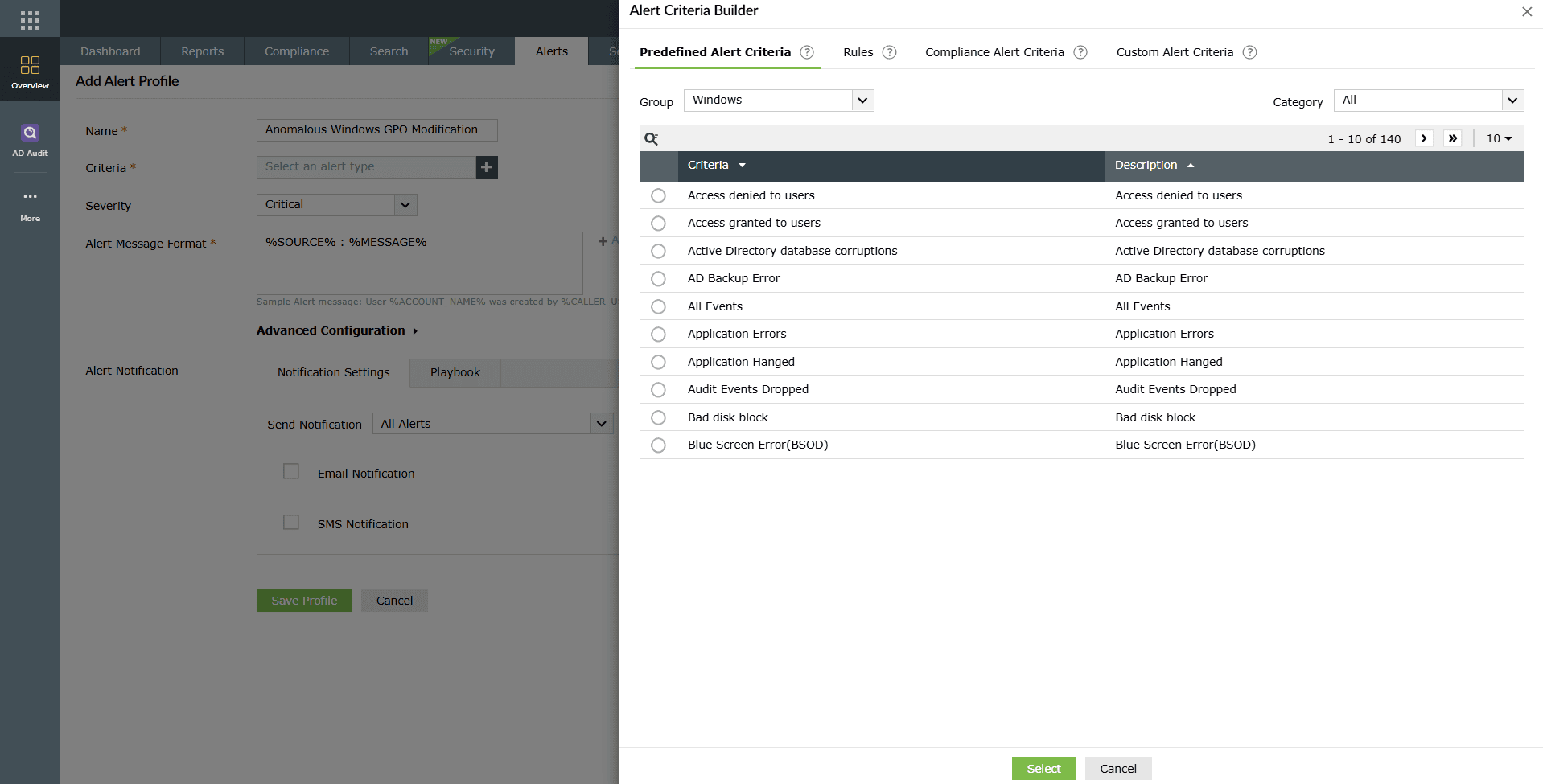
Image 6: Predefined Alert Criteria options in the criteria builder - Rules
- Select the Rules sub-tab in the criteria builder.
- Browse through predefined, security-focused alert rules mapped to common threat patterns and anomalous activities.
- Choose from a wide range of rule-based detections across supported log types such as Windows, firewalls, databases, and more.
- Each rule is designed to surface suspicious activity, for example, unusual password changes, bulk file modifications, failed logons, privilege escalations, or unexpected system shutdowns.
- Enable the required rules to detect automatically and alert on activities that may indicate insider threats, ransomware, brute force attempts, or other security risks.
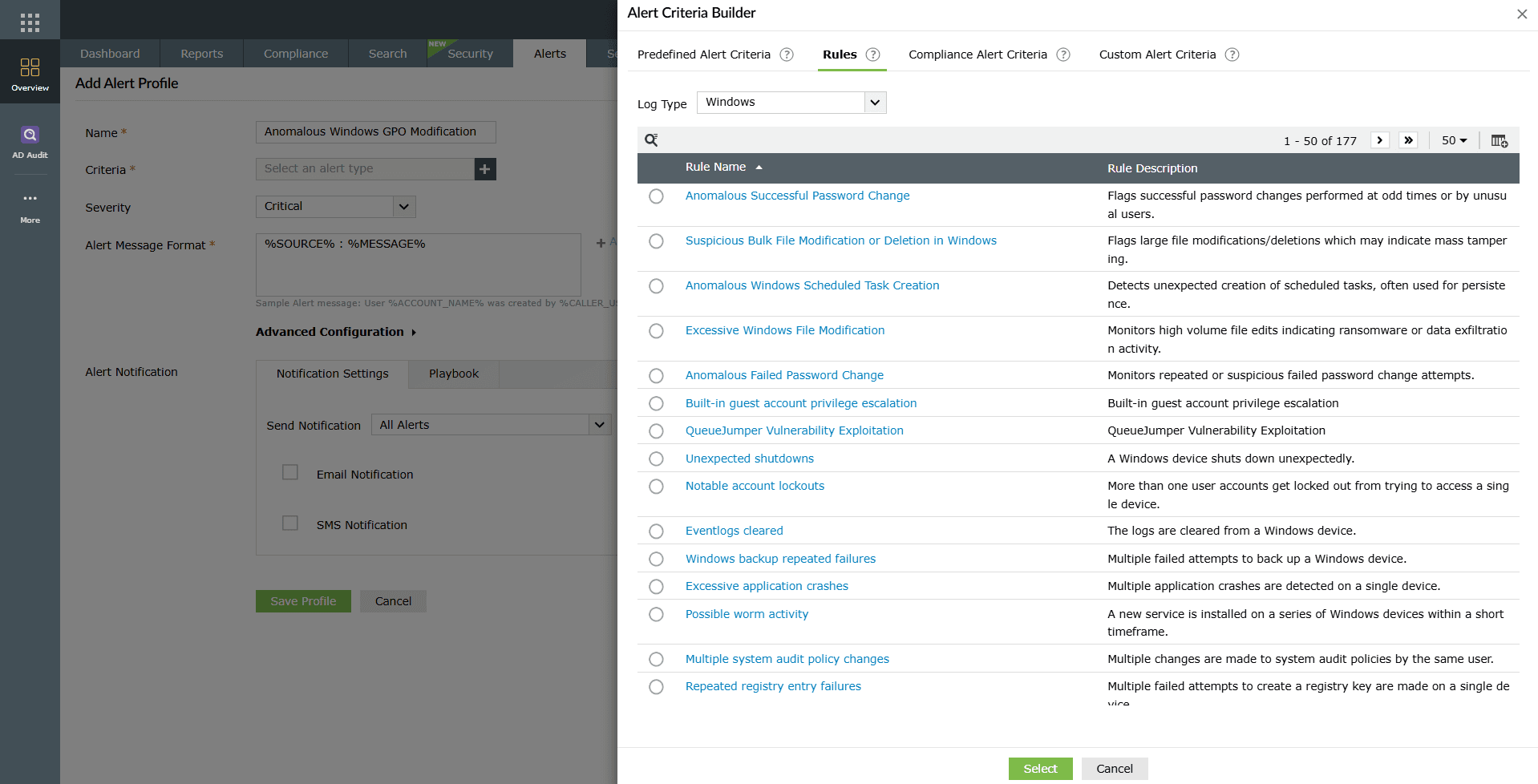
Image 7: Rule-based Alert Criteria options in the criteria builder - Compliance Alerts
- Select Compliance Alert Criteria in the criteria builder.
- Browse through compliance-related alerting criteria designed to detect violations of IT regulations such as PCI DSS, SOX, HIPAA, GLBA, PDPA, NIST, CCPA, GDPR, and ISO 27001:2013.
- Select the required compliance alert condition.
- Compliance alerts help you monitor anomalies such as policy changes, privilege escalations, unauthorized logons, and sensitive file access or modification.
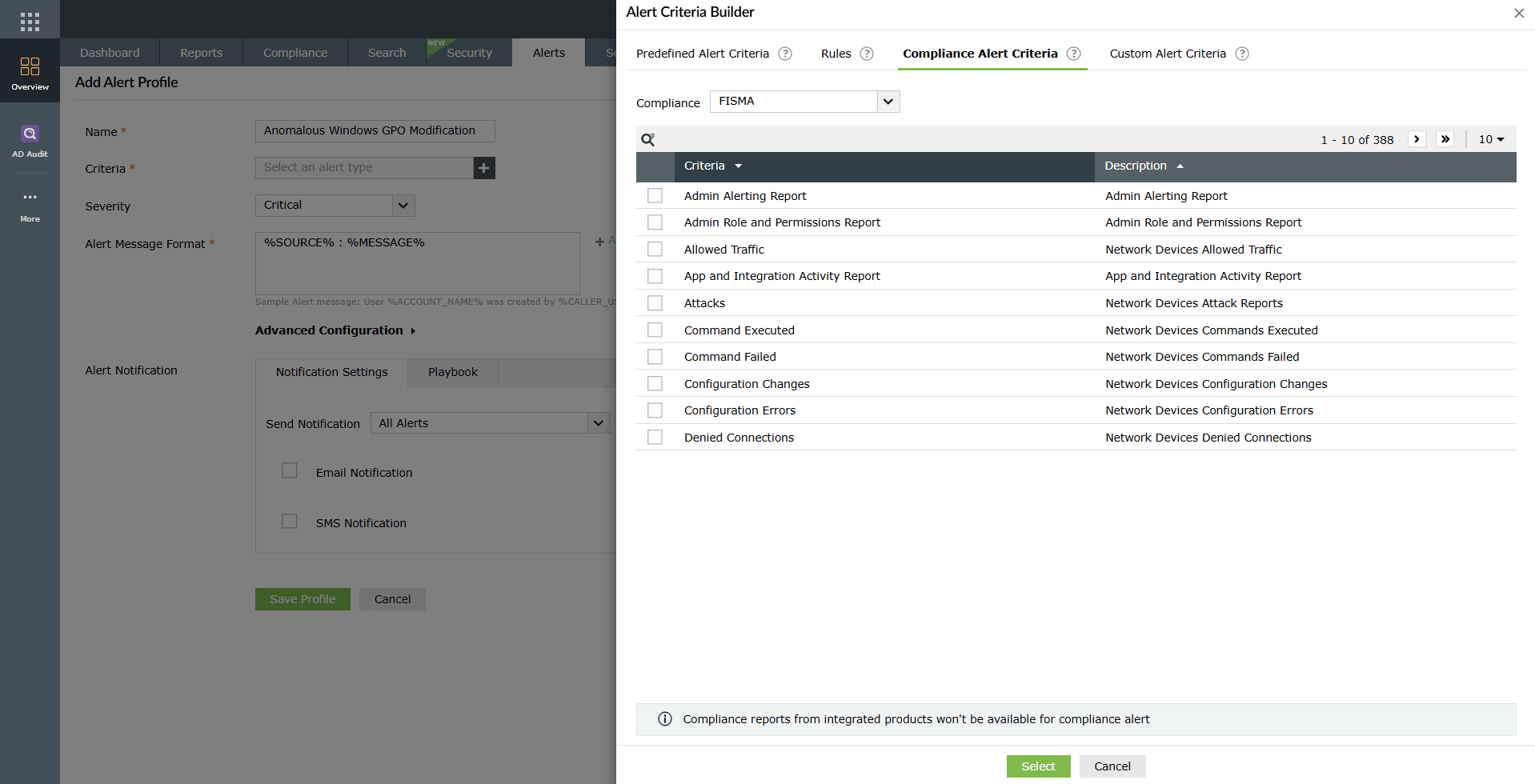
Image 8: Predefined Alert Criteria options in the criteria builder - Custom Alerts
- Select Custom Alert Criteria in the criteria builder.
- Define one or more alert conditions using attributes, comparators, and values.
- Group or ungroup conditions using AND/OR operators.
- Optionally, configure alerts for imported logs such as Oracle, Microsoft SQL, IIS, or Print Servers by selecting the custom extracted fields.
NOTE To add multiple custom extracted fields, click on the + icon in the criteria builder.
- Vulnerability and Misconfiguration Comparators (available when integrated with Endpoint Central):
- Is Vulnerable – Detect devices tagged as vulnerable.
- Vulnerable To – Identify devices exposed to specific CVEs.
- Misconfigured For – Detect devices with misconfigurations (e.g., Windows Credential Guard disabled).
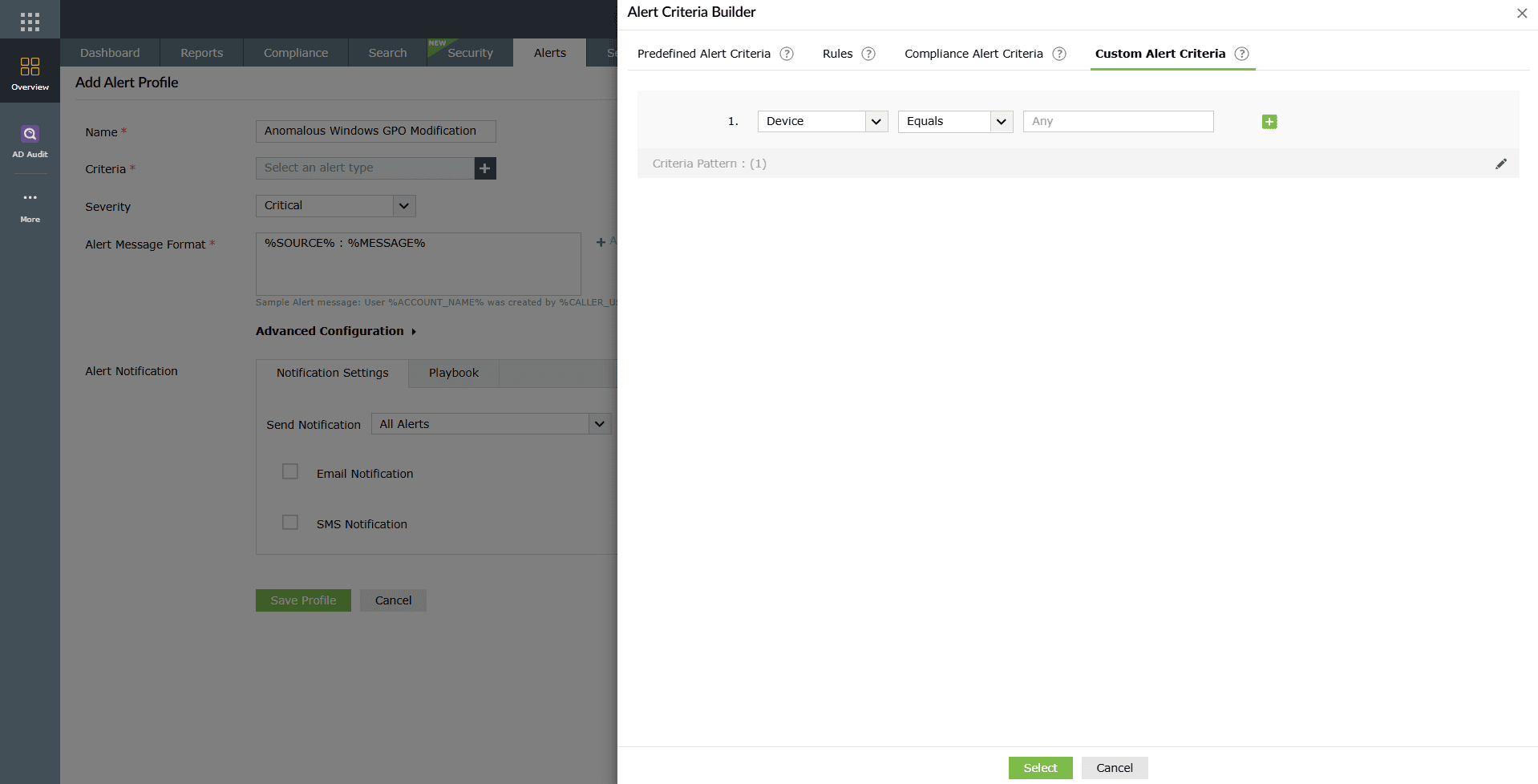
Image 9: Alert Criteria Builder window
- Predefined Alerts
- Choose the Log Source(s) to be configured under this alert profile.
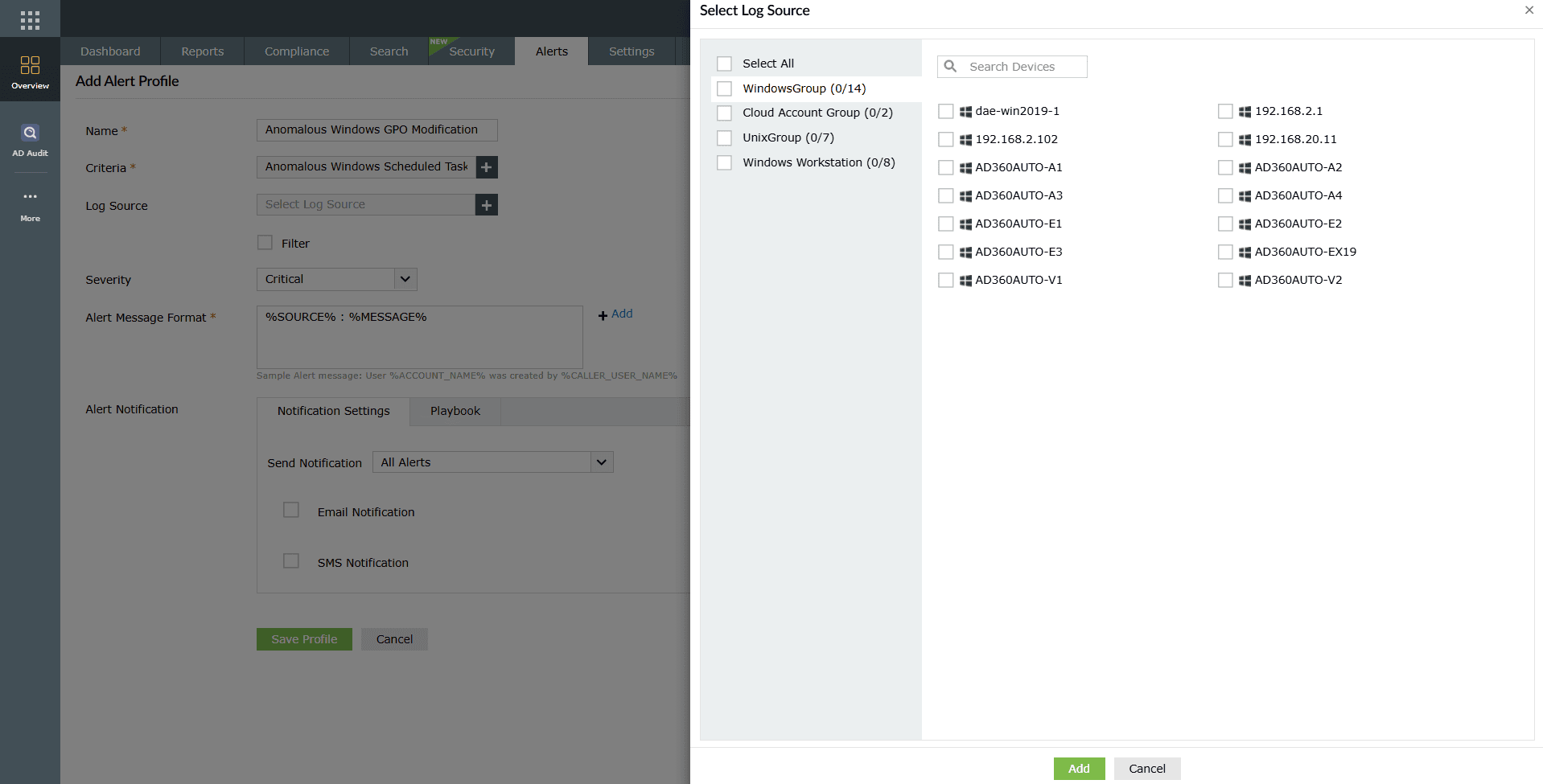
Image 10: Log source configuration - (Optional) Click on the checkbox to enable Filter for this alert profile. For configuring users and groups under this alert profile, refer to the Object Filter help document.
NOTE Additional custom filter criteria can now be added using the Filter option. Earlier, this functionality was provided as a + Add Criteria button within the alert profile view, but it has now been moved outside for easier access.
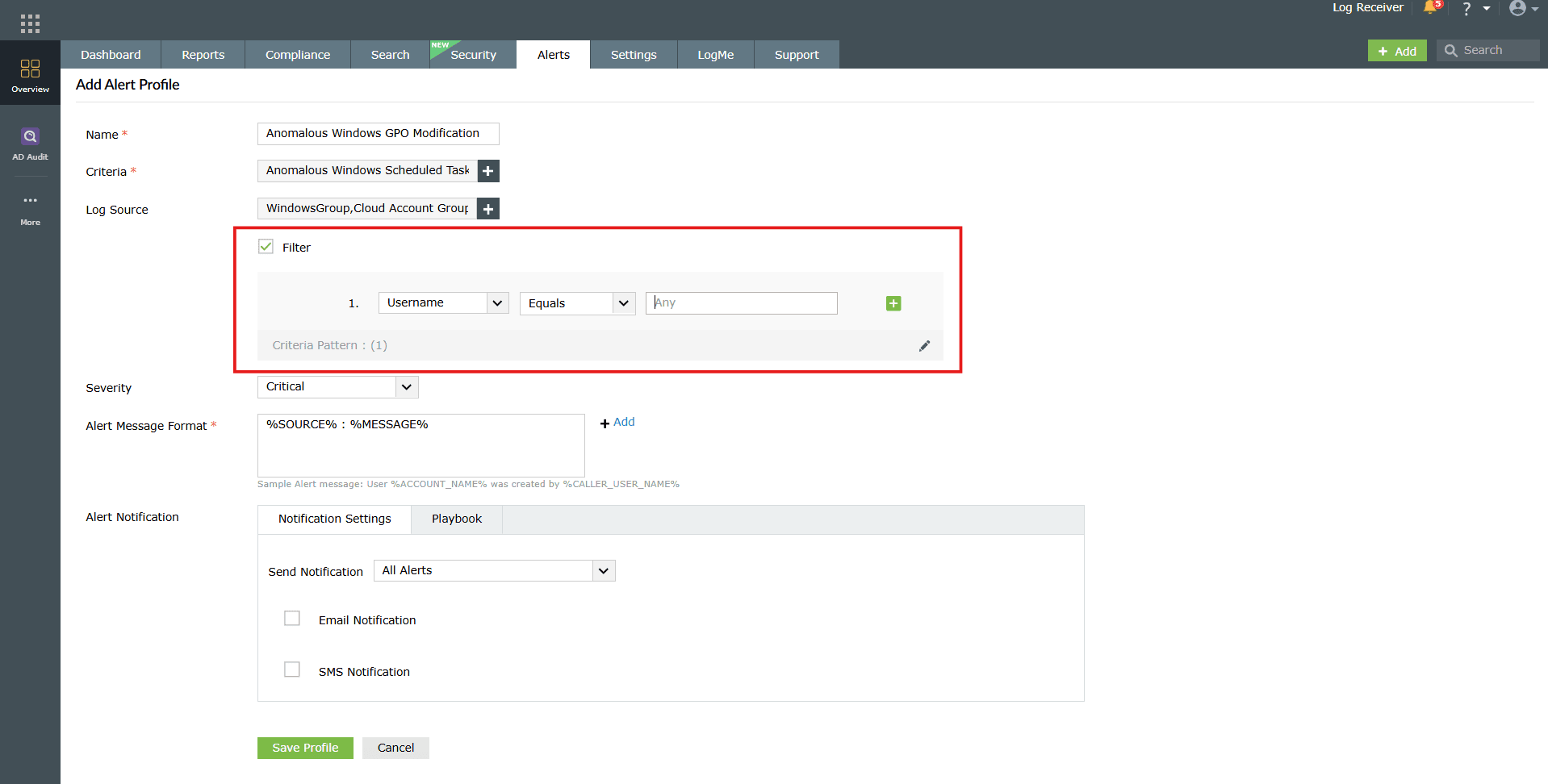
Image 11: Configuring filter for log source - Choose the severity level for the alerts generated by this profile from the Severity drop-down. Available options are:
- Critical
- Trouble
- Attention
- In the Alert Message Format field, customize the alert message. Click on +Add to insert variables such as account name, source, and message into the message format.
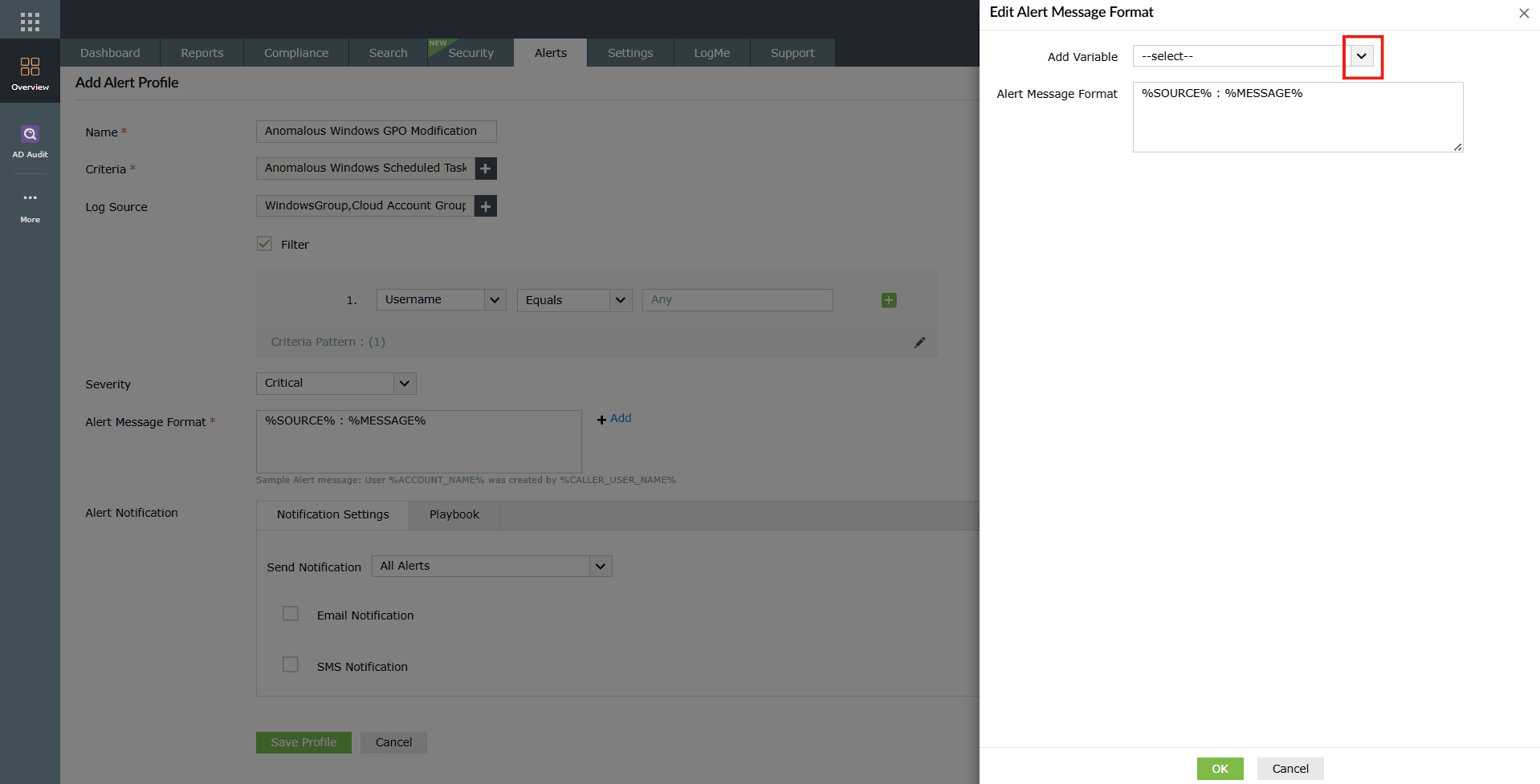
Image 12: Alert Message Format customization 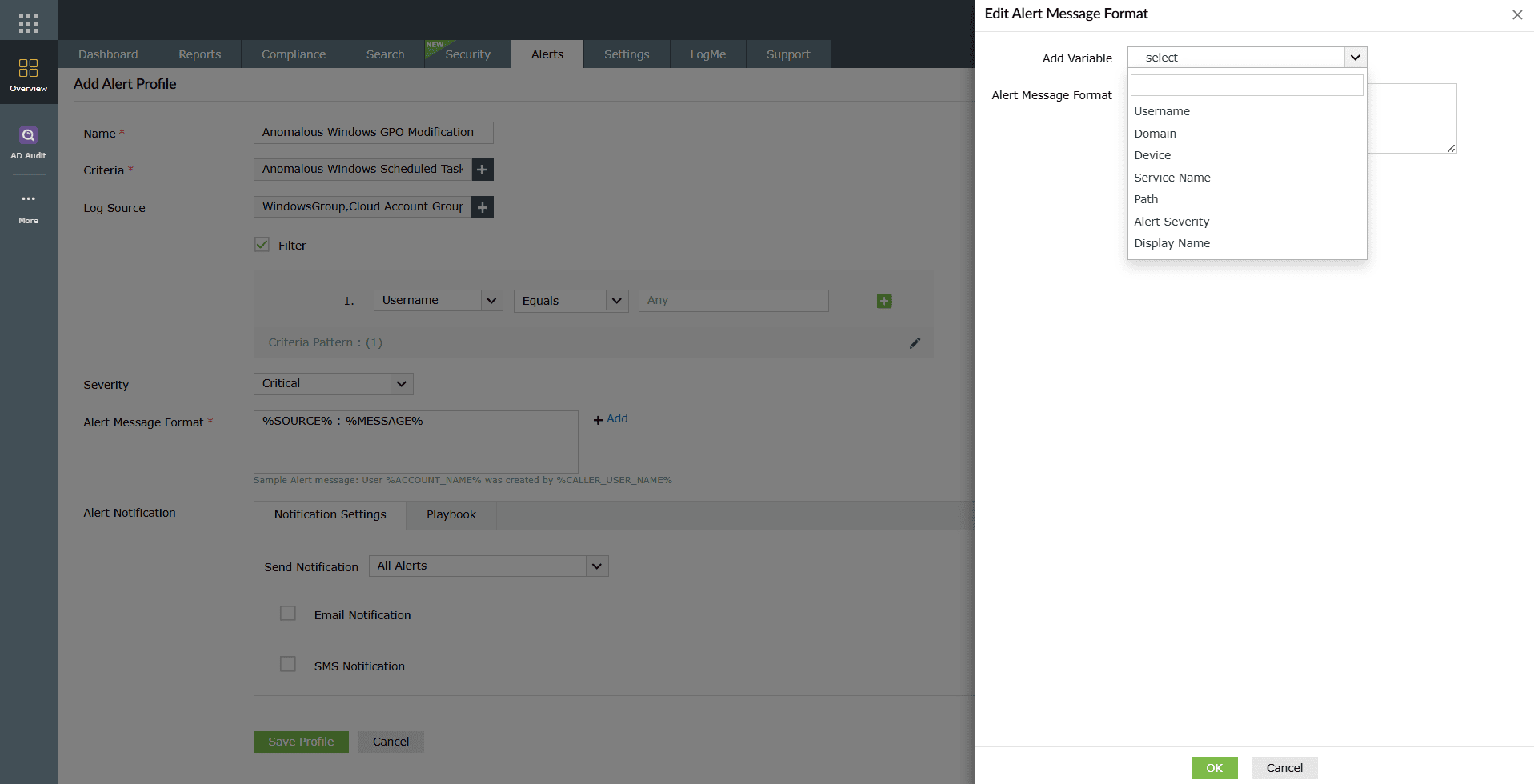
Image 13: Alert Message Format customization - Expand the Advanced Configuration section to refine alert trigger conditions:
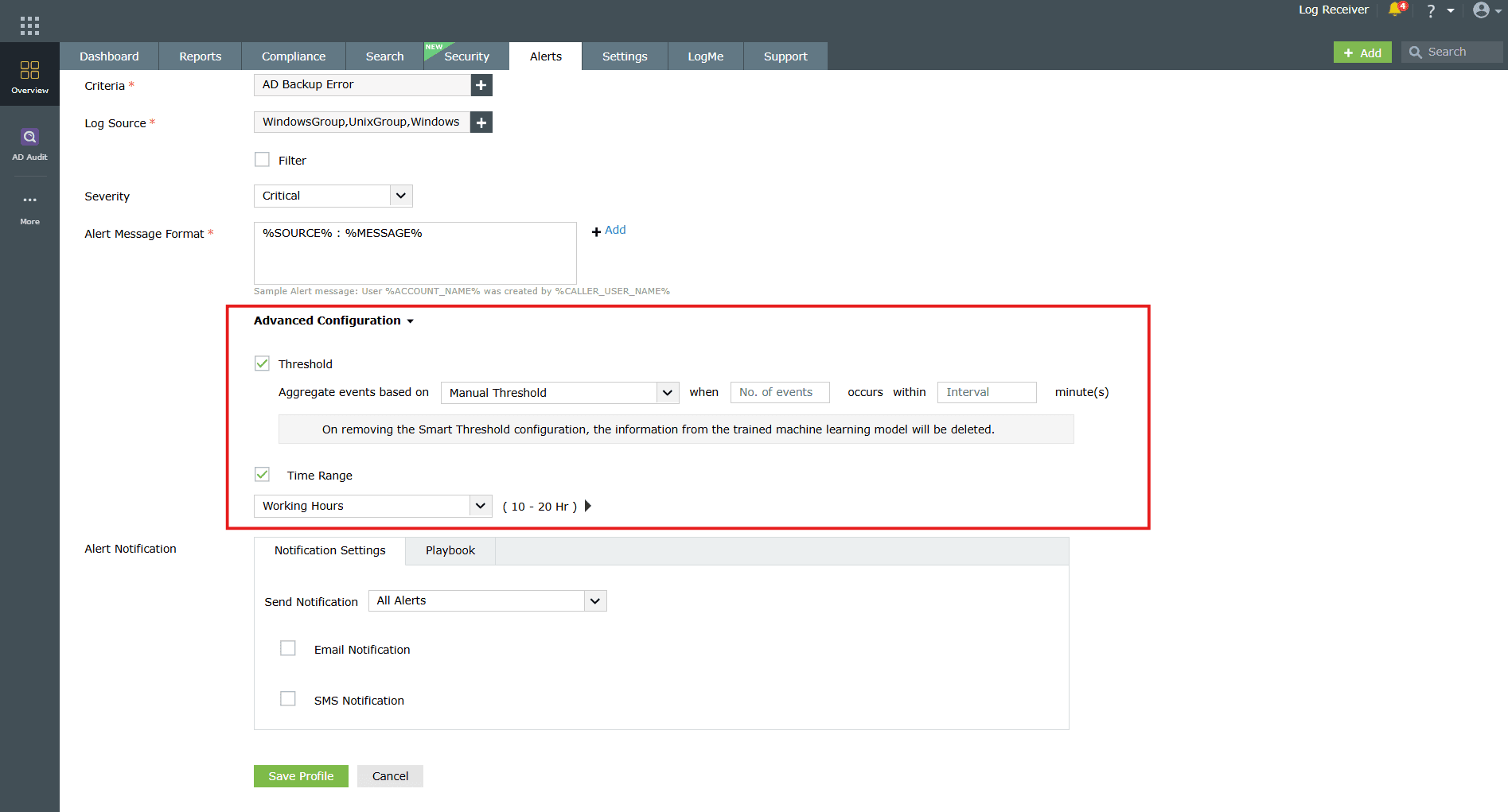
Image 14: Advanced Configuration options - Threshold
NOTE The Smart Threshold and Time Range threshold options are currently not available in Log360 Cloud.
- Manual Threshold: Define the number of event occurrences and the time interval (in minutes).
- Smart Threshold: Enter the time interval, and the optimal event count will be automatically determined using ML algorithms to reduce false positives.
- Time Range: Specify working hours during which the alert profile should be active.
- Threshold
- Under Alert Notification, configure notifications and playbooks for the alert profile:
- Notification Settings:
- Select the Notification Settings tab while creating an alert profile.
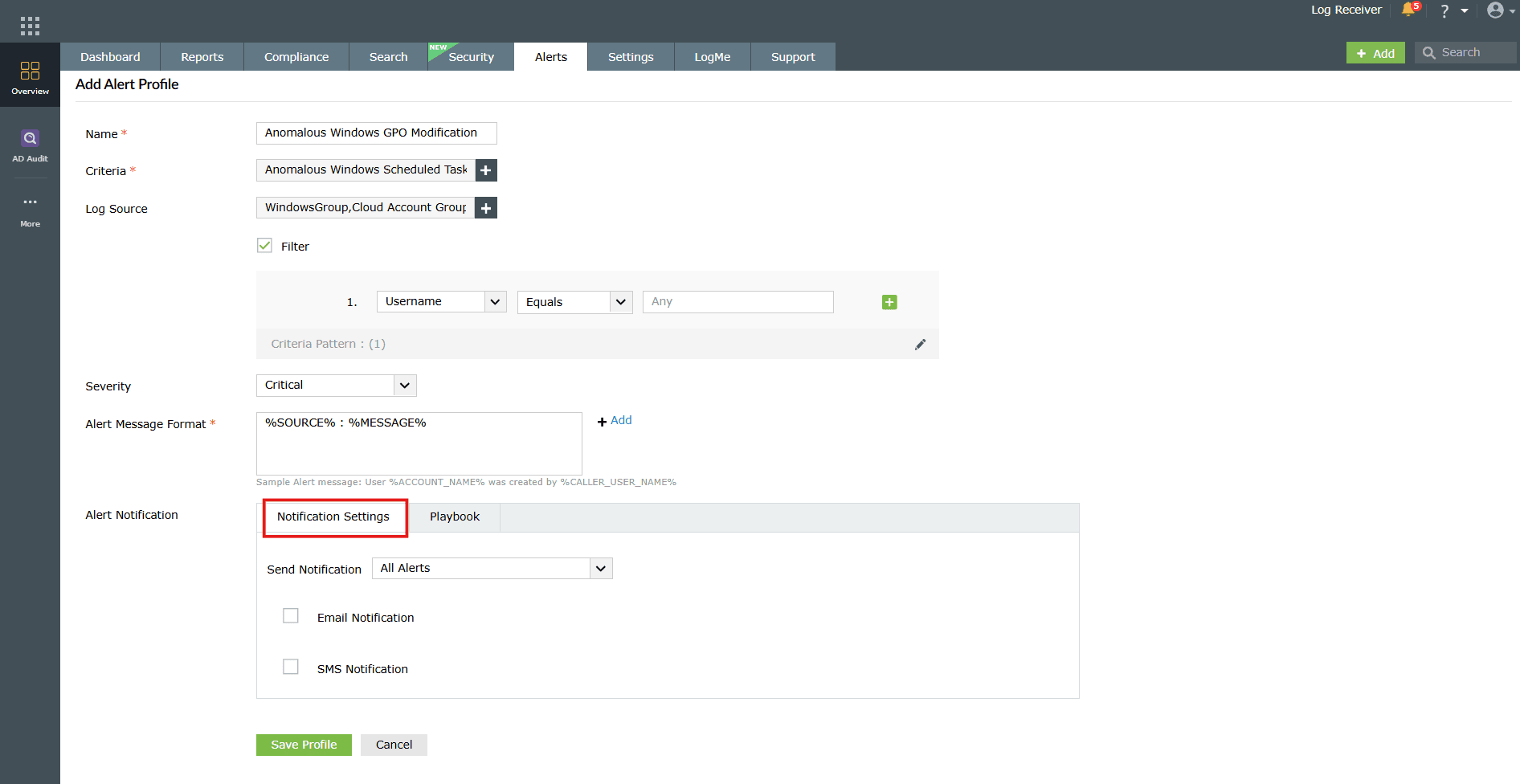
Image 15: Notification settings configuration - Choose whether notifications should be sent for all alerts continuously or paused for a specific duration after a notification is triggered.
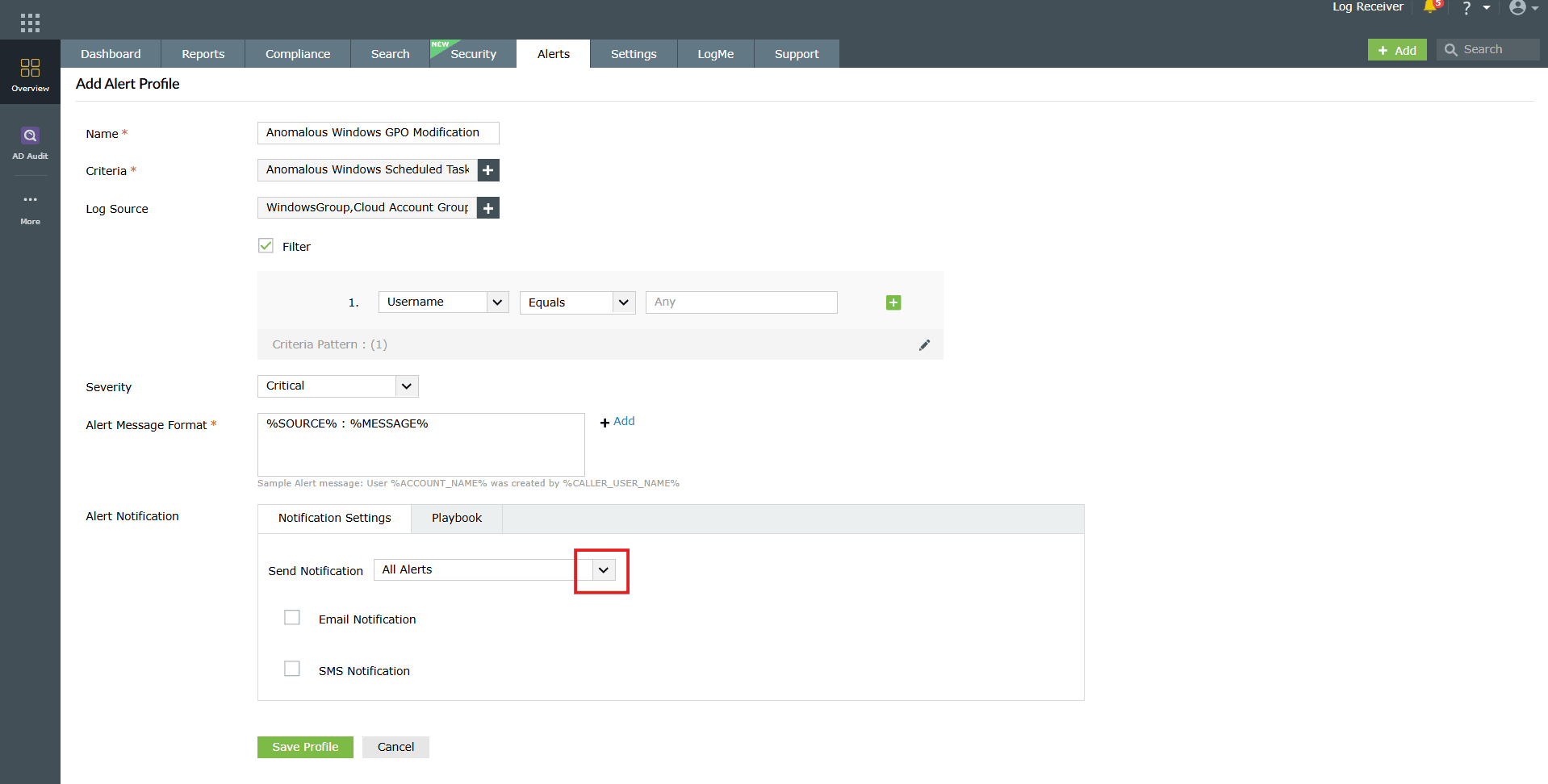
Image 16: Notification settings configuration - Configure Email Notifications by specifying recipients, subject lines, and message templates with dynamic macros after enabling it by clicking on the checkbox.
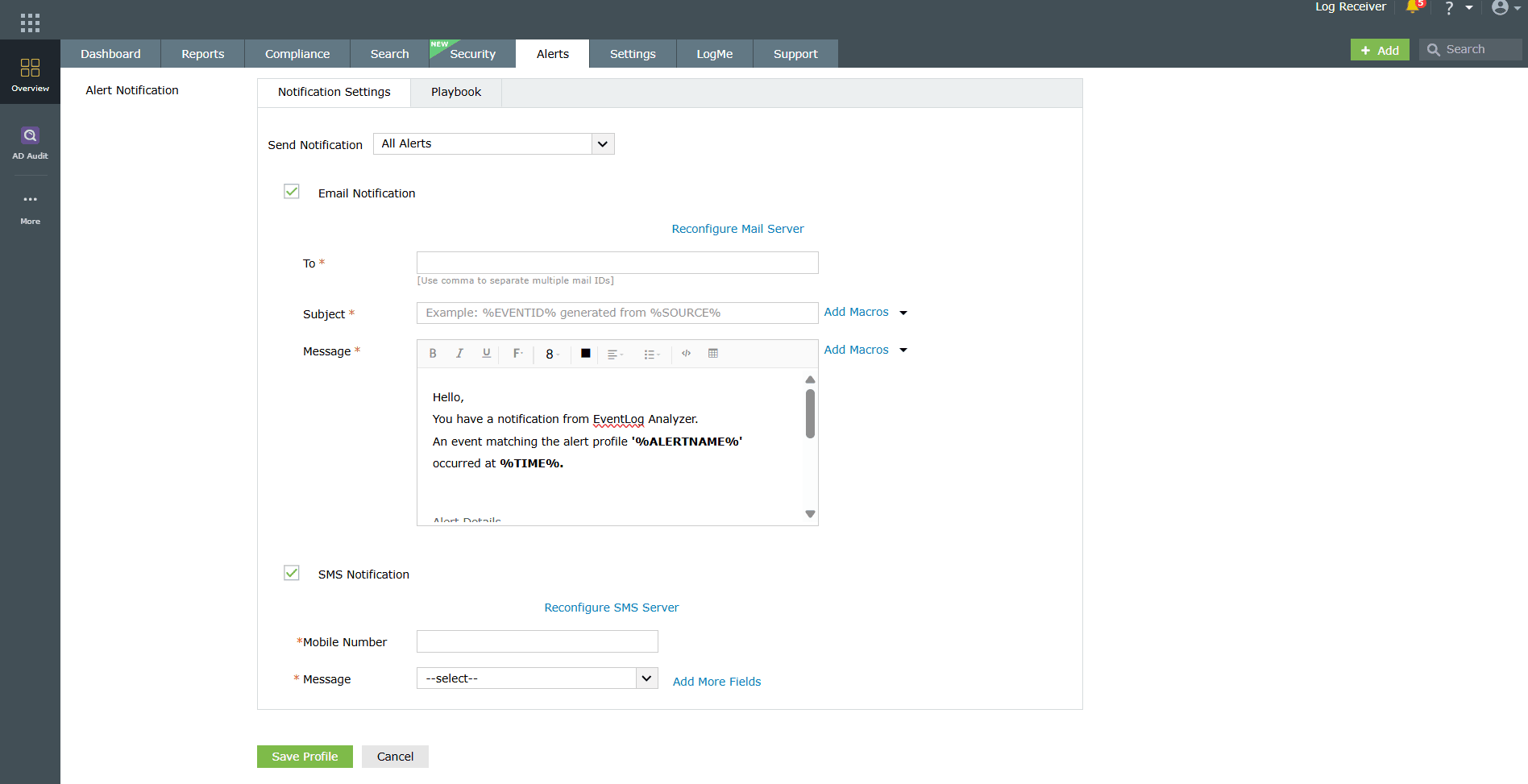
Image 17: Email notification settings configuration NOTE SMS notifications are not supported in Log360 Cloud. This feature is available only in Log360 On-Premises.- Enable SMS Notifications by entering mobile numbers and predefined message formats.
- These notifications ensure that critical alerts are immediately communicated to administrators and security teams, enabling quicker response to potential threats.
- To learn more about configuring the alert notifications, refer to the Alert Notification and Remediation help document.
- Select the Notification Settings tab while creating an alert profile.
- Playbook
NOTE The playbooks capability is currently available only in EventLog Analyzer and Log360.
- Enable automated playbook remediations for the alert profile by navigating to the Playbook sub-tab and configuring the required playbook.
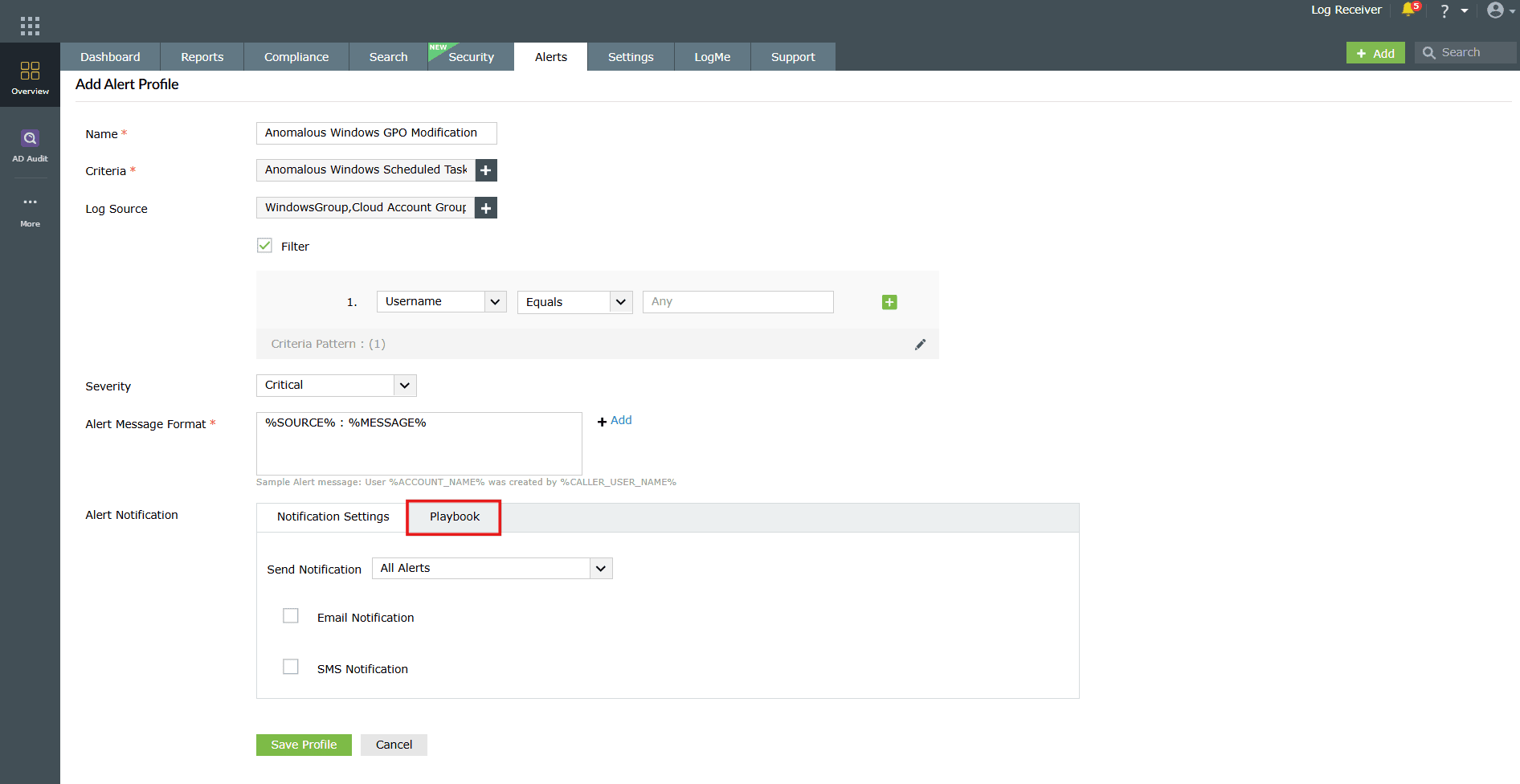
Image 18: Playbook remediation configuration - Check the Enable Playbook box to select or add a predefined playbook that should run automatically when the alert is triggered.
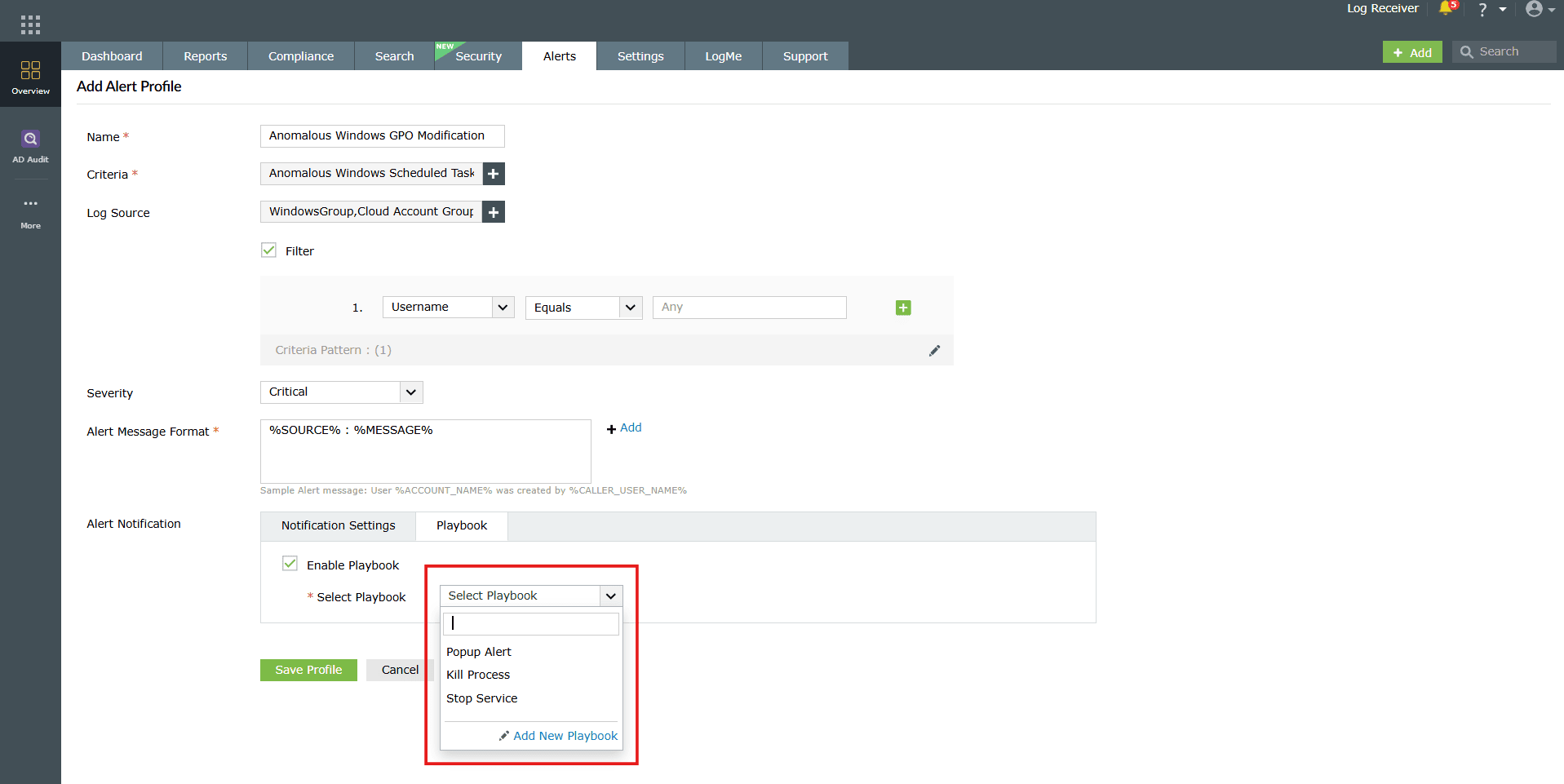
Image 19: Alert Notification settings with Playbook option - You can configure a new playbook by clicking on the Add New Playbook option. A pop-up appears asking for a confirmation. Click on Ok.
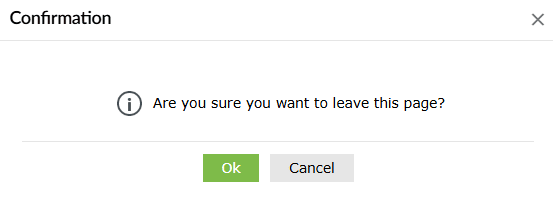
- You will be taken to the Manage Playbooks module. To learn more about playbooks and how to configure them, refer to the Playbook management help document.playbooks and how to configure them, refer to the Playbook management help document.
- Enable automated playbook remediations for the alert profile by navigating to the Playbook sub-tab and configuring the required playbook.
- Notification Settings:
- Once all configurations are complete, click on Save Profile. Upon successful completion of the action, the below pop-up appears, and the alert profile is now created and listed on the Manage Alert Profiles page.

Read also
This page gave a step-by-step guide on how to create new alert profiles. Read more about configuring alert notifications, using playbooks, and managing alert profiles to streamline monitoring and response from the below help pages.