
Troubleshooting tips
Last updated on:
Overview
This page provides details troubleshooting during compliance and risk posture checks in ManageEngine Log360 and EventLog Analyzer. It specifically addresses the resolution of the “Unable to Verify” status for Active Directory and SQL Server, the “No SQL Server(s) Configured” issue in the Edit Compliance module, and provides guidance for ensuring proper configuration and access for accurate compliance reporting.
Active Directory
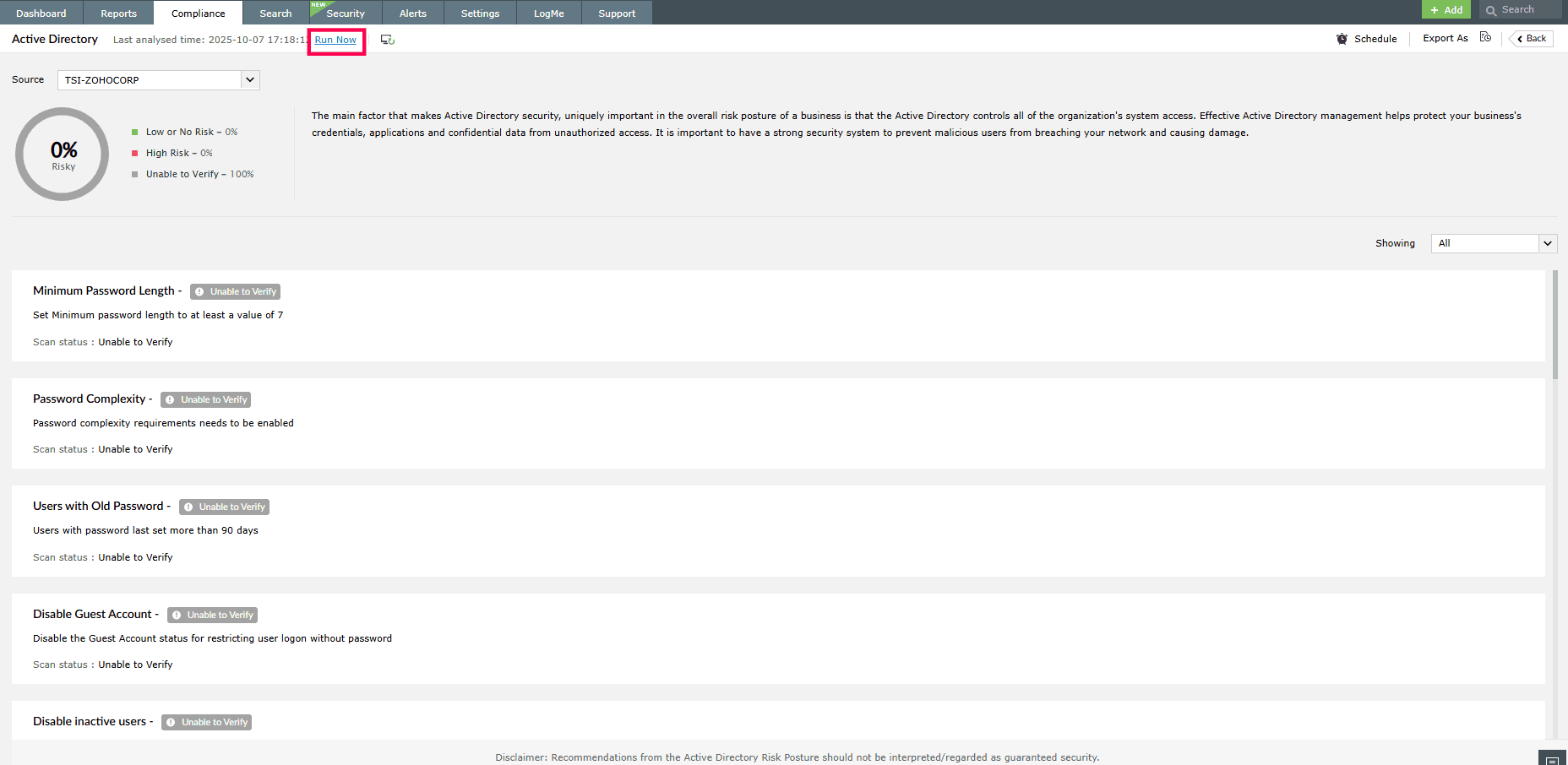
- Status shows “Unable to Verify”
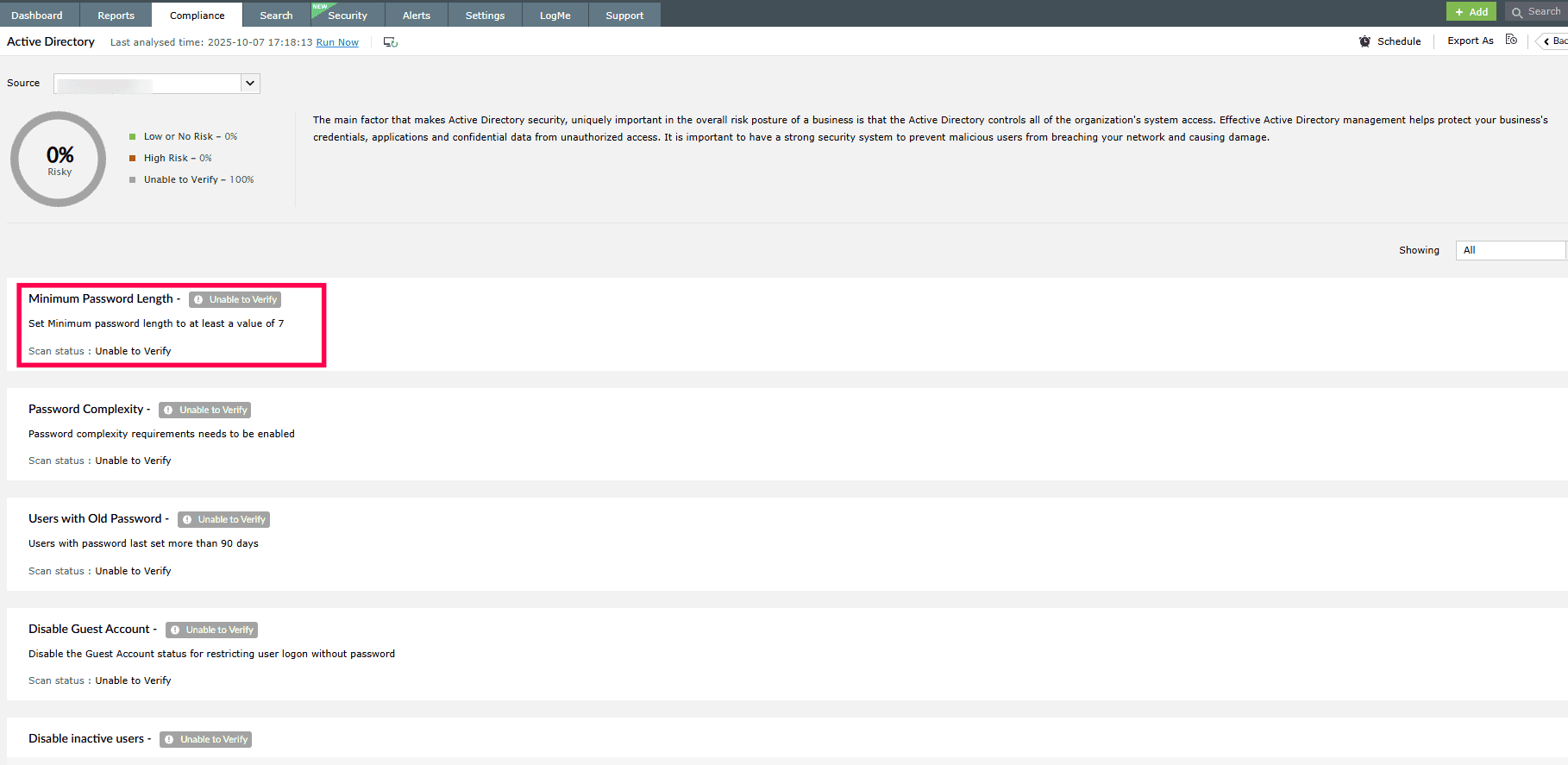
Possible causes:
Insufficient domain details
This occurs when domain details or credentials are not synced properly during integration with child components.
Troubleshooting steps:
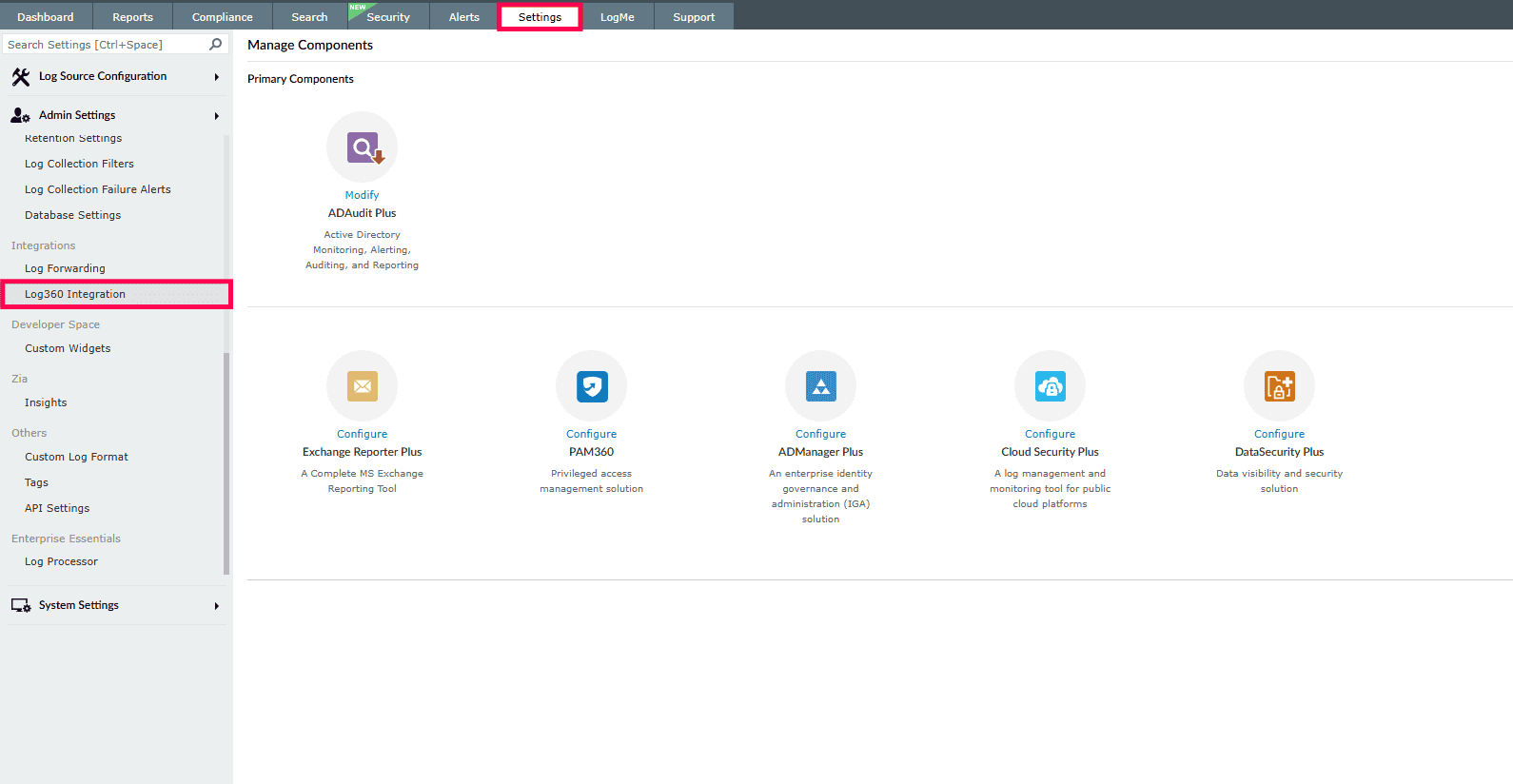
- Navigate to Settings tab and under Integrations, select Log360 integration
- Ensure at least one child component is integrated and at least one domain is configured.
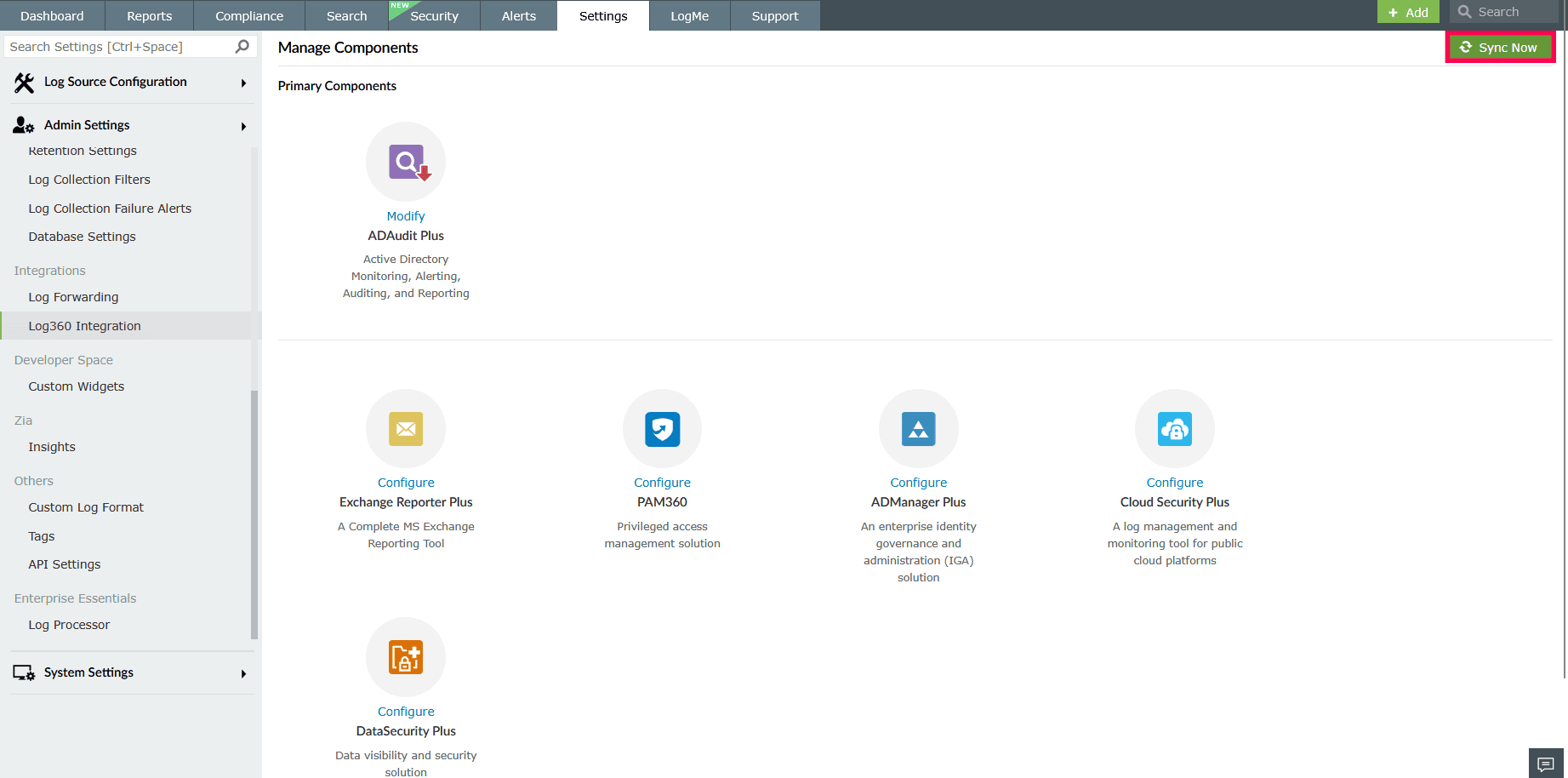
- Click Sync Now in the top right corner.
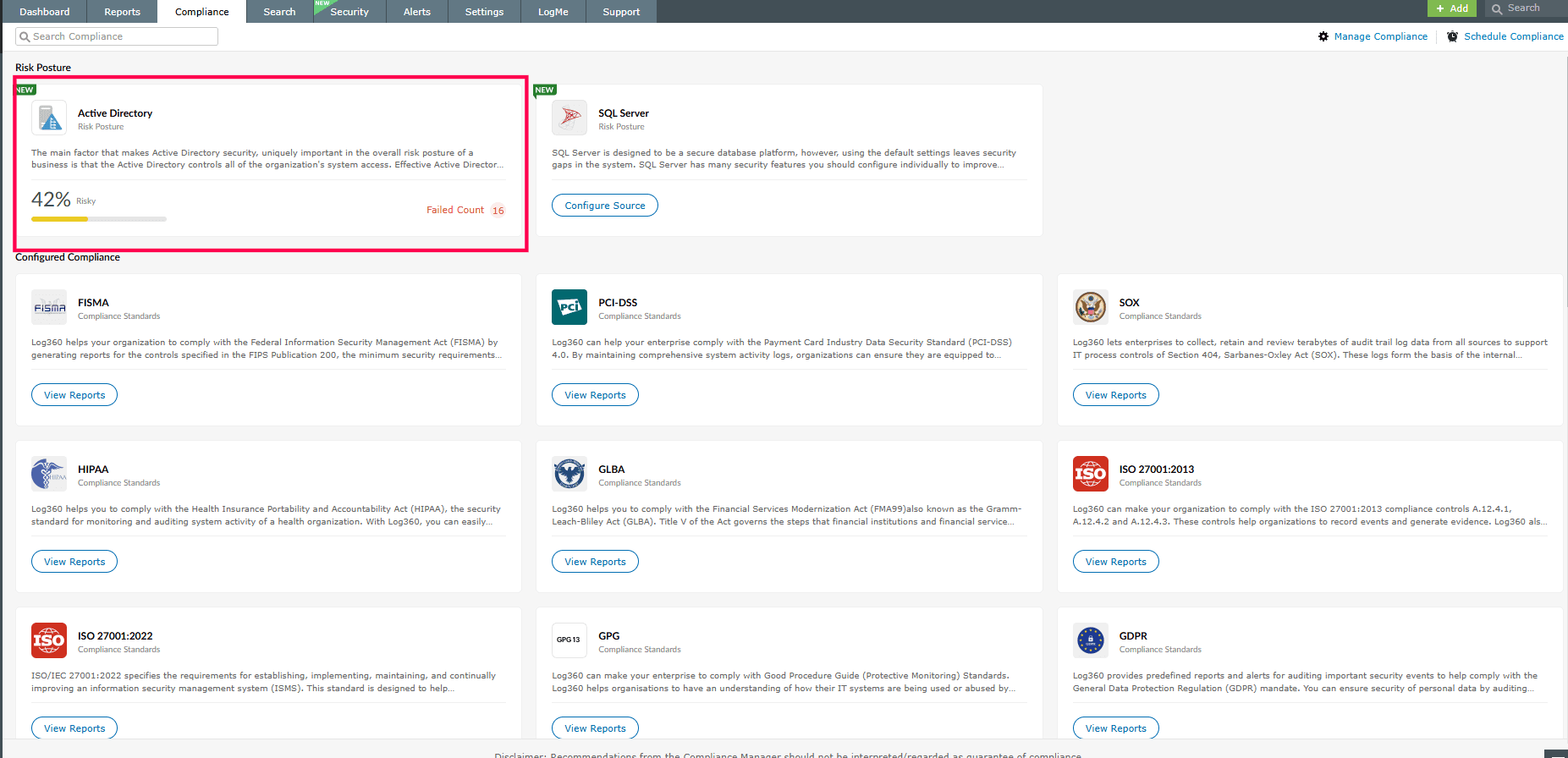
- Navigate to the Compliance tab and go to the respective compliance/risk posture.
- Click Run Now.
Access denied for SYSVOL folder
This occurs when the Log360 installed machine cannot access the SYSVOL folder (C:\Windows\SYSVOL\sysvol) of the domain controllers due to Microsoft restrictions introduced after 2015.
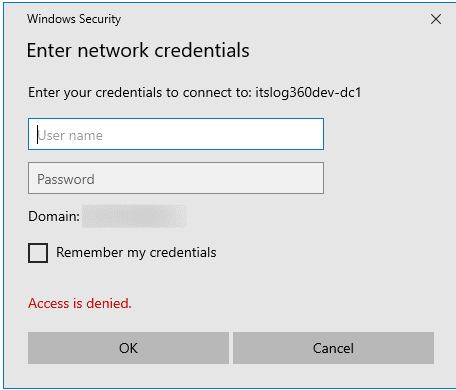
Troubleshooting steps:
- Ensure SYSVOL folder is shared with the configured domain user.
- Apply one of the following methods
Using Group Policy Object (GPO)
- On the domain controller, go to:
Computer Configuration → Administrative Templates → Network → Network Provider
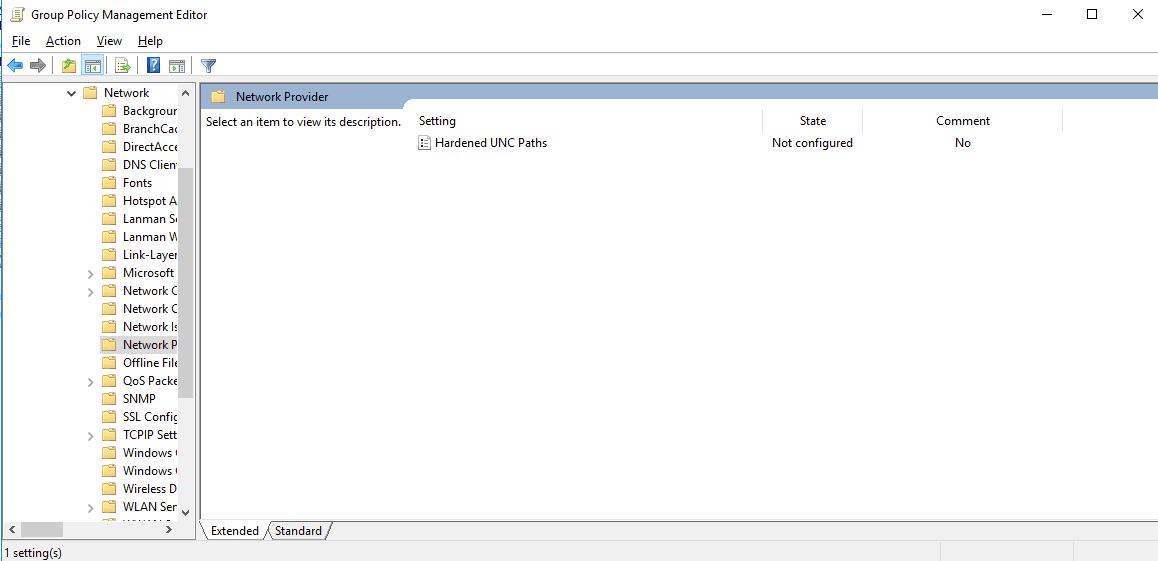
Figure 7: Navigating to Network Provider - Enable Hardened UNC Paths.
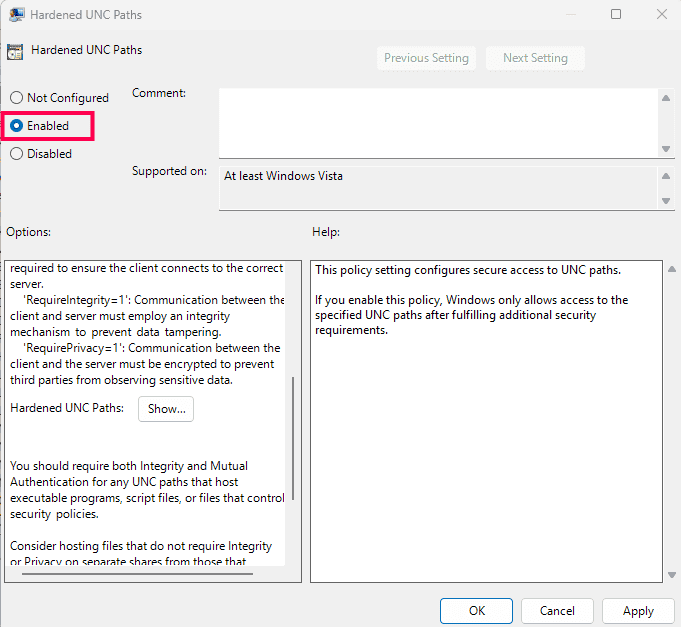
Figure 8: Enabling Hardened UNC Paths - In Options, click Show:
- Value Name: \\*\SYSVOL
- Value: RequireMutualAuthentication=0,RequireIntegrity=0,RequirePrivacy=0
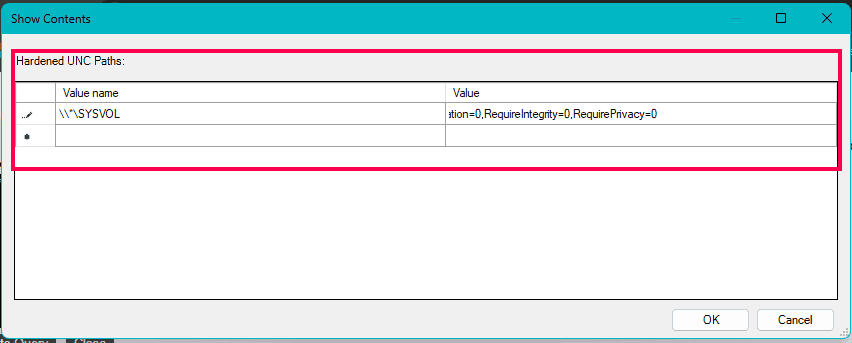
Figure 9: Modifying value and value name - For immediate results, open Command Prompt as administrator and run:gpupdate /force on the machine where the product console is installed.
- Click OK.
Using Local Security Policy Editor
- Run gpedit.msc on the machine where the product is installed.
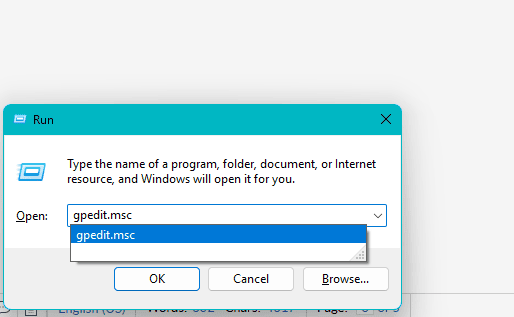
Figure 10: Running gpedit.msc command - Navigate to Computer Configuration → Administrative Templates → Network → Network Provider
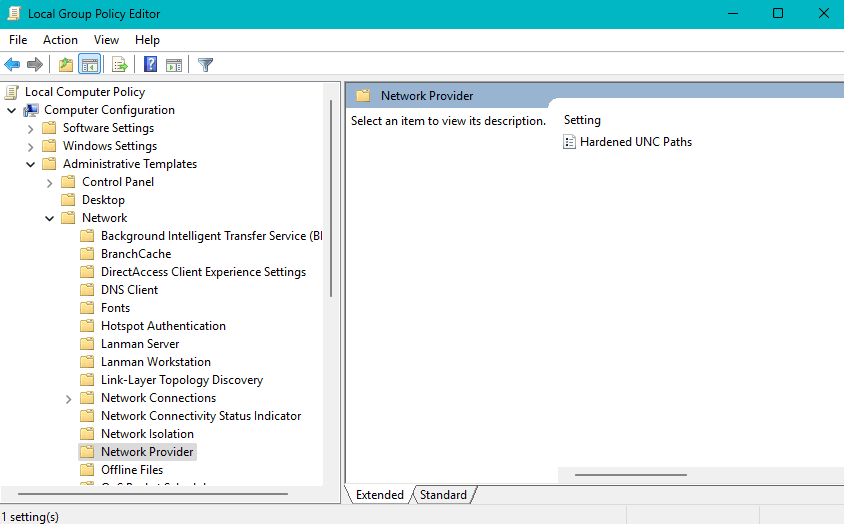
Figure 11: Navigating to Network Provider - Enable Hardened UNC Paths.
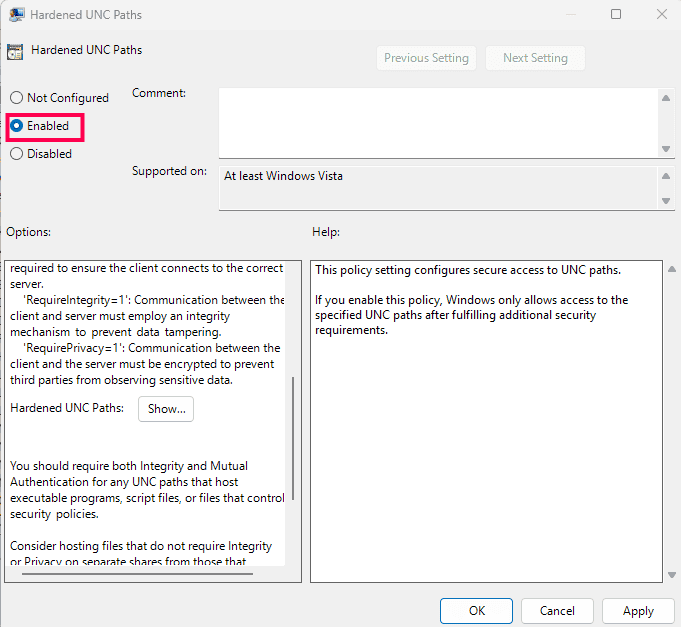
Figure 12: Enabling Hardened UNC Paths - In Options, click Show:
- Value Name: \\*\SYSVOL
- Value: RequireMutualAuthentication=0,RequireIntegrity=0,RequirePrivacy=0
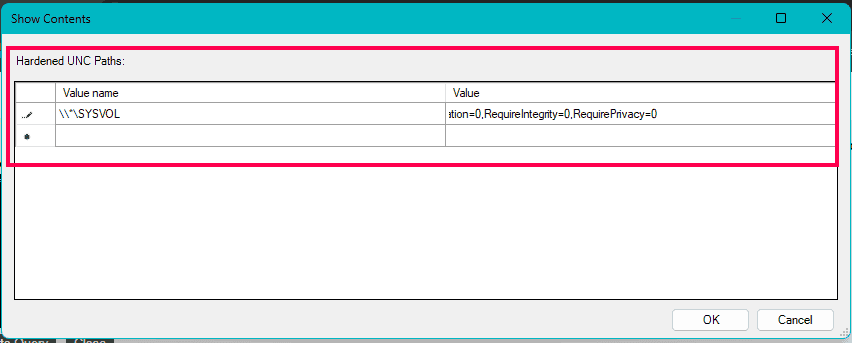
Figure 13: Modifying value and value name - Click OK.
Using Command Prompt
- Run the following as Administrator on the machine where the product is installed:
%COMSPEC% /C reg add HKEY_LOCAL_MACHINE\SOFTWARE\Policies\Microsoft\Windows\NetworkProvider\HardenedPaths /v "\\*\SYSVOL" /d "RequireMutualAuthentication=0" /t REG_SZ
- After applying for changes, go to the Compliance tab.
- Under Risk Posture, select Active Directory and click Run Now.
SQL Server
- Status shows “Unable to Verify”
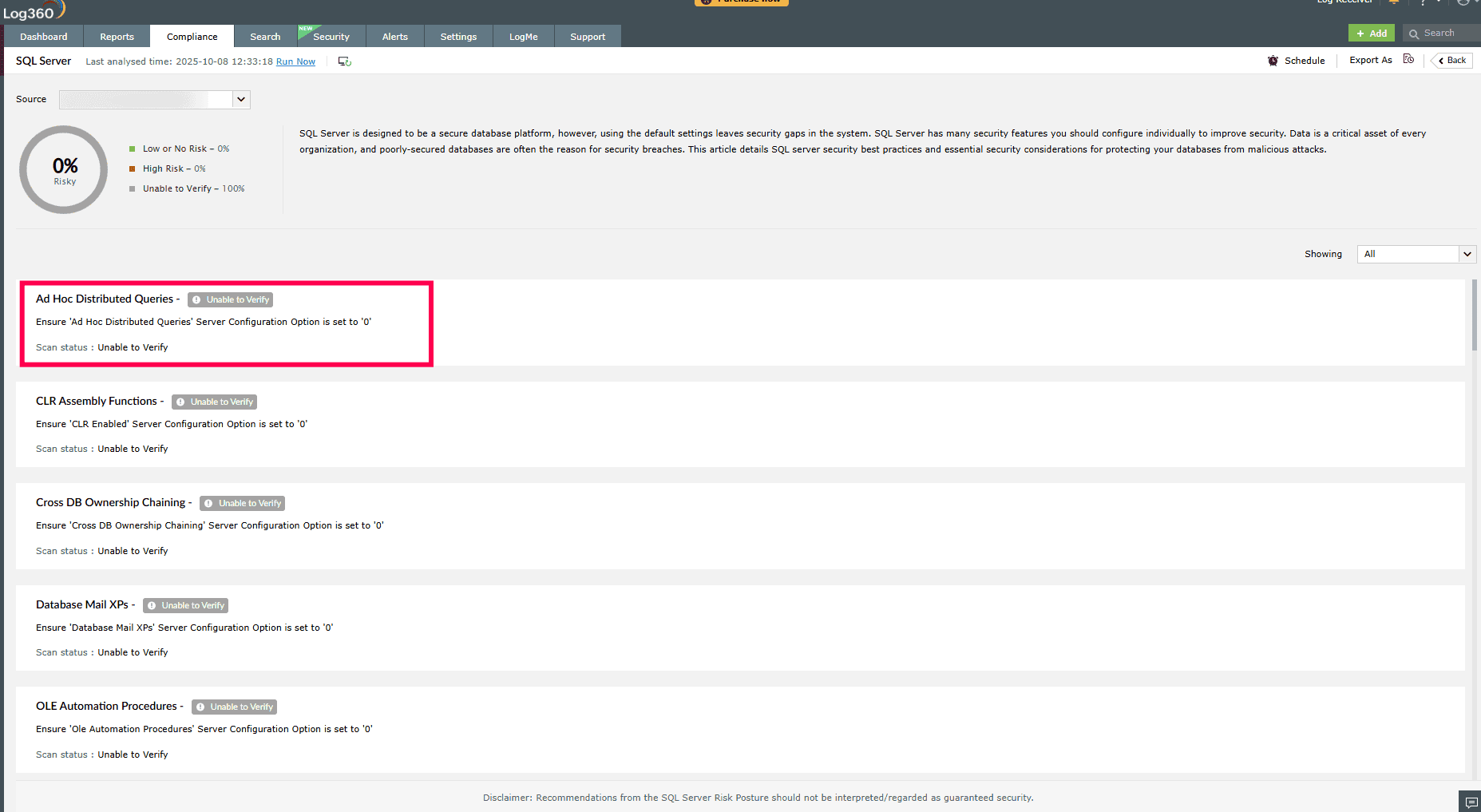
Possible causes:
SQL Server down
The analysis requires the SQL server to be up and running.
Troubleshooting steps:
- Verify that the selected SQL server(s) is online and accessible.
Insufficient server details/user credentials
SQL server configuration details and credentials must be valid. The configured user requires the sysadmin role for all rules to succeed.
Troubleshooting steps:
- Update credentials and server details in the product console.
- Go to Settings tab and under Log Source Configuration, select Database Audit.
- Ensure correct credentials are provided.
- Refer to this help document for more details.
Resolving "SQL Server(s) not Configured" in Edit Compliance
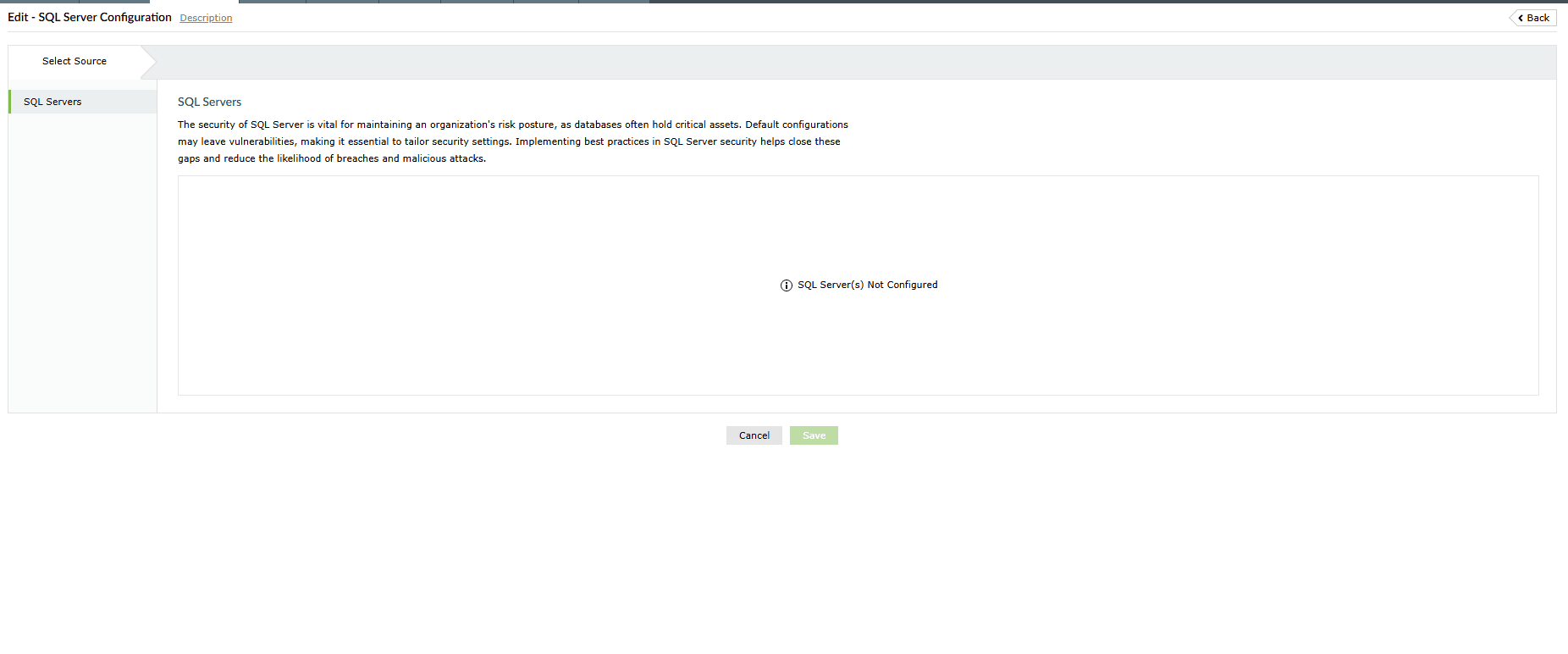
Possible causes:
- SQL server(s) not configured
- Advanced auditing not enabled for the SQL server
SQL server(s) not configured
To configure Microsoft SQL DB, refer to this help document.
Advanced auditing not enabled
To enable advanced auditing in SQL Server, refer to this help document.
Read also:
This page explained how to troubleshoot the “Unable to Verify” status for Active Directory and SQL Server, and how to resolve the “No SQL Server(s) Configured” issue in Edit Compliance.