Customize Dashboard Views

Last updated on:

Overview

Customizing the ManageEngine Log360 dashboard allows you to tailor the view to focus on the data most relevant to your log sources. You can add, remove, or rearrange tabs and widgets, and adjust layout settings to create a personalized dashboard that enhances monitoring efficiency and visibility. The dashboard displays data gathered from various log sources. This page outlines the available customization options and explains how to configure the dashboard to suit your specific monitoring requirements.

Log Sources

In the Log Sources section, you can view the list of devices, applications, and monitored files from which the data is being collected.

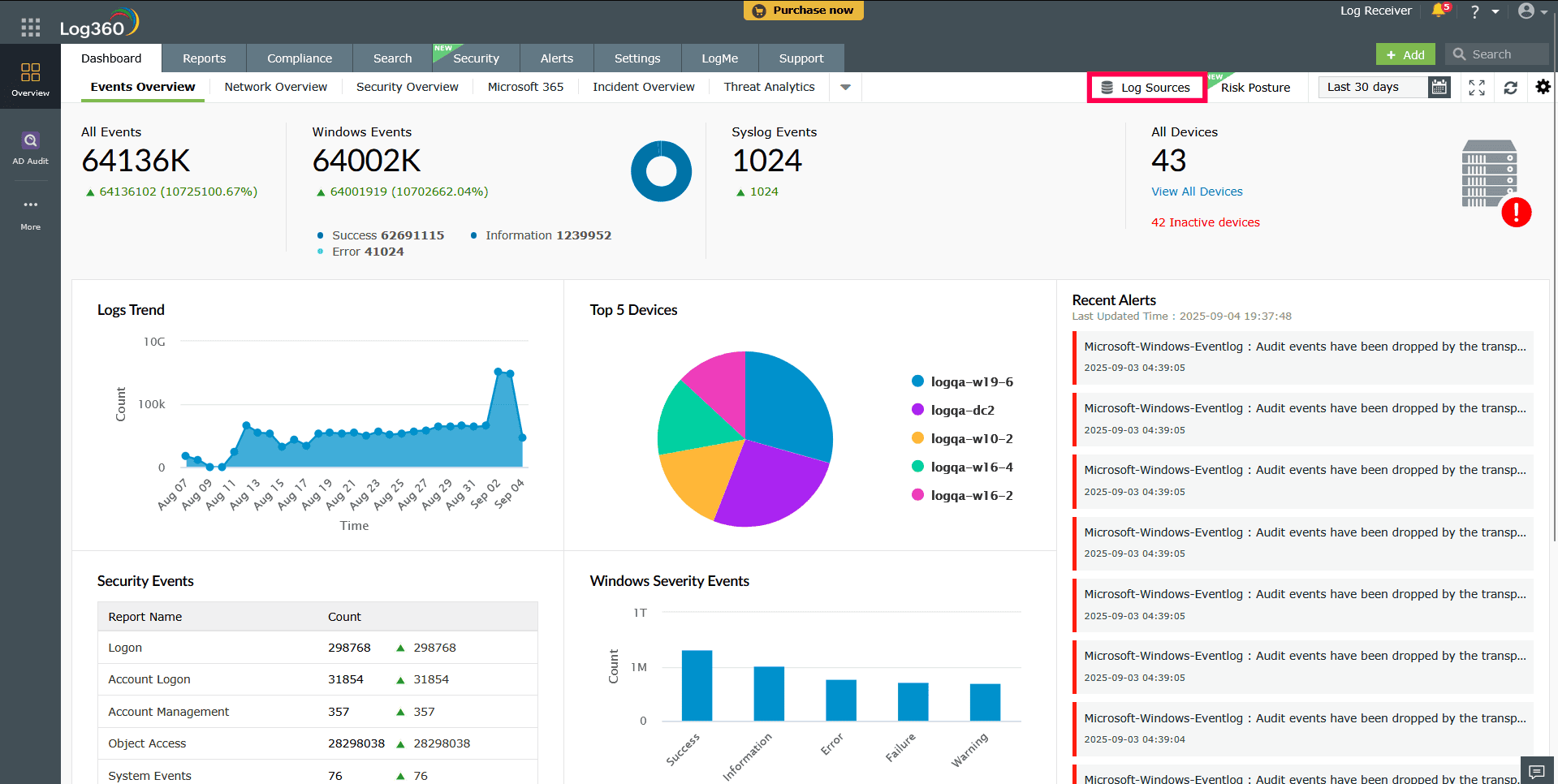
  1. Click Log Sources in the top-right corner of the dashboard.
  2. Accessing Log Sources in the dashboard
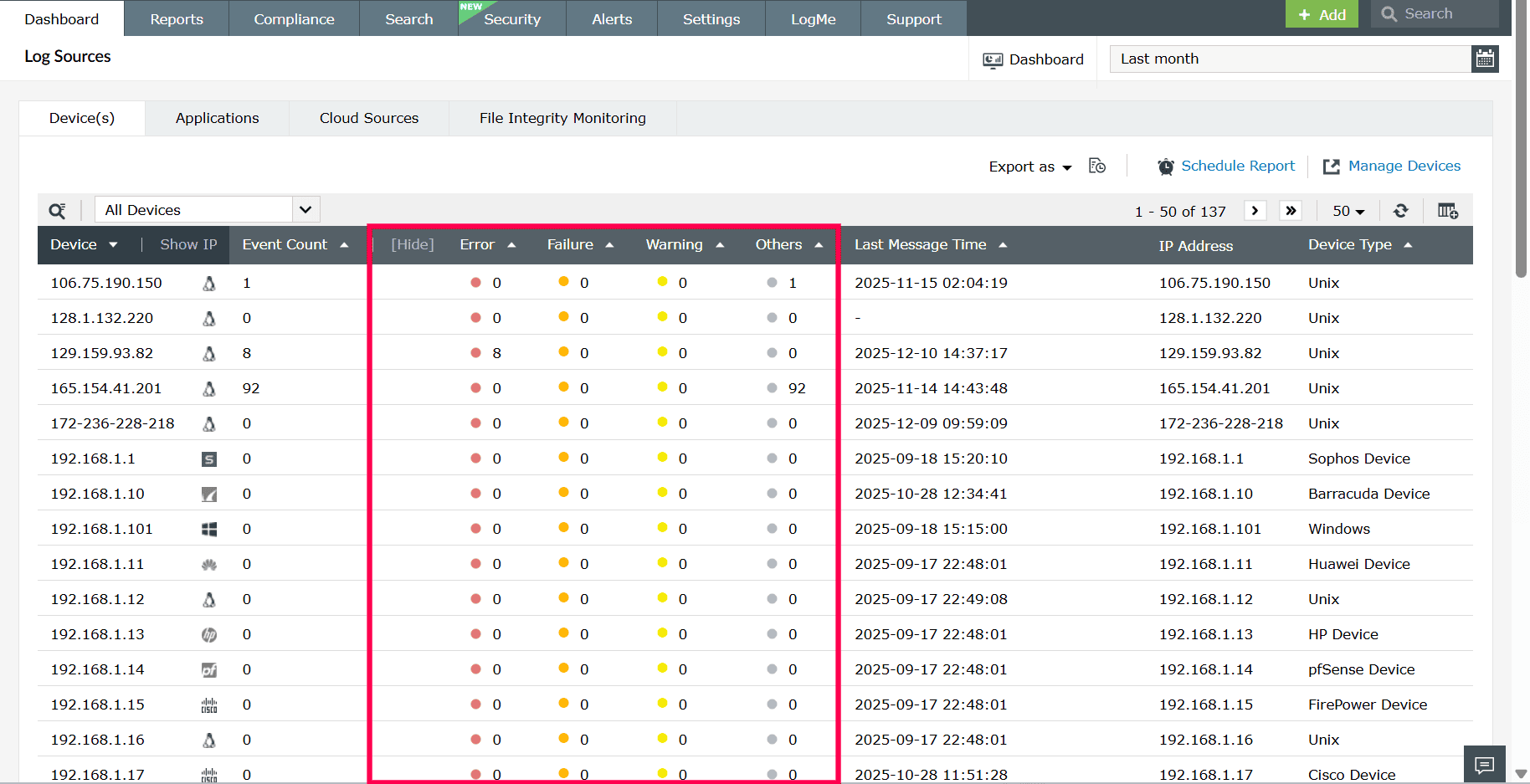
    Figure 1: Accessing Log Sources in the dashboard
  3. In the Log Sources page, four sub-tabs will appear:
    Sub-tabs of Log Sources
    Figure 2: Sub-tabs of Log Sources

Devices

Follow these steps to view and manage the devices configured for log collection:

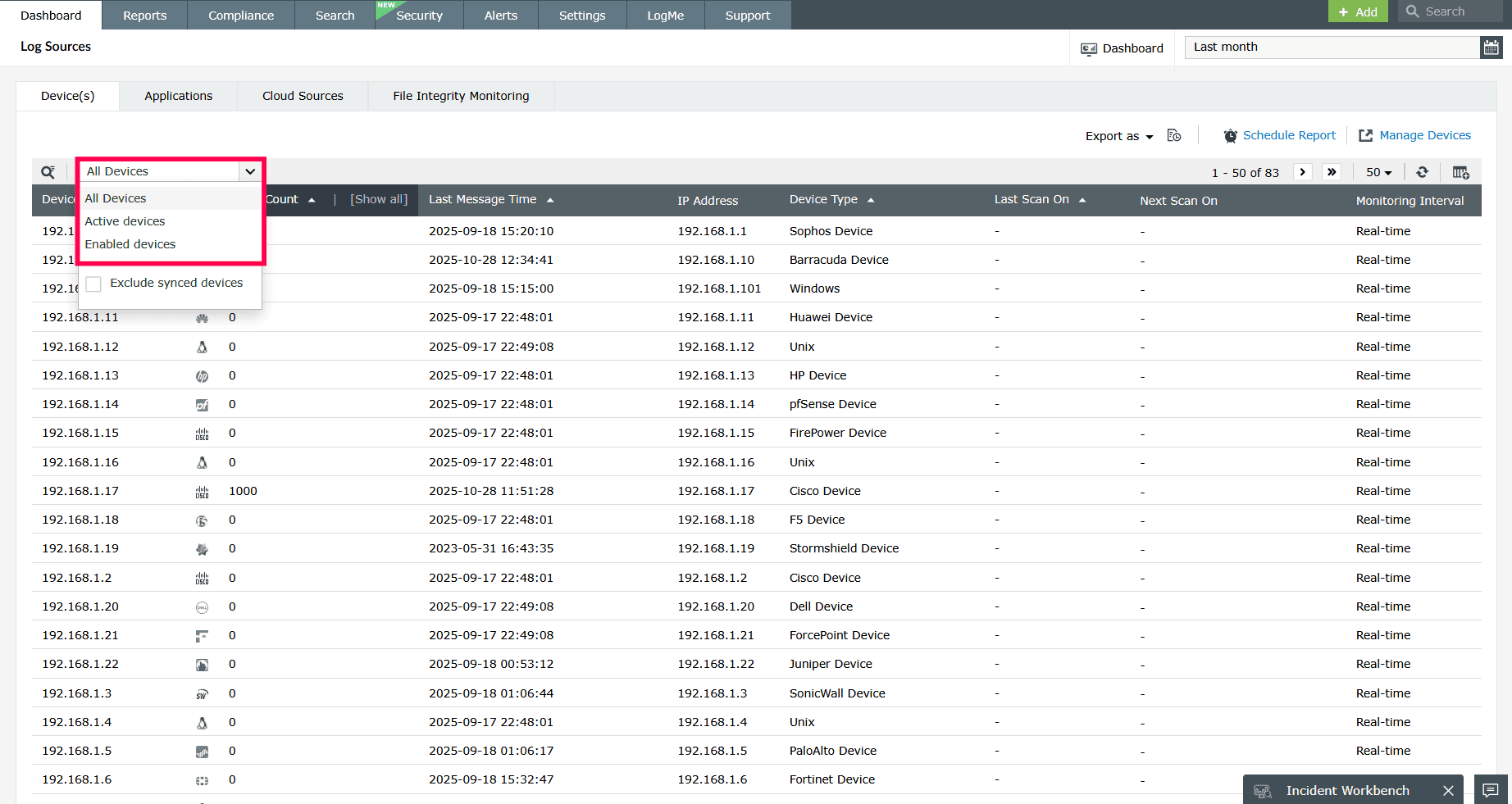
  1. In the Device(s) tab. Use the filter drop-down at the top to choose one of the following options:
    • All Devices: Displays all configured devices.
    • Active Devices: Shows devices that are currently sending logs.
    • Enabled Devices: Displays devices that are currently enabled for log collection.
    Selecting devices
    Figure 3: Selecting devices
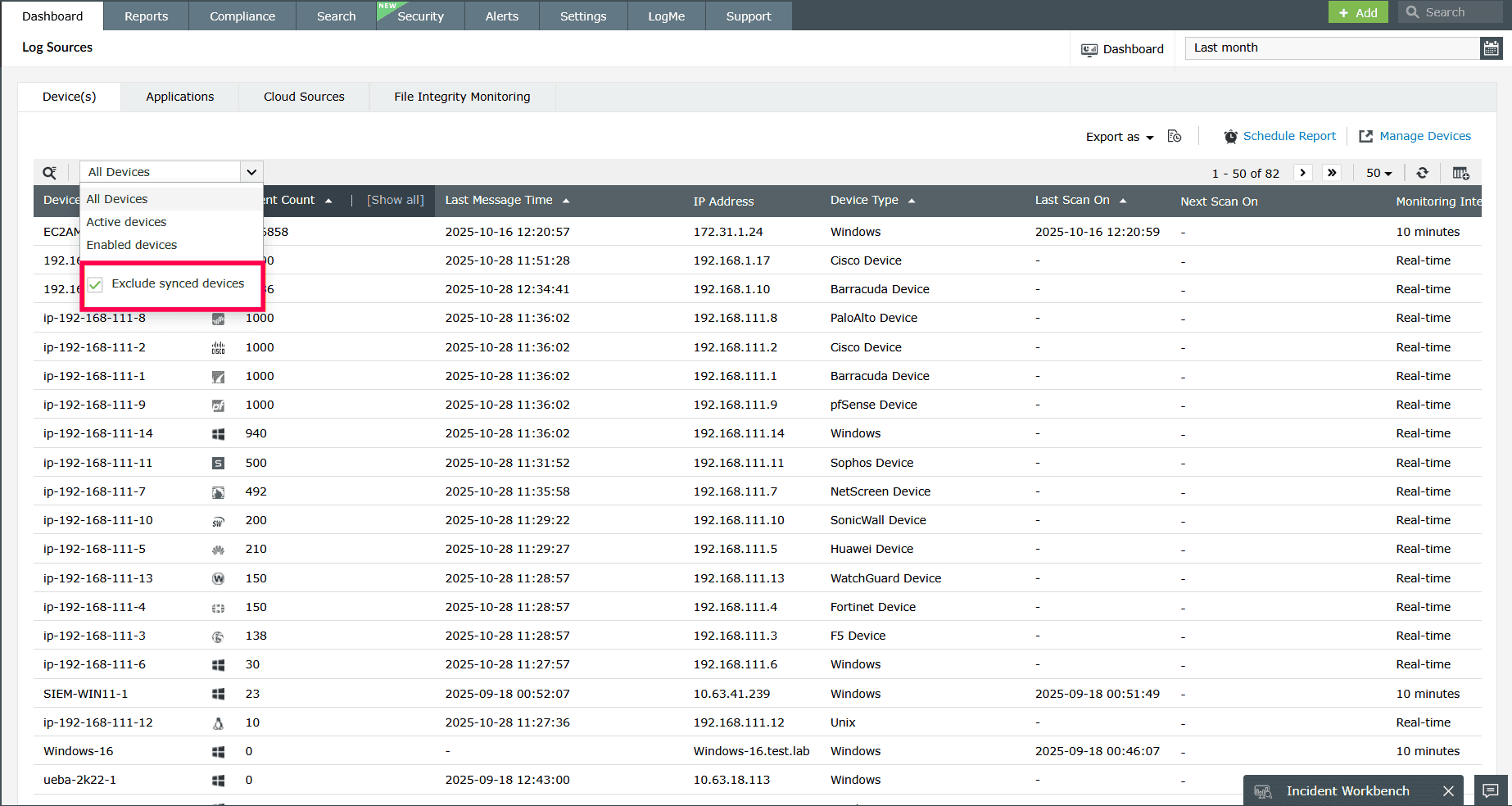
  2. You can also select the checkbox Exclude Synced Devices to hide devices that are already synchronized with other Log360 components.
    Excluding synced devices
    Figure 4: Excluding synced devices
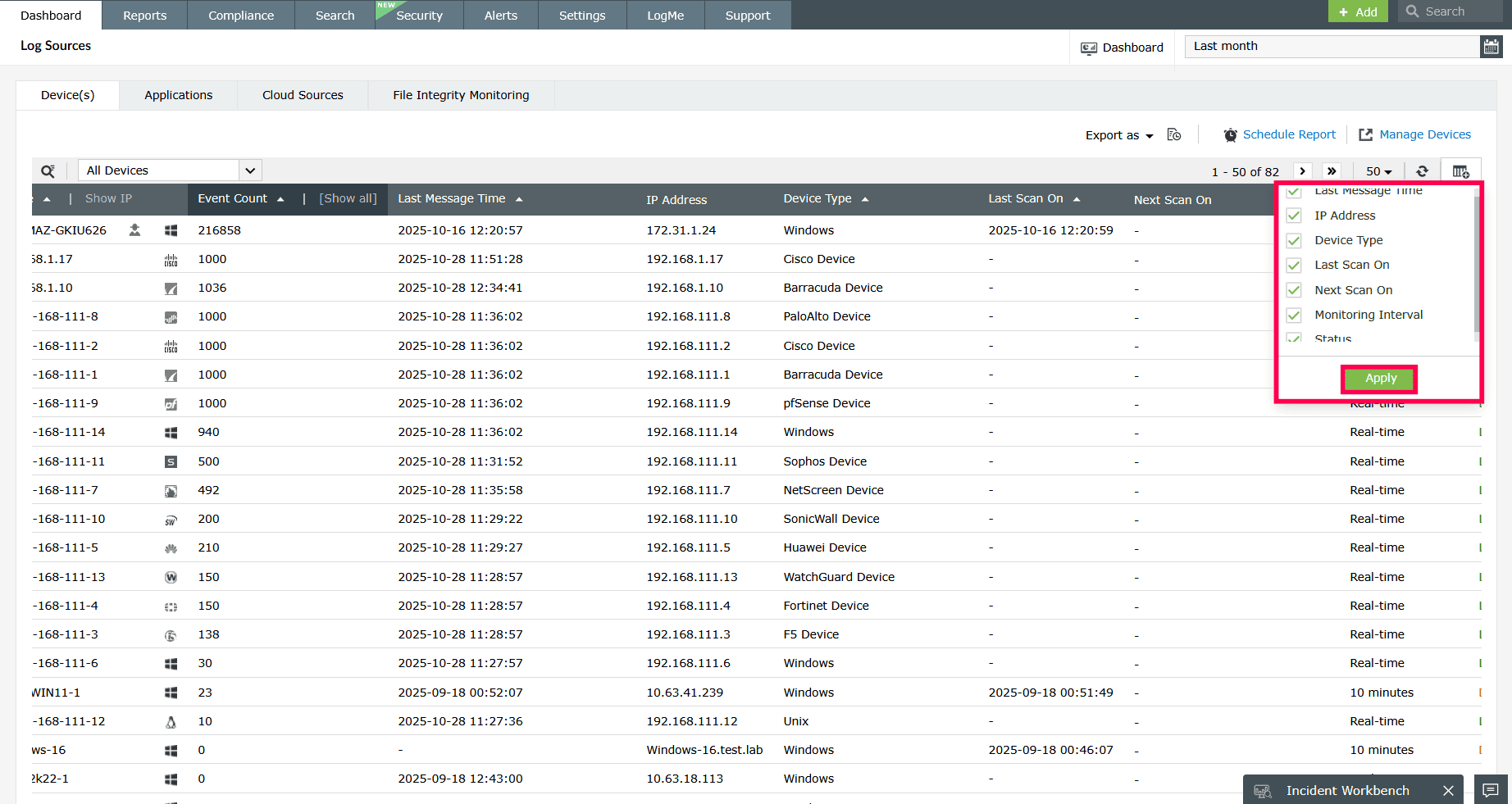
  3. Click the icon-add-or-remove icon to add or remove additional columns from the table view as needed.
  4. Select the checkbox next to the columns you want to add, and then click Apply to update the table view.
    Adding columns to the table
    Figure 5: Adding columns to the table
  5. The table includes the following fields:
    • Device: Displays the name of the device or IP address.
    • Event Count: Shows the total number of events received from the device. Click Show All view the following event details categorized by severity.
      • Error: Indicates the number of error logs generated from the device.
      • Failure: Displays the number of failure-related logs.
      • Warning: Shows the count of warning-level logs from the device.
      • Others: Displays logs that do not fall under error, failure, or warning categories.
    NOTE: Log severity levels vary based on the log source type. Common severity levels that may appear under Others include:

    - Syslog severity levels: Emergency, Alert, Critical, Notice, Information, Debug

    - Windows severity levels: Information and Success.

    Viewing events categorized by severity
    Figure 6: Viewing events categorized by severity
    • Last Message Time: Indicates the timestamp of the most recent log message received from the device.
    • IP Address: Displays the IP address associated with the device.
    • Device Type: Shows the operating system or type of device
    • Last Scan On: Displays the date and time when the last device scan was performed.
    • Next Scan On: Displays the scheduled time for the next scan, if applicable.
    • Monitoring Interval: Indicates whether the device is monitored in real time or at specific intervals.
    • Status: Displays the current state of log collection for each device.
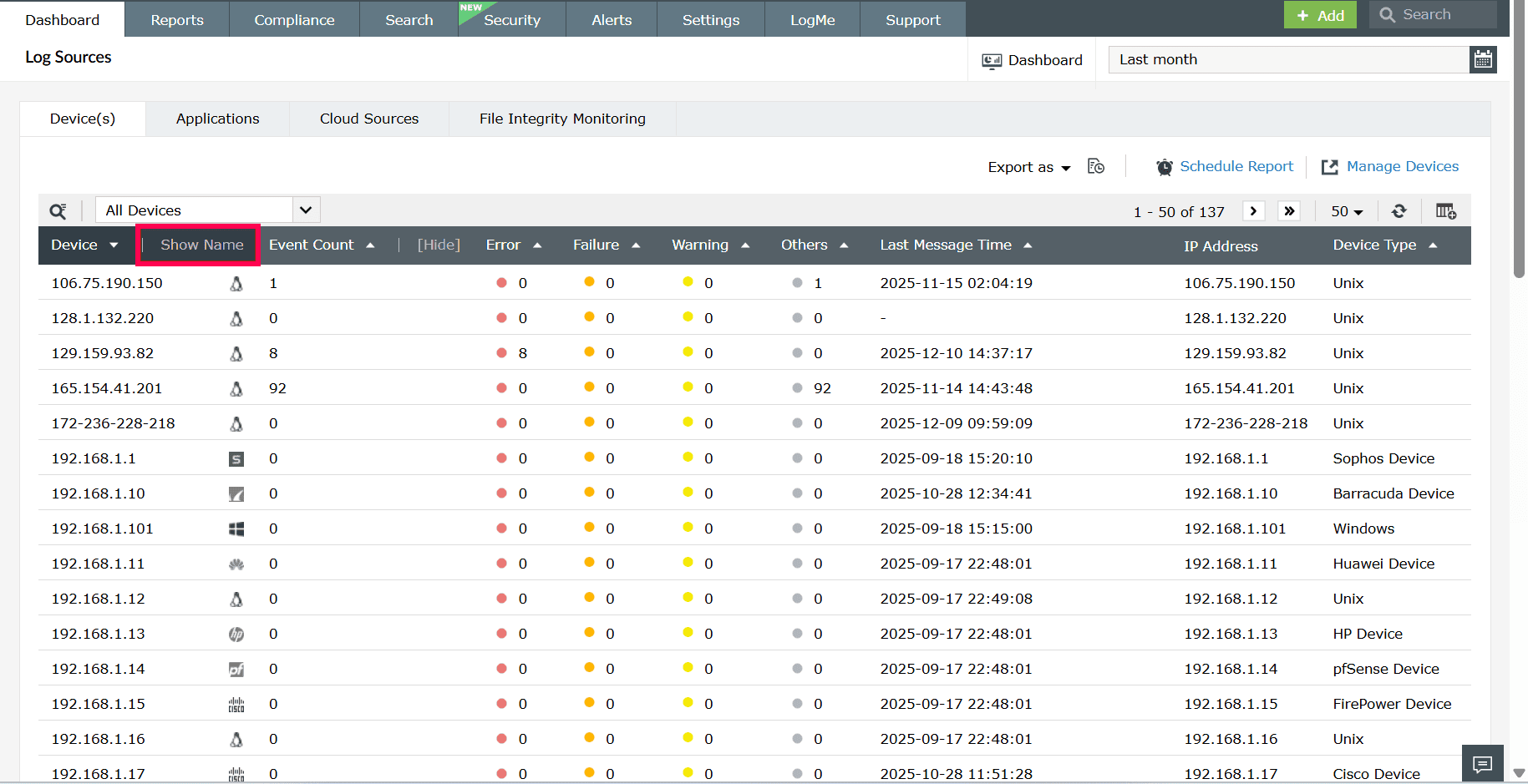
  6. Click Show Name to view the device name.
    Viewing device name
    Figure 7: Viewing device name
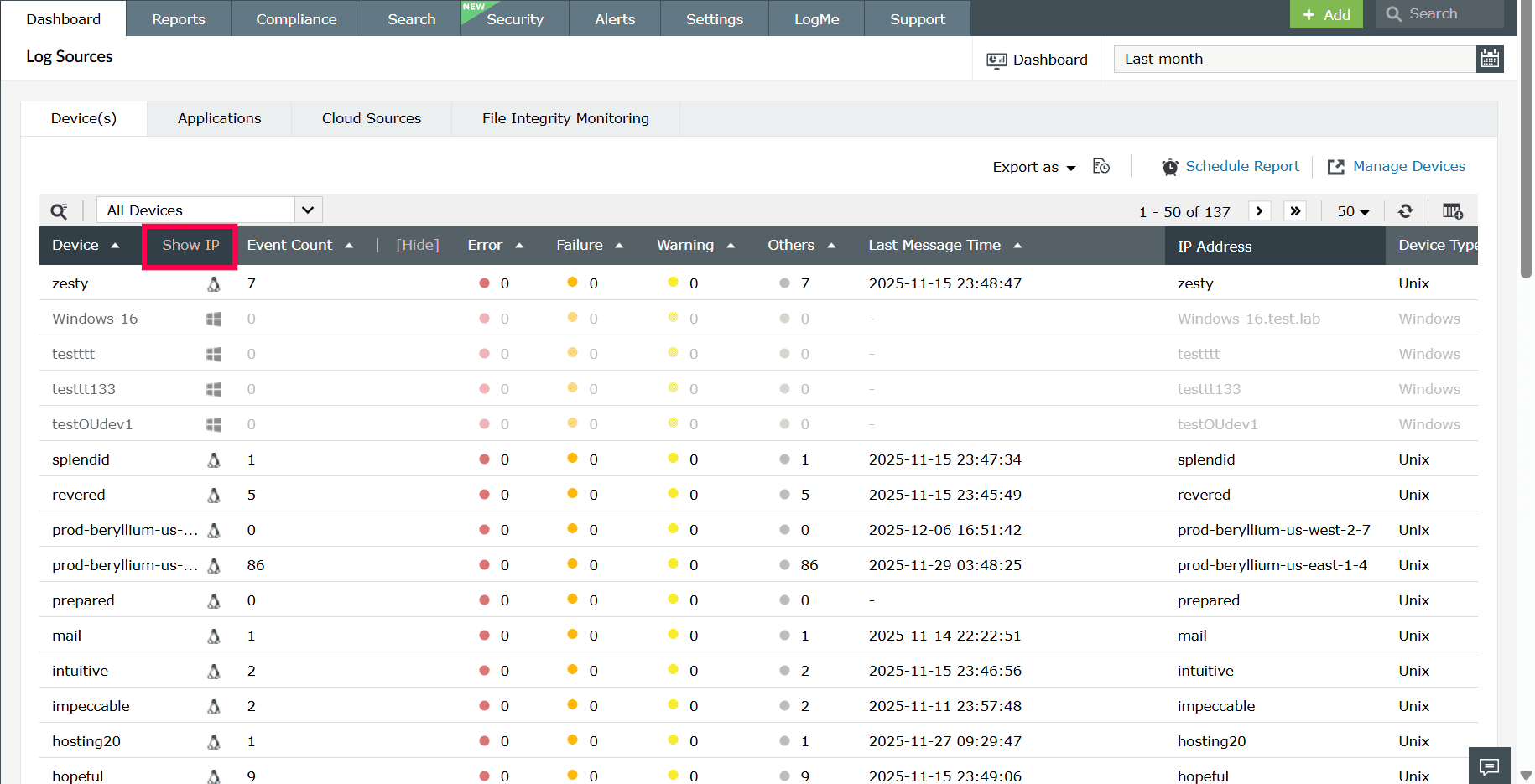
  7. You can also click Show IP to display the device’s IP address instead.
    Viewing IP
    Figure 8: Viewing IP
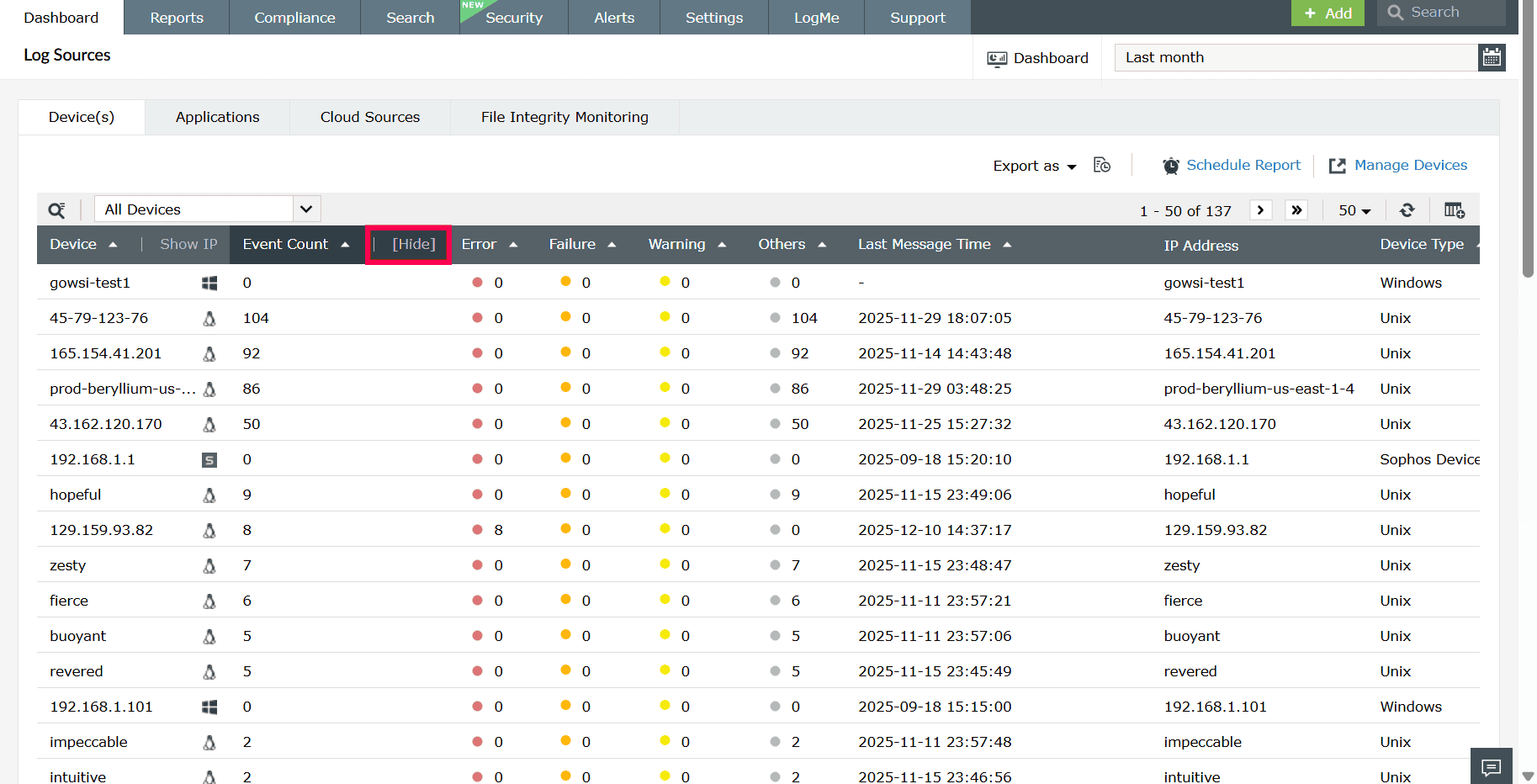
  8. You can also click Hide to remove the event count categorized by severity.
    Hiding event count categorized by severity
    Figure 9: Hiding event count categorized by severity
  9. Use the Search icon to quickly locate a specific device by name or IP address.
    Locating a specific device
    Figure 10: Locating a specific device
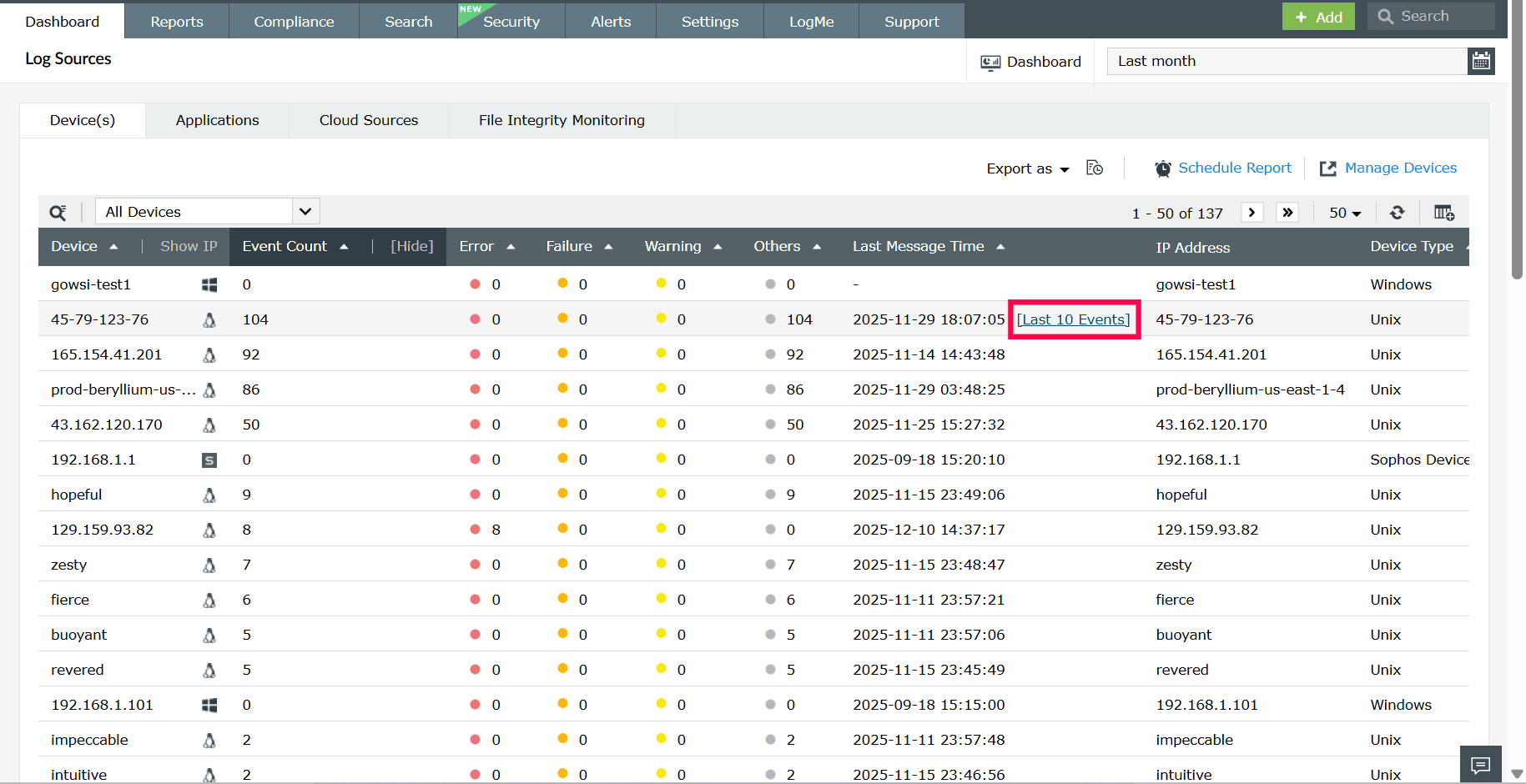
  10. Hover next to the Last Message Time column to view the Last 10 Events option.
    Viewing last 10 events
    Figure 11: Viewing last 10 events
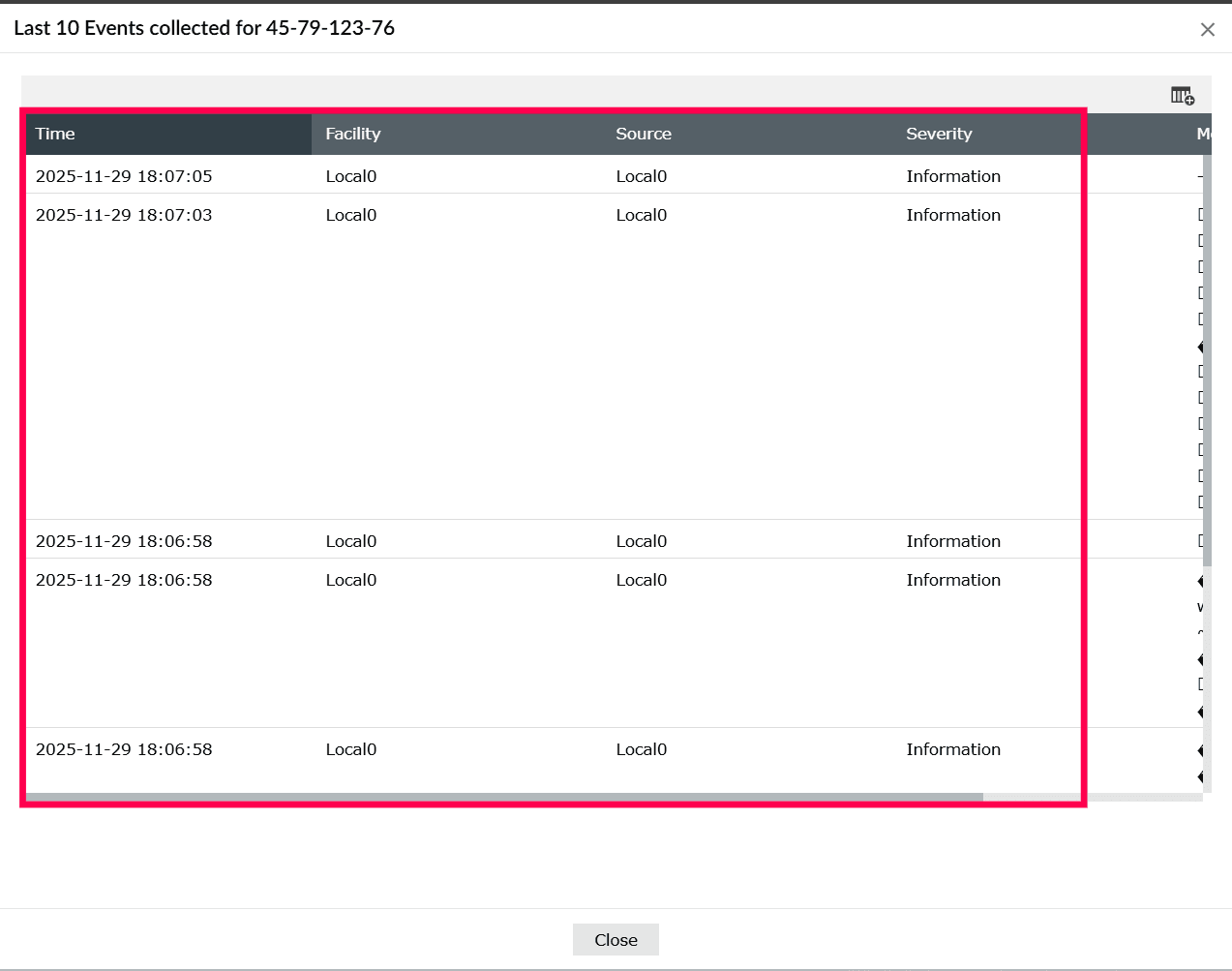
  11. The Last 10 Events displays the ten most recent events received from the selected device.
    Viewing last 10 events
    Figure 12: Viewing last 10 events
  12. In the Last 10 Events collected window, you can see event details such as,
    • Time: Displays the exact timestamp when the event occurred.
    • Event ID: Indicates the unique identifier assigned to the event.
    • Source: Specifies the application or service that generated the event.
    • Severity: Represents the criticality level of the event.
    • Type: Denotes the category or classification of the event.
    • Facility: Identifies the system process or component that produced the event.
    • Message: Provides a brief description or summary of the event details.
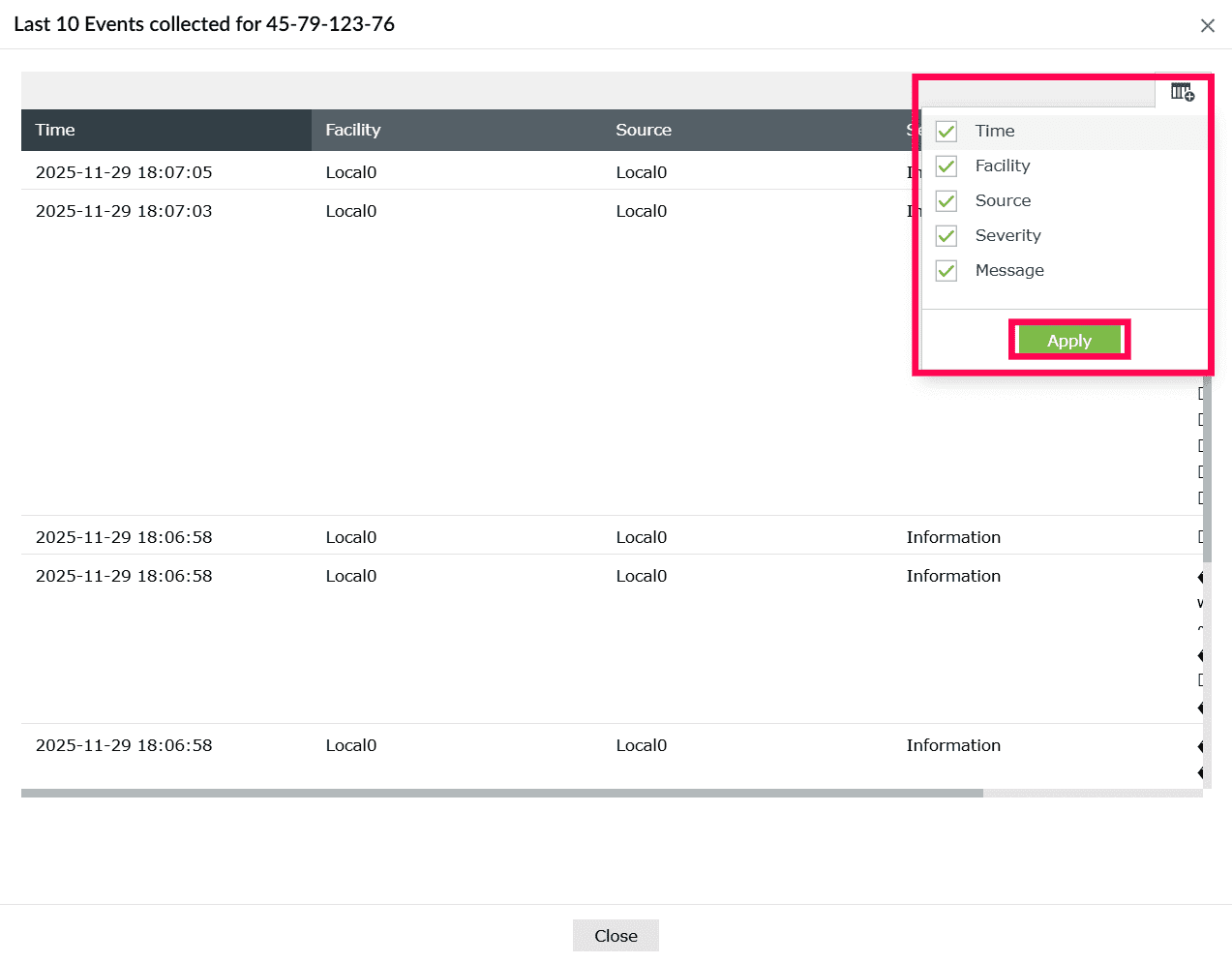
  13. Click the icon-add-or-remove icon to customize the view. Select the checkbox next to the fields you want to display and click Apply to update the table.
    Adding or removing columns
    Figure 13: Adding or removing columns
  14. To modify your list of devices, click Manage Devices to add, edit, or remove device configurations.
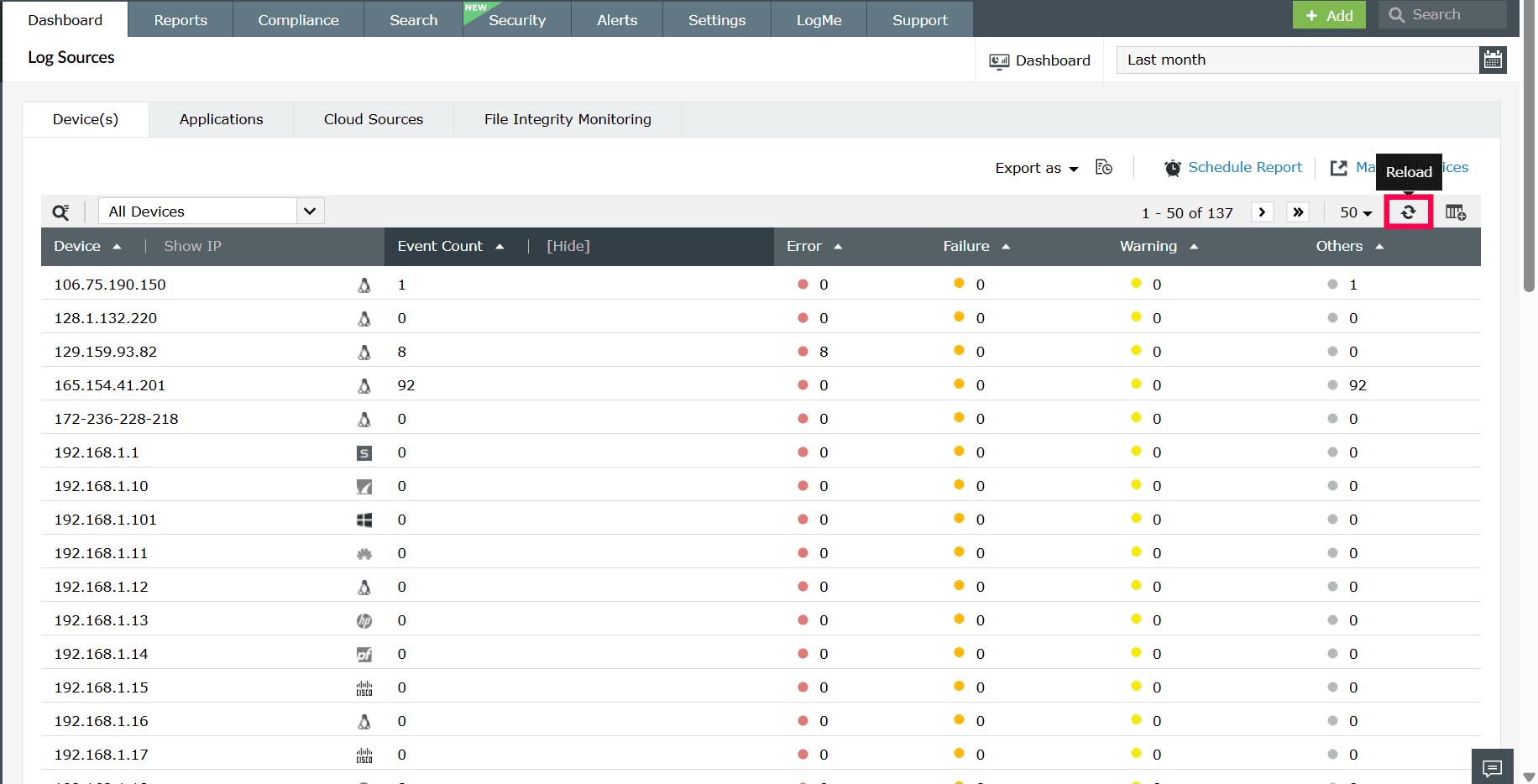
  15. Click the icon-refresh icon to refresh the device list and view the latest event and monitoring data.
    Refreshing log sources
    Figure 14: Refreshing log sources
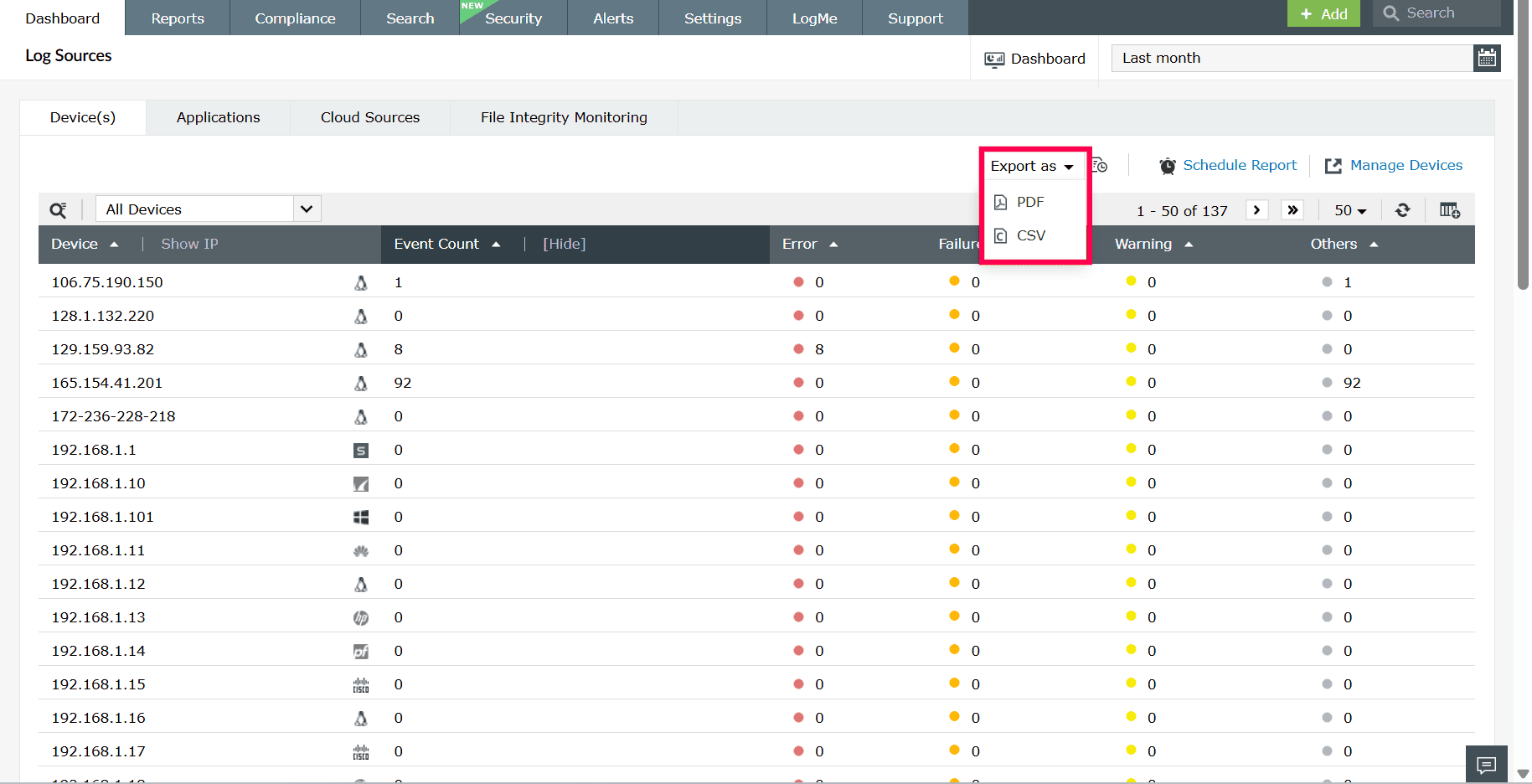
  16. Click Export as to download the list of devices in CSV or PDF.
    Exporting devices
    Figure 15: Exporting devices
  17. When you select an option, the export will begin and the below pop-up appears.
  18. Click the icon-export-history icon to view the export history. Click Download to retrieve the exported file or Clear to delete it.
    Viewing export history
    Figure 16: Viewing export history

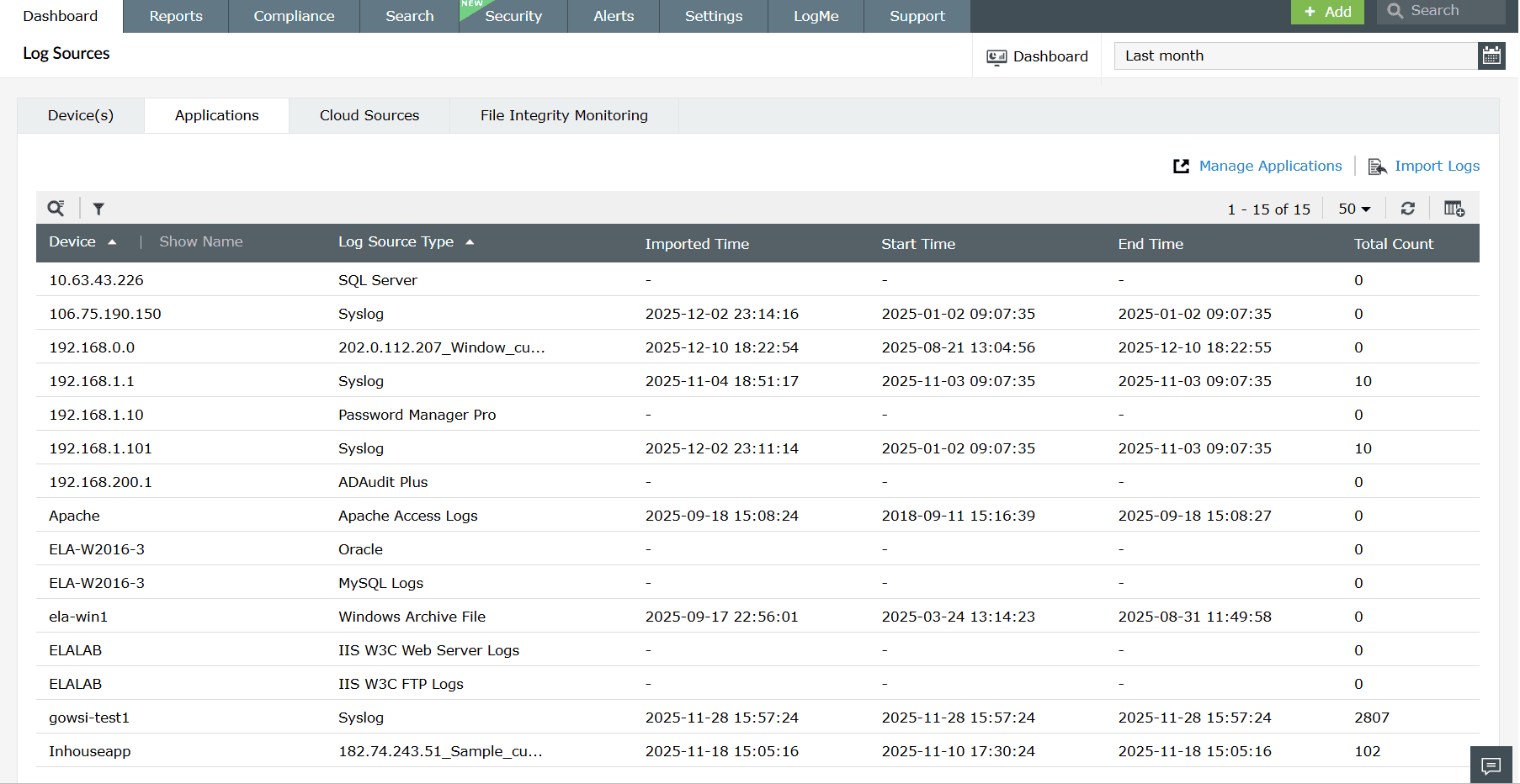
Applications

The Applications tab displays all configured application log sources. From this tab, you can view the import timeline for each application, including when log collection started, when it ended, and when the logs were last imported, along with the total log count.

Follow these steps to view and manage the application log sources:

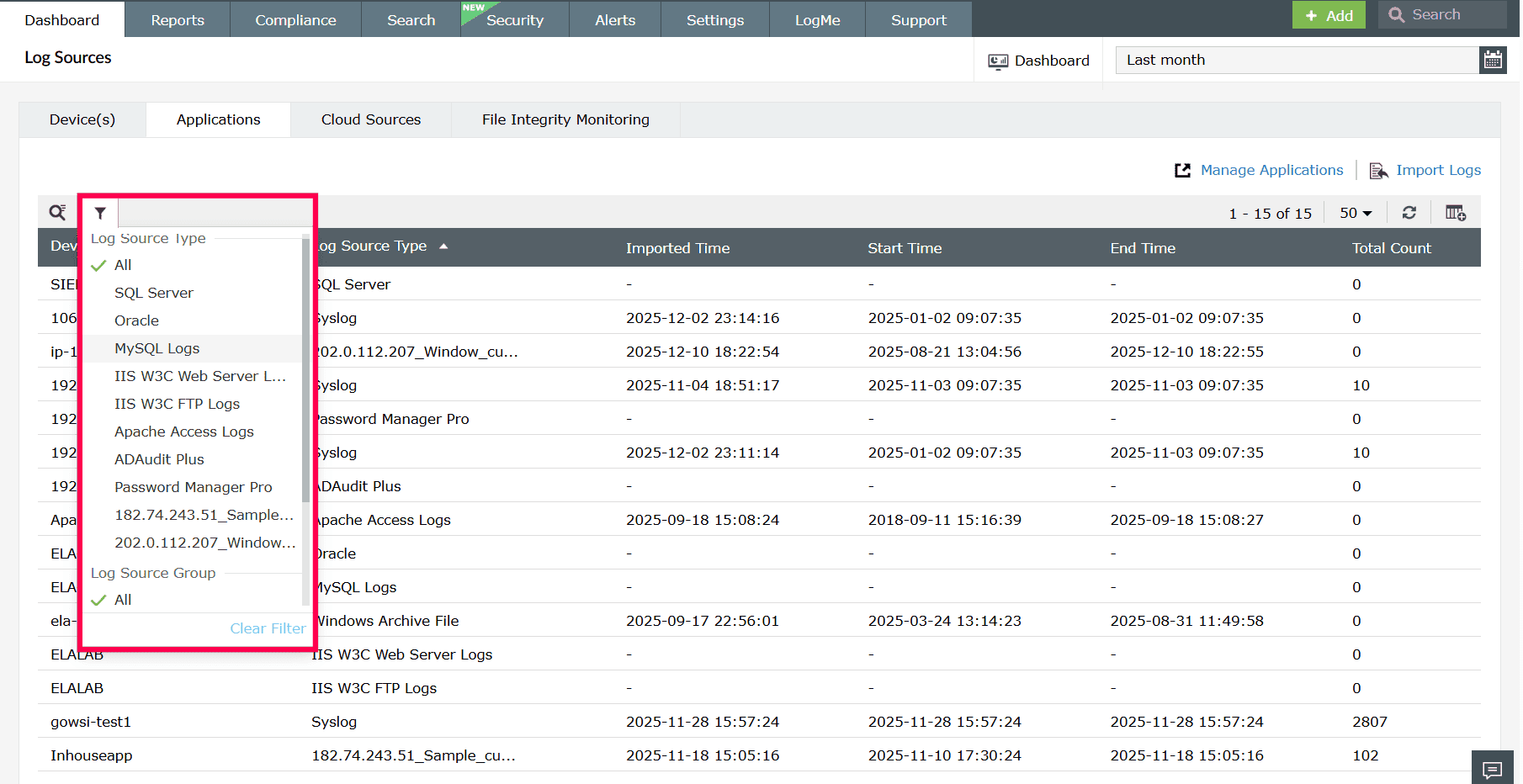
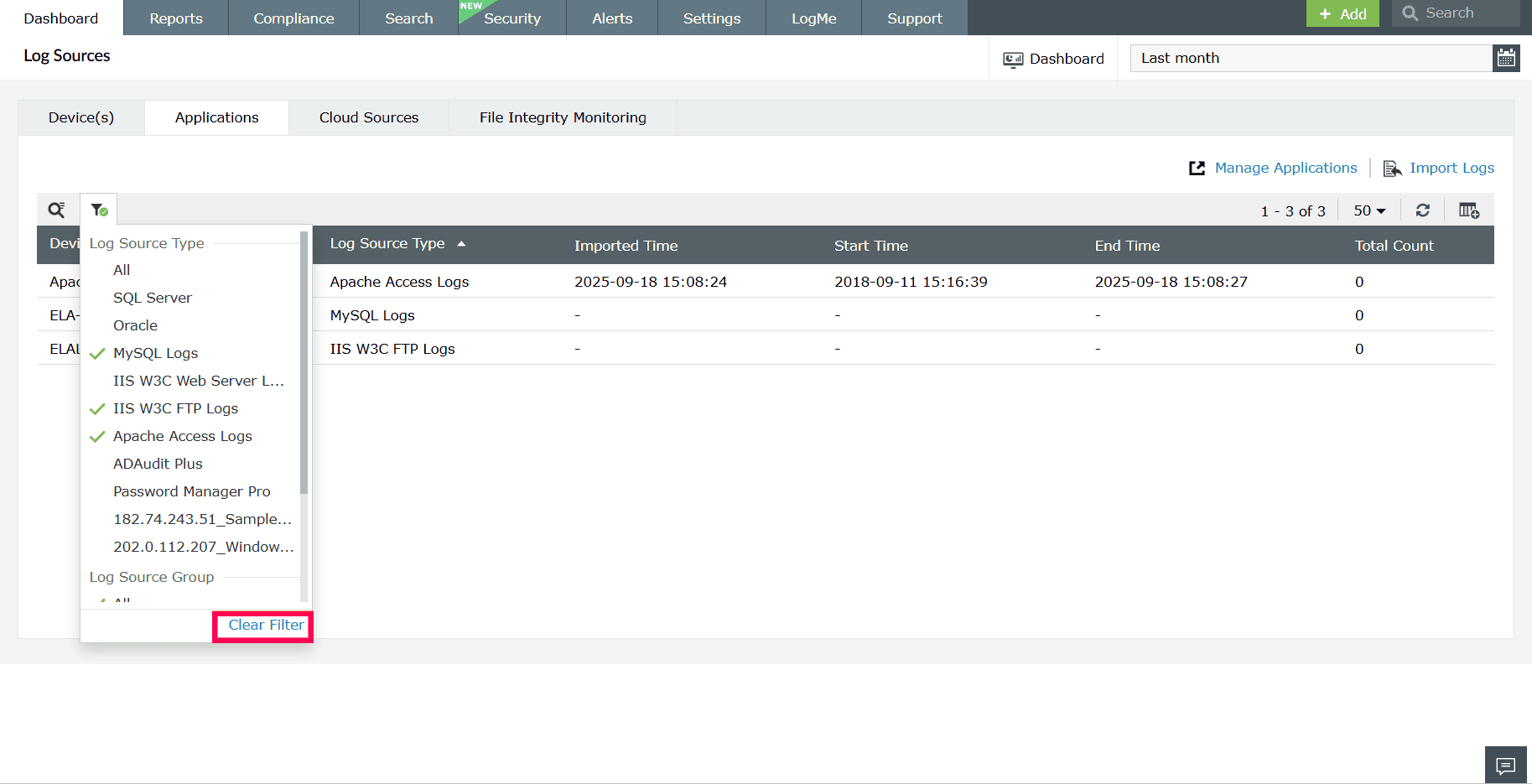
  1. Click the icon-filter icon to narrow down the list of application log sources.
  2. You can filter by selecting Log Source Type or Log Source Group. By default, the filter is set to All, displaying every application log source.
    Filtering application log sources
    Figure 17: Filtering application log sources
  3. Select Clear Filter to reset the view.
    Clearing filters
    Figure 18: Clearing filters
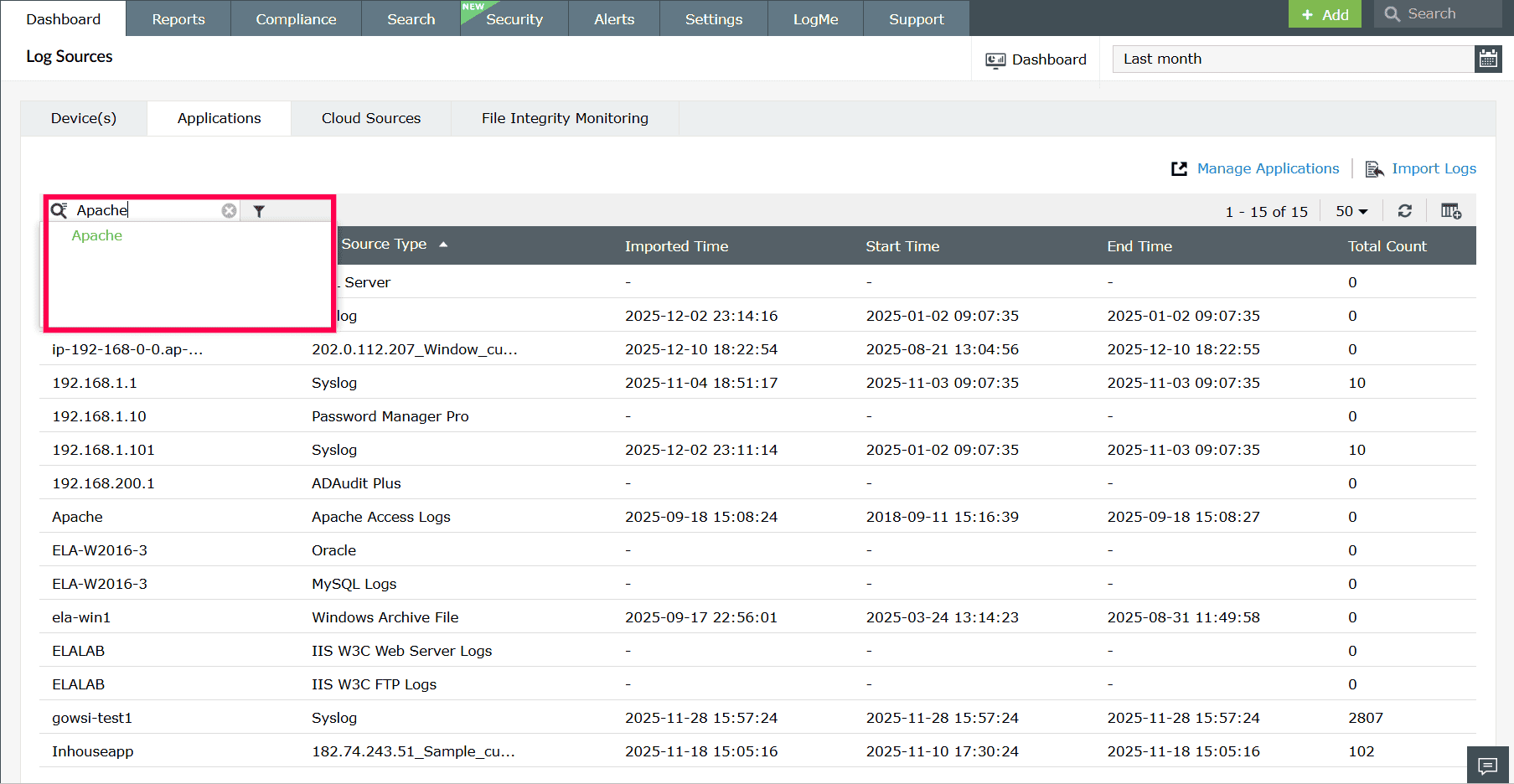
  4. Use the icon-search icon to locate a specific application by the device name or IP.
    Locating an application
    Figure 19: Locating an application
  5. Click Show IP to display the IP address associated with the device.
    Viewing IP associated with the device
    Figure 20: Viewing IP associated with the device
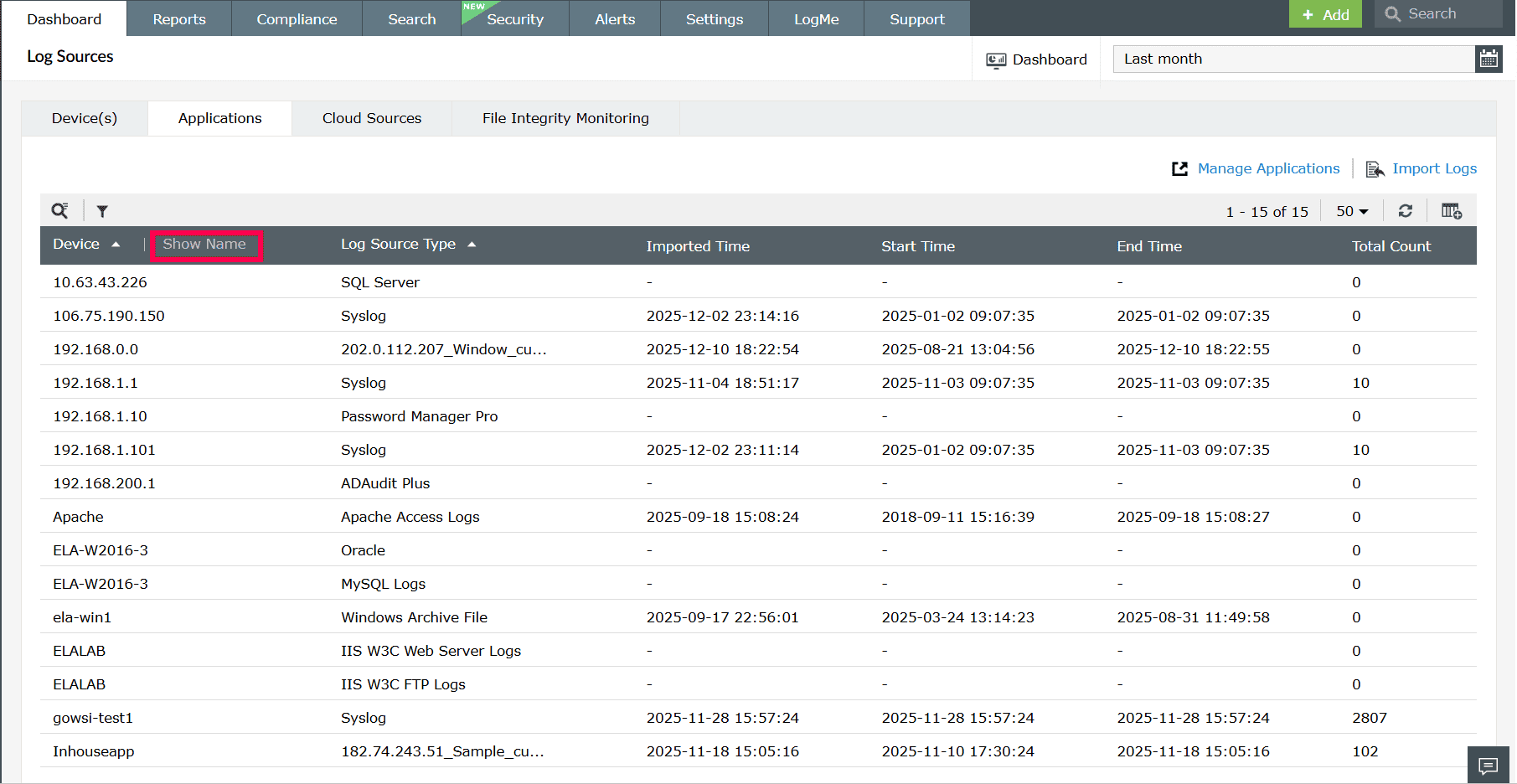
  6. You can also click Show Name to display the name associated with the device.
    Viewing device name
    Figure 21: Viewing device name
  7. The table includes the following fields:
    • Device: Displays the device name or IP address associated with the application.
    • Log Source Type: Shows the type of application or log format configured for collection.
    • Imported Time: Indicates when logs were last imported.
    • Start Time: Displays when the log collection or import process began.
    • End Time: Displays when the log collection or import process ended, if applicable.
    • Total Count: Shows the total number of logs collected from the application.
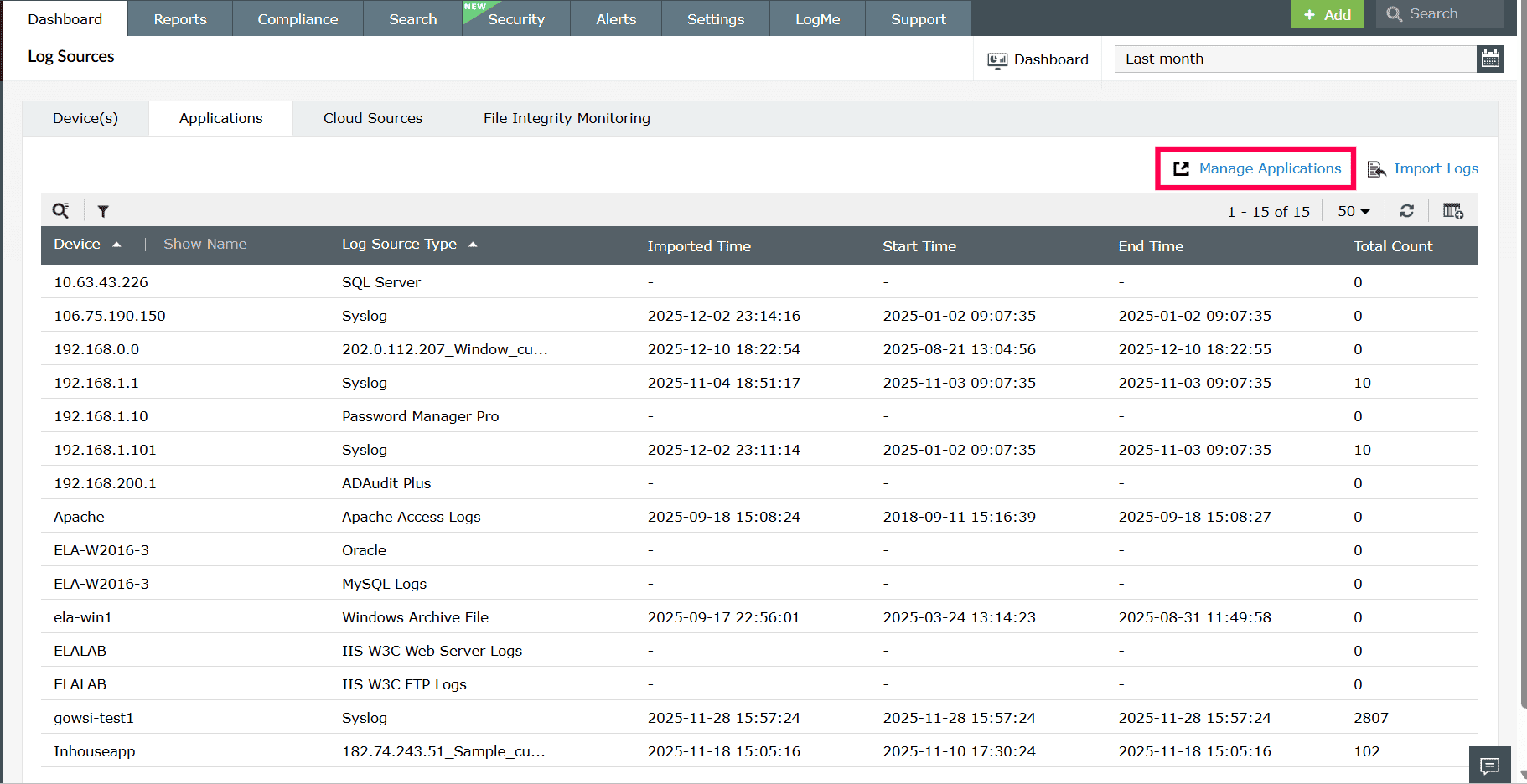
  8. To modify your list of application log sources, click Manage Applications to add, edit, or remove configurations.
    Managing applications
    Figure 22: Managing applications
  9. Click the icon-refresh icon to update the application list and view the most recent data.
    Reloading application data
    Figure 23: Reloading application data
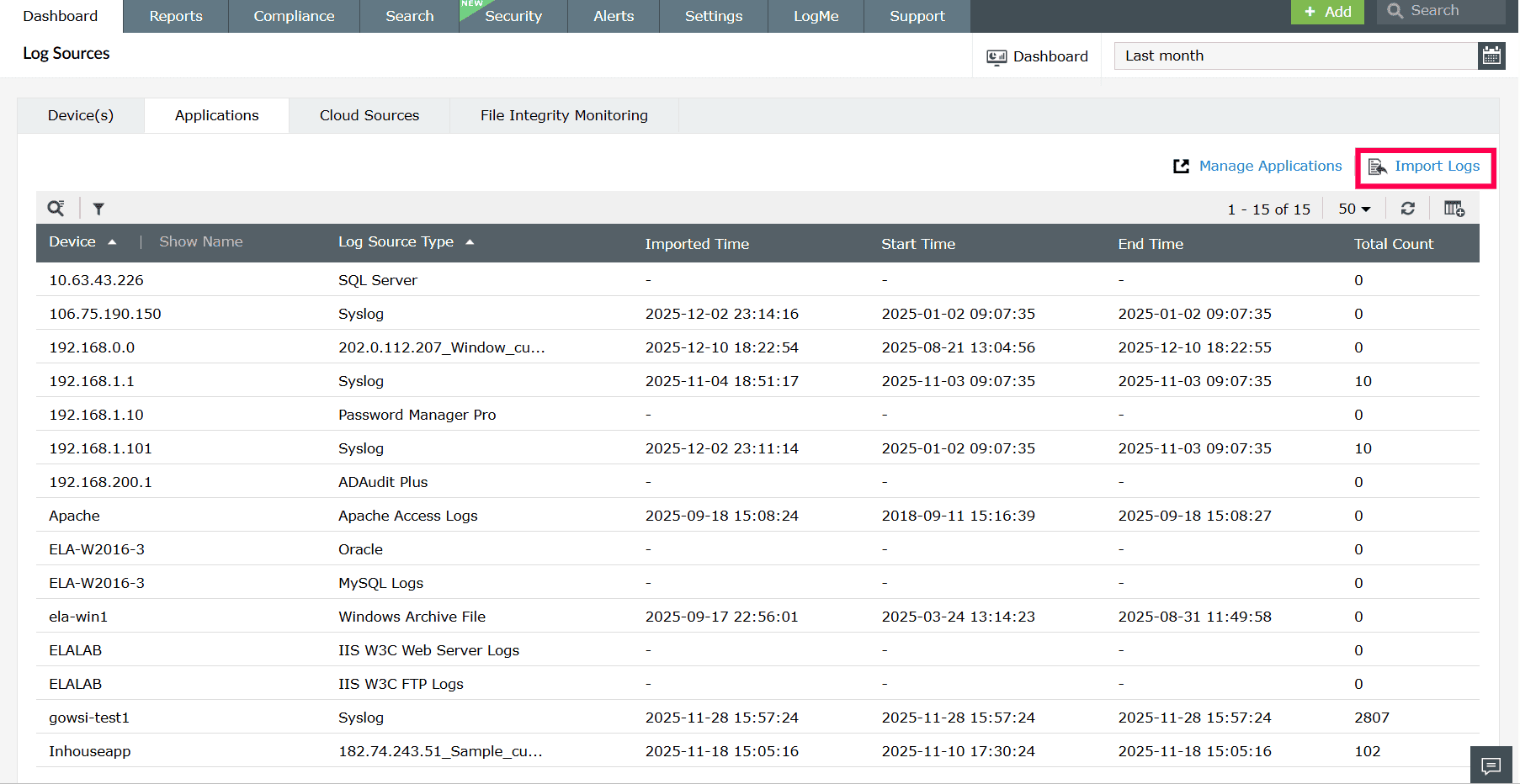
  10. If applicable, click Import Logs to manually upload application log files.
    Importing logs
    Figure 24: Importing logs
  11. Click the icon-add-or-remove icon to add or remove columns from the table.
  12. Select the checkbox next to the fields you want to display and click Apply to update the table view.
    Adding or removing columns
    Figure 25: Adding or removing columns
  13. Click the value under Total Count to open the Application Event Details window and view the events collected for that application.
    Viewing application event details
    Figure 26: Viewing application event details
  14. The Application Event Details window displays the following fields:
    • Time: Shows the exact timestamp when the event occurred.
    • Message: Provides a brief description or summary of the event content.
    Viewing application event details
    Figure 27: Viewing application event details
  15. Click the icon-add-or-remove icon to customize the event details table.
  16. Select the checkboxes for the fields you want to display and click Apply to update the view.
    Adding or removing columns
    Figure 28: Adding or removing columns
  17. In the Application Event Details window, Click Export as to download the event details in CSV or PDF format.
    Exporting event details
    Figure 29: Exporting event details
  18. After initiating an export, click the icon-export-history icon to view past exports.You can Download an exported file or click Clear to remove it from the history.
    Viewing report export history
    Figure 30: Viewing report export history
  19. Click the icon-search icon to show a search field above the Message column for filtering events by message.
    Using search
    Figure 31: Using search
  20. Click the close-icon icon to close the search field and click the icon-search-red icon to remove the applied search filter.
  21. To return to the previous window, click Close.

Cloud sources

The Cloud Sources tab displays all configured cloud-based log sources. From this tab, you can view details such as the data source, tenant name, log count, data fetch interval, last scan time, last message time, and the status of log collection.

Follow these steps to view and manage cloud log sources:

  1. Use the icon-search icon to locate a specific cloud source by data source type.
    Locating cloud sources
    Figure 32: Locating cloud sources
  2. Click Manage Cloud Sources to add, edit, or remove cloud source configurations.
    Managing cloud sources
    Figure 33: Managing cloud sources
  3. Click the icon-add-or-remove icon to add or remove columns from the table. Select the checkboxes for the fields you want to display and click Apply to update the table.
    Adding or removing columns
    Figure 34: Adding or removing columns
  4. Click the icon-refresh icon to reload the table.
    Refreshing the table
    Figure 35: Refreshing the table
  5. The table includes the following fields:
    • Data Source: Displays the cloud service or platform from which logs are collected.
    • Name: Displays the tenant or integration associated with the cloud source.
    • Count: Indicates the total number of logs collected.
    • Data Fetch Interval: Displays how often logs are retrieved from the cloud source.
    • Last Scan Time: Shows the most recent time the cloud source was scanned for logs.
    • Last Message Time: Displays the timestamp of the most recent event received.
    • Status: Indicates the status of log collection.
  6. Hover next to the Last Message Time value to access the Last 10 Events option and view the most recent events collected for that cloud source.
    Viewing last 10 events
    Figure 36: Viewing last 10 events
  7. In the Last 10 Events window, click the icon-add-or-remove icon to customize the fields shown in the event details table. Select the required checkboxes and click Apply to update the view.
    Adding or removing columns
    Figure 37: Adding or removing columns
  8. To return to the Cloud Sources tab, click Close.

File Integrity Monitoring

Click Select Devices redirects you to the File Monitoring page. Refer to this page for detailed steps on configuring and managing file monitoring.

File integrity monitoring
Figure 38: File integrity monitoring

Filtering data by time range

You can filter the data displayed on the dashboard by selecting a time range.

  1. In the top-right corner of the dashboard, click the calendar drop-down.
  2. Choose from predefined options such as Today, Yesterday, Last 7 days, Last 30 days, This month, Last month.
  3. Selecting a time range
    Figure 39: Selecting a time range
  4. To define your own range, select Custom and specify the From and To dates and times using the calendar and time fields.
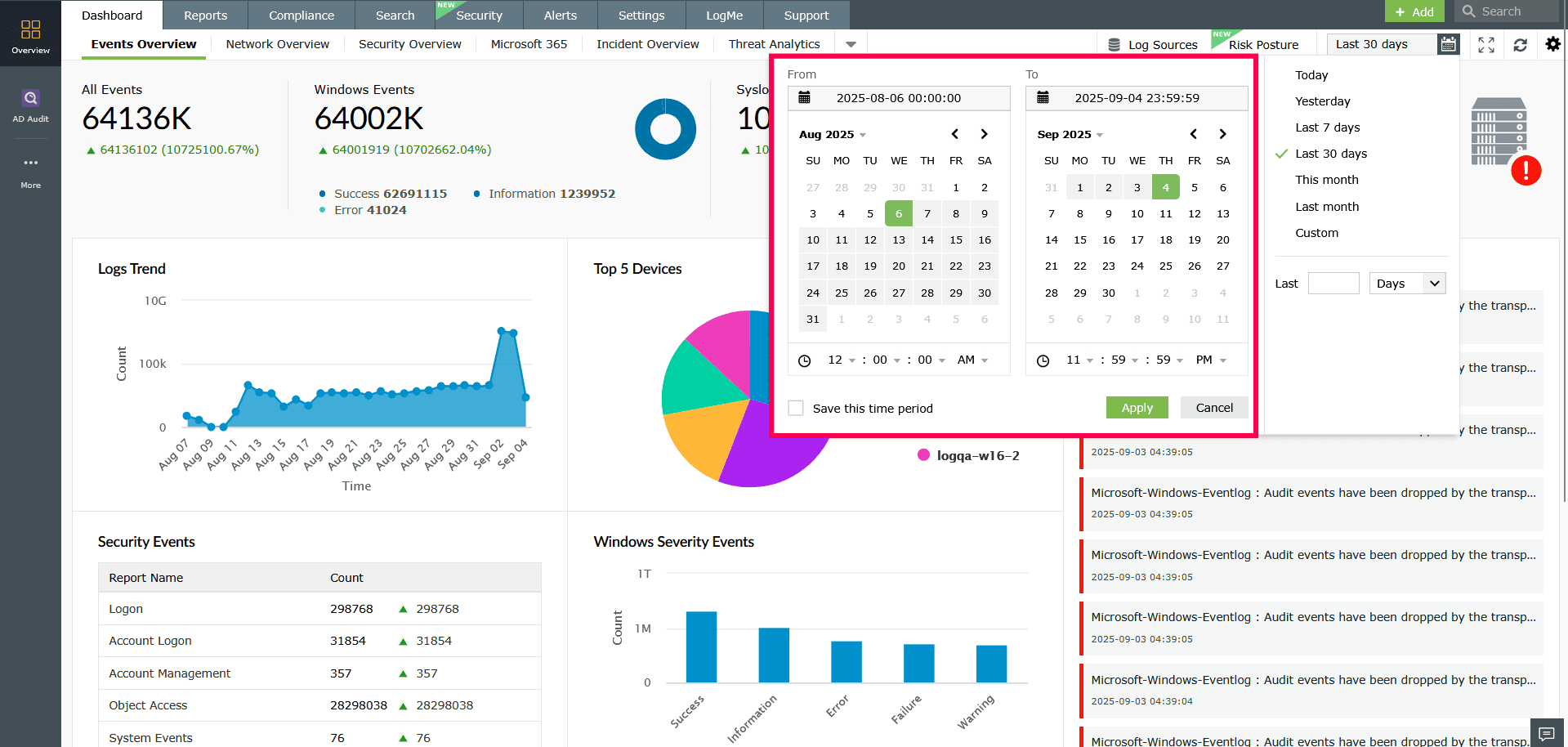
    Selecting a time range
    Figure 40: Selecting a time range
  5. Alternatively, you can use the Last field to set a relative time range.
  6. Click Apply to update the dashboard data for the selected period.

Adding a new tab

To add a new tab to the dashboard,

  1. In the dashboard, click the icon-settings icon on the top-right corner and select Add Tab.
    Adding a New Tab in the dashboard
    Figure 41: Adding a New Tab in the dashboard
  2. In the pop-up box that appears, you can see the following:
    • Default tabs: Events Overview, Network Overview, Security Overview, M365 Overview, Incident Overview, Detection Overview, Threat Analytics, and AD Audit.
    • Other predefined templates
    • Add Custom Tab option
  3. Click Add Custom Tab. Enter a name for the tab in the given field and click Add.
    Adding a Custom Tab
    Figure 42: Adding a Custom Tab

Adding a new widget to a tab

To add a new widget,

  1. In the dashboard, click the icon-settings icon on the top-right corner and select Add Widgets.
  2. In the Add New Widget window, choose a component from the Select Component drop-down.
    Selecting a component
    Figure 43: Selecting a component
  3. Specify the widget, widget type, chart type, chart color, and provide a display name for the widget.
    Configuring a New Widget in the dashboard
    Figure 44: Configuring a New Widget in the dashboard
  4. Once configured, select Add to save the widget.

Editing, deleting and reordering tabs

To delete tabs from the dashboard,

  1. In the dashboard, click the icon-settings icon on the top-right corner and select Manage Tabs.
    Deleting tabs in the dashboard
    Figure 45: Deleting tabs in the dashboard
  2. In the Manage Tab dialog box that appears, click the icon-delete icon corresponding to that tab that you want to delete.
  3. In the pop-up confirmation box, click Yes to confirm the deletion of the tab.
  4. Click Save to apply the changes to the dashboard.

To reorder the tabs in the dashboard,

  1. In the dashboard, click the icon-settings icon on the top-right corner and select Manage Tabs.
  2. Click the icon-order icon and drag and drop the tabs in the order of your choice.
  3. Click Save to apply the changes to the dashboard.

To edit a dashboard tab:

  1. In the dashboard, click the icon-settings icon on the top-right corner and select Manage Tabs.
  2. Hover over the tab you want to edit and click the edit icon.
    Editing a dashboard tab
    Figure 46: Editing a dashboard tab
  3. Modify the tab name and click the icon icon to confirm.
    Modifying the tab name
    Figure 47: Modifying the tab name
  4. Click Save to apply the changes to the dashboard.

Reordering and resizing widgets

To reorder the widgets in a tab,

  1. In the dashboard, go to the tab containing the widgets you want to reorder.
  2. Click the icon-settings icon on the top-right corner and select Reorder Widgets.
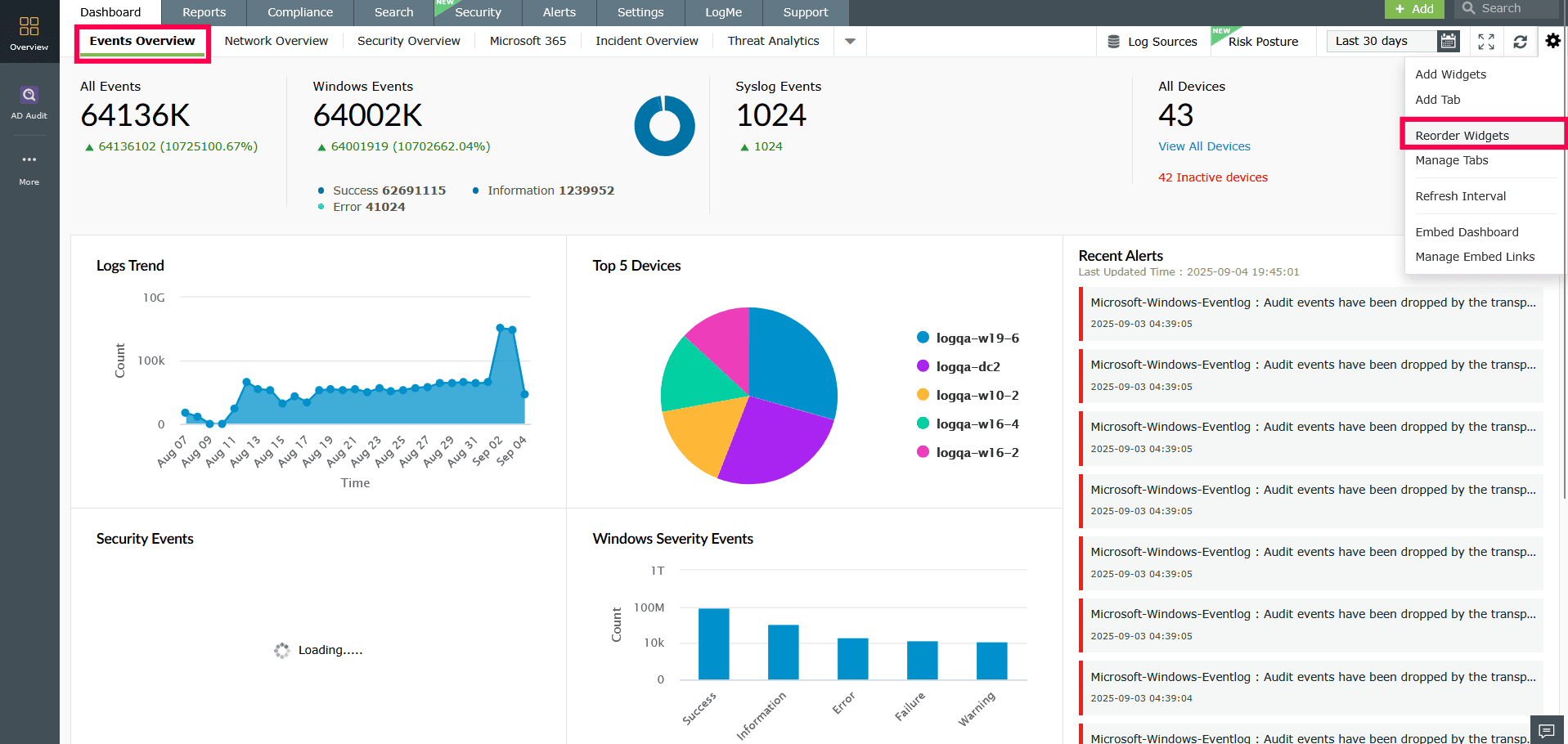
    Reordering widgets in the dashboard
    Figure 48: Reordering widgets in the dashboard
  3. Click and drag the widgets to your desired positions.
  4. Click Save in the top-right corner to apply the changes to the dashboard.
    Saving changes to the dashboard
    Figure 49: Saving changes to the dashboard

To resize the widgets in a tab,

  1. In the dashboard, navigate to the tab whose widgets you want to resize.
  2. Click the icon-settings icon on the top-right corner and select Reorder Widgets.
  3. Hover over the widget you want to resize, click the icon-resize icon, and drag from the bottom-right corner to adjust the size as needed.
  4. Click Save in the top-right corner to apply the changes to the dashboard.

Editing and deleting widgets

To edit a widget in a tab,

  1. In the dashboard, click the icon-option icon and select Edit Widget corresponding to the widget that you want to edit.
    Editing a widget
    Figure 50: Editing a widget
  2. Update the necessary information and click Update.
    Editing a widget
    Figure 51: Editing a widget

To delete a widget from a tab,

  1. In the dashboard, click the icon-option icon corresponding to the widget that you want to delete.
  2. Select Delete Widget.
    Deleting a widget
    Figure 52: Deleting a widget
  3. Click Yes in the pop-up box to complete the deletion.
    Confirming deletion of a widget
    Figure 53: Confirming deletion of a widget

Viewing the dashboard in full screen mode

To view the dashboard in full screen,

  1. In the dashboard, click the icon-zoom-in icon on the top-right corner.
    Viewing the dashboard in full screen mode
    Figure 54: Viewing the dashboard in full screen mode
  2. To start a slideshow of the tabs, click the play icon icon-green-play at the top of the screen.
  3. To switch between tabs, click the drop-down button icon-down at the top of the screen.
    Switching between tabs
    Figure 55: Switching between tabs
  4. To remove a particular tab from the slideshow, click the toggle button toggle-onnext to the tab name in the drop-down list.
    Removing a tab from the slideshow
    Figure 56: Removing a tab from the slideshow
  5. To switch to dark mode, click the toggle button toggle-off at the top-right corner of the screen.
    Switching to dark mode
    Figure 57: Switching to dark mode
  6. To exit full screen mode, click the icon-zoom-out icon.

Viewing a widget in full screen mode

To view a widget in full screen, in the dashboard, click the icon-zoom-in icon on the top-right corner of the widget you want to view.

Viewing a widget in full screen mode
Figure 58: Viewing a widget in full screen mode

Refreshing the dashboard and widgets

To refresh the entire dashboard,

  1. In the dashboard, click the icon-refresh icon on the top-right corner of the screen.
    Refreshing the dashboard
    Figure 59: Refreshing the dashboard

To refresh a particular widget,

  1. In the dashboard, click the icon-refresh icon on the top-right corner of the specific widget.
    Refreshing a widget
    Figure 60: Refreshing a widget

Changing refresh interval

To change the time interval for the automatic refreshing of the dashboard,

  1. In the dashboard, click the icon-settings icon on the top-right corner and select Refresh Interval.
    Configuring Refresh Interval in the dashboard
    Figure 61: Configuring Refresh Interval in the dashboard
  2. In the Dashboard Refresh window, select the refresh interval: Never, 30 seconds, 1 minute, 5 minutes, 10 minutes, or 1 hour.
    NOTE: If you select Never, the dashboard will not refresh automatically. You will need to refresh it manually.
    Changing the refresh interva
    Figure 62: Changing the refresh interva
  3. Click Save to apply the changes to the dashboard.
NOTE : Watch this video for a step-by-step demonstration of customizing the dashboard.

The Embed link enhances data sharing by allowing the creation of external share links for specific tabs or widgets. This enables precise and targeted access to dashboard data, supporting collaboration and visibility across platforms.

To embed a dashboard,

  1. In the dashboard, navigate to the tab you want to embed.
  2. In the top-right corner, click the icon-settings icon and select Embed Dashboard.
    Navigating to Embed Dashboard
    Figure 63: Navigating to Embed Dashboard
  3. Provide a unique Link Name.
  4. Select the desired Time Range from the drop-down menu.
  5. Configure the Refresh Time (60 - 1440 minutes) and Expiry (1 - 365 days) using the drop-down options.
    Creating an embed link
    Figure 64: Creating an embed link
  6. Click Create Link to generate the embed link for the dashboard.
    Creating an embed link
    Figure 65: Creating an embed link
  7. To regenerate the link, click Regenerate Embed URL.

To embed a widget,

  1. In the dashboard, click the icon-option icon and select Embed Widget corresponding to the widget that you want to embed.
    Embedding a widget in the dashboard
    Figure 66: Embedding a widget in the dashboard
  2. Provide a unique Link Name.
  3. Select the desired Time Range from the drop-down menu.
  4. Configure the Refresh Time (60 - 1440 minutes) and Expiry (1- 365 days) using the drop-down options.
    Configuring an Embed widget link
    Figure 67: Configuring an Embed widget link
  5. Click Create Link to generate the embed widget link.
    Creating Embed widget links
    Figure 68: Creating Embed widget links
  6. To regenerate the link, click Regenerate Embed URL.
NOTE:

- The embedded widget will refresh automatically at the specified interval.

- The generated external share link will remain valid only until the specified expiry date.

To manage embed dashboard links,

  1. In the dashboard, click the icon-settings icon on the top-right corner and select Manage Embed Links.
    Accessing Manage Embed Links
    Figure 69: Accessing Manage Embed Links
  2. A table will appear displaying all the Active Dashboard Links. Go to Embed Dashboard Links.
    Viewing Active Dashboard Links
    Figure 70: Viewing Active Dashboard Links
  3. To edit a specific link, locate the desired entry and click the Edit option next to it.
    Editing Embed Widget Links
    Figure 71: Editing Embed Widget Links
  4. A window will appear allowing you to modify the properties of the chosen link. Make the necessary changes.
    Configuring Edit Embed Link
    Figure 72: Configuring Edit Embed Link
  5. Once done, click Save to apply the updates to the Active Dashboard Link.
  6. To delete, select the checkbox next to the entry you want to remove and click the icon-delete icon.
    Deleting an embed link
    Figure 73: Deleting an embed link
  7. In the confirmation pop-up, click Yes to delete the embed link from the list permanently.
  8. To regenerate the link, select the icon. In the window that opens, click Regenerate Embed URL to generate a new embed URL while retaining the existing configuration.
    Regenerating Embed URL
    Figure 74: Regenerating Embed URL

To manage embed widget links,

  1. In the dashboard, click the icon-settings icon on the top-right corner and select Manage Embed Links.
    Accessing Manage Embed Links
    Figure 75: Accessing Manage Embed Links
  2. A table will appear displaying all the Active Dashboard Links. Go to Embed Widget Links.
NOTE: Follow the instructions from this step to edit, delete, or regenerate the embed link for a widget.
Viewing Active Dashboard Link
Figure 76: Viewing Active Dashboard Link

Read alsoThis page explained about customizing the Log360 dashboard to tailor tabs and widgets. To learn more about predefined dashboard views and widget management, refer to the following documents: