In this four-part series about OneDrive for Business, we'll discuss OneDrive system requirements, Support and Recovery Assistant (SaRA), OneDrive for Business sync errors and solutions to overcome them. In the last part of this series, we'll cover the solutions to file and folder syncing errors like keeping a check on the count of files and folders synced and avoiding duplicate filenames.
Managing and handling OneDrive for Business can sometimes be really tricky. Keeping track of where the error occurs, their probable causes and solutions can be tough. M365 Manager Plus helps you to monitor OneDrive for Business, by which you can be aware of any glitch that occur in the services and hence solve the issue immediately.
- Open File Explorer in the local machine in which OneDrive is synced.
- Right-click OneDrive folder under File Explorer and select Properties.
- If the number in the Contains section is more than 100,000, syncing might be an issue.
- In such a case, sync the necessary files only.
Apart from this, sync issues can also occur when files and filenames are edited offline or if any changes are made in OneDrive folder on another PC that is syncing simultaneously. In such cases ensure that there are no files with duplicate filenames and resolve such conflicts, if any, by renaming the edited files or folders.
Managing and handling OneDrive for Business can sometimes be really tricky. Keeping track of where the error occurs, their probable causes and solutions can be tough. M365 Manager Plus helps you to monitor OneDrive for Business, by which you can be aware of any and all glitches that occur in the services and hence solve the issue immediately.
About M365 Manager Plus
M365 Manager Plus is an intuitive Microsoft 365 reporting, management, monitoring, auditing, and alerting tool that helps you get reports on all OneDrive for Business file, folder changes and audits all user activities. Apart from this, the tool helps you monitor other features and end-points (like CDNs and supportability) 24*7 to ensure hassle-free service.
Steps to monitor OneDrive for Business using M365 Manager Plus
- Go to the Auditing & Monitoring section.
- Click the Monitoring tab.
- Choose the Microsoft 365 Tenant from the drop-down on the left-side
- Navigate to OneDrive for Business Reports > Features or Endpoints.
- Choose a suitable option from the list.
- Enter a Period for report generation.
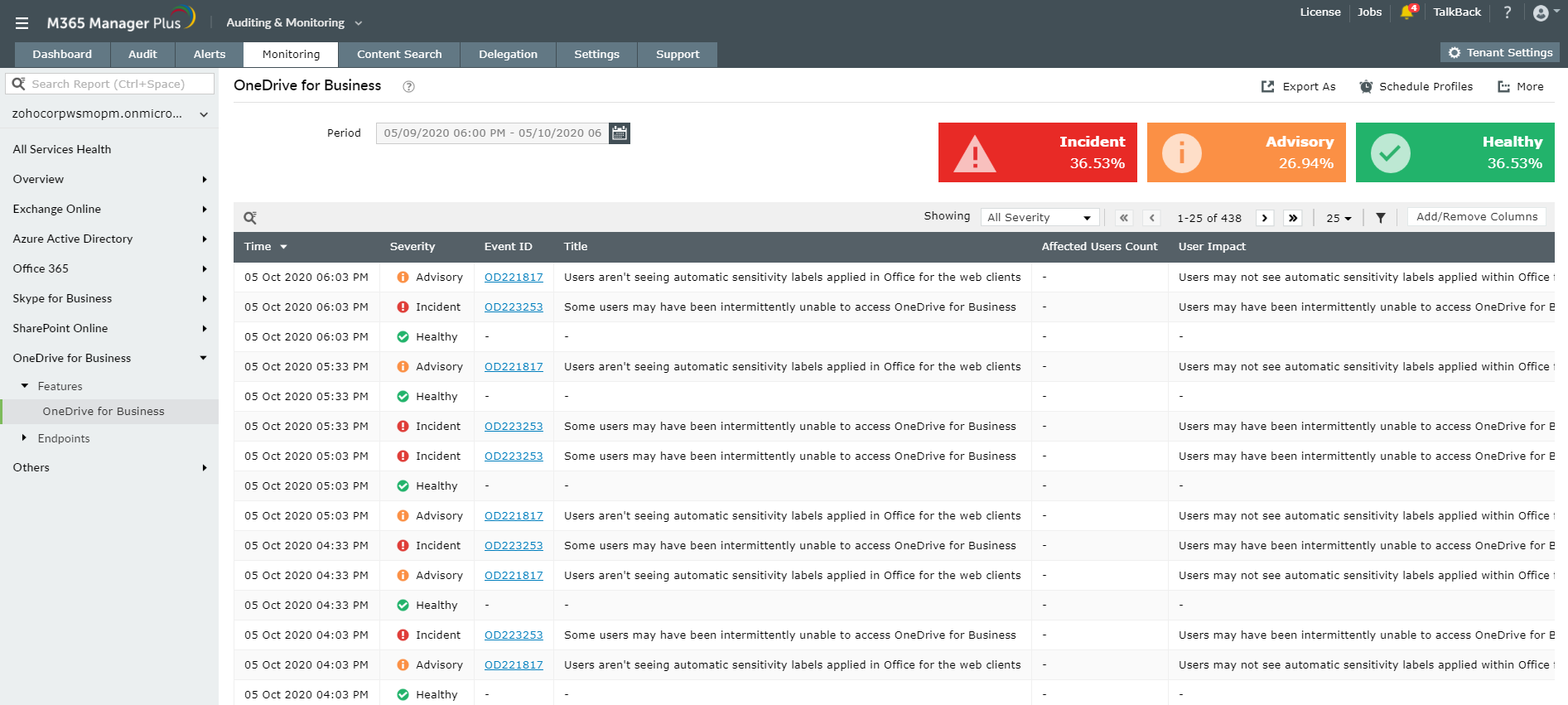
You can filter the generated alerts as per severity levels and export them as PDF, CSV, HTML or XLSX files. Schedule monitoring reports to get real-time alerts via email.
Highlights of M365 Manager Plus
- 700+ pre-configured reports and unique custom reports.
- Geo-location enabled reports.
- Bulk users and mailbox management.
- Customizable templates to manage users, groups and contacts.
- Rules to auto-populate fields.
- Custom naming formats and password policies for the templates.
- Automation of management tasks.
- Virtual tenants creation and delegation.
- Custom help desk roles to delegate management and reporting operations to technicians without elevating their rights in native environment.
To know more about the tips and tricks that make your Microsoft 365 tasks easy, click here.