Archive or delete teams in your organization
Teams created in your organization may remain unused at the end of a project, if the team owner leaves the organization, and so on. These unused teams can accumulate and burden the tenant resources. Normally, it's best to delete an unused team but you can also archive it if you feel that the team will be of use in the near future.
When a team is archived, all activities of that team cease. The team's private channels and its associated site collection are also archived. However, you can still add or remove members, update roles, and view the team activity in standard and private channels, files, and chats that took place before the archiving. Deleting a team deletes all the channels, site collections, and activities associated with it.
To archive a team using the Microsoft Teams admin center:
- Go to Teams and select the team to be archived.
- Select Archive.A message will appear to confirm your action.
- If you would like to make the SharePoint site for the team read-only, select the check box in the pop-up message.
- Click Archive to archive the team.
To delete a team using the Microsoft Teams admin center:
- Go to Teams and select the team to be archived.
- Select Delete. A message will appear to confirm your action.
- Click Delete to delete the team permanently.
Delete teams in bulk using M365 Manager Plus
The user-friendly interface helps you easily delete teams in bulk by simply importing a CSV file. You can also create automated workflows in the tool to manage Teams. This will help save time and reduce your workload.
To delete teams in bulk using M365 Manager Plus:
- Navigate to the Management tab.
- Select Group Management under Azure Active Directory, in the left pane.
- Choose the Delete Groups task.
- Select the required Microsoft 365 Tenant from the drop-down box.
- Import the required CSV file.
- Click Import Team(s).
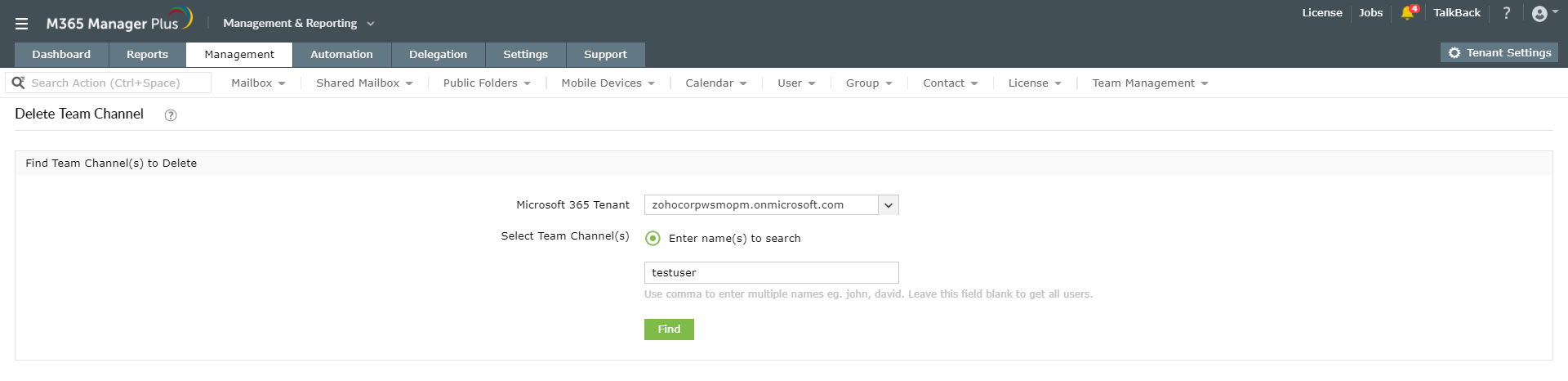
To learn more about managing Microsoft Teams using M365 Manager Plus, click here.