If a specific user account hasn't been deleted and you had just removed the license of the user, there's still ways by which you can get access to that user’s data in Microsoft 365 using the Microsoft 365 admin center. To get the details, navigate to Users > Active users in the admin center and get access to the particular user’s data or OneDrive for Business files, and move or copy them to another folder. Please note that you need to restore the deleted user to access their data. Though Microsoft 365 admin center is simple to use, it does not offer certain vital capabilities to effectively manage Microsoft 365. PowerShell, which is usually used to cement this gap, involves complex coding.
M365 Manager Plus – The better alternative
M365 Manager Plus is an intuitive Microsoft 365 reporting, managing, monitoring, auditing, and alerting tool. It's easy and simple to use and it redefines the Microsoft 365 management techniques. This tool offers different options to get access to the former user’s data. If you have just removed the user’s license alone without deleting the user, then the user’s account can be accessed at any moment. However, if you have soft-deleted the user account, then you have to retrieve the data within 30 days post which the data would get deleted. However, you cannot retrieve any data from purged or hard-deleted user accounts.
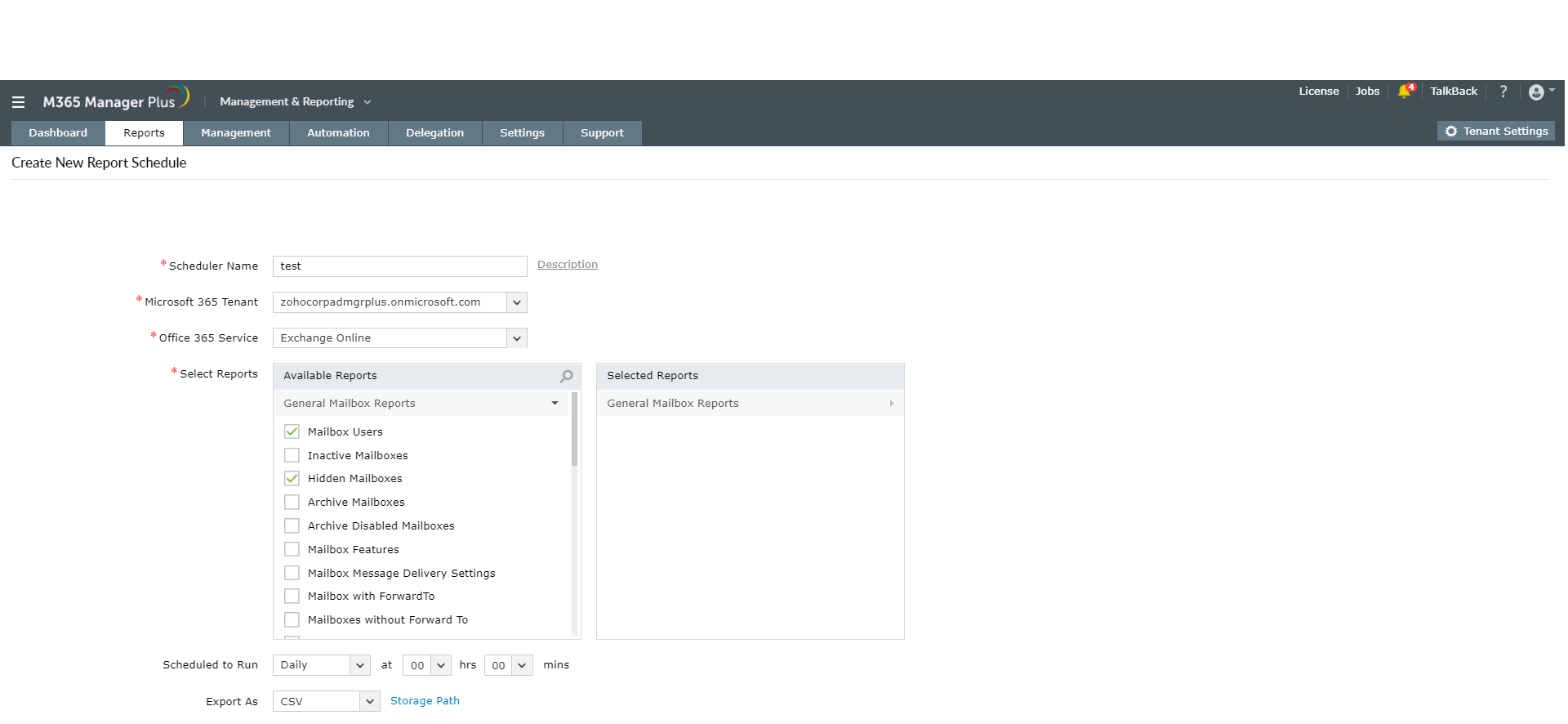
Steps to schedule reports to retrieve soft-deleted users data:
After deleting a user, all data will be lost. If you need all old data, you need to schedule mailbox reports for it. Once the data is generated, it can be moved or copied to another folder as you like.
- Click on the Reports tab.
- Navigate to Schedule Report option on the top-right corner.
- Click on Create Schedule.
- Enter a suitable name for the schedule.
- Choose the corresponding Microsoft 365 Tenant and the Microsoft 365 Service as Exchange Online.
- From the available report, select Account Status Reports > Soft Deleted Mailboxes report.
- Choose the frequency and time for the schedule to run.
- Select the format in which you want to export the report and suitable Notification Settings.
-
Click on Save.
Highlights of using M365 Manager Plus
- 700+ pre-configured reports and unique custom reports.
- Bulk users and mailbox management.
- Customizable templates to manage users, groups and contacts.
- Automate management tasks.
- Indefinite audit log storage.
- Customizable profile based auditing and alerting.
- Geo-location enabled reports.
- Create and delegate custom roles and virtual tenants.
- Assign help desk technicians without giving admin rights.
To know more about the tips and tricks that make your Microsoft 365 management easy, click here.