The mailbox audit logging functionality must be turned on initially (it is usually turned on by default) for all mailboxes in Microsoft 365 to log activities performed by the admins and delegates. These audit logs are generally stored for a period of 180 days and mailbox auditing is not supported for resource and public folder mailboxes. M365 Manager Plus, an intuitive Microsoft 365 reporting, managing, monitoring, auditing, and alerting tool helps you to overcome these shortcomings. This tool offers profile-based auditing and stores the audit logs for an indefinite period.
M365 Manager Plus and mailbox auditing
This auditing tool offers you options to log all the operations performed by all users in a mailbox. Keep track of the creation, deletion, enabling, disabling, storage and movement of mailboxes using the pre-defined reports available. Also, there are separate audit profiles that help you monitor the mailbox permission changes, public folders changes, malware or spam detection and other user activities. You can choose to enable or disable auditing for your different Microsoft 365 tenants configured in the product and also create your own audit profiles as required.
How to manage mailbox auditing:
- Click on the Settings tab.
- Navigate to Configuration > Audit Configuration > Audit Profiles.
Note: The window displays all the pre-configured audit profiles available in the product, which you can choose to enable or disable, edit and delete separately using the icons corresponding to each audit profile.
- Click on the Enable Audit button to enable auditing for the Microsoft 365 Tenant displayed in the drop-down.
- Edit the Data Fetch Interval as it suits you.
- You can view the Last Data Read Time. Click on the Run Now option to run and fetch the latest audit report. You can also see the status of report generation.
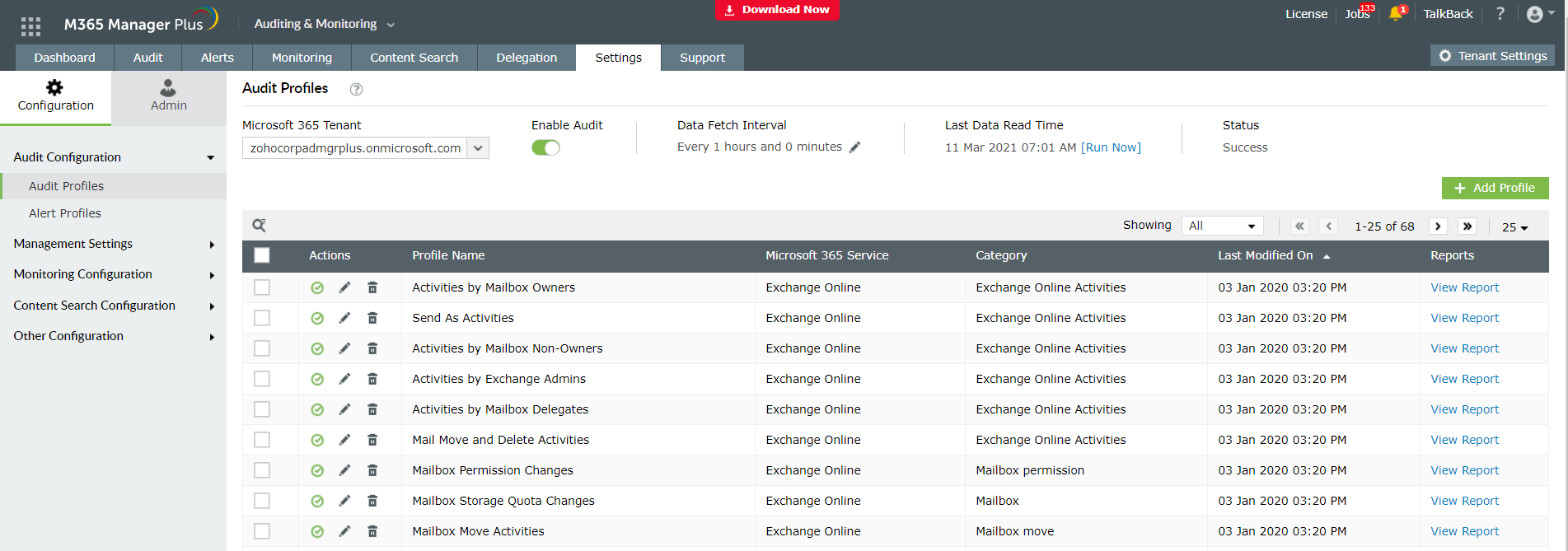
How to manage mailbox auditing:
- Click on Add Profile option to add a new auditing profile to log the activities apart from the pre-defined ones.
- Enter a suitable name and description for the profile.
- Choose a suitable Microsoft 365 Service and the category of the report or auditing action.
- Select the list of Actions that you want to audit from the drop-down.
- Under Advanced Configuration, you have options to apply vBusiness Hours and column-wise filters.
- Click on Add to save the audit profile.
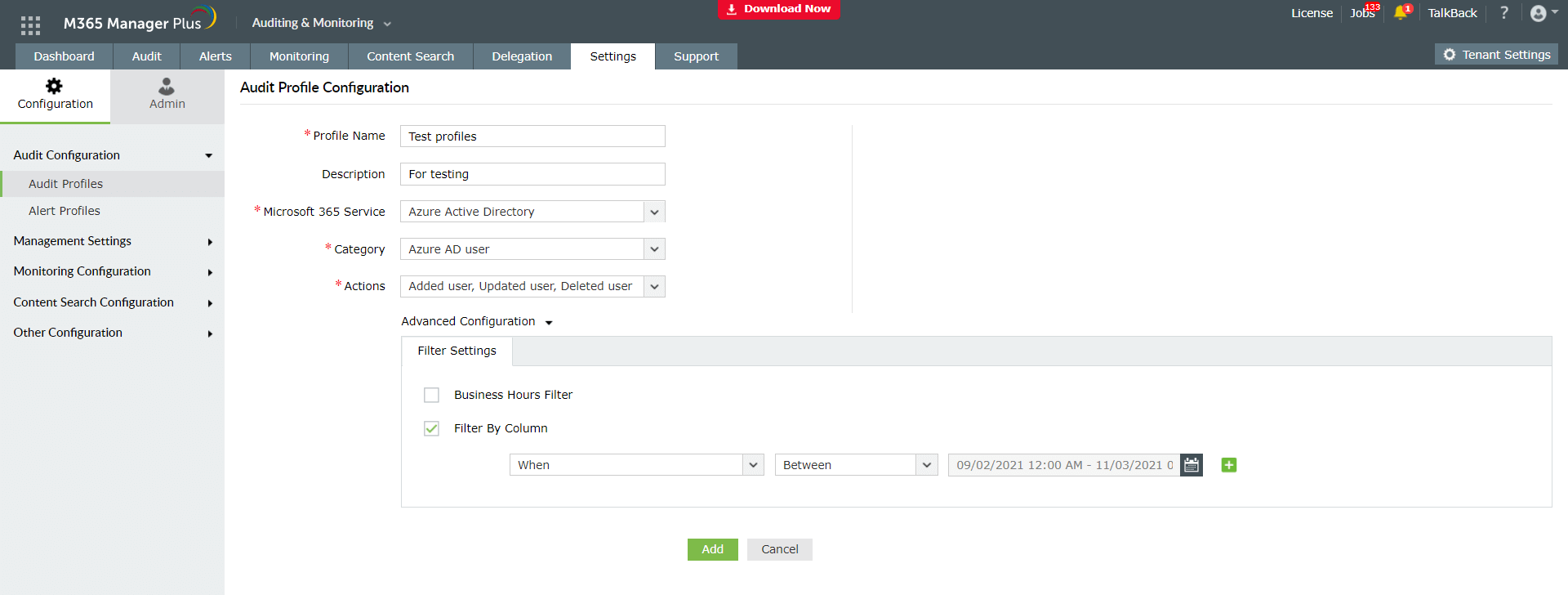
Perks of using M365 Manager Plus
- 700+ pre-configured reports and unique custom reports.
- Geo-location enabled reports.
- Bulk users and mailbox management.
- Customizable templates to manage users, groups and contacts.
- Rules to auto-populate fields.
- Customizable naming formats and password policies for the templates.
- Automate management tasks.
- Indefinite audit log storage.
- Customizable profile based auditing and alerting.
- Create and delegate custom roles and virtual tenants.
- Assign help desk technicians without giving admin rights.
To learn more about how M365 Manager Plus can be utilised in the best possible way to get Microsoft 365 tasks done easily, click here.