Last updated: August 13, 2026
Managing DigiCert ONE Certificates with Mobile Device Manager Plus
This document guides IT admins through integrating DigiCert certificate authority with Mobile Device Manager Plus to streamline certificate-based security for mobile devices. Learn how to set up a DigiCert CA server, obtain the Registration Authority certificate from the DigiCert PKI Manager, configure certificate profiles, and create certificate templates. The integration enables passwordless authentication on enrolled devices, reduces password fatigue, and automates certificate renewal so managed devices always have up-to-date certificates for enhanced app and data security.
DigiCert is a certificate authority (CA) that issues certificates to mobile devices for enhanced app and data security. By integrating DigiCert ONE with ManageEngine Mobile Device Manager Plus, organizations can automate the delivery and renewal of certificates to mobile devices. This enables certificate-based authentication for Wi-Fi, VPN, app logins, and more.
This document covers the steps involved in creating the CA server and template which are required to manage DigiCert One certificates using Mobile Device Manager Plus.
- Log in to the DigiCert ONE console and navigate to DigiCert Trust Lifecycle Manager.
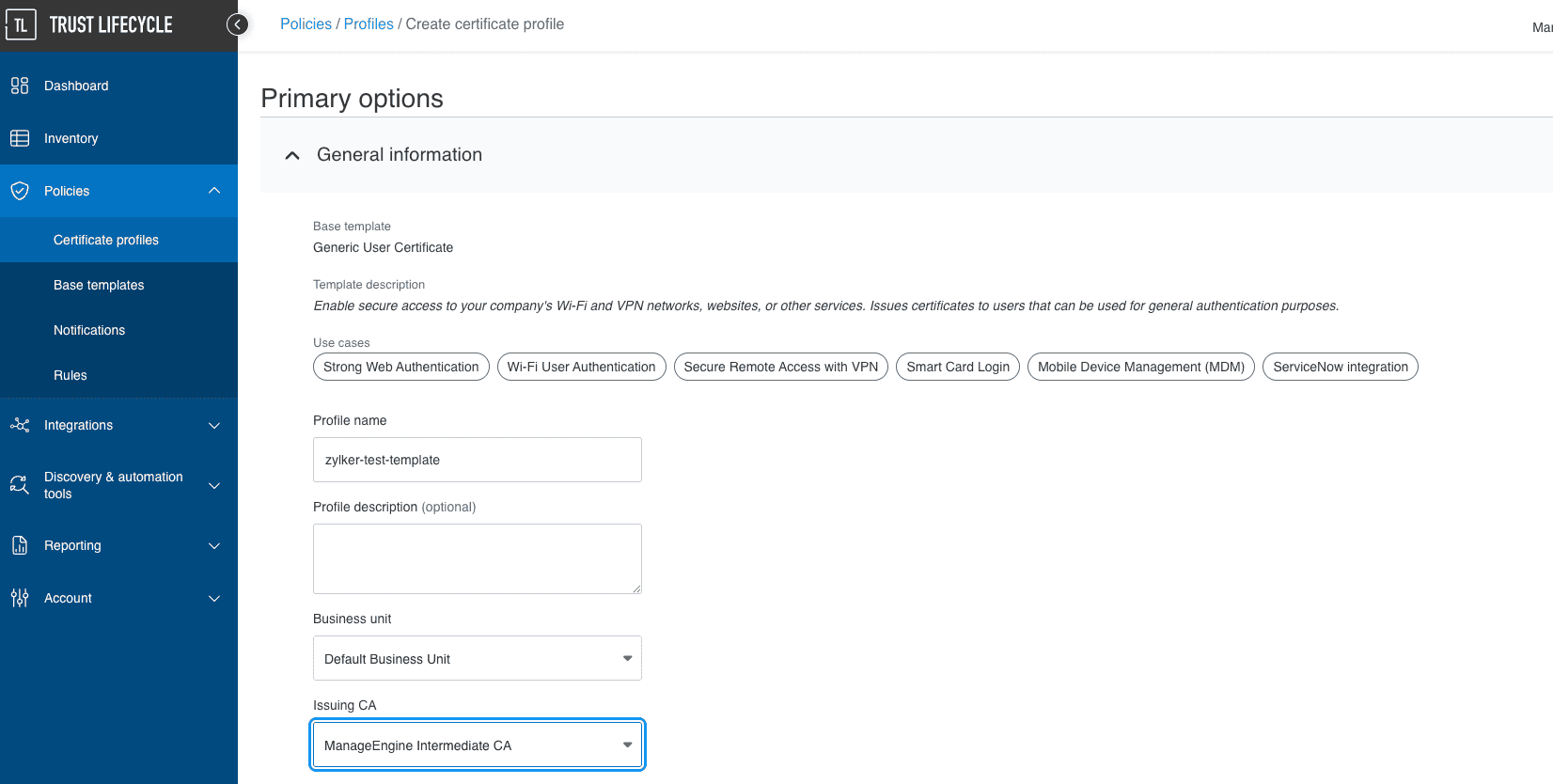
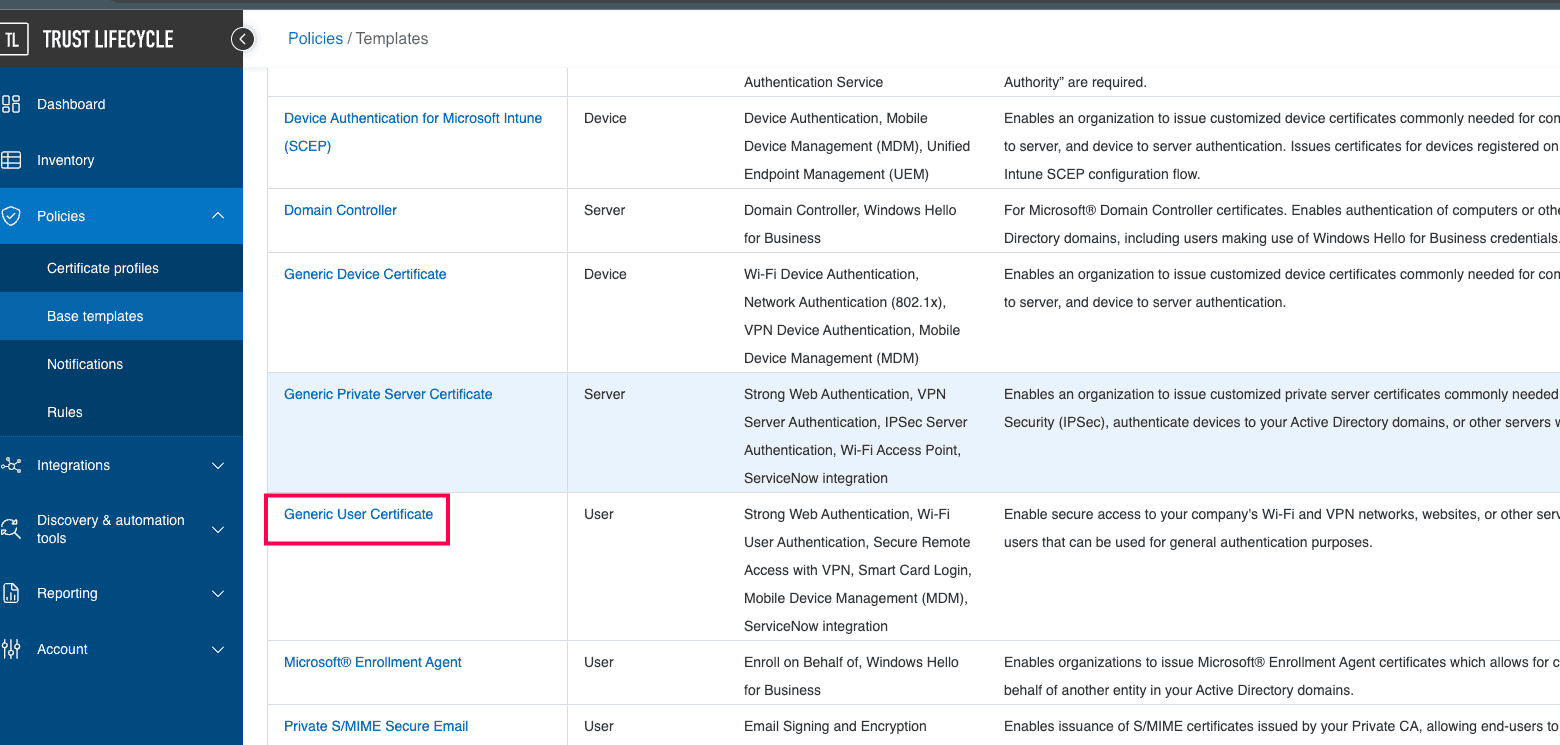
- Go to Policies → Base Templates and select Generic User Template.
- Enter the required details such as Template Name, Business Unit, Issuing CA.
- Select:
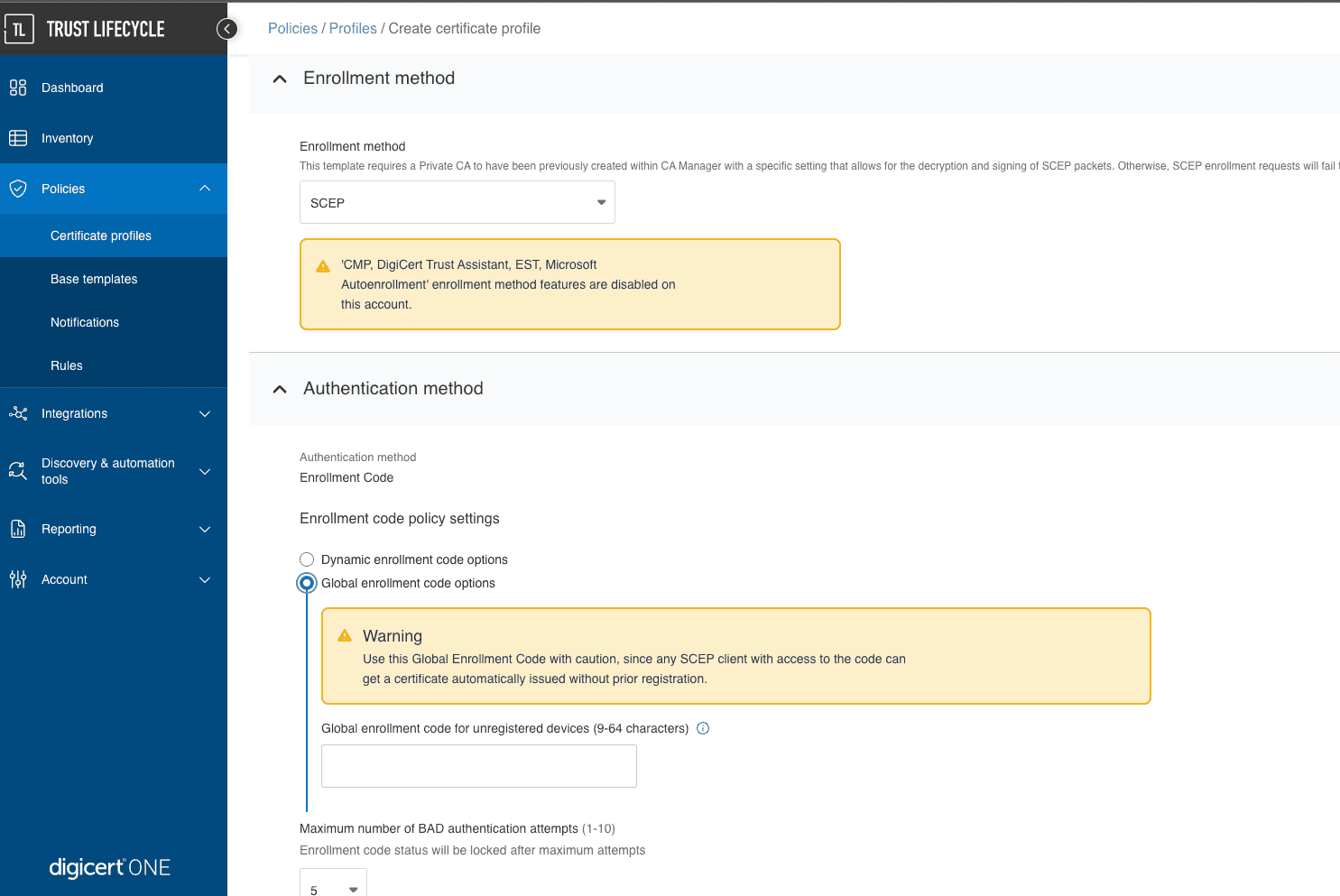
Enrollment Method: SCEP
Authentication Method: Global Enrollment Code - Enter the Global Enrollment Code (use only alphanumeric characters, no special characters).
This code will be used in the MDM SCEP server configuration. - Configure certificate settings like Validity Period, Signing Algorithm, and Key Size.
- Ensure:
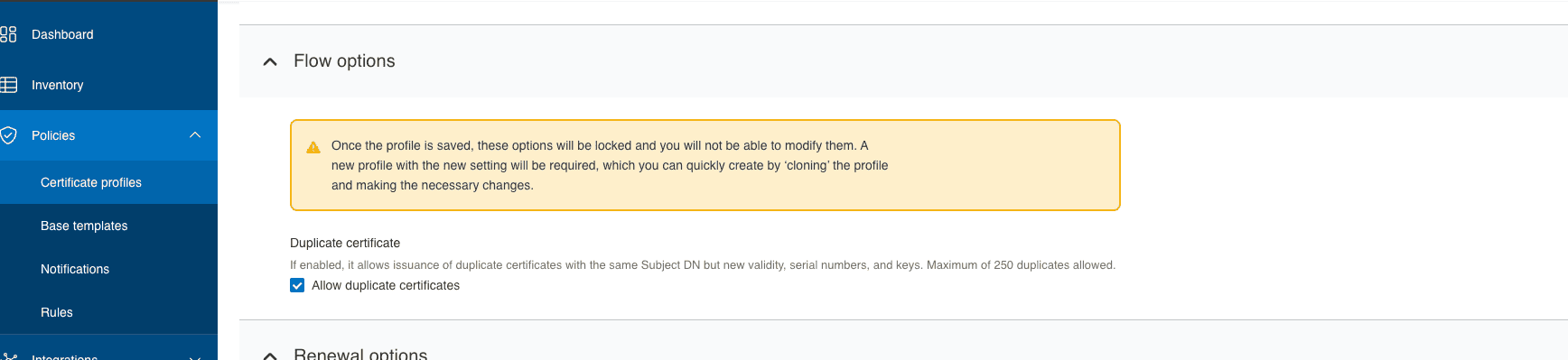
Allow duplicate certificates is enabled (required for seamless renewal in MDM).
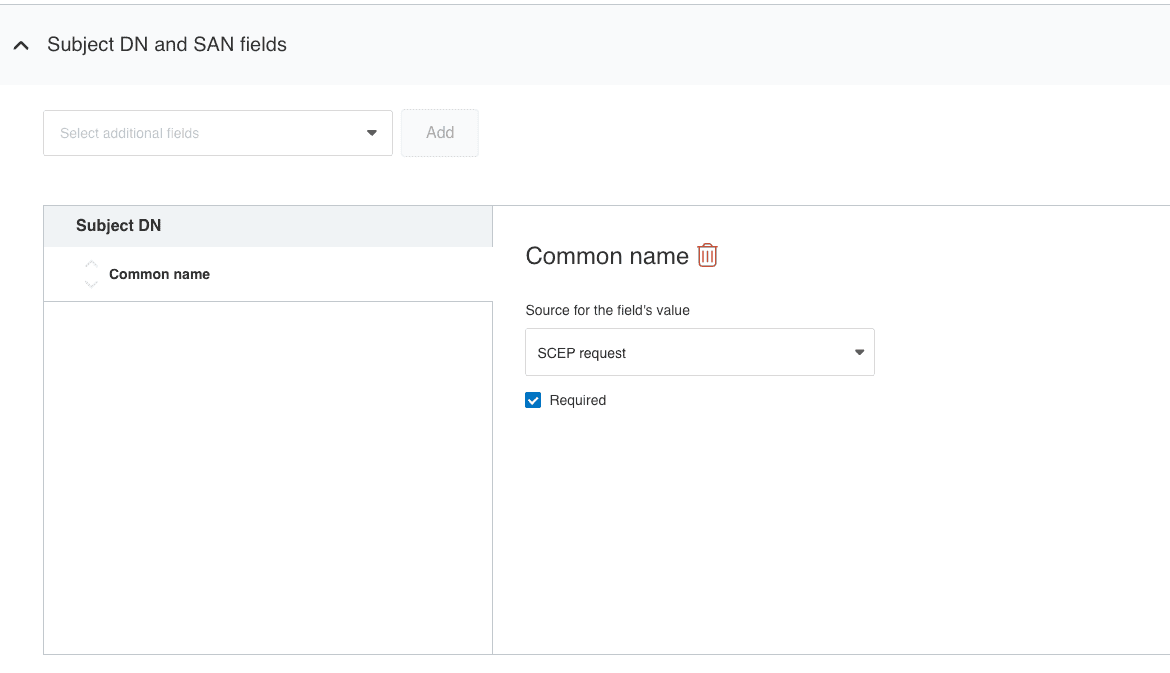
Subject DN and SAN fields are set to be derived from the SCEP request. - Click Next and configure Key Usage and Extended Key Usage.
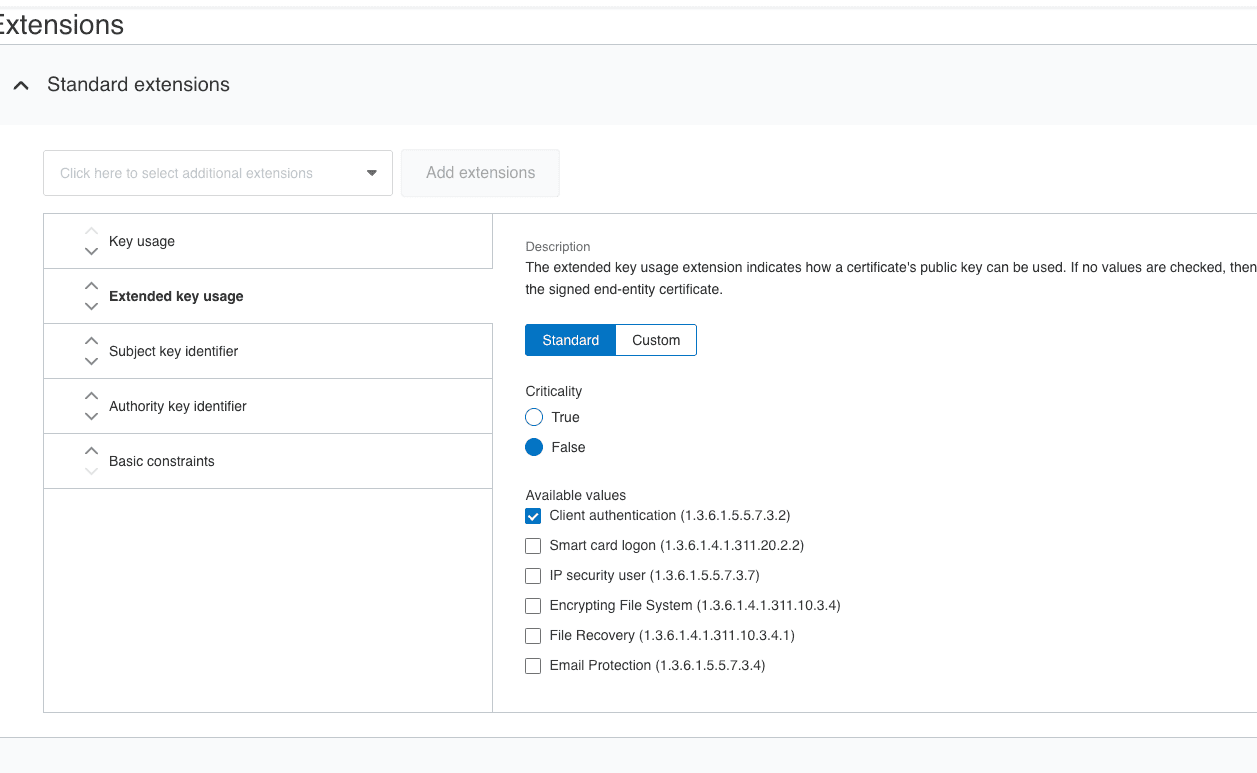
- Enable Client Authentication for Wi-Fi or VPN certificate distribution.
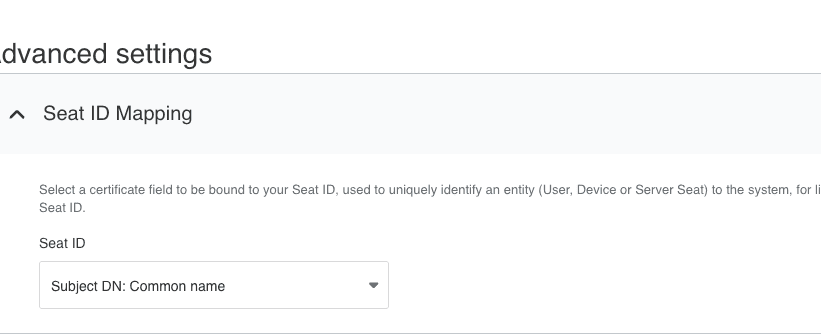
- Configure Seat ID Mapping as required.
- Click Create to generate the certificate template.
- Copy the Server URL provided. This URL must be added to the MDM SCEP server configuration.

Configuring SCEP in MDM
Follow the steps given below to configure SCEP in MDM
- On the MDM console, navigate to Device Mgmt -> Certificates
- Click on the CA Servers tab and click on Add CA server
- Provide the following details:
| Profile Specification | Description |
|---|---|
| Server Type | Specify server type as DigiCert One. |
| Certificate Authority Name | Specify the name of the Certificate Authority issuing certificates. |
| Server URL | Specify the URL on the device to obtain the certificate. Use the HTTP Server URL copied from the DigiCert portal. The certificate request will be sent through this URL. |
| Add CA Certificate | Upload the Certificate Authority's certificate. |
Creating templates for the CA servers
For creating user-specific certificates, a template needs to be configured based on which all the certificates will be issued by the CA.
Follow the steps given below to configure the template on MDM:
- Navigate to Device Mgmt -> Certificates.
- Click on Templates tab and click on Add Templates
- Select the server to which the template belongs. In this case, select the Generic SCEP server that was previously added
- Provide the following details:
| Profile Specification | Description |
|---|---|
| Certificate Template Name | Specify the certificate template name. |
| Subject | Specify the Subject DN that needs to be present in the certificate. You can use dynamic keys such as %username%, %email%, %firstname% to fetch the the corresponding details mapped to the device. For instance, you can enter C=US,O=Zylker,OU=Zylker,CN=%firstname%. |
| Subject Alternative Name Type | Specify one of the following values, None, RFC 822 Name, DNS Name or Uniform Resource Identifier for the subject alternative name type. |
| Subject Alternative Name Value (Can be configured only if Subject Alternative Name Type is configured) | Specify a value for subject alternative name value. The value to be entered can include DNS name, URI or email. For instance, you can use the dynamic key %email% for email. |
| NT Principal Name | Specify the NT Principal Name used in the organization. |
| Wipe device after specified number of failed attempts | Specify the maximum number of failed validation attempts allowed to obtain the certificate from the CA. Once the maximum limit is exceeded, users will be temporarily restricted from attempting to vaildate the user account. |
| Time interval between attempts | Time to wait before subsequent attempts to obtain the certificate |
| Enrollment Challenge Password (Can be configured only if Static challenge type is selected) | Enter the Global Enrollment Code configured in the DigiCert portal as the challenge password. This password will be used by all devices for authentication. |
| Key Size | Specify whether the key is 1024 or 2048 bits |
| Use as Digital Signature | Enabling this option ensures the certificate can be used for Digital Signature |
| Use for Key Encipherment | Enabling this option ensures the certificate can be used for Key Encipherment |
| Certificate Auto Renewal | Enabling this option ensures the certificates are renewed automatically before it expires. |
| Certificate Automatic Renewal Before | Specify the number of days before which the the certificate must be auto-renewed. |
Creating a SCEP profile
To distribute certificates to managed devices, a SCEP profile need to associated with these devices. Follow the steps given below to create and associate the SCEP profile to devices
- Navigate to Device Mgmt -> Profiles and create either an Apple, Android or Windows profile.
- Select SCEP from the left pane.
- Select the created Certificate template.
- Click on Save and publish the profile.
It is recommended to distribute the profile to a device for testing before distributing it to your production environment. Once testing is complete, you can distribute the profile to your production environment using Groups.
Troubleshooting Tips
If you encounter the error "SCEP server returned an invalid response", verify the following configurations and prerequisites.
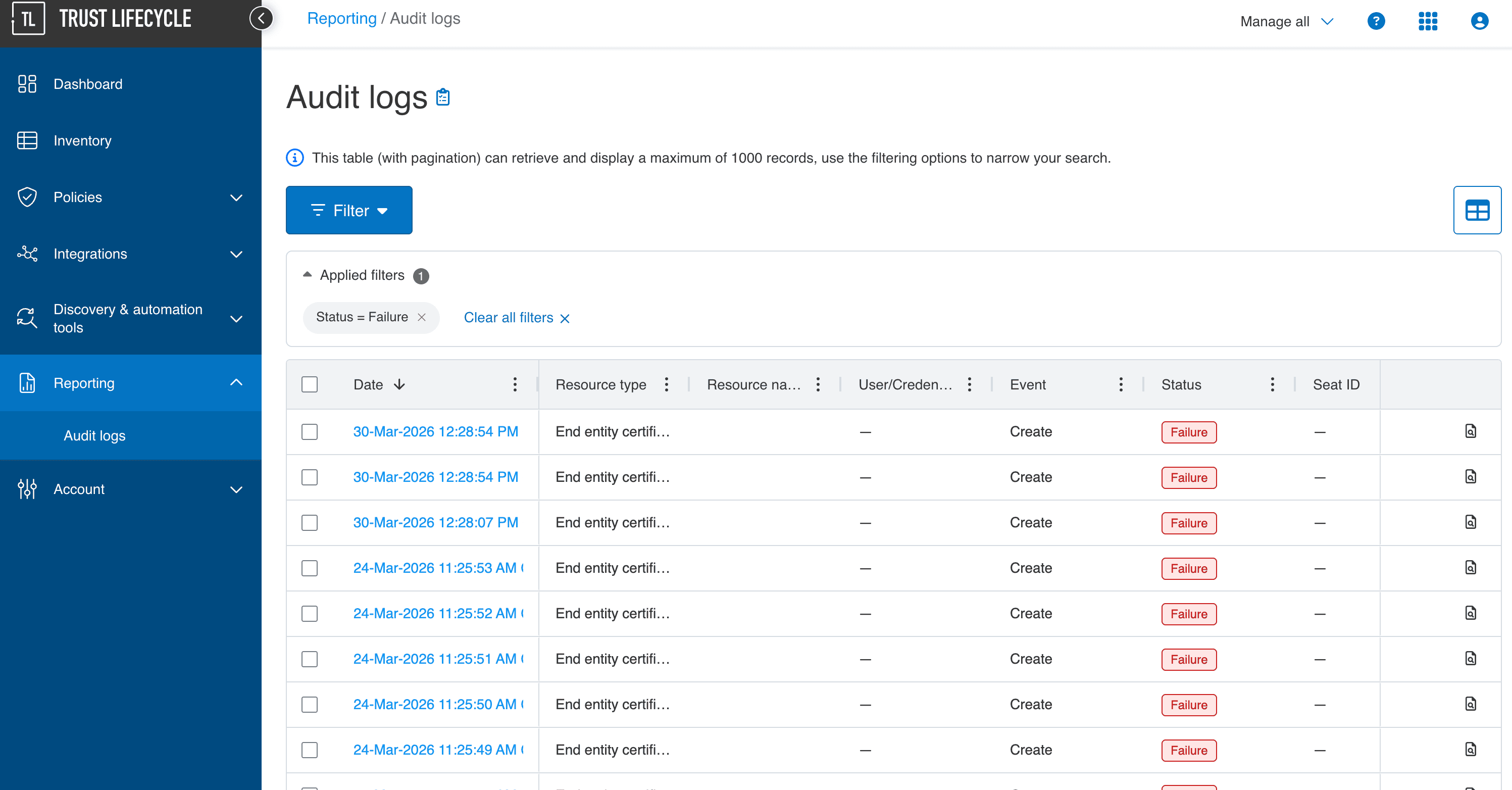
Review the audit logs in the DigiCert ONE console to identify the cause:
- Navigate to DigiCert Trust Lifecycle Manager > Reporting > Audit Logs.
- Filter and review the failure logs.
- Open the specific failure log entry to view the exact error details.
Frequently Asked Questions
1. Where can I check whether devices have received certificates?
You can verify certificate distribution status by navigating to Inventory, selecting the specific device, and clicking the Certificates tab. This displays all certificates installed on the device.
If the certificate is not visible under the Certificates tab, perform a device scan to fetch and update the latest certificate status in the inventory.
2. How does automatic certificate renewal work?
While saving the SCEP template, you can specify the automatic renewal period in days. The MDM console tracks the received certificates, and if any certificate falls within the configured renewal window, the associated profile is automatically re-triggered to the device for certificate renewal.
3. What happens to the certificate if a device is wiped or unenrolled?
When a device is wiped or unenrolled, all associated profiles are automatically removed from the device. As a result, any certificates distributed through those profiles are also removed from the device. If required, you can additionally revoke the certificate from the DigiCert ONE portal.