
Granular Control by Restricting Access
The restrict functionality can be used to define precise access controls within the different modules in the product. The availability of this feature and the required access level varies depending on the module's use case.
Note: This feature is currently available only for the Inventory module.
Benefits of Granular Access
- Enhanced Security: By granting only the necessary access to each role, you minimize the risk of unauthorized modifications and potential security breaches.
- Reduced Errors: Restricting access to sensitive areas helps prevent accidental configuration changes and minimizes the risk of errors.
- Increased Compliance: Tailored granular access can help ensure adherence to specific security and regulatory requirements within your organization.
Creating a Custom Role with Granular Access Control
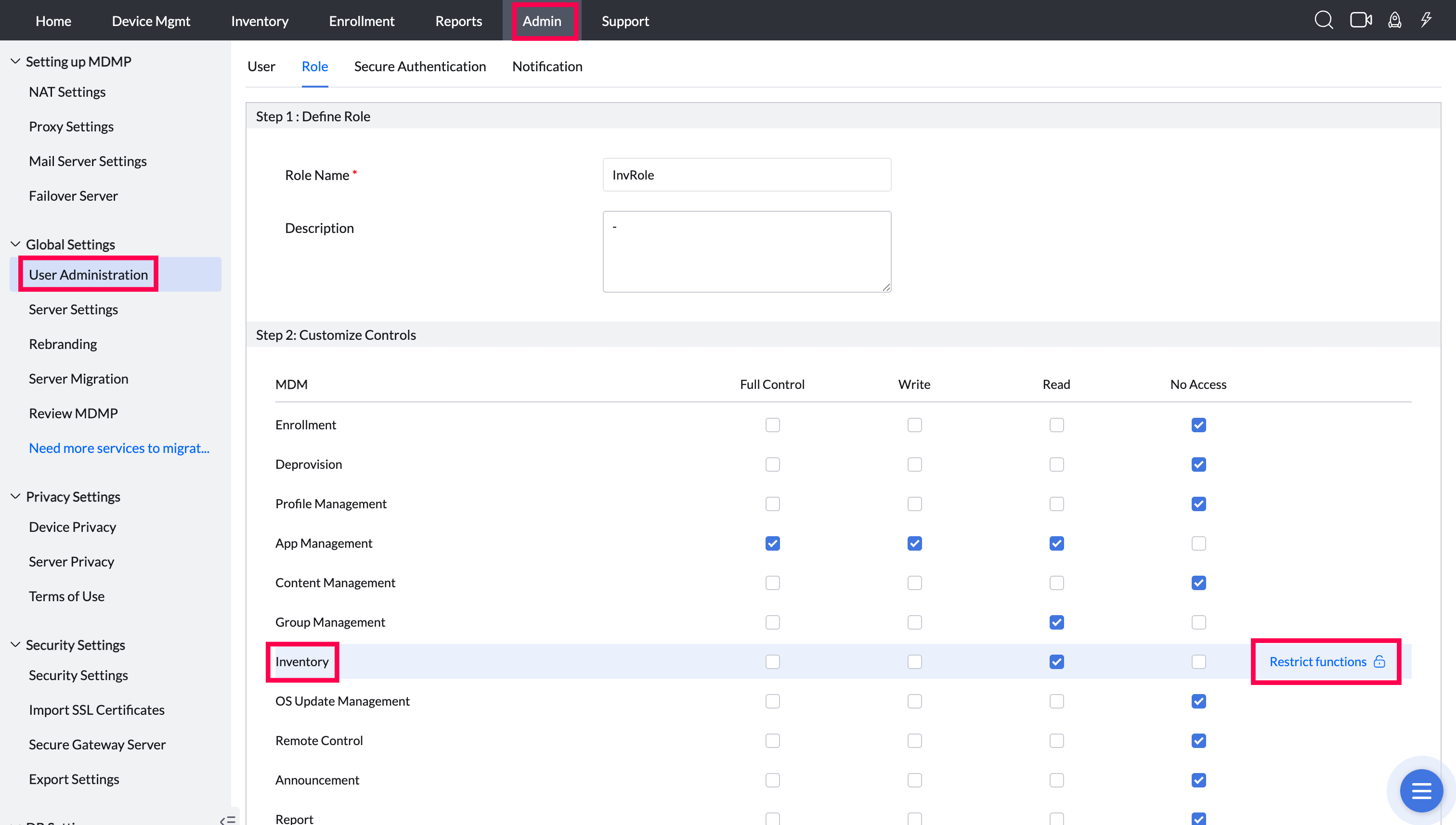
1. Navigate to the Admin tab > Under User Administration > Click Role.
2. Click the "Add Role" button.
3. Enter a descriptive name that reflects the role's intended responsibilities.
Achieving Granular Control by Restricting Access
1. Click "Restrict functions" next to the desired module.
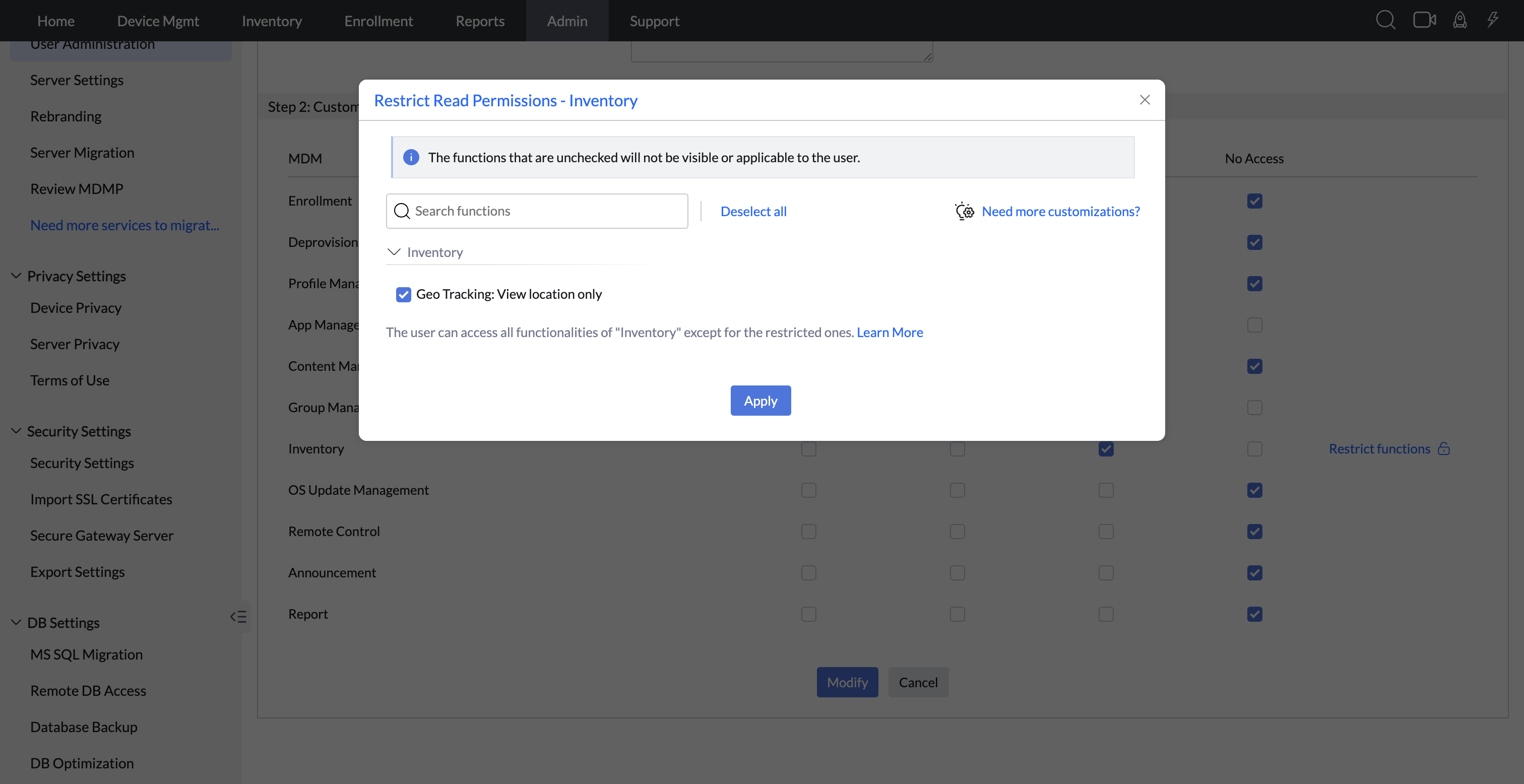
2. A pop-up window will display the specific functionality within that module. Uncheck the functionalities to which you want to restrict the user's access.
Note: Currently, the "Restrict functions" is supported only for Inventory.
3. Click Save to apply the restrictions.
Reviewing and Updating Roles
As your organization evolves, the responsibilities of different technician roles may change. It's important to review the roles regularly and their associated access levels to ensure they align with current operational requirements.
To review or update a predefined role:
1.Navigate to the Admin -> User Administration -> Role tab and select the role you wish to review or update.
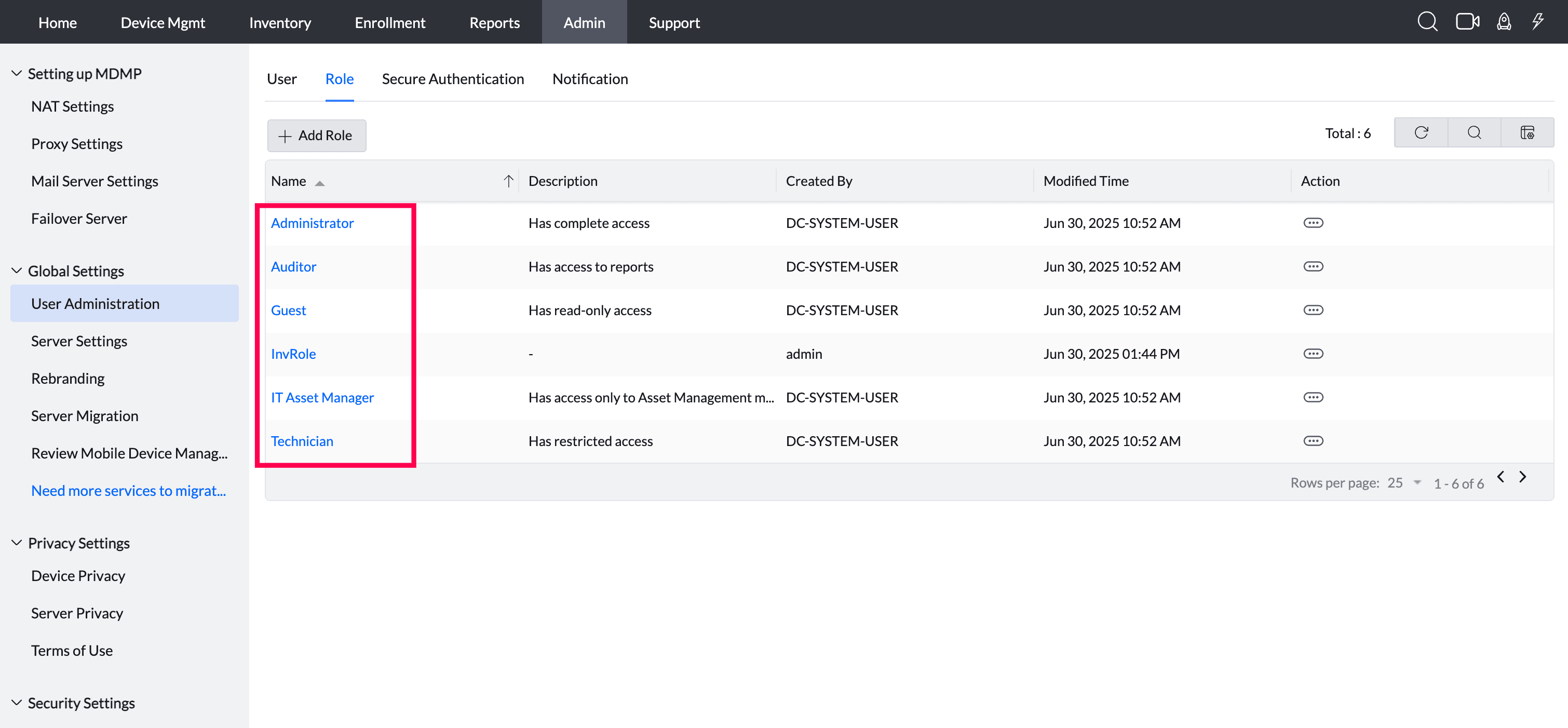
2. Click Modify to make necessary adjustments to the permissions or module access levels.
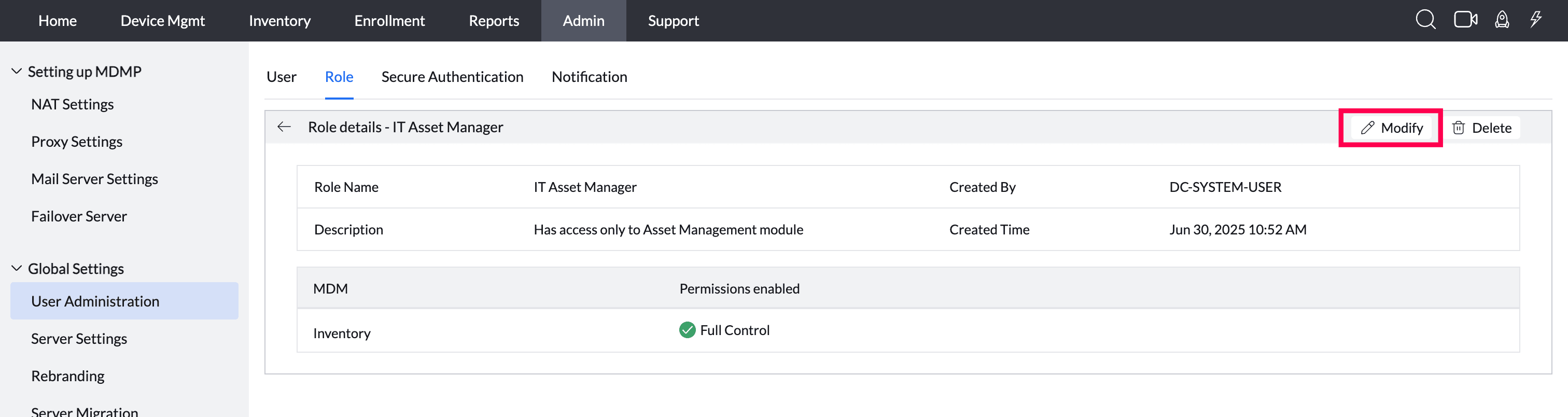
3. Click Save to apply the changes.