Last updated: September 14, 2026
iOS Declarative Device Management (DDM) Profiles
Declarative Device Management (DDM) Profiles enable administrators to configure and deploy declarative management policies for managed iOS devices. Unlike traditional device management profiles, DDM allows devices to proactively apply configurations and respond to changes based on declarations, reducing server dependency and improving management efficiency. The following DDM profile specifications can be customized, versioned, and associated with devices or groups at any time. These profiles are specifically designed for managing iOS devices that support Declarative Device Management.
How to configure DDM Profiles
To create an iOS DDM Profile, follow the steps given below:
- Navigate to Device Management > Profiles > + Create Profile > iOS/iPadOS Profile.
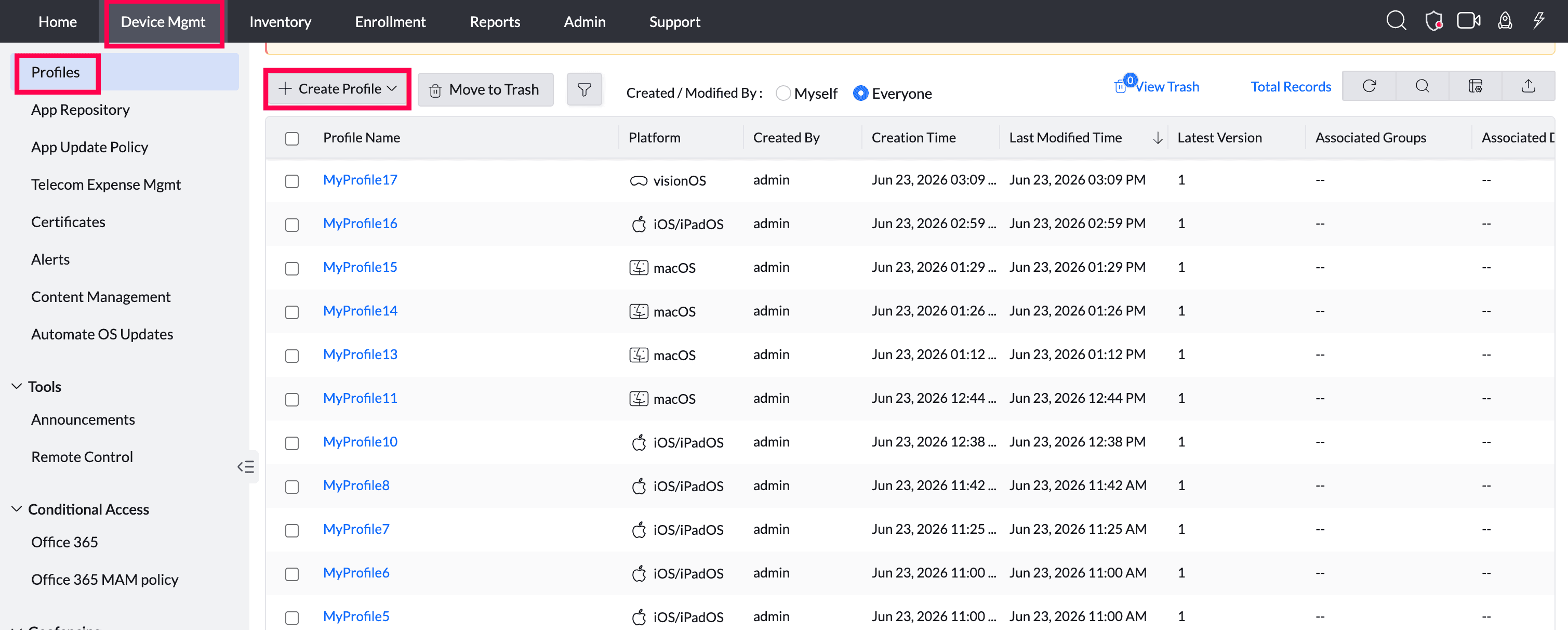
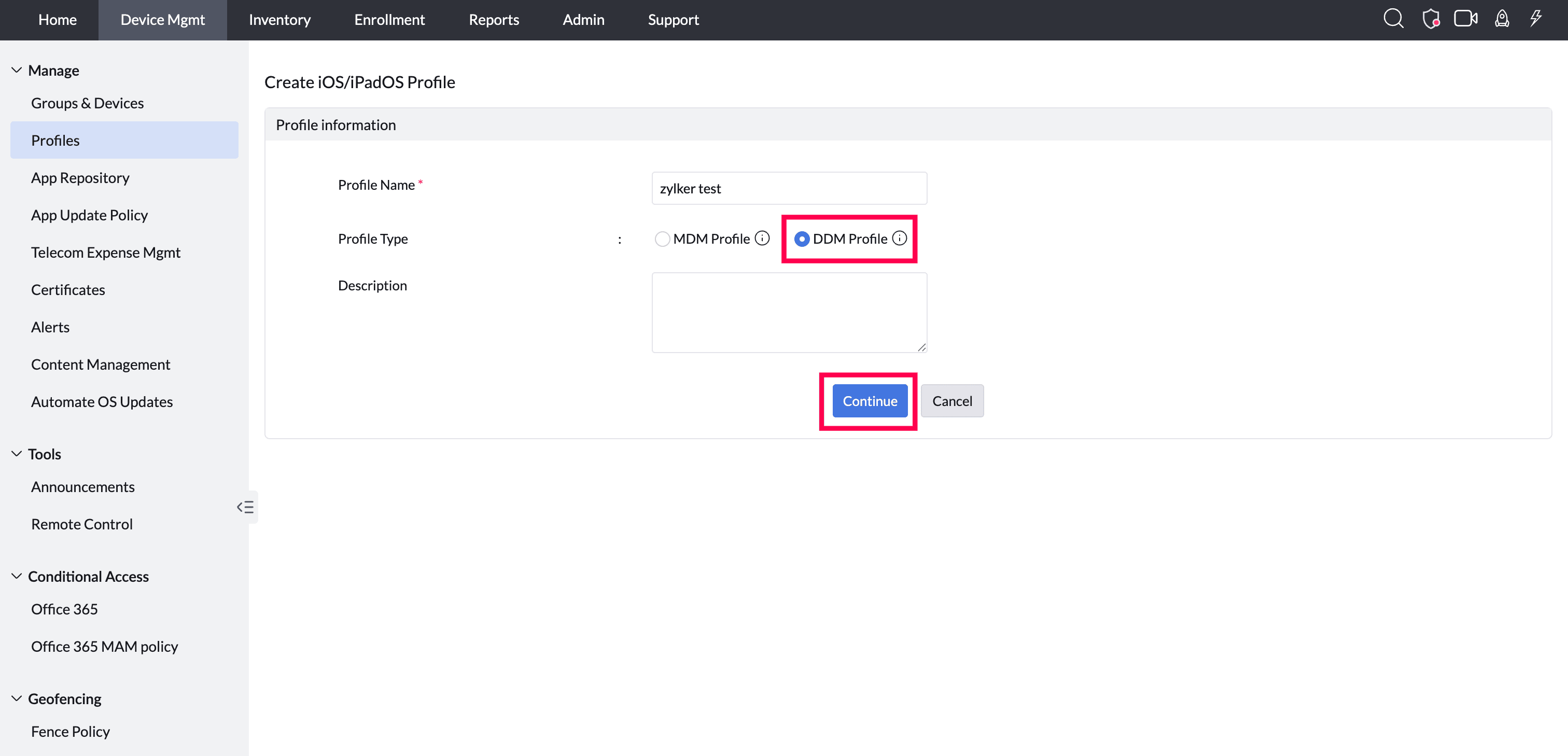
- Select Profile Type as DDM Profile and click Continue to proceed.
Profiles Supported
Passcode Settings
Configure passcode requirements for managed iOS devices to help protect organizational data. You can enforce password complexity, define passcode expiration, and prevent users from reusing old passcodes, ensuring devices meet your organization's security standards.
Audio Accessory Settings
Manage how audio accessories pair with managed devices. These settings are especially useful for shared or kiosk devices, allowing you to enable temporary pairing and automatically unpair accessories after a specified period.
Apple Intelligence Settings
Control how Apple Intelligence features are used on managed devices. You can enable or restrict capabilities such as Writing Tools, Image Playground, Genmoji, transcription, and AI-generated summaries based on your organization's privacy and compliance requirements.
External Intelligence Integration Settings
Manage the use of third-party AI services integrated with Apple Intelligence and Siri. Restrict which external intelligence extensions users can access, control sign-in, and limit access to approved workspaces to keep enterprise data secure.
Keyboard Settings
Configure keyboard features to provide a consistent typing experience across managed devices. You can manage options such as predictive text, auto-correction, spell check, dictation, Slide to Type, and text replacement based on your organization's policies.
Math & Calculator Settings
Configure advanced Calculator and Math features available on managed devices. Control access to scientific mode, Math Notes, unit conversion, and other math-related capabilities to suit educational, enterprise, or business requirements.
Safari Managed Bookmarks
Deploy bookmarks to users automatically so they can quickly access frequently used websites. Organize bookmarks into folders and provide easy access to company portals, internal applications, documentation, and other approved resources.
Safari Extension Settings
Manage Safari extensions used on managed devices. You can allow or block specific extensions, configure how they behave, and control the websites where extensions are permitted to run.
Safari Settings
Configure Safari to provide a secure and consistent browsing experience. Manage browser features such as cookies, JavaScript, pop-ups, private browsing, browsing history, and fraudulent website warnings while controlling how new tabs and web page summaries behave.
Siri Settings
Configure how Siri can be used on managed devices. Control whether Siri is available, whether it can be accessed from the lock screen, whether it can search the web, and whether profanity filtering is enforced to align with your organization's security policies.