
Implementing Trusted Device access for Zoho Apps
Description
Zoho Directory Conditional Access, integrated with Mobile Device Management (MDM), enables organizations to ensure that only trusted users on authorized and compliant mobile devices can access Zoho applications, preventing unauthorized access to corporate data.
Scope and Applicability
Trusted Device Access using Zoho Directory and MDM applies under the following scope and conditions:
- Conditional Access with Zoho Directory is supported only for the cloud edition of ManageEngine MDM.
- Supported only for mobile devices (Android and iOS) and Zoho mobile apps only (Zoho Mail, Zoho Cliq, etc.). Allowing access based on MDM-managed device is only evaluated on mobile devices. For other platforms like Windows or Mac, you can either completely block access or define other conditions such as IP address. Refer to Conditional Access rules in Zoho Directory for more details.
Pre-requisites
Before configuring Conditional Access with Zoho Directory and MDM, ensure the following requirements are met:
- The Zoho Directory plan in use must support Conditional Access. Zoho Directory is also included with Zoho Workplace and Zoho One plans. Please verify with the Zoho team that your subscription includes Conditional Access.
- In order for MDM to pass managed device signal to Zoho Directory, the Conditional Access integration must be enabled for your account by ManageEngine MDM support. Please contact ManageEngine MDM support to enable this.
Supported Zoho apps
Conditional Access using Zoho Directory and MDM currently supports the following Zoho mobile applications:
- Zoho Mail
- Zoho Cliq
- Zoho WorkDrive
- Zoho People
- Zoho Connect
- Zoho Writer
- Zoho Sheet
- Zoho Projects
- Zoho Desk
- Zoho Meeting
- Zoho Calendar
- Zoho Analytics
- Zia Search
Note: Other Zoho mobile apps using Zoho Directory authentication are also supported. If an app isn’t listed or if you notice inconsistent Conditional Access behavior, please contact that specific Zoho product team, as support is managed at the application level. Please note that this support is exclusive to mobile apps and does not extend to web or desktop clients.
Implementation steps
1. Create Conditional Access Policies in Zoho Directory:
The first step in enforcing device trust for Zoho applications is configuring Conditional Access policies in Zoho Directory. These policies define how users are allowed to access Zoho applications based on conditions such as device management status, platform, and user group membership.
Steps for Configuration in Zoho Directory:
1. Create a Pilot Group for Testing
- Log in to the Zoho Directory Admin Console using an administrator account.
- Navigate to Directory → Groups.
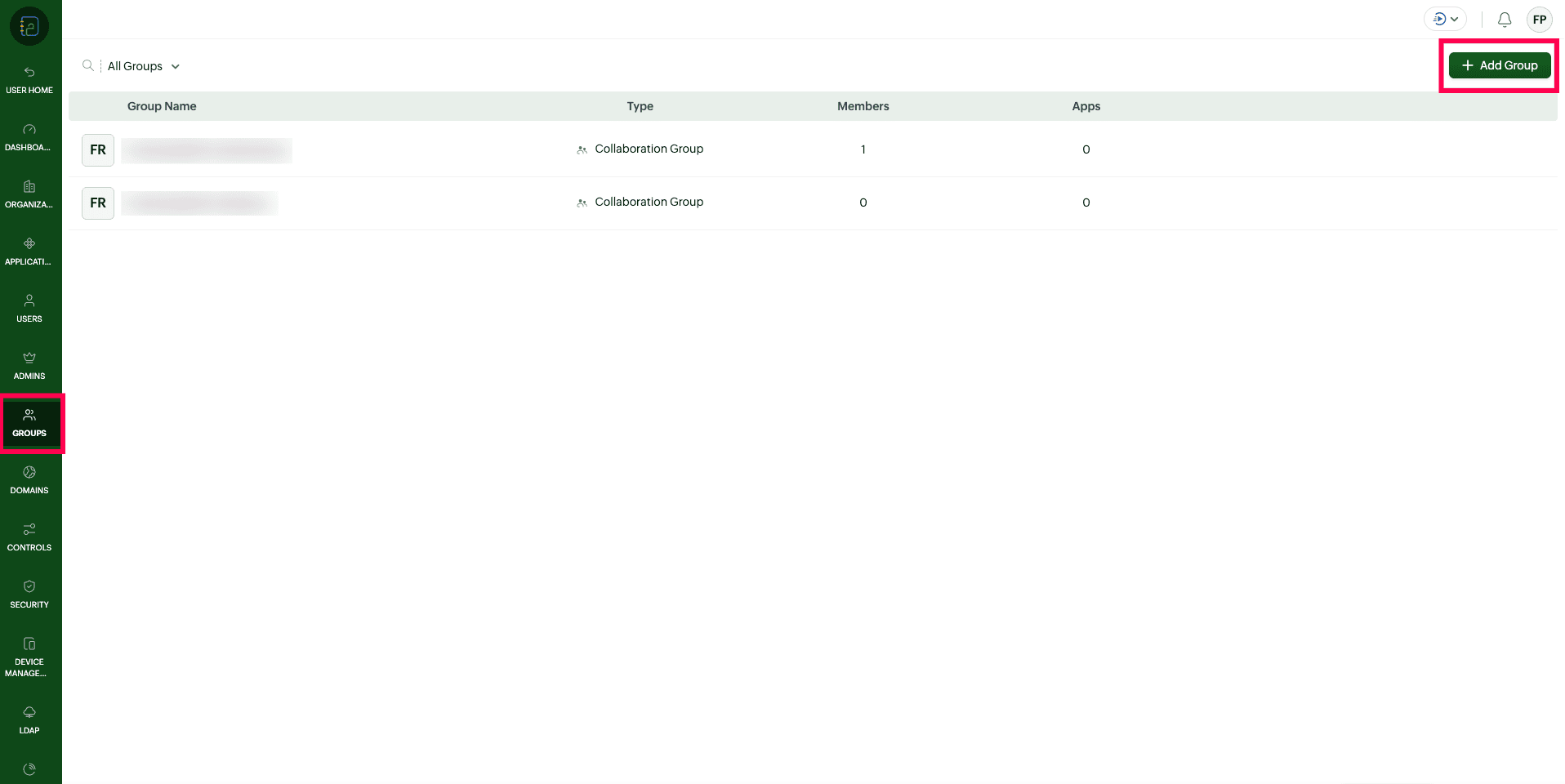
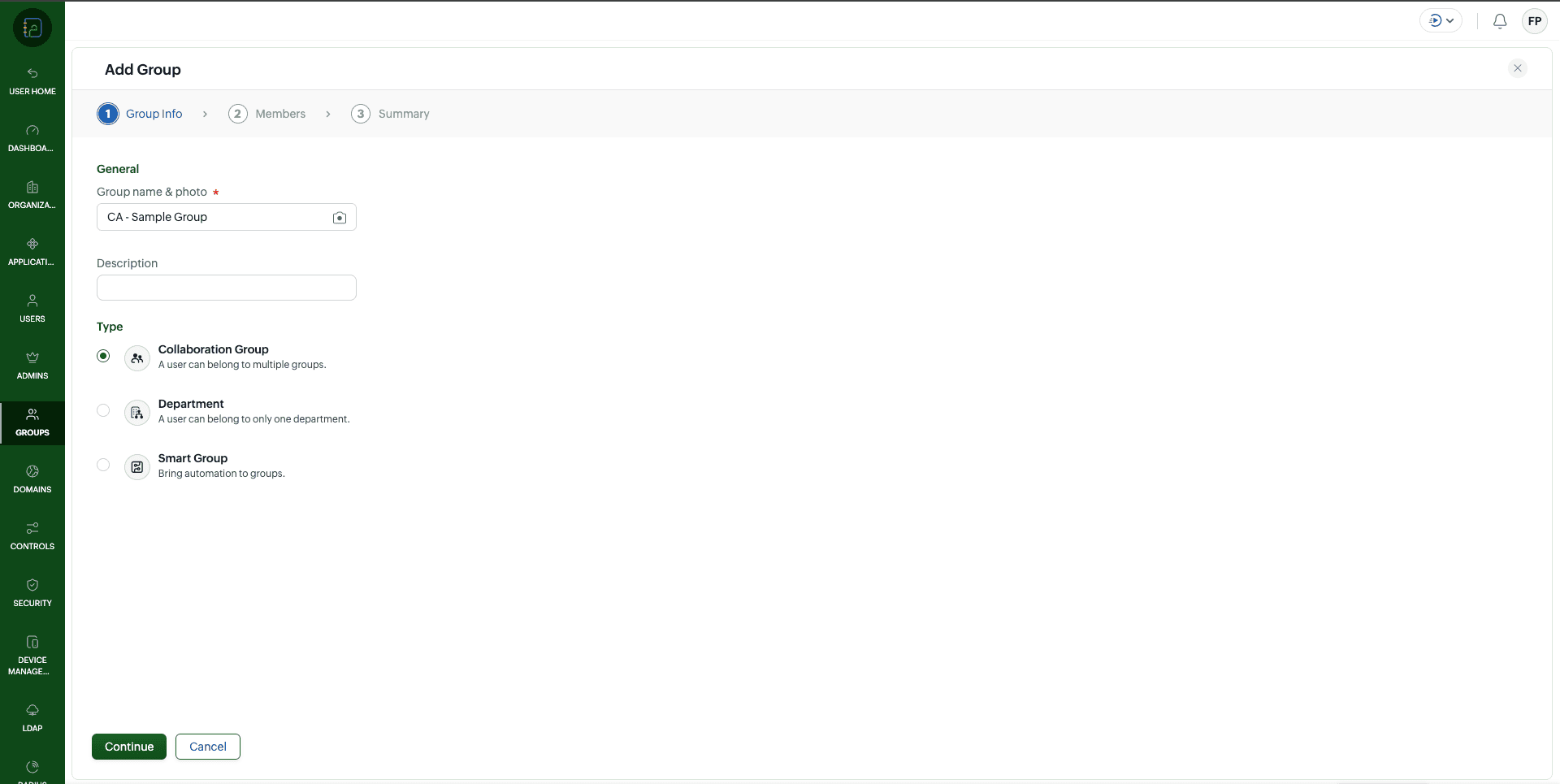
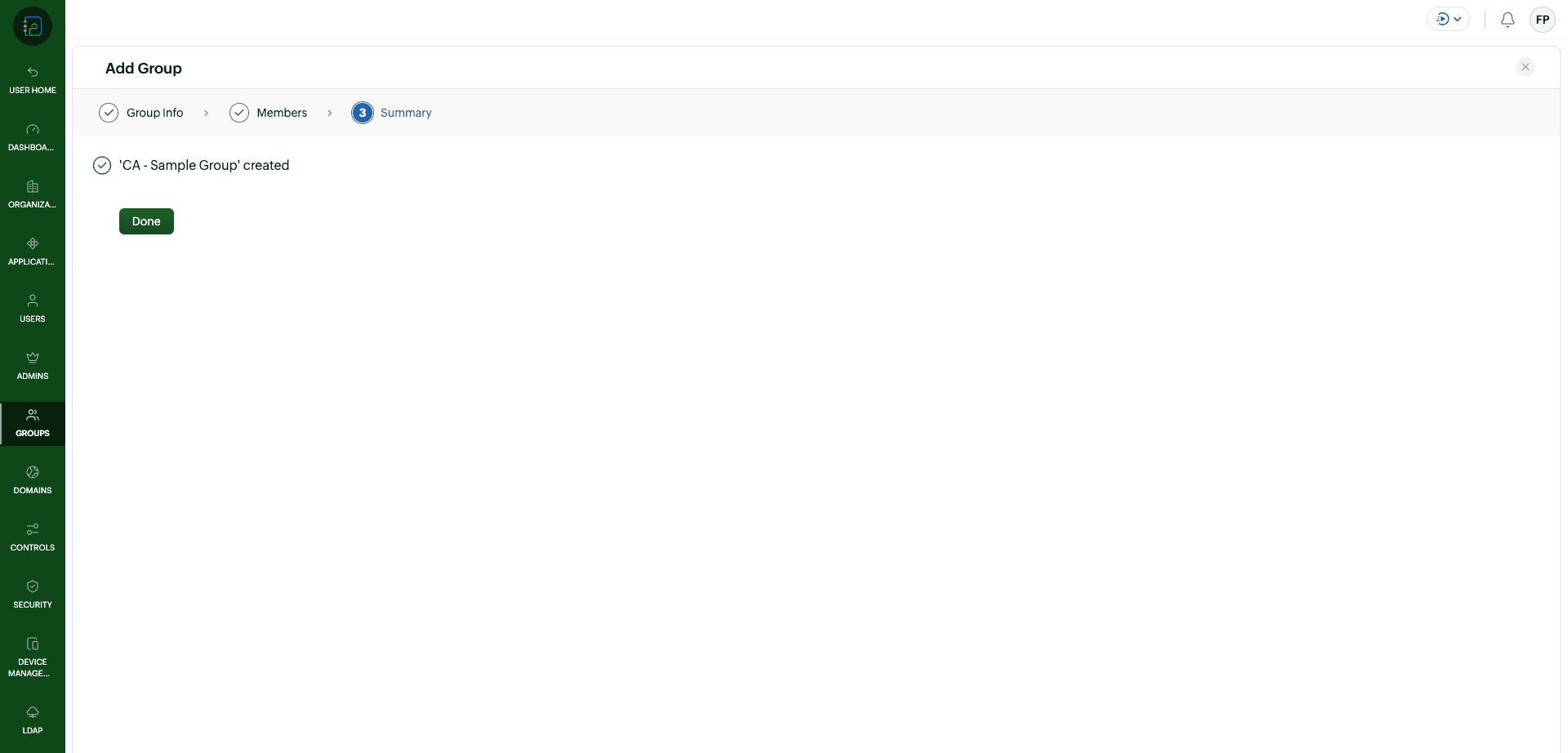
- Create a new group to be used as a pilot group for testing Conditional Access.
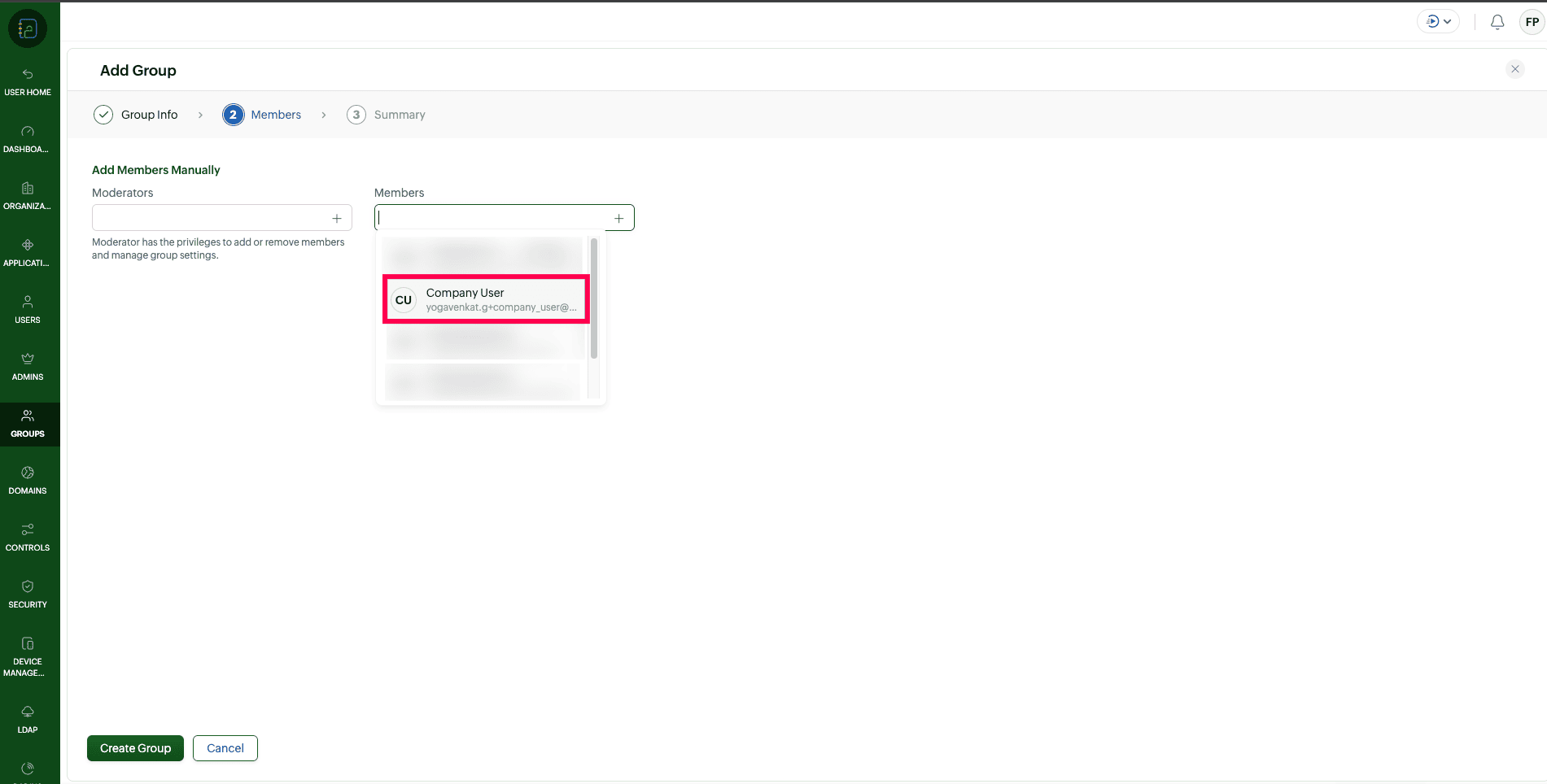
- Add one or more test users to this group and save the changes.
2. Create a Conditional Access Policy
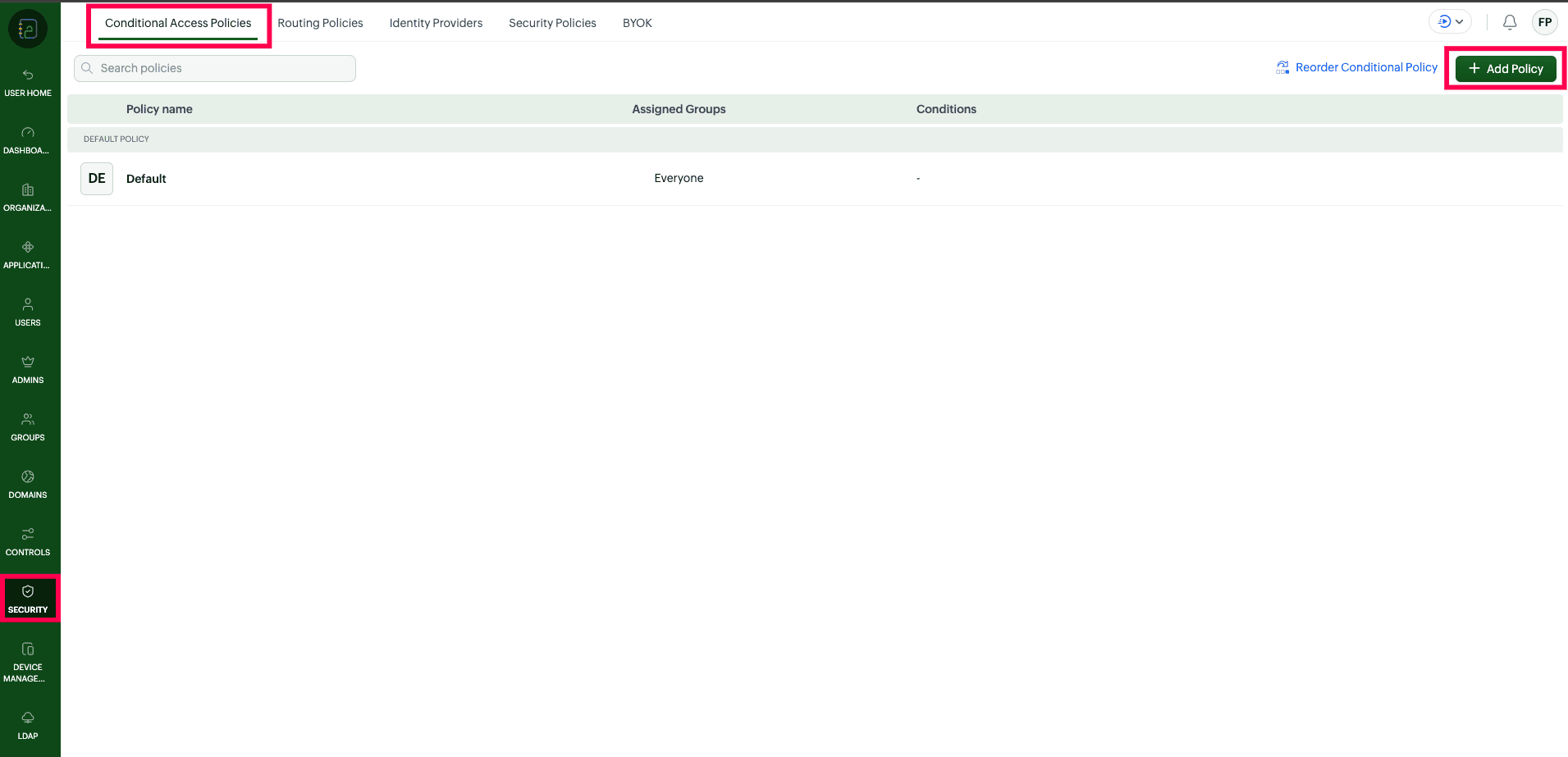
- Navigate to Security → Conditional Access.
- Click Add Policy to create a new Conditional Access policy.
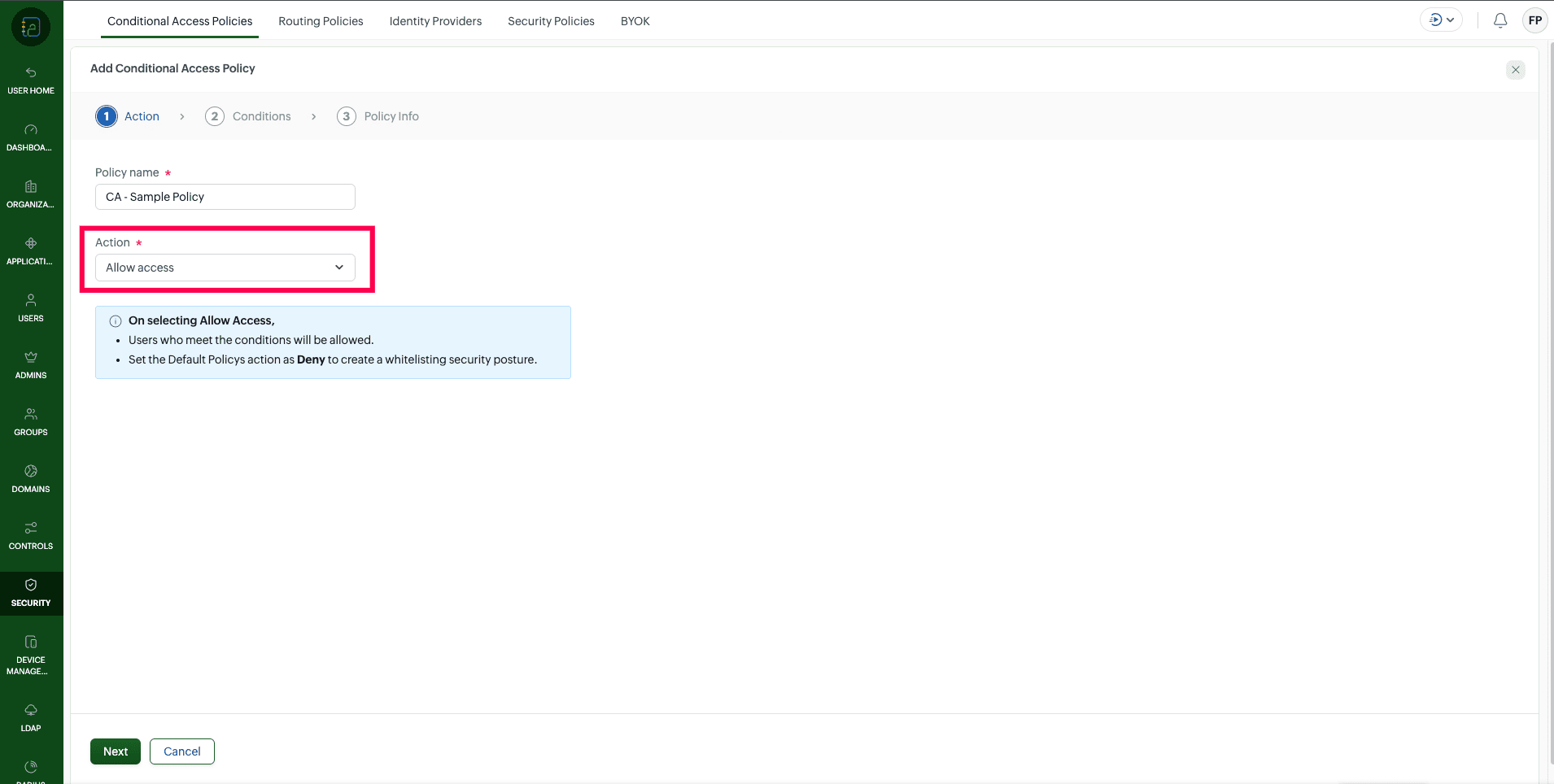
- Provide a name for the policy and select allow access under action to allow only compliant devices.
3. Configure Conditions
- Configure the Device Management condition to require the device to be managed via MDM.
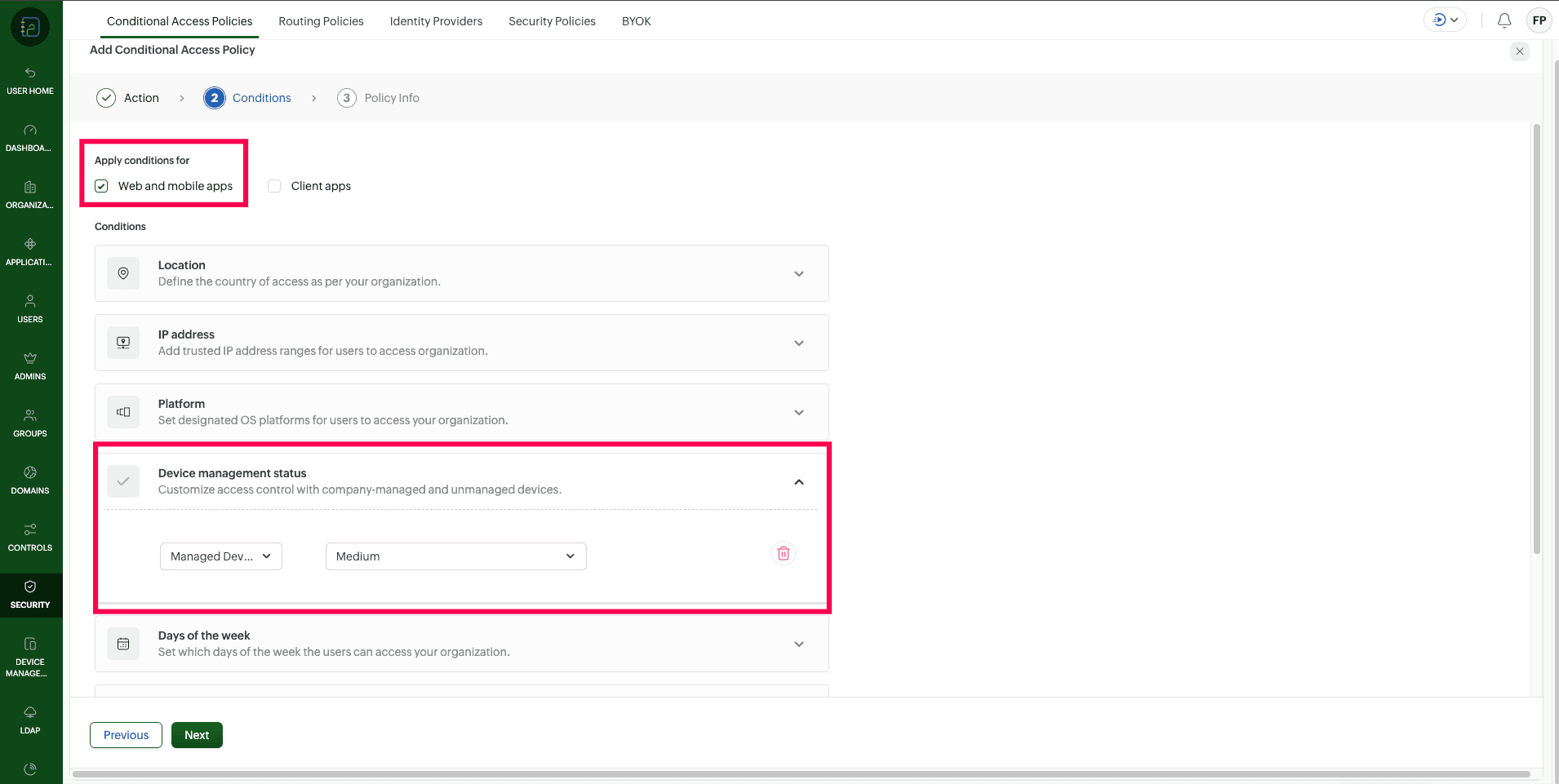
- Set the Platform condition to include Android and iOS.
- Optionally configure additional conditions such as IP address, location, or time of access based on organizational requirements.
- Note: The Device management status field (High / Medium / Low) is included for future support. You can set any value for now.
3. Default Deny Policy
For the above configurations to work effectively, you should first set your global policy to block all access, and then use the MDM rules below to "allow" trusted devices.
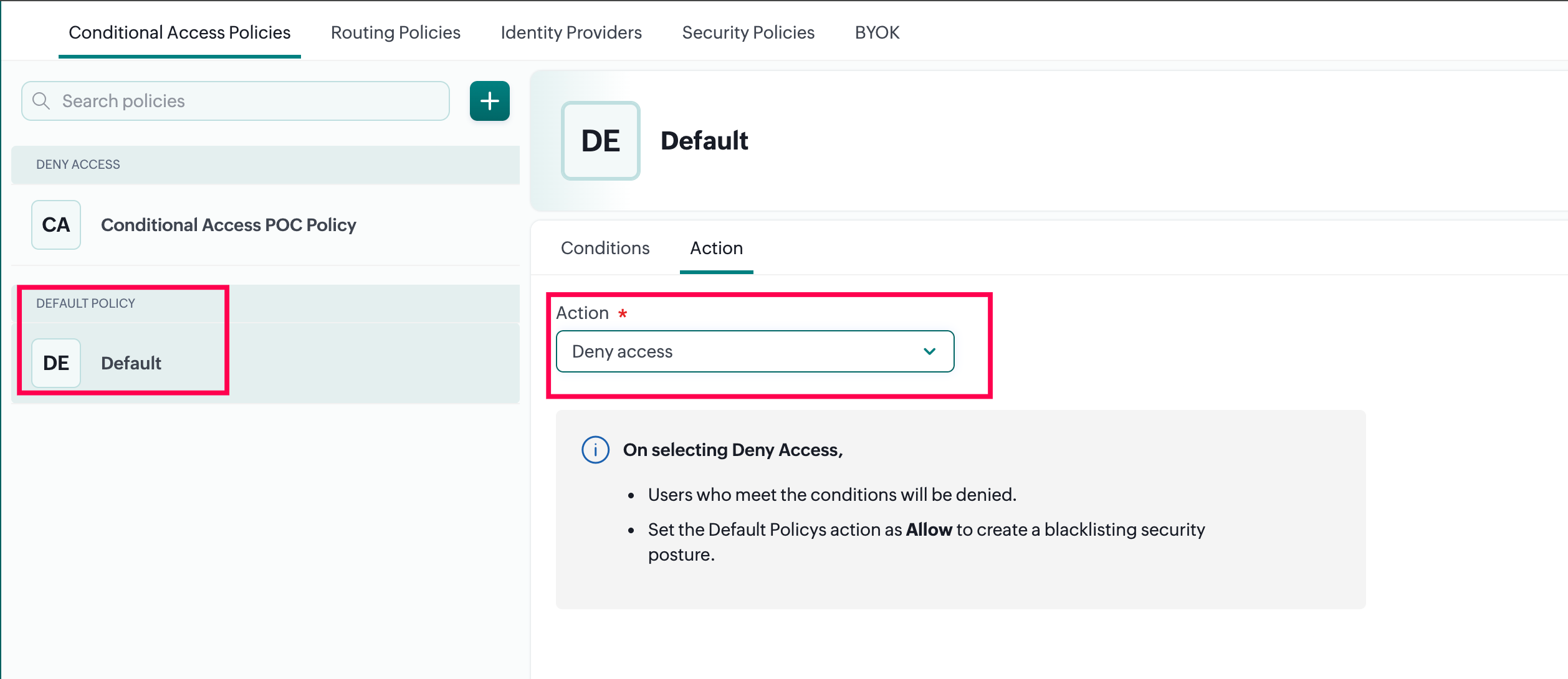
Setting a Default Deny ensures that your Zoho environment remains closed to any device or user that does not explicitly meet your security criteria. To learn more about how to set the global default action to Deny, please refer to the Zoho Directory: Conditional Access - Default Action Guide.
Sample Scenarios for Conditional Access
The following examples illustrate how Conditional Access conditions can be combined to meet common access control scenarios:
1. Block access from Unmanaged mobile devices only
Use this configuration when access should be restricted only for mobile devices, while allowing access from other device types (e.g., computers). This requires two policies: one to allow managed mobile devices, and another to allow access from non-mobile platforms.
Policy 1 (Mobile Devices):
- Platform: Android, iOS
- Device Management: Managed
- Action: Allow
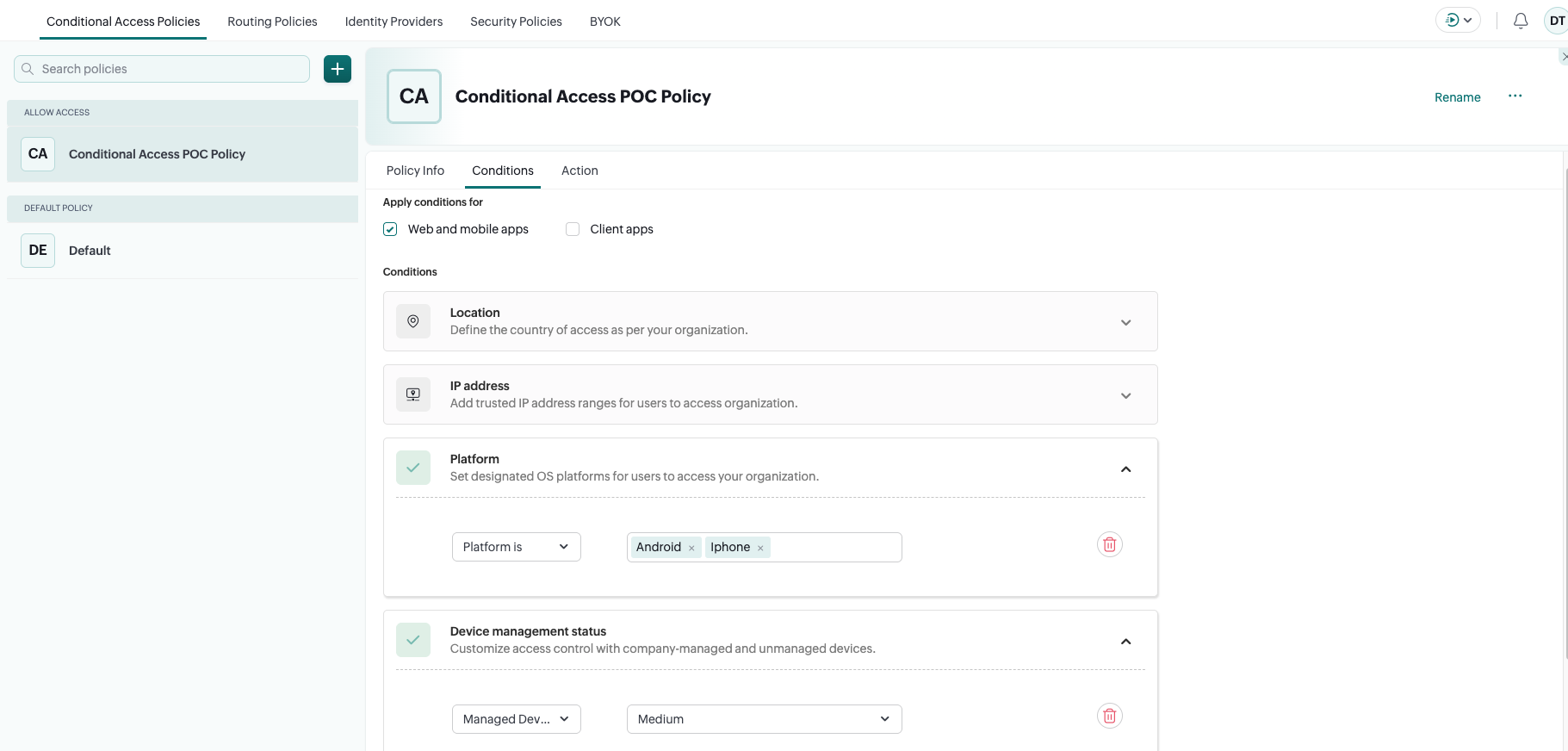
Policy 2 (Allow Computers):
- Platform: Windows, Mac, Linux
- Action: Allow

Since the global default action is set to Deny, a separate policy is required to explicitly allow access from computers. Without this, all non-mobile access would also be blocked. This combination ensures that Zoho mobile apps can be accessed only from managed Android and iOS devices, while computer access remains permitted.
2. Allow Access Only from Managed Mobile Devices (Block All Other Access)
Use this configuration when only managed mobile devices should be allowed to access Zoho applications, and all other access (including from computers) should be blocked.
- Platform: Android, iOS
- Device Management: Managed
- Action: Allow access
With the global default action set to Deny, only managed Android and iOS devices will be permitted access. All other access including from unmanaged mobile devices and computers will be automatically blocked since no additional allow policy exists for those platforms.
3. Block Unmanaged Mobile Devices and Restrict Computer Access to Office Network Only
Use this configuration when mobile access must be restricted to managed devices, while computer access is allowed only from trusted locations.
Policy 1 (Mobile Devices):
- Platform: Android, iOS
- Device Management: Managed
- Action: Allow access
Policy 2 (Computer Devices):
- Platform: Windows, Mac, Linux
- IP Address: Specify office/trusted IP range
- Action: Allow access
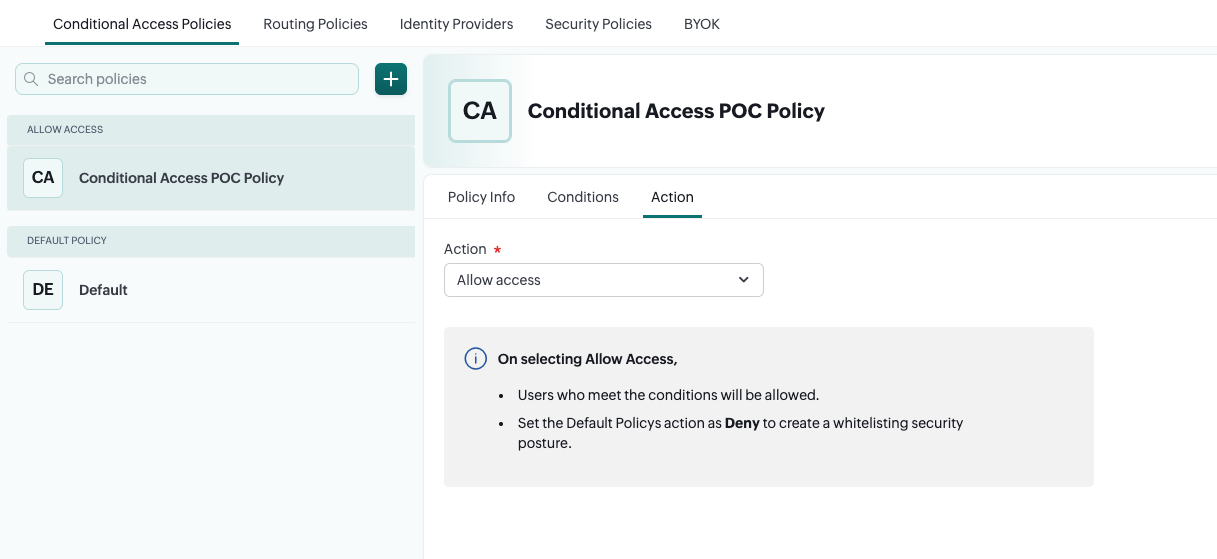
This approach uses multiple Conditional Access policies to enforce device trust for mobile apps while restricting computer access based on network location.
Define Policy Scope
- Under Users and Groups, select the pilot group created earlier.
- This ensures the policy is tested with a limited set of users before broader rollout.
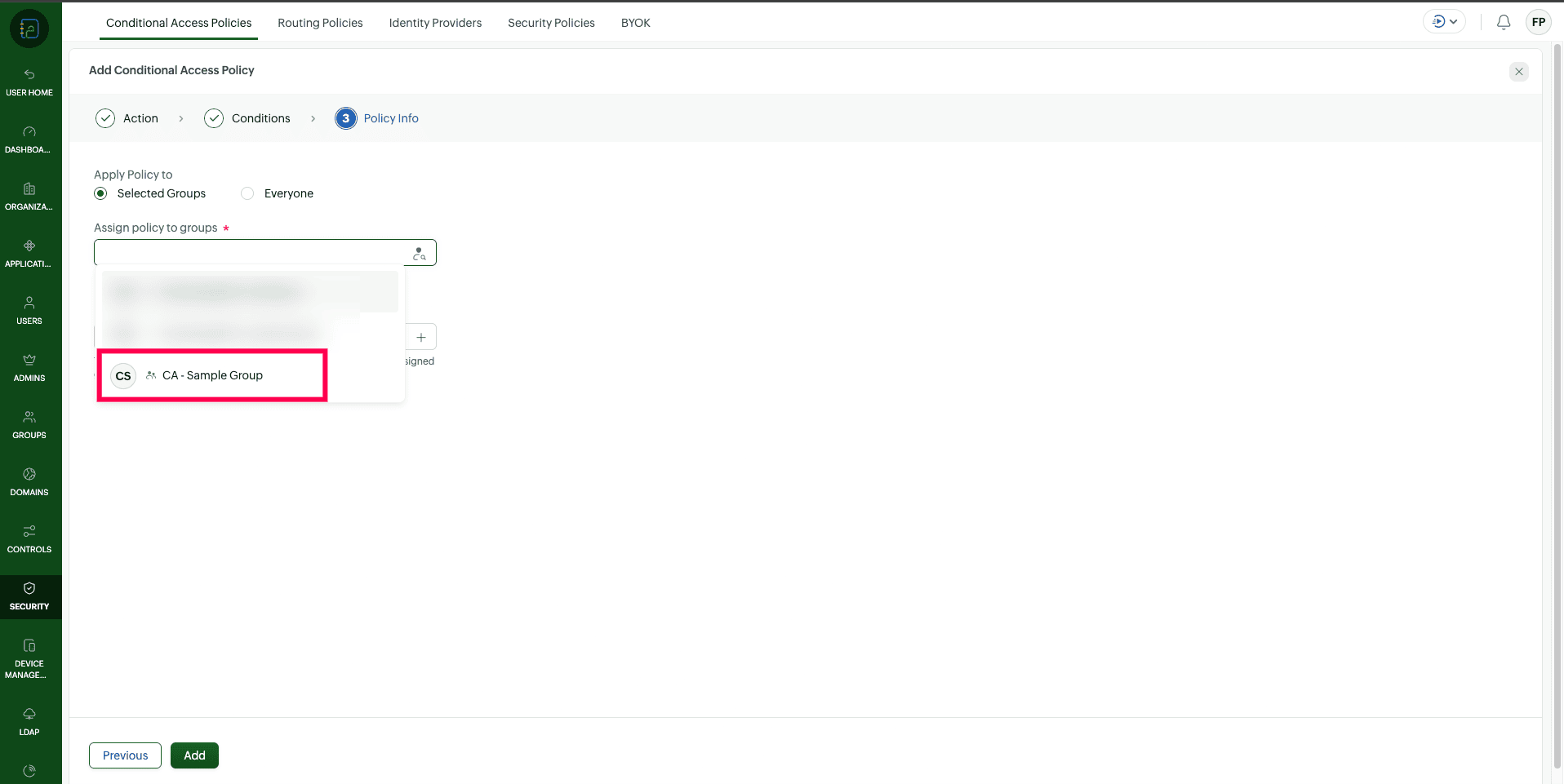
- Review the policy configuration and save.
2. Configure MDM to communicate managed device trust status to Zoho Directory
Once Conditional Access is configured in Zoho Directory, ManageEngine MDM must be set up to ensure devices are enrolled, managed, and capable of passing device trust signals to Zoho.
Steps for Configuration in ManageEngine MDM:
1. Add Zoho Mobile Apps to App Repository
- Navigate to App Repository in the MDM console.
- Add the required Zoho mobile applications (such as Zoho Mail or other Zoho apps) to the repository.
2. Modify App Configurations
For Android apps:
- Open the App Configuration section for the selected Zoho application..
- Some Zoho applications automatically apply the required Conditional Access configuration when added to MDM.
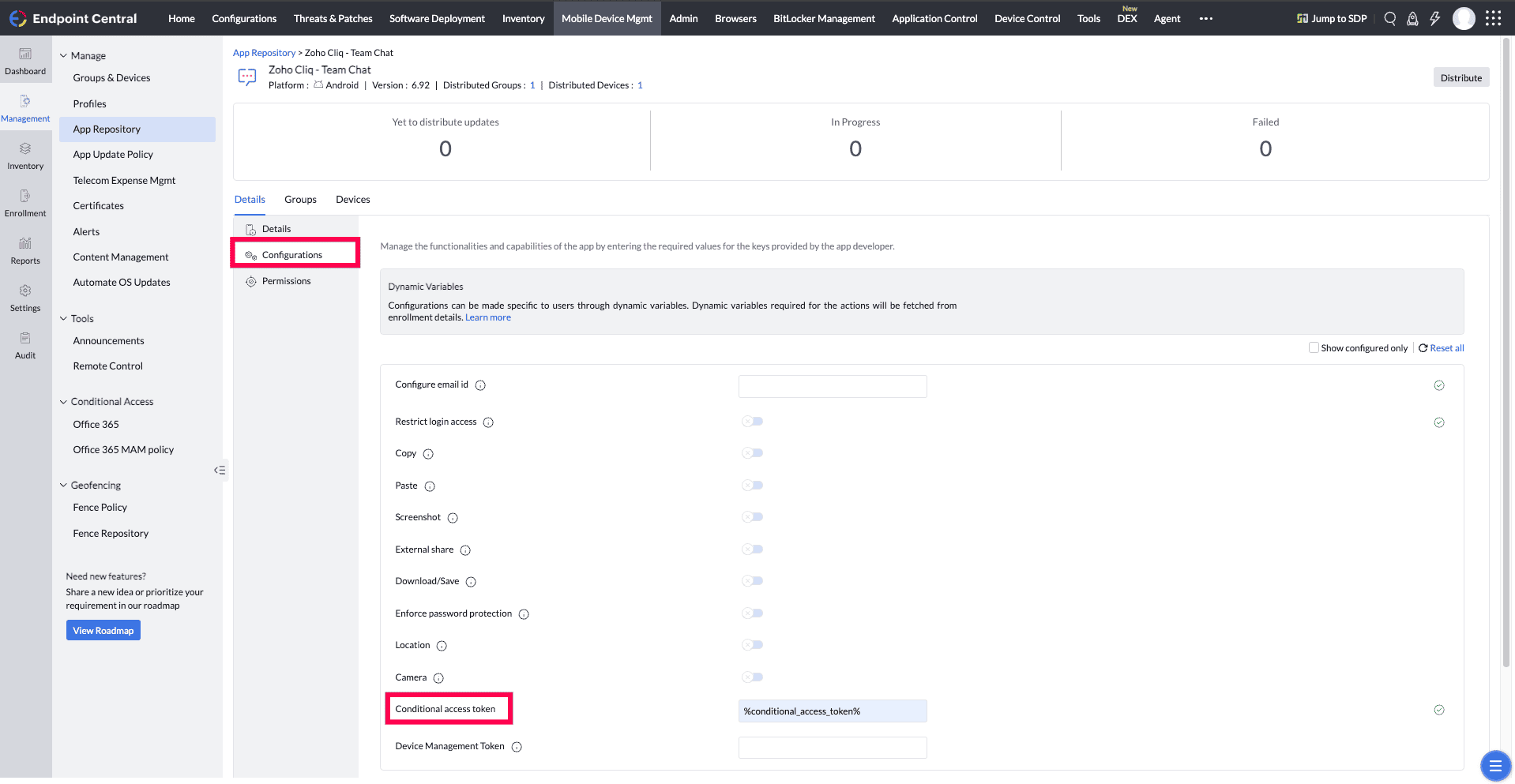
- If the Conditional Access token is not already present, manually add the configuration using the placeholder %conditional_access_token%
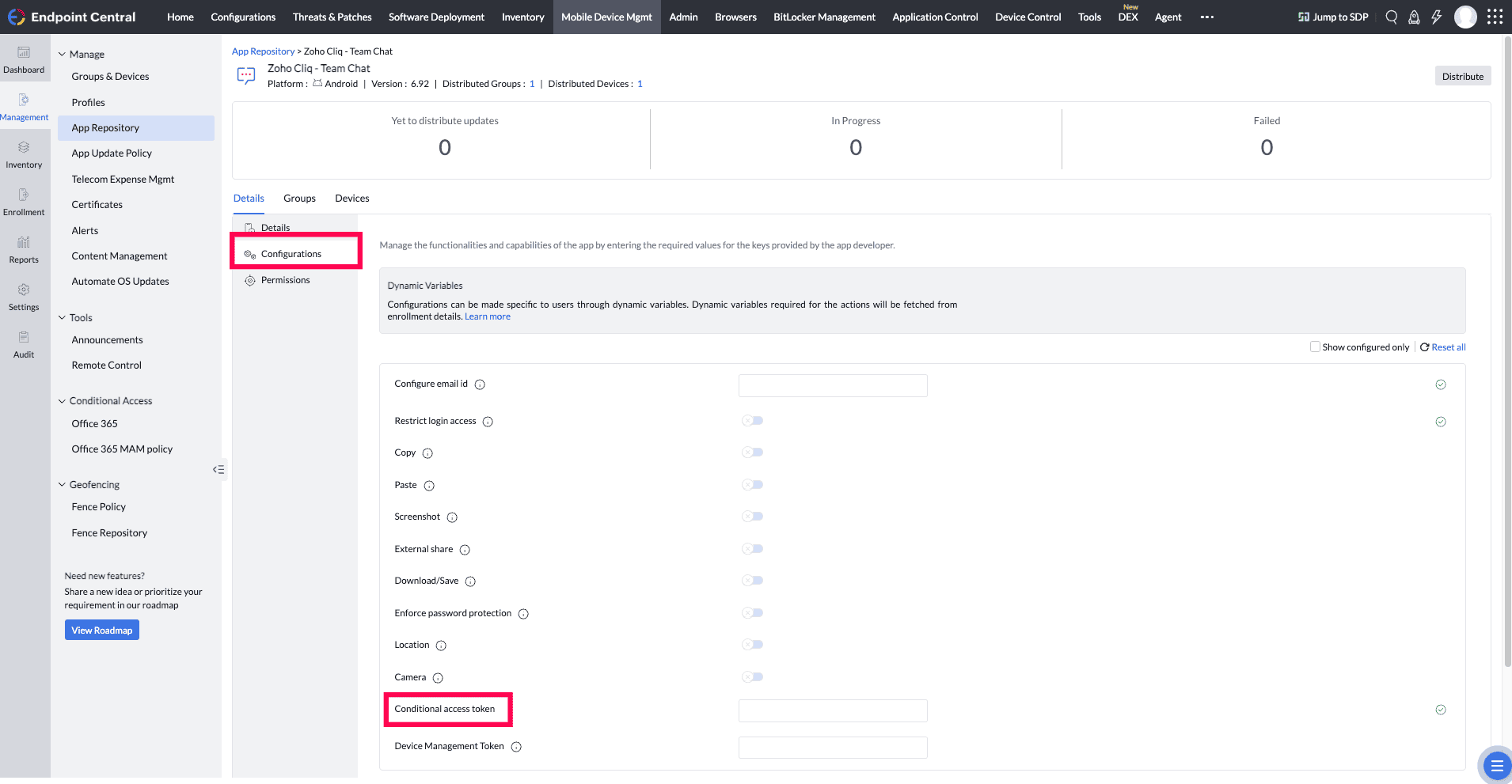
- Click on Save.
For iOS apps:
- Open the App Configuration section for the selected Zoho application.
-
Navigate to Configurations tab and upload the following XML file. If you are looking to configure other settings in the app, include the following key and string combination in the XML file available here.
command
<?xml version="1.0" encoding="UTF-8"?> <!DOCTYPE plist PUBLIC "-//Apple//DTD PLIST 1.0//EN" "http://www.apple.com/DTDs/PropertyList-1.0.dtd"> <plist version="1.0"> <dict> <key>mdm_restrict_login</key> <string>%conditional_access_token%</string> </dict> </plist>
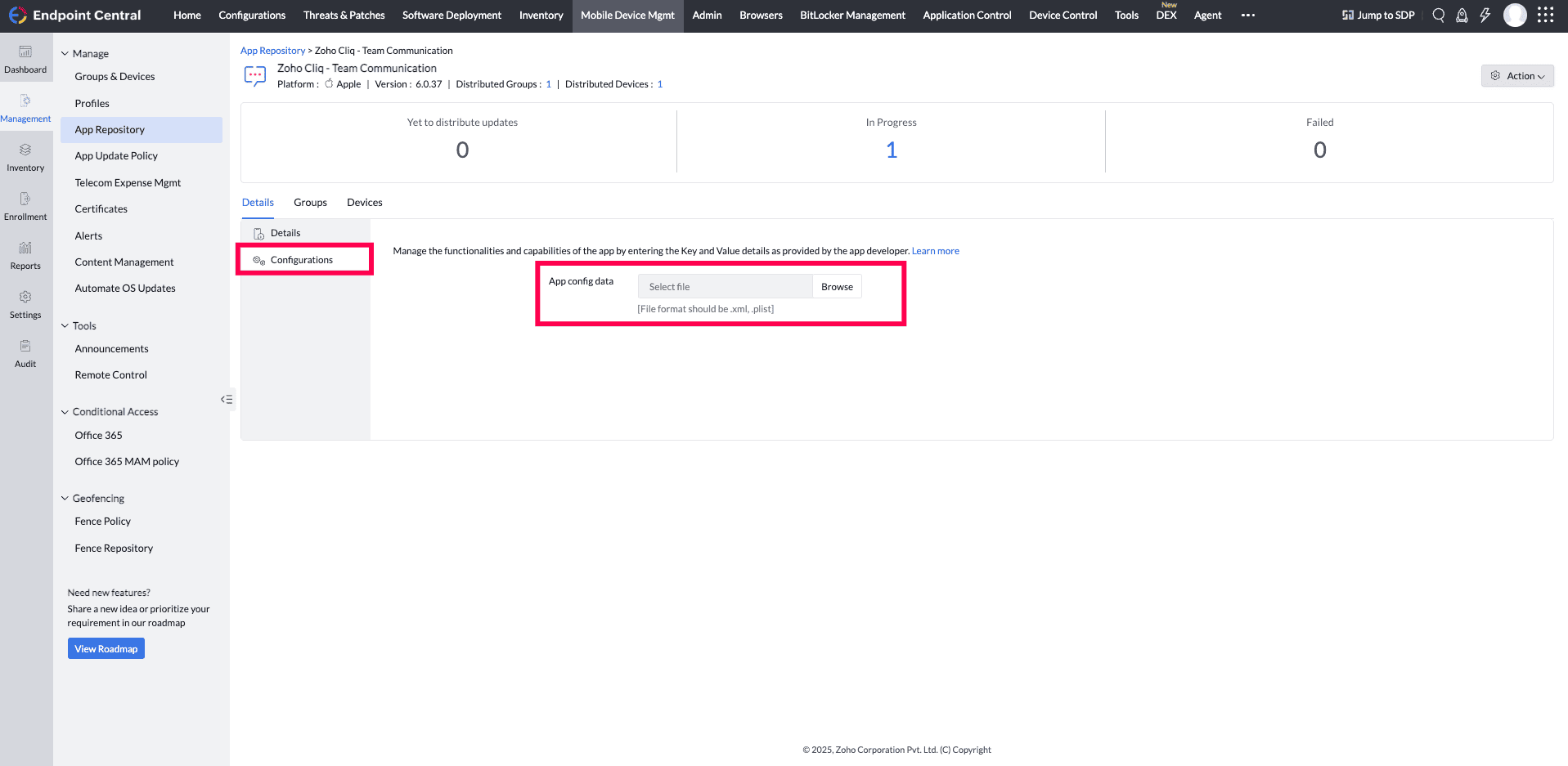
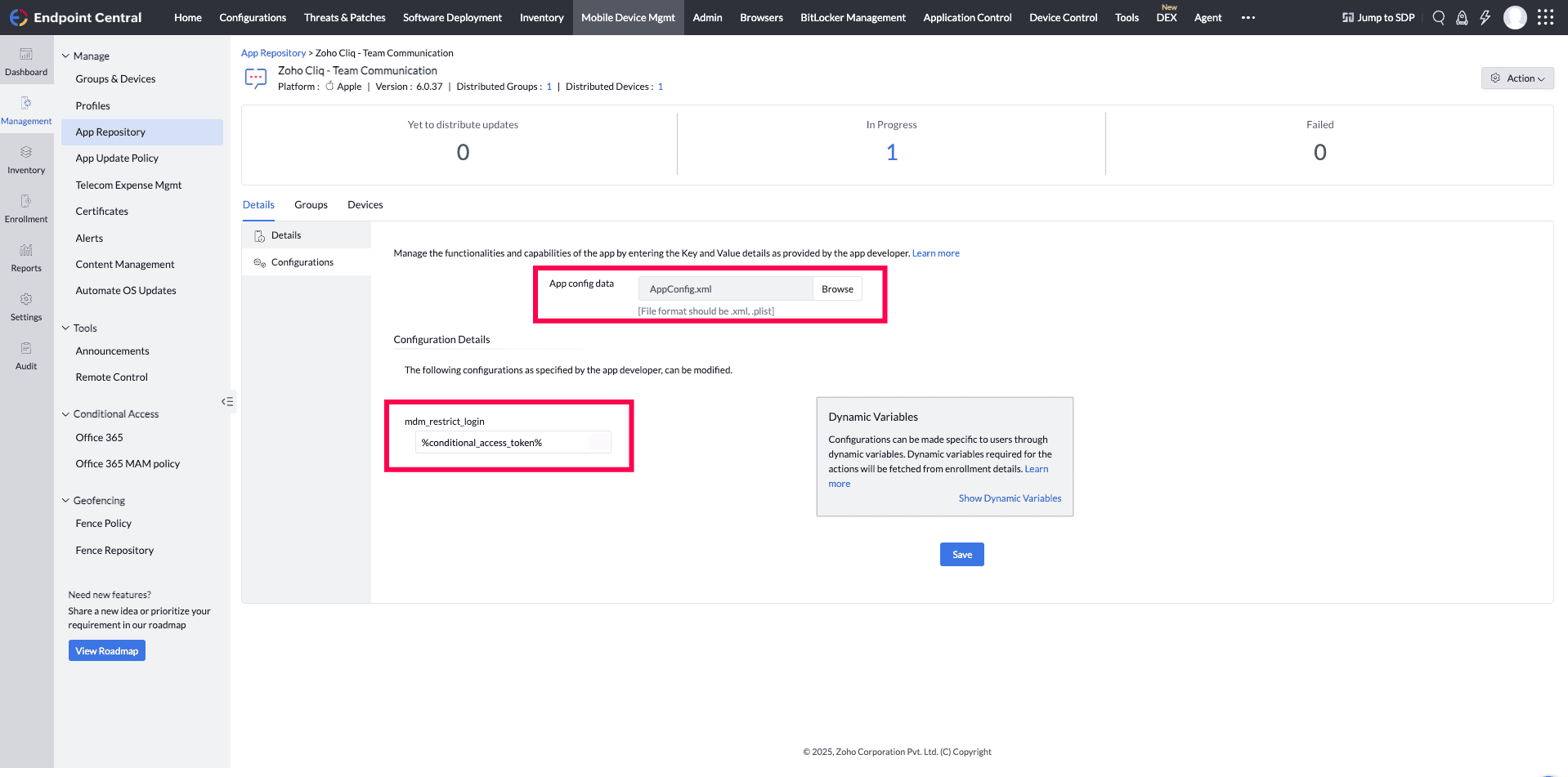
- click on save.
Distribute Apps to Managed Devices
- Navigate to Device Mgmt->App repository, select the configured Zoho Apps (android/iOS).
- Clcik on Distribute.
- Select the group(s)/device(s) to which the apps must be associated.
- Choose the Distribution Type Distribute it to App Catalog or Silent installation. if Distribute it to App Catalog chosen, then the app is distributed to the App Catalog in the ME MDM app on the device, from where the user can install the app.
- Check the Notify users by email upon distributing the app check box if you want to notify the user.
- Click on Distribute App to distribute the app to the desired devices/groups.
Once the policy is enforced, users will only be able to access applications from managed devices. On Android, this means access is only granted when using apps inside the Work Profile, while on iOS, only the apps installed via the MDM are recognized as trusted. Any attempt to log in through a personal, user-installed app or an unmanaged device will be automatically restricted by the Device trust based Conditional Access policy.