Integrate OpManager with Lark
Lark is an online platform designed for team collaboration, providing a variety of free tools such as chat, document collaboration, video conferencing, workflow automation, and AI features, all within a single application. It allows communication across teams, departments, and entire organizations with its integrated messaging system, which includes voice and video conferencing capabilities.
By integrating OpManager with Lark, alerts can be efficiently sent to the Groups in Lark, ensuring instant notifications and facilitating effective communication within teams.
OpManager can be integrated with lark using the custom integration option.
- Steps to perform in Lark
- Steps to perform in OpManager
Steps to follow in Lark
Create a Group and Select a Bot
- Login to Lark
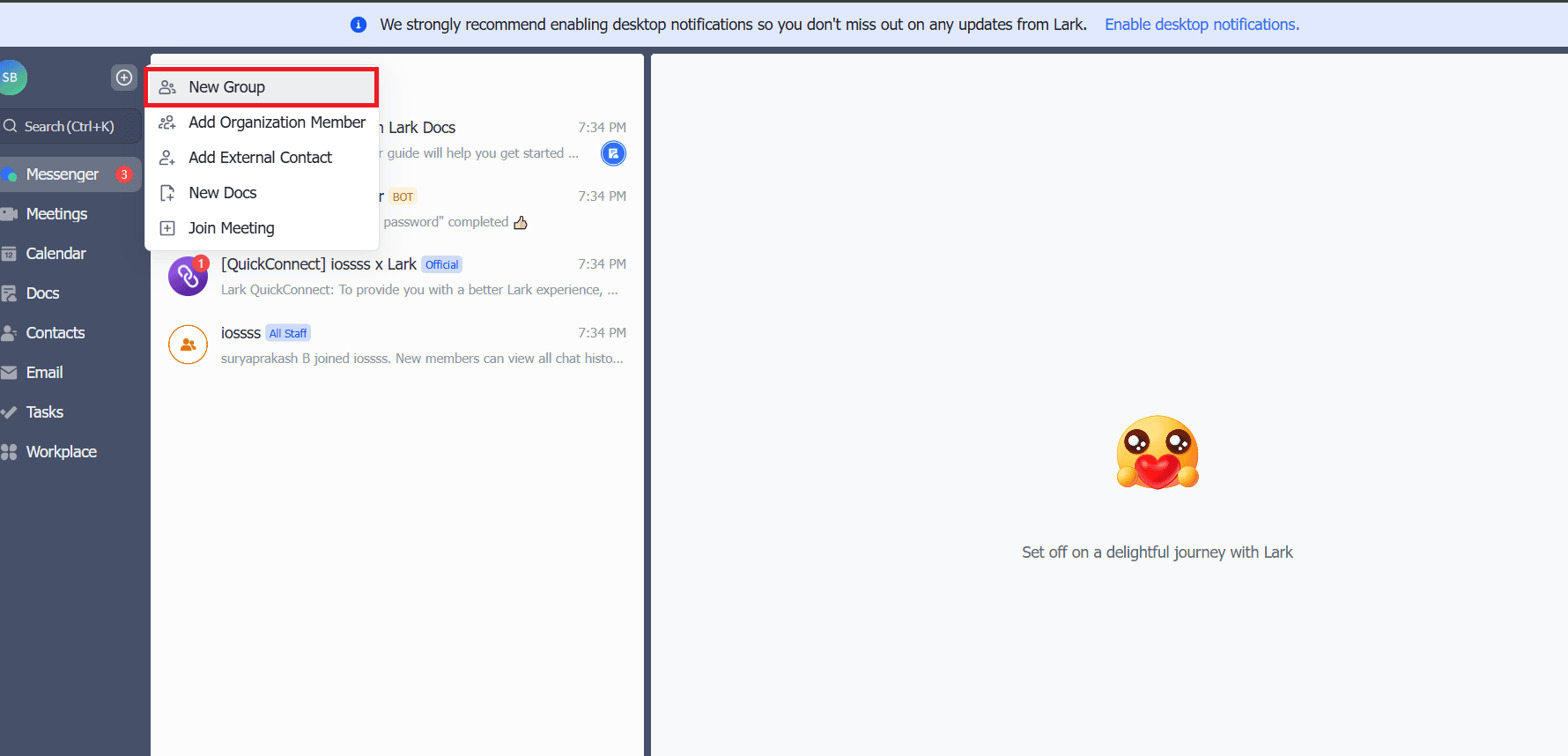
- Click on '+' icon and then click on New Group.
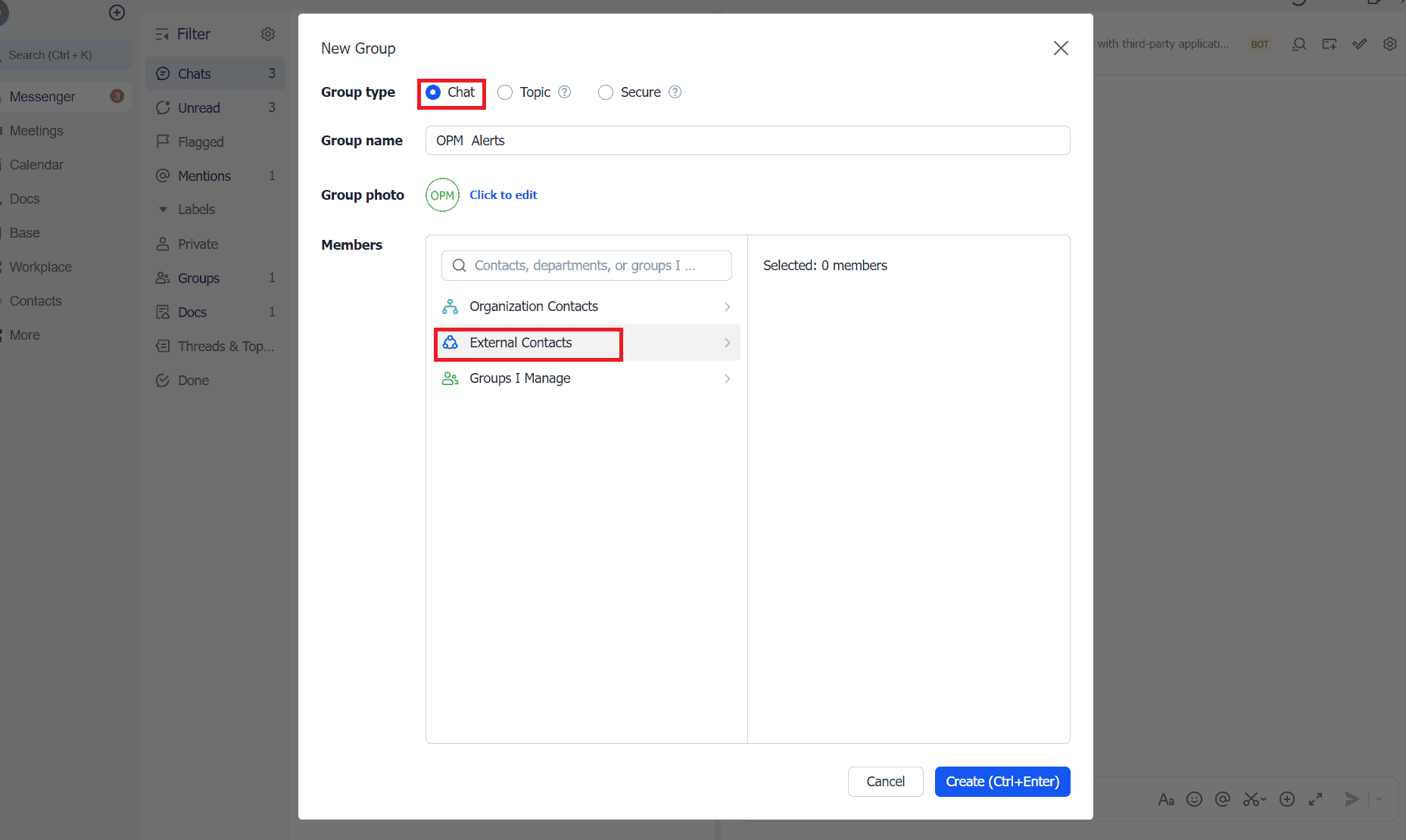
- Select group type as Chat and click on Create
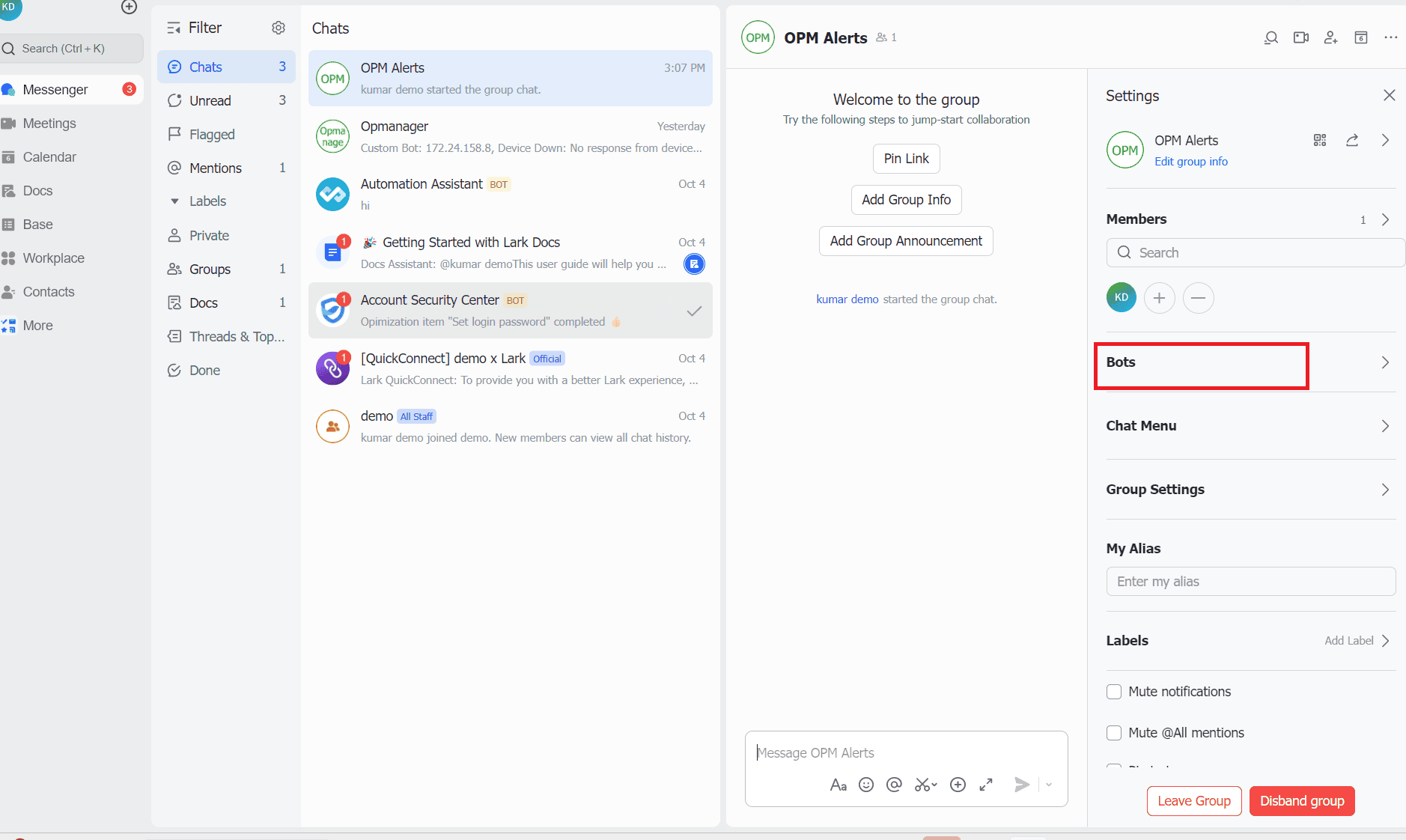
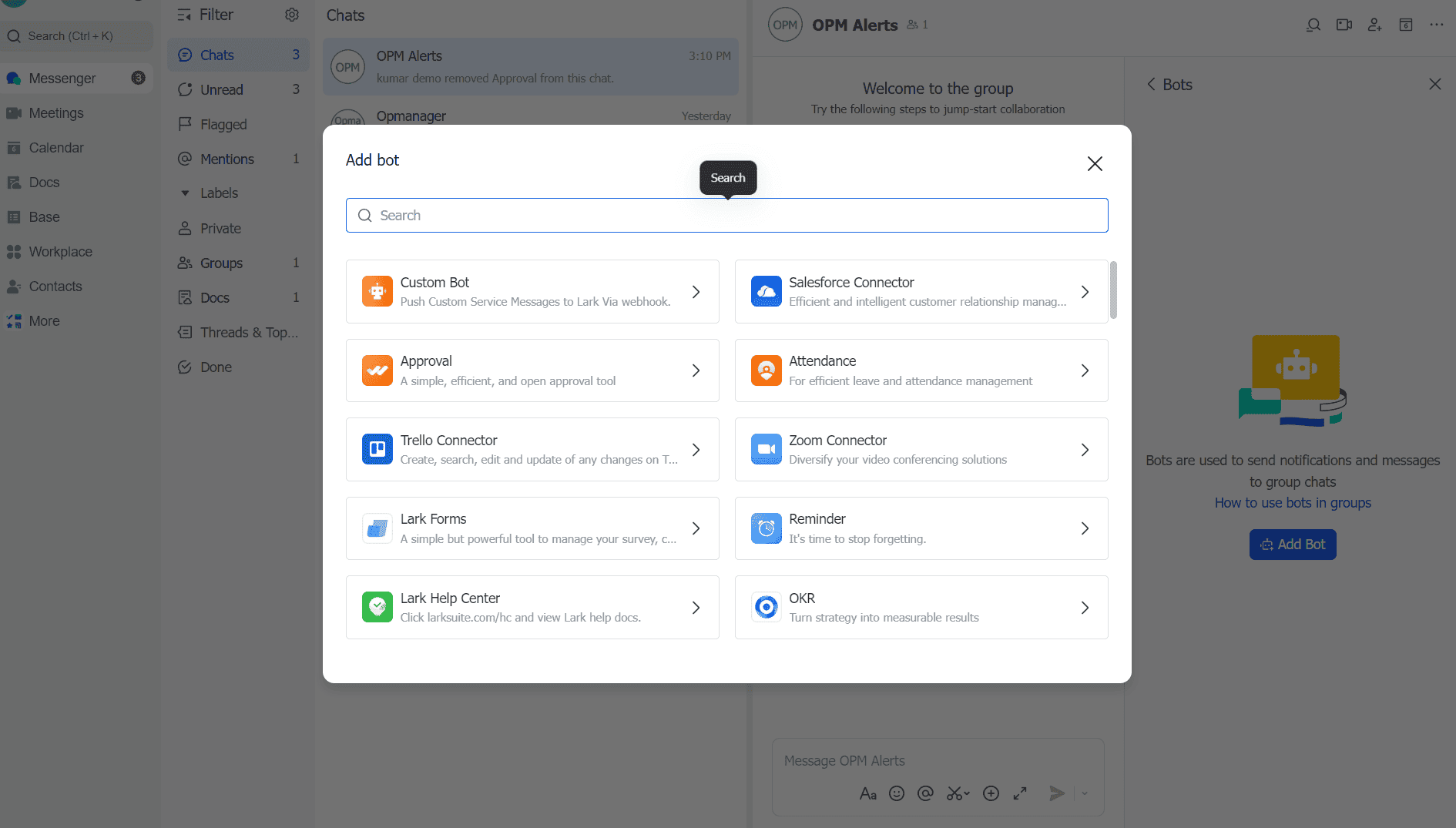
- Navigate through settings in the Group and click on Bots within your group
- Click on Custom Bot
- Within Custom Bot page, specify the name and description for the bot and click on add.
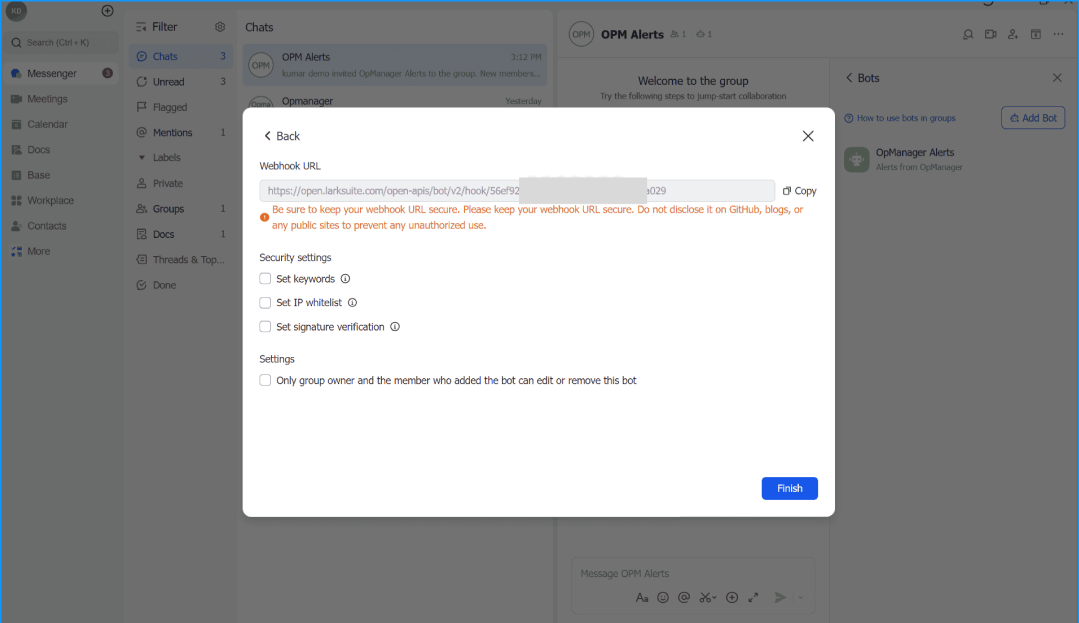
- Copy the Webhook URL and click Finish.
Steps to follow in OpManager
Configure Custom Integration
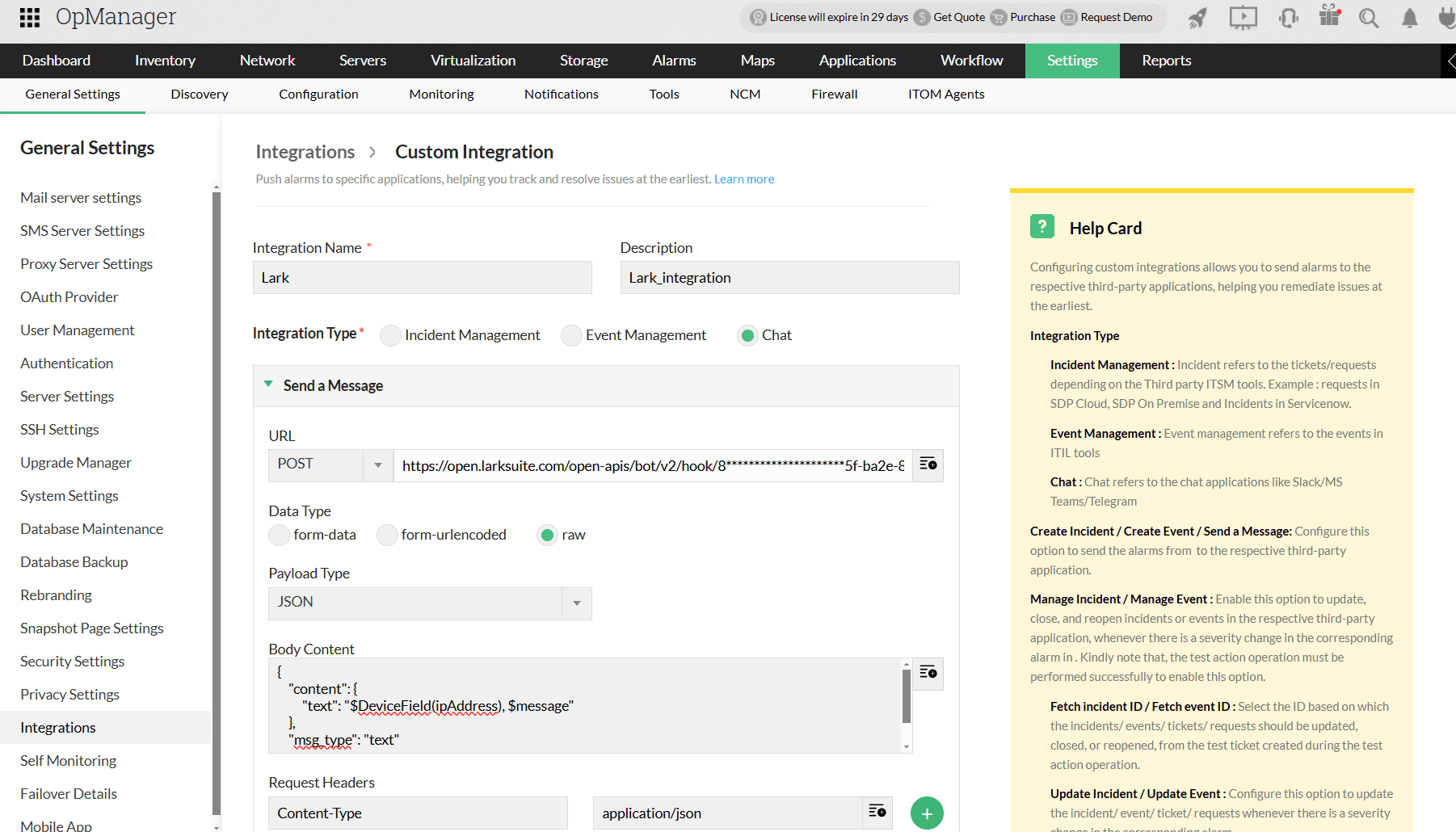
- Go to Settings -> General Settings -> Integrations -> New Custom Integration.
- Enter the following:
- Integration Type: Chat
- Method Type: POST
- URL: (Paste the copied Webhook URL)
- Data Type: Raw
- Payload Type: JSON
- Timeout: 10s
- Body Content:
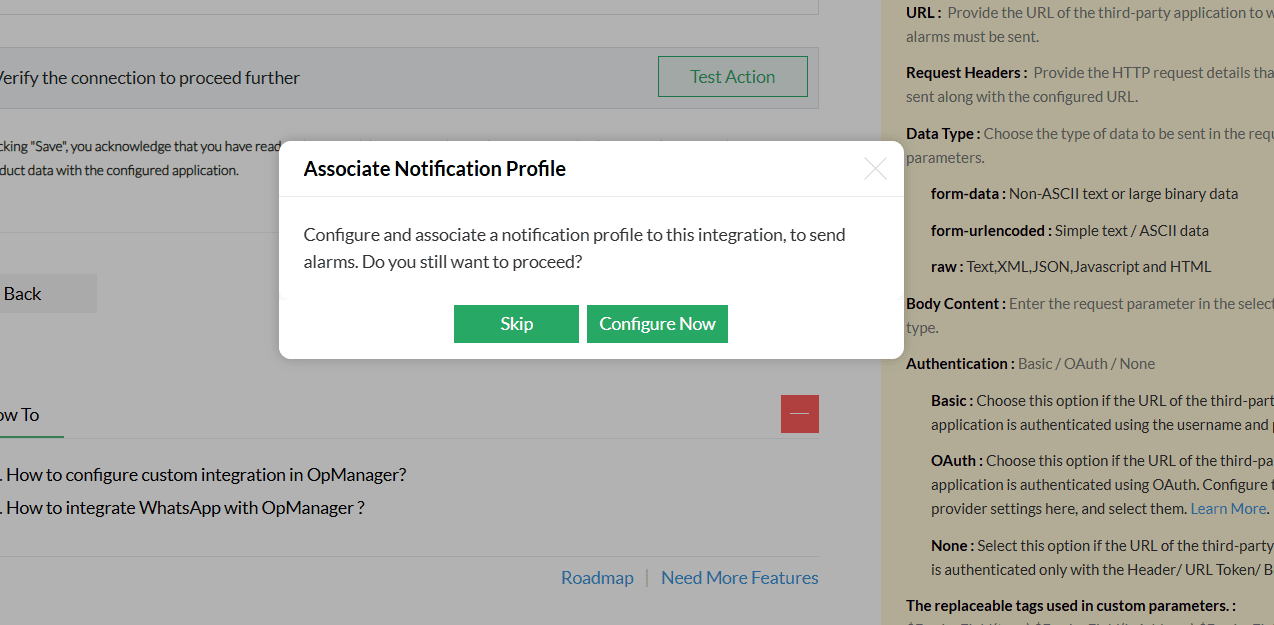
- Save your Custom Integration and click on Configure Now to add Notification profile for Lark.
"content": {
"text": "$DeviceField(ipAddress),$message",
},
"msg_type": "text ",
}
Associate a Notification Profile
- By clicking 'Configure Now' you will be directed to the Notification profile page.
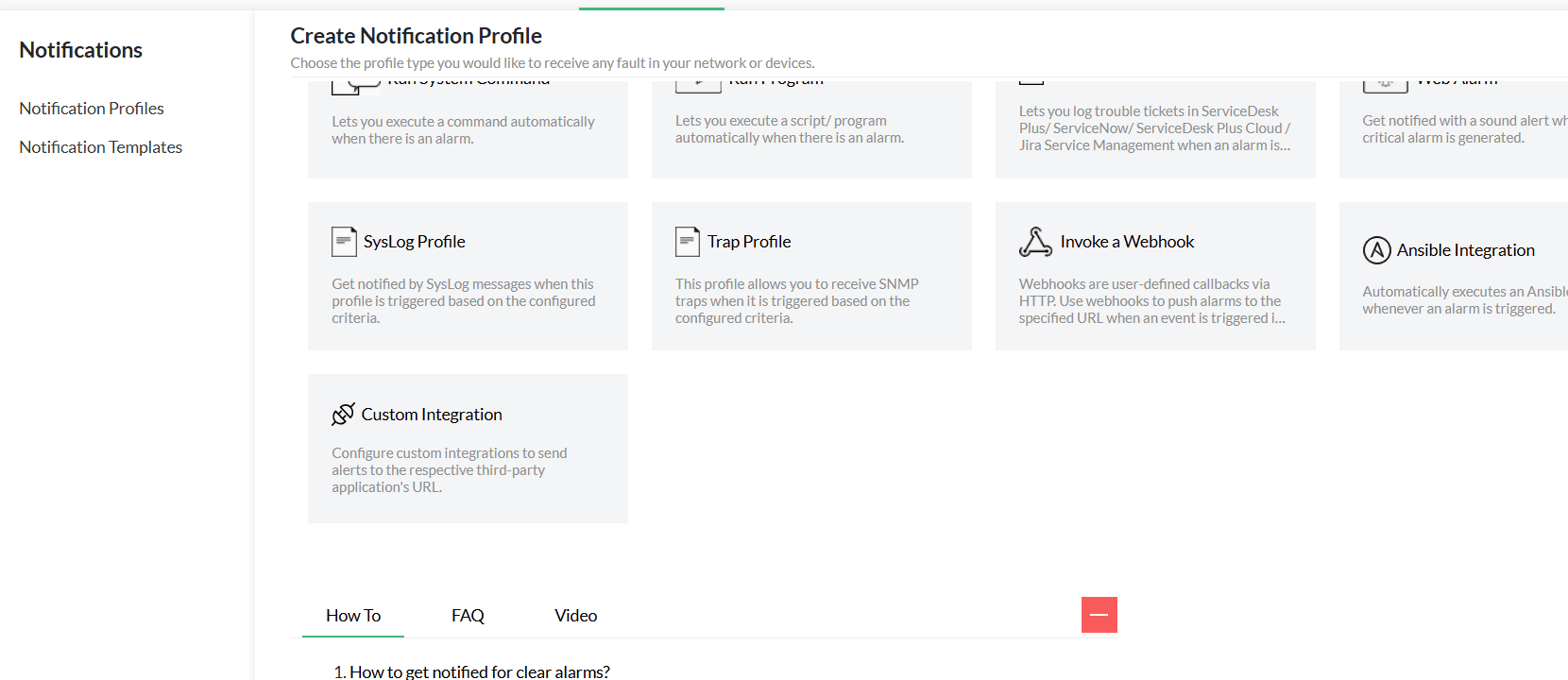
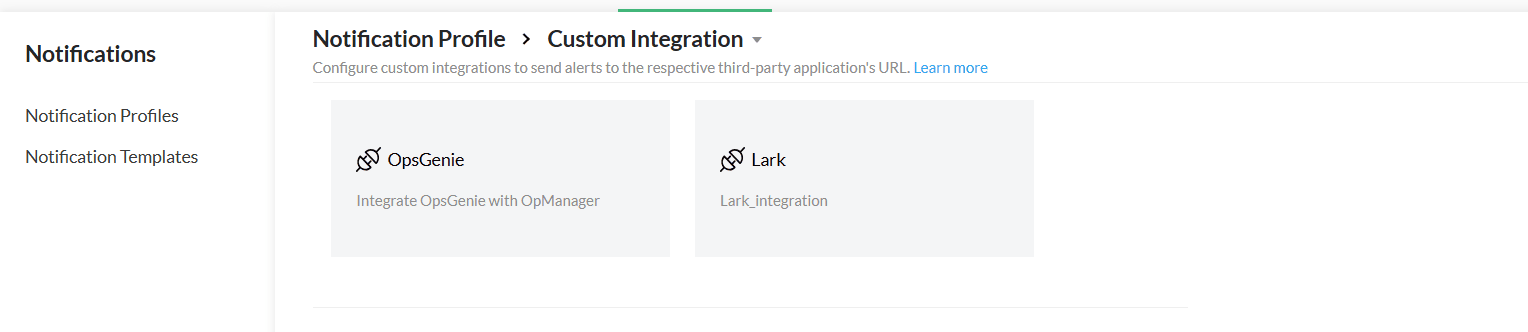
- Click Custom Integration
- Select Lark and follow the below steps to configure the notification profile
- Learn more about configuring criteria, devices, and time window in Notification Profiles here.
- Click Save.
Verifying the Integration
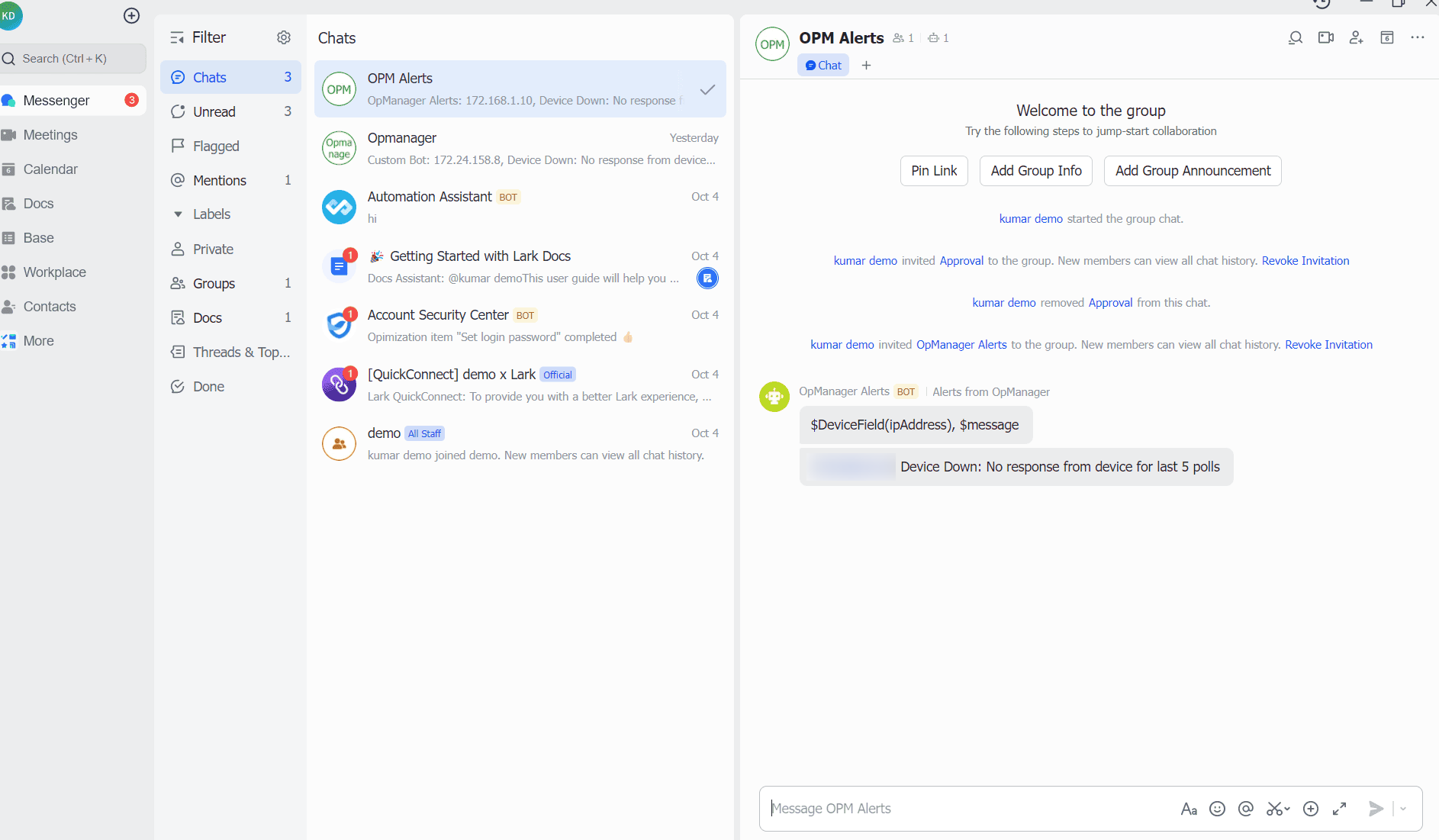
Trigger a real-time alert in OpManager, then log in to your Lark interface to verify that the triggered alert has been posted in your Lark group.