Integrate OpManager with DeepSeek
OpManager integrates with DeepSeek to bring AI-powered analysis directly into your network monitoring workflow. Once configured, OpManager automatically analyzes device statuses, active alarms, and key performance metrics using DeepSeek's language models — presenting consolidated summaries and actionable recommendations without leaving the platform. This helps IT teams diagnose issues faster, reduce noise, and make informed decisions, all backed by one of the most capable and cost-effective AI models available.
To safeguard sensitive data, OpManager applies a PII masking layer before any information is sent to DeepSeek. Device and user identifiers, including IP addresses, hostnames, and serial numbers, are masked prior to transmission and automatically restored in the response, ensuring generated summaries and scripts remain accurate without exposing sensitive details to the AI vendor.
Configuration in OpManager
To enable AI-generated summaries in OpManager, you must first configure the DeepSeek integration. This requires generating an API key from the DeepSeek platform and entering it in OpManager to establish a secure connection between the two systems.
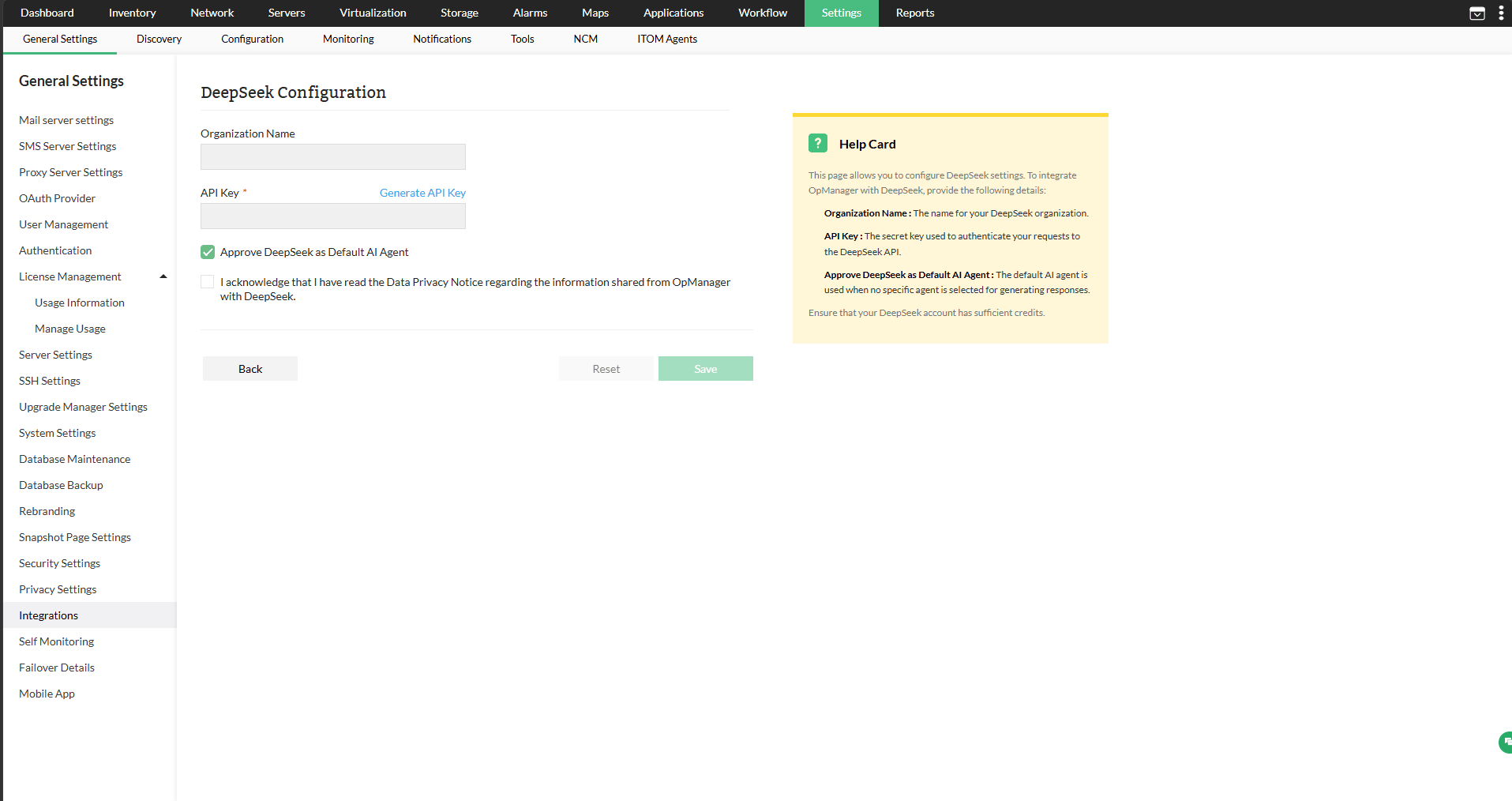
- Go to Settings -> General Settings -> Integrations -> DeepSeek.
- Enter your Organization Name.
- In the API Key field, paste the key copied from your DeepSeek account. If you haven't generated one yet, click Generate API Key, then copy and paste the key into this field.
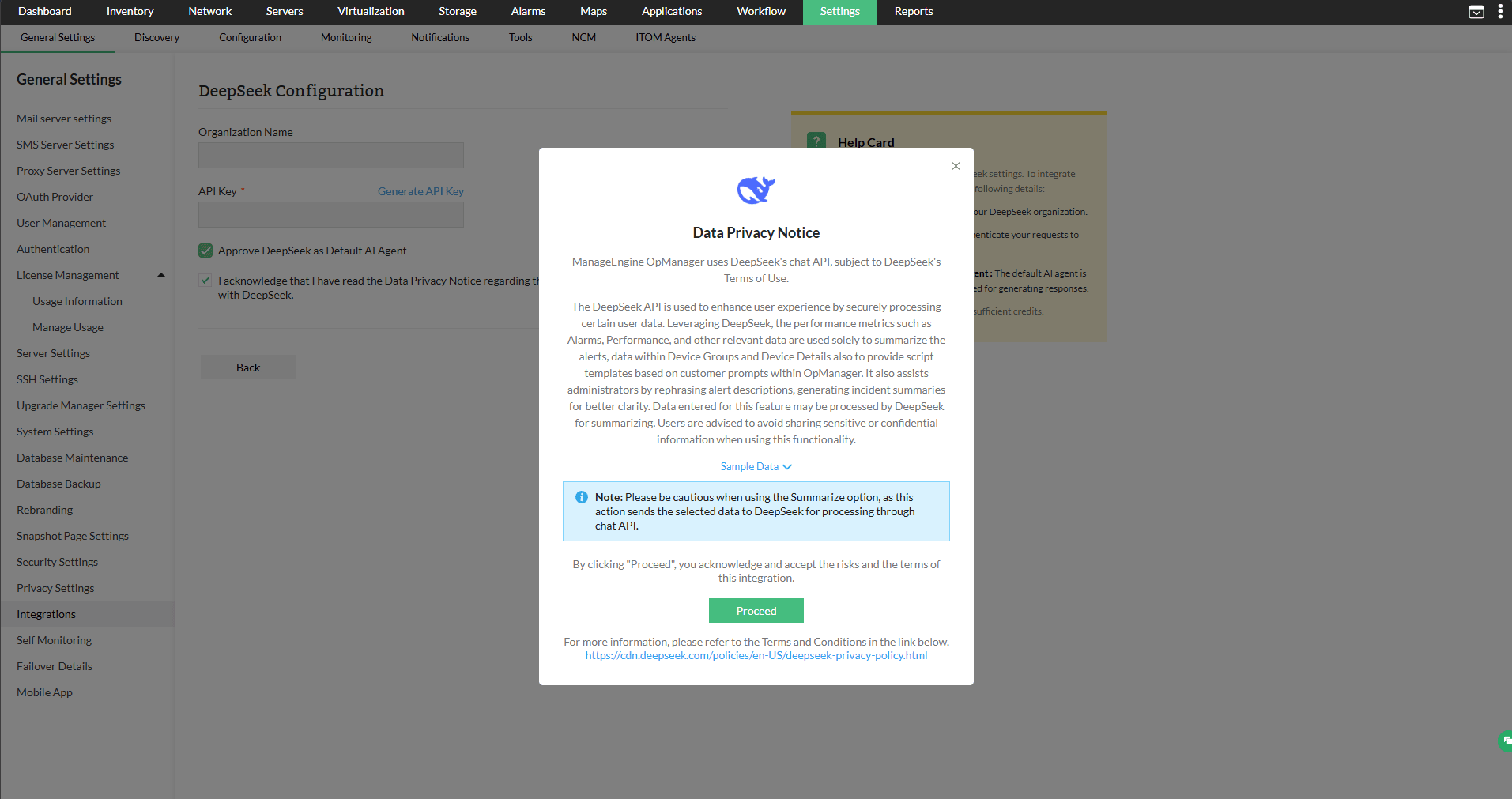
- Acknowledge the data privacy notice provided and click Proceed.
- Click Save.
AI Settings
Once DeepSeek is configured, use the AI Settings page to control which features are enabled and which model handles each one. Navigate to Settings → General Settings → AI Settings.
The Model dropdown lists all DeepSeek models that support chat completions. If the model you need isn't listed, enter its name in the Custom Model field. Use the Token Count dropdown to control how many tokens are sent per request — choose from 1000, 2000, or 3000, or select Custom to enter a value between 250 and 8000.
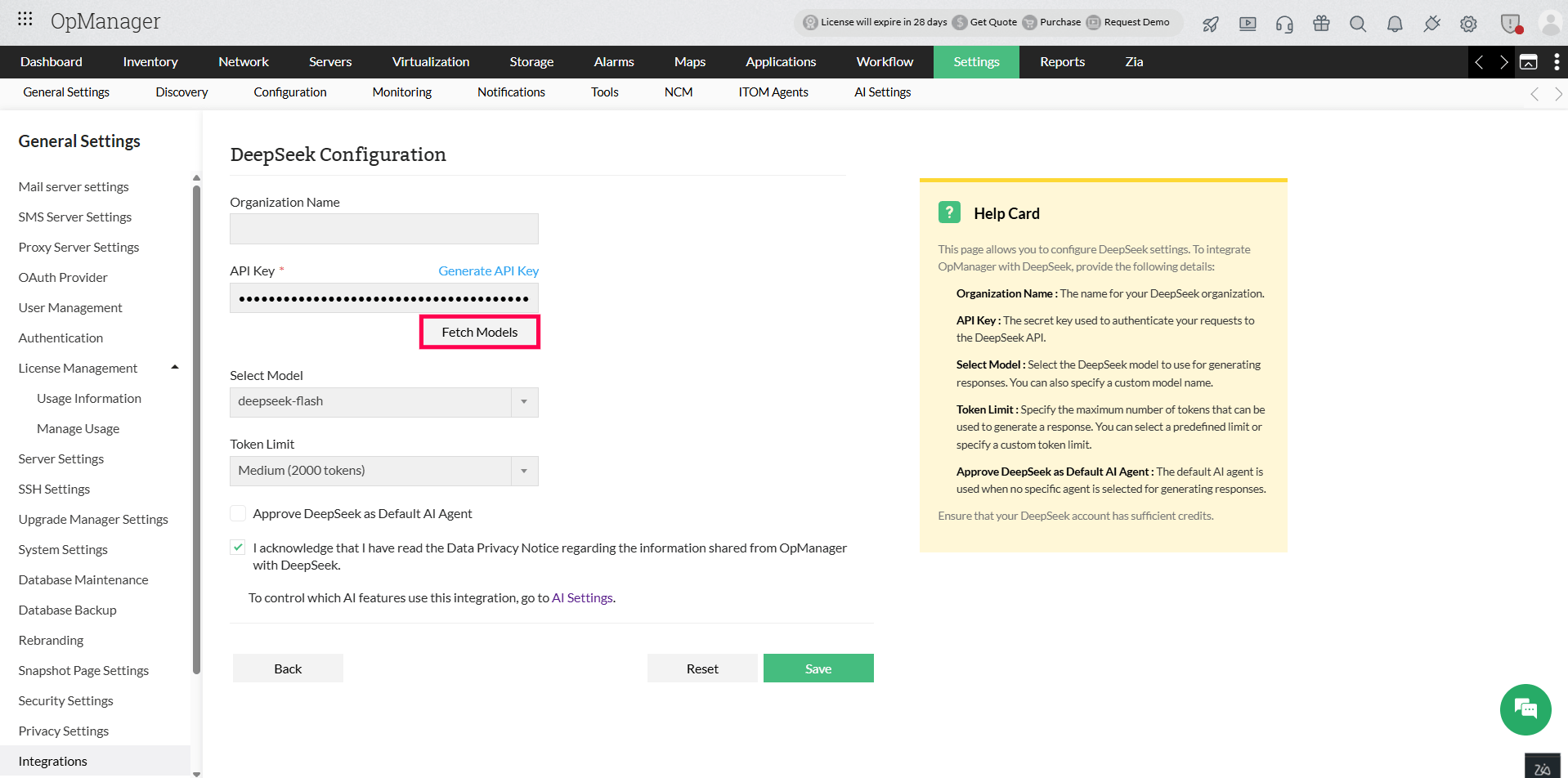
To apply the same model to all features, enable the Apply to all features checkbox. Otherwise, each feature can be enabled and assigned a model independently.
For full details on AI Settings, clickhere.
AI-generated summaries in OpManager
With the DeepSeek integration, and the relevant features enabled in AI Settings, users can view the summaries of certain monitored entities. Such as:
- All alarms summary
- Individual alarm summary
- Device group summary
- Device summary
- Problem Summary
- Script Generation
All Alarms Summary
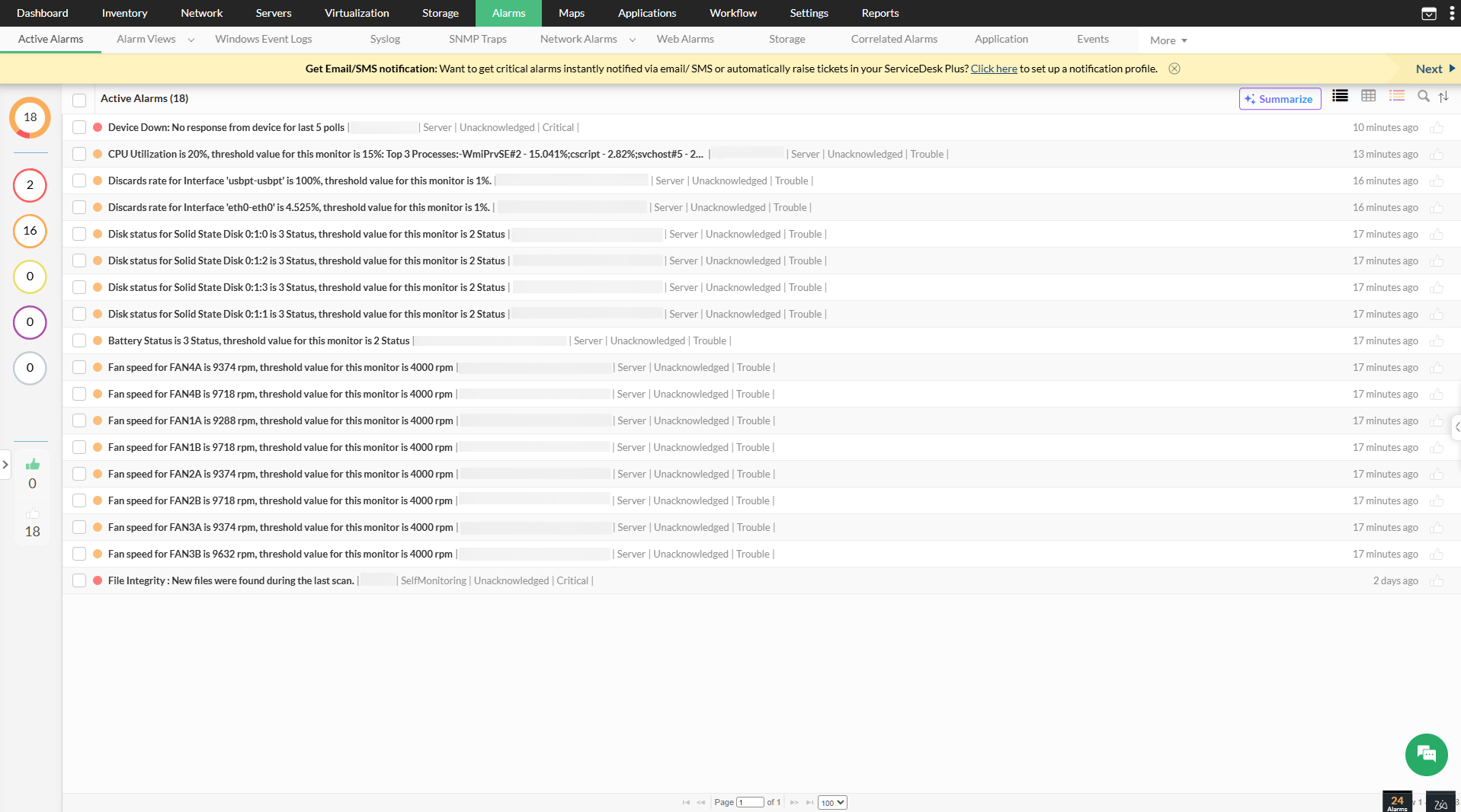
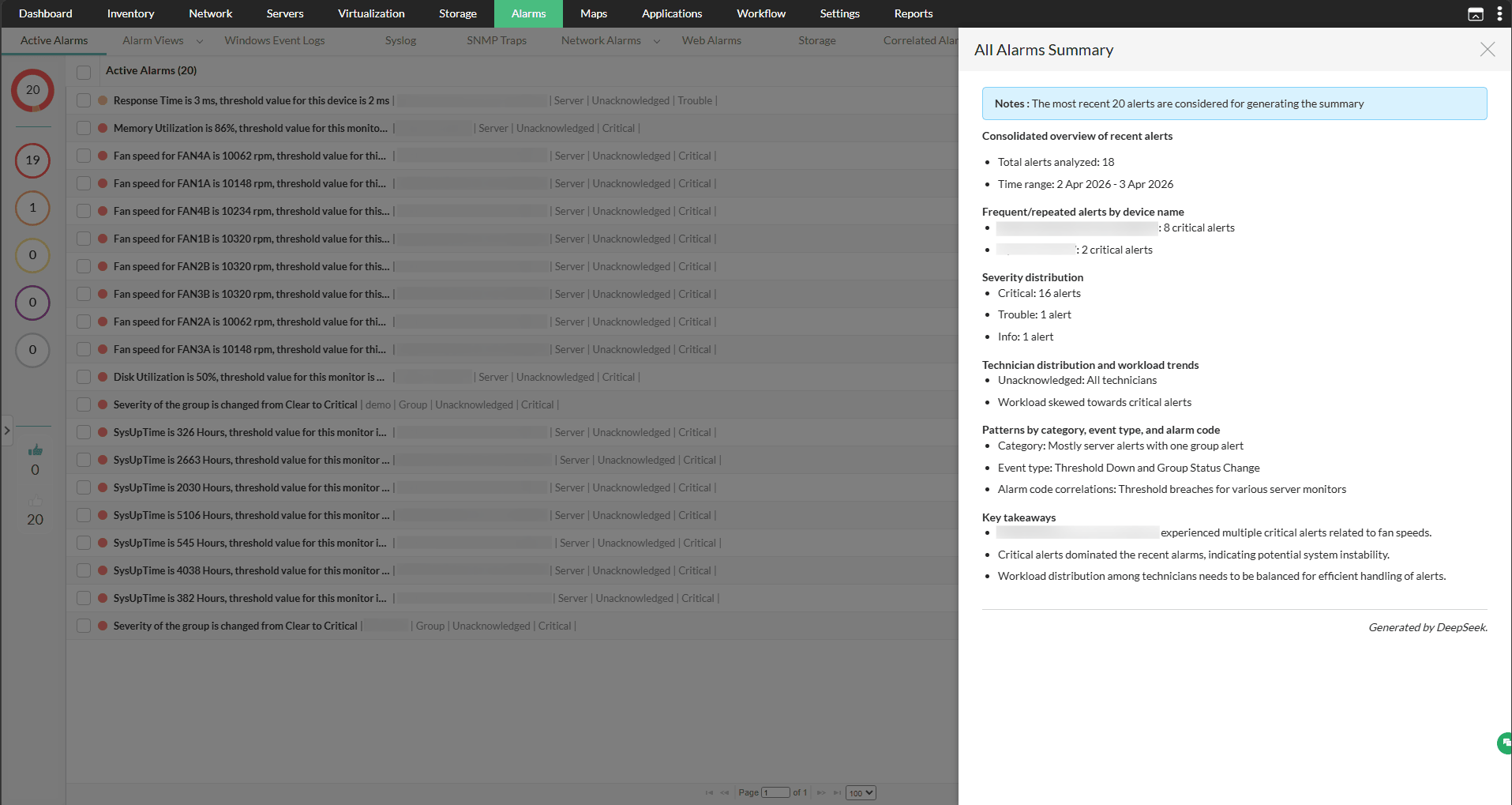
OpManager can consolidate all active alarms into a single, easy-to-read summary highlighting the most critical details.
- Navigate to Alarms and select the Summarize tab in the top-right corner.
- OpManager will instantly generate the summary without any additional input.
Individual alarm summary
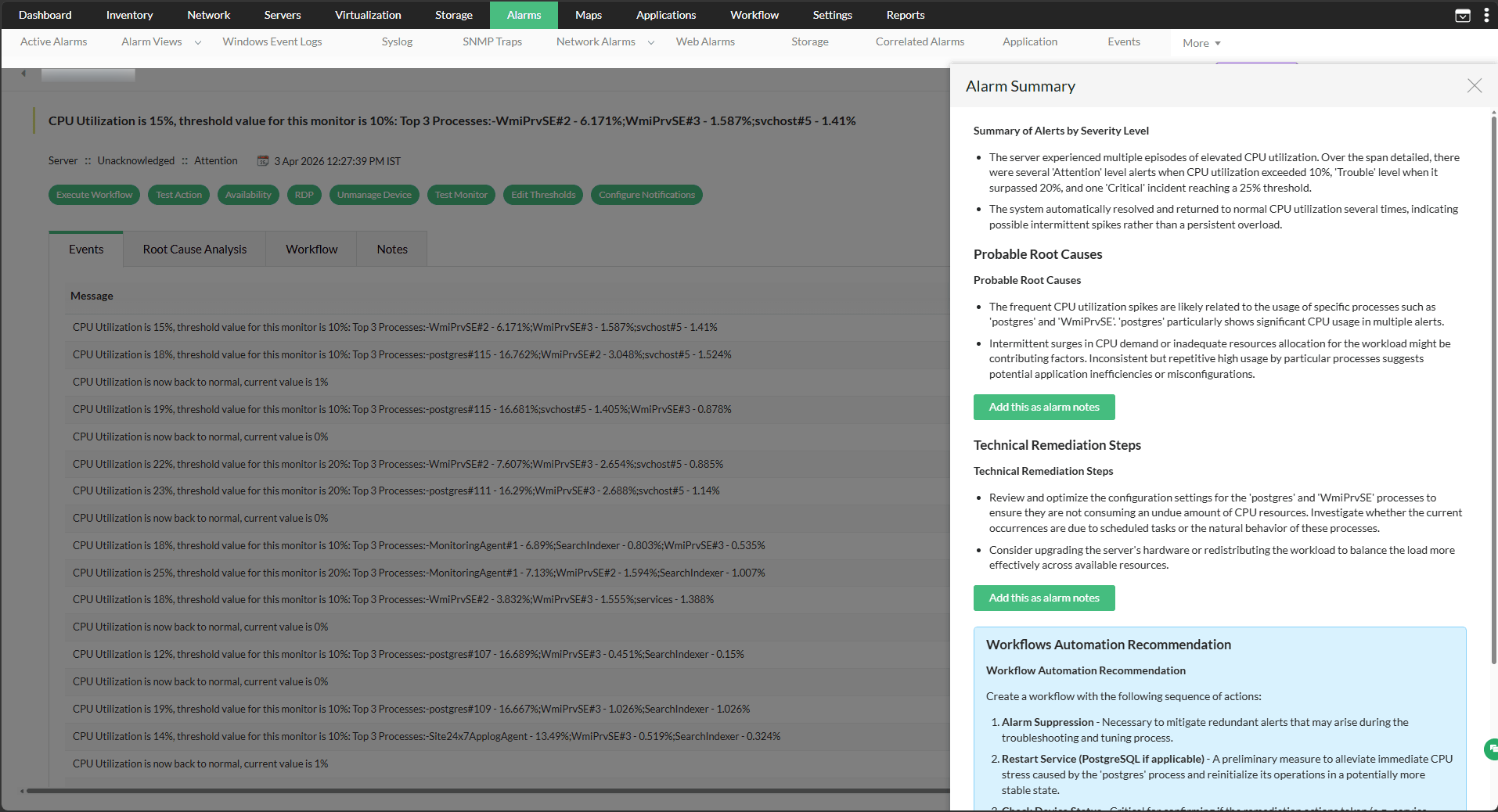
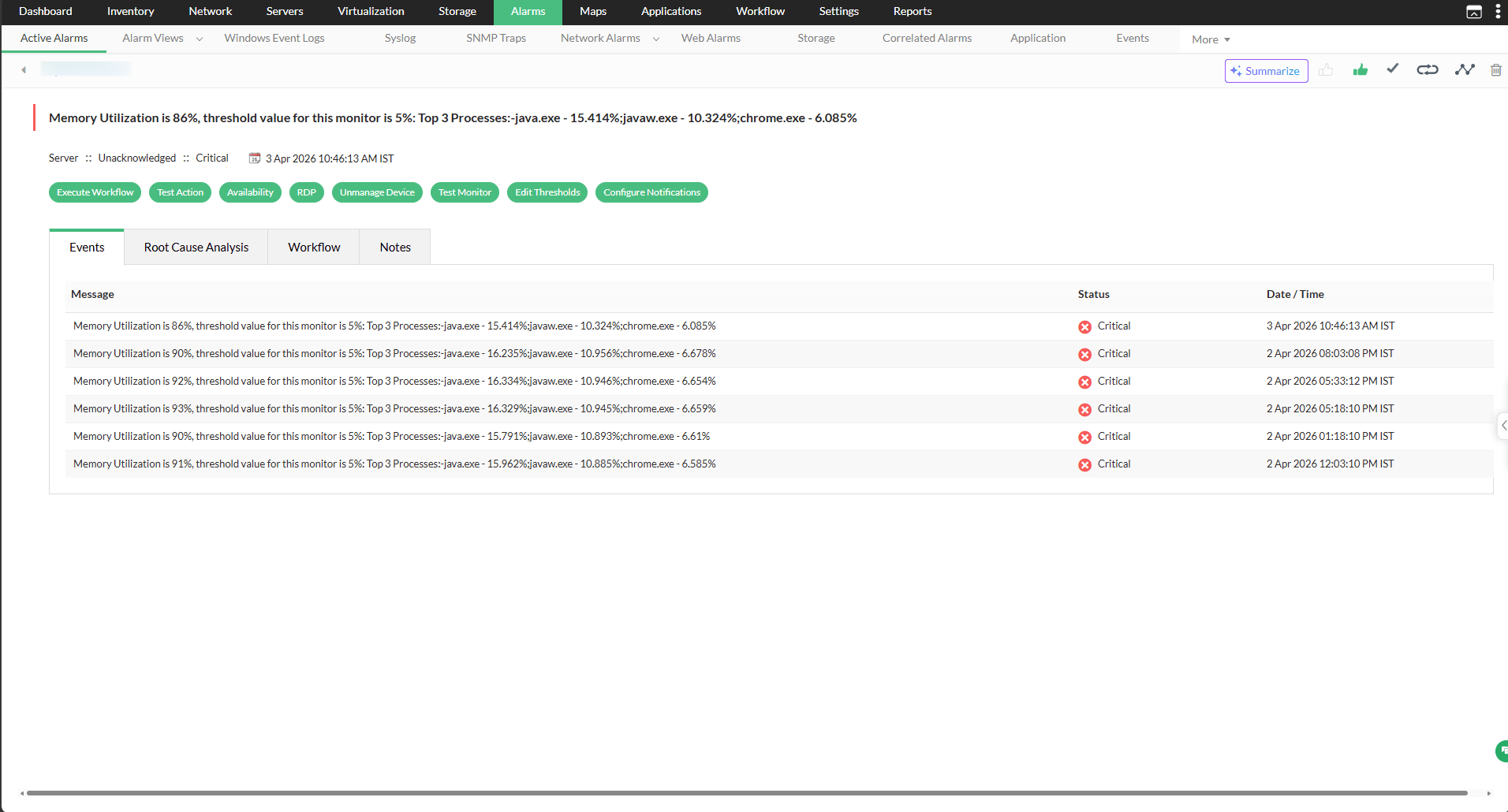
OpManager's DeepSeek integration can also analyze individual alarms in detail, identifying the alarm type, listing probable causes, and generating a detailed, actionable summary for that alarm.
- Navigate to Alarms and open any alarm of your choice.
- Select the Summarize tab to generate a detailed summary for that alarm.
Device Group Summary
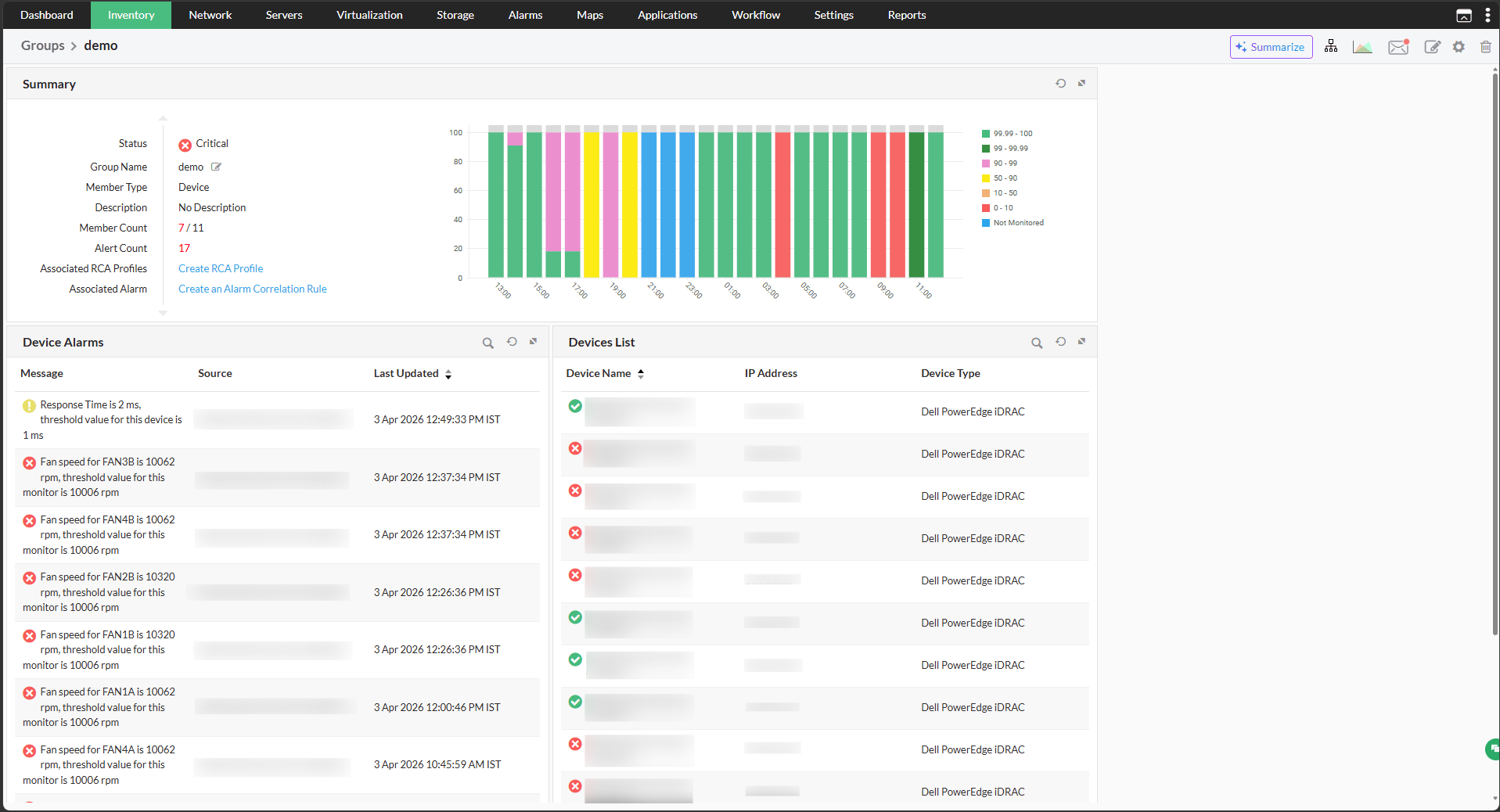
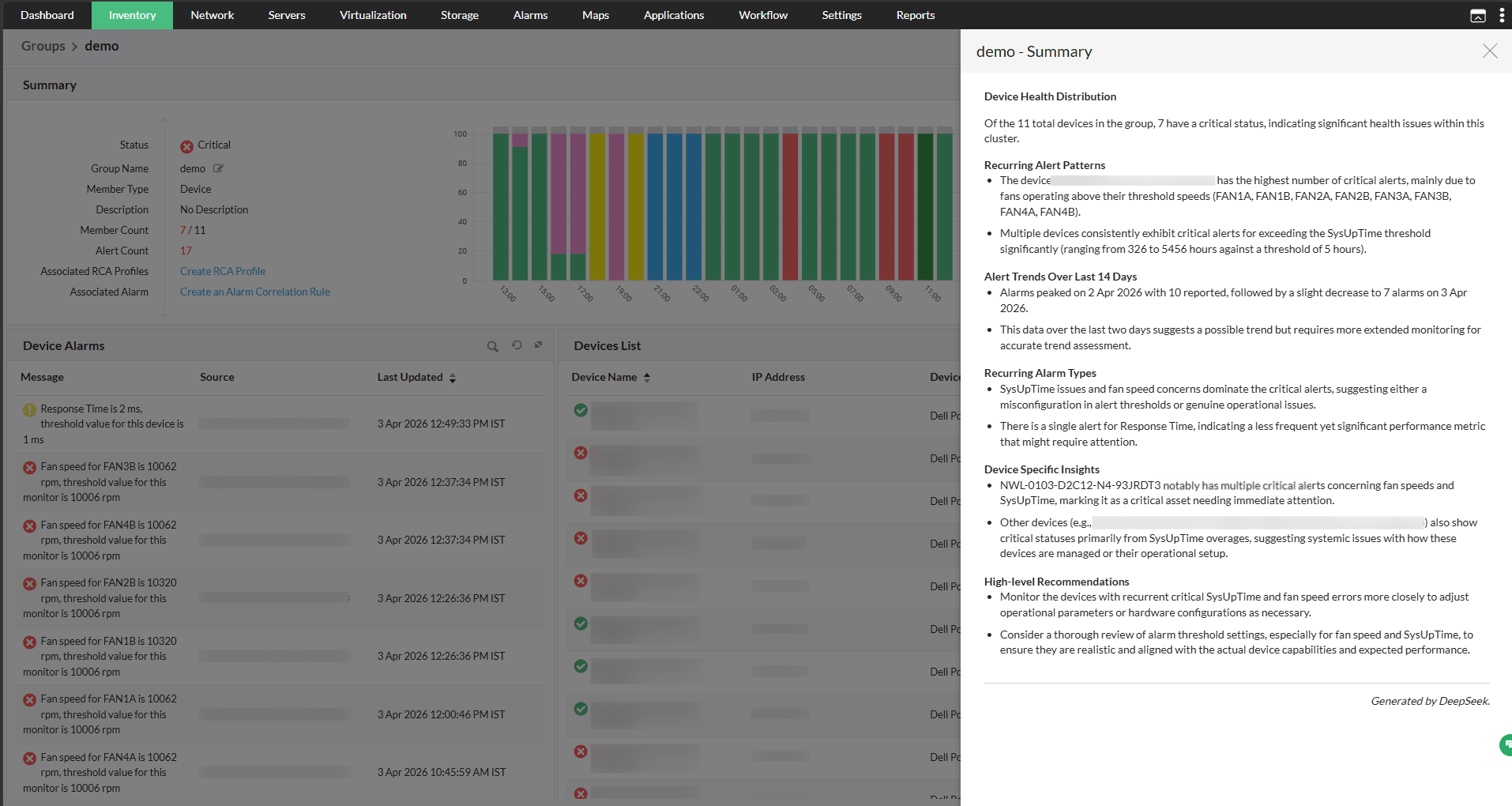
The DeepSeek integration enables AI-generated summaries for device groups in OpManager, providing a consolidated snapshot of device conditions, key performance metrics, and actionable recommendations across all devices within the group. Unlike individual device summaries — which focus on the health and performance of a single device — group-level summaries are better suited for monitoring large network segments, offering a broader view that helps identify patterns and issues across multiple devices at once.
- Go to Settings -> Configurations -> Groups. Device groups can also be accessed directly from the Inventory.
- Select a device group and click the Summarize tab to generate the AI-powered summary.
Device Summary
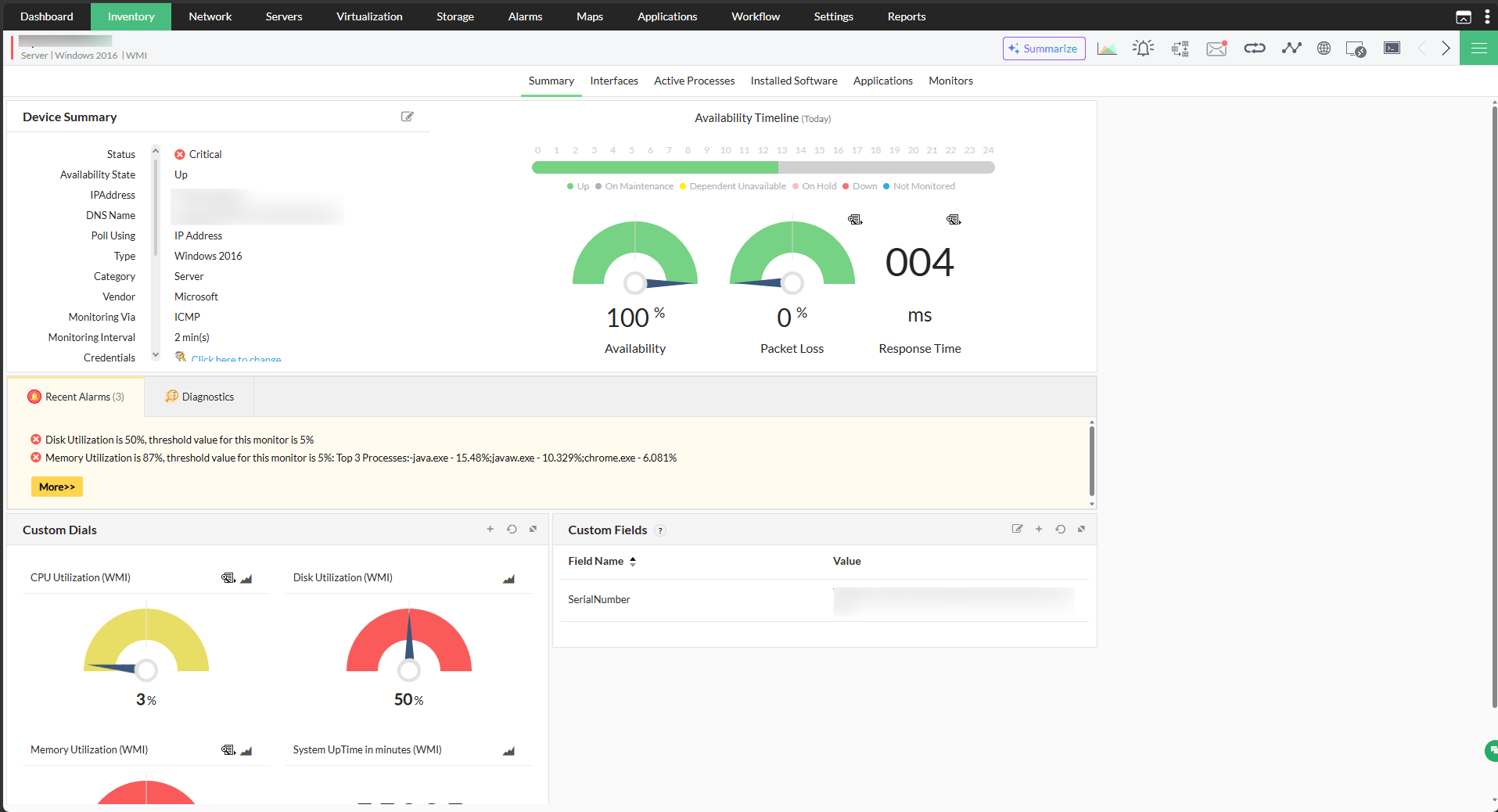
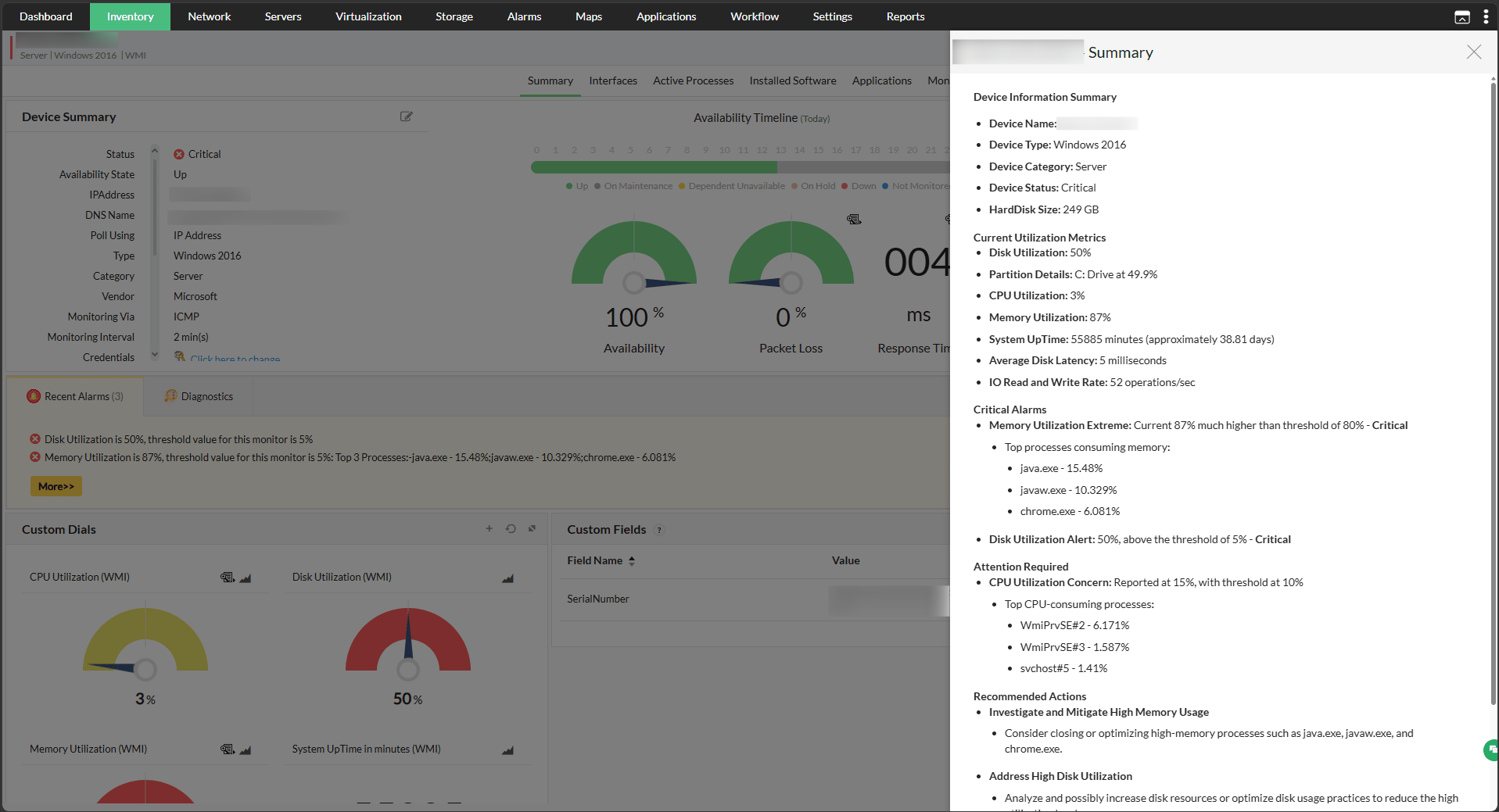
OpManager's DeepSeek integration can also generate a focused summary for any individual device, covering its overall health status and key performance metrics in a single consolidated view.
- Navigate to Inventory and select a device to open its snapshot page.
- Click the Summarize tab within the snapshot page to trigger the AI-generated summary.
Problem Summary
OpManager's DeepSeek integration extends AI analysis to correlated Problems. When related alarms are grouped into a single Problem through
Event Correlation, DeepSeek analyzes the associated alarms and identifies the probable root cause, tagged with a high or medium confidence level, along with suggested remediation steps.
- Navigate to Alarms → Problems and open the Problem you want to analyze.
- Click Analyse with AI to generate the summary.

Script Generation
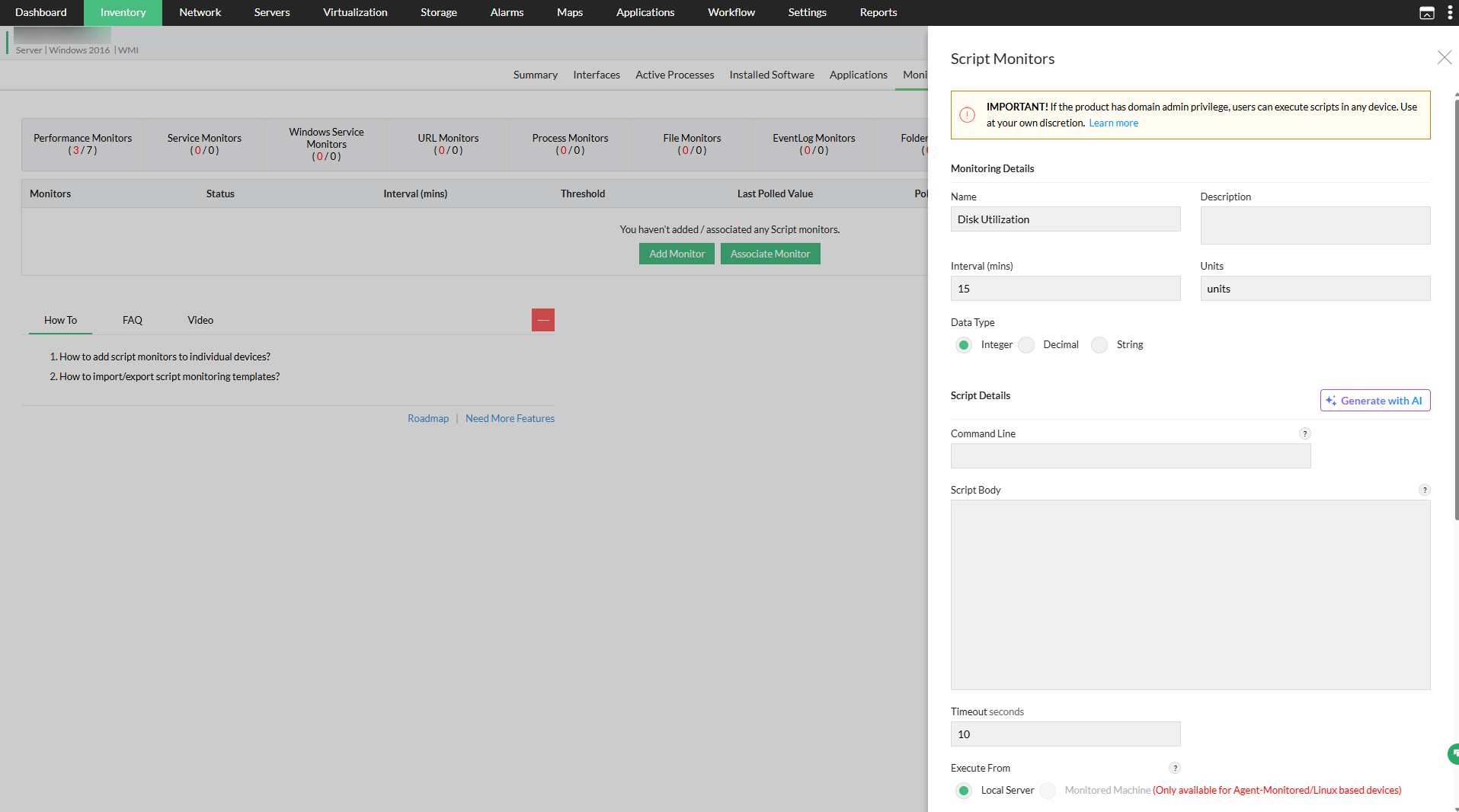
OpManager's script monitoring supports the execution of custom scripts — including PowerShell, Shell, VBScript, Perl, and Python — to monitor devices and capture script outputs as metrics. The DeepSeek integration extends this capability by allowing script templates to be generated automatically using AI. Instead of writing scripts manually, a plain-language prompt can be entered and DeepSeek will produce the required script instantly, simplifying the process of building custom monitoring templates.
- Go to Settings -> Monitoring -> Script Templates.
- Click Add and fill in the required monitoring details.
- Under the Script Details section, click Generate with AI to open the DeepSeek prompt interface.
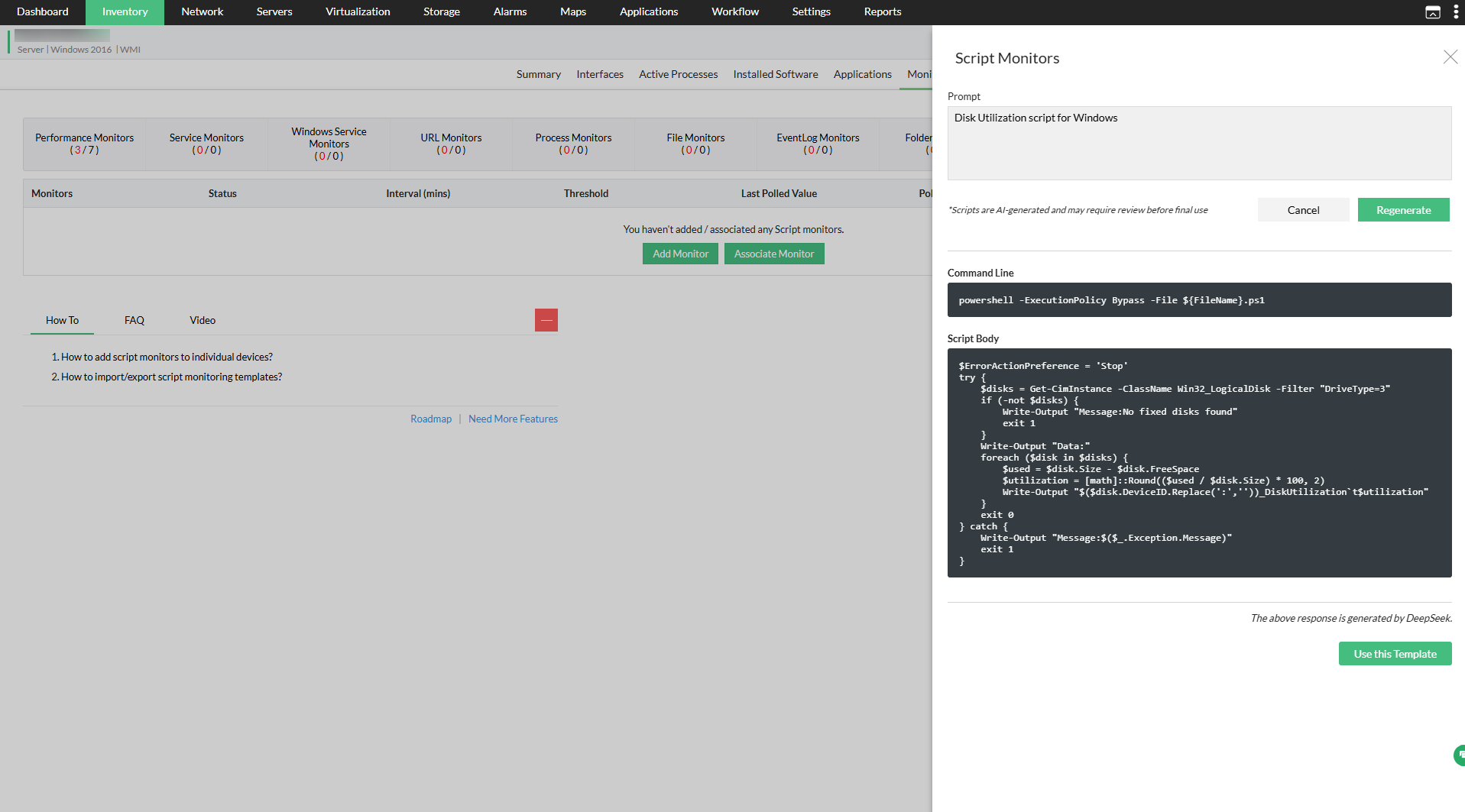
- In the prompt window, enter a description of the script to be generated.
- Click Generate — DeepSeek will process the prompt and produce the script automatically.
- Review the generated script and save it as a template to use for device monitoring.
The OpManager-DeepSeek integration consolidates AI-powered summaries, real-time insights, and automated script generation into a unified workflow — significantly reducing the need for manual analysis and enabling faster, more informed decision-making across network operations.