APNs - OpManager iOS app
OpManager iOS application helps network admins monitor their IT infrastructure on-the-go, 24/7. With the mobile application, users can keep track of the availability and performance of servers, switches, routers and other networking devices.
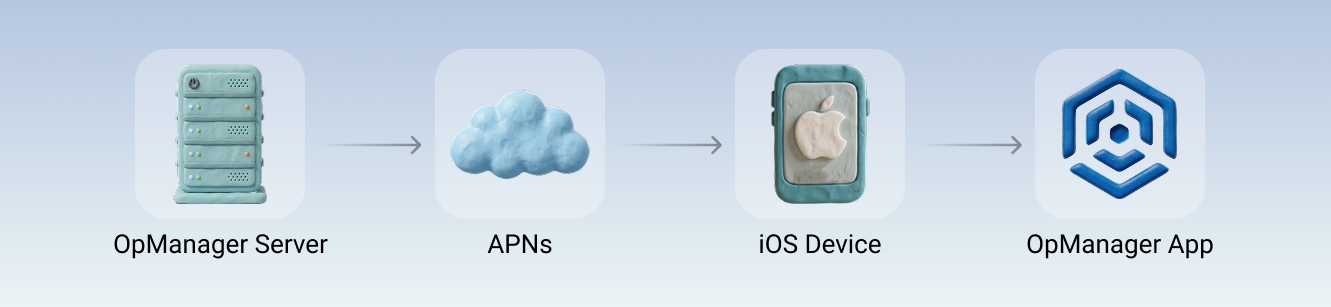
The users of the application are notified of network faults, even when the application is not running, so they are always informed of the network's state. Apple Push Notification service (APNs) is the centerpiece of this remote notifications feature. The APNs acts as a portal between your OpManager server and iOS device for delivering the notification payload to the application.
Push Notification Mechanism
- The OpManager server sends notification request to the APNs.
- APNs transmits the corresponding notification payload to the targeted device.
- When the notification is received by the iOS device, it delivers the notification payload to the OpManager iOS application.
Authorizing OpManager Server
APNS issues a trust certificate - Apple Push Notification Authentication Key to the OpManager server. This key is responsible for authorizing OpManager server to send push notifications to the OpManager application.
Establishing Secure Connection
- For sending push notifications, a secure connection must be established between OpManager and the APNs.
- OpManager requests a secure connection with the APNs.
- The APNs provides an APNs certificate to OpManager, which is validated by OpManager and the secure connection is established.
APNs Certificate
The APNs certificate issued to OpManager is valid for one year. When the APNs certificate expires, OpManager cannot send push notifications to the APNs. This will result in OpManager application being unable to receive notifications from the OpManager server. To ensure this does not happen, the user will be notified 10 days prior to the APNs certificate expiry in the OpManager web client as well as the iOS application.
Solution to APNs Certificate Expiry
Once the APNs certificate expires, a new certificate is issued. This new APNs certificate is updated in the OpManager release. You need to upgrade to the latest OpManager version. For help with updating OpManager, contact our support at opmanager-support@manageengine.com
Note: For iOS notifications to function seamlessly, ensure port 443 is open on the OpManager installed server, with outbound access allowed to api.push.apple.com:443.
To avoid notification overload, you can add filters to shortlist the devices that match the chosen criteria, to select the specific devices you want to receive notifications from on your iOS device.
To configure filters, navigate to More → Settings → Push Notifications and tap Allow.
These are classified as:
- Alarm Severity Filters: You can choose to receive notifications from devices that are under a particular alarm severity (such as Critical and Trouble only)
- Advanced Filters: You can narrow down devices based on their specific properties. These include:
- Device Category, Type, or Vendor: Add these filters to shortlist devices that match a particular device category (such as Servers or Routers only), device type (such as HP Switch or Windows 2016 devices), or a vendor (such as Microsoft devices only)
- Apps and Protocols: These filters show devices that run specific applications or devices that are monitored using a particular set of protocols or credentials (such as devices monitored using SNMP or CLI).
- Business Hours Filter: Notifications can also be restricted to a specific time window and specified days of the week; notifications will be delivered only during the configured hours of the chosen days, ensuring that alerts do not disturb you outside of your working hours. (e.g., receive notifications only between 9:00 AM — 5:00 PM on Monday through Friday.)
Select the device listed from the filter and tap Save.