How can I configure drive-specific thresholds in bulk for partition details monitors?
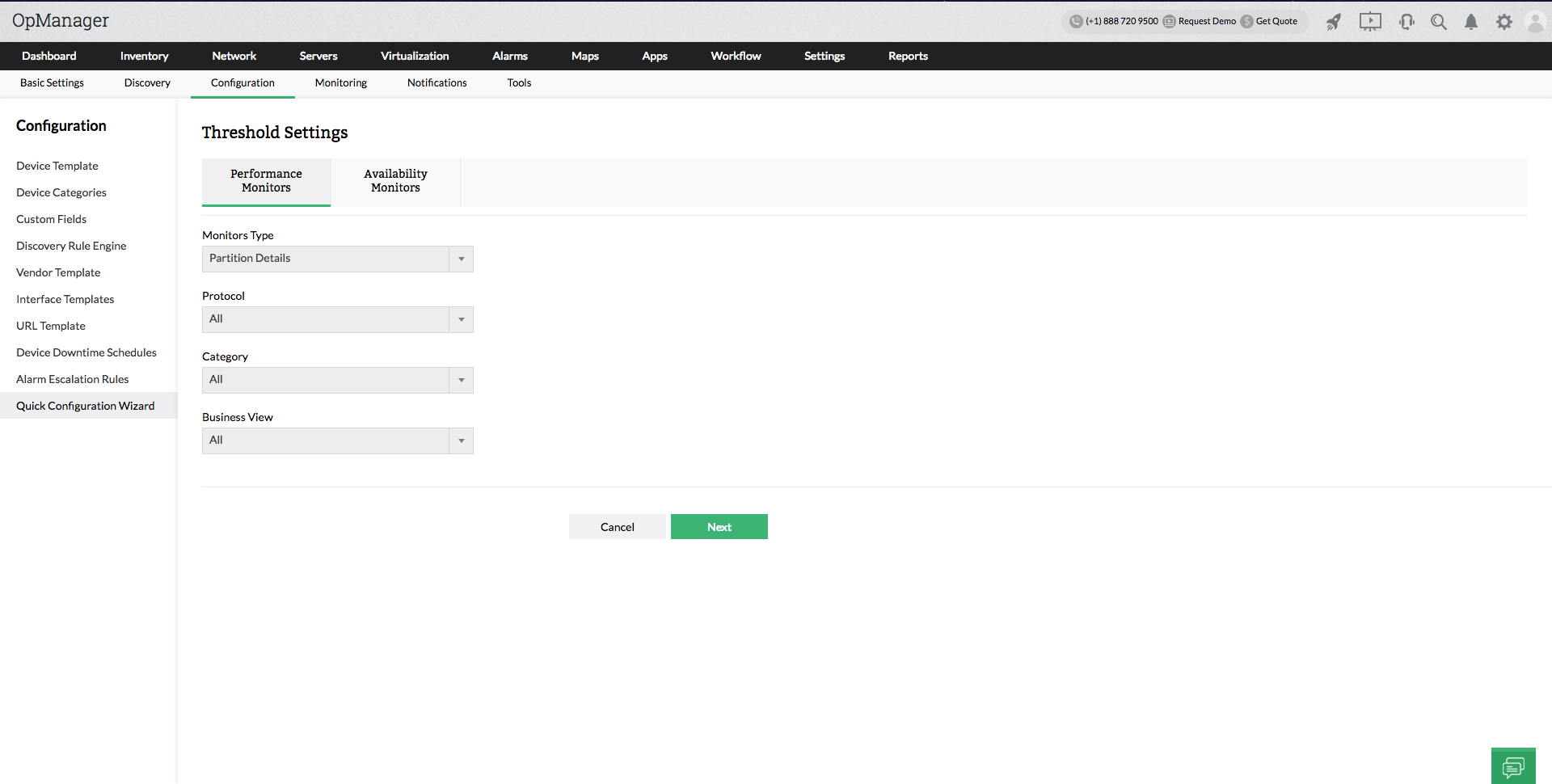
- Go to Configuration > Quick Configuration Wizard > Threshold monitors.
- Under Performance monitors, select monitor type as 'Partition details'.
- You can filter devices based on Protocol, Category and Business view. After providing the necessary criteria, click 'Next'.
- A list of all partitions available based on the criteria you provided will be listed. You can use the search option to narrow down your results further.
- After selecting all the required disks, click on 'Configure'.
- Provide the threshold values that you need to apply to the selected disks. The main parameters that are required here are polling interval & units. Also, you can provide threshold values and messages for the following conditions - Attention, Trouble, Critical and Rearm.
- After you've provided all these details, click on 'Apply and Overwrite' to apply these configuration changes to all the selected partitions.