5 Patch Manager Plus settings to configure before Exploit Wednesday
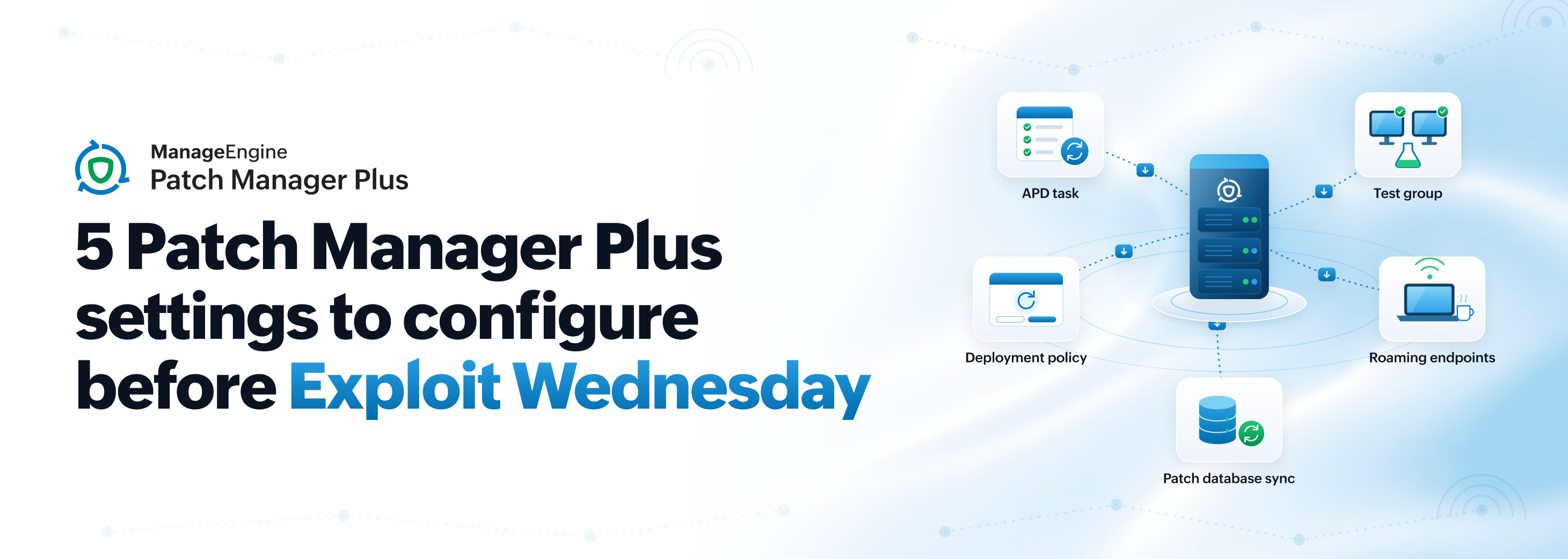
Patch Tuesday gives IT teams fixes. It also gives attackers a map.
When Microsoft publishes its monthly security updates, researchers and threat actors alike can compare patched and unpatched files to pinpoint exactly what was broken. The day after, informally known as Exploit Wednesday, is when working exploits for freshly disclosed flaws start to circulate. Every endpoint that's still unpatched is now a documented target.
You can’t control when exploits appear, but you can control how quickly your environment responds. Here are five Patch Manager Plus settings to configure before the next Exploit Wednesday so your response starts the moment patches are available.
1. Automate Patch Deployment tasks
Every manual step between release and rollout adds delay. Someone has to notice the release, review it, build a task for it, then push it out—and each handoff costs hours.
An Automate Patch Deployment (APD) task takes those handoffs out of the loop. You define the scope once, choosing the severity levels to include and the target groups to patch, and Patch Manager Plus takes each matching patch from detection to deployment on its own.
How to set it up:
Decide what critical means for you: Start with Critical and Important security updates since Microsoft rates its most serious flaws at those two levels.
Pick your targets: Point the task at your Windows endpoints and split servers and workstations into separate tasks if they follow different rules.
Time it to Patch Tuesday: Schedule the task around the monthly release so it’s already waiting when patches drop.
Link the deployment policy: Attach your Patch Tuesday policy so your pilot machines follow the same schedule and reboot rules as the rest of your environment.
Why it matters: Patch Tuesday doesn’t wait on a technician's availability. With an APD task in place, your response starts on schedule, whether or not anyone is online.
2. Test groups with a short auto-approval window
Skipping testing is risky, whereas having a long testing cycle leaves endpoints exposed each day it runs.
With the Test and Approve feature, you create a small group of representative machines that receive new patches first. Patches that install successfully can be approved automatically, while failed installs stay unapproved. Only approved patches flow into your APD tasks.
How to set it up:
Build a small, representative group: Pick one or two machines per major department or OS build instead of a dozen identical ones so the test reflects your real environment.
Turn on automatic approval: Let patches that install successfully in the test group move forward on their own, while failed installs stay blocked.
Shorten the clock: Set the deployment delay for the test group to zero days, then set approval to immediate or one day for critical and actively exploited fixes. Approval delays are set in whole days.
Spot-check your pilot machines: Patch Manager Plus checks for a successful install, but you'll still need to confirm that your line-of-business apps open and behave on the pilot machines as expected before approval kicks in.
Why it matters: A one-day approval delay costs a day of exposure yet buys a day of real use on the pilot machines. With the test running itself, your team only gets pulled in when a patch fails to install or a pilot user reports a problem.
3. A deployment policy built for the Patch Tuesday week
Deployment policies control how and when patches install, including reboot behavior and user notifications. Their Based on Patch Tuesday week split counts weeks starting from the second Tuesday of the month. Under the regular split, the second week is simply days eight to 14. This means that a second-week weekend schedule can fire before Patch Tuesday in certain months, particularly when the Tuesday falls on a later date, such as the 13th.
How to set it up:
Create a dedicated Patch Tuesday policy: Keep it separate from your everyday patching rules so it can be tuned for speed.
Pick the week split: Select Based on Patch Tuesday as the week split, then choose the Patch Tuesday week or the week after if you want a buffer.
Choose your reboot approach on purpose: A common middle ground is to allow a limited postponement, notify users clearly, then enforce the restart.
Attach it to your Patch Tuesday APD tasks: Link it explicitly to your APD tasks so your everyday default policy stays as it is.
Why it matters: A patch that has been installed but is waiting on a restart may not be protecting the machine yet. Users postponing reboots indefinitely quietly widens your exposure window. Patch Manager Plus offers several reboot options, so choose a policy that balances disruption with protection.
4. Coverage for roaming and remote endpoints
Your most exposed devices are often the ones you can’t see on the office network. Laptops that rarely connect to the LAN won’t pick up patches on the schedule your in-office desktops do, yet they’re equally attractive targets.
Patch Manager Plus manages roaming endpoints alongside office and branch machines so that remote devices can be brought into the same process as everything else.
How to set it up:
Find the stragglers: List the agent-managed devices that rarely touch the corporate network.
Confirm they’re in scope: Make sure those endpoints are included in your APD tasks.
Plan for offline devices: Wake-on-LAN (WoL) brings up sleeping machines on the corporate LAN and WAN. For roaming devices, check that your deployment policy lets them catch up when they reconnect.
Measure them separately: Look at remote-device patch rates on their own since they can hide behind a healthy overall number.
Why it matters: An attacker only needs one unpatched device to get a foothold. Bringing remote machines into the process closes a gap your office network numbers won’t show you.
5. Frequent patch detection and scanning
Everything above depends on Patch Manager Plus knowing which patches exist and which machines need them. If your patch database sync or endpoint scans run infrequently, your deployment tasks are working from stale information.
How to set it up:
Check your patch database sync time: The sync runs daily at a time you choose. Set it to run after the Patch Tuesday updates reach the central repository.
Let the scan follow the sync: Endpoints are scanned against your local patch database, so a scan that runs before the sync finishes will miss the new patches.
Match scans to your APD timing: A scan that finishes after your deployment task starts leaves the task working from old data.
Confirm the downloads: On Wednesday morning, check that the new patches show as downloaded to the server before your APD window opens.
Why it matters: A fresh scan turns Patch Tuesday from a guess into a list that clearly shows which machines are missing which patches. This clarity lets you answer where your environment stands by Wednesday morning.
Bonus: Don’t forget third-party apps
Exploit Wednesday centers on Microsoft fixes, yet Adobe and other vendors also ship security updates on Patch Tuesday. Moreover, attackers regularly target browsers and PDF readers. Patch Manager Plus covers third-party applications alongside operating systems, so add them to the same APD scope instead of running a separate process.
A workflow that runs itself every month
Once these five settings are in place, each Patch Tuesday starts on a schedule you've defined. This ensures that your deployment is already underway by the time Exploit Wednesday arrives and that your team only gets pulled in for exceptions.
Ready to see it in action? Start your free trial of Patch Manager Plus and have your first automated Patch Tuesday workflow in place before the next release.