Windows 10 22H2 Feature Pack Deployment
Deploy Windows 10 22H2 with Patch Manager Plus by verifying prerequisites, adding the correct ISO dependency to the patch store, and deploying the feature pack manually or through automated deployment.
- Released in October 2022
- What's new in Windows 10 22H2?
Steps to deploy Windows 10 22H2 update
Prerequisites to deploy Windows 10 22H2 updates
- Before deployment, run through the Compatibility Check available towards the end of the page, to find if you meet all the minimum requirements that impact upgradeability.
- Ensure that feature pack option is enabled under Patch database settings.
In Endpoint Central: Patch Mgmt → Settings → Patch Database Settings → click on the Windows tab and enable the Feature Pack option.
In Patch Manager Plus: Admin → Settings → Patch Database Settings → click on the Windows tab and enable the Feature Pack option. - Ensure that you have not declined the feature pack updates under Decline Patches.
Downloading the dependency patch (ISO file) and adding/uploading
Windows 10 22H2 Enterprise Edition
Follow the steps below to download the ISO image:
- Download Windows 10 22H2 ISO file from the Volume Licensing Service Center or by referring to this page.
- If you're using Patch Manager Plus builds 10.1.2282.6 and above:
- Method 1:
- Click on Upload near the Download failed error message
- In the pop-up window, browse and select the file to upload
- Choose between the Checksum types (MD5 and SHA256)
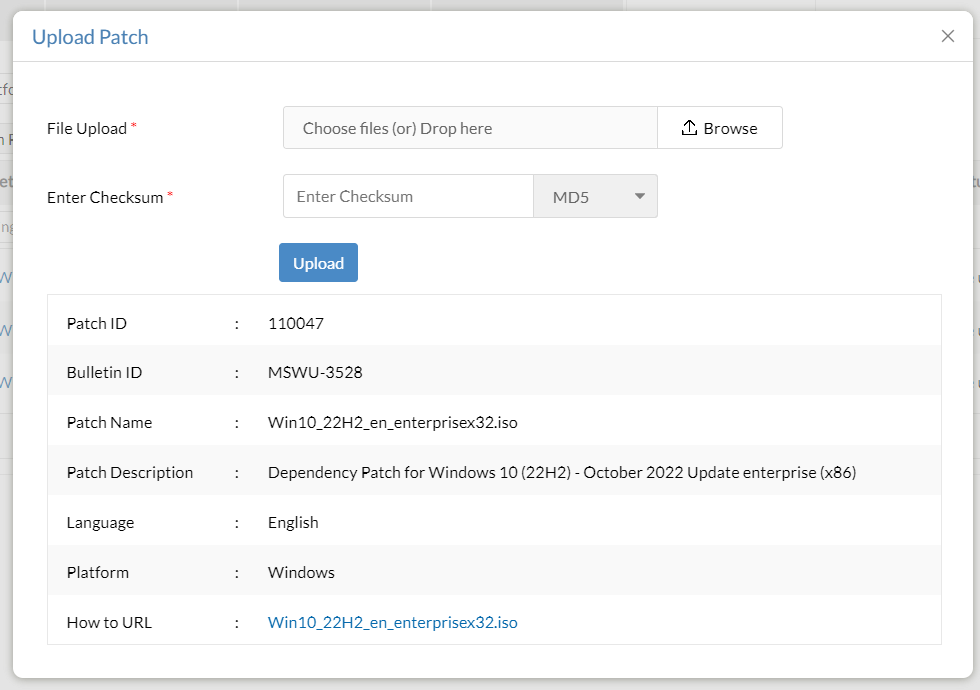
Windows 10 22H2 Enterprise ISO upload and checksum fields - Enter the checksum and wait for it to be validated
- Once validated, click on Upload
- Once the patch has been uploaded, it can be installed
- Method 2:
- Navigate to Patches → Downloaded Patches and search for the necessary patches
- Click on Upload (under Action)
- Once the upload windows pops-up, follow the steps mentioned above, to upload the patches
- Method 1:
- If you're using Patch Manager Plus builds 10.1.2282.6 and above:
- Method 1:
- Click on Upload near the Download failed error message
- In the pop-up window, browse and select the file to upload
- Choose between the Checksum types (MD5 and SHA256)
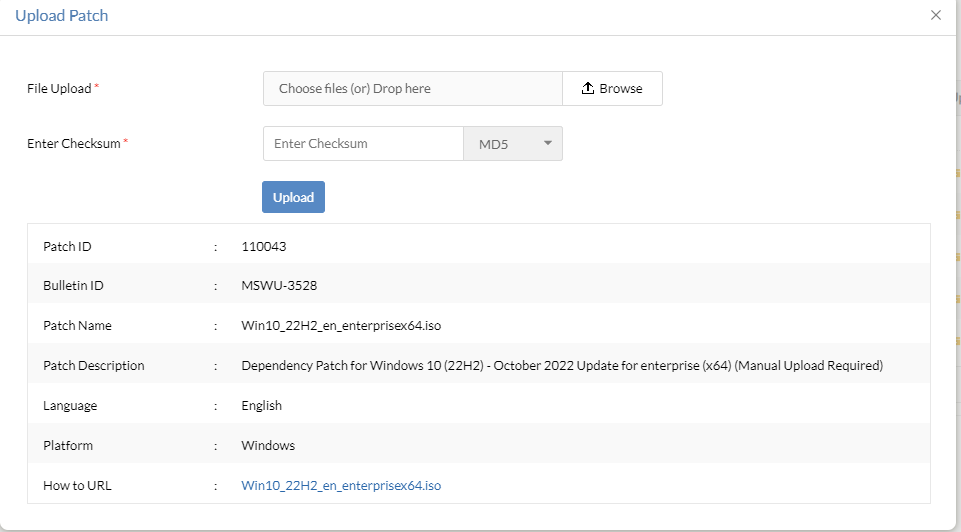
Windows 10 22H2 Enterprise patch details - Enter the checksum and wait for it to be validated
- Once validated, click on Upload
- Once the patch has been uploaded, it can be installed
- Method 2:
- Navigate to Patch Mgmt → Downloaded Patches and search for the necessary patches
- Click on Upload (under Action)
- Once the upload windows pops-up, follow the steps mentioned above, to upload the patches
- Method 1:
If you're using Patch Manager Plus builds below 10.1.2282.6 and Endpoint Central builds below 10.1.2282.6:
- Download Windows 10 22H2 ISO file from the Volume Licensing Service Center or by referring to this page.
- Navigate to the patch store: to find the patch store location in Endpoint Central, navigate to Patch Management → Downloaded Patches → Settings → Patch Repository Location.
- To find the patch store in Patch Manager Plus, navigate to Patches → Downloaded Patches → Settings → Patch Repository Location.
- To find the patch store in Vulnerability Manager Plus, navigate to Patches → Downloaded Patches → Settings → Patch Repository Location.
- Copy the downloaded ISO file manually into the patch store directory, and rename the ISO file as given below:
Language-English:
- 32 Bit: 110047-Win10_22H2_en_enterprisex32.iso
- 64 Bit: 110043-Win10_22H2_en_enterprisex64.iso
Endpoint Central, Patch Manager Plus, and Vulnerability Manager Plus support the deployment of feature packs for multiple languages. Click here to view the ISO setup file for the language of your choice.
Windows 10 22H2 Professional Edition
Follow the steps below to download the ISO image:
- Download Windows 10 22H2 ISO file from the Volume Licensing Service Center or by referring to this page.
- If you're using Patch Manager Plus builds 10.1.2282.6 and above:
- Method 1:
- Click on Upload near the Download failed error message
- In the pop-up window, browse and select the file to upload
- Choose between the Checksum types (MD5 and SHA256)
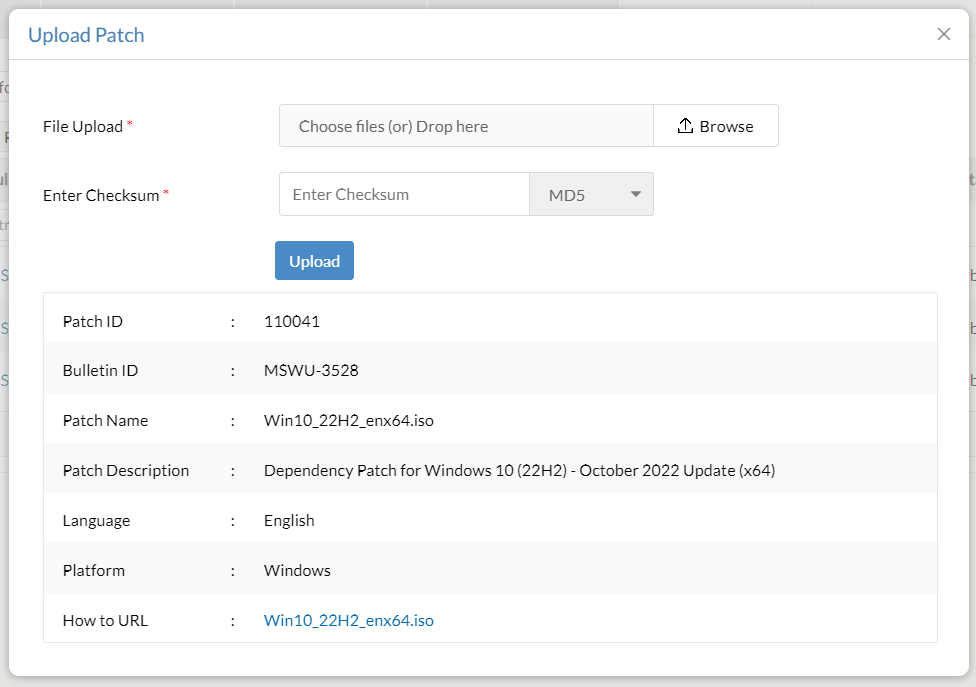
Windows 10 22H2 ISO upload and checksum fields - Enter the checksum and wait for it to be validated
- Once validated, click on Upload
- Once the patch has been uploaded, it can be installed
- Method 2:
- Navigate to Patches → Downloaded Patches and search for the necessary patches
- Click on Upload (under Action)
- Once the upload windows pops-up, follow the steps mentioned above, to upload the patches
- Method 1:
- If you're using Endpoint Central builds 10.1.2282.6 and above:
- Method 1:
- Click on Upload near the Download failed error message
- In the pop-up window, browse and select the file to upload
- Choose between the Checksum types (MD5 and SHA256)
Windows 10 22H2 ISO upload and checksum fields - Enter the checksum and wait for it to be validated
- Once validated, click on Upload
- Once the patch has been uploaded, it can be installed
- Method 2:
- Navigate to Patch Mgmt → Downloaded Patches and search for the necessary patches
- Click on Upload (under Action)
- Once the upload windows pops-up, follow the steps mentioned above, to upload the patches
- Method 1:
If you're using Patch Manager Plus builds below 10.1.2282.6 and Endpoint Central builds below 10.1.2282.6:
- Download Windows 10 22H2 ISO file from Volume Licensing Service Center or by referring to this page.
- Navigate to the patch store: to find the patch store location in Endpoint Central, navigate to Patch Management → Downloaded Patches → Settings → Patch Repository Location.
- To find the patch store in Patch Manager Plus, navigate to Patches → Downloaded Patches → Settings → Patch Repository Location.
- To find the patch store in Vulnerability Manager Plus, navigate to Patches → Downloaded Patches → Settings → Patch Repository Location.
- Copy the downloaded ISO file manually into the patch store directory, and rename the ISO file as given below:
Language-English:
- 32 bit: 110045-Win10_22H2_enx32.iso
- 64 bit: 110041-Win10_22H2_enx64.iso
Endpoint Central, Patch Manager Plus, and Vulnerability Manager Plus support the deployment of feature packs for multiple languages. Click here to view the ISO setup file for the language of your choice.
Other Windows 10 22H2 Editions
For Patch Manager Plus build versions 10.0.429 and above
- Navigate to Patch Management → Patches → Supported Patches and search for Patch ID 110045 (for 32-Bit) or 110041 (for 64-Bit).
- Select the appropriate patch and click on "Download Patches". This will automatically download the appropriate ISO file.
- After downloading the patch, proceed to the feature pack deployment steps given in the next section.
For Patch Manager Plus build versions 10.0.428 and below
- Update to the latest build version to automate ISO file download.
For Patch Manager Plus build version 10.0.545 and above
- Navigate to Patches → Supported Patches and search for Patch ID 110045 (for 32-Bit) or 110041 (for 64-Bit).
- Select the appropriate patch and click on "Download Patches". This will automatically download the appropriate ISO file.
- After downloading the patch, proceed to the feature pack deployment steps given in the next section.
For Patch Manager Plus build versions 10.0.426 and below
- Update to the latest build version to automate ISO file download.
For Patch Manager Plus 10.0.598 and above
- The ISO file download is automated in Patch Manager Plus (except for Windows 10 22H2 Enterprise Edition). Follow the steps here to enable the automatic download of the ISO image.
- After enabling, proceed directly to the feature pack deployment step.
For Patch Manager Plus build versions 10.0.351 and below
- Update to the latest build version to automate ISO file download.
Manual download of ISO file
- Download Windows 10 22H2 ISO file from Volume Licensing Service Center or from here.
- Navigate to Patch Management → Downloaded Patches → Settings → Patch Repository Location to find the patch store location.
- Copy the downloaded ISO file manually into the patch store directory, and rename the ISO file as given below:
Language - English
- 32 Bit: 110045-Win10_22H2_enx32.iso
- 64 Bit: 110041-Win10_22H2_enx64.iso
Endpoint Central, Patch Manager Plus, and Vulnerability Manager Plus support the deployment of feature packs for multiple languages. Click here to view the ISO setup file for the language of your choice.
Deploy the Windows 10 version 22H2 updates
Manual deployment
For users below Windows 10, version 2004
- In the server web console, navigate to Missing Patches view.
- Choose the Windows 10 22H2 feature pack patches you wish to deploy.
Patch ID details:
- 110048 - Windows 10 22H2 Enterprise Edition - 32 Bit
- 110044 - Windows 10 22H2 Enterprise Edition - 64 Bit
- 110046 - Other Windows 10 22H2 Editions - 32 Bit
- 110042 - Other Windows 10 22H2 Editions - 64 Bit
110037 - Feature Update Windows 10 22H2 via Enablement Package (20H2/21H1/21H2 - 22H2) (x86)
110036 - Feature Update Windows 10 22H2 via Enablement Package (20H2/21H1/21H2 - 22H2) (x64)
Click Install Patch to deploy them.
For users above Windows 10, version 2004
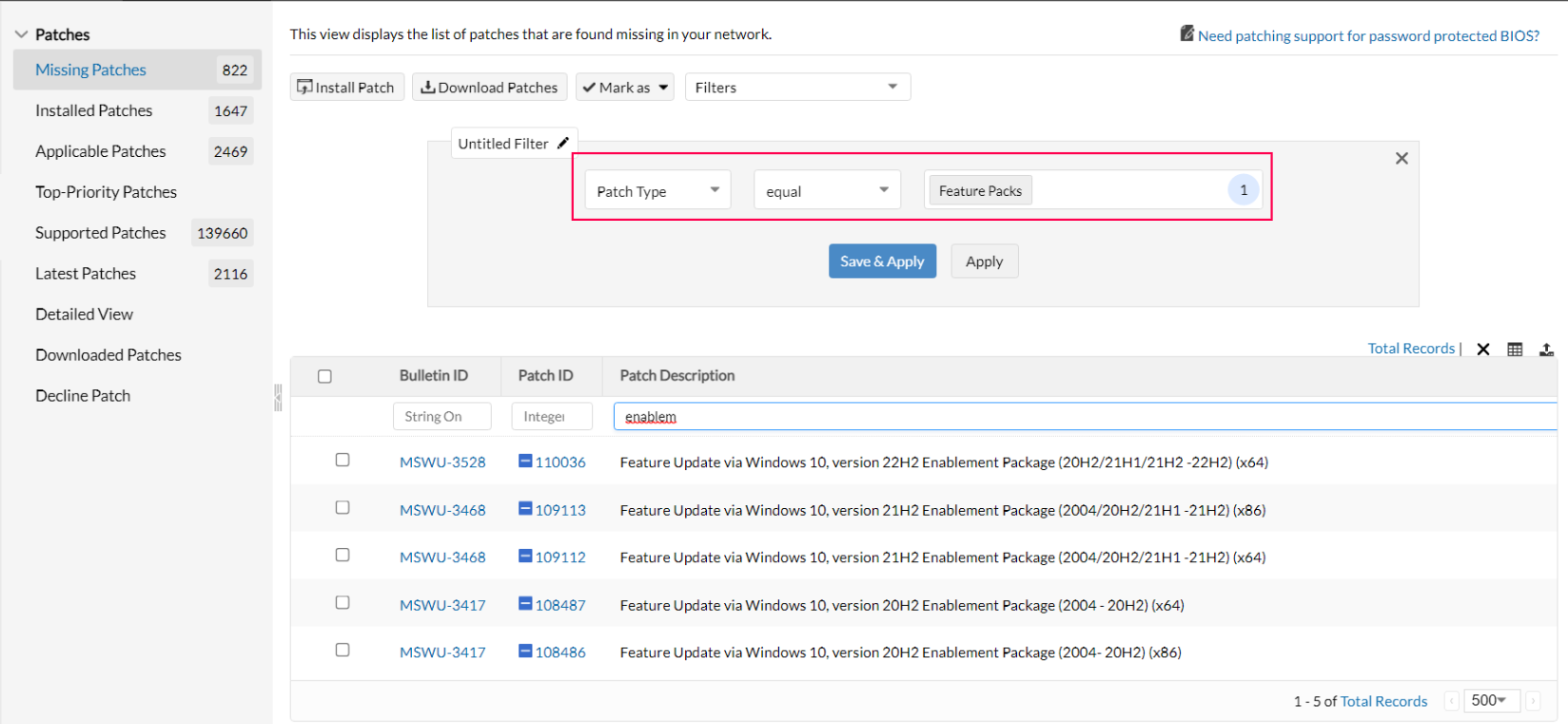
- In the server web console, navigate to Patches > Missing Patches.
- You can filter based on Patch Type - equal - Feature Packs.
- Choose the feature updates you wish to deploy.
- Click Install Patches to deploy them.
- Windows 10, version 20H2
- Windows 10, version 21H1
- Windows 10, version 21H2
Enablement Package patch ID details:
Automated Deployment
- To create an APD task for deploying feature packs, make sure to select the feature pack check box while defining the patch task.
- Once the dependency patch is downloaded and stored in the Patch Store, "Feature Packs" will be successfully deployed to the target computers during the subsequent deployment window. A separate configuration can be created for the particular patch on demand.
Are you facing issues while installing or upgrading to Windows 10 22H2? Refer knowledge base for resolution.
Language-wise ISO file name table
Below table contains the language wise ISO file name. Rename the ISO file name based on the language of your choice before deployment.
FAQs
The 22H2 Windows update is the latest feature pack update for Windows 10 and 11 versions from 21H2.
The Windows 10 22H2 feature update is an update of the Windows 10 OS to the latest version from 21H2. It includes general improvements, bug fixes and security updates to enhance the end-user experience.
The Windows 10 22H2 update comprises of security updates and bug fixes. To get complete info on what's new in Windows 10 22H2, refer here.
Refer the following knowledge base for information on