Download Service Pack/Hotfix
We recommend users to move to the latest version, Patch Manager Plus build #- (Learn what's new!)
The SHA256 checksum hash value is -. Learn more!
For steps to install the service packs, click here.
- If your build number isUpgrade to Build NumberSHA256 Checksum hash value
- 10.0.325 to 10.0.716Download and upgrade to 10.1.2119.10 .0e6cd3e7c616c55274ab849707874a13cef42d55e3160d5c4383b628ee76609e
- 10.1.2119.10 to 11.1.2246.01Download and upgrade to 11.2.2300.27 .bafd04cb519cee81742181fa5213eb55f316bddd598fc987231578c92355df08
- 11.2.2300.01 to 11.2.2350.01Download and upgrade to 11.3.2400.36 .608363a6fde9840a9a65e88b155214366ee7099b949e251cf02546b8d340d277
- 11.3.2400.01 to 11.3.2445.01Download and upgrade to 11.4.2500.42 .c734d36a0c97bbfc186a246da02aa2d50aa545c5d443474e0fb3ec27dd1fb1bd
- 11.4.2500.01 to 11.4.2550.01Download and upgrade to -.-
- 11.5.2600.01 to -Download and upgrade to -.-
To find the build number in Patch Manager Plus, click the profile icon in the top-right corner or go to Support > General Details > Product Information > Build Version.
How to Apply Service Packs / Hotfixes
Step 1: Identify Your Setup
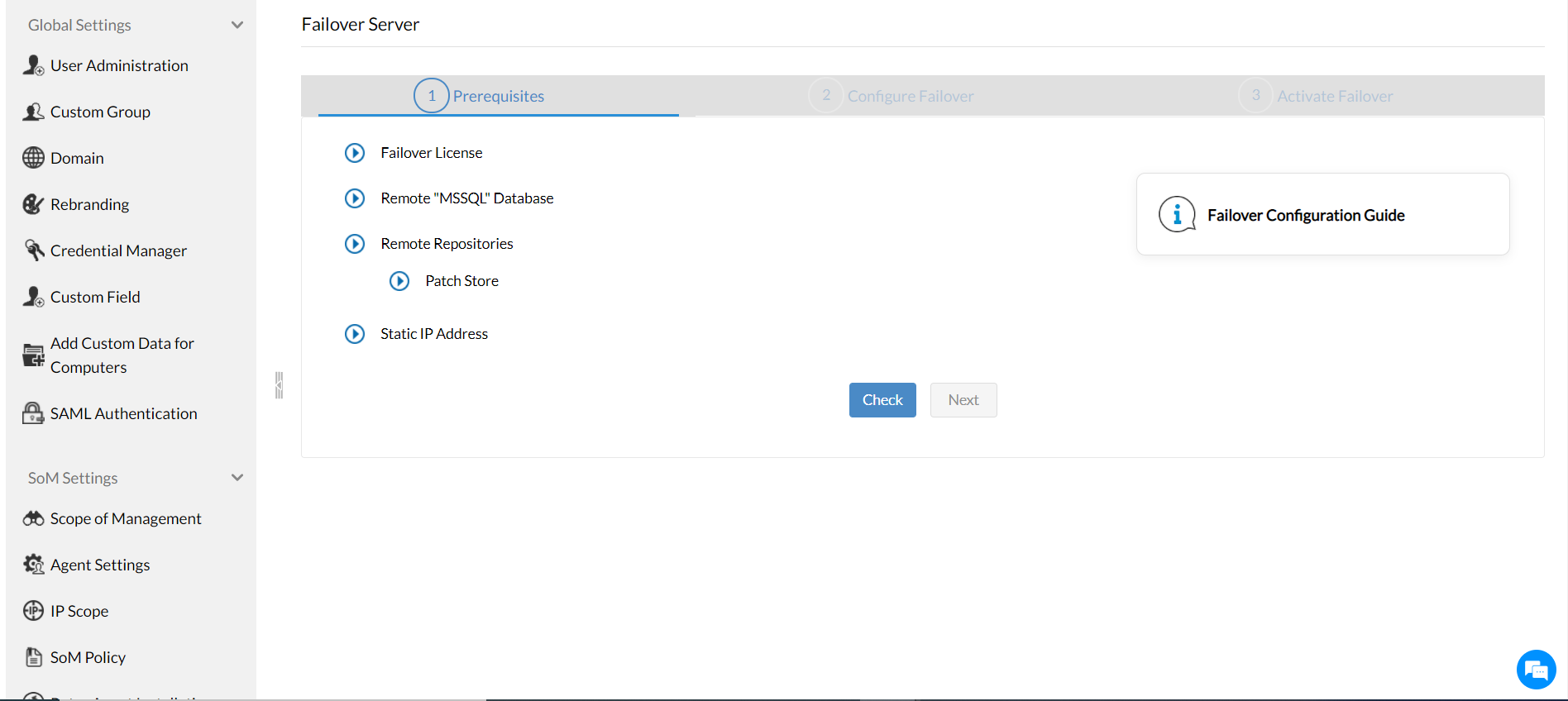
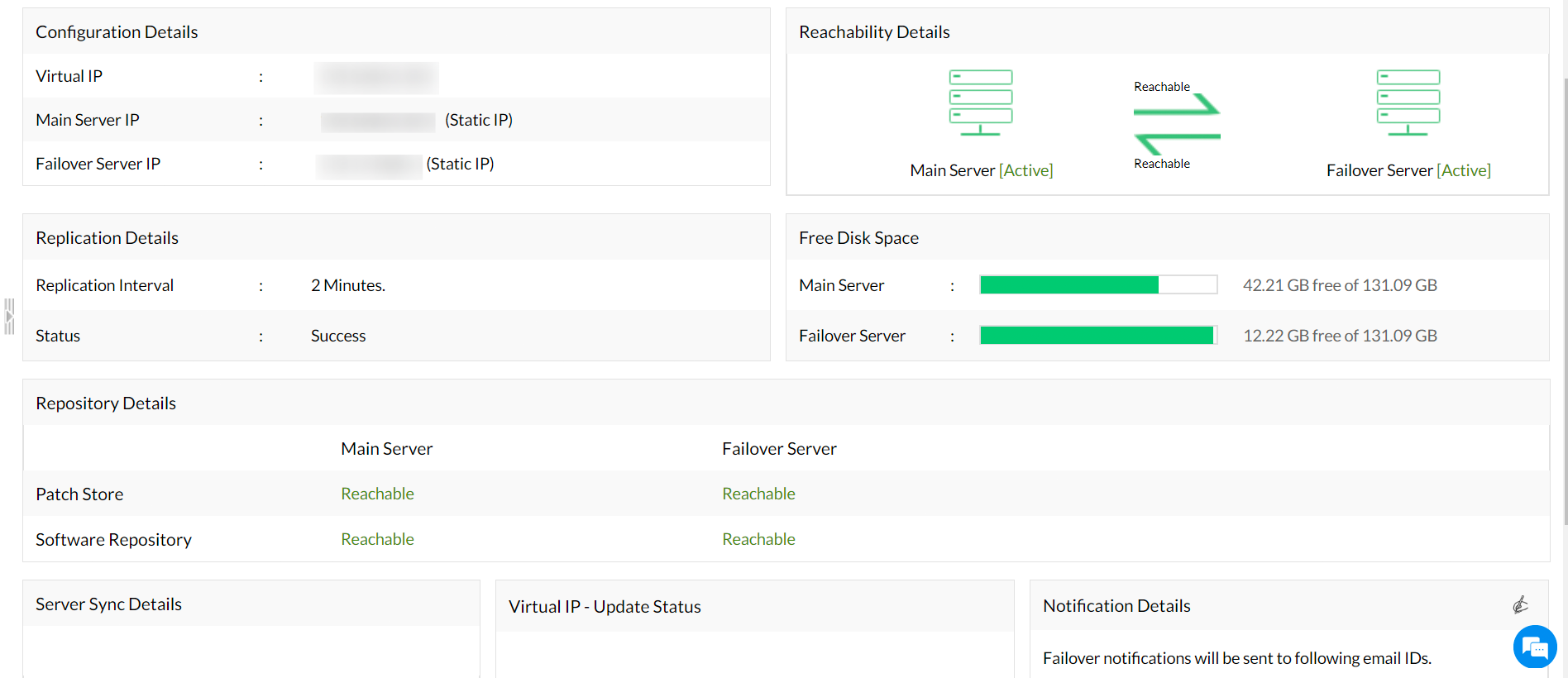
Go to Admin > Server Settings > Failover Server in the web console.
- If no Failover Server is set up, you'll see this:
- If you have a Failover Server setup, you'll see this:
If you do not have a Failover Server setup:
- Stop the Patch Manager Plus service:
Right-click the system tray icon or use
services.msc→ Find "ManageEngine Patch Manager Plus Server" → Stop the service. - Note: If you have to install a couple of service packs and hotfixes to reach the latest version, it is recommended to exit the Update Manager tool for every PPM installation.
- Navigate to
<Install_Dir>/binand run UpdateManager.bat. - Click Browse, select the downloaded
.ppmfile, and click Install. - Wait for the update to complete. Then click Close and exit the Update Manager.
- Start the Patch Manager Plus service again.
If you do have a Failover Server setup:
Note: Apply the update only to the primary server. The secondary will update automatically.
- Stop the Secondary server first via system tray or
services.msc→ Find ManageEngine Patch Manager Plus Server on the secondary machine → Stop the service. - On the secondary server, navigate to
<Install_Dir>/binand execute SecondaryServerPPMHandler.bat.Note: If your secondary server version is below 10.1.2137.03, skip this step and proceed to the next.
- Once the secondary server is fully stopped, stop the Primary server via system tray or
services.msc→ Find ManageEngine Patch Manager Plus Server → Stop the service.Tip: To locate the installation directory, open
services.msc→ double-click ManageEngine Patch Manager Plus Server → the service properties will display the install path. - Navigate to
<Install_Dir>/binon the primary server and run UpdateManager.bat. - Click Browse, select the downloaded
.ppmfile, and click Install. Wait for the update to complete, then click Close and exit the Update Manager.Note: If the upgrade fails, it will automatically revert to the previous version.
- Start the Primary server first. Once it is fully up and running, start the Secondary server.
Need Help?
If you need assistance updating to the latest build, write to us at: patchmanagerplus-support@manageengine.com