Application Credential Injection in PAM360 Remote Connect
PAM360 supports automatic password injection for third-party thick-client applications through the Application Credential Injection feature in the PAM360 Remote Connect desktop client. This feature enhances both security and usability by eliminating the need for users to manually enter or manage complex passwords when connecting to target systems or database servers.
With Application Credential Injection, users can seamlessly launch supported third-party applications without manually entering credentials or connection details. During the connection process, the required credentials are securely retrieved from PAM360 and injected into the target application at runtime, ensuring that sensitive credentials are never exposed to the user.
Supported Applications
PAM360 currently supports automatic credential injection for the following applications:
For the database servers such as MS SQL Server, MySQL, Oracle, PostgreSQL, and more:
- DBeaver (version 26.1.1)
- MySQL Workbench (version 8.0.47)
- SQL Server Management Studio (version 20)
- PL/SQL Developer (version 16.0.8)
- Oracle SQL Developer (version 24.3.1)
- Toad for Oracle (version 26.1)
For the SAP ERP systems:
- SAP GUI (version 770)
For SSH/SFTP servers:
- WinSCP (version 6.5.6)
1. Prerequisites
1.1 Database Servers
To successfully establish session to target database servers using the Application Credential Injection feature, ensure the following requirements are met:
- The PAM360 Remote Connect application installed machine should have seamless connectivity to both the PAM360 server and the target database servers.
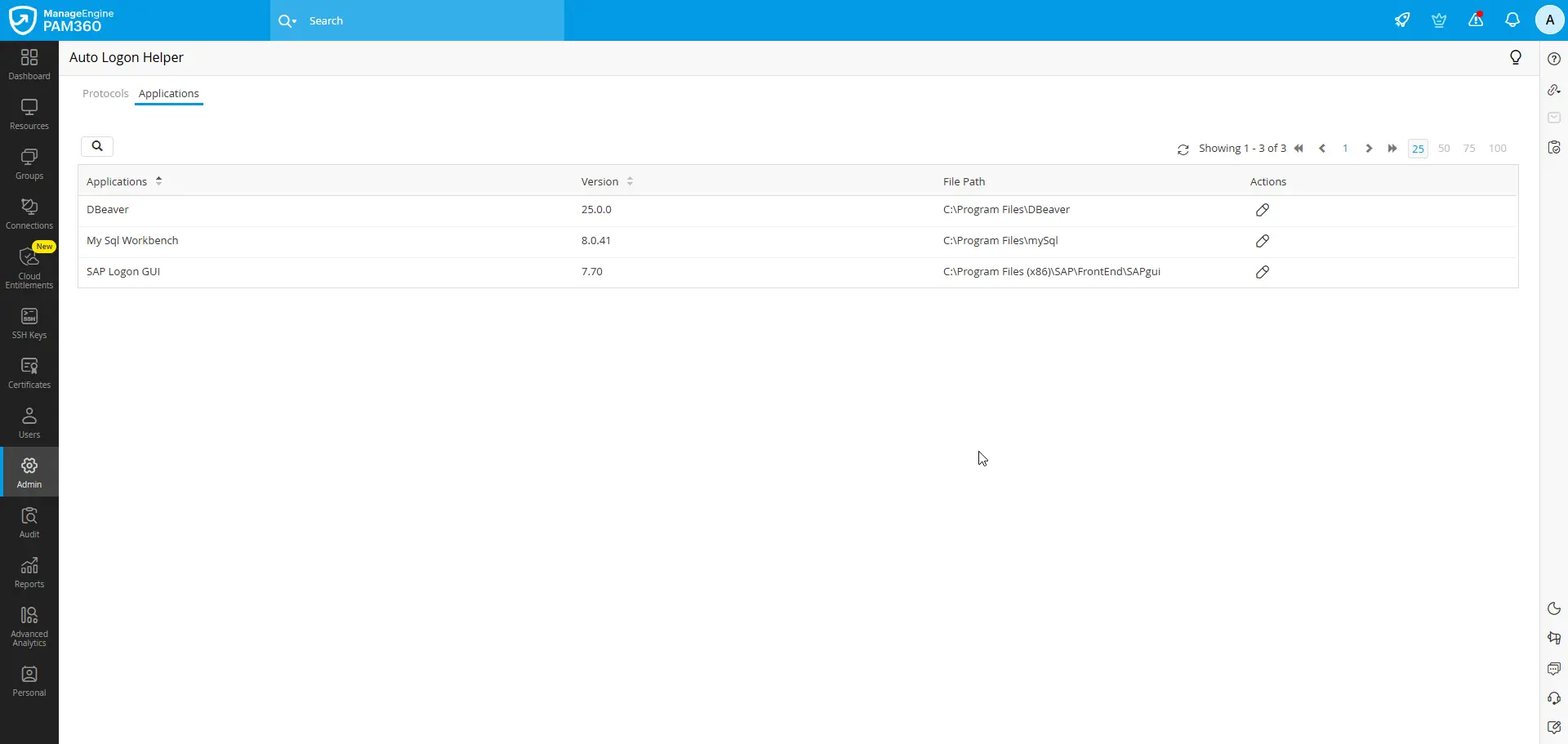
- The third-party thick-client applications should be installed on the machines, where the PAM360 Remote Connect client is running and accessible at the same directory (specified on the Admin >> Privileged Session >> Auto Logon Helper >> Applications page in PAM360) across all the installed machines as this path is used to launch and autofill passwords for remote connections. Refer to this section for details about configuring the file path for the application as needed.
- Ensure that the third-party thick-client applications are set to use English as the interface language.
- To ensure Application Credential Injection works during remote connections to target database servers, the PAM360 server should have a valid web server certificate.
- The target database servers should be added as resources in PAM360. While adding the resources, ensure the following factors:
- Details such as Username, Password, Hostname, and Port should be configured correctly.
- The Default Database field must exactly match the actual name of the target database. For Oracle database servers, the value configured as the Default Database in PAM360 should be the service name of the database, not the SID. For MS SQL database servers, this value should be the instance name of the database.
- Remote Login Credential should be configured for each database server in PAM360. This is essential to allow PAM360 Remote Connect to retrieve the port details for the database server from PAM360 for the autofill support during the remote connection to the database servers through thick-client applications.
- For MS SQL database authentication, only non-SSL connections are currently supported when using thick-client applications like DBeaver via PAM360 Remote Connect. Ensure that the target MS SQL database does not enforce SSL or require client certificates, as these configurations are not currently supported.
- For MySQL database servers, the RSA public key retrieval property should be enabled to establish a connection to MySQL database servers (initial versions) using third-party thick-client applications for password autofill via PAM360 Remote Connect.
- For Oracle database servers,
- The password autofill is currently supported only for authentication with the privilege set to Normal. Therefore, ensure the role type is set to Normal before initiating the connection using applications like Toad for Oracle, PL/SQL Developer, Oracle SQL Developer, DBeaver, or MySQL Workbench via PAM360 Remote Connect.
- The resource should be configured to use a Direct connection, as TNS and LDAP connection types are not currently supported. Therefore, ensure the connection type is set to Direct before initiating a connection using applications like Toad for Oracle and Oracle SQL Developer via PAM360 Remote Connect.
- For connections through SQL Server Management Studio (SSMS),
- The supported encryption types are Strict, Mandatory, and Optional. The encryption type used depends on the connection mode set in the Remote Password Reset Configuration window in PAM360:
- If the connection mode is Non-SSL, the connection uses Optional encryption mode.
- If the connection mode is SSL, the connection uses Strict or Mandatory encryption mode.
- Only SQL Server Authentication is supported for launching remote connections to target database servers using the SSMS application through PAM360 Remote Connect's Application Credential Injection feature.
- The supported encryption types are Strict, Mandatory, and Optional. The encryption type used depends on the connection mode set in the Remote Password Reset Configuration window in PAM360:
1.2 SAP ERP Systems
To successfully establish session to the SAP GUI using the Application Credential Injection feature, ensure the following requirements are met:
- The PAM360 Remote Connect application installed machine should have seamless connectivity to the PAM360 servers.
- SAP GUI version 770 or later should be installed on the machine running the PAM360 Remote Connect client. The SAP executable should be accessible from the same directory path configured on the Applications page in PAM360. PAM360 uses this path to launch the SAP client on the user’s machine and automatically inject credentials during application sessions. For guidance on configuring the application file path, refer to the relevant section.
- Ensure that the SAP application is set to use English as the interface language.
- The SAP application should be added as resources in PAM360 with the relevant System ID, Client number, Username and Password.
- To ensure Application Credential Injection works during SAP sessions from PAM360 Remote Connect, the PAM360 server should have a valid web server certificate.
1.3 SSH/SFTP Servers
To use WinSCP via PAM360 Remote Connect for establishing a session to target servers, ensure the following requirements are met:
- The supported resource types are Windows, Linux, and Windows Domain.
- To connect to these resources using the WinSCP application, the SSH Port for Auto Logon field on the Add Resource window should be configured with the correct port for a seamless connection.
- Although WinSCP supports multiple file transfer protocols, PAM360 Remote Connect currently supports only SFTP connections through the Application Credential Injection feature using the WinSCP application. Additionally, multiple tab connections are not supported for WinSCP sessions launched from PAM360 Remote Connect.
2. Launching Remote Connection Using Application Credential Injection
After completing the required prerequisites, you can initiate remote connections to database servers and SAP systems using supported third-party thick-client applications directly from the PAM360 Remote Connect application. For instructions on using the Application Credential Injection with tools like DBeaver, MySQL Workbench, and the SAP GUI, refer to the corresponding help documentation.
3. Modifying Application Details in PAM360
By default, PAM360 is pre-configured with the following settings for the third-party thick-client applications:
- The installation path is set to C:\Program Files\<application name> for Windows environments.
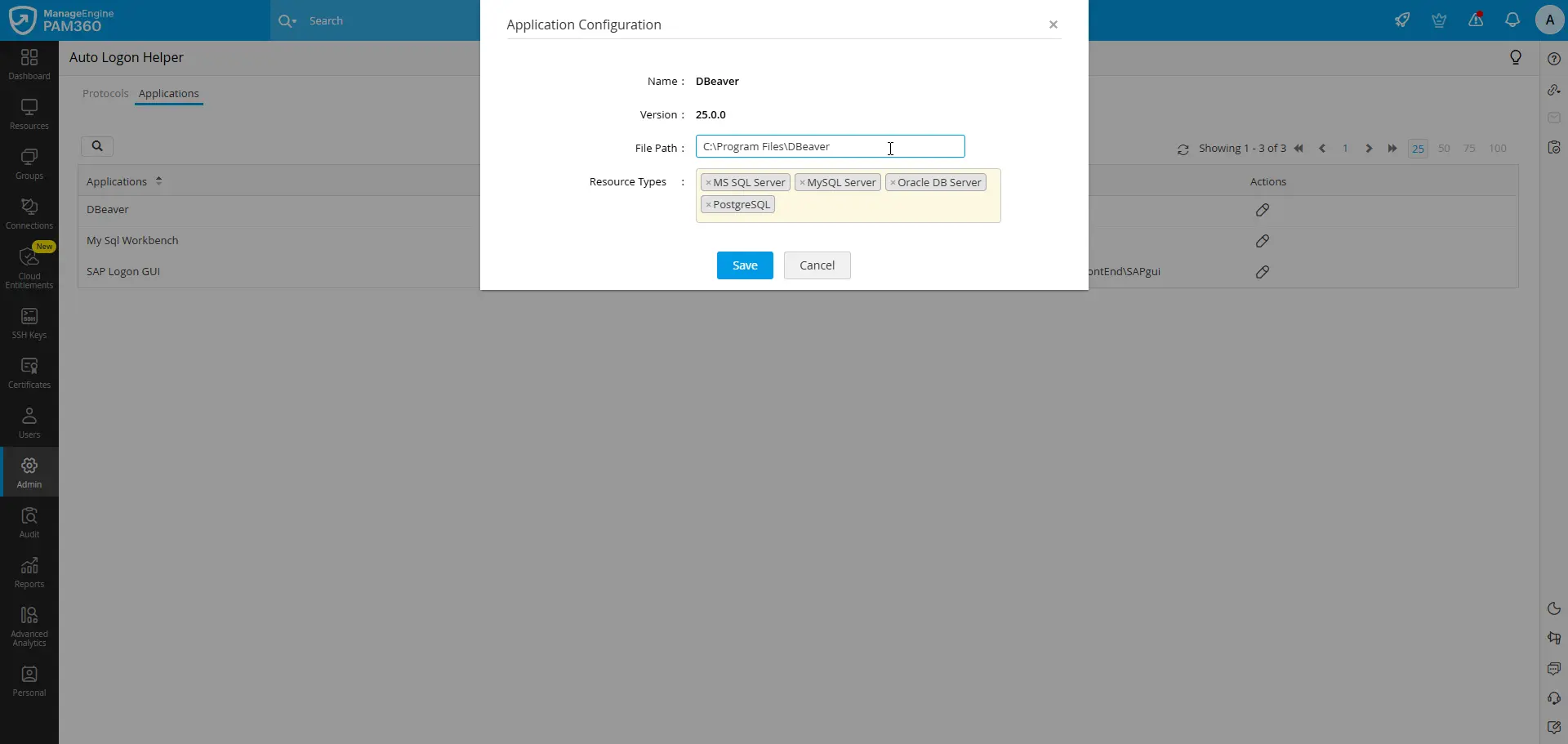
- By default, the following database resource types are selected as the supported resource types for DBeaver and MySQL Workbench application:
- MS SQL Server
- MySQL Server
- Oracle DB Server
- PostgreSQL
Caution
Application Credential Injection is supported only for MS SQL Server, MySQL Server, Oracle Database Server, and PostgreSQL database resource types. As of now, password autofill is not supported for any other custom resource types created using the default database resource types added under this configuration.
- By default, SAP resource type is selected as the supported resource types for SAP logon application.
To update the default configuration for any third-party thick-client application, go to Admin >> Privileged Session >> Auto Logon Helper >> Applications in the PAM360 web interface, open the Edit Application Details for the required application, and adjust the installation path or resource types as needed.