End-User Privilege Elevation on Windows Workstations
In many organizations, end users require administrator privileges to perform tasks such as installing or updating applications, running specialized software, or managing system services on their workstations. Requesting administrator assistance for every such operation can be time-consuming for users and adds operational overhead for administrators, particularly when elevated access is frequently required.
However, permanently granting administrator privileges to end users is not a secure approach, as it increases the security risk within the environment. A more secure approach is to provide time-bound privileged access, allowing users to temporarily elevate their privileges only when required and under proper approval.
PAM360 addresses this requirement through its Windows Agent. Using the agent, end users can temporarily elevate their privileges to the preconfigured privileged groups to perform required administrative tasks on their workstations without permanently assigning administrator rights.
This help document covers the following topics in detail:
1. How Privilege Elevation Works on End-User Workstation?
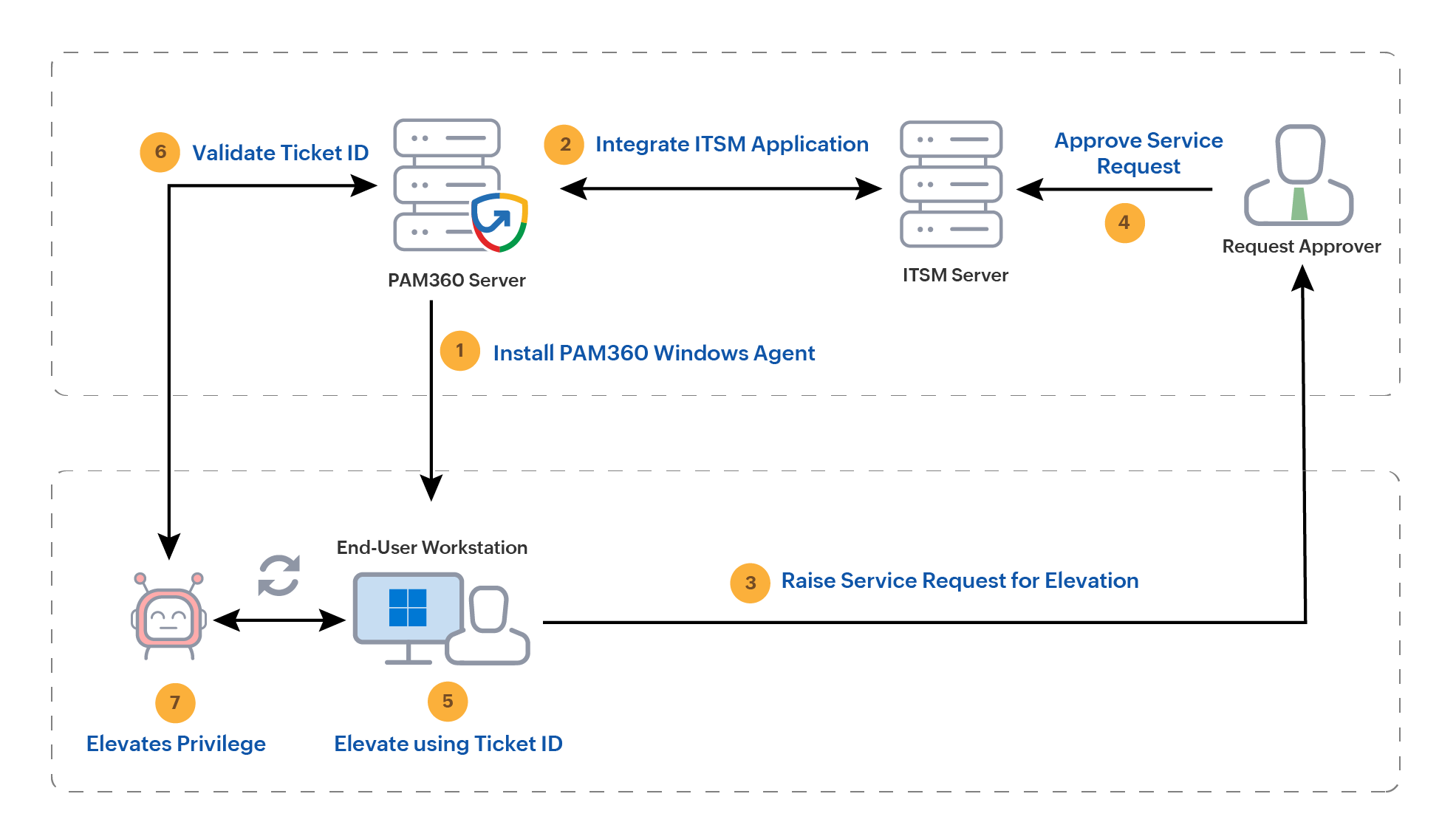
Privilege elevation through the PAM360 agent operates using a ticket-based approval workflow as outlined below:
- The PAM360 Windows Agent is installed on the user workstation with the privileged group information configured in the agent.conf file, and the organization’s supported ITSM tool is integrated with PAM360.
- Whenever elevated privileges are required, the end user raises a service request in the ITSM portal with the necessary details such as device name, account name, and request duration.
- The request approver reviews and approves the ticket in the ITSM tool.
- After the request is approved, the user enters the approved ticket ID in the PAM360 Agent UI to initiate privilege elevation.
- The agent sends the ticket ID to the PAM360 server for validation.
- Upon successful validation, the agent temporarily adds the user account to the privileged groups configured in the agent.conf file.
- The elevated privileges remain active only for the duration specified in the approved service request.
- Once the approved time period expires, the PAM360 agent automatically revokes the elevated privileges by removing the user from the privileged group.
2. Prerequisites
- The PAM360 Windows Agent should be installed on the target Windows end-user workstation with the Usage Type as User Device. Refer to this document for installing the PAM360 agent.
- An active ITSM tool used in the user environment should be integrated with PAM360. Currently, ManageEngine ServiceDesk Plus, ServiceDesk Plus Cloud, and ServiceDesk Plus MSP are supported.
- Ensure that the end users are Active Directory (AD) users and are imported into PAM360 under the Users tab.
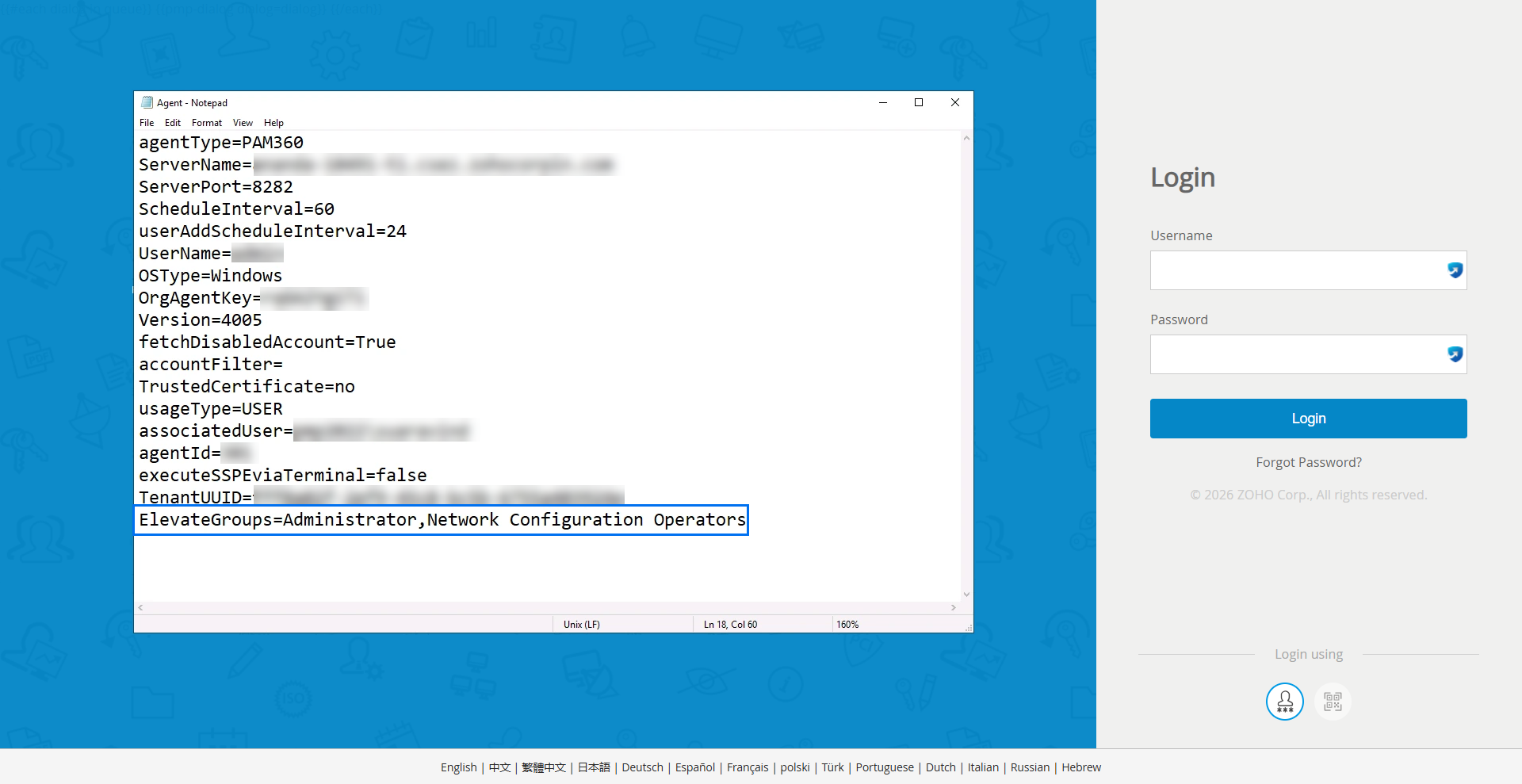
- Ensure that the required privileged groups of the target workstation are configured in the agent.conf file using the ElevateGroups parameter. If multiple groups need to be configured, separate the group names using a comma (,).
Best Practice
It is recommended to create and use a dedicated privileged group specifically for privilege elevation through the PAM360 Agent.
- The end-user workstation should be able to communicate with the PAM360 server.
3. Privilege Elevation using Agent
Follow these steps to elevate the user workstation privileges using the agent:
- Create a service request in your ITSM portal with the following mandatory fields:
- DEVICENAME - DNS name or host name of the Windows workstation where privilege elevation is required.
- ACCOUNTNAME - Username of the account to be elevated on the target workstation in the format:
`<domain or dnsname>\<accountname>` - TIME - Duration in minutes for which the elevated privilege is required. The maximum allowed duration is 1440 minutes.
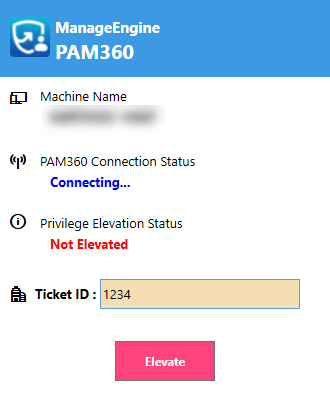
- After the service request is approved by the request approver, locate the PAM360 Elevate icon in the system tray and click it to open the PAM360 agent interface.
- Verify that the PAM360 Connection Status displays Connected. If the status shows Disconnected, contact your administrator.
- Enter the ticket ID of the approved service request in the Ticket ID field and click Elevate to initiate privilege elevation.
Caution
Privilege elevation will work only if the ticket status is not Closed and the approval status is Approved.
- Once the ticket ID is validated by the PAM360 server, the user account privileges will be elevated within 60 seconds. Upon successful elevation, the Privilege Elevation Status will display Elevated until `<time>`.
- Sign out and sign back in to the Windows workstation for the privilege changes to take effect.