Ephemeral Account Provisioning in PAM360
Ephemeral Account Provisioning in PAM360 supports the principles of Zero Standing Privileges (ZSP) by enabling users to obtain temporary, time-bound privileged access to target resources without relying on persistent accounts. This approach aligns with the Principle of Least Privilege (PoLP) and helps reduce the attack surface by eliminating standing privileged credentials. PAM360 dynamically creates an ephemeral account on the target system upon approved access requests and automatically removes it after use.
This approach enhances security by enforcing time-bound, on-demand privileged access, reducing the risk of credential misuse and lateral movement risk, and ensuring that all privileged activities are fully auditable. At the end of this document, you will learn about the following topics in detail:
- Roles and Permissions
- Configuring the Resource for Ephemeral Account Creation
- Requesting and Accessing an Ephemeral Account
1. Roles and Permission
By default, users with the Administrator role can configure Ephemeral Account Provisioning in PAM360, while users with the End User role can request and access ephemeral accounts once they are configured. In addition, PAM360 allows administrators to create custom user roles with specific privileges for managing ephemeral access:
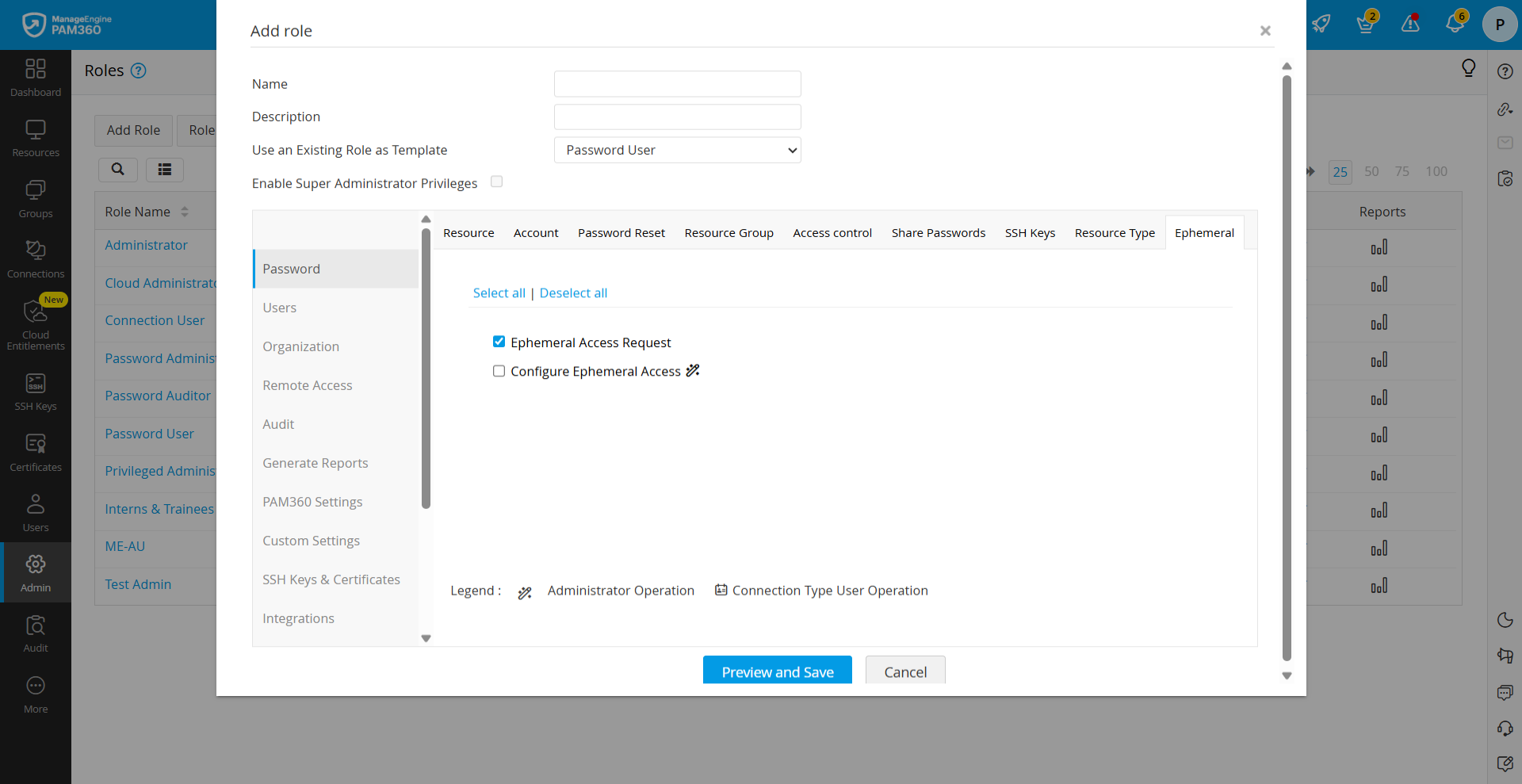
- Configure Ephemeral Access: Navigate to Admin >> Customization >> Roles >> Add Role >> Password >> Ephemeral and enable the Configure Ephemeral Access privilege. This allows users to configure ephemeral access for resources they own or that are shared with them.
- Ephemeral Access Request: Navigate to Admin >> Customization >> Roles >> Add Role >> Password >> Ephemeral and enable the Ephemeral Access Request privilege. This allows users to request ephemeral access to configured resources.
2. Configuring Resource for Ephemeral Account Provisioning
To enable ephemeral account provisioning for a resource, ensure the following configurations are completed in PAM360:
- Configure Remote Login Credentials: Configure remote login credentials for the target resource using an administrator account. This account is used by PAM360 to create and delete ephemeral accounts on the target system when requested. For detailed steps, refer to this document.
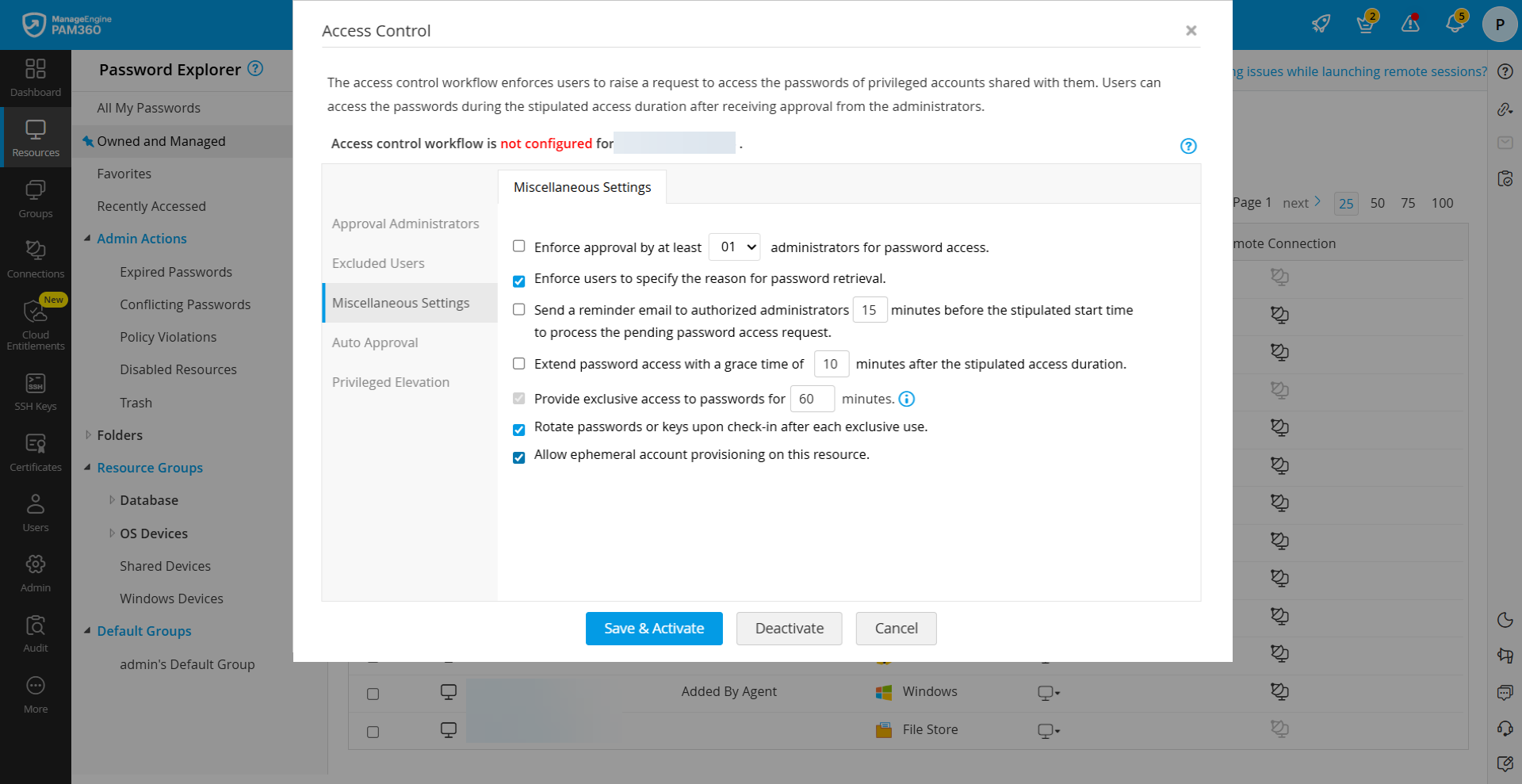
- Enable Ephemeral Account Provisioning in Access Control: Configure access control for the resource and enable the Allow ephemeral account provisioning on this resource option under the Miscellaneous Settings. This ensures that ephemeral accounts can be created only as part of the access request workflow. For detailed steps, refer to this section.
- Configure Local Groups for Privilege Assignment: Define the appropriate local groups on the target resource to assign required privileges to ephemeral accounts during creation. This ensures that users receive the necessary permissions while maintaining controlled access. For detailed steps, refer to this section.
3. Requesting and Accessing an Ephemeral Account
Once the configuration is complete, users can request access to an ephemeral account for the required resource. To request and access an ephemeral account, follow these steps:
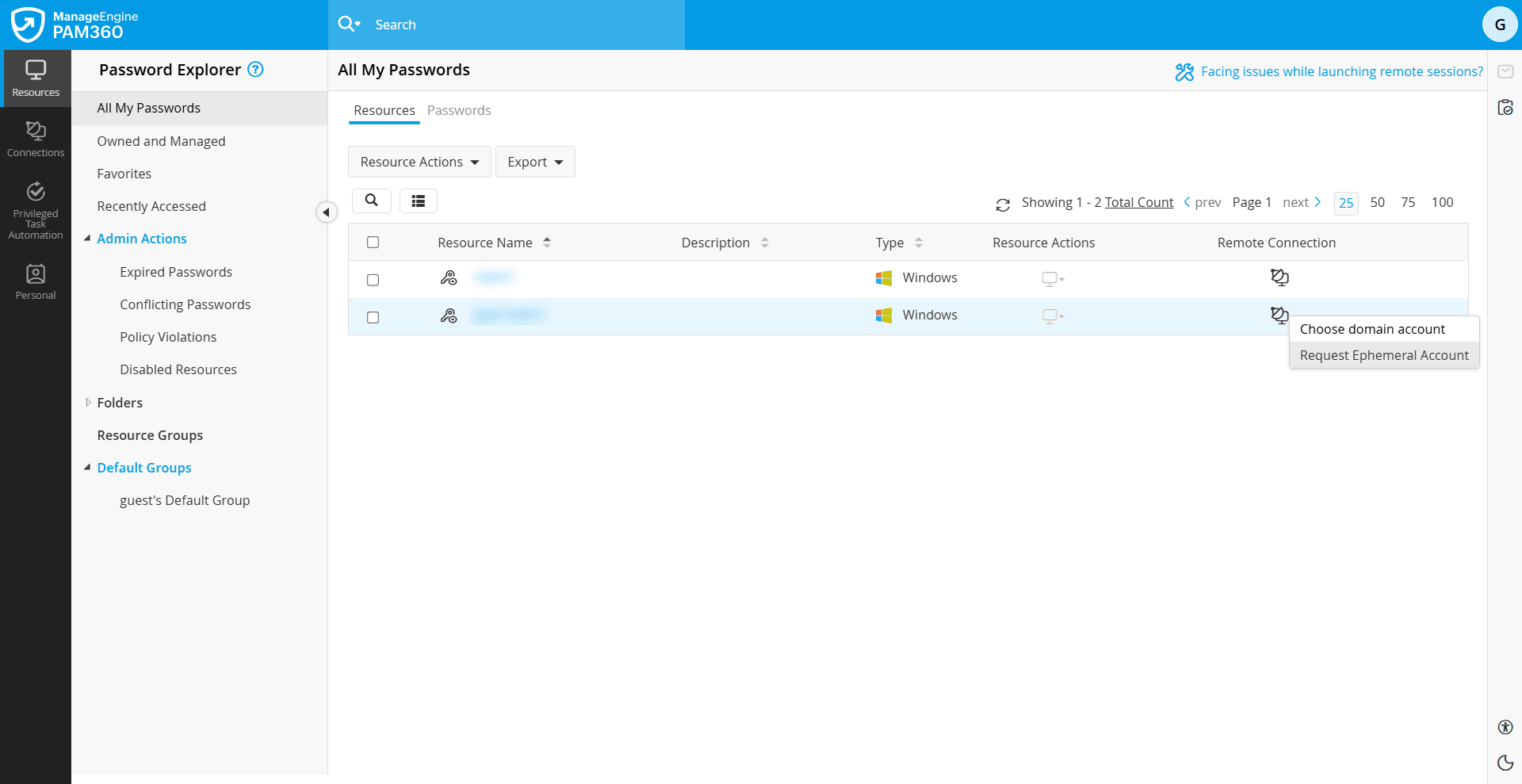
- Navigate to Resources >> All My Passwords >> Resources.
- Click the Remote Connection icon beside the required resource and select Request Ephemeral Account. A notification pop-up will appear indicating that an ephemeral account has been created on the target resource.
- Click the resource to view the newly created ephemeral account.
- Now, raise a password access request for the ephemeral account. For more details, refer to this section.
- Once the request is approved by the administrator, you can automatically log in to the resource using the ephemeral account. Refer to this section for more details.
- After the session ends or the password is checked back in, the ephemeral account is automatically removed from the target system. The account is deleted both in PAM360 and on the remote resource.
If access is required again, you should repeat the process again to request a new ephemeral account.