Exporting Resource Credentials for Secure Offline Access
PAM360 offers multiple options for exporting passwords, enabling secure offline access and safekeeping of password information. The basic option allows you to export resource details, such as the resource name, account name, and password, in plain text to a spreadsheet. The more secure option allows you to export passwords to an encrypted HTML file. In both cases, you can export resources, accounts, and passwords for offline use.
Administrators can determine which export method should be used within their organization. Additionally, export permissions can be enabled or disabled for specific users or user groups. However, before configuring user-specific settings, the feature must be enabled globally for all users.
Additional Detail
PAM360 also supports automatic synchronization of the encrypted HTML file to users’ mobile devices via cloud storage integrations, including Dropbox, Box, and Amazon S3. For more information, refer to the documentation on enabling cloud storage options for users.
At the end of this document, you will have learned the following:
- Configuring Global Export/Offline Access Settings
- Exporting Resources
- User-Specific Export/Offline AccessSettings
1. Configuring Global Export/Offline Access Settings
To configure global export and offline access permissions in PAM360, navigate to Admin >>Server Hardening >> Export / Offline Access. The dialog displays all available password export options that administrators can enable or disable globally for all users.
- Allow administrators and users to export password information to plain-text spreadsheet (.xlsx) : This option enables users to export resource details in a spreadsheet format.
- Include passwords in plain-text in the exported file : Enable this option if you want the actual password value to appear in clear-text in the .xlsx file. Disable to export only the resource and account names without revealing the password content.
- Include files stored under File Store, Key Store, License Store resource types as well and files stored under file-based additional fields : Enable this to include any associated files (e.g. key store files, licenses, custom file fields) along with the password export.
Caution
When encryption enforcement is enabled by the administrator, the exported .xlsx file will be password-protected automatically. Users have to enter the export passphrase every time they open the file. They can view or copy the passphrase from My Profile >> Export Settings.
- Include passwords in plain-text in the exported file : Enable this option if you want the actual password value to appear in clear-text in the .xlsx file. Disable to export only the resource and account names without revealing the password content.
- Allow administrators and users to export passwords to encrypted HTML file : Allows users to generate an encrypted HTML file that contains the password information.
- Encryption Passphrase Policy : Select the complexity policy that should be applied for the passphrase used to encrypt the export file.
- Allowed Inactivity Period : Specify the maximum duration of inactivity (in minutes) after which the HTML file will automatically log out.
Best Practice
The encrypted HTML file export option provides a secure offline viewing method. Files are encrypted using the AES-256-bit algorithm with a passphrase provided by the user before export. PAM360 does not store this passphrase. We recommend that users avoid storing or writing it down. If the passphrase is forgotten, users must export a new HTML file.
- Choose Tabs where Password Export Options are Enabled : Specify where the export actions should be available within the application: Resource | Resource Groups
- Clear the corresponding checkbox to disable the export option globally.
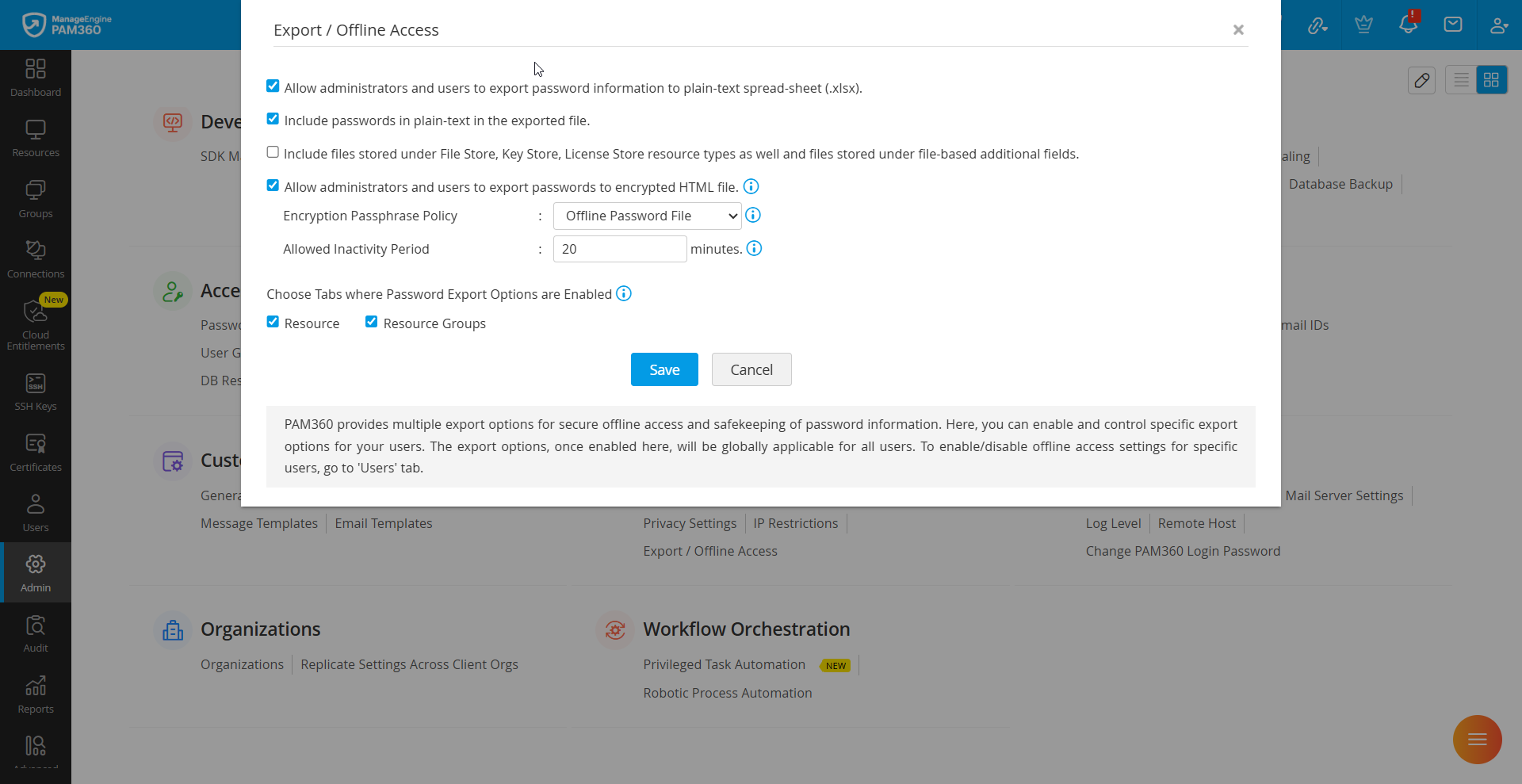
After configuring the desired options, click Save to apply the settings.
2. Exporting Resources
The ability to export passwords depends on the permissions configured by the PAM360 Administrator. Follow the below sections to export the resources.
2.1 Exporting in Plain Text to a Spreadsheet
Navigate to the Resources section, select the required resources you want to export, and choose Export >> In Plain-Text (.xls). The resources will be exported and downloaded as an `.xls` file.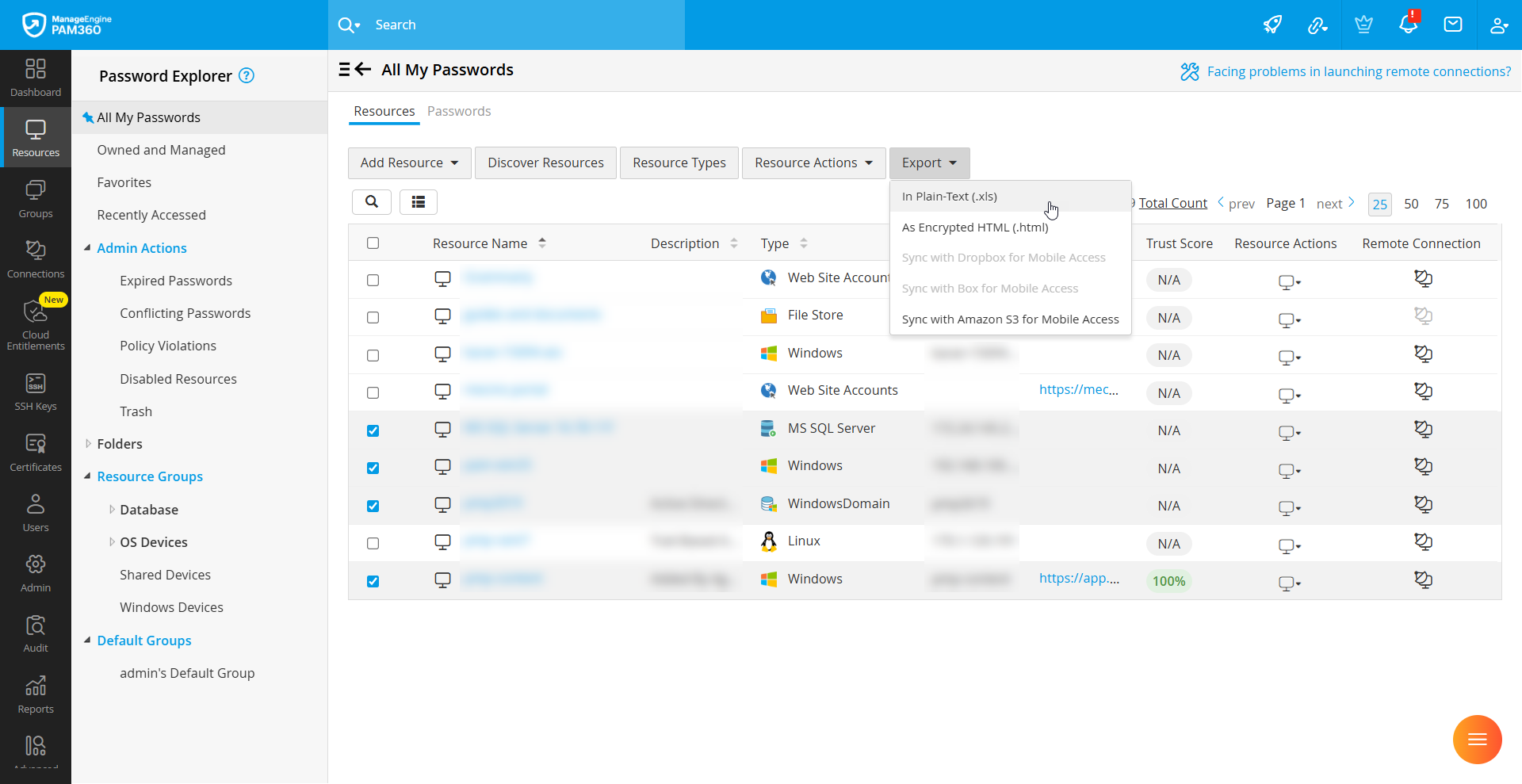
2.2 Exporting as an Encrypted HTML File
- Navigate to the Resources section, select the required resources you want to export, and choose Export >> As Encrypted HTML.
- In the dialog that appears, enter a Passphrase that complies with the password policy enforced by your administrator, then Confirm Passphrase and specify a Reason for the export.
Caution
The passphrase you provide will be used to encrypt the HTML file for offline access. PAM360 does not store the passphrase. If you forget it, the file cannot be opened. For security reasons, we strongly recommend that you do not record or store the passphrase anywhere.
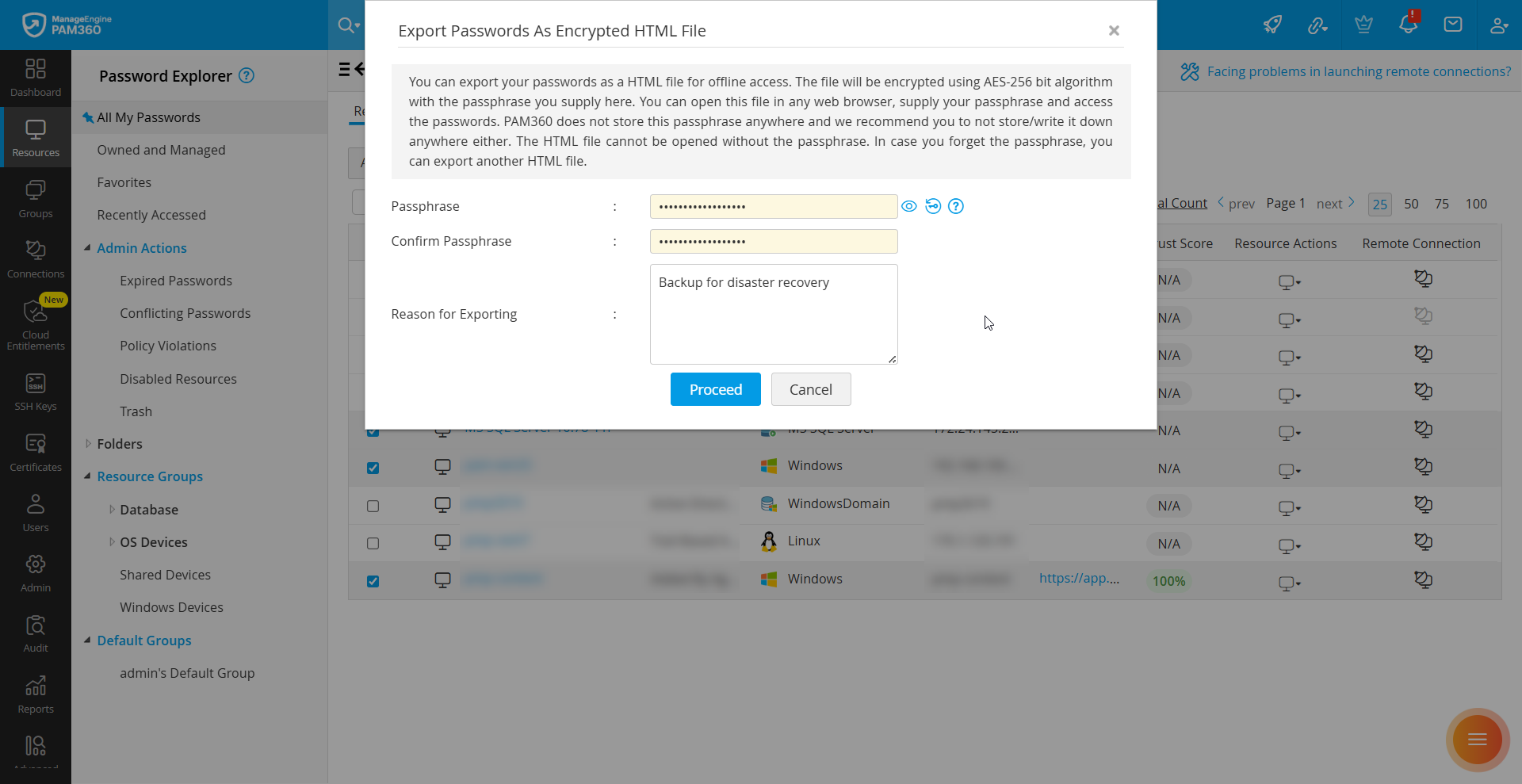
- Click Proceed to export and download the resources as an encrypted HTML file.
3. User-Specific Settings for Export/Offline Access
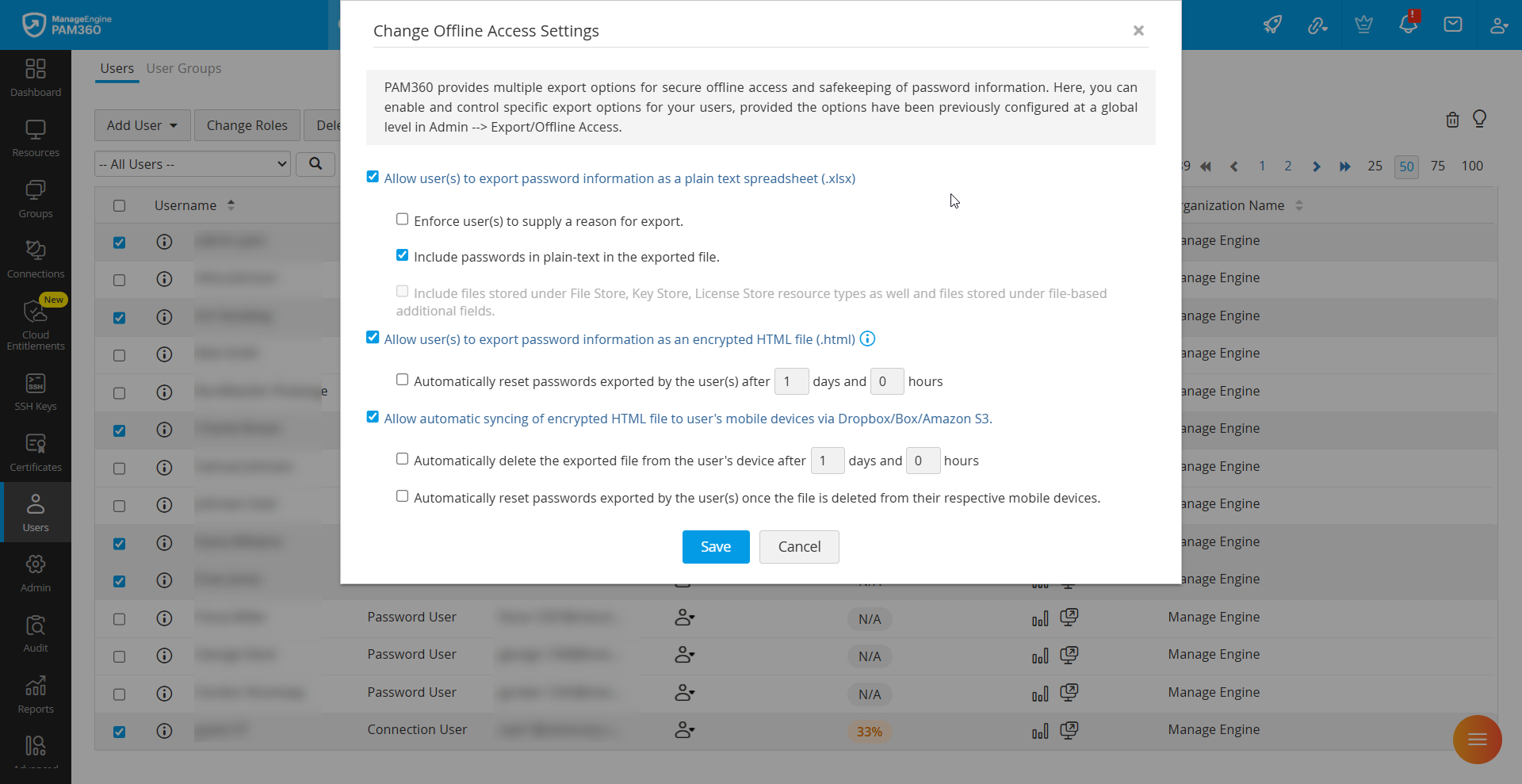
If you want to restrict certain users from exporting password information or using the offline access features, administrators can configure user-specific export settings. To do this, navigate to the Users tab, select the required users, and click More Action >> Change Offline Access Settings. Alternatively, you can update the export/offline permissions for an individual user by clicking the User Actions icon next to that specific user and selecting Export/Offline Access from the dropdown menu. 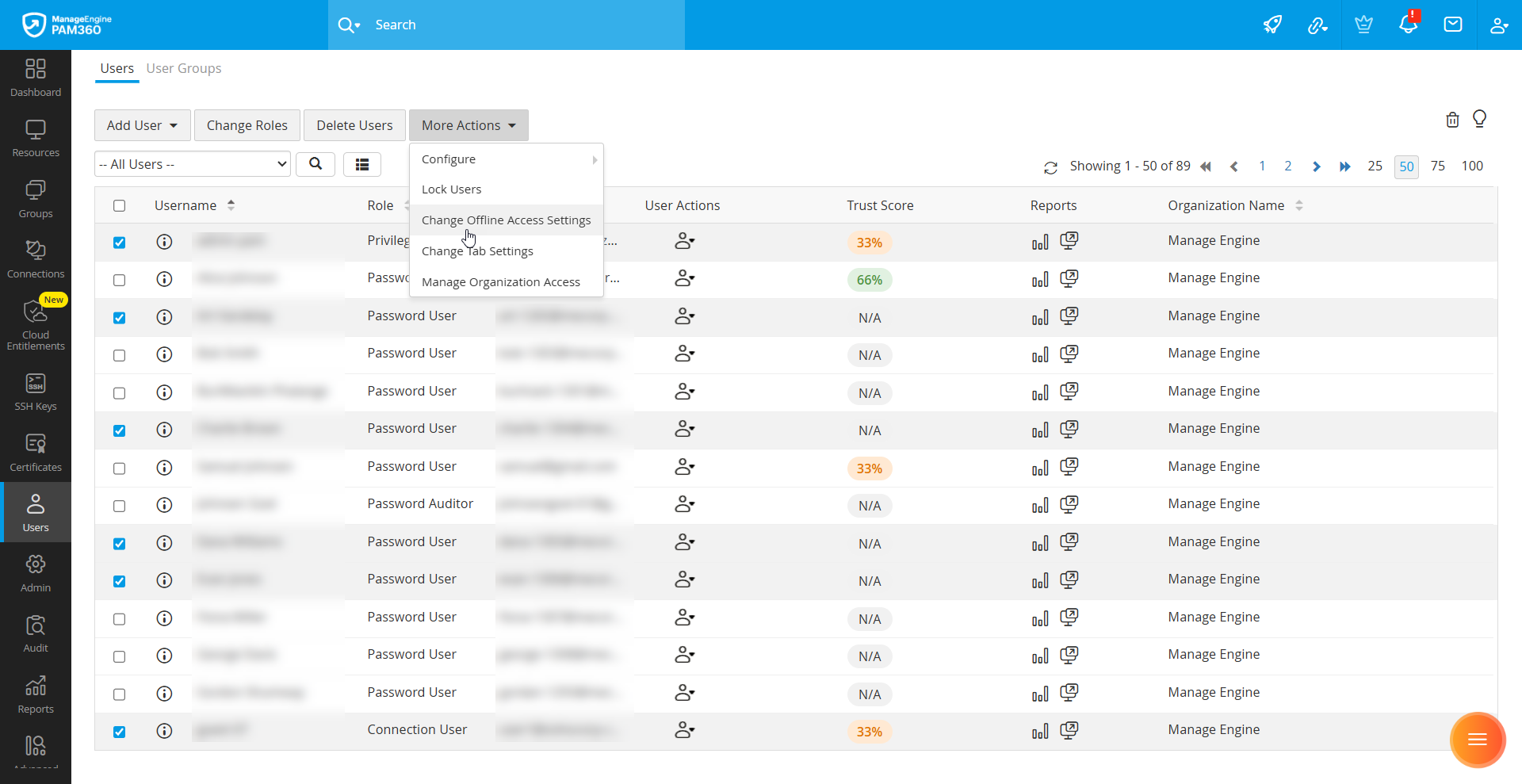
From the settings screen that opens, for specific users, you can apply the following granular restrictions for the password export options:
- To allow users to export password information as a plain-text spreadsheet (.xlsx), administrators can enable the Allow user(s) to export password information as a plain text spreadsheet (.xlsx) setting. Once this setting is enabled, users can export password-related details such as resource name, account name, and password in spreadsheet format.
- To ensure that every export action is properly justified, you can enable the Enforce user(s) to supply a reason for export sub-setting, which requires users to provide a valid reason before proceeding with any export operation.
- Additionally, enable Include passwords in plain-text in the exported file if the export should contain the password. When disabled, the user export will only have the password-related details such as resource name, account name in the spreadsheet except the password.
- PAM360 also supports the export of files associated with File Store, Key Store, and License Store resource types, as well as files stored within file-based Additional Fields. These files can be exported in conjunction with the password information to give users a comprehensive offline reference.
- To ensure that every export action is properly justified, you can enable the Enforce user(s) to supply a reason for export sub-setting, which requires users to provide a valid reason before proceeding with any export operation.
- Alternatively, you can enable the Allow user(s) to export password information as an encrypted HTML file (.html) option. This feature generates an encrypted file that securely stores the exported credentials and can be viewed offline. To limit the duration of offline access and to enhance security, you can configure an automatic reset so that the exported passwords are automatically rotated in PAM360 after the specified number of days and hours following the export action.
- To improve accessibility, PAM360 allows automatic synchronization of the exported encrypted HTML file with the user’s mobile device via Dropbox, Box, or Amazon S3. Administrators can then enable Automatically delete the exported file from the user's device after __ days and __ hours to ensure that the file does not remain on a user’s device beyond the intended time frame. Once the file is deleted, you can further enhance security by enabling Automatically reset passwords exported by the user(s) once the file is deleted from their respective mobile devices, thereby ensuring that password access is immediately revoked.
Caution
For enhanced security, PAM360 follows a least privilege model. For example, assume a user belongs to three user groups, and one of those groups has a restriction that disallows plain-text password export. Even if the user has individual permission to export passwords in plain-text, the group-level restriction will take precedence. This approach applies to all types of restrictions described above.
This allows precise control over who can perform export operations and which export methods are applicable for each user.