Certificate-Based Operations in PAM360
Effective certificate management is a cornerstone of an organization’s cybersecurity framework. Digital certificates secure sensitive communications, ensure data integrity, and build trust with users by validating the authenticity of web servers and applications. However, managing certificates can be challenging for administrators due to the volume, diverse types, and renewal deadlines. PAM360 streamlines this critical task by offering a comprehensive suite of operations for managing certificates across their lifecycle.
This document offers detailed information about importing, exporting, renewing, and managing SSL certificates, ensuring streamlined operations and enhanced security for your organization's digital infrastructure. Below is an overview of the topics covered in this document:
- Importing and Exporting Certificates
- Renewing a Certificate
- Certificate History
- SSL Fingerprint
- Certificates Sync Status
- ACME Providers
- Editing and Deleting the Certificates
- Certificate Requests
- Control Expiry Notification Schedule
- Track Domain Expiration through WHOIS Lookup
1. Importing and Exporting Certificates
PAM360 supports a variety of certificate formats, allowing seamless import and export of popular certificate types such as, .cer, .crt, .pem, .der, .p7b, .pfx, .p12, .pkcs12, .jks and .keystore
1.1 Importing Certificates in your Network
In addition to certificate discovery, PAM360 provides a few other ways in which you can manually add SSL certificates into the repository. To do so, follow the below steps:
- Navigate to the SSL >> Certificates tab and click the Add button.
- The Add Certificate window displays the following options:
- Certificates: Browse and import the required certificate file directly from your system.
- Certificate Content: Copy the content of the required certificate file and paste it in the text box.
- Keystore Based: Import all individual certificates available in a Keystore simultaneously. Upload the required Keystore file and enter its corresponding password (if any).
- Certificate Details: Browse and import the .csv file with the required certificate details.
- Click Add. The certificates or certificate details will be imported to the PAM360 repository.
1.2 Importing Issuer Certificates
PAM360 allows you to import issuer certificates into the repository and build a complete certificate chain in the product.
- Navigate to Certificates >> Certificates. Select the required end certificate.
- Under the More dropdown, select Import Issuer.
- In the pop-up that appears, Browse and add the issuer certificate and click Import.
- The additional issuer certificates you add will be appended to the existing SSL certificate in the repository based on the issuer name. To download the complete chain with the private key, export the certificate in JKS, PKCS, or PEM formats.
1.3 Exporting Certificates in your Network
- Navigate to Certificates >> Certificates.
- In the list view, click the certificate you want to export.
- In the certificate details window, click Export on the top right corner and select the required format in the which you want to export the certificate.
- The certificate will be downloaded to your machine in the selected format.
2. Renewing a Certificate
The Certificates tab in PAM360 is a centralized console where all types of SSL certificates such as Self Signed, Root Signed, Microsoft CA Signed, certificates issued by third-party CAs etc., are consolidated and displayed. Through the Renew option, these certificate types can be renewed in the Certificates tab directly. These renewed certificates will automatically inherit the deployed servers and their credentials. For certificates issued by third-party CAs, the renewal will be initiated and redirected to the respective CA's tab. To proceed further, follow the below steps:
2.1 Renew Self-Signed/Root Signed Certificate
To renew a self signed/root signed certificate, follow the below steps:
- Select the self signed/root signed certificate and click Renew at the top.
- The renewal type will be Self Signed or Root Signed by default based on the selected certificate.
Additional Detail
For root signed certificate, the Issuer name will be auto populated in the Root Name field.
- Specify the number of days for which the certificate shall be valid in the Validity field. Click Renew.
The certificate will be renewed successfully and the Valid To date will change according to the new validity period specified.
2.2 Renew Microsoft CA Signed/Agent Signed Certificates
To renew a Microsoft CA signed certificate, follow the below steps:
- Select a Microsoft CA Signed certificate and click Renew at the top.
- If the certificate does not have a private key, PAM360 allows you to create a new private key. Click OK in the pop-up that appears.
- Attributes such as Renewal Type, Server Name, Template Name / OID, Certificate Authority will be auto populated from the certificate details. The Server Name is the name of the Microsoft CA server which signed the certificate. Certificate Authority is the CA service that runs in the specified Microsoft CA server.
- For certificates signed by Microsoft CA directly or using the SSL agent, validity days will be taken from the Microsoft CA server and therefore it cannot be entered manually during renewal. These type of certificates will be renewed only till the date specified in the the Microsoft CA server.
In addition to the above types, third-party CA signed certificates can also be renewed using this renewal option. Follow the same procedure to initiate renewal and PAM360 will redirect the renewal request to the respective third-party CA. Follow the steps detailed in the next section to learn how to set up auto-renewal for certificates in PAM360.
2.3 Auto-Renewal of Certificates
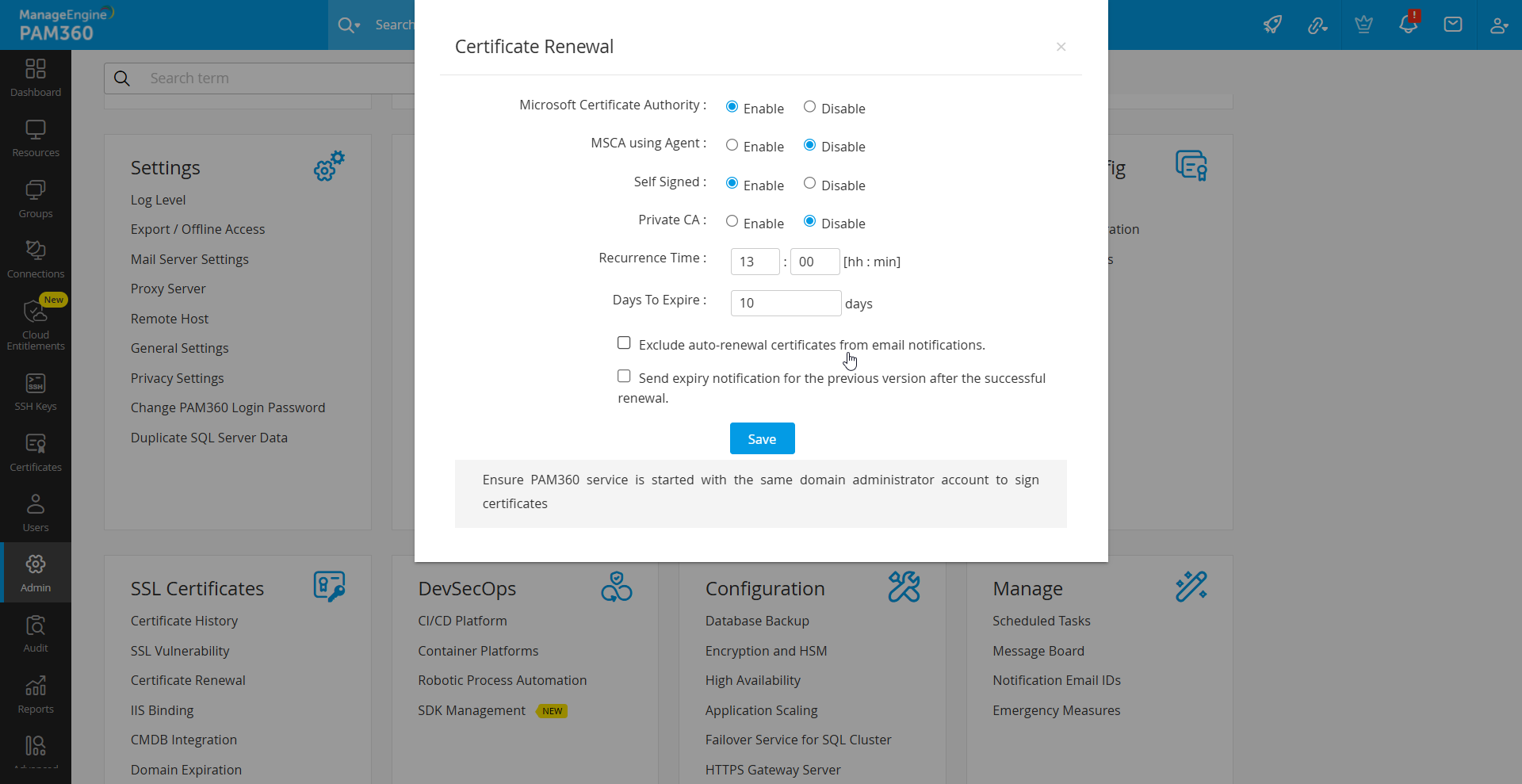
Certificates issued by local CA can be renewed automatically from the Admin page in PAM360. To enable auto-renewal of Local CA certificates, follow the below steps:
- Navigate to Admin >> PKI Management >> Certificate Renewal.
- Enable Microsoft Certificate Authority, MSCA using Agent, Self Signed or Private CA and specify the Recurrence Time.
- Certificates that have already expired and certificates due to expiry in 10 days or less are automatically renewed and updated in the certificate repository.
- The certificates that are due to expire in the number of days mentioned in the Days to Expire field will also be auto-renewed.
- Tick the checkbox to Exclude auto-renewal certificates from email notifications. This allows the certificates marked for auto-renewal to be excluded from the email notifications even if they fall under the expiry notification configuration.
- Tick the another checkbox to Send Expiry Notification for the Previous version after successful Renewal.
- Click Save.
- After successful auto-renewal, the previous version of the certificate will be listed under Certificate History.
Caution
- For MS CA auto-renewal, certificates must be of type Microsoft CA. Manually added certificates can be updated to this type using the Edit option under the More menu.
- During the renewal process, a CSR will be generated from the available values, along with a new Private Key.
- Existing SHA1 certificates will be renewed using the SHA256 algorithm.
3. Certificate History
PAM360 allows you to group the certificates under a common name. To enable this,
- Navigate to Admin >> SSL Configuration >> Certificate History.
- Choose Enable or Disable the Group Certificates by Common Name option.
- Enabling the option will group the certificates under one Common Name.
- Disabling this option will create new certificates based on the unique Serial Numbers assigned to the certificates.
- To view these certificates, navigate to Certificates >> Certificates and enable Certificate History from column chooser.
- Now, click the certificate history icon corresponding to the required certificate to view the certificates.
Caution
On certificate renewal, the older version of the renewed certificate will be moved to Certificate History.
4. SSL Fingerprint
By default, the SSL certificates in PAM360 are configured with SHA1 fingerprint value. If you need your SSL certificates to be updated with SHA256 fingerprint value for increased security reasons, follow the below steps:
- Navigate to Admin >> SSL Configuration >> SSL Fingerprint.
- Select the SHA256 fingerprint value and click Save.
- Post this change, the SSL certificates generated or imported into PAM360 will have SHA256 as the fingerprint value.
- If you want to change your preexisting SSL certificates to SHA256 fingerprint value, enable the checkbox Change the Certificate fingerprint for all the existing certificates before changing the fingerprint value.
5. Certificates Sync Status
PAM360 allows users to perform periodic and automatic checks on the synchronization status on the SSL certificates deployed to multiple servers. When enabled, PAM360 gives you options to check for out-of-sync servers and delete the servers in which there is a certificate mismatch. Follow the below steps to enable certificate sync status check:
- Navigate to Admin >> SSL Configuration >> Certificates Sync Status.
- Click Enable and enter a recurrence time interval in hours or minutes.
- Check only the Non-Sync servers - select this option to check and consolidate only the out-of-sync servers.
- Delete the server if Non-Sync - select this option to delete the servers that are found to have a certificate mismatch after the synchronization check.
- Enter an email address in the field Send Email Notification. Once added with the configured recurrence time interval, the list of all the SSL certificates with their deployed servers will be sent, to the given email address, with the following details: days to expire, date of expiry, serial number, and fingerprint.
- Click Disable to stop the synchronization check.
6. ACME Providers
With the Automated Certificate Management Environment (ACME) of PAM360, the system's certificate management capabilities are significantly elevated. ACME streamlines the entire process of acquiring, renewing, and revoking SSL/TLS certificates. This automation of the certificate lifecycle management effectively reduces the administrative burden associated with manual certificate provisioning. Just as with its integration with renowned certificate authorities like Let's Encrypt, Buypass Go SSL, and ZeroSSL, which offer automated SSL/TLS certificate management, you have the flexibility to incorporate other ACME service providers into PAM360. This empowers you to efficiently manage certificates with automated precision. To do so,
- Navigate to Admin >> SSL Integration >> ACME Providers.
- On the page that opens, click Add ACME Provider.
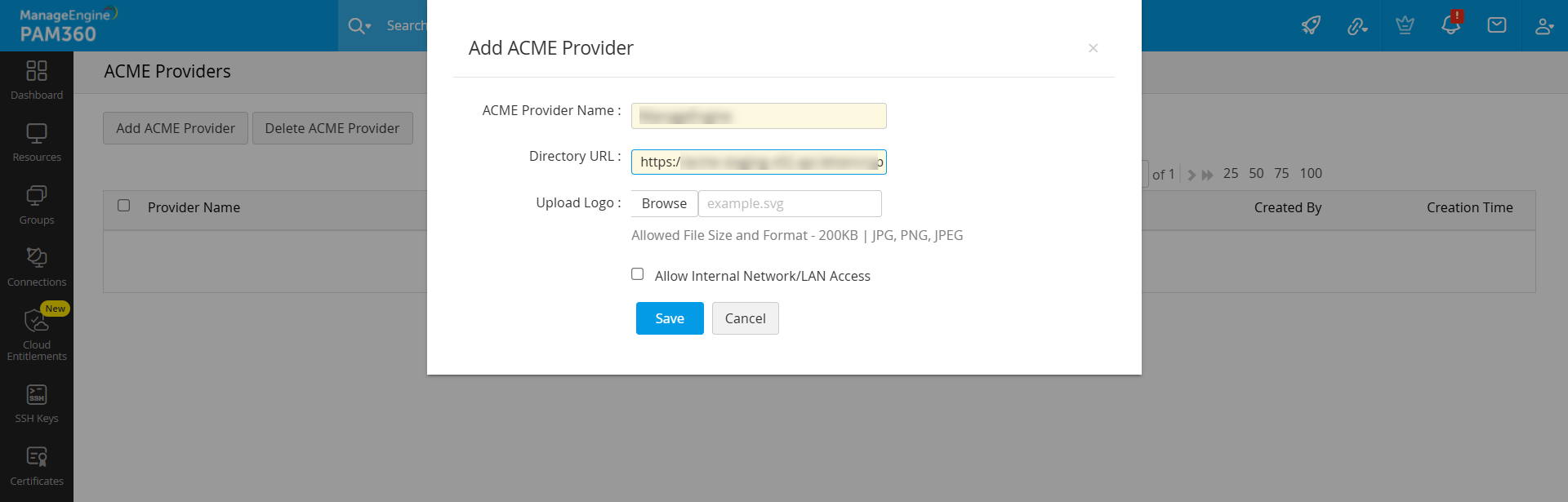
- In the dialogue box that opens
- Enter the ACME Provider Name.
- Enter a valid ACME Directory URL.
- Upload a logo as desired with the specified limit.
- Enable the Allow Internal Network/LAN Access if you are in the same provider URL network/LAN.
- Click Save to add the ACME provider to PAM360.
- Now, navigate to SSL >> ACME and select the added ACME provider.
- In the window that opens, follow the configuration process, such as account addition, challenge verification, and managing certificates similar to other third-party certificate authorities from here.
Caution
Automatic renewals are applicable only for those certificates saved in the PAM360 repository. If agent mapping has been configured, the certificate renewal process is done automatically without manual intervention. All the certificates in your organization procured from the ACME providers will be automatically renewed 15 days before their expiry, and a notification will be sent to the accounts holder's e-mail address.
7. Editing and Deleting the Certificates
7.1 Editing a Certificate
To edit a certificate in PAM360 repository, follow these steps:
- Navigate to the Certificates >> Certificates.
- Select the certificate to be modified, click More, and select Edit from the dropdown.
- In the Edit Certificate pop-up that appears, edit the DNS Name, Port, Description, Expiry Notification Email, and Provisioning Type as required.
- You can enable Deploy Certificate on Auto Renewal to deploy the new certificate to all servers on auto-renewal.
Caution
You will be able to deploy certificate to all servers on auto renewal only if the user credentials are available.
- From the available additional fields, you can modify the text and dropdown fields with respect to the certificate details as added in the additional fields section.
Additional Detail
Click on the respective certificate from the Certificates tab to view the certificate details from the Certificate Details window that opens.
- Click Save.
7.2 Deleting the Certificates
To delete the certificates that are currently not in use, follow the below steps:
- Navigate to the Certificates >> Certificates and select the certificates.
- Click More and select Delete from the dropdown.
- In the pop-up that appears, select the checkbox to Add selected certificates to 'Excluded certificates' and mention the Reason.
- Click OK in the pop-up that appears.
8. Certificate Requests
The certificate requests in PAM360 will be in either of the following statuses, Open or Closed. When a certificate request is raised, it is automatically elevated to the Open state. The request details can be viewed from Certificates >> CSR >> Certificate Request, on clicking the domain name of the request.
8.1 Adding a Certificate Request
To add requests for new certificates or addition of sub-domains to existing certificates, follow the below steps:
- Navigate to the Certificates >> CSR >> Certificate request.
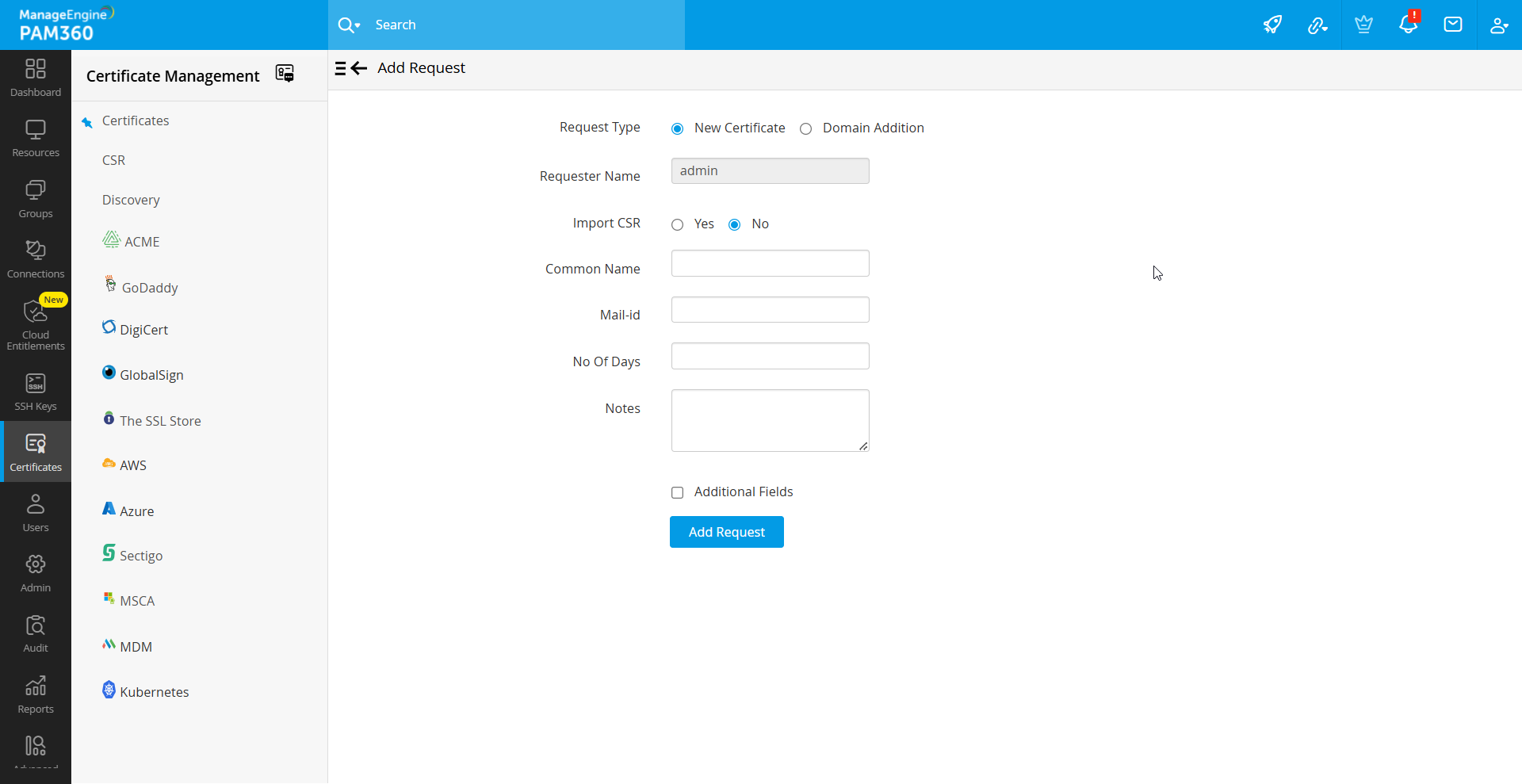
- Click the Add Request button.
- Select any of the following request type:
- New Certificate: Attach a CSR to your request (optional) and a domain name for the new certificate.
- Add Domain: Enter the name of the new domain and select a parent domain from the certificates added to the PAM360 repository.
- Enter the mail addresses to which you would like to send the request and specify the certificate validity period. These mail addresses can be that of an administrator, an intermediary who handles certificate requests, or even your help desk software to raise the certificate request as a ticket.
- Enable Additional Fields to add additional information such as device name and IP address
- Click the Add Request button to add it to the list of request in the Certificate Request tab and to send the same to the specified email addresses.
8.2 Terminating the Certificate Request Life-cycle
- Navigate to the Certificates >> CSR >> Certificate Request.
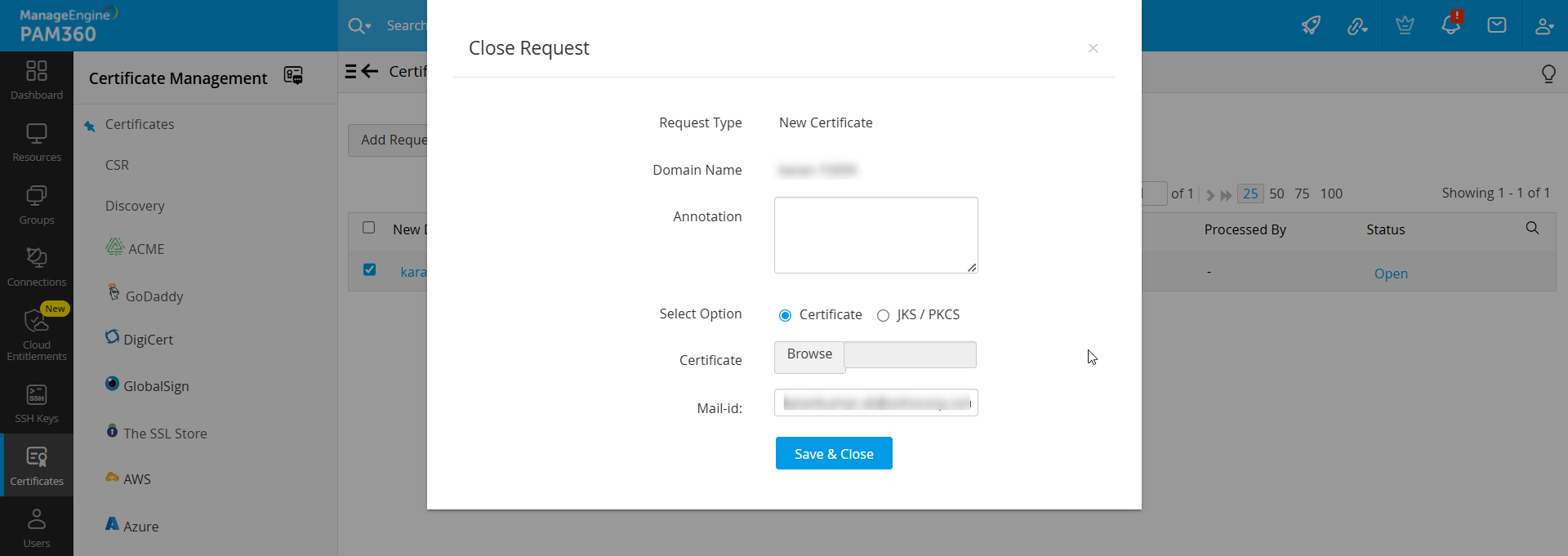
- Click the Open status link in the right corner of the table against the required open request process.
- In the Close Request window, add an optional annotation, and attach the certificate issued (optional), specify the e-mail ids of users to whom the certificate is to be sent and click the Save & Close button. Once you click the button, the request is automatically moved to the Closed state.
- If a SSL certificate is attached while closing the request, the certificate is automatically imported to the PAM360 repository.
- Also, the issued certificate is e-mailed to the user who raises the request, the user who closes the request and also to those e-mail ids specified at the time of closing the request.
9. Control Expiry Notification Schedule
You can customize the periodicity of notifications you receive when a certificate is about to expire. To customize the notifications:
- Navigate to the Admin >> PKI Management >> Notification Settings.
- Select the Notify about SSL certificates are expiring within checkbox and the number of days before the expiry of certificate within which you should start receiving notifications.
- Select the Email or Syslog checkbox and enter appropriate details. To know more about configuring notifications, click here.
- Click Save.
Additional Detail
You will receive notifications every day after the selected date before the expiry of a certificate. For instance, if a certificate is about to expire in the last week of a month, and you select the Notify if SSL certificates are expiring within 7 days option, then, you will receive a notification that your certificate is about to expire every day of the week before the expiry of the certificate.
10. Track Domain Expiration through WHOIS Lookup
Apart from tracking certificate expiration, PAM360 also helps administrators keep a tab on their expiring domain names through an automated WHOIS look up. The domain expiration details fetched through the lookup are displayed in Certificates >> Certificates tab against its corresponding SSL certificate. Also, administrators can choose to receive timely email notifications of their expiring domains by configuring it under Admin >> SSH/SSL Config >> Notification.
How does the WHOIS lookup work?
Fetching domain expiration details requires a two-stage lookup to WHOIS servers from PAM360. The first lookup provides the details of the WHOIS server with which the domain was registered by its domain registrar. The second lookup provides information about the domain such as owner details, expiration date etc., All these operations are automated the from PAM360's interface.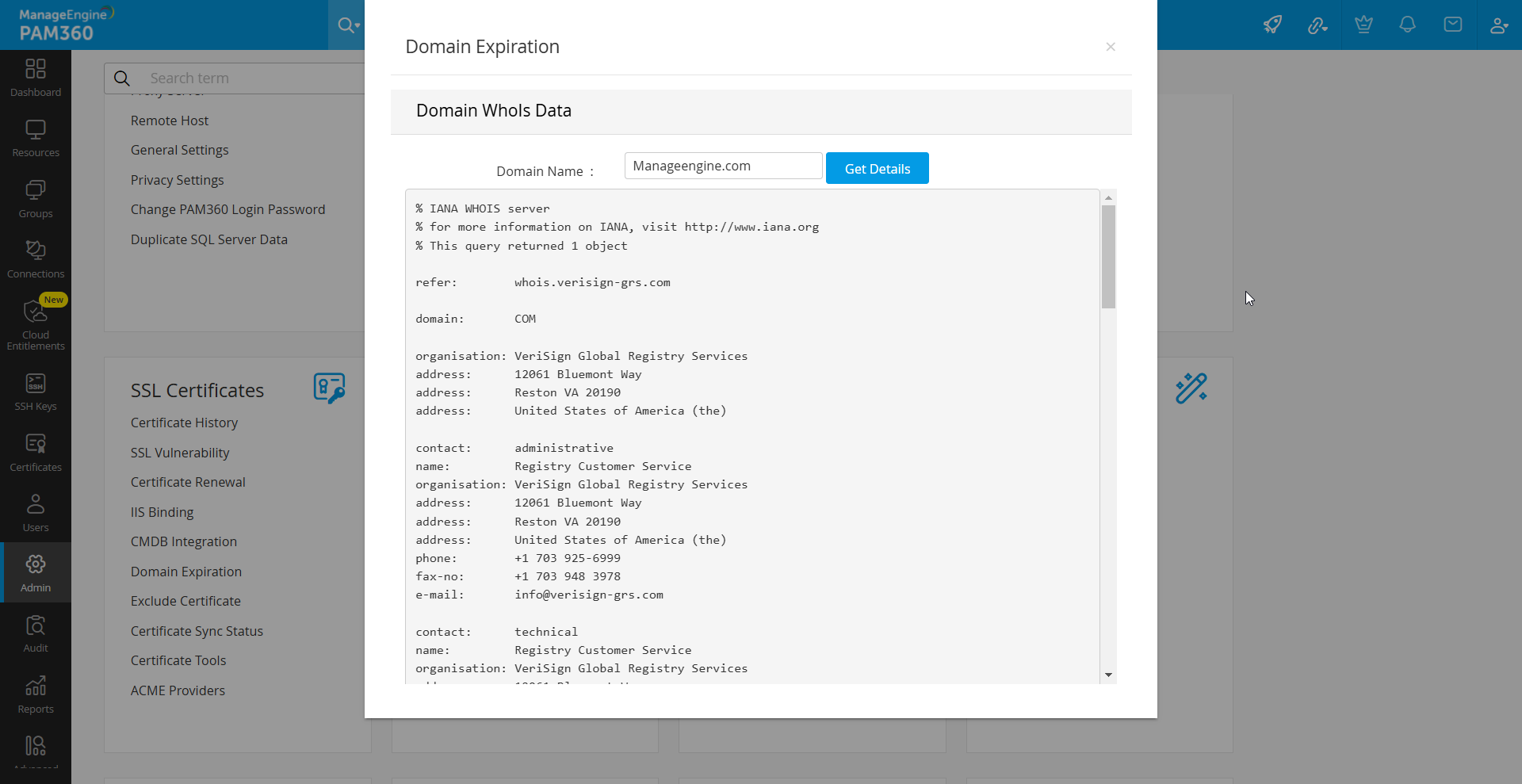
Caution
Connection to WHOIS servers requires the use of Port 43. Ensure that port 43 is open in your environment, else the connection would fail and Domain Expiration will be marked Not Available (NA) in the Certificates tab.