Session Audits and Operations
The Session Audits (i.e Managed Sessions, Unmanaged Sessions and Recorded Website Connections) provides provides a consolidated view of all privileged sessions initiated through PAM360. It captures who accessed a session, when the access occurred, and the target system involved, offering a complete audit trail of session activity.
When session recording is enabled and the Session Events agent module is enabled on the target machines, PAM360 also records and displays the events occurred and actions performed within those privileged sessions. These activity details help administrators review, audit, and respond to privileged access usage effectively.
This document covers the following topics in detail:
- Managed Sessions
- Unmanaged Sessions
- Recorded Website Connections
- Splitting Recorded Sessions
- Session Summary for Recorded Privileged Sessions
1. Managed Sessions
Managed Sessions are sessions that are initiated directly through PAM360. These sessions are launched using credentials stored and controlled within PAM360, ensuring centralized access control and continuous monitoring throughout the session lifecycle. Managed Sessions are categorized into Active Sessions and Recorded Sessions.
1.1 Active Sessions
The Active Sessions view displays all managed sessions that are currently in progress. This view allows administrators to identify ongoing privileged sessions and track their status while the session is active. To monitor an active session, follow the steps below:
- Navigate to Audit >> Managed Sessions >> Active Sessions.
- On the Active Sessions page, you will see a list of all the active sessions in your organization.
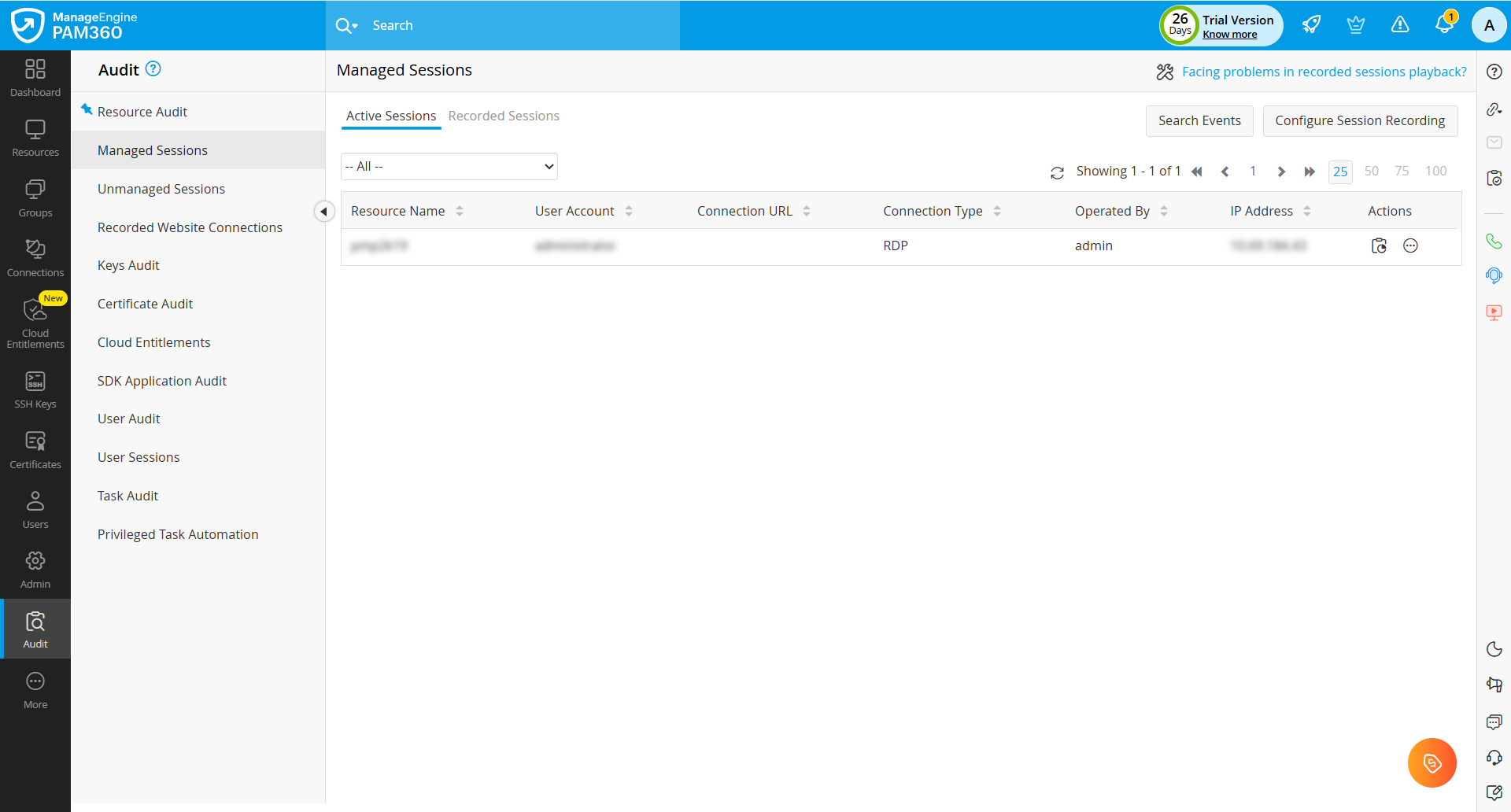
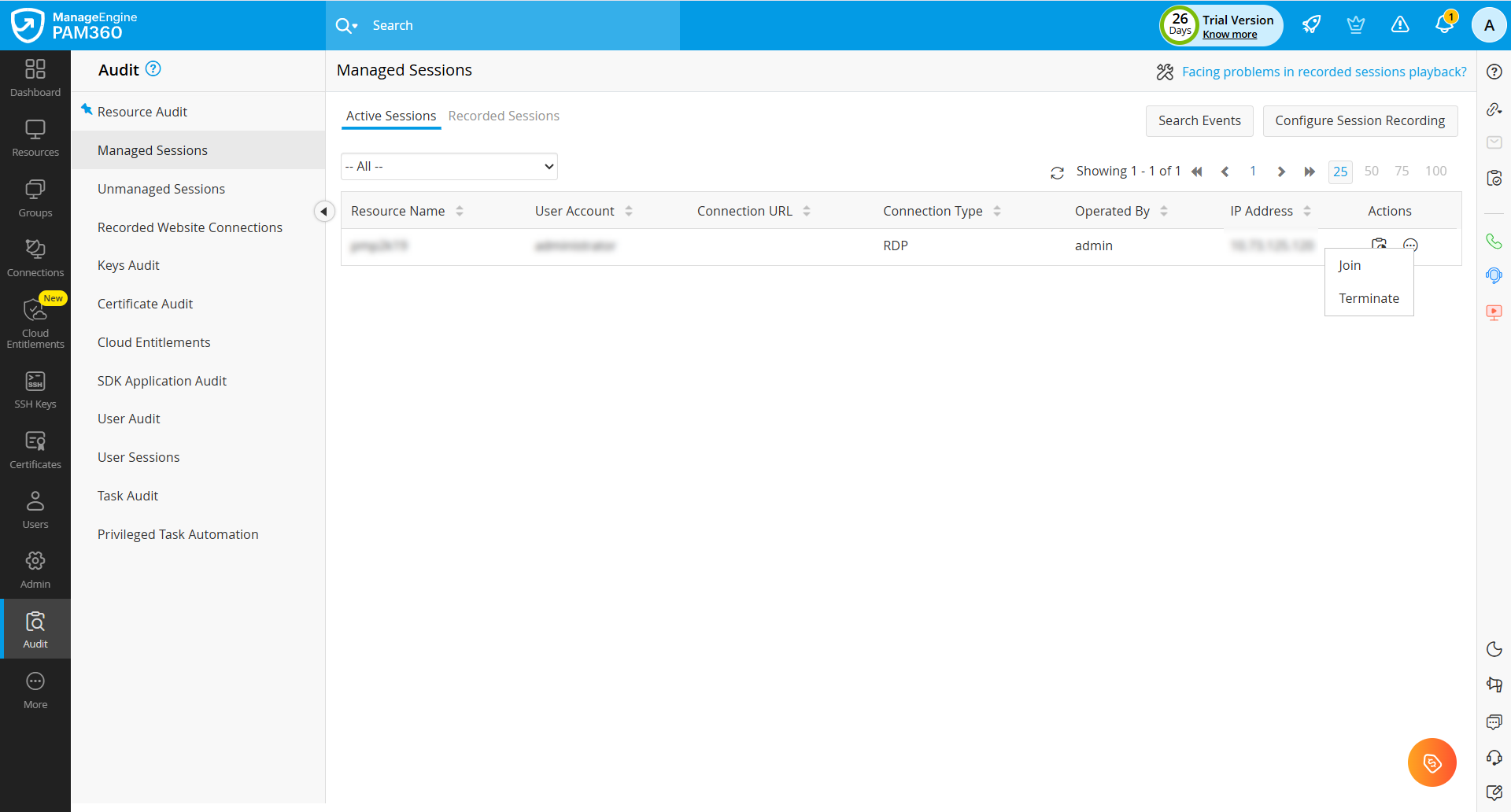
- To observe a user’s activities in real time, click the More icon under the Actions column beside the required session and select Join to shadow the privileged session.
- If you notice any suspicious activity or need to stop the session, click the More icon under the Actions column beside the session and select Terminate. PAM360 immediately terminates the session and revokes the user’s access to the target resource.
1.2 Recorded Sessions
The Recorded Sessions view lists all completed managed sessions. To view the recorded sessions, follow the steps below:
- Navigate to Audit >> Managed Sessions >> Recorded Sessions.
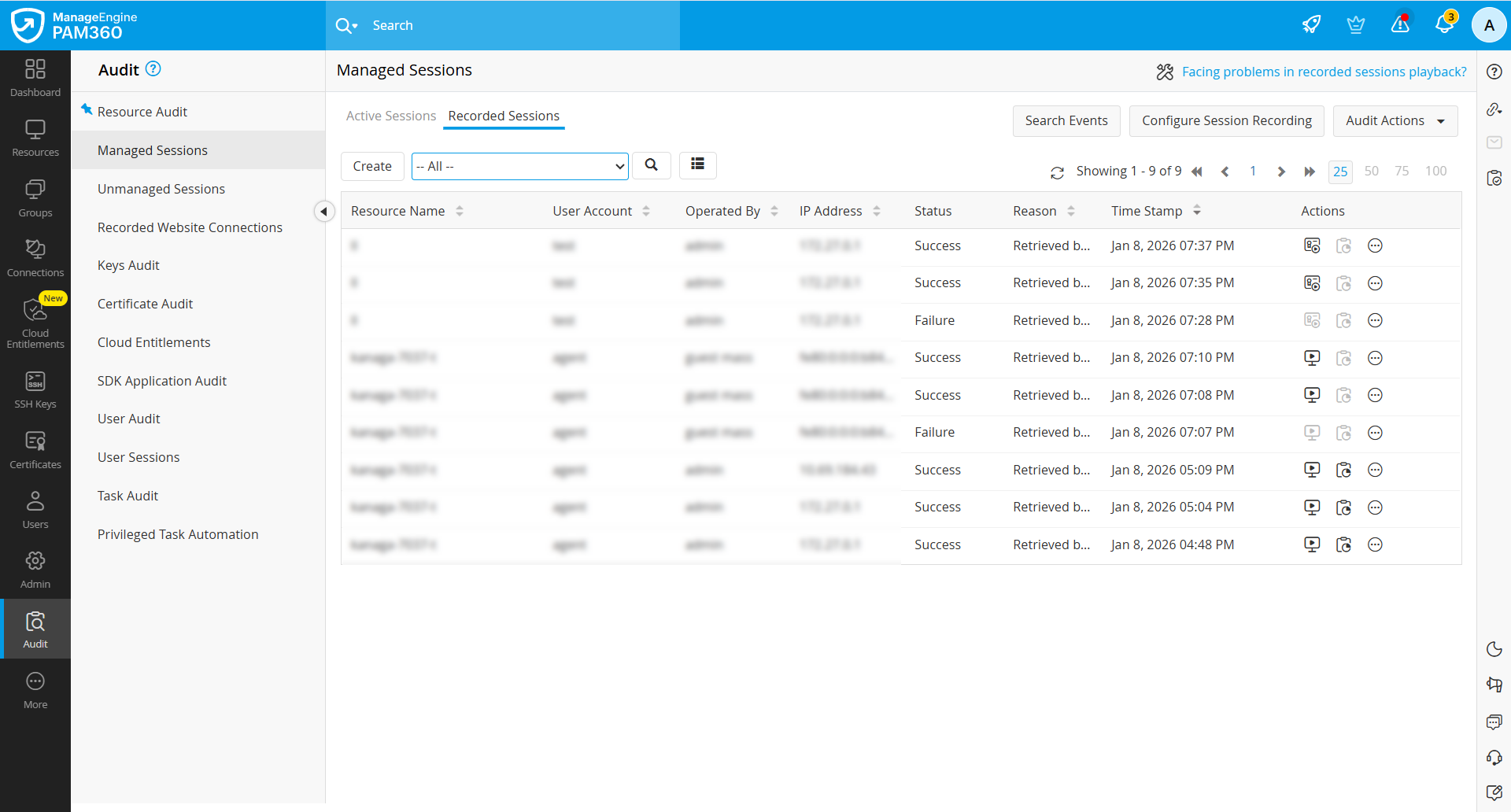
- On the Recorded Sessions page, you can view the list of all the remote sessions launched from PAM360. By default, all the sessions including RDP, SSH, Telnet, VNC, and SQL sessions will be displayed.
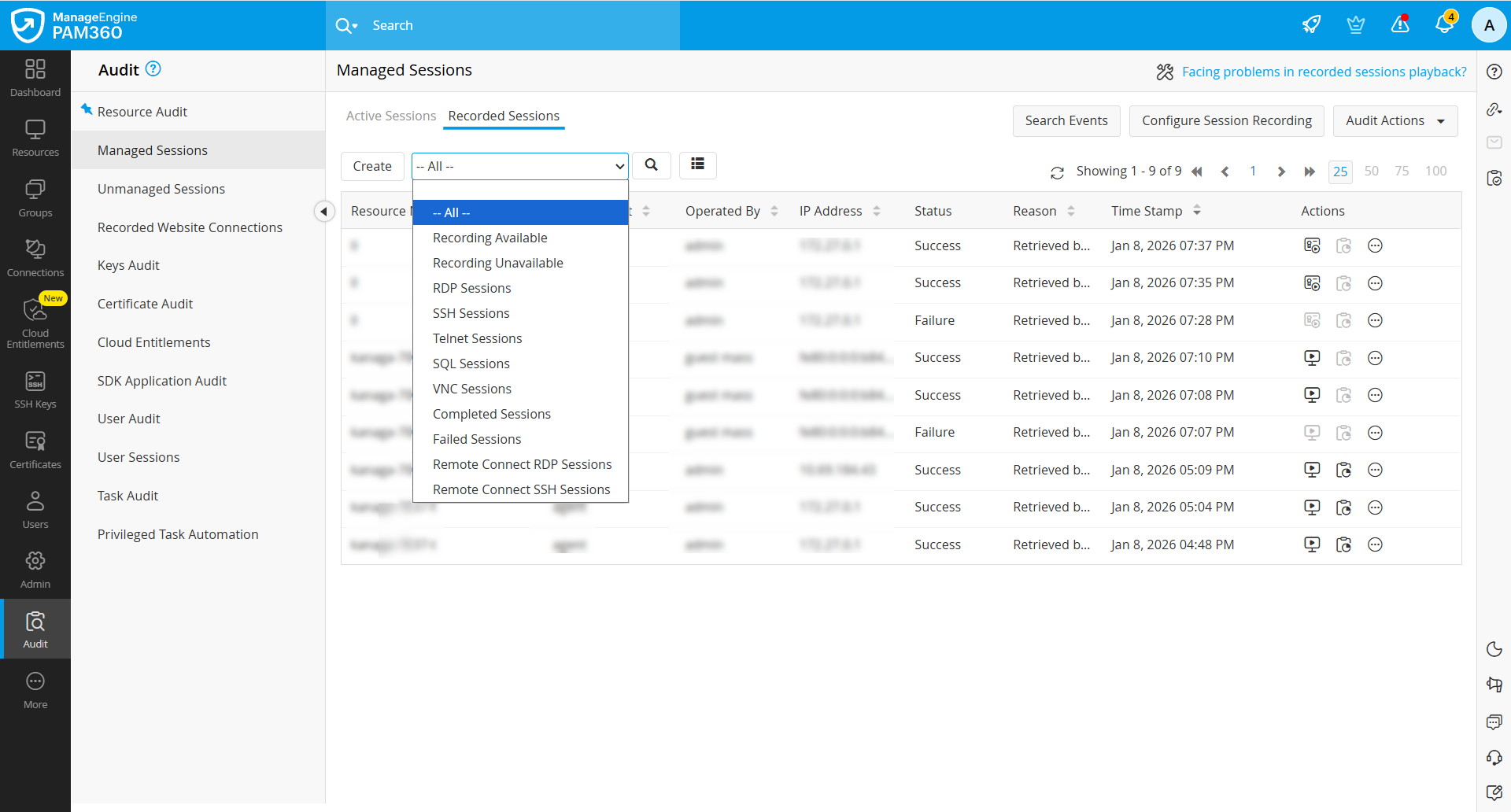
- Use the Filter drop-down in the top pane to view sessions by category. To filter by date, click the calendar icon beside it. For a specific date range, select Custom Range (Up to 3 months) and choose the required start and end dates from the calendar.
- Click the Play recorded file icon under the Actions column beside the required session to view the recorded session.
- Click the Session Events icon to view the system events and user keystrokes captured during the session. Refer to this document to know more about the session events in detail.
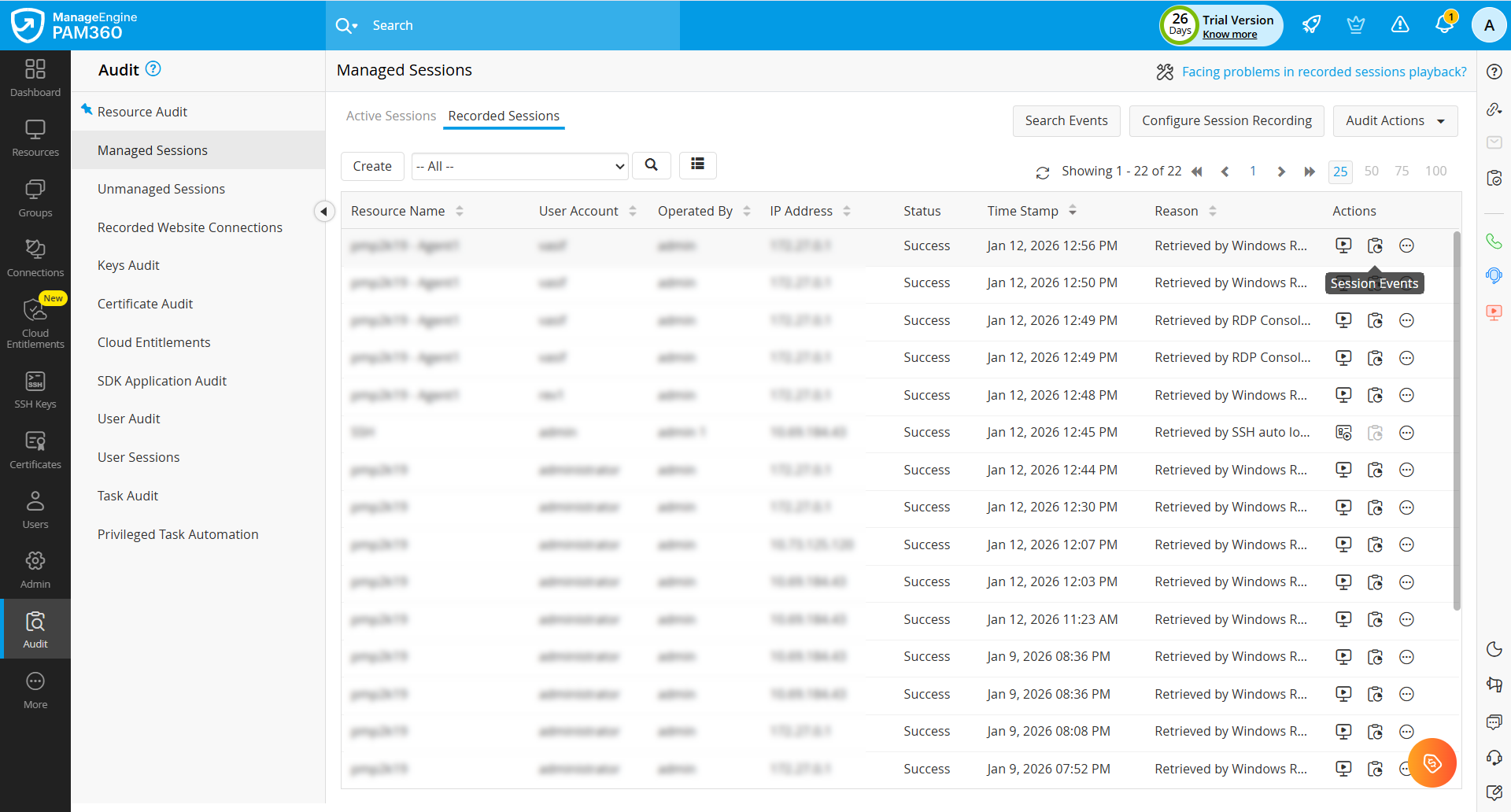
- Under the Actions column, click the More drop-down beside a recorded session to access the following options:
- Chat Log - Select this option to display the chat history associated with the remote session. This option is supported only for Legacy SSH, Telnet and SQL sessions.
- EventLog Analyzer - If you have an active ManageEngine EventLog Analyzer integration, select this option to display the list of actions performed by the user during the remote session. Refer to this document to learn more about the EventLog Analyzer integration in detail.
- Delete Chat Log - Select this option to delete all the chat logs associated with the privileged session.
- Delete Recording - Select this option to delete the session recording file. Deleting a session recording helps free up storage and meet data retention requirements by permanently removing recordings that are no longer needed, while maintaining system security.
Caution
Deleting a session recording in PAM360 requires approval from at least one other administrator. Once a deletion request is raised, all administrators are notified and the request appears in the Pending Requests tab for approval or rejection. If any one administrator approves the request, the session recording is permanently deleted, regardless of other responses.
The session recording deletion process depends on where the recordings are stored:
- Local server storage: Once an administrator approves the request, PAM360 deletes the recordings immediately.
- External storage: If the external device is unavailable at the time of approval, PAM360 schedules the deletion and removes the recordings during the next scheduled run when the device is connected.
If deletion is approved but delayed due to external device unavailability, PAM360 temporarily blocks access to the recordings. They cannot be viewed by any user, including administrators, until the deletion is completed.
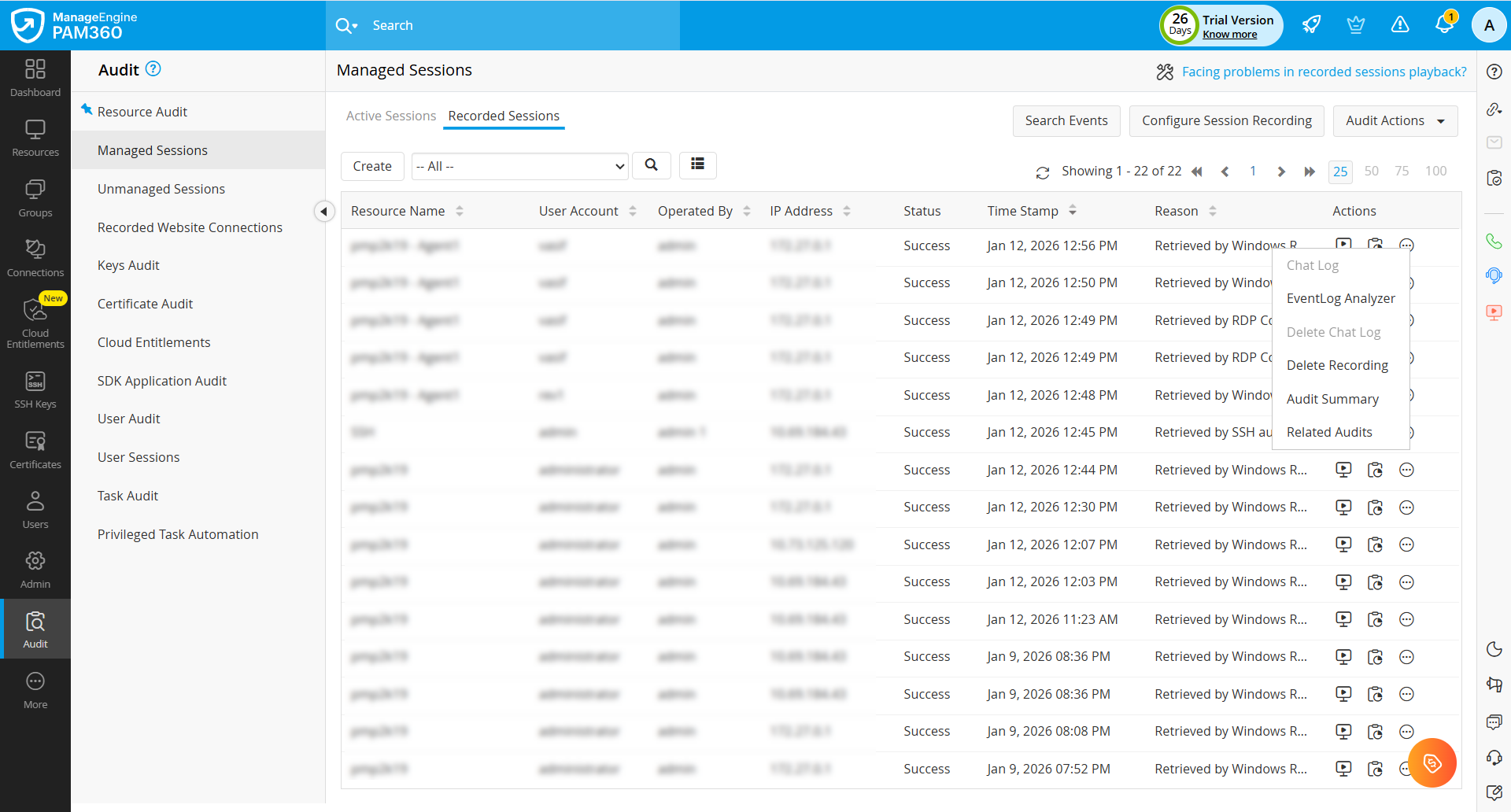
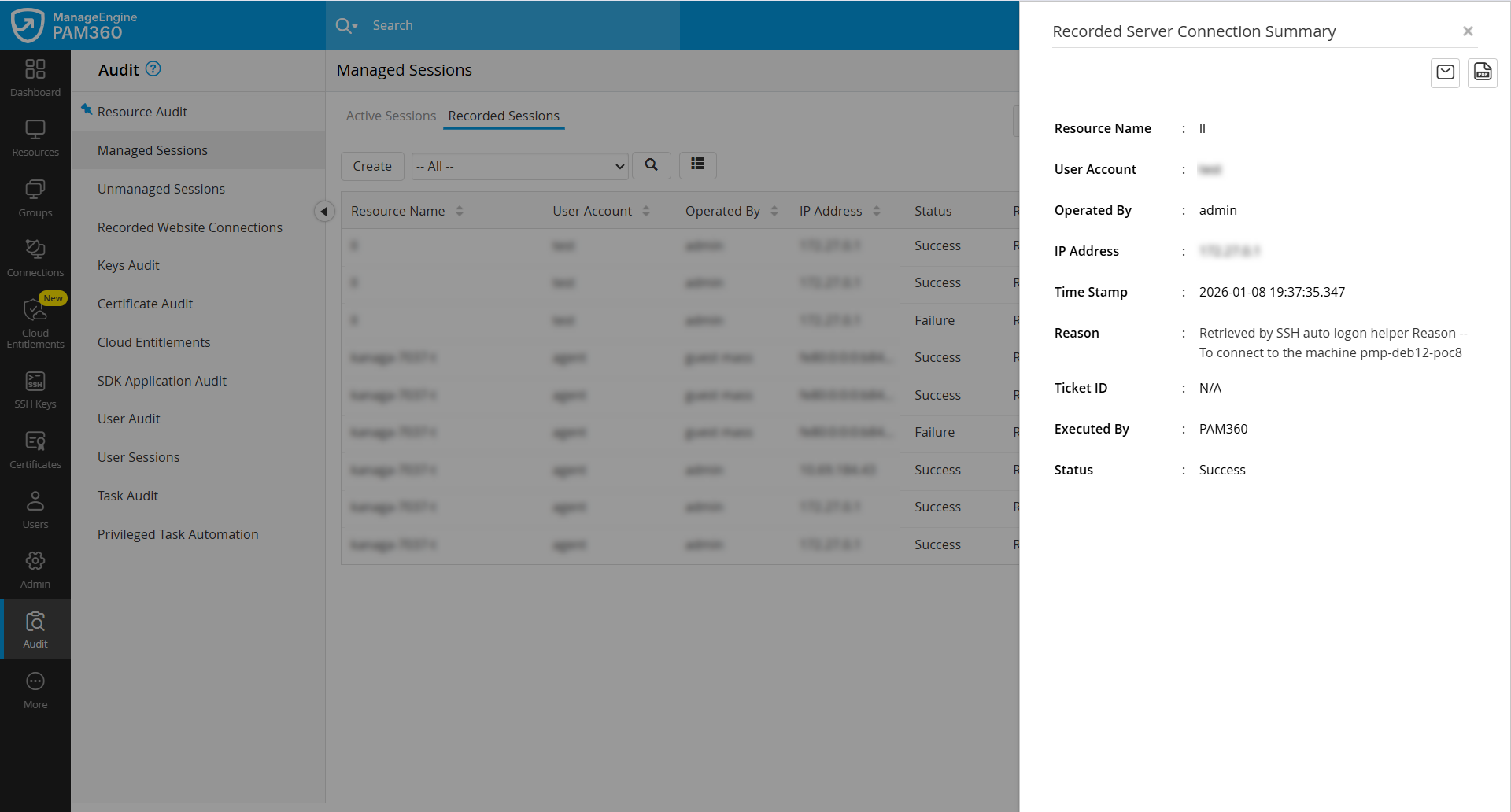
- Audit Summary - Select this option to view an overview of all audit details related to the selected recorded session. On the page that appears, click Email Audit Summary to receive the summary via email and click Export as PDF to download the audit summary as a PDF file.
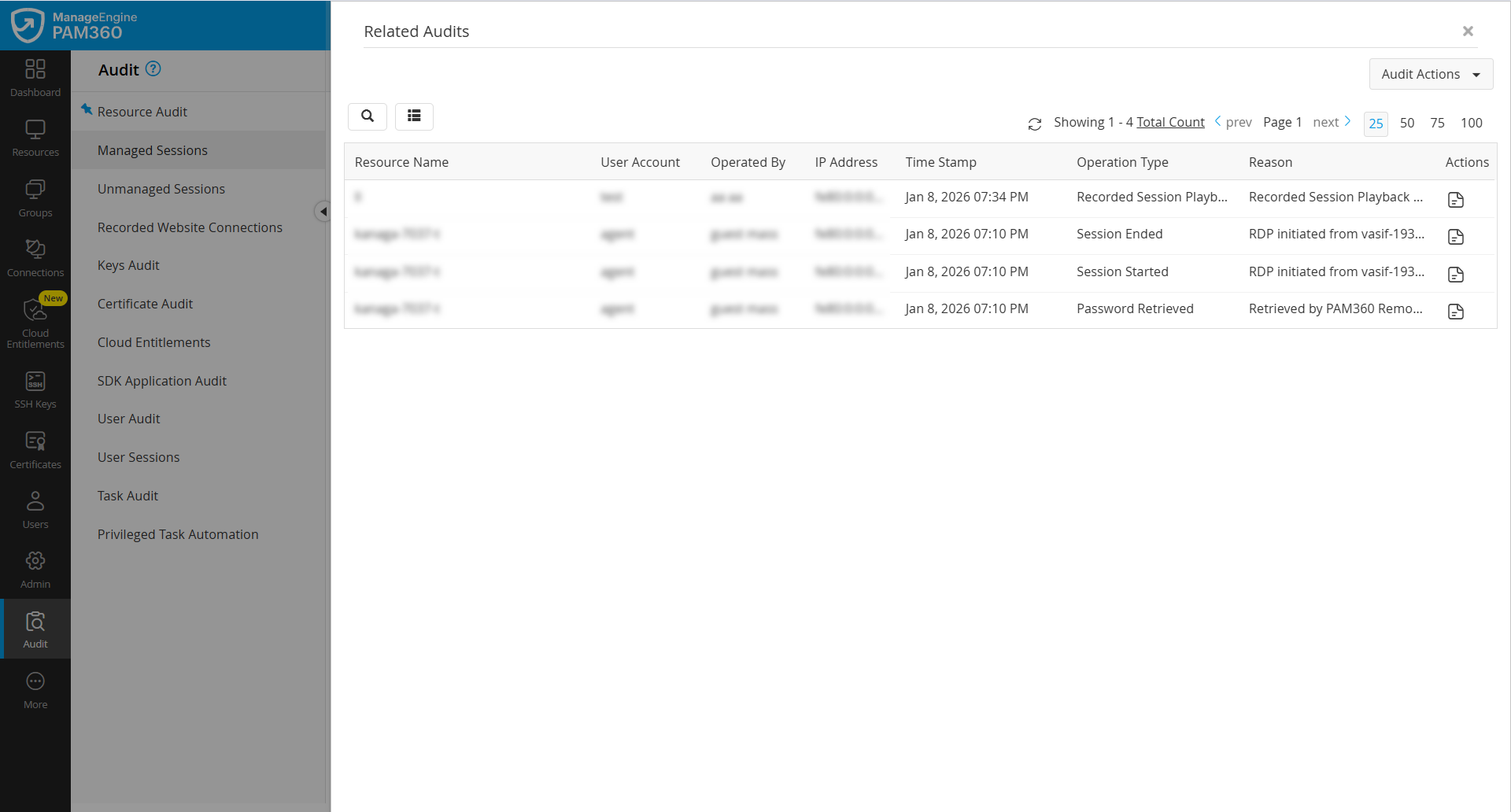
- Related Audits - Select this option to view all audit events linked to the selected server connection. On the Related Audits page, click Audit Actions and choose Export as CSV to download the related audit details as an Excel file, Export as PDF to download the related audit details as a PDF file, and Email Related Audits to receive the related audit details in your email.
2. Unmanaged Sessions
Unmanaged sessions are sessions that occur outside PAM360, such as direct logins to target systems or access through external thick-client applications. These sessions are monitored by PAM360 only when the PAM360 agent is installed with System Event Logging or Keystroke Logging enabled. Unmanaged Sessions are also categorized into Active Sessions and Recorded Sessions.
2.1 Active Sessions
The Active Sessions view displays all currently active direct login sessions monitored by the PAM360 agent. To view unmanaged active sessions, follow the steps below:
- Navigate to Audit >> Unmanaged Sessions >> Active Sessions.
- On the Active Sessions page, you will see a list of all active unmanaged sessions detected by the PAM360 agent.
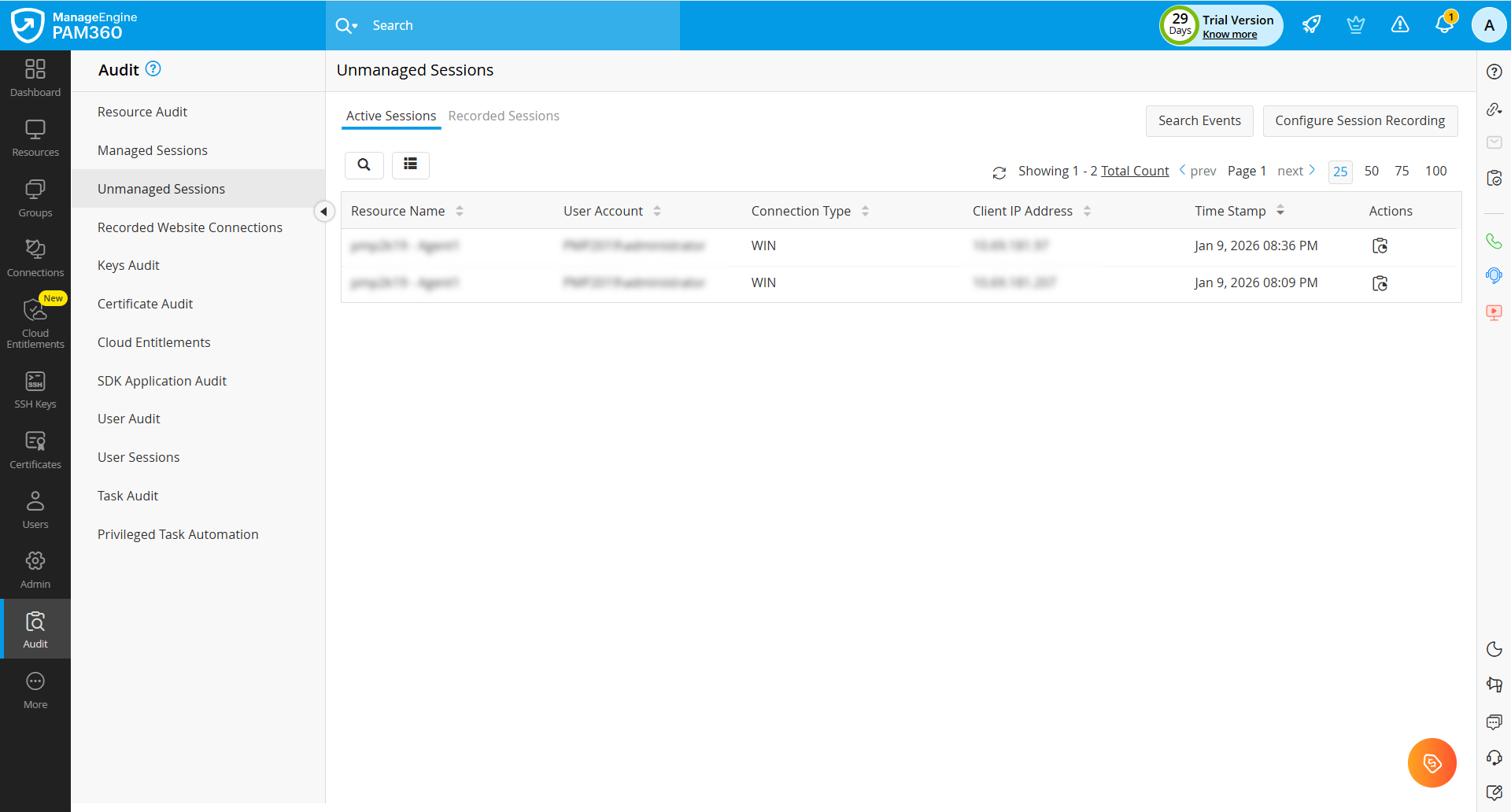
- To filter sessions by date, click the calendar icon in the top pane. For a specific date range, select Custom Range (Up to 3 months) and choose the required start and end dates from the calendar.
- Although real-time shadowing is not available for unmanaged sessions, administrators still have visibility into active unmanaged privileged sessions.
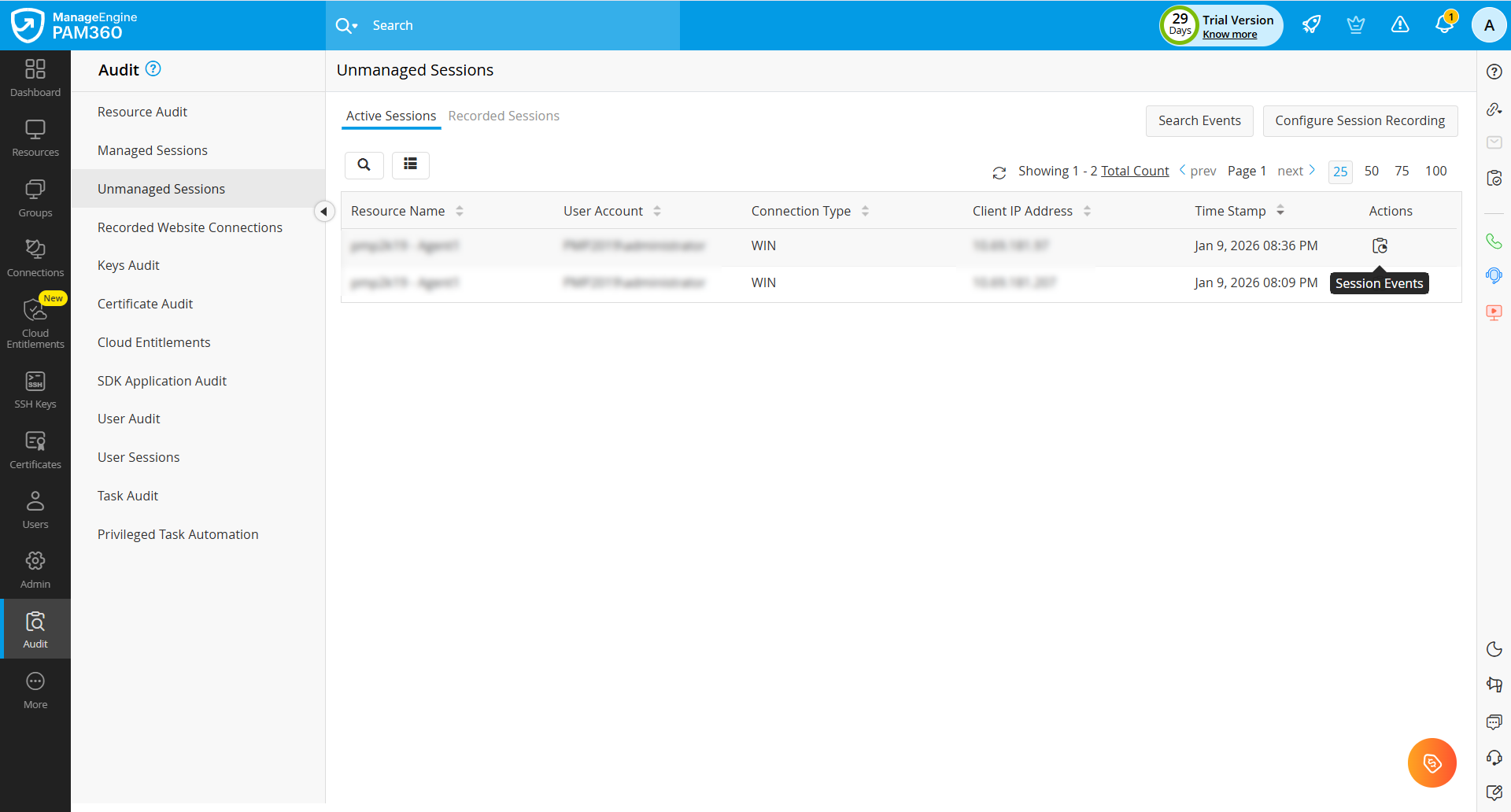
Caution
PAM360 does not support session shadowing or termination for active website sessions.
2.2 Recorded Sessions
The Recorded Sessions view lists all completed unmanaged sessions. To view unmanaged recorded sessions, follow the steps below:
- Navigate to Audit >> Unmanaged Sessions >> Recorded Sessions.
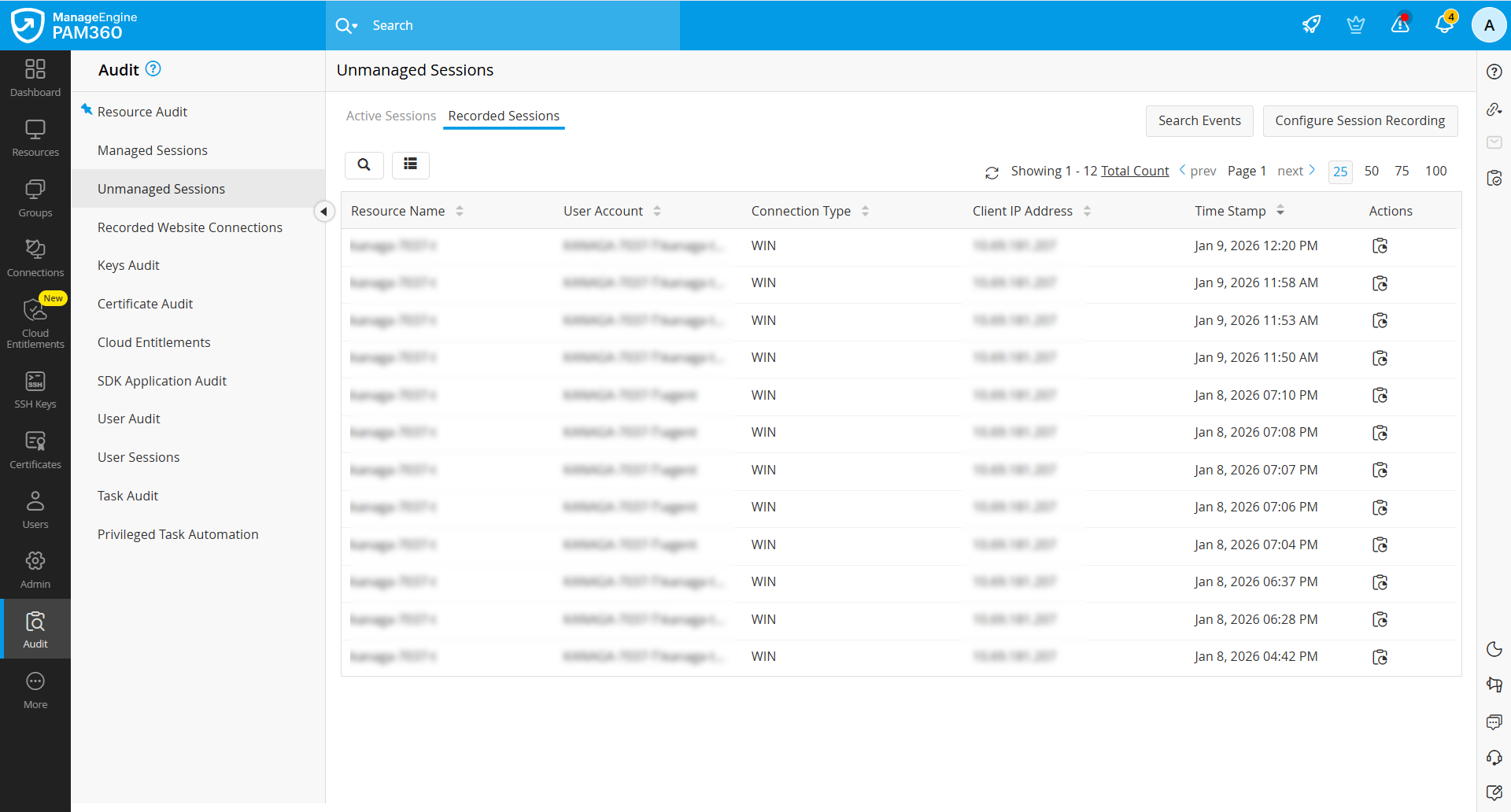
- This page displays all completed unmanaged sessions monitored by the PAM360 agent.
- To filter sessions by date, click the calendar icon in the top pane. For a specific date range, select Custom Range (Up to 3 months) and choose the required start and end dates from the calendar.
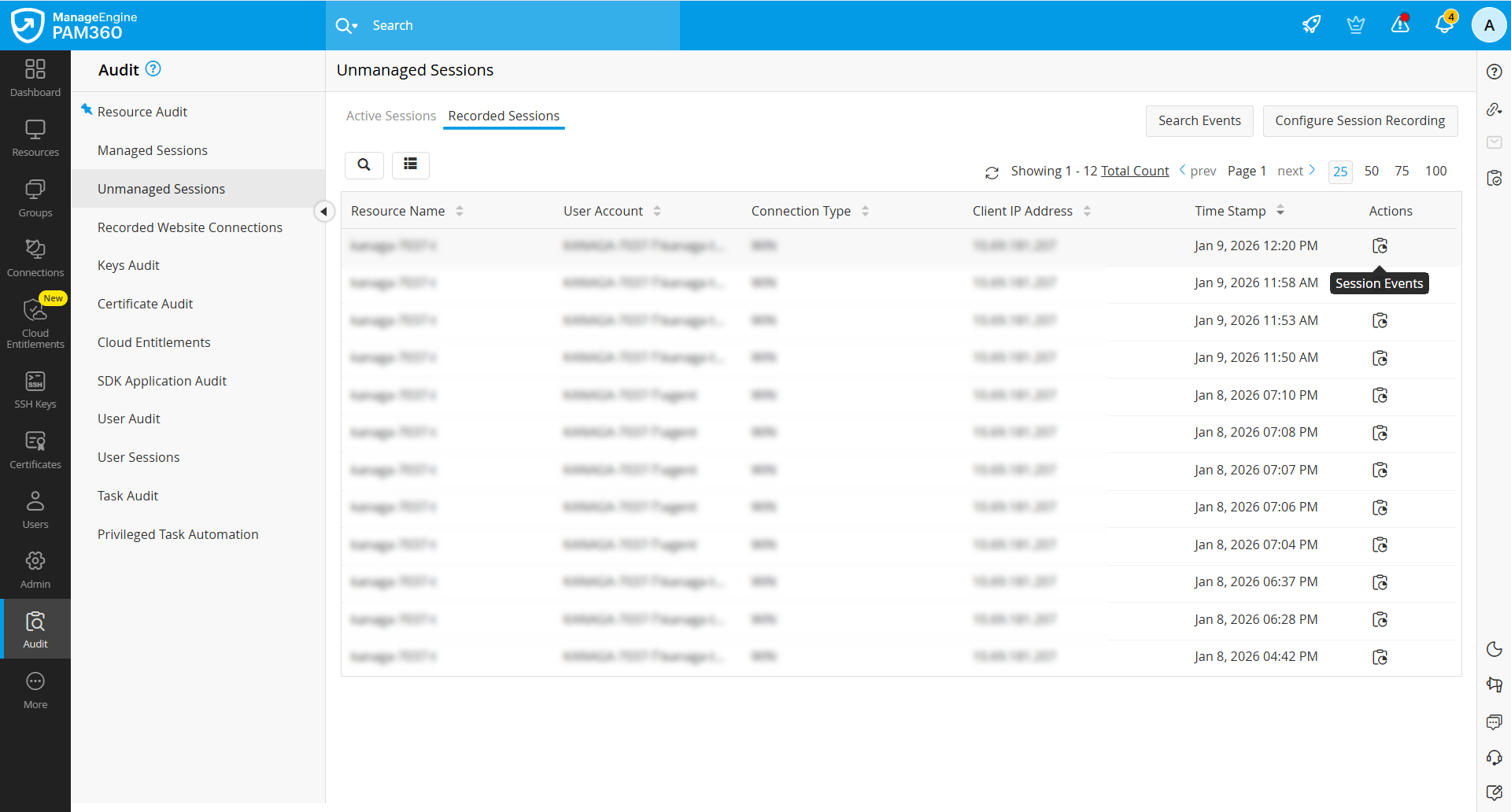
- Click the Session Events icon under the Actions column beside the required session view the system events and user keystrokes captured during the session. Refer to this document to know more about the session events in detail.
3. Recorded Website Connections
On the Recorded Website Connections page, you can view the list of all the website connections launched from PAM360.
- By default, all the privileged sessions will be displayed on this page, which includes the website sessions launched directly from the PAM360 server and those via the HTTPS gateway server.
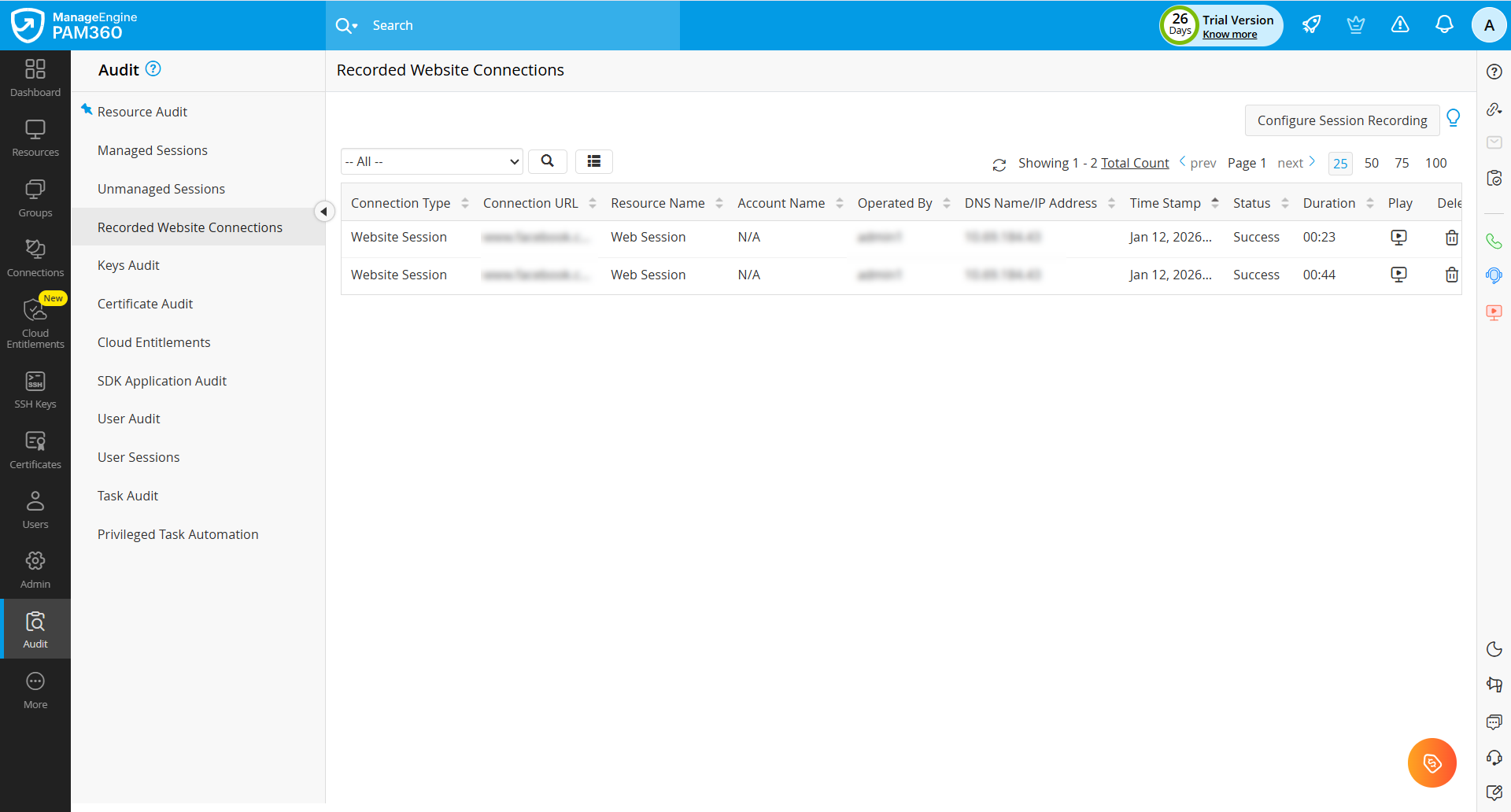
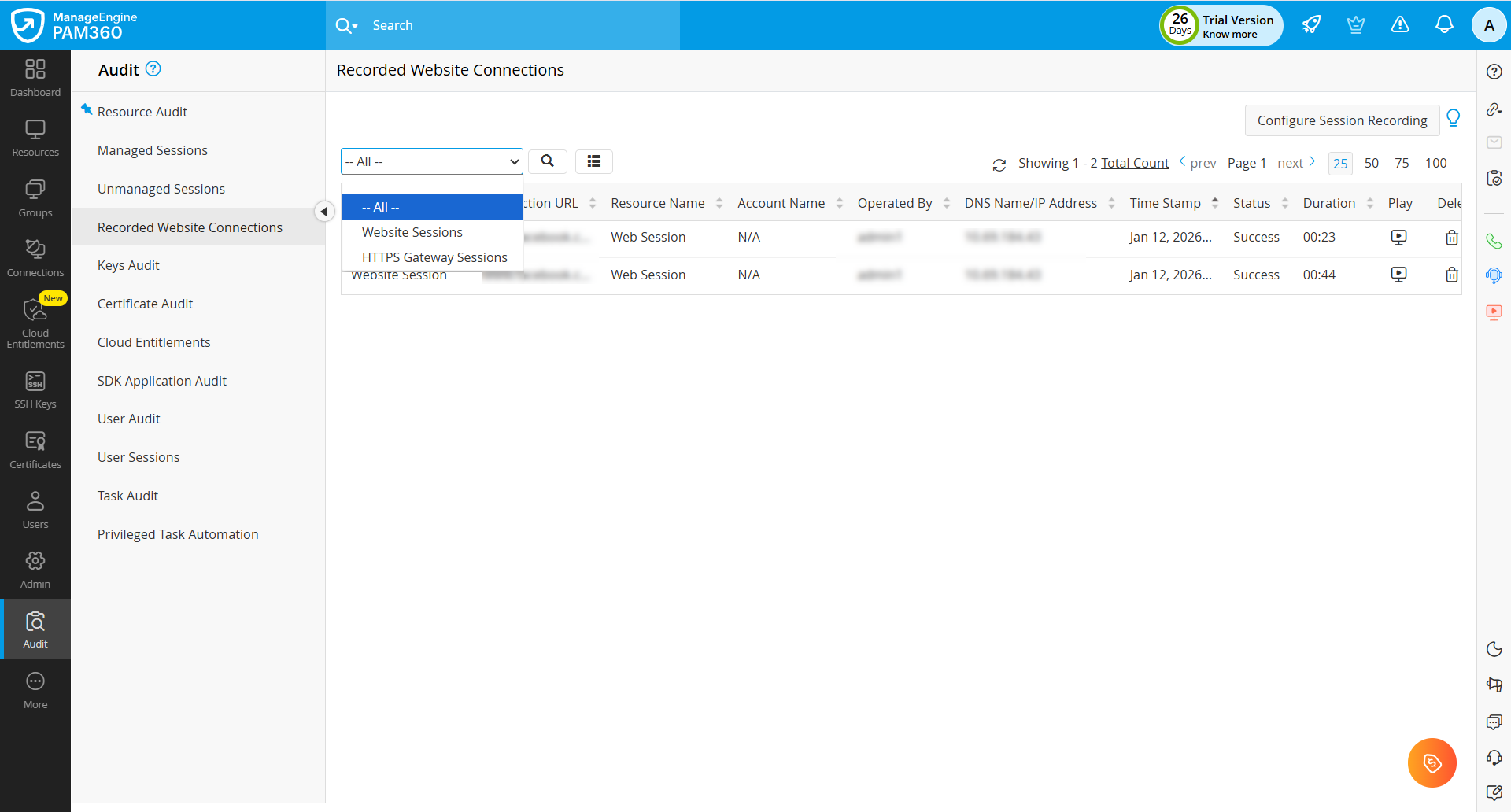
- Use the Filter drop-down in the top pane to switch between the Website and HTTPS gateway sessions. To filter by date, click the calendar icon beside it. For a specific date range, select Custom Range (Up to 3 months) and choose the required start and end dates from the calendar.
- You can use the Search option to find the desired session recording.
- Once you find the desired session, click the Play icon beside the required session to view the privileged session recording.
4. Splitting Recorded Sessions
PAM360 offers a robust provision to split recorded privileged sessions into several small files and encrypt them individually. This option applies to session recording files larger than 10 MB in size. By default, PAM360 encrypts all privileged session recordings in your local storage. However, for lengthy sessions resulting in large file sizes, there is a risk of encryption failure during storage. To mitigate this, PAM360 automatically splits the recordings into smaller segments, each not exceeding 10 MB, and ensures that every segment is securely encrypted. Despite being stored as multiple encrypted files, these recordings are merged seamlessly during playback, appearing as a single continuous file. This approach not only guarantees successful encryption but also optimizes playback performance, eliminating buffering delays and ensuring a smooth user experience.
For instance, if a session recording generates a file of 25 MB, PAM360 will split it into three segments: two of 10 MB each and one of 5 MB. By default, the session splitting feature is disabled in PAM360, meaning all session recordings are stored as a single file regardless of size. Follow the steps outlined in this document to enable session splitting and take advantage of this feature. Enabling this option ensures efficient encryption and optimized playback for large recordings.
Caution
- PAM360 supports session splitting only for Legacy SSH and Telnet sessions.
- Session splitting will not work for RDP, VNC, and SSH session recordings, as these are video-based recordings, and PAM360 does not encrypt video-based files. Instead, these recordings are saved as video files in the configured external storage. However, you cannot play these files outside the PAM360 interface using standard media players.
- PAM360 does not support session splitting for website session recordings.
5. Session Summary for Recorded Privileged Sessions
PAM360 integrates with OpenAI to generate a summary of all the actions performed by the user during a remote connection. The integrated AI model analyzes the privileged session recording and automatically generates concise and intelligent summaries of the recorded remote connections that allow administrators to quickly view the actions carried out by the user during each session. The session summary will include the logged-in user details and the list of operations they executed during the established privileged session.
5.1 AI Session Summary for SSH and Telnet Sessions
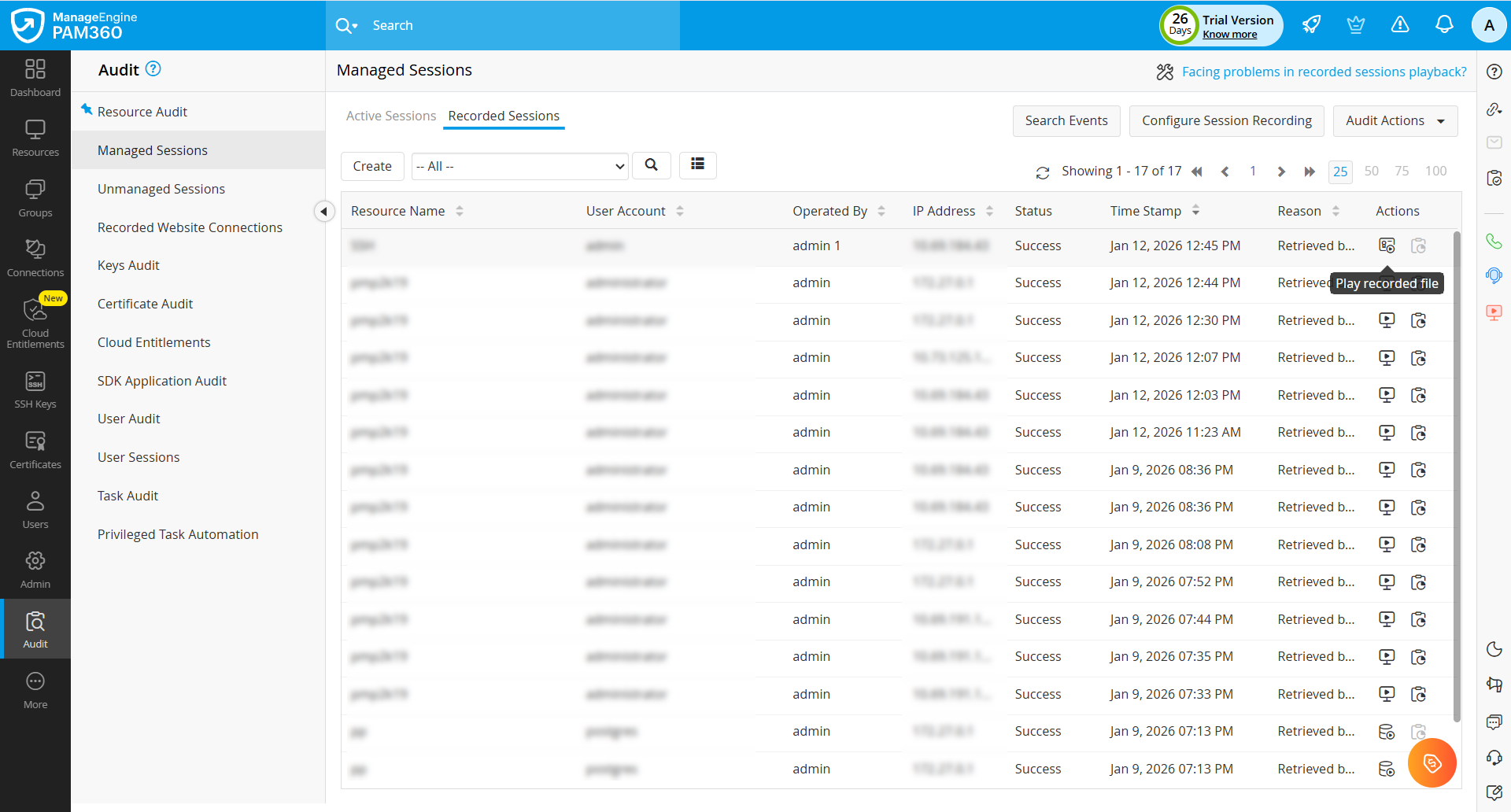
- Navigate to Audit >> Managed Sessions >> Recorded Sessions.
- On the page that appears, click the Play button beside the desired SSH or Telnet session. The session recording playback will open in a new tab in the browser window.
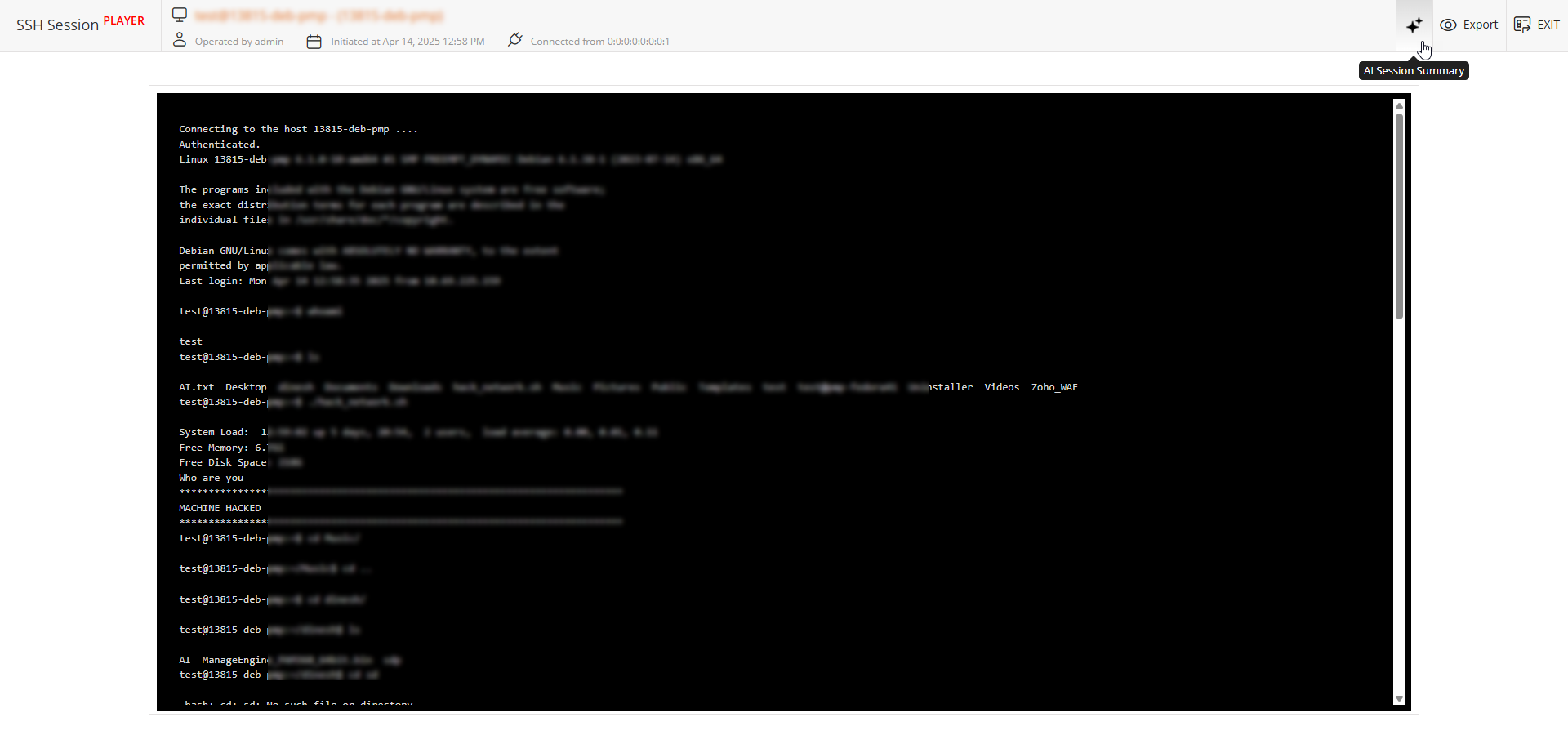
- In the Session Player window that opens, click the AI Session Summary icon on the top-right corner of the screen to view a concise, AI-generated overview of the recorded session.
- An AI Session Summary page will slide in, highlighting key actions and commands executed during the selected session.
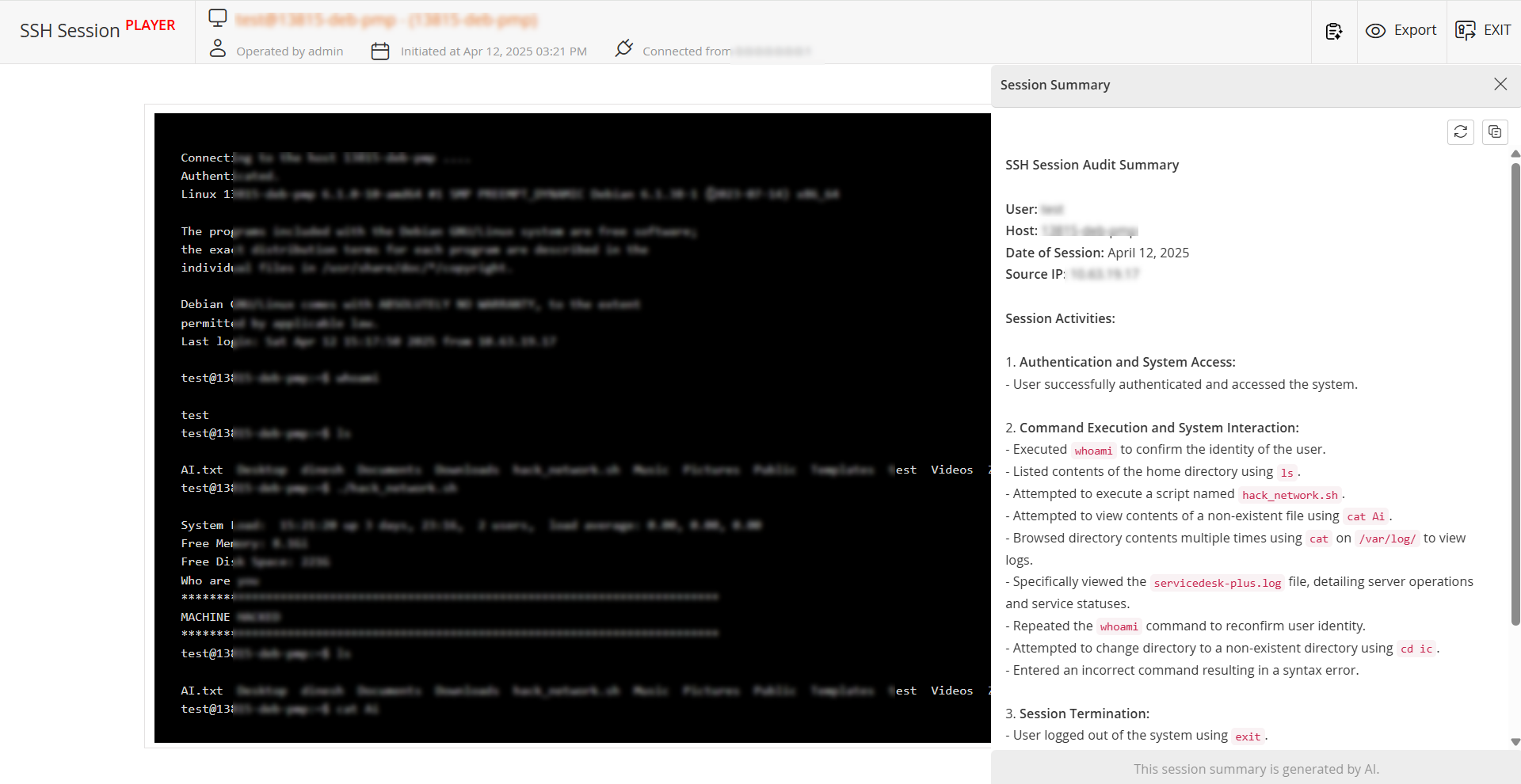
- Click the Regenerate button at the top pane of the Session Summary window to regenerate the recorded session summary.
Additional Detail
Only users whose role has the Generate AI Insights privilege enabled can generate or regenerate the summary.
- Click the Copy button to copy the AI-generated recorded session summary to the clipboard.
5.2 AI Session Summary for RDP Sessions
- Navigate to Audit >> Managed Sessions or Unmanaged Sessions >> Recorded Sessions.
- On the page that appears, identify the required Windows recorded session and click the Session Events icon under the Actions column beside the session.
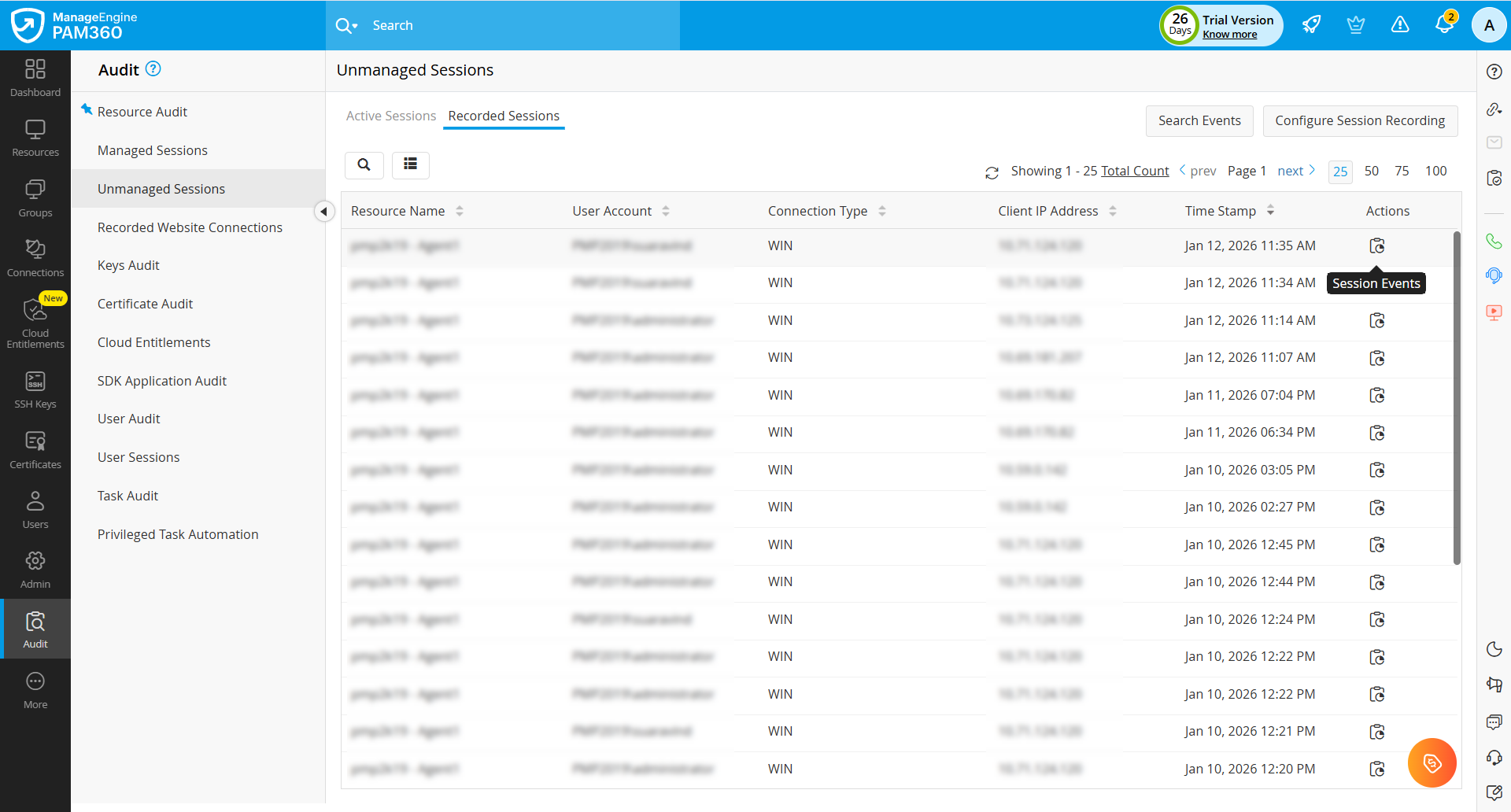
- On the Session Events page, switch to the AI Event Summary tab and click Generate to generate the AI Event Summary for this session. You can also regenerate the session summary using the Regenerate button at the top pane of the Session Summary window. If AI integration is not enabled, click Configure to navigate to the AI-Powered Insights page and enable the integration. Refer to this help document for detailed integration steps.
Additional Detail
Only users whose role has the Generate AI Insights privilege enabled can generate or regenerate the summary.
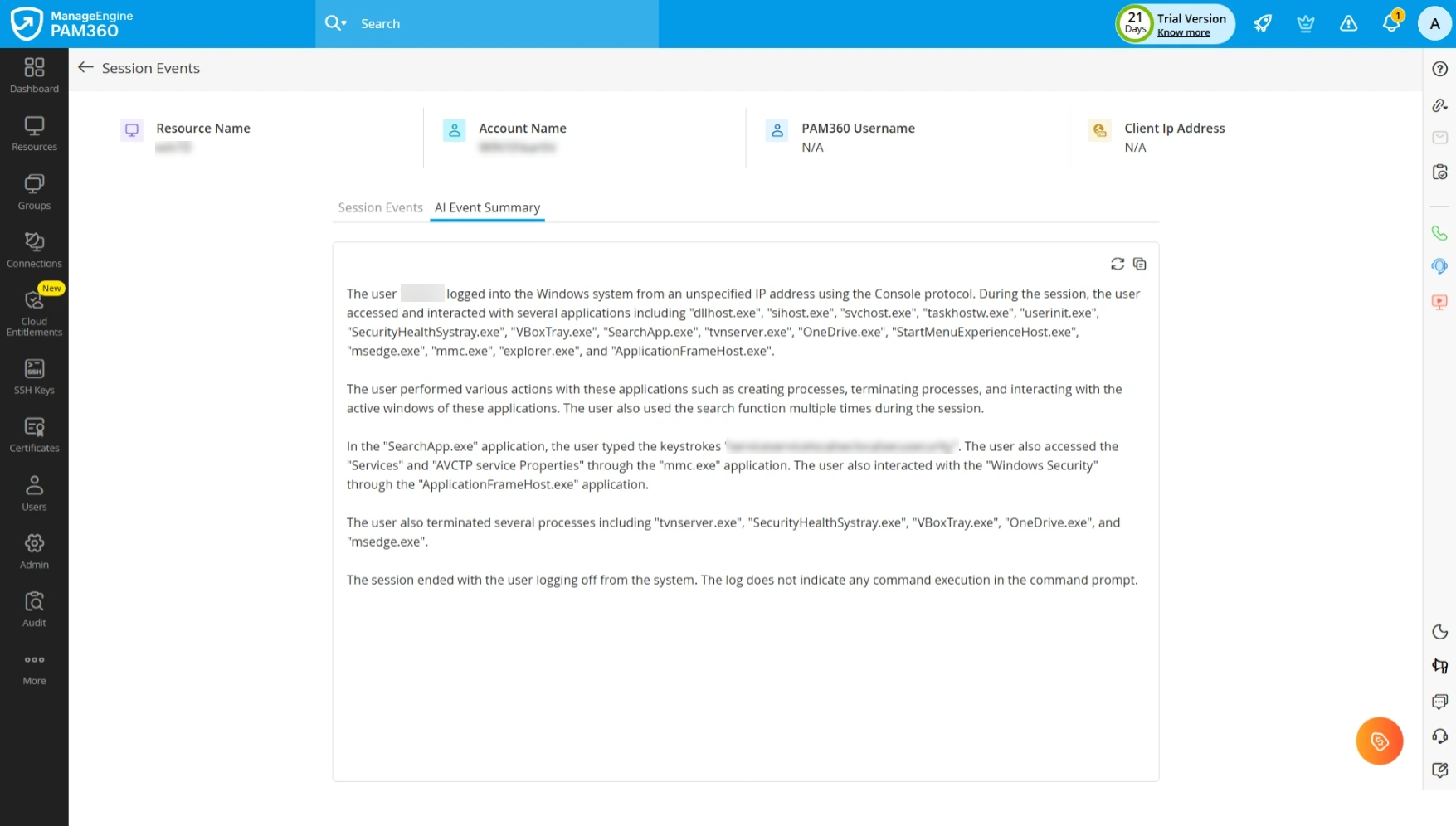
- Click the Copy button to copy the AI-generated recorded session summary to the clipboard.
Caution
- The AI-generated session recording summary is available only for remote connections launched using Legacy SSH, Telnet, and RDP sessions. For RDP sessions, the corresponding PAM360 agent module should be installed on the target machine to capture session activities.
- The session summary feature for recorded connections will be available only if you have a valid AI integration enabled in your environment.
- Once a session summary is generated, the same summary will be displayed on the Session Summary window unless it is regenerated.
- The integrated AI platform may fail to generate session summaries if the input exceeds the token limit of the selected AI model.