Session Recording Configuration
For builds 8400 and below, refer to this help document.
Organizations depend on privileged accounts to manage critical resources, perform administrative tasks, and access sensitive systems, but this elevated access also introduces significant risks. Additionally, they often rely on web-based applications and services for critical operations. Unmonitored privileged sessions can result in unauthorized actions and security breaches. Additionally, many regulatory frameworks require proactive monitoring and auditing of privileged access to ensure compliance. In the event of security breaches, the absence of detailed session logs hampers effective investigation and remediation.
To address these issues, PAM360 offers the Privileged Session Recording feature, enabling organizations to view, record, and monitor user activities on privileged resources and sensitive web applications/services accessed from PAM360 via remote sessions. This feature ensures accountability and enhances security by maintaining a detailed audit trail of all interactions. Recorded sessions are stored securely and can be reviewed later for compliance, identifying potential security risks.
By providing a clear, auditable trail of privileged actions, the privileged session recording helps organizations mitigate security risks and meet compliance requirements efficiently. This help document covers the following topics in detail:
- How Secure is Session Recording?
- Configuring Privileged Session Recording
- Configuring FFmpeg for Session Recording
1. How Secure is Session Recording?
PAM360 ensures the security of session recording by employing an advanced, browser-based remote login mechanism, which allows users to initiate secure, reliable, and fully emulated Windows RDP, SSH, Telnet, and website sessions directly from any HTML5-compatible browser. With a single click, users can establish privileged sessions without requiring additional plug-ins or agent software, reducing dependency on external components that could introduce vulnerabilities.
All remote connections are tunneled through the PAM360 server, eliminating the need for direct connectivity between the user’s device and the remote host. This architecture enhances security by ensuring that privileged credentials, such as passwords, are never exposed at the browser level. By isolating user access from direct host connections, PAM360 significantly reduces the attack surface while maintaining reliable session performance.
PAM360 comes bundled with RDP, SSH, and Telnet session gateways. These gateways enable users to initiate remote terminal sessions directly within their browser, eliminating the need to install additional software on endpoints. The only prerequisite is an HTML5-compatible browser, such as Internet Explorer 9 or later, Firefox 3.5 or later, Safari 4 or later, or Chrome.
2. Configuring Privileged Session Recording
Additional Detail
The recordings will be stored by default in the directory path <PAM360_Installation_Folder\PAM360\recorded_files>. This can be changed to an any directory or UNC path at any time from the Session Configuration window. To access the session configuration window, navigate to Admin >> Connections >> Session Configuration.
Caution
- To ensure smooth and uninterrupted website session recording in your environment, ensure the following prerequisites are met:
- The users initiating the website/HTTPS gateway session should have the PAM360 browser extension of version 2.1.0.0 or higher installed and logged in. Explore this link for the detailed steps to add the PAM360 extension to your browser.
- The FFmpeg should be properly installed and configured in your environment. Explore this section for the detailed steps to configure FFmpeg in your environment. Without FFmpeg,
- The recordings played in Chromium-based browsers will not include a seek bar and duration indicator.
- The recordings cannot be played in Firefox.
- Website sessions are recorded only if the user has an active PAM360 extension session while launching a website session to the configured URL.
- Users must be logged into the PAM360 extension to initiate an HTTPS gateway session from the PAM360 web interface if session recording is enabled.
- Even if the website and HTTPS gateway session recordings are enabled globally in the Session Configuration window, they must also be enabled at the resource level to record these sessions.
- Activities, such as copy-pasting will not be captured in the recording.
- We currently support website and HTTPS gateway connection recording only in the PAM360 primary server and connections launched using Google Chrome and Microsoft Edge browsers. We are yet to offer website and HTTPS gateway connection recording support for connections launched from the secondary server and connections launched via Firefox.
- When a user launches a website or an HTTPS Gateway connection to a configured URL, they must select the appropriate session tab in the session consent window to record the connection. If the user selects the 'Entire Screen' option, the recording will capture not only the configured URL launched from PAM360 but the entire screen that may include personal information.
- The Record website sessions and Record HTTPS gateway sessions fields are available only in PAM360 builds 7400 and above. If the Record Configured Resource URL option is not enabled at the resource-level configuration, only the website and HTTPS gateway connections launched to configured URLs using autofill and auto logon will be recorded. For a more granular level configuration, configure session recording at the resource level while adding the resource or editing the resource.
Privileged session recording in PAM360 can be configured at two different levels:
2.1 Configuring Session Recording for Specific Resources
Administrators can enable session recording for selected resources or accounts that require closer monitoring. It is ideal for tracking privileged actions on critical systems, sensitive databases, or high-risk applications. By enabling session recording at the resource level, organizations can maintain precise control over what activities are captured, ensuring that only essential sessions are monitored. This granular approach minimizes unnecessary data collection while aligning with compliance and security policies. Follow these steps to configure privileged session recording for specific resources:
- Navigate to the Resources tab.
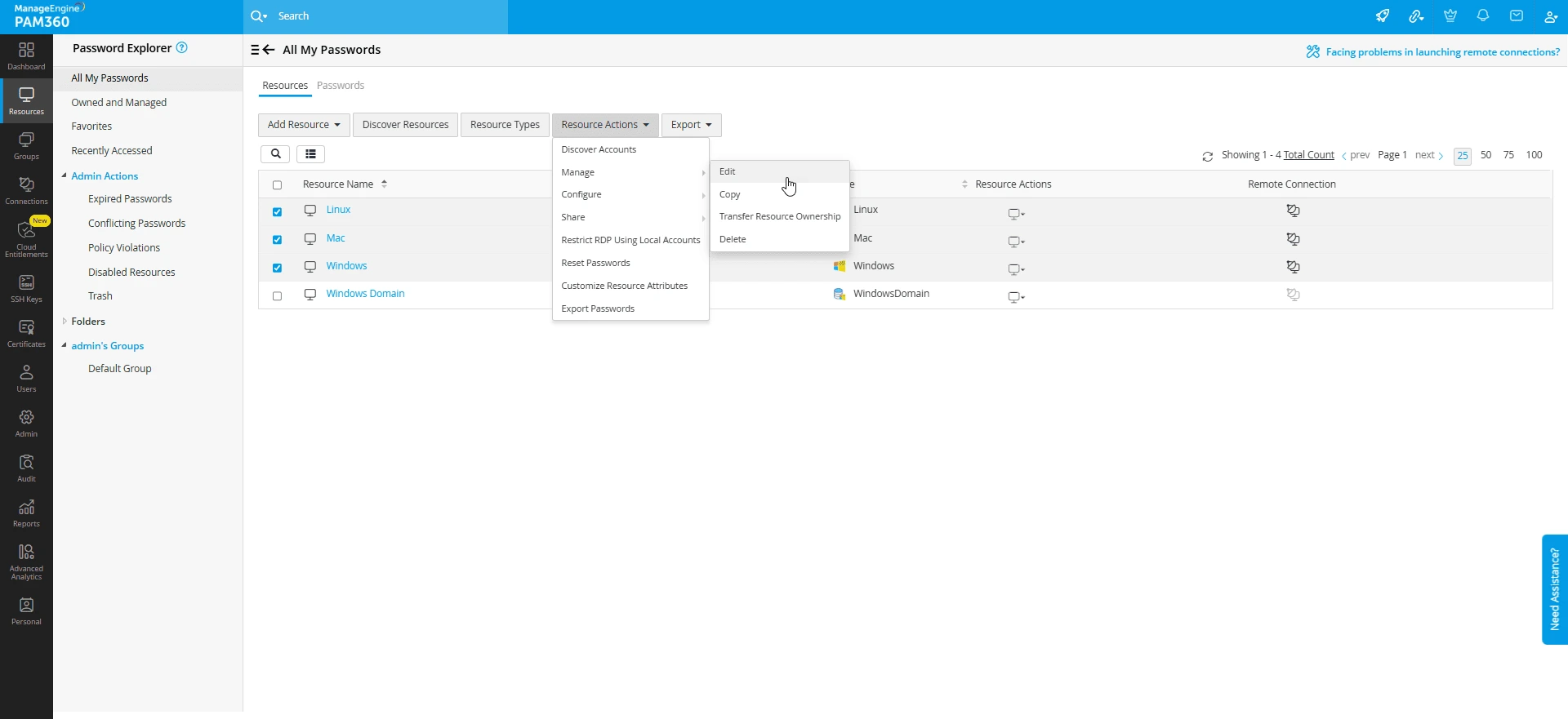
- Select the resources for which you want to configure session recording and click Resource Actions >> Manage >> Edit.
- In the Edit Resources window, switch to Account Attributes tab, and modify the following drop-down fields as required: Record RDP sessions, Record SSH/Telnet sessions, Record website sessions, and Record HTTPS Gateway Session.
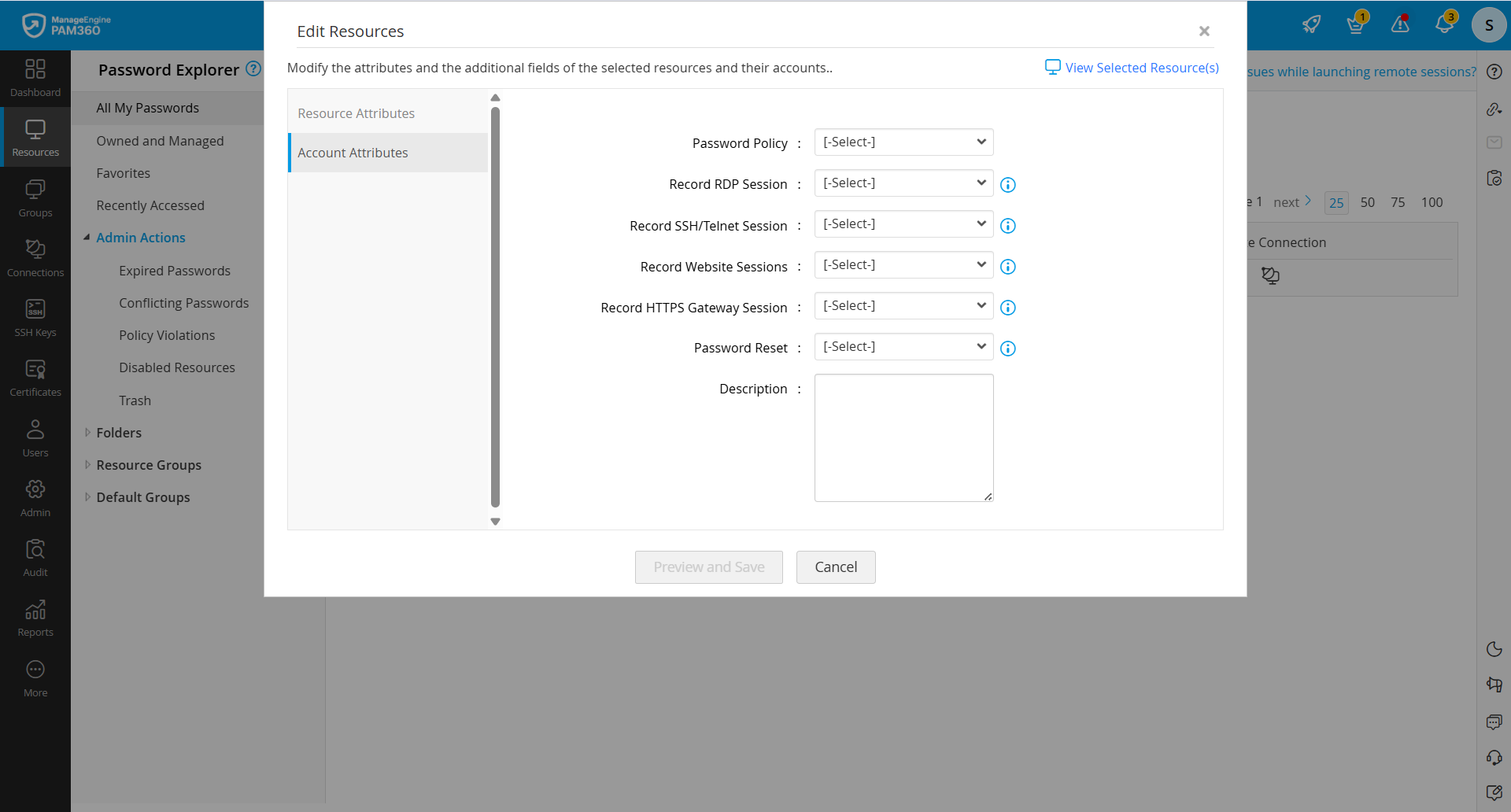
- Click Preview and Save to save the configured changes.
2.2 Configuring Session Recording Globally
PAM360 allows administrators to configure session recording settings globally to ensure uniform oversight of RDP, VNC, web, HTTPS gateway, SSH, Telnet, and SQL sessions. These settings can be customized to suit organizational needs, providing flexibility, enhanced security, and compliance with regulatory requirements. Follow these steps to configure privileged session recording globally:
- Navigate to Admin >> Privileged Session >> Session Configuration.
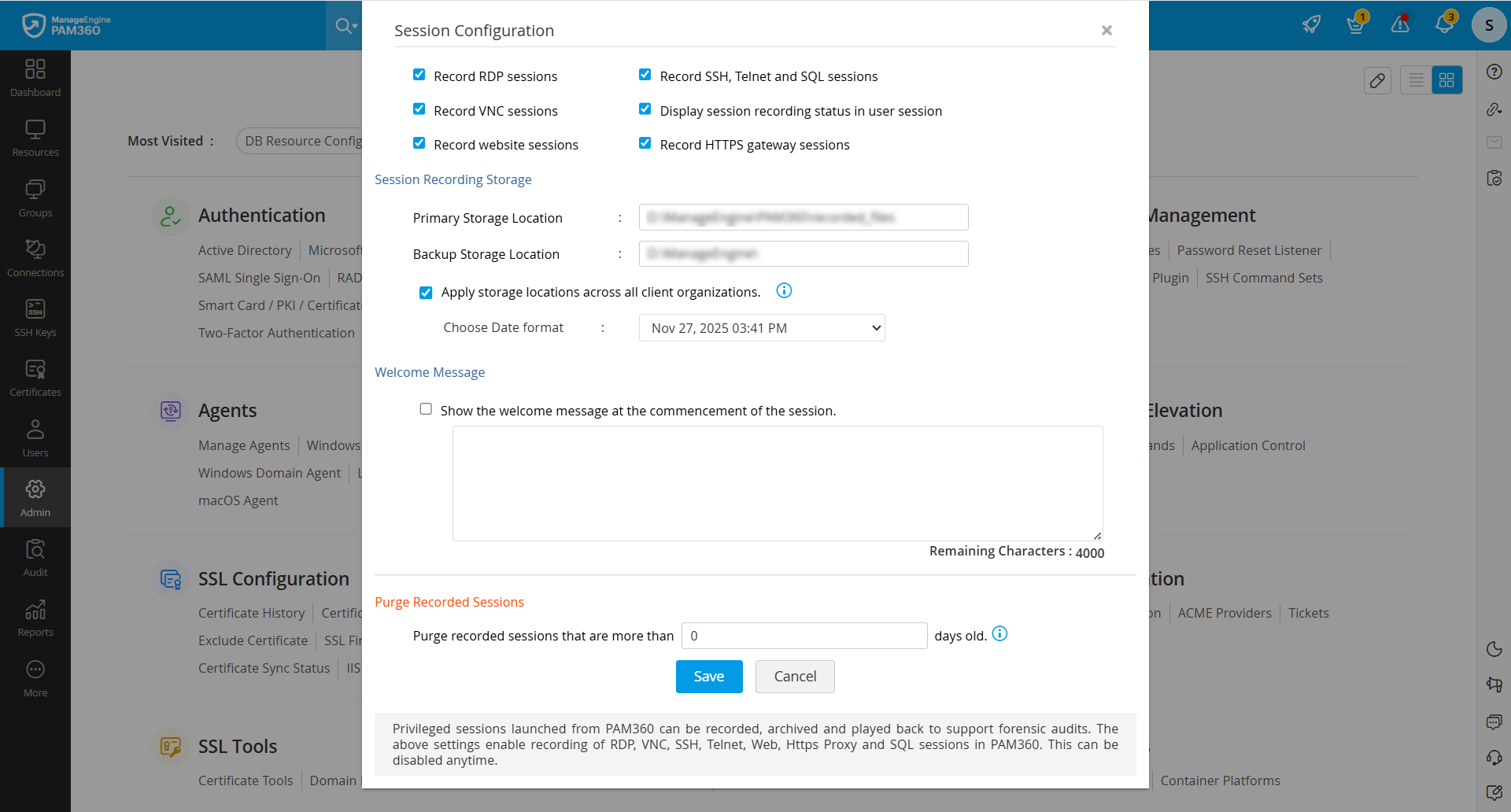
- On the Session Configuration window, you will find the following options you can configure as required:
- Record RDP sessions - Tick this checkbox to enable session recording for all remote desktop protocol sessions launched from PAM360.
- Record VNC sessions - Tick this checkbox to enable session recording for all VNC sessions launched from PAM360.
- Record website sessions - Tick this checkbox to enable session recording for all website sessions initiated using configured URLs.
- Record HTTPS gateway sessions - Tick this checkbox to enable session recording for all the HTTPS gateway sessions launched using the configured URLs.
- Record SSH, Telnet, and SQL sessions - Tick this checkbox to enable session recording for all the SSH, Telnet, and SQL sessions launched from PAM360.
- Display session recording status - Tick this checkbox to notify users that the remote session is being recorded.
- Record Remote Connect sessions - Tick this checkbox to enable session recording for the PAM360 Remote Connect sessions.
Caution
Session recording is supported only on Windows 11 machines where PAM360 Remote Connect is installed and a hardware GPU is available.
- Under the External Location for Recorded Sessions section, you will find the following options:
- Directory for storing recorded sessions - Enter a valid path to store the privileged session recordings.
- Backup Directory for storing recorded sessions - Specify an additional directory to create a backup of the recordings, ensuring redundancy.
- Choose Date Format - Select your preferred date format for recorded session logs.
- Welcome Message - Enable the Show the welcome message at the commencement of the session checkbox to display a custom message at the start of every session. Enter the custom message (up to 4000 characters) you wish to display to the users in the provided text field. Inline CSS styles are supported to customize the appearance of the message.
- Purge Recorded Sessions - You can automatically delete session recordings after a specified period. Specify the duration (in days) for which you wish to retain the session recordings in the Purge recorded sessions that are more than __ days old field. For example, entering 30 will automatically purge session recordings older than 90 days. Leave the field blank or set it to 0 to disable purging.
- Click Save to save the configured changes.
Additional Detail
For MSP, you should apply the above settings for each client ORG account individually.
3. Configuring FFmpeg for Session Recording
Follow these steps to configure FFmpeg in your environment:
- Visit ffmpeg.org and download the appropriate version for your operating system.
- Extract the downloaded archive to a directory of your choice.
- Windows: Configure the FFmpeg path in the PAM360 system.properties file:
- ffmpeg.path=D:\<path-to-ffmpeg>\bin\ffmpeg.exe
- ffprobe.path=D:\<path-to-ffmpeg>\bin\ffprobe.exe
- Linux: Install FFmpeg using your package manager (e.g., sudo apt install ffmpeg) and ensure it is added to the system's PATH environment variable, allowing PAM360 to access it.
- Confirm FFmpeg is installed correctly by running the ffmpeg -version command in the command prompt or terminal.
Caution
Ensure the paths are accurately defined to avoid configuration errors.
Additional Detail
Refer to this document to know more about session audits, including managed and unmanaged sessions, recorded website connections, and session-related actions.