Two-Factor Authentication - One-Time Password via SMS
One-Time Password (OTP) via SMS-based Two-Factor Authentication (TFA) adds an additional layer of security to the login process. After successfully completing the primary authentication using your regular credentials, PAM360 generates a unique, randomly created one-time password and sends it to your registered mobile number via SMS. To proceed with the second level of authentication, you should retrieve the OTP from the SMS and enter it in the PAM360 login interface. This one-time password is valid only for the current login session and for 60 seconds.
Caution
- Enable One-Time Password - SMS as the TFA, configure the SMS settings, and enforce it for PAM360 users only after completing the configuration successfully.
- SMS-based One-Time Password (OTP) authentication is not supported in the Read-Only (RO) server.
1. Configuring SMS Gateway for One-Time Password TFA
To configure SMS-based OTP authentication, navigate to Admin >> Authentication >> Two-Factor Authentication, enable One-Time Password - SMS, click Configure, and provide the required configuration details as follows:
- SMS Protocol: Select the SMS Protocol type. PAM360 supports HTTPS and SMPP SMS transfer protocols.
- If you select HTTPS as the protocol, configure the following details:
- SMS Provider: Select the SMS provider and configure the fields displayed for the selected provider. If you select Custom as the SMS Provider, configure the following details:
- Custom URL: Specify the custom SMS gateway URL.
- Request Headers: Enter the request header properties required by the SMS gateway.
- Request Parameters: Specify the parameters required for the SMS request.
- Custom Message: You can customize the SMS content to be sent to users. While editing the message content, you can include placeholders for certain values, which will be dynamically replaced with the actual data at runtime. The allowed placeholders for the custom message are listed below the fields.
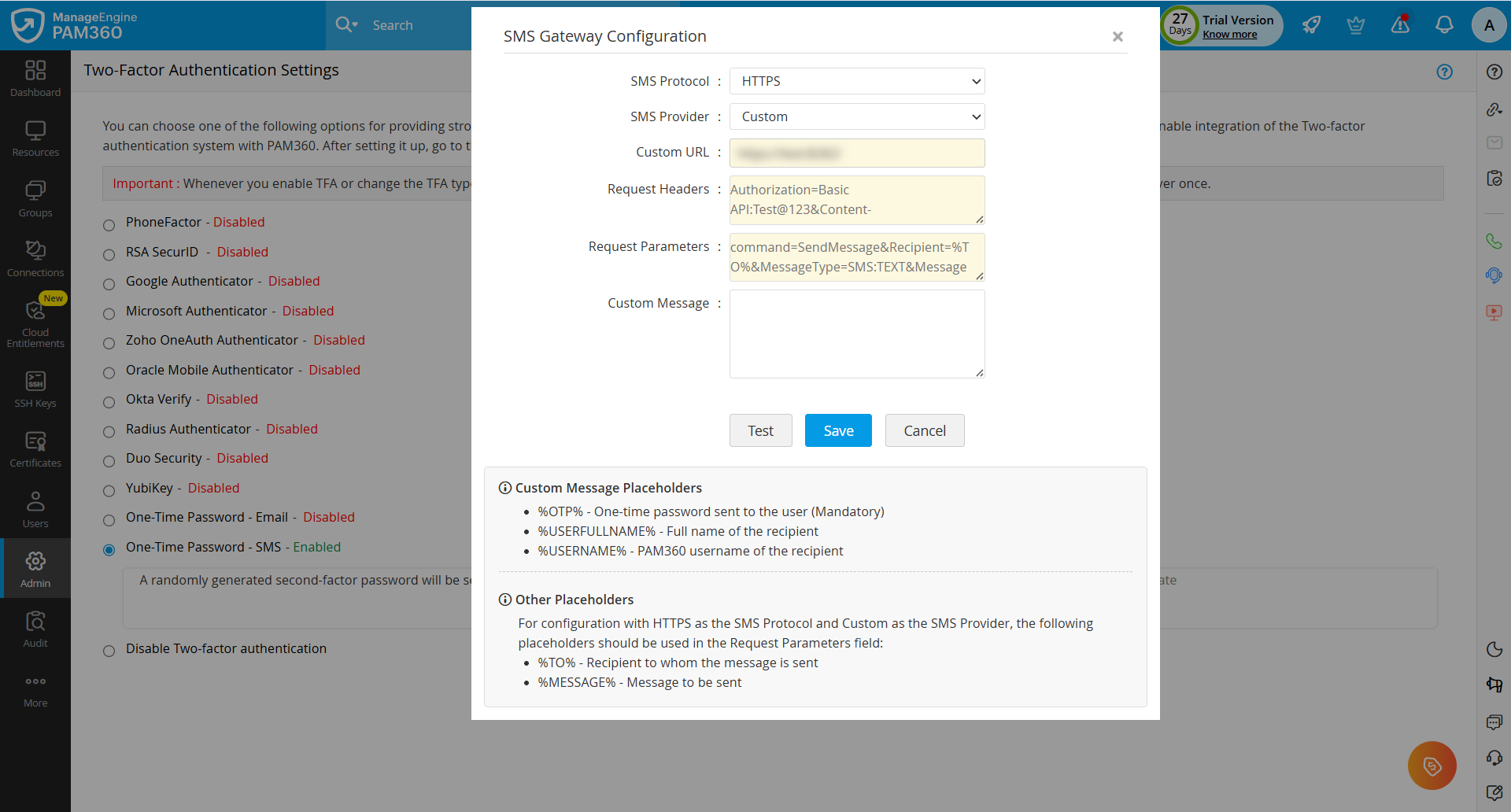
- SMS Provider: Select the SMS provider and configure the fields displayed for the selected provider. If you select Custom as the SMS Provider, configure the following details:
- If you select SMPP as the protocol, configure the following details:
- SMPP Server DNS Name/IP Address: Enter the host name of the SMPP server.
- SMPP Port: Specify the port used for SMPP communication.
- Username: Enter the username configured on the SMPP server.
- Password: Enter the corresponding password of the username.
- Custom Message: You can customize the SMS content to be sent to users. While editing the message content, you can include placeholders for certain values, which will be dynamically replaced with the actual data at runtime. The allowed placeholders for the custom message are listed below the fields.
- If required, configure the Advanced Settings with the following details:
- SMPP Source Address: Enter the source address to be used for sending SMS messages.
- ESME System Type: Specify the ESME system type value, if required by the SMPP provider.
- ESME Bind Type: Select the bind type for the SMPP connection.
- Source Address TON: Select the Type of Number (TON) for the source address.
- Source Address NPI: Select the Numbering Plan Indicator (NPI) for the source address.
- Destination Address TON: Select the Type of Number (TON) for the destination address.
- Destination Address NPI: Select the Numbering Plan Indicator (NPI) for the destination address.
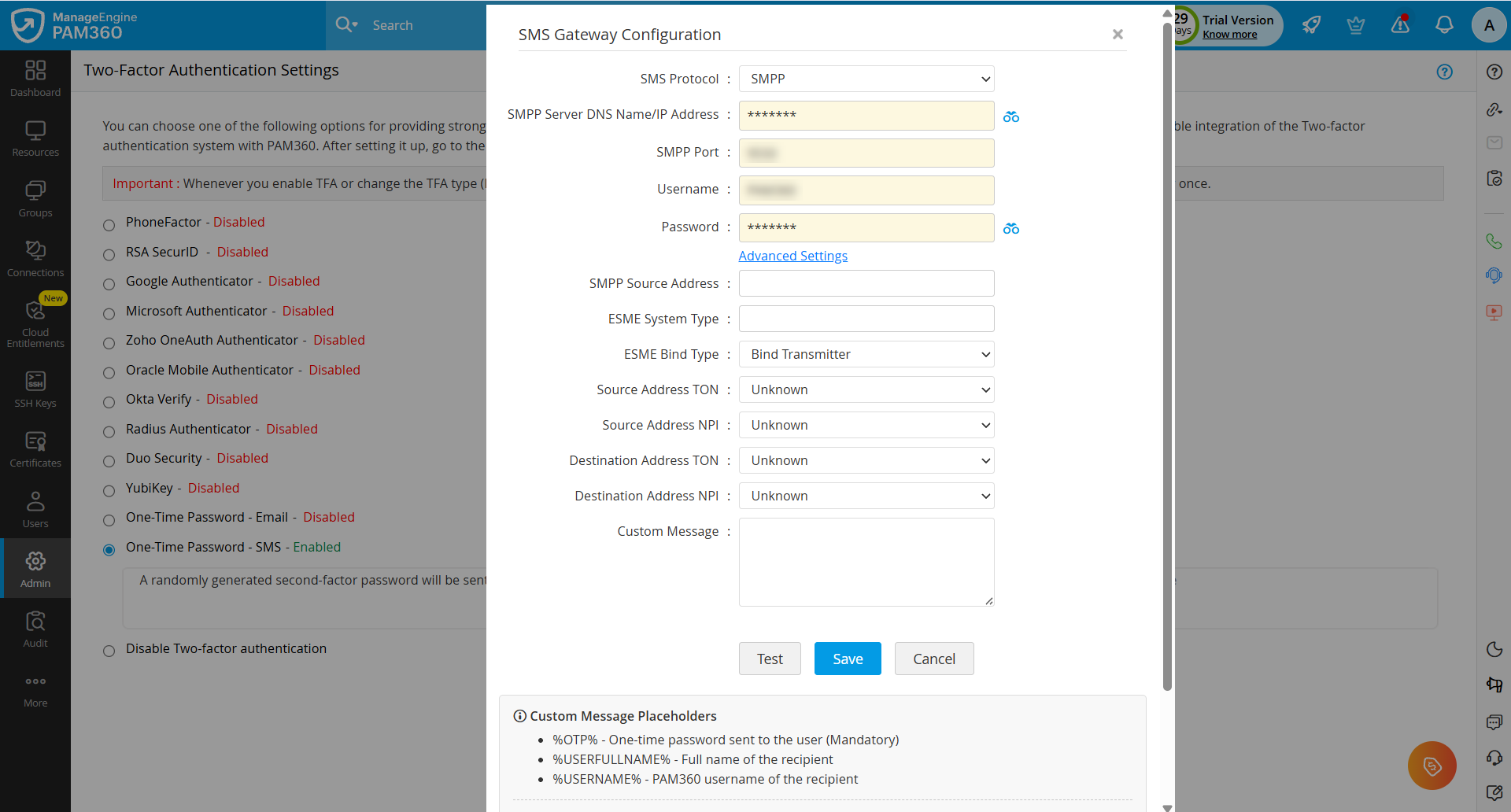
- Use the Test option to validate the configuration.
- Click Save to apply the settings.
Caution
- For successful TFA, a valid mobile number should be registered with the PAM360 user account for which TFA is enabled. You can add the mobile number during user creation or modification.
- For users imported from Active Directory or Microsoft Entra ID, the mobile number will be added to their PAM360 user account during the next synchronization cycle (If available in AD or Entra ID). PAM360 fetches the mobile number from the Mobile attribute in Active Directory and the Mobile phone attribute in Microsoft Entra ID. Ensure that the mobile number includes the country code.
- For existing PAM360 users, the mobile number and country code should be updated manually in the user account for a successful authentication. If users were previously added using the Import from File option, the mobile number details for the required users can be included in the file, and the file can be re-imported by enabling the Overwrite Existing Users checkbox.
2. Connecting to the PAM360 Web Interface with One-Time Password through SMS as TFA
The users for whom TFA is enabled will have to authenticate twice successively. As explained here, the first level of authentication will be through the usual authentication i.e. the users have to authenticate through PAM360's local authentication or AD/Entra ID/LDAP authentication.
Follow the below steps to connect to the PAM360 web interface with One-Time Password - SMS enabled:
- On the PAM360 login page, complete the first level of authentication and click Login.
- PAM360 generates a random one-time password and sends it to the user’s registered mobile number via SMS.
- Retrieve the OTP from the SMS and enter it as the second password.
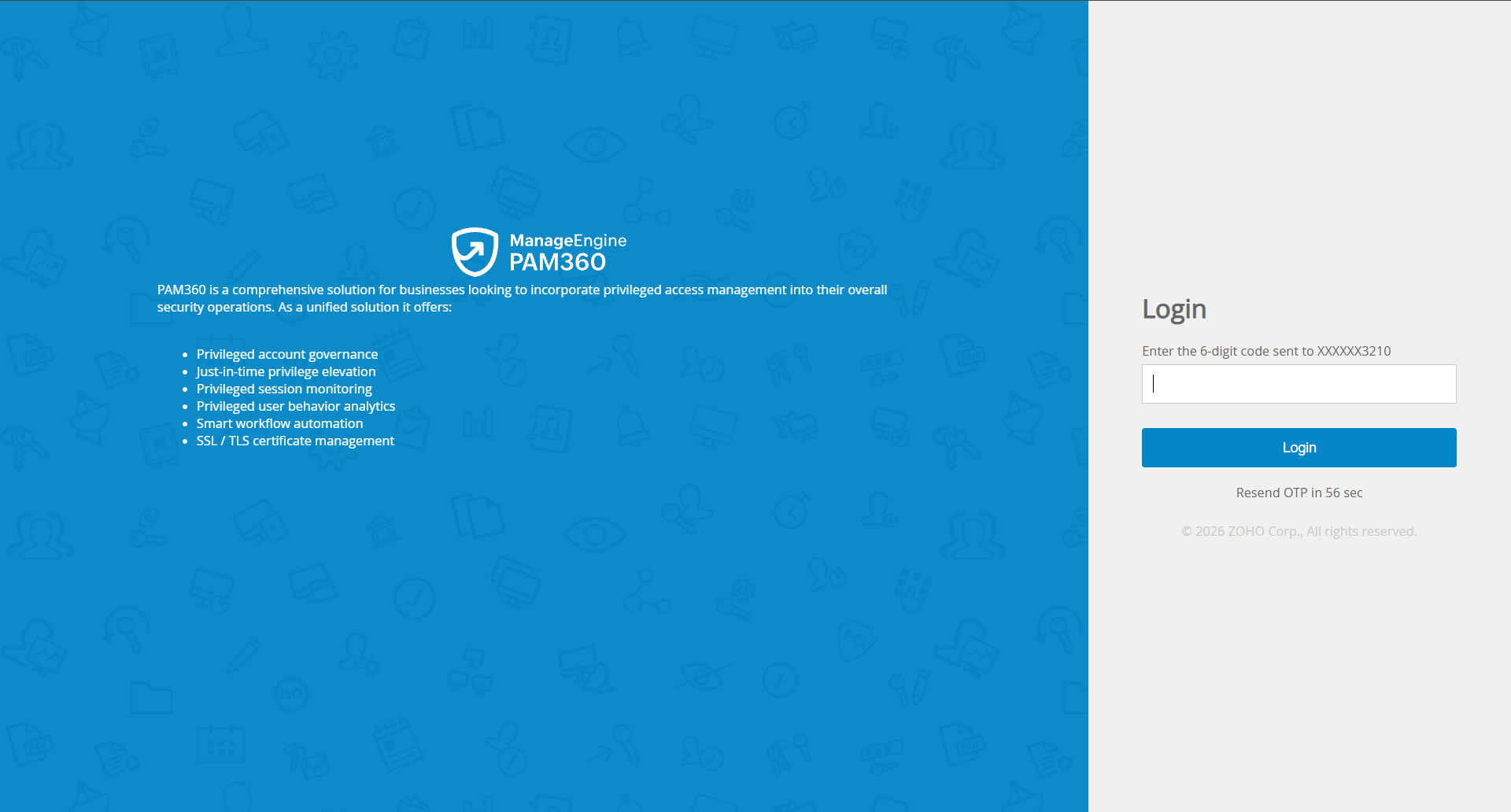
Upon successful verification, the user will be logged in to the PAM360 web interface.
Caution
- The one-time password generated and sent via SMS is valid only for 60 seconds and is applicable only for the current login session. If the user logs out and attempts to log in again, the same OTP cannot be reused. A new OTP will be sent to the registered mobile number for each login attempt.
- If an incorrect OTP is entered, the authentication attempt fails and the user is redirected back to the login page, and a new OTP is required for the next login attempt.
- If you have configured High Availability, whenever you enable TFA or when you change the TFA service type, you need to restart the PAM360 secondary server once for it to take effect.