How to check user login history in Active Directory
User logon and logoff history in Active Directory helps administrators track account usage, investigate security incidents, and identify abnormal login activity across the domain. While native Active Directory auditing can capture logon events, it requires manual configuration and analysis across multiple domain controllers.
ManageEngine ADAudit Plus simplifies logon history auditing by centralizing all logon and logoff data into a single console, providing clear visibility into who logged in, when, and from where.
Fully functional 30 day free trial. No credit card required
Thanks!
Your download is in progress and it will be completed in just a few seconds!
If you face any issues, download manually here
Start your 30-day free trial
With Native Auditing
To check Active Directory user login history, enable auditing by following the steps below:
- Run gpmc.msc (Group Policy Management Console).
- Create a new GPO.
- Click Edit and navigate to Computer Configuration > Policies > Windows Settings > Security Settings > Advanced Audit Policy Configuration > Audit Policies. Under Audit Policies, you'll find specific settings for Logon/logoff and Account Logon.
- Audit Logon > Define > Success and Failure.
- Audit Logoff > Define > Success.
- Audit Other Logon/Logoff Events > Define > Success.
- Audit Kerberos Authentication Service > Define > Success and Failure.
- To link the new GPO to your domain, right-click your domain. Select Link an Existing GPO and choose the GPO that you created.
Logon/logoff:
Account Logon:
By default, Windows updates Group Policy every 90 minutes; if you want the changes to be reflected immediately, you can force a background update of all Group Policy settings by executing the following command in the Windows Command Prompt:
gpupdate /force
To view the events, open Event Viewer and navigate to Windows Logs > Security. Here you'll find details of all events that you've enabled auditing for. You can define the size of the security log here, as well as choose to overwrite older events so that recent events are recorded when the log is full.
Understanding event IDs associated with logon and logoff activity.
| Event ID | Description |
|---|---|
| Event ID 4624 An account was successfully logged on. | This event records every successful attempt to log on to the local computer. It includes critical information about the logon type (e.g. interactive, batch, network, or service), SID, username, network information, and more. Monitoring this particular event is crucial as the information regarding logon type is not found in DCs. |
| Event ID 4634 An account was logged off. | This event signals the end of a logon session. |
| Event ID 4647 User initiated logoff. | This event, like event 4634, signals that a user has logged off; however, this particular event indicates that the logon was interactive or RemoteInteractive (remote desktop). |
| Event ID 4625 An account failed to log on. | This event documents every failed attempt to log on to the local computer, including information on why the logon failed (bad username, expired password, expired account, etc.) which is useful for security audits. All the event IDs mentioned above have to be collected from individual machines. If you're not concerned with the type of logon or when users log off, you can simply track the following event IDs from your DCs to find users' logon history. |
| Event ID 4768 A Kerberos authentication ticket (TGT) was requested. | This event is generated when the DC grants an authentication ticket (TGT). That means a user has entered the correct username and password, and their account passed status and restriction checks. If the ticket request fails (account is disabled, expired, or locked; attempt is outside of logon hours; etc.), then this event is logged as a failed logon attempt. |
| Event ID 4771 Kerberos pre-authentication failed. | This event means that the ticket request failed, so this event can be considered a logon failure. |
You probably noticed that logon and logoff activity are denoted by different event IDs. To tie these events together, you need a common identifier.
The logon ID is a number (unique between reboots) that identifies the most recently initiated logon session. Any subsequent activity is reported with this ID. By associating logon and logoff events with the same logon ID, you can calculate the logon duration.
With ADAudit Plus
An easier way to audit logon activity.
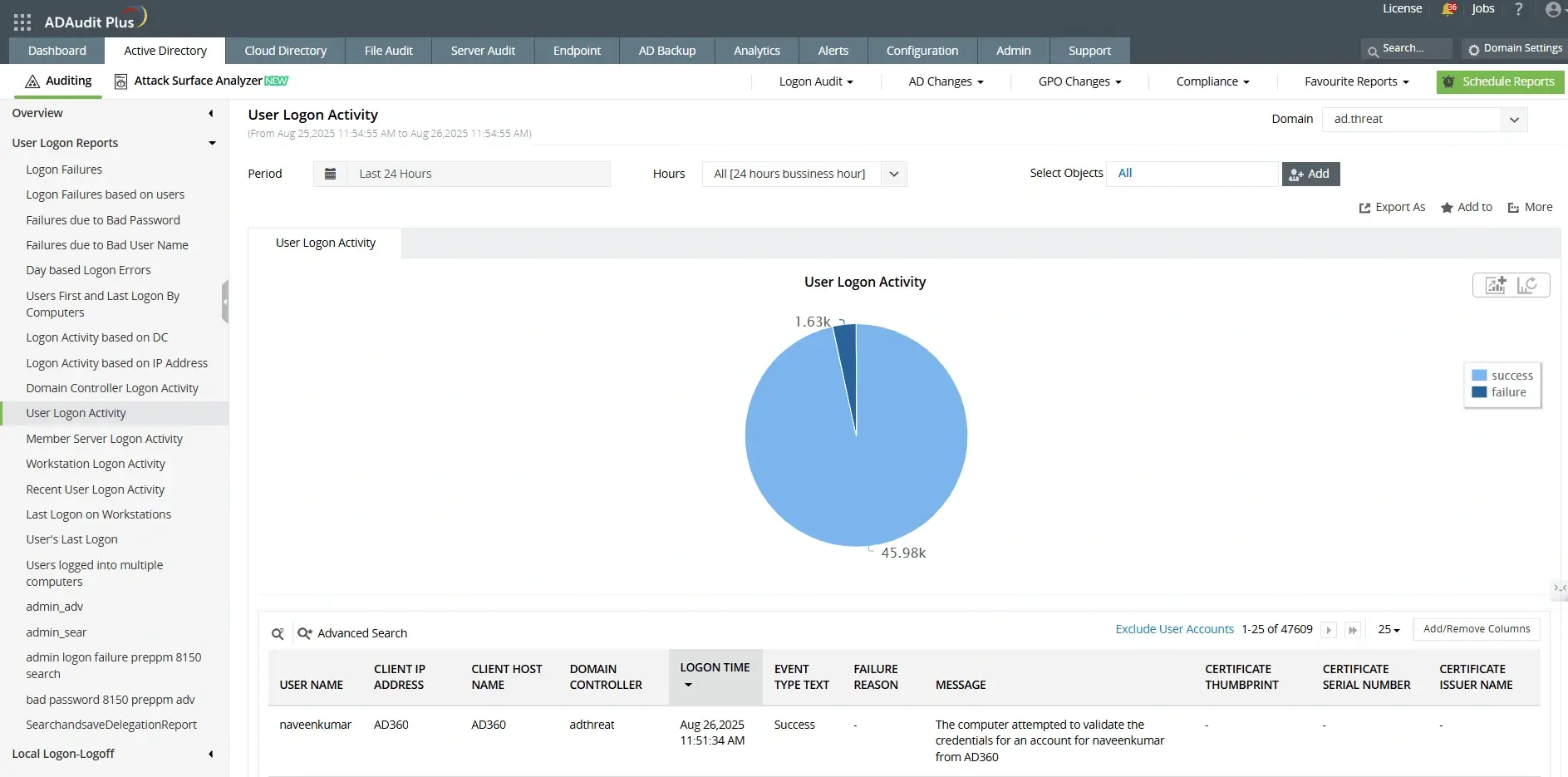
So, what if there was an easier way to audit logon activity? A tool like ADAudit Plus audits specific logon events as well as current and past logon activity to provide a list of all logon-related changes.
With ADAudit Plus, you can instantly view reports on
- User logon history
- Domain controller logon history
- Windows server logon history
- Workstation logon history
This information is provided on an easily understandable web interface that displays statistical information through charts, graphs, and a list view of canned and customized reports.
Note
The solution stated in this article is suitable for all Windows Server versions from 2008 R2 onward, including 2012, 2016, 2019, 2022, and 2025.
Limitations of native auditing tools.
- All local logon and logoff-related events are only recorded in the security log of individual computers (workstations or Windows servers) and not on the domain controllers (DCs).
- Logon events recorded on DCs do not hold information sufficient to distinguish between the various logon types, namely, Interactive, Remote Interactive, Network, Batch, Service, etc.
- Logoff events are not recorded on DCs. This information is vital in determining the logon duration of a particular user.
This means you have to collect information from DCs as well as workstations and other Windows servers to get a complete overview of all logon and logoff activity within your environment. The process is painstaking and could quickly get frustrating.
Frequently asked questions
Can I check user login history using PowerShell?
Do I need to enable auditing before I can view user login history?
Yes. Logon events are not recorded by default. You must enable the appropriate audit policies under Advanced Audit Policy > Logon/Logoff, to ensure all logon and logoff events are captured.
How long is login history stored in Active Directory?
The retention period depends on your security log size and overwrite settings on each machine. Once the log is full, older entries are overwritten. Increasing log size or centralizing logs in an auditing tool can help store login history for longer.
Why am I not seeing any logon events in the security log?
- Logon auditing is not enabled in Group Policy.
- The correct advanced audit policy category (e.g., “Logon/Logoff”) is not configured.
- Security logs have rolled over and overwritten older entries.
Why are my security logs missing older login history?
Common reasons:
- The log size limit is too small, causing older events to be overwritten.
- Log retention settings are set to “Overwrite as needed.”
Over 280,000 organizations across 190 countries
trust ManageEngine to manage their IT.


Trusted and Recommended by Leading Industry Experts Worldwide
-
Global Infosec
Awards 2025 -
Top InfoSec Innovator
Awards for 2024 -
Gartner Peer Insights
Customers' Choice 2023 - Cloud Connect 2024