- Related Products
- AD360
- Log360
- ADAudit Plus
- ADSelfService Plus
- EventLog Analyzer
- Exchange Reporter Plus

Help Document
Risk Exposure Management
Risk Exposure Management in ADManager Plus provides a centralized, visual representation of accounts with access to sensitive and high-privilege entities within your Active Directory (AD).
By monitoring over-permissioned identities and evaluating potential threat paths, ADManager Plus helps display your organization’s exposure to internal and external attacks. It equips you with detailed insights into why an entity is considered exposed and what can be done to mitigate the associated risks.
With this capability, ADManager Plus helps you understand the scope of privilege exposure, evaluate the risk it poses, and implement effective remediation measures—strengthening your IT environment’s security and resilience.
In this document, you will learn the following:
- Key terms
- How to analyze risk exposure using ADManager Plus
- Understanding relations in the attack flow graph
- What is Risk Exposure Query
- How to manage Privileged Entities in ADManager Plus
Understand the key terms
Here are some terms that are important to understand:
| Term | Description |
|---|---|
| Privileged Entity | Active Directory groups with elevated permissions that provide access to sensitive resources. |
| Privileged Entity Exposure | Security risks that arise from excessive or misconfigured privileges on critical entities. |
| Attack Path | A continuous flow of connected entities representing a potential route an attacker can take to compromise the target. |
| Accounts in Attack Path | Accounts traversed by the attacker to move laterally toward the target. |
| Attack Flow | Sequential path showing how the attacker progresses through the environment. |
| Parent | Preceding object in the attack path that enables access to the next entity. |
| Relation | Type of privilege or trust that connects two objects in the attack path. |
Steps to analyze risk exposure in ADManager Plus
- Log in to ADManager Plus.
- Navigate to Governance > Risk Management.
- In the left pane, click Risk Exposure Management.
- From the Select Domain drop-down, choose the domain you wish to analyze for risk exposure.
- A dashboard will then display the configured privileged entities count, along with the associated attack paths.
- Under the Attack Paths tab, you can view the potential attack paths that lead from an initial access point to a privileged entity.
- Under the Privileged Entities Exposure tab, you can view the list of all potential attack paths that could be exploited to gain control over a privileged entity.
Note: By default, built-in AD groups are listed as privileged entities in ADManager Plus. To add other groups as a privileged entity, click here.
- Click the Refresh icon to update the attack paths of privileged entities in the selected domain.
- Click Set Data Sync Time to configure the schedule for automatic data synchronization.
The attack flow graph visualizes how privileges and permissions flow across users, groups, computers, and AD objects in your environment. It helps identify potential attack paths that could lead to privilege escalation or domain compromise.
Understanding relations
Each connection between nodes represents a specific permission or relation that governs how one object can influence or control another. If these relations are misconfigured or overly permissive, they might be exploited during an attack to move laterally or escalate privileges.
- Click any object to view the properties of the selected object.
- Click any relation line to view detailed information about the relation, including its description, exploitation methods, and recommended remediation steps. The recommended remediation steps can be performed in ADManager Plus through the Change Owner, Remove Membership and Remove Permissions management tasks.
Use case: How can an attacker gain administrative privileges through a user?
During a routine security review, administrators discovered that sensitive sales and financial data had been accessed using Sales Managers group privileges. However, the user involved—Daniel—was not listed as a member of any high-privilege group, and there was no direct evidence linking him to the Sales Managers group.
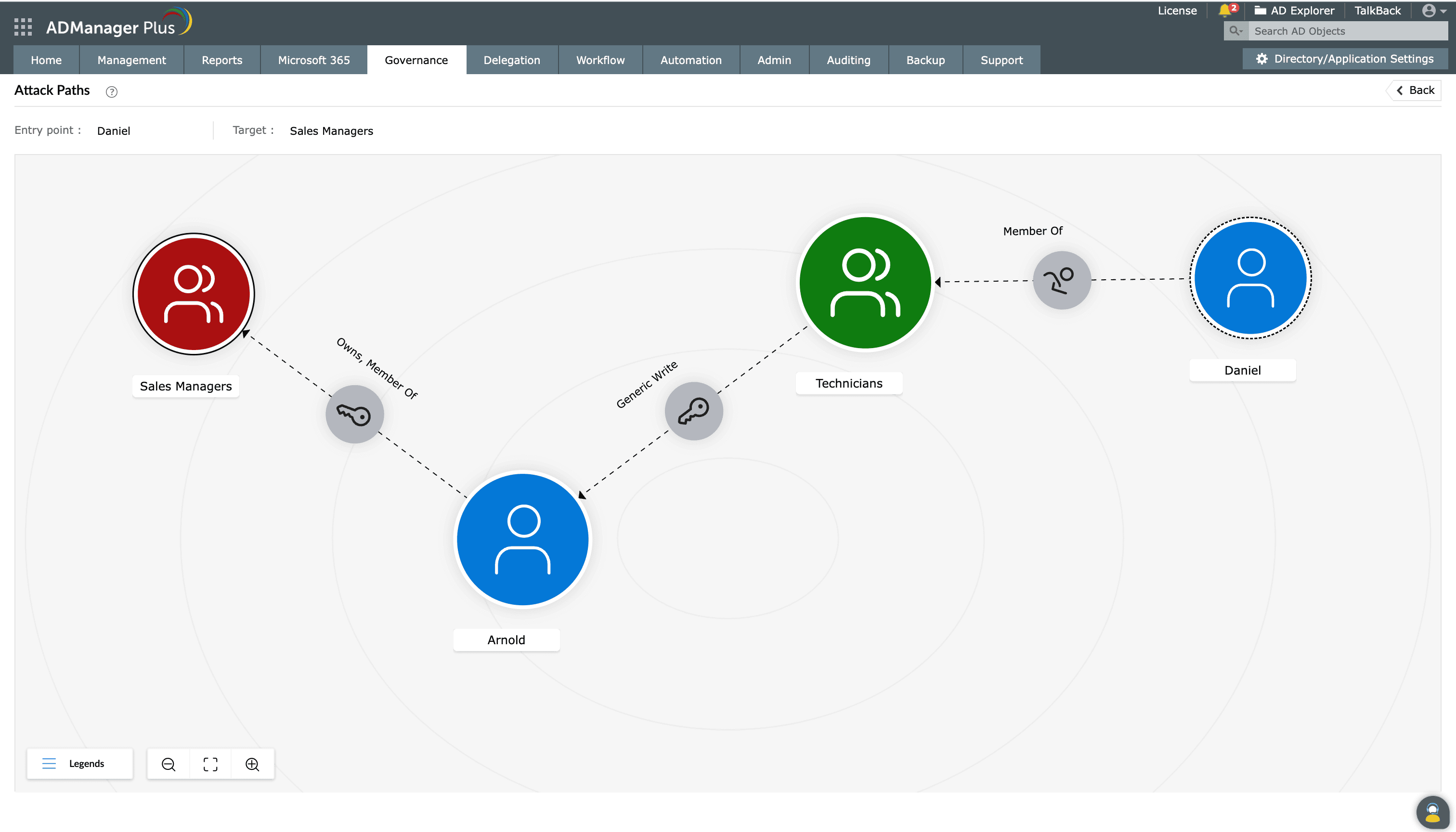
Using ADManager Plus' Risk Exposure Management, the team visualized hidden privilege paths.
- The user (Daniel) had indirect access to the Sales Managers group through a chain of nested group relationships and delegated permissions.
- Daniel was a member of the Technicians group, which had GenericWrite permission over Arnold’s account.
- Arnold, in turn, was a member of Sales Managers.
- By exploiting this chain, Daniel could impersonate Arnold or modify group membership—granting himself elevated access without being directly added to Sales Managers.
The hidden chain of group memberships and delegated permissions created an unnoticed privilege escalation path, allowing Daniel or anyone with access to his account to gain domain-level control. By leveraging Risk Exposure Management, the administrators were able to trace and eliminate these indirect attack paths proactively, mitigating the risk before any damage occurred.
Legends
The legend pop-up helps administrators understand the attack flow by explaining node types, object categories by color, and the meaning of relations.
Object types
| Symbol | Object Type |
|---|---|
 |
User |
 |
Group |
 |
Computer |
 |
Other AD Objects |
Node types
| Symbol | Node Type | Description |
|---|---|---|
 |
Target | High-value target object that could be a potential goal of an attacker. |
 |
Entry Point | Initial object from where the attack path begins. |
 |
Cluster | A group of related nodes, collapsed to reduce visual clutter. |
Relation types
| Symbol | Relation Type | Description |
|---|---|---|
|
MemberOf | Represents group membership, indicating that the object is a member of another group. |
 |
Owns | Represents ownership of one object over another object. |
|
Other Permissions | Other delegated permissions, such as Write, Read, or Special control rights. |
List of relations
The attack flow visualizes the following relation types, each representing a potential privilege flow or attack path that could be leveraged within the AD environment.
- Member Of
- Owns
- Write DACL
- DCSync
- Allowed to Act
- Grant Allowed To Act
- Add Key Credential
- Reset password
- Write Owner
- Generic All
- Write SPN
- Extended Rights
- Allowed To Delegate
- Has SID History
- RODC Manage
- Generic Write
- Add Member
- Domain Trust
Risk Exposure Query provides a comprehensive set of predefined queries designed to identify common security exposures and permission risks within your AD environment. Each query result includes a visual representation of objects and their relations, enabling administrators to understand and address privilege-related risks.
These relations illustrate how privileges are linked or inherited across users, groups, and other AD entities, including nested memberships and trust paths. By mapping these connections, ADManager Plus helps identify potential exploitation paths that attackers could use for privilege escalation or lateral movement. Each query is also accompanied by actionable remediation measures that guide administrators on the necessary actions to be taken to mitigate risks and strengthen the overall AD security posture.
Queries available in ADManager Plus
- Find All Domain Admins
- Map Domain Trusts
- Find Kerberoastable Members of Privileged Groups
- Path from Kerberoastable Users to Privileged Entities
- Find Security Principals with DCSync Rights
- Path from Domain Users to Privileged Entities
- Path to Unconstrained Delegation Systems
- Path to Kerberoastable Users
- Find Path to Domain Admins
Find All Domain Admins
Identify all members of the Domain Admins group, including those in nested groups, to Gain complete visibility into who has top-tier privileges in your domain.
Map Domain Trusts
Identify and analyze all domain trust relationships within the forest and understand how domains trust each other and evaluate potential cross-domain attack surfaces.
Find Kerberoastable Members of Privileged Groups
Identify privileged group members vulnerable to Kerberoasting attacks and mitigate risk by pinpointing accounts that expose high-value targets.
Path from Kerberoastable Users to Privileged Entities
Trace attack paths from Kerberoastable users to privileged accounts or groups and Uncover lateral movement opportunities before attackers do.
Find Security Principals with DCSync Rights
Identify accounts or groups with permissions to replicate domain controller data and prevent potential abuse that could lead to domain-wide compromise.
Path from Domain Users to Privileged Entities
Detect how standard domain users could escalate privileges and assess privilege escalation risks based on current configurations.
Path to Unconstrained Delegation Systems
Find paths to systems vulnerable to unconstrained delegation attacks and Address delegation misconfigurations that might lead to credential theft.
Path to Kerberoastable Users
Identify how attackers could reach users vulnerable to Kerberoasting, and reveal and remediate weak links in your security chain.
Find Path to Domain Admins
Detect potential attack paths leading to the Domain Admins group and harden your domain by closing escalation paths to critical roles.