Migrating ADManager Plus database to a Microsoft SQL Always On availability group
In every organization, the Always On availability groups are high availability and disaster recovery solutions that offer scalability and continuous access to data even if the primary servers are down. If you wish to migrate the existing ADManager Plus database to an availability group in Microsoft SQL database, follow these steps.
Prerequisites
- Database synchronization
The databases in your Microsoft SQL server must be in a synchronized state across all replicas. Learn more
Adding a database to the availability group databases in Microsoft SQL server management studio
- SQL Authentication synchronization
- Synchronize the SQL login credentials of a user in the Always On availability group setup. This helps synchronize their login across servers and grants them access rights to the available databases. To synchronize the SID of a user in the primary server across the secondary server, follow these steps.
Steps to migrate existing ADManager Plus database to an availability group listener
- Stop ADManager Plus.
- Invoke (ADManager Plus Home)\bin\ChangeDB.bat via the command prompt. Make sure that the user running the command prompt is same as the one running ADManager Plus.
- A database configuration wizard will display. There, select the server type as Microsoft SQL and provide the following details:
- In the Host Name field, fill in the IP or the name of the availability group listener.
- In the Port field, enter the port number of the availability group listener.
- In the Database Name field, fill in the newly created database's name.

- Select the Authentication type. If you have selected Windows Authentication, the credentials are automatically taken. If you have selected SQL Server Authentication, enter the corresponding synchronized credentials.
- Click Test Connection to check whether the credentials are correct.
- Click Save.
Note The name of the Microsoft SQL server instance has to be entered manually if you have not chosen the Auto Discover option.
Note If SQL Server Authentication is used to move the database, access and permissions to the Microsoft SQL instance are automatically provided. However, when Windows Authentication is used, access and permissions have to be granted, as explained here.
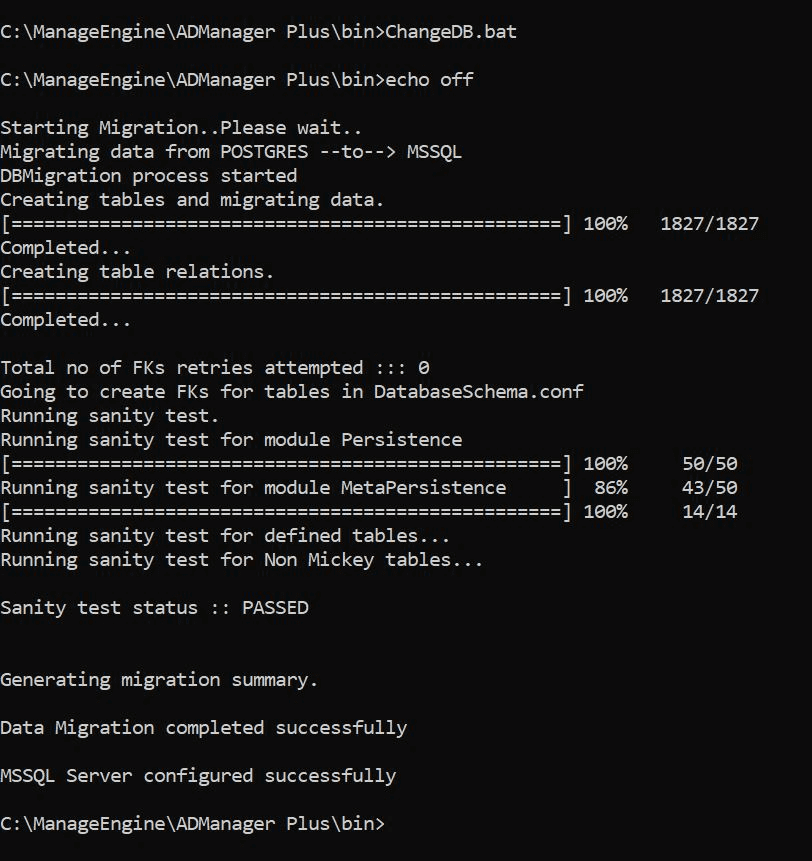
The migration procedure will start, and it will take a few minutes to complete. Once the migration is successful, you should see this screen:
Specifying the failover time for a database
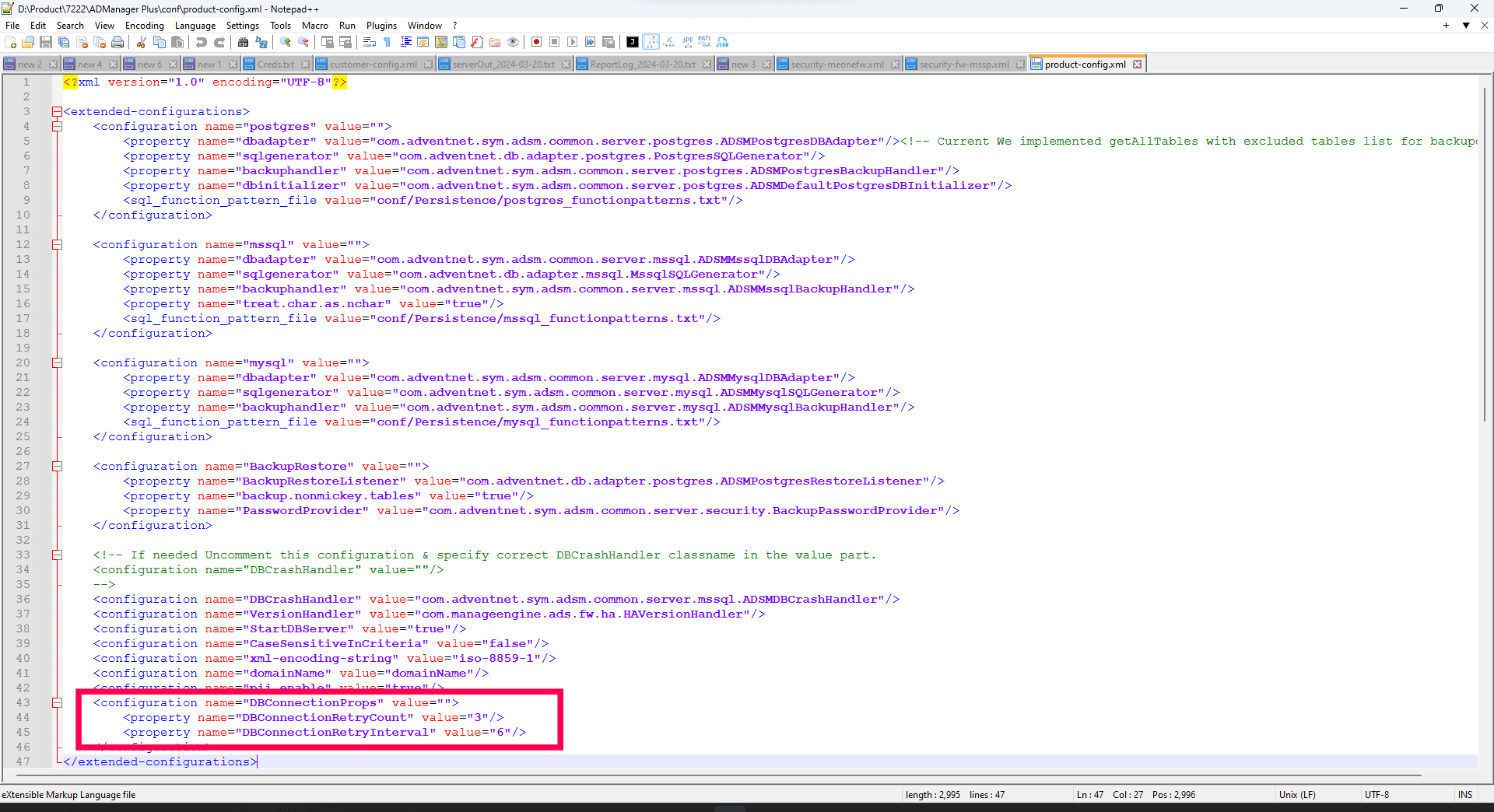
A failover in an availability group occurs at the level of an availability replica. For uninterrupted running of ADManager Plus databases, it's important to provide the time within which the secondary replica must become the primary replica. To achieve this, provide the values (in seconds) for the DBConnectionRetryCount and DBConnectionRetryInterval parameters in the <ADManager Plus installation folder>\conf\product-config.xml file