ADDM Promotion
The ADDM Promotion feature improves application discovery by detecting discovery-supported applications running on existing server monitors (Windows and Linux). It enables Applications Manager to display newly discovered applications in the Auto-Discovery profile's 'Discovered & Not Added' page. Users receive bell notifications, allowing them to quickly add and monitor these applications with a single click.
By default, ADDM Promotion is enabled in Applications Manager. To disable it, users can modify the ADDM_PROMOTION property in the AutomaticDiscovery.properties file.
The following properties can be configured in the AutomaticDiscovery.properties file located under <Applications Manager Home>\working\conf\itomdiscovery :
| Property | Description and possible values |
|---|---|
| ADDM_PROMOTION | Allows you to enable and disable the ADDM_Promotion feature in Applications Manager. Possible values are:
Note: The default value for this property is enable. |
| SCHEDULED_TIME_FOR_ADDM_PROMOTION | Allows you to set the time for the scheduler that initiates the ADDM promotion. Note: The default value for this property is 04:00:00. |
| MAX_APPLICATIONS_FOR_ADDM_PROMOTION | Allows you to set a threshold for the number of applications running on a server that qualifies it for ADDM Promotion in server monitoring. ADDM promotion is restricted for servers where the total number of running application monitors exceeds the established threshold. Note: The default value for this property is 5. |
| FREQUENCY_FOR_ADDM_PROMOTION_TRIAL_USERS | Allows you to specify the interval (in days) for performing ADDM promotional activities on servers. Note: FREQUENCY_FOR_ADDM_PROMOTION_TRIAL_USERS - 1 (For Trial users) |
For Registered Users:
| Time since Installation | Schedule Frequency |
|---|---|
| Less than 1 year | 15th and 28th of each month |
| 1 year or more | 15th of each month |
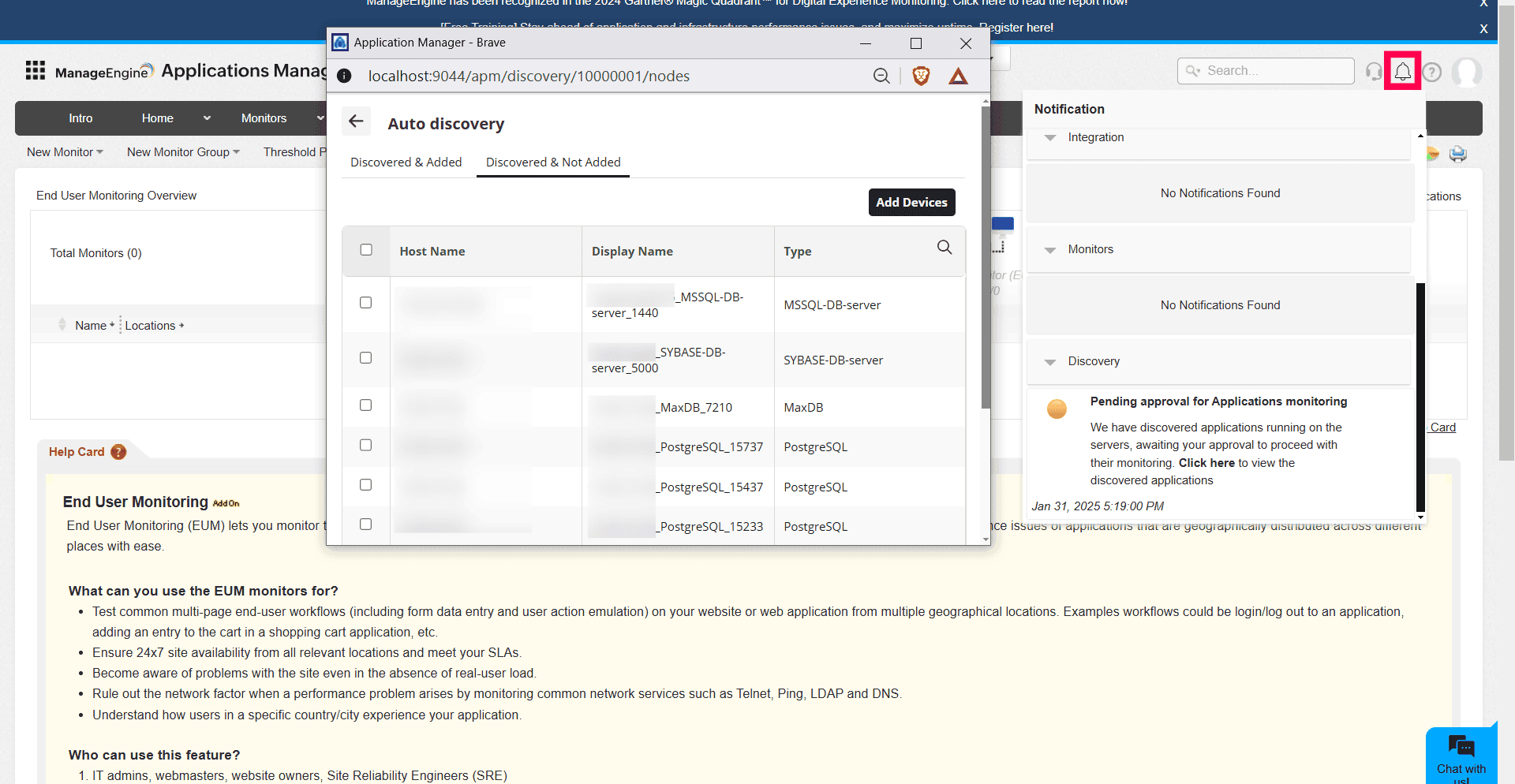
The ADDM Promotion feature automates application discovery on active server monitors. Once the discovery process is complete, users will receive a bell notification. Clicking on the notification directs you to the Auto-Discovery profile's Discovered & Not Added page, where you can select applications for monitoring and click on Add Devices. The added applications will then be listed under the Discovered & Added page.
When applications running on a server are automatically discovered, a banner will be displayed on the Server monitor page. This banner serves as a prompt for users to initiate monitoring for the newly discovered applications.
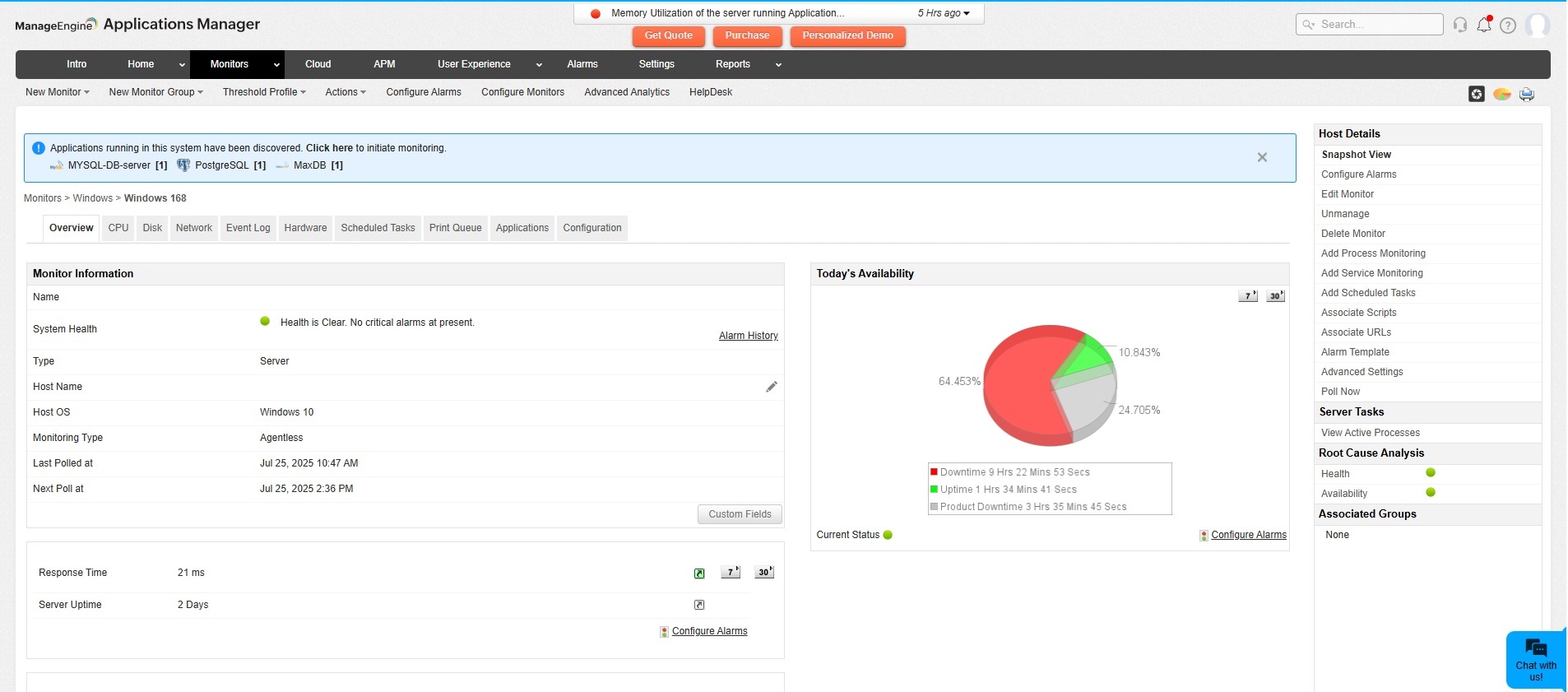
Clicking on the banner redirects you to the Applications tab in the Server monitor, where you will find a dedicated section titled Applications Yet to be Monitored. This section lists all applications discovered on the server that are not being monitored, along with details such as their Name, Type, and Port.

To start monitoring, select one or more applications in the Applications Yet to be Monitored section using the checkboxes, and then click on the Enable Monitoring button.
Note: The Applications Yet to be Monitored section will only appear when there are unmonitored applications discovered on the server.

