Deploying Full Stack Observability (FSO) Agent on Linux Servers through ManageEngine Endpoint Central
You can use ManageEngine Endpoint Central to deploy the Application Manager's FSO agent across multiple Linux servers. Please find the step-by-step instructions for the same below
Prerequisites for agent deployment
Check if the Linux FSO agent installation file exists under the following Application Manager installation directory :
<Applications Manager Home>\working\resources\FSO\latest\server\linux\installer
If it is found, continue with Agent Deployment; otherwise, proceed to the next steps to download it.
- Access the download page and download the corresponding ApplicationsManager_FSO_Agent.zip file based on your Applications Manager version.
- Perform checksum verification to ensure the integrity of the downloaded file.
- Copy the ApplicationsManager_FSO_Agent.zip file to <Applications Manager Home>\working\resources and extract it in that directory.
- Once extracted, you should be able to view the Linux installation file ApplicationsManagerFullStackAgent_LinuxIns.sh under the <Applications Manager Home>\working\resources\FSO\latest\server\linux\installer directory.
Agent Deployment via ManageEngine Endpoint Central
- Sign in to your ManageEngine Endpoint Central console.
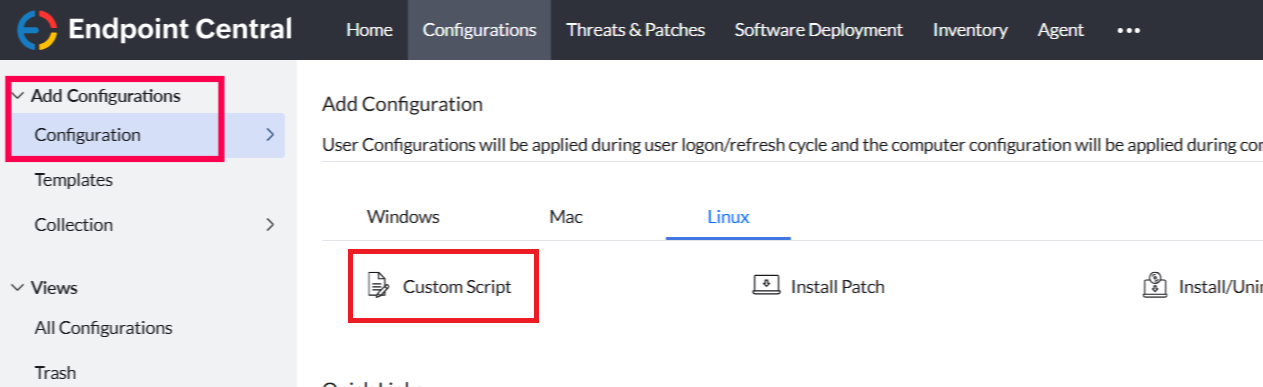
- Navigate to Configurations → Add / Create Configurations → Linux → Custom Script.
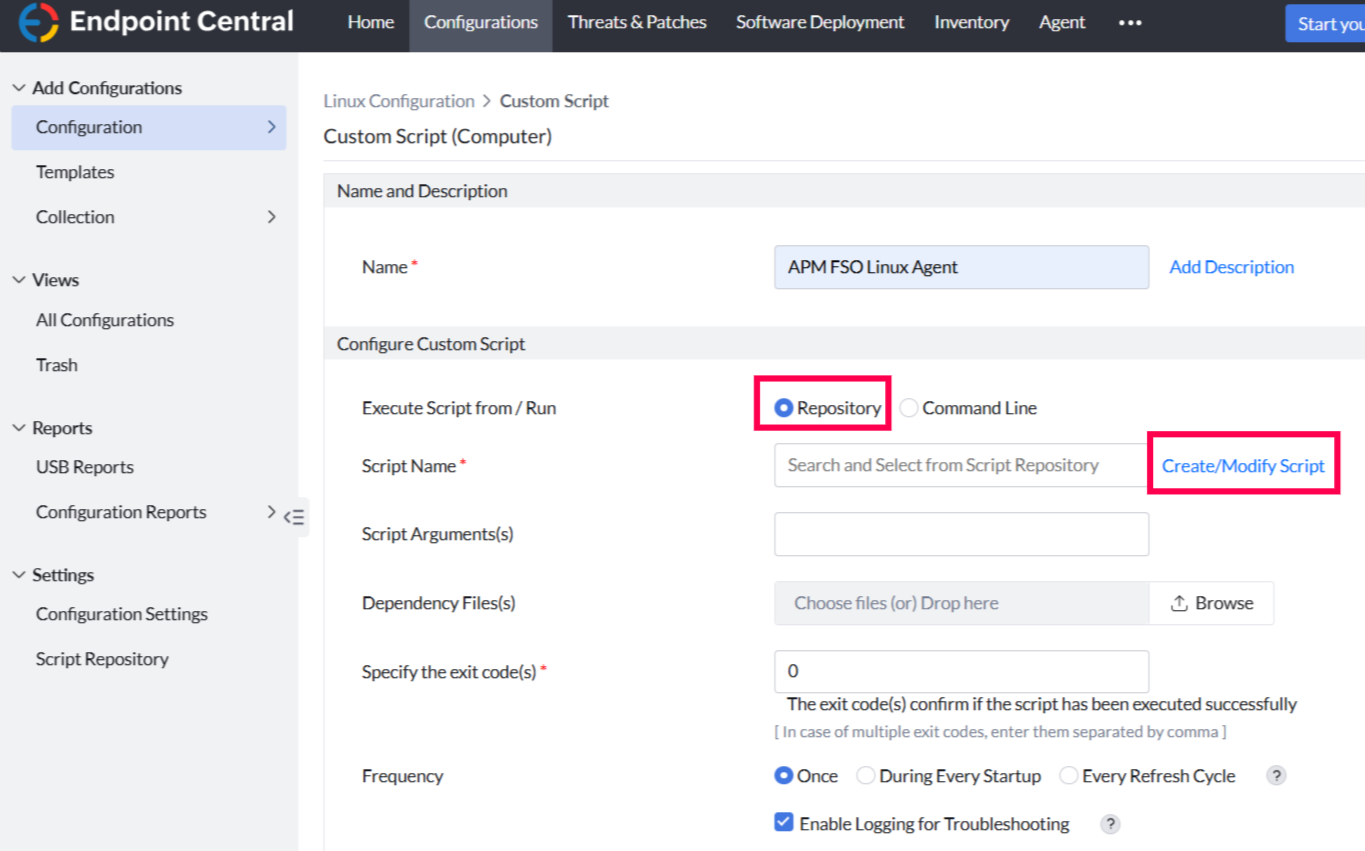
- In the Custom Script (Computer) configuration page, provide an appropriate name for the deployment and then select a method to deploy the agent:
- Option 1: Using Repository
- If you want to save the installation script for future use, within the Configure Custom Script section, choose Repository in the Execute Script from / Run field.
- Click Create/Modify Script beside the Script Name field to access the Script Repository.
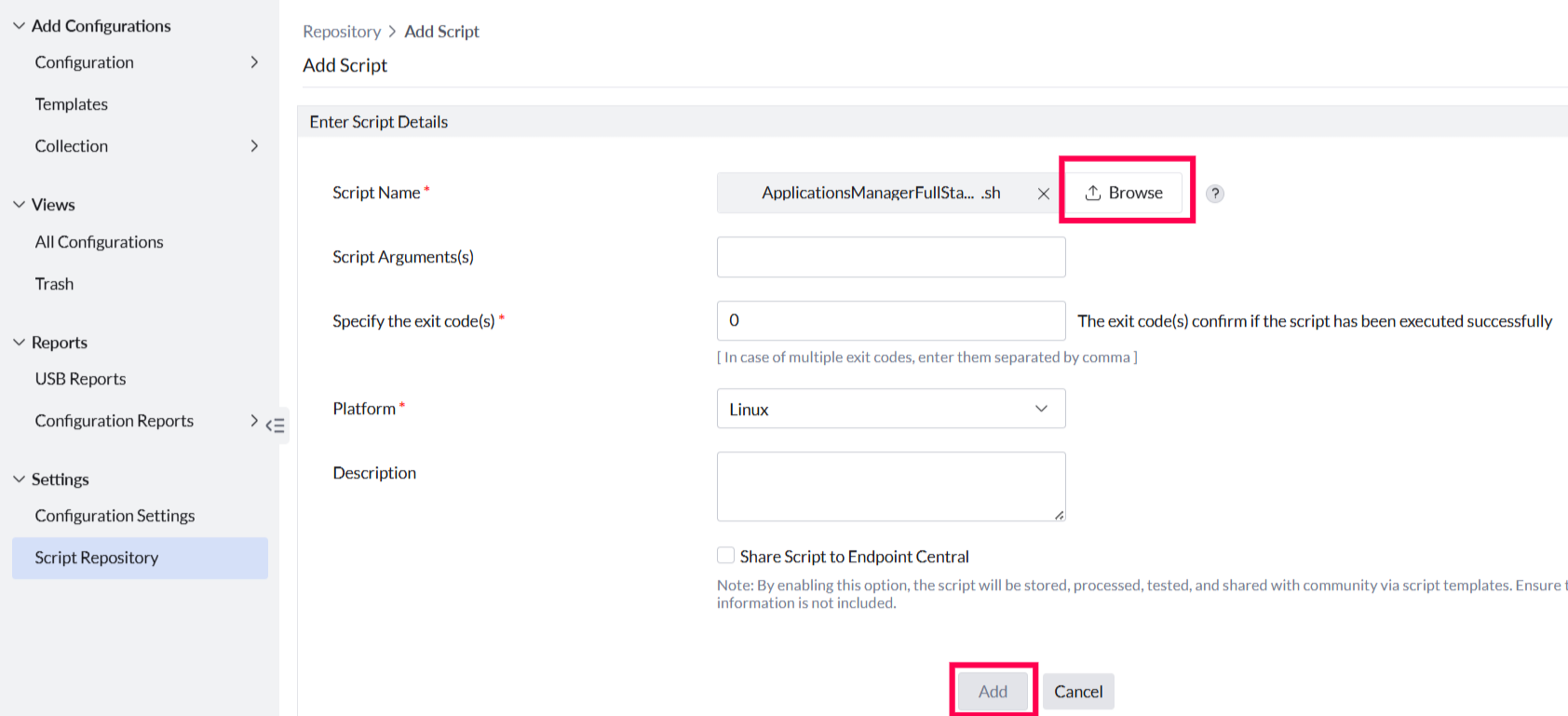
- In the Script Repository, click on Add Script to access the Add Script page. From there, browse and select the <Applications Manager Home>\working\resources\FSO\latest\server\linux\installer\ApplicationsManagerFullStackAgent_LinuxIns.sh file for the Script Name field. Provide the other required data in the relevant fields and add the Script.
- Once the script is added to the Script repository, move back to the Custom Script (Computer) configuration page and select the uploaded ApplicationsManagerFullStackAgentLinuxIns.sh file in the Script Name field.
Option 2: Using Command Line
- If you prefer to install the FSO agent only once, within the Configure Custom Script section, choose Command Line in the Execute Script from / Run field.
Open the terminal on your Linux device and run the following command to download the installation script:
wget --no-check-certificate -O ApplicationsManagerFullStackAgent_LinuxIns.sh

https://localhost:8443/resources/FSO/latest/server/linux/installer/ApplicationsManagerFullStackAgent_LinuxIns.sh- In Endpoint Central, click Browse beside the Dependency File(s) field and upload the installation script you downloaded.
In the Command Line field, enter the following command (replace the key with the one from your Applications Manager instance):
sudo -E bash ApplicationsManagerInstallScript.sh -i -

key=SERVER_************************************************
Note: The actual installation command may vary. Always copy the command directly from the Agent Deployment page in your Applications Manager instance, as the values are generated dynamically.
- Option 1: Using Repository
- In the Frequency field, select Once and specify the remote office domain as per your Endpoint Central setup.
- Click Deploy Immediately to push the agent to all selected Linux servers.
- Once the installation is complete, open Applications Manager and navigate to Settings → FSO Agent → View Agents to verify that the newly added server monitoring agents are listed.
Once the deployment is complete, the FSO agent will be installed on the selected Linux servers and start communicating with Applications Manager.

