Google AI Integration
Google AI provides the Gemini family of large language models through the Gemini API (Google AI Studio). With Google AI, you can generate AI-assisted summaries and insights in Applications Manager using Gemini models for Generative AI (GenAI)-powered features.
Prerequisites
- Ensure that you have a Google account with access to Google AI Studio.
- Create or use an API key from Google AI Studio (a Google Cloud project is associated with the key).
- Ensure that the Gemini API is enabled and that billing and usage limits are configured for the project.
How to configure Google AI in Applications Manager
- Go to Settings → Product Settings → Integrations (Add-On Settings).
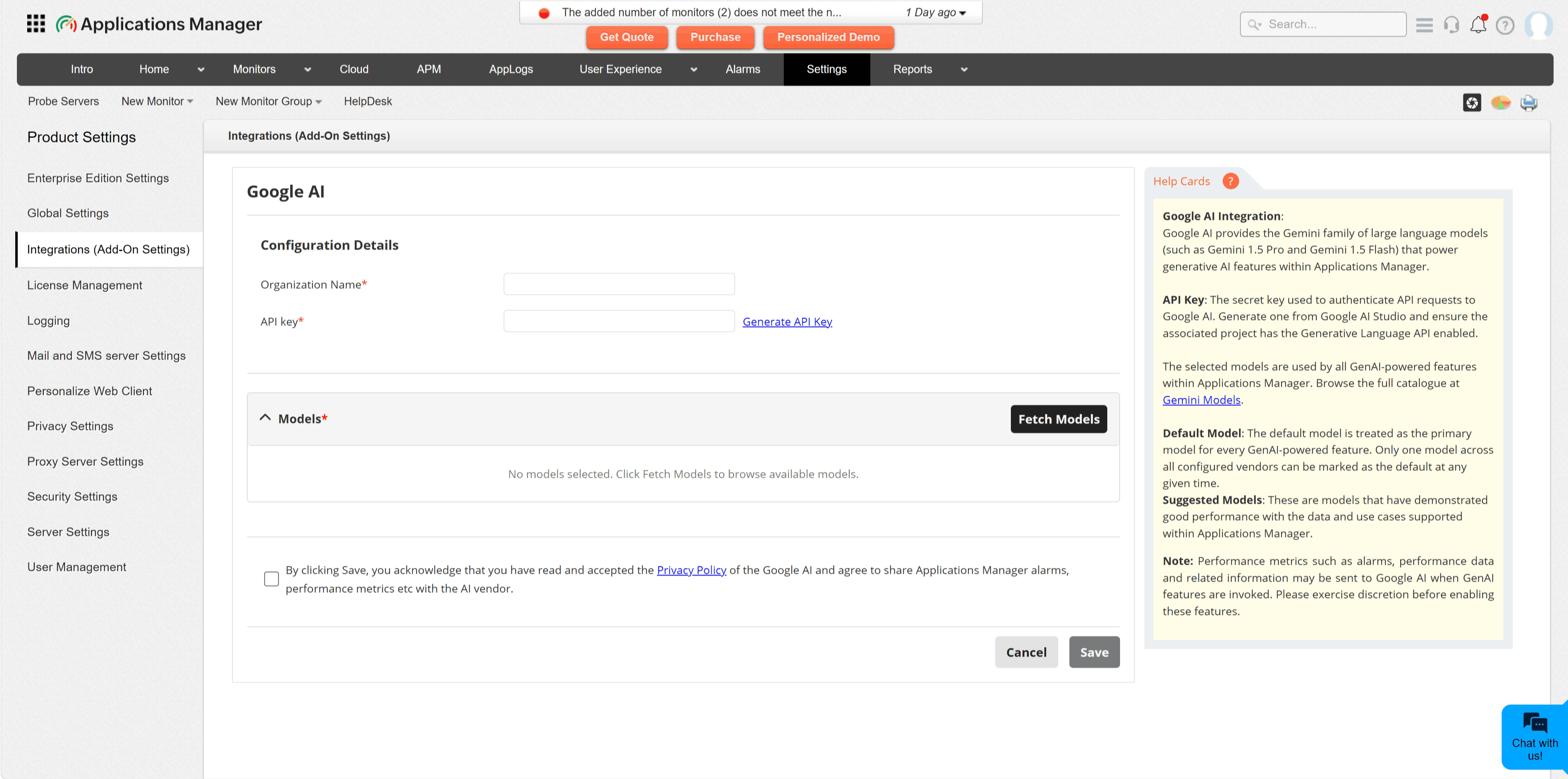
- Under the AIOps category, select Google AI. This opens the Google AI integration configuration page.
- Enter the Organization Name. This is a display name used to identify the integration in Applications Manager.
- Enter the API Key generated from Google AI Studio. Refer to Get a Gemini API key to create or copy an API key. Both key formats (
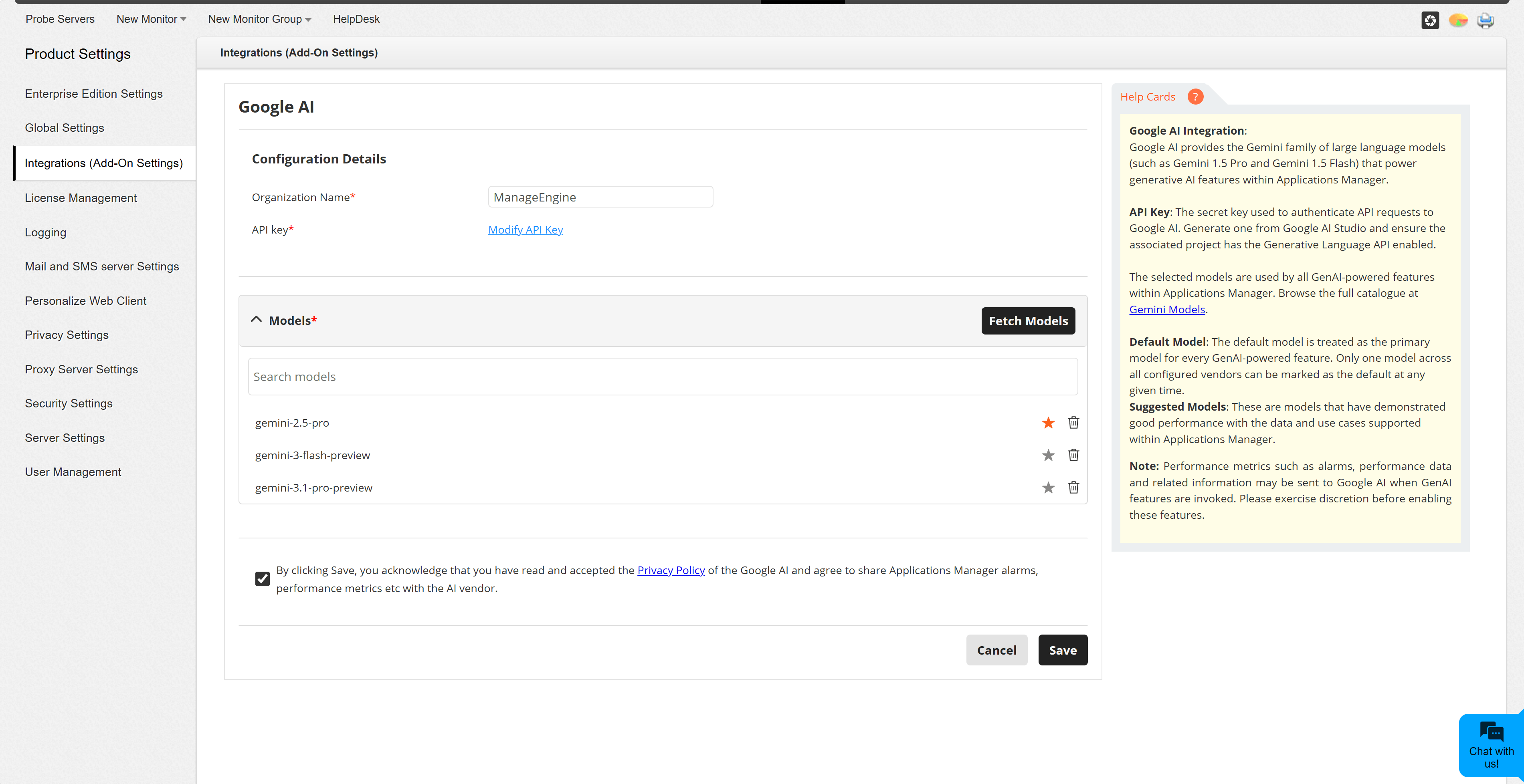
AIza…andAQ.Ab…) are accepted. - Click Fetch Models to retrieve the available Gemini models for the configured account. You can refer to the Gemini models overview before selecting models.
- Select the models you want to make available for GenAI-powered features.
- Click Add Models to add the selected models to the integration.
- Click the star (⭐) icon to set a model as the default, if required. Only one model across all configured GenAI providers should be treated as the default.
- Review and accept the privacy consent statement, then click Save.
Configuration fields
| Field | Description |
|---|---|
| Organization Name | A friendly name for identifying this Google AI integration in Applications Manager. |
| API Key | The secret key used to connect Applications Manager with the Gemini API. Keep this key private and rotate it according to your organization's security policy. |
| Models | The Gemini models that Applications Manager can use for GenAI-powered features. |
| Default Model | The primary model used when a GenAI-powered feature does not require a specific model selection. |
Note:
- Data required for GenAI-powered features may be sent to Google when those features are used. Note that data handling differs between the free (unpaid) and paid tiers of the Gemini API. Review the Gemini API Additional Terms of Service before enabling the integration.
- Review generated output before acting on it.
- If Fetch Models fails, verify the API key, that the Gemini API is enabled for the project, billing and usage limits, and network access from the Applications Manager server.