How to Install APM Insight AutoProfiler
The APM Insight AutoProfiler automatically detects running application processes and attaches the appropriate APM Insight agents for monitoring. This eliminates the need to manually install language- or platform-specific agents, configure them, or modify your application code.
Note: APM Insight AutoProfiler is a component of the Full-Stack Observability (FSO) Agent and cannot be used as a standalone service. FSO Agent installation is mandatory before using AutoProfiler.
On this page
- Enable APM Insight AutoProfiler on FSO install
- Enable APM Insight AutoProfiler after FSO installation
- How to disable APM Insight AutoProfiler
- Related articles
Supported operating systems and agents
- Supported OS: Refer to the supported operating systems article for detailed information.
- Supported agents:
- Windows: Java, .NET, Node.js
- Linux: Java, .NET, Node.js, Python
Note: For the latest version details, refer to the Windows release notes and Linux release notes.
Enable APM Insight AutoProfiler on FSO install
Windows
Navigate to Settings → FSO Agent → Deploy Agent and follow the steps to install the MSI. In the installation wizard, click Enable to enable APM Insight.
Linux
- Navigate to Settings → FSO Agent → Deploy Agent.
- Select Linux as the operating system.
- Select the Application Performance Management checkbox to include APM Insight monitoring.
- Copy the installation command displayed on the screen.
- Run the command on the Linux server.
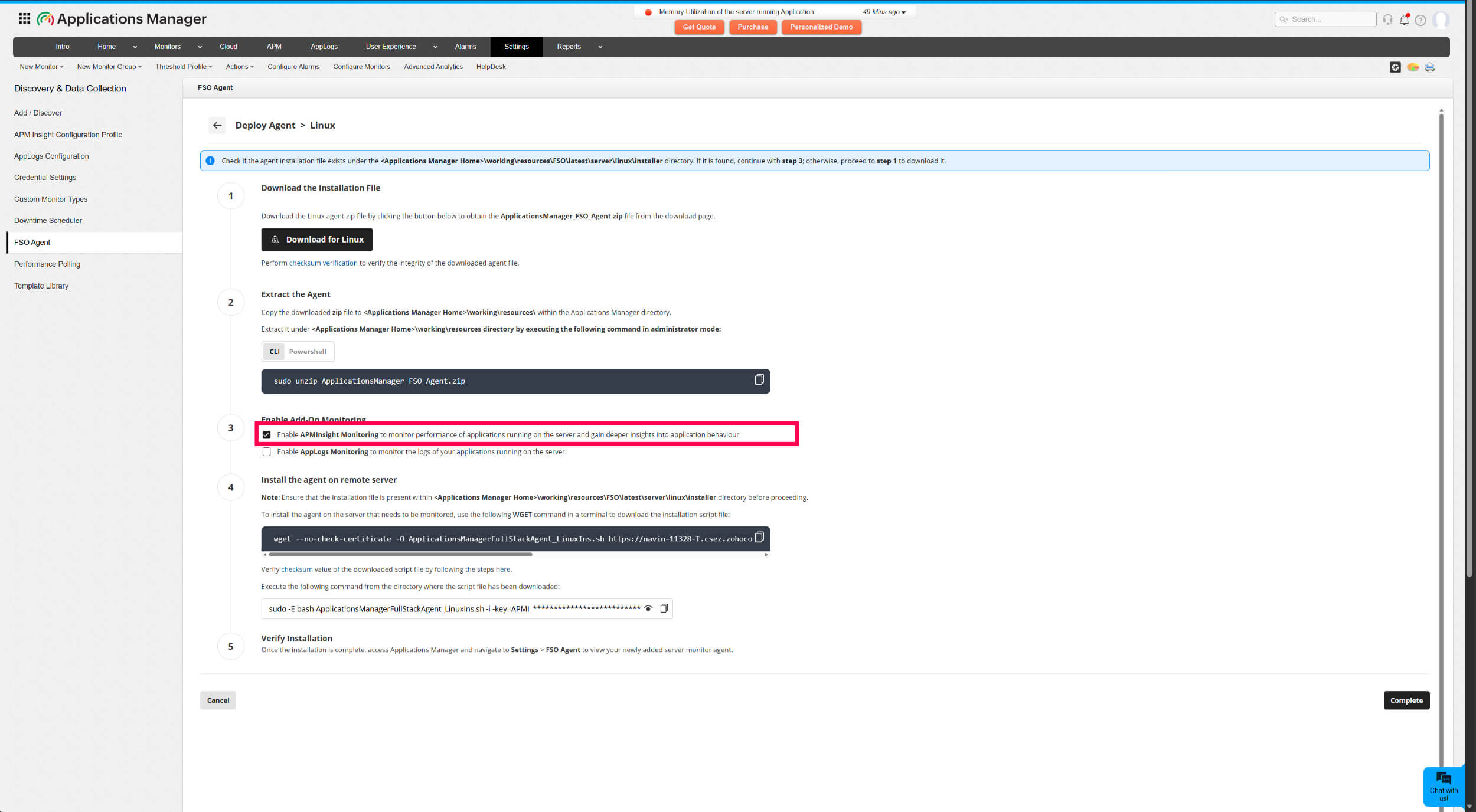
For details on how APM Insight AutoProfiler operates after installation, see How APM Insight AutoProfiler Works.
Enable APM Insight AutoProfiler after FSO installation
If you skipped enabling APM Insight during the initial FSO Agent installation, you can enable it later by navigating to Settings tab → FSO Agent → click the three dots (⋮) corresponding to the server → select Enable APM Insight Monitoring.
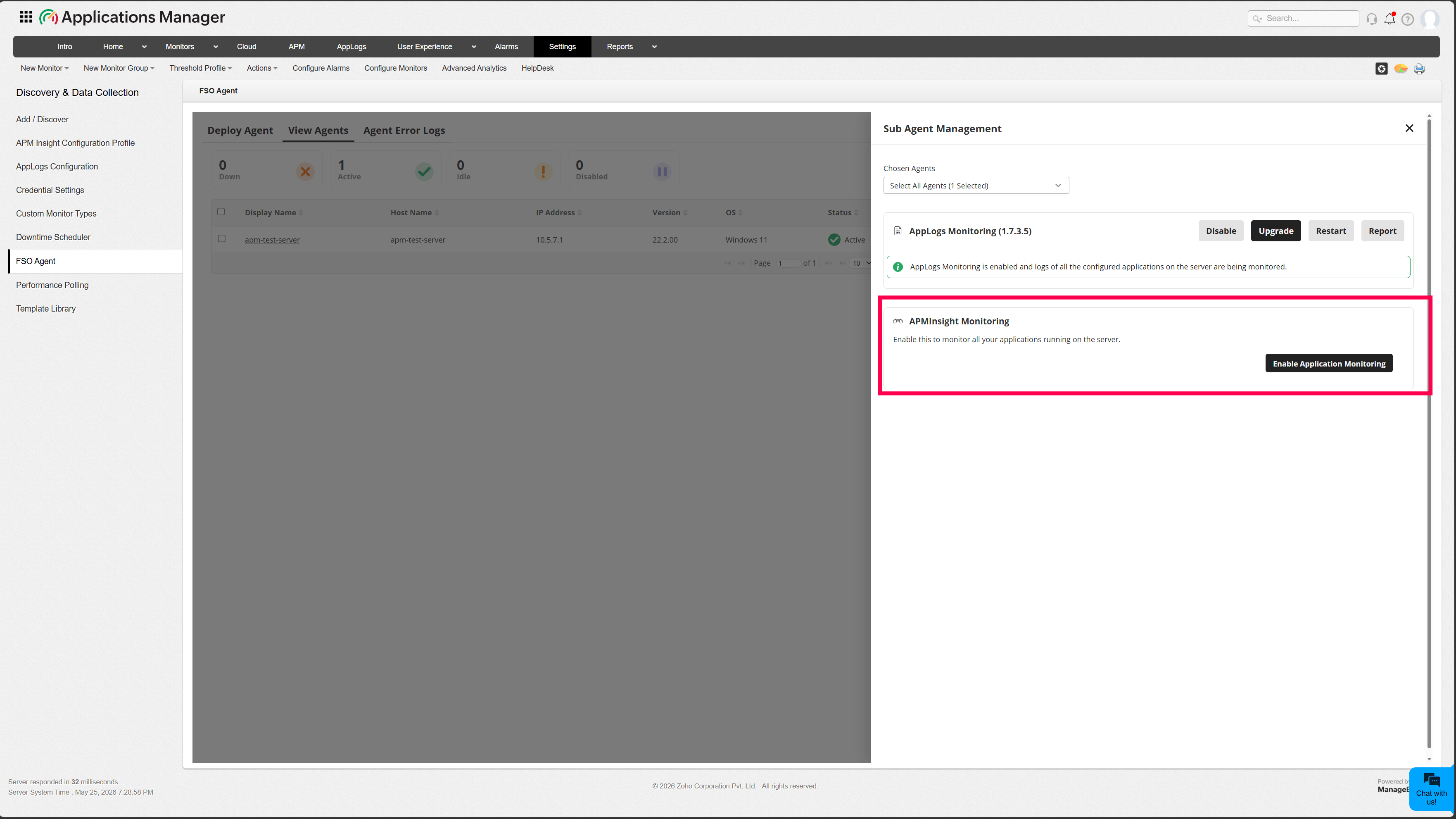
Restart the application process after enabling. Allow user traffic to flow through your application to view the APM monitors in the Applications Manager console.
How to disable APM Insight AutoProfiler
To disable the APM Insight AutoProfiler, navigate to Settings tab → FSO Agent → click the three dots (⋮) corresponding to the server → select Disable APM Insight Monitoring.
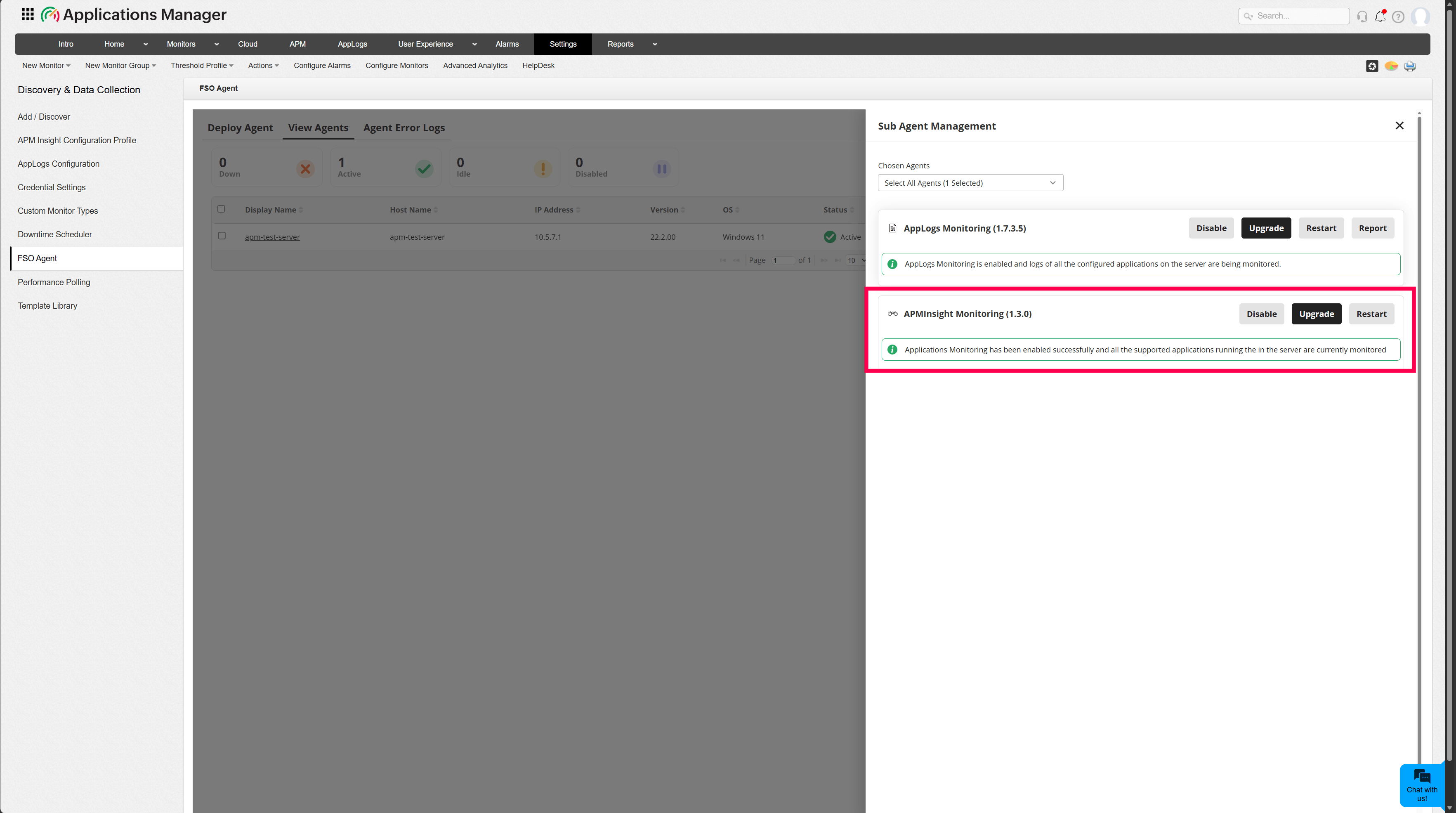
Note: After disabling APM Insight AutoProfiler, all application monitoring through AutoProfiler will be stopped. The AutoProfiler will no longer discover or attach agents to application processes. Restart the application process after disabling for the changes to take effect.

