Integrate Applications Manager with ArcSight
ArcSight is a Security Information and Event Management (SIEM) platform that collects, normalizes, and correlates event data from multiple sources across the enterprise. It enables organizations to perform real-time threat detection, incident investigation, compliance monitoring, and security analytics.
Integrating Applications Manager with ArcSight enables security and operations teams to consolidate application monitoring events within their centralized SIEM environment. By forwarding alarms, audit logs, and access logs to ArcSight, organizations can correlate application-level incidents with network, infrastructure, and security events. This integration improves visibility into operational anomalies, strengthens incident response workflows, and enhances compliance monitoring by ensuring that critical monitoring events are available within the enterprise security ecosystem.
Configuring ArcSight to receive events
Before configuring Applications Manager, ArcSight must be set up to receive syslog messages from the Applications Manager server. Follow the steps below to configure ArcSight:
- Download and install the appropriate ArcSight setup on a designated server.
- Linux: Install ArcSight ESM, if you are integrating from Linux OS.
- Windows: Install Smart Connector if it is Windows OS.
- Log in to the ArcSight console and configure the following syslog inputs:
- Syslog Daemon (UDP 514)
- Choose ArcSight ESM as the destination.
- You can create custom parsers and apply other customizations if required.
Once configured, ArcSight will be ready to receive syslog events from Applications Manager.
Note: Ensure that UDP port 514 (or the particular port configured for receiving syslog) is reachable and not blocked by firewalls. Refer to ArcSight documentation for detailed steps on Syslog UDP host and port configuration.
Configuring Applications Manager
After configuring ArcSight to receive syslog events, you need to configure Applications Manager to forward the required logs and alarms events. This involves configuring the SIEM integration for ArcSight and associating an action profile to ensure that relevant data is transmitted to ArcSight in the appropriate format.
1. Configure SIEM integration to forward audit and access logs
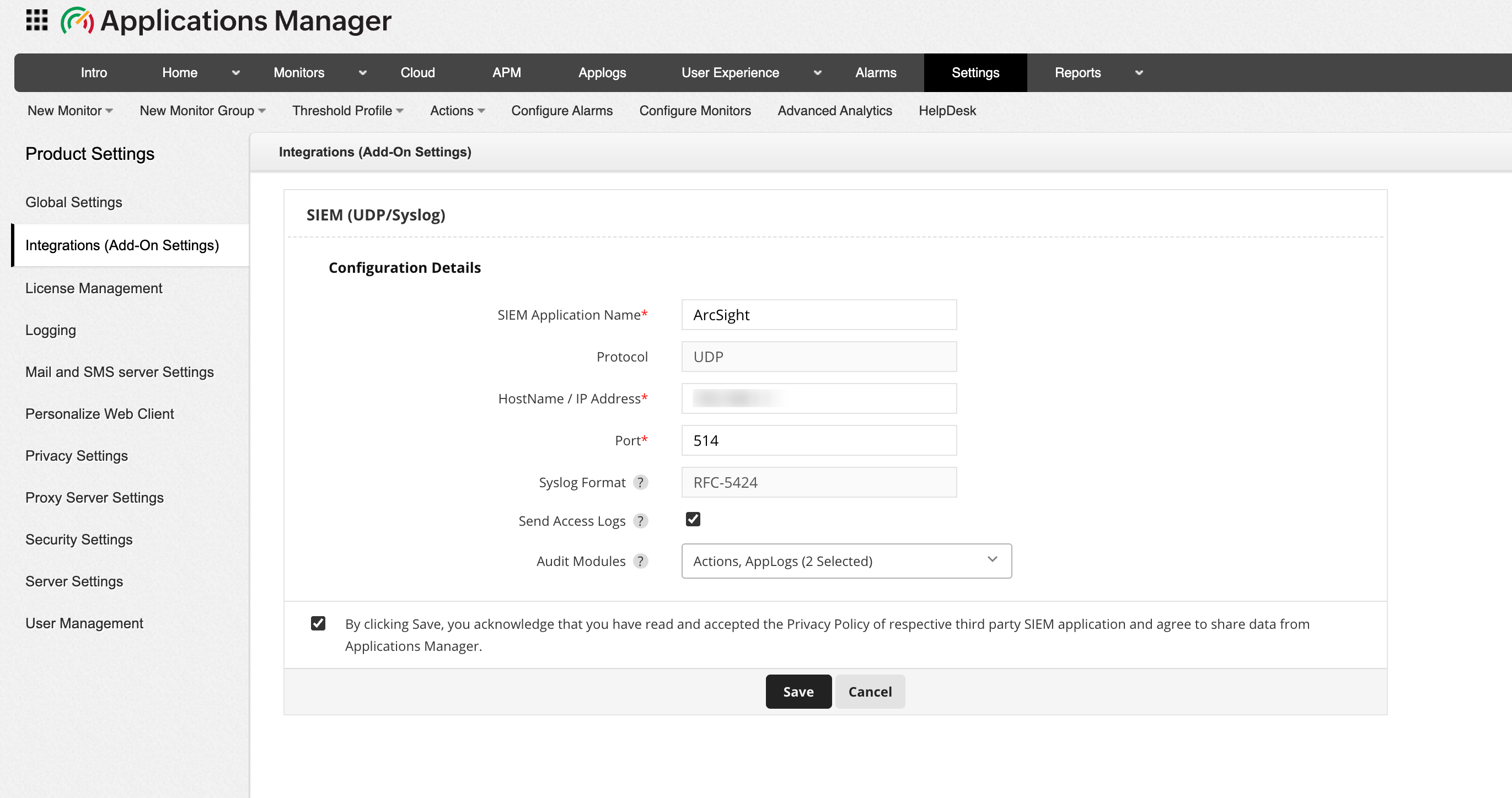
To forward audit and access logs to ArcSight, you need to first configure the SIEM (UDP/Syslog) integration settings in Applications Manager to allow selected audit modules and user access logs to be transmitted to the specified ArcSight server. Follow the steps below to configure SIEM integration for ArcSight:
- Go to Settings → Product Settings → Integrations (Add-On Settings) → SIEM (UDP/Syslog) → Add.
- Provide the SIEM Application Name as ArcSight.
- Specify the Hostname / IP address of the collector node.
- Enter the Port number of the Syslog listening port as 514 (default Syslog port for ArcSight).
- Enable Send Access logs to forward Applications Manager's access logs, which include client IP, user agent, and request details.
- Select the required Audit modules from the dropdown whose logs should be forwarded to ArcSight. You can also select both together based on your requirements.
- Acknowledge the message and click on Save to proceed with configuring the integration.
Once done, audit logs and access logs event will now be forwarded to ArcSight.
2. Associate SIEM Action profile for alarm forwarding
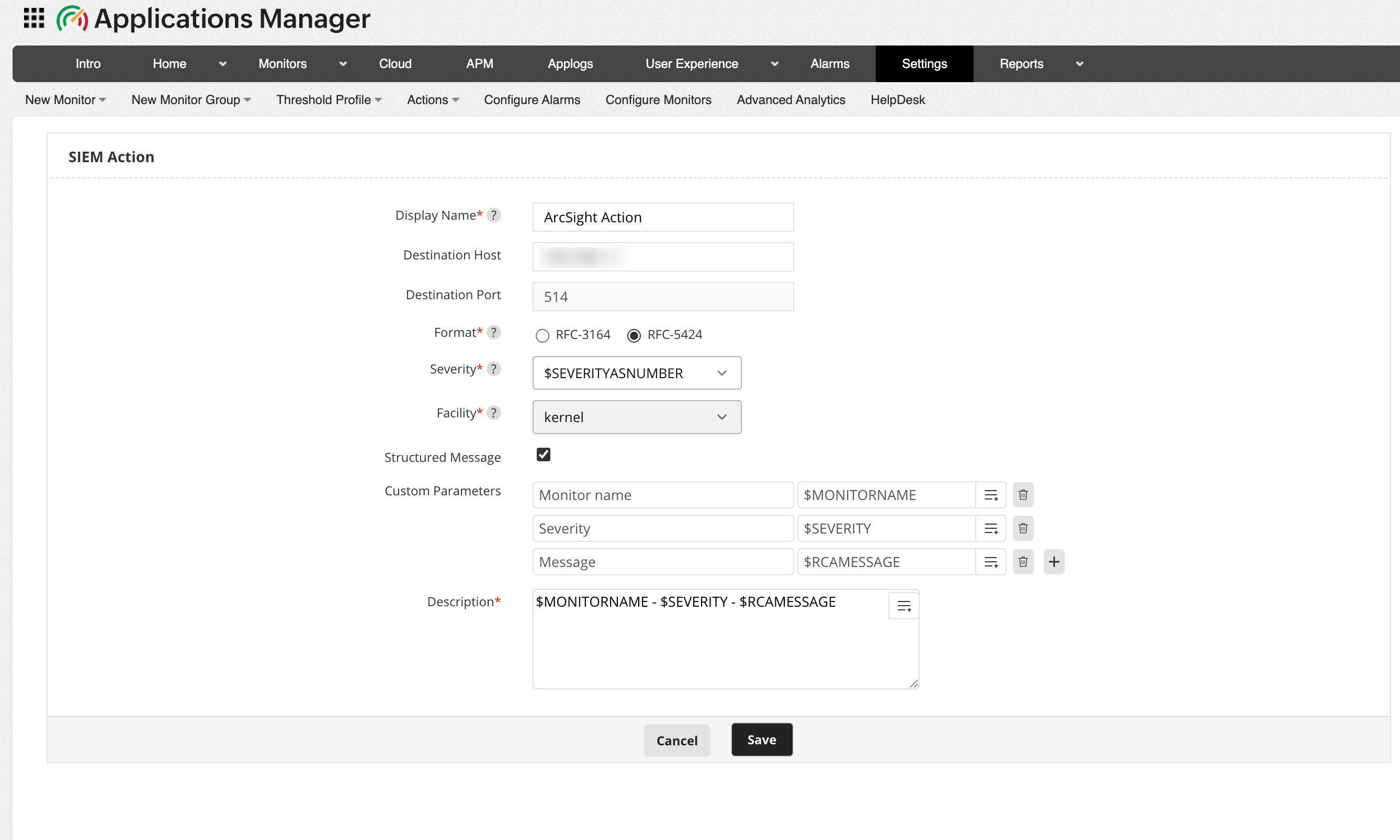
To forward alarm events to ArcSight, the next step is to create and configure an SIEM Action profile. The SIEM Action profile defines the destination host, syslog format, severity mapping, and message structure for alarm notifications. Follow the steps below to create and configure the SIEM Action profile for ArcSight:
- Go to Action tab and click on SIEM Action. Alternatively, you can navigate to Settings → Alarm / Action → Action → Create SIEM Action.
- Enter the unique Display Name of the SIEM action.
- Choose the Format of Syslog message to be used when forwarding events. RFC 3164 and RFC 5424 are standardized Syslog formats that define how log messages are structured.
- Select the Severity level for the alarms forwarded to ArcSight server. By choosing $SEVERITYASNUMBER, the event will automatically inherit the default severity based on the corresponding Applications Manager alarm level.
- Select the Facility of the Syslog message under which the forwarded events need to be categorized in the ArcSight server.
- Enable the Structure Message option to include structured data within the Syslog message. Once enabled, provide the Custom Parameters that are to be added as inputs in the required fields.
- Enter the Description for the message template to be sent to ArcSight server. This field defines the main content of the Syslog event that will appear in the ArcSight console.
- Click on Save to apply the changes.
After creating the SIEM Action Profile, associate it with the required alarm actions to ensure that monitoring alerts are forwarded to ArcSight in real time.
Verifying the integration
Once both Applications Manager and ArcSight are configured, check for the logs received from Applications Manager to ArcSight. Once integrated, ArcSight will continuously receive event data from Applications Manager, providing enriched insight into application-level behaviour alongside infrastructure and application logs.

