Integrate Applications Manager with IBM QRadar
IBM QRadar is a Security Information and Event Management (SIEM) platform that collects, normalizes, analyzes, and correlates event data from multiple sources across an IT environment. It supports standard protocols such as Syslog to ingest logs and events, enabling organizations to detect threats, investigate incidents, and meet compliance requirements through centralized security intelligence.
Integrating Applications Manager with IBM QRadar allows application-level events, alarms, audit logs, and access logs to be forwarded directly to the QRadar server using the Syslog (UDP) protocol. This integration enhances security visibility by combining real-time performance and operational monitoring data with QRadar’s advanced correlation and analytics engine. As a result, teams can identify anomalies faster, improve incident response, and strengthen overall monitoring and security posture.
Configuring IBM QRadar to receive events
Before configuring Applications Manager, you must first configure IBM QRadar to receive syslog events. This involves creating a new log source in QRadar and defining the appropriate protocol settings so that events sent from the Applications Manager server can be accepted and processed correctly. To enable QRadar to receive syslog events from Applications Manager:
- Go to Log Sources, click on New Log Sources, and choose Single or Multiple Log Sources based on whether syslogs are coming from one or multiple sources.
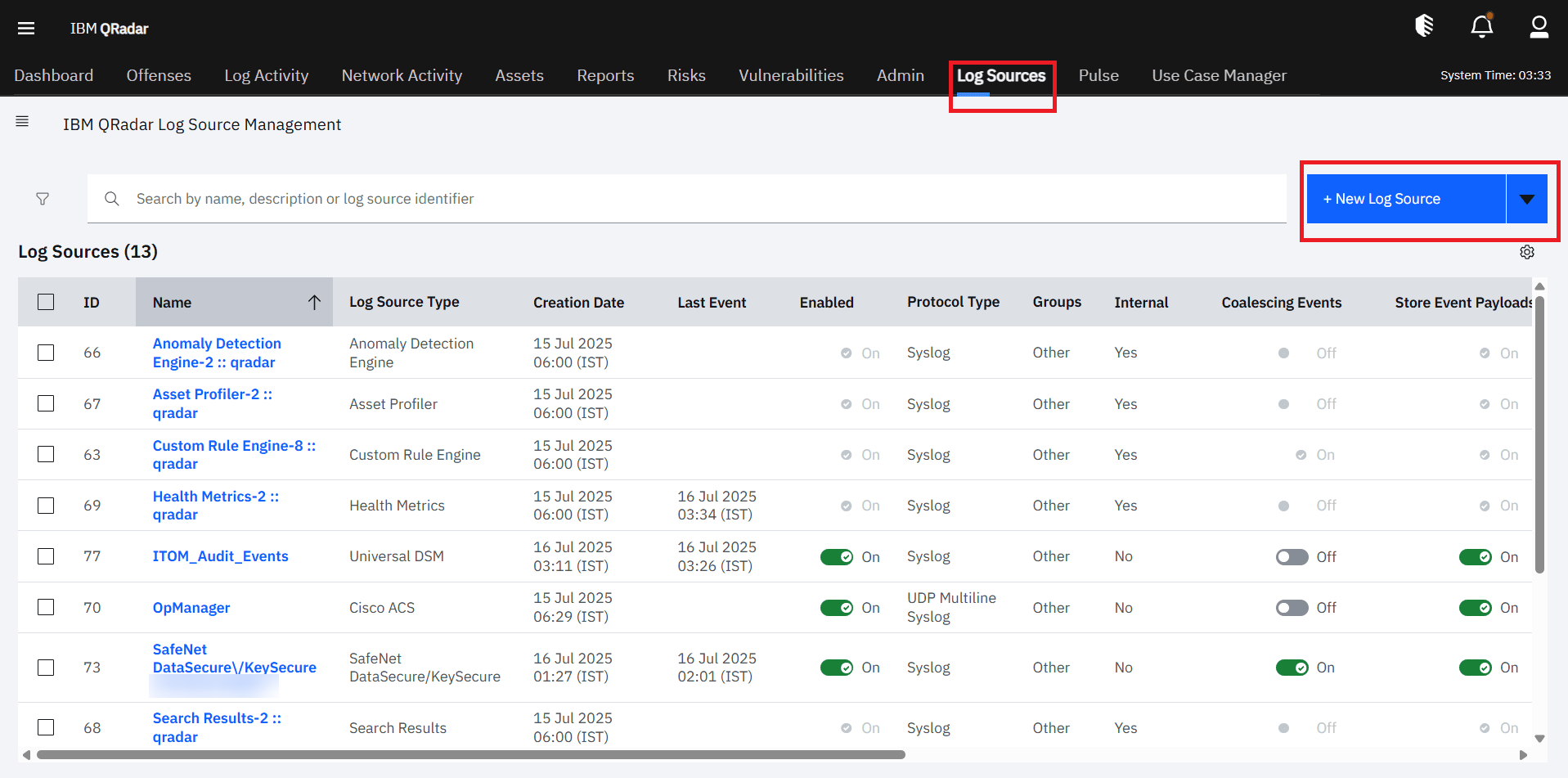
- Set the Log Source Type to Universal DSM.
- Select the Protocol Type as Syslog.
- You can configure the log sources by providing the name, description, and other fields. These fields are optional.
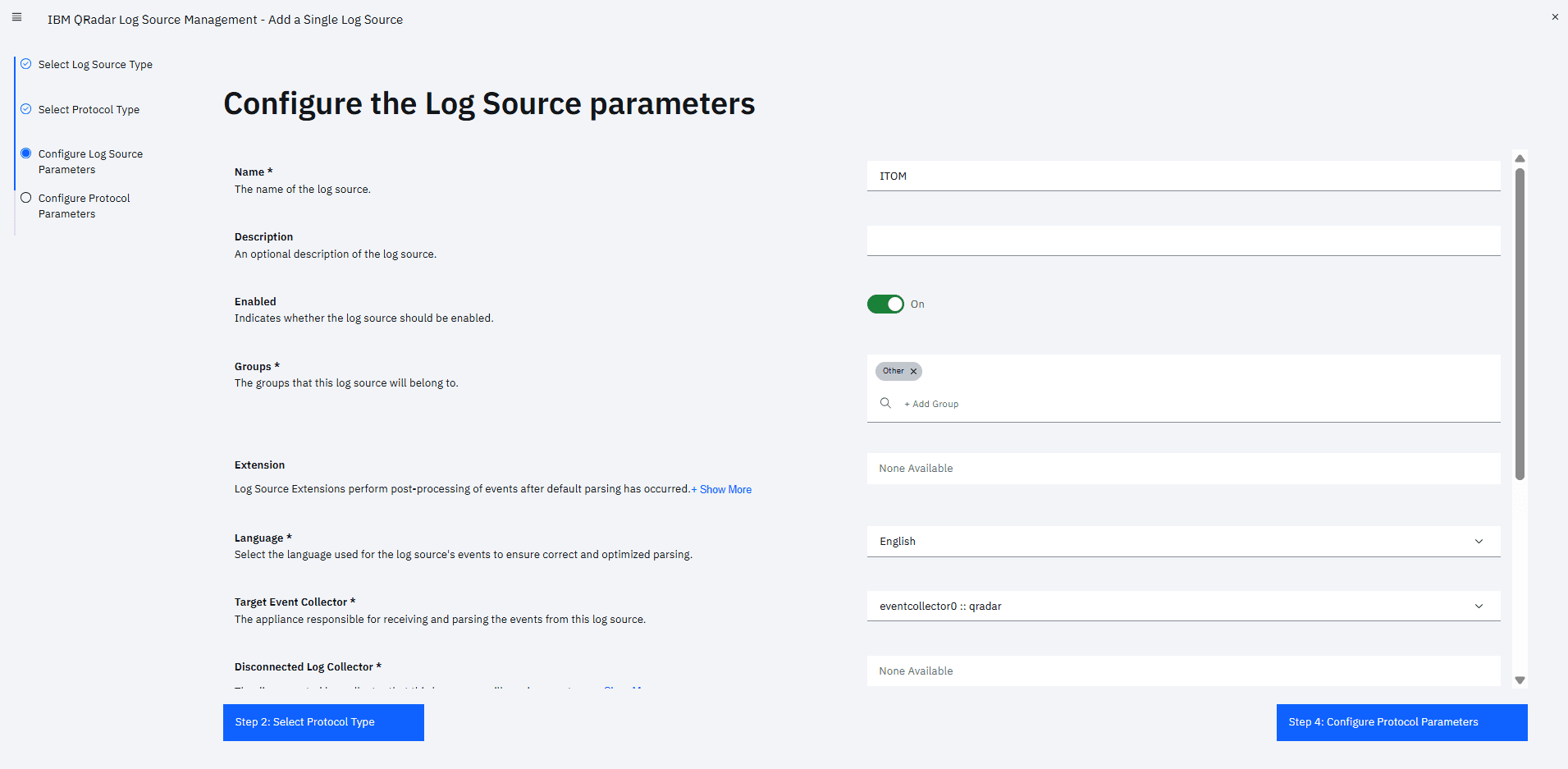
- Configure the protocol parameters by specifying the Applications Manager server host. Select Multi Source to add multiple IPs or hostnames.
- Click on Finish and deploy the applied changes under Admin.
Once deployed, QRadar is now configured to receive syslog messages from Applications Manager.
Configuring Applications Manager
After configuring IBM QRadar to receive syslog events, you need to configure Applications Manager to forward the required logs and alarms events. This involves configuring the SIEM integration for IBM QRadar and associating an action profile to ensure that relevant data is transmitted to QRadar in the appropriate format.
1. Configure SIEM integration to forward Audit and Access Logs
To forward audit and access logs to IBM QRadar, you need to first configure the SIEM (UDP/Syslog) integration settings in Applications Manager to allow administrative actions, selected audit modules, and user access logs to be transmitted to the specified QRadar server. Follow the steps below to configure SIEM integration for IBM QRadar:
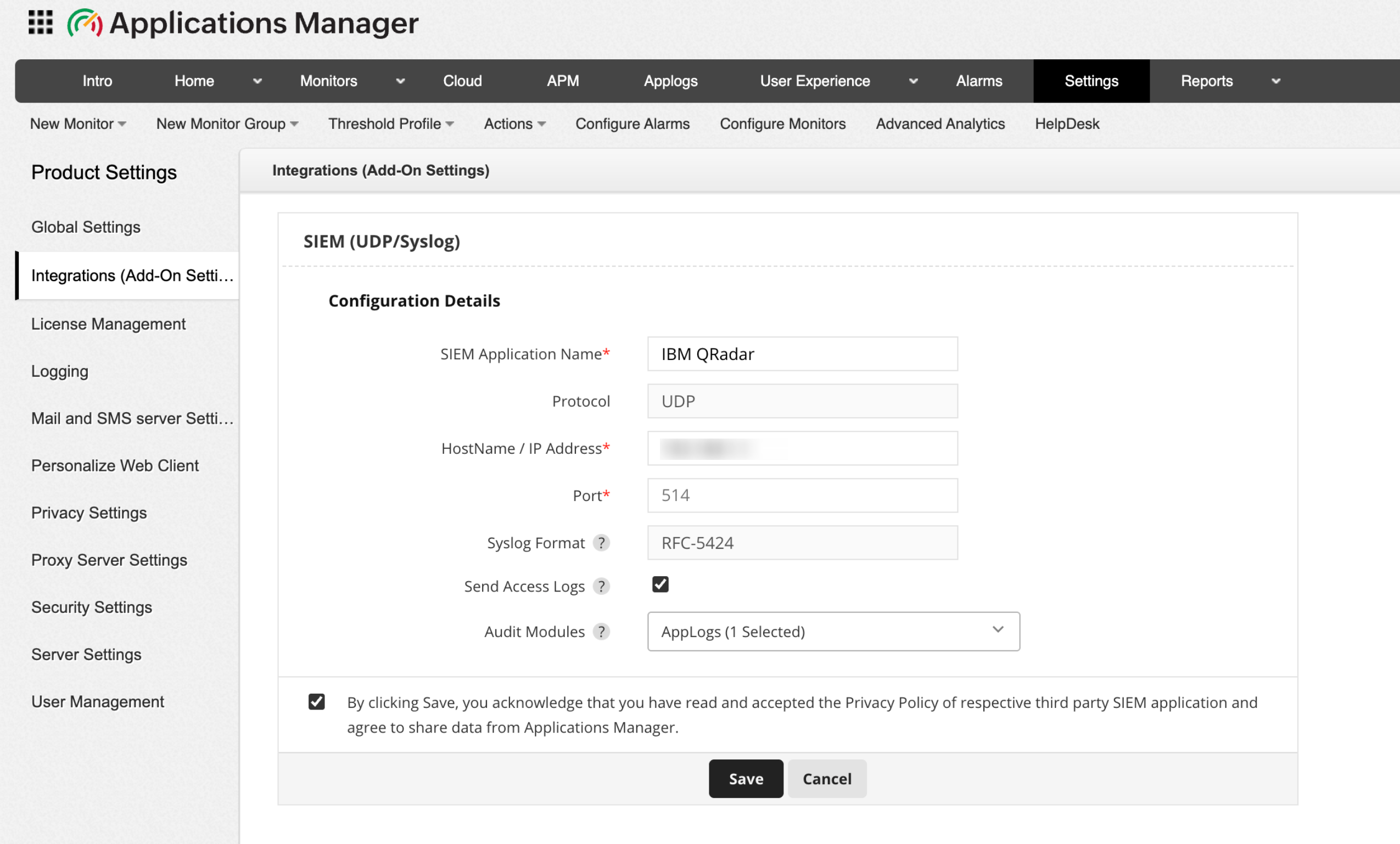
- Go to Settings → Product Settings → Integrations (Add-On Settings) → SIEM (UDP/Syslog) → Add.
- Provide the SIEM Application Name as IBM QRadar.
- Specify the Hostname / IP address of the machine where IBM QRadar is hosted.
- Enter the port number as 514 (default Syslog port for IBM QRadar).
- Enable Send Access logs forward Applications Manager's access logs, which include client IP, user agent, and request details.
- Select the Audit modules from the dropdown whose logs should be forwarded to the SIEM product. You can also select both together based on your requirements.
- Acknowledge the message and click on Save to proceed with configuring the integration.
Once done, Audit logs and access logs event will now be forwarded to IBM QRadar.
2. Associate SIEM Action profile for alarm forwarding
To forward alarm events to IBM QRadar, the next step is to create and configure an SIEM Action profile. The SIEM Action profile defines the destination host, syslog format, severity mapping, and message structure for alarm notifications. Follow the steps below to create and configure the SIEM Action profile for IBM QRadar:
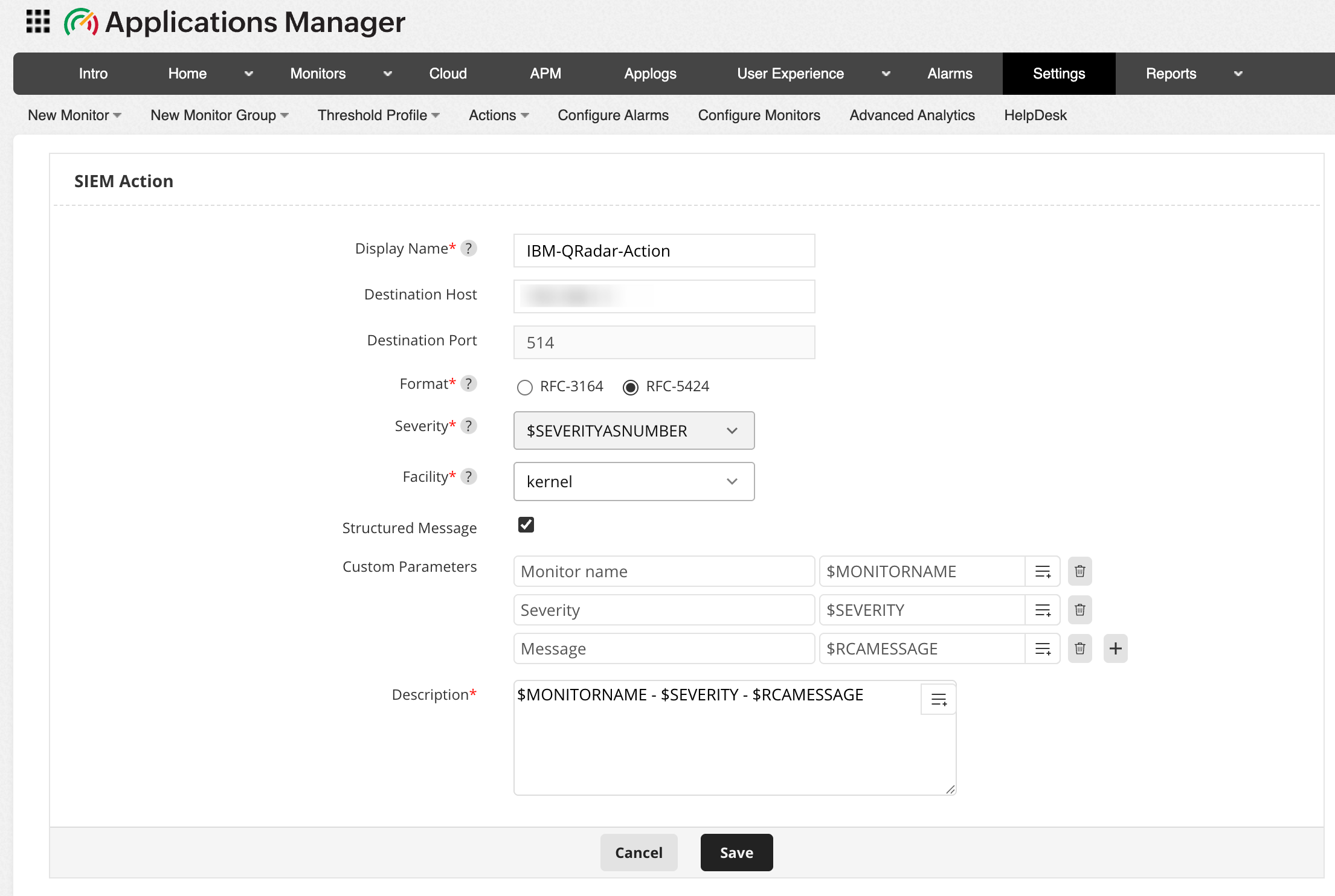
- Go to Action tab and click on SIEM Action. Alternatively, you can navigate to Settings → Alarm / Action → Action → Create SIEM Action.
- Enter the unique Display Name of the SIEM action.
- Choose the Format of Syslog message to be used when forwarding events. RFC 3164 and RFC 5424 are standardized Syslog formats that define how log messages are structured.
- Select the Severity level for the alarms forwarded to IBM QRadar server. By choosing $SEVERITYASNUMBER, the event will automatically inherit the default severity based on the corresponding Applications Manager alarm level.
- Select the Facility of the Syslog message under which the forwarded events need to be categorized in the IBM QRadar server.
- Enable the Structure Message option to include structured data within the Syslog message. Once enabled, provide the Custom Parameters that are to be added as inputs in the required fields.
- Enter the Description for the message template to be sent to IBM QRadar server. This field defines the main content of the Syslog event that will appear in the IBM QRadar console.
- Click on Save.
After creating the SIEM Action Profile, associate it with the required alarm actions to ensure that monitoring alerts are forwarded to QRadar in real time.
Verifying the integration
Once both sides are configured,
- Check whether QRadar console is receiving syslog messages from the Applications Manager server.
- Verify in the QRadar Log Activity tab that events from Applications Manager are being ingested and properly fetched.
- If logs are not visible, ensure firewalls do not block UDP/514 traffic and both systems can communicate over the network.
Once integrated, IBM QRadar will continuously receive event data from Applications Manager, providing enriched insight into application-level behaviour alongside infrastructure and application logs.

