Integrating Applications Manager with WhatsApp Messenger
WhatsApp by Meta is a popular instant messaging and VoIP platform that allows users to seamlessly communicate with each other. By integrating Applications Manager with WhatsApp, users can now easily receive Applications Manager alerts as messages via WhatsApp. This helps them stay aware of their network faults on-the-go and initiate fault remediation measures that ultimately enhance the network uptime.
To integrate Applications Manager with WhatsApp messenger, you need
- Facebook account
- WhatsApp business account
- Meta business account with business profile
- Meta developer account
Carry out the following steps to integrate Applications Manager with WhatsApp.
Note: This feature is only supported for Applications Manager versions 177200 and above.
Configuring Meta for Business
Now, from Meta's console, carry out the following steps.
I. Create an app with Meta developer account and set up WhatsApp
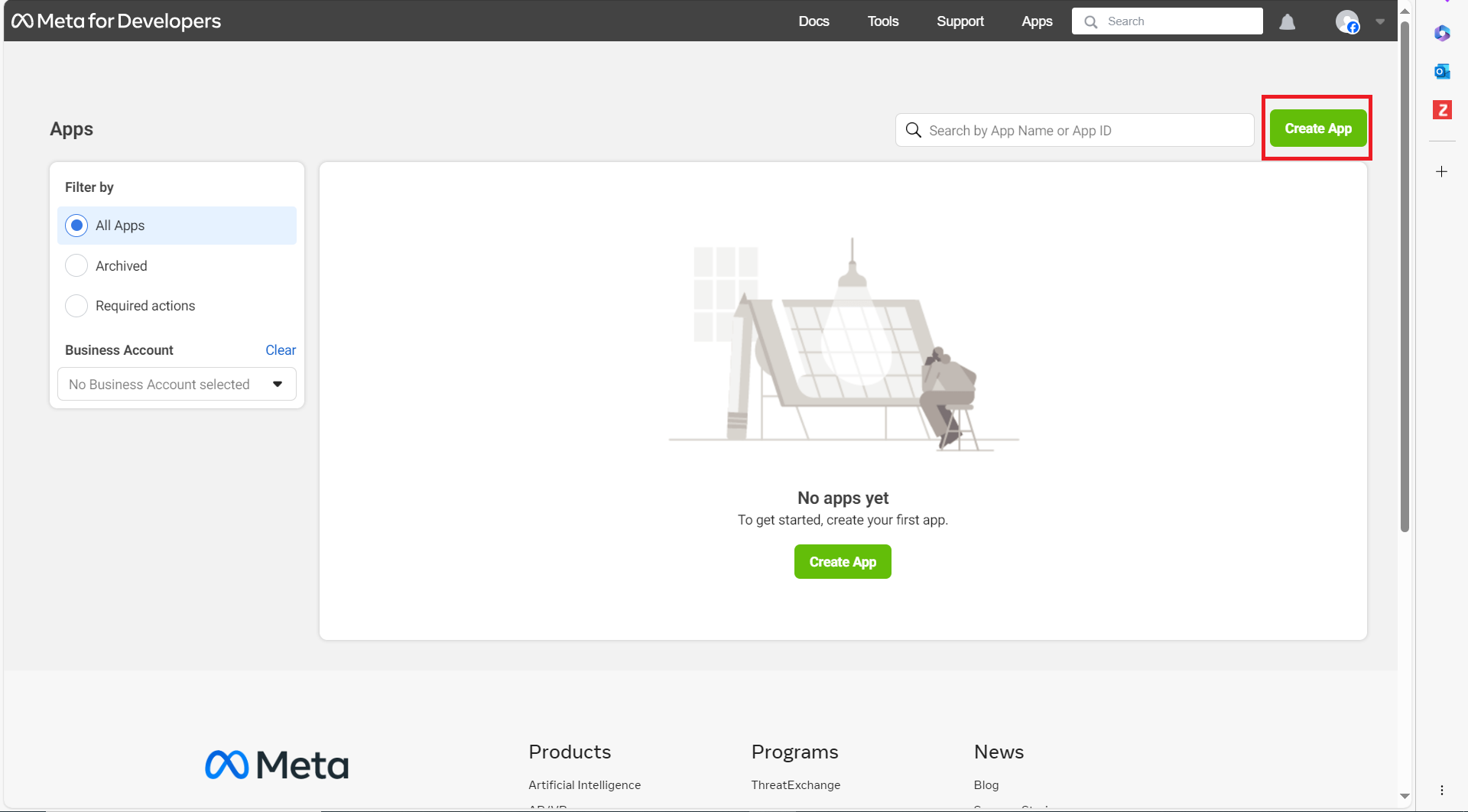
- Login to your Meta developer account and go to "My Apps".
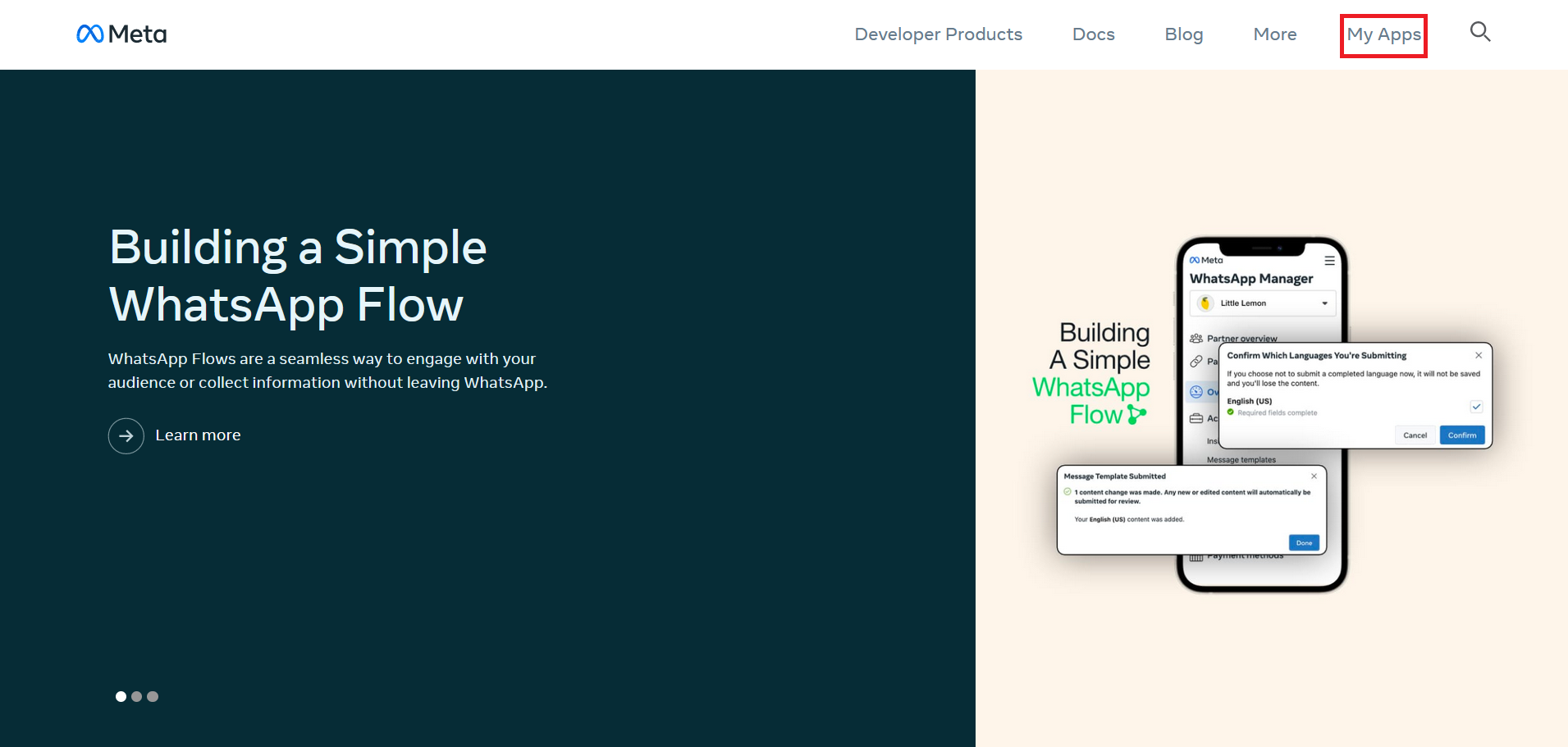
- Now, click on the "Create App" button.
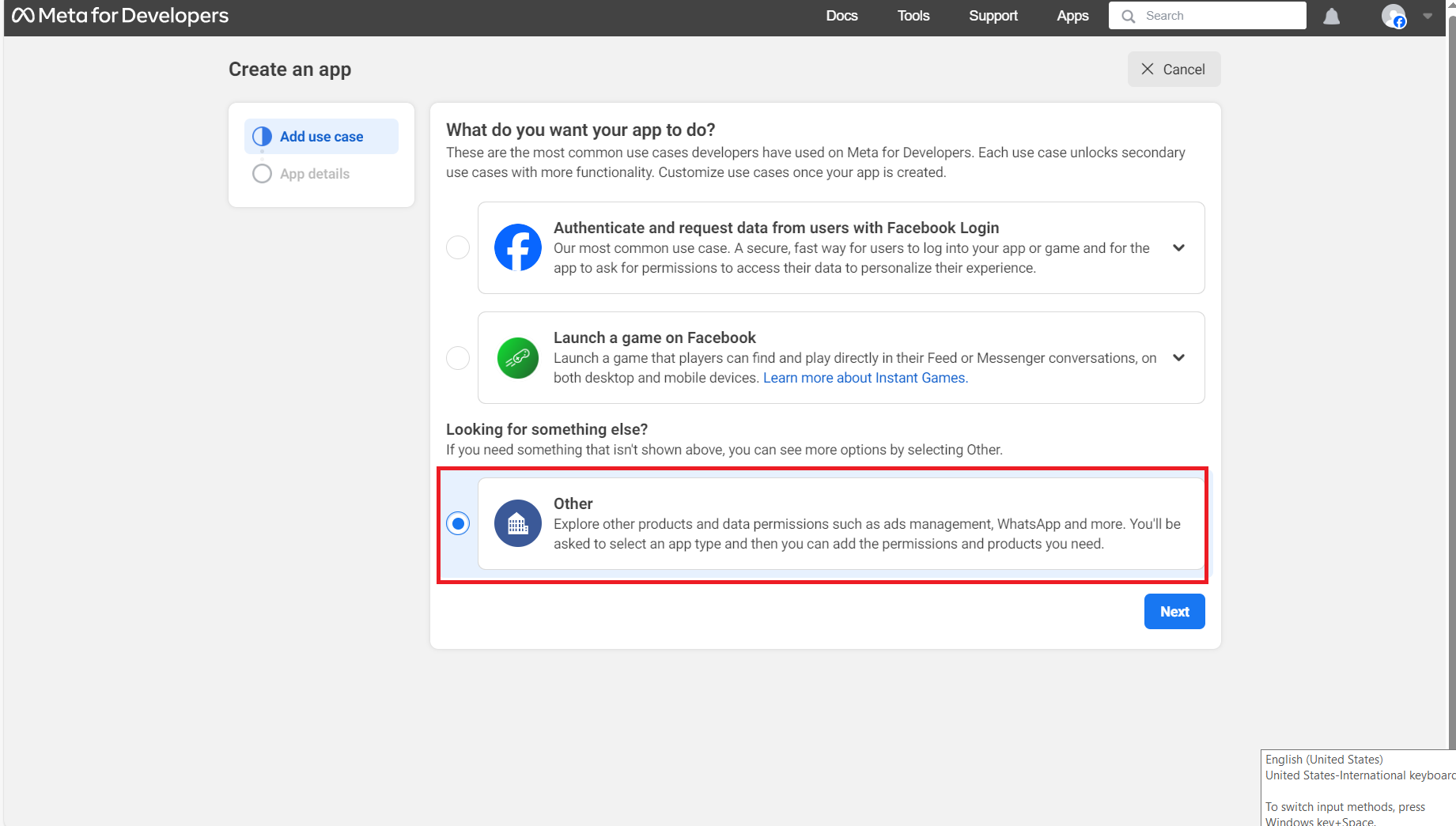
- Now, select "Other" as the use case, and click on Next.
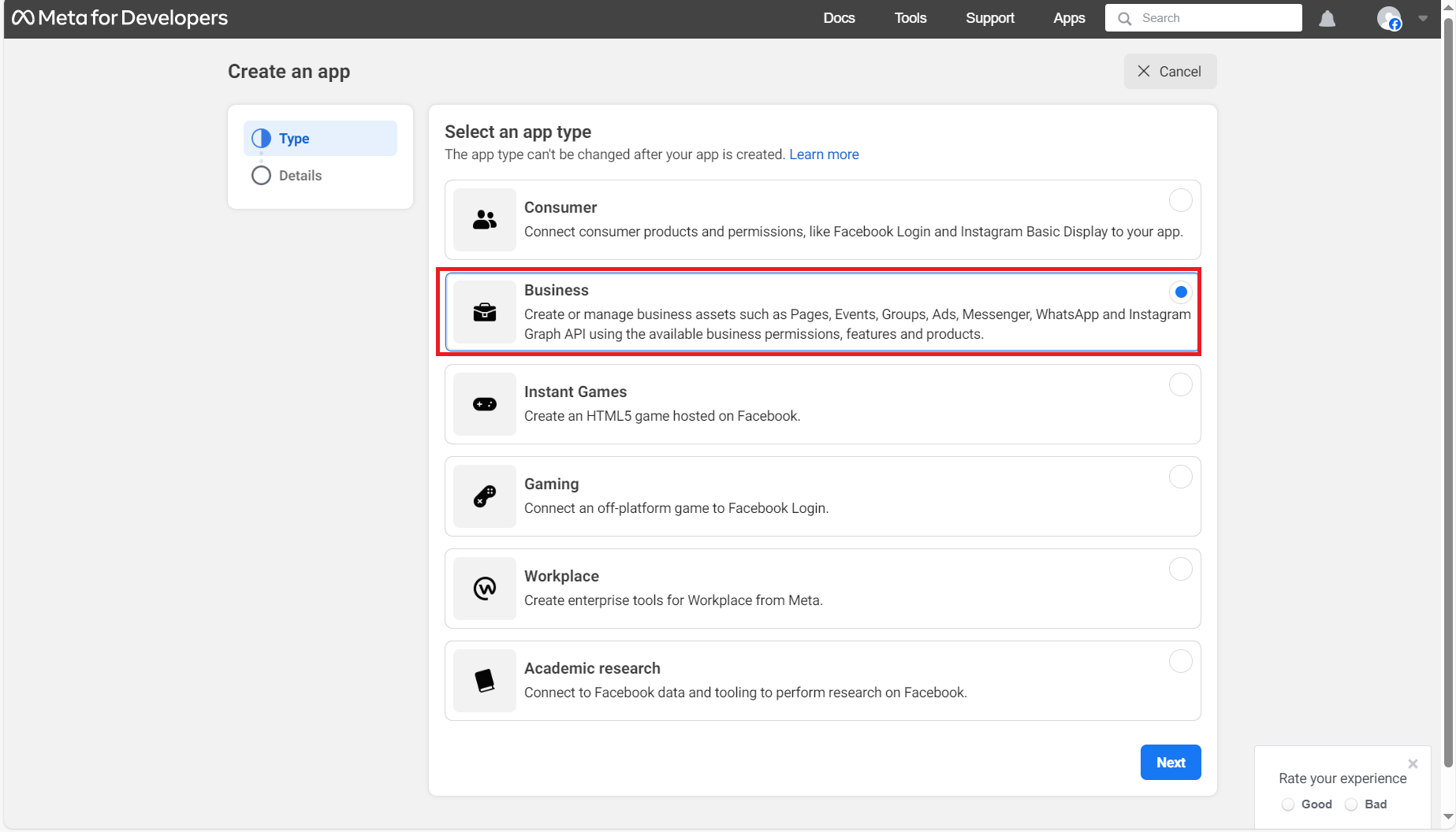
- Select the app type as "Business", and click on Next.
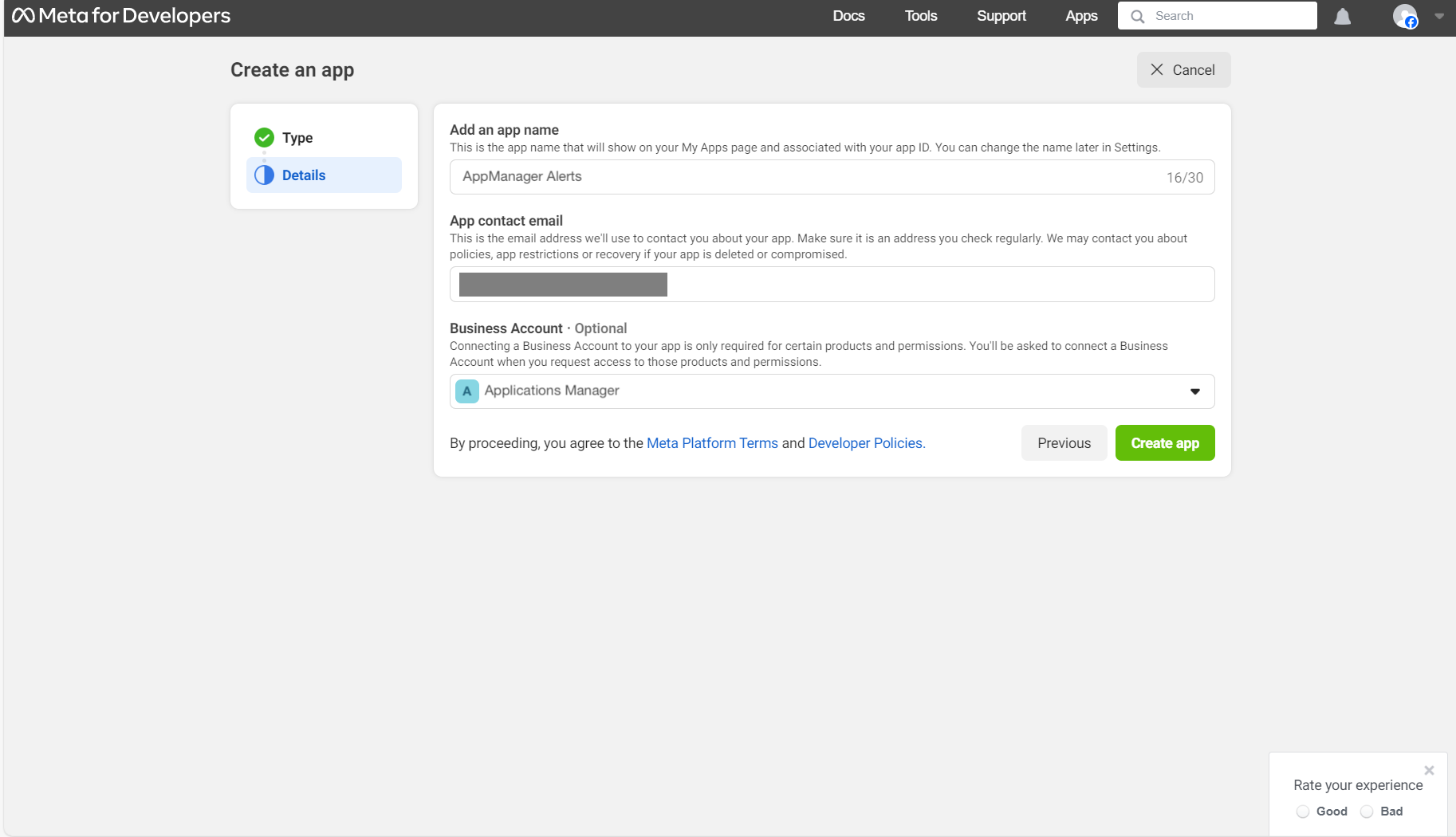
- Now, enter the name for the app, and select the corresponding business account.
- Click on the "Create App" button.
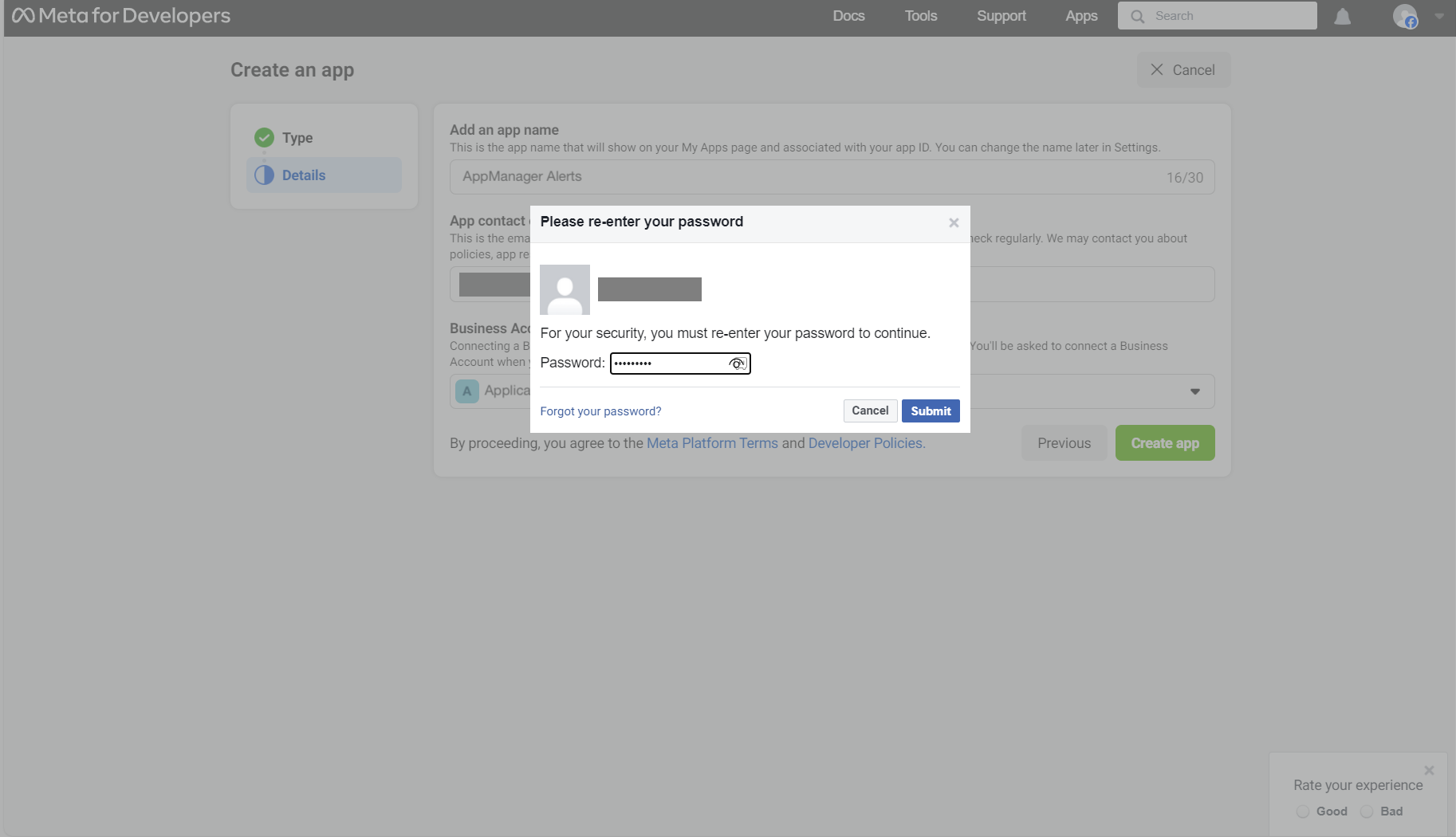
- You will be asked to re-enter your password. Once you are done, click on "Submit".
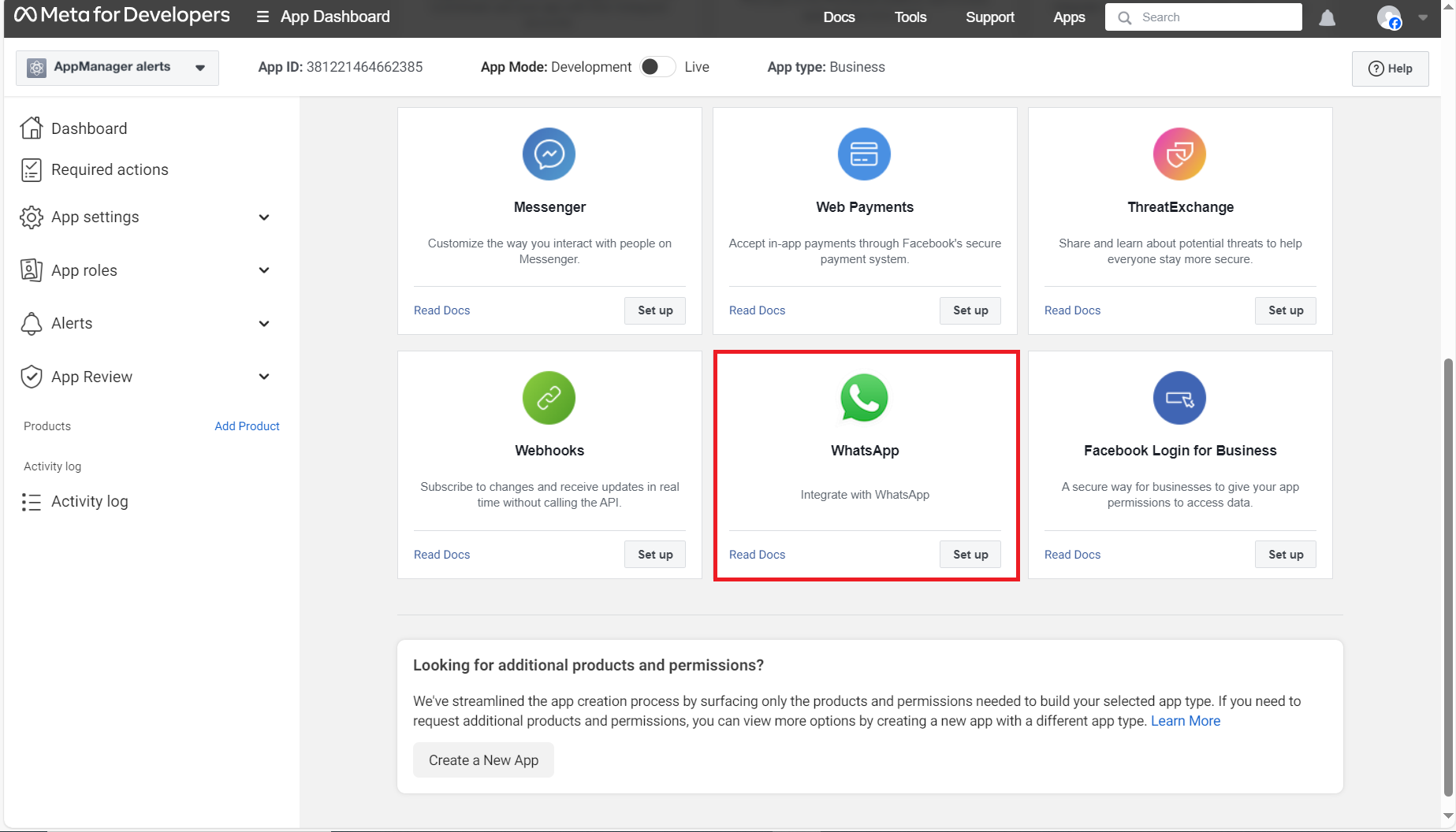
- In the subsequent screen that appears, click on the "Set Up" option that appears at the bottom-right of the WhatsApp section.
- Select a business account and click on "Continue".
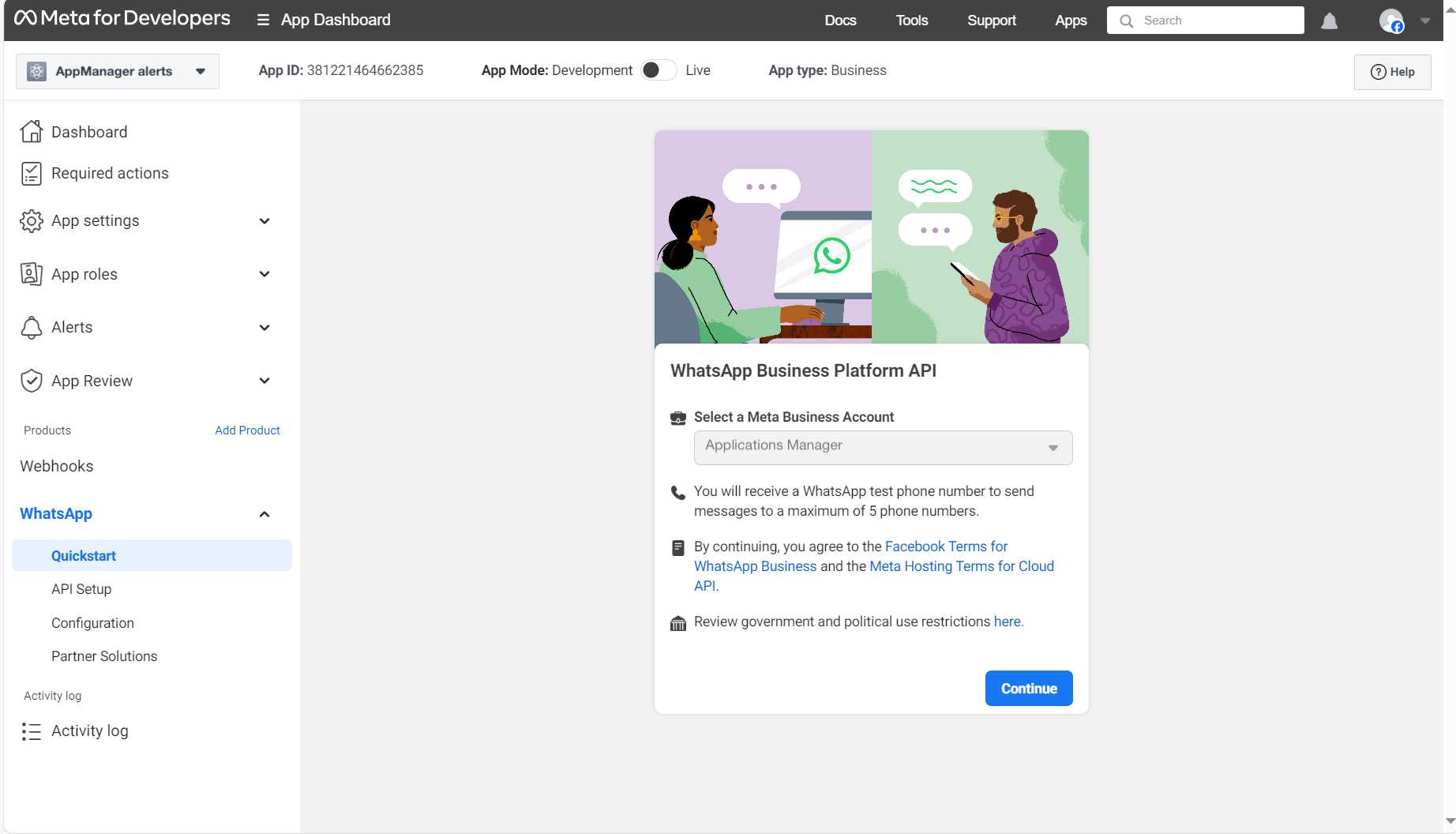
- You will now be redirected to the WhatsApp quickstart screen.
II. Create webhook URL
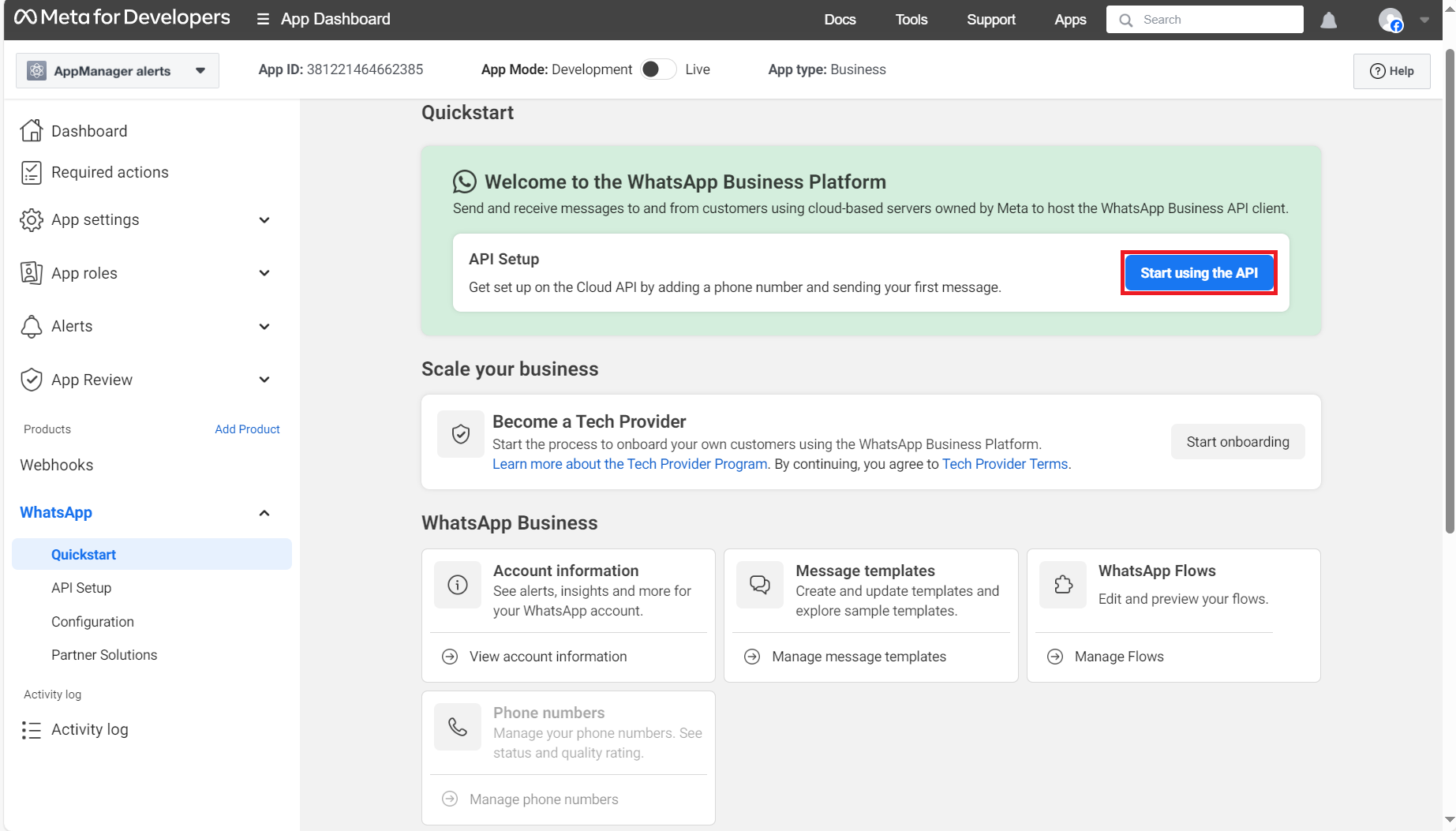
- Now, click on the "Start using the API" option that is found in the WhatsApp quickstart screen.
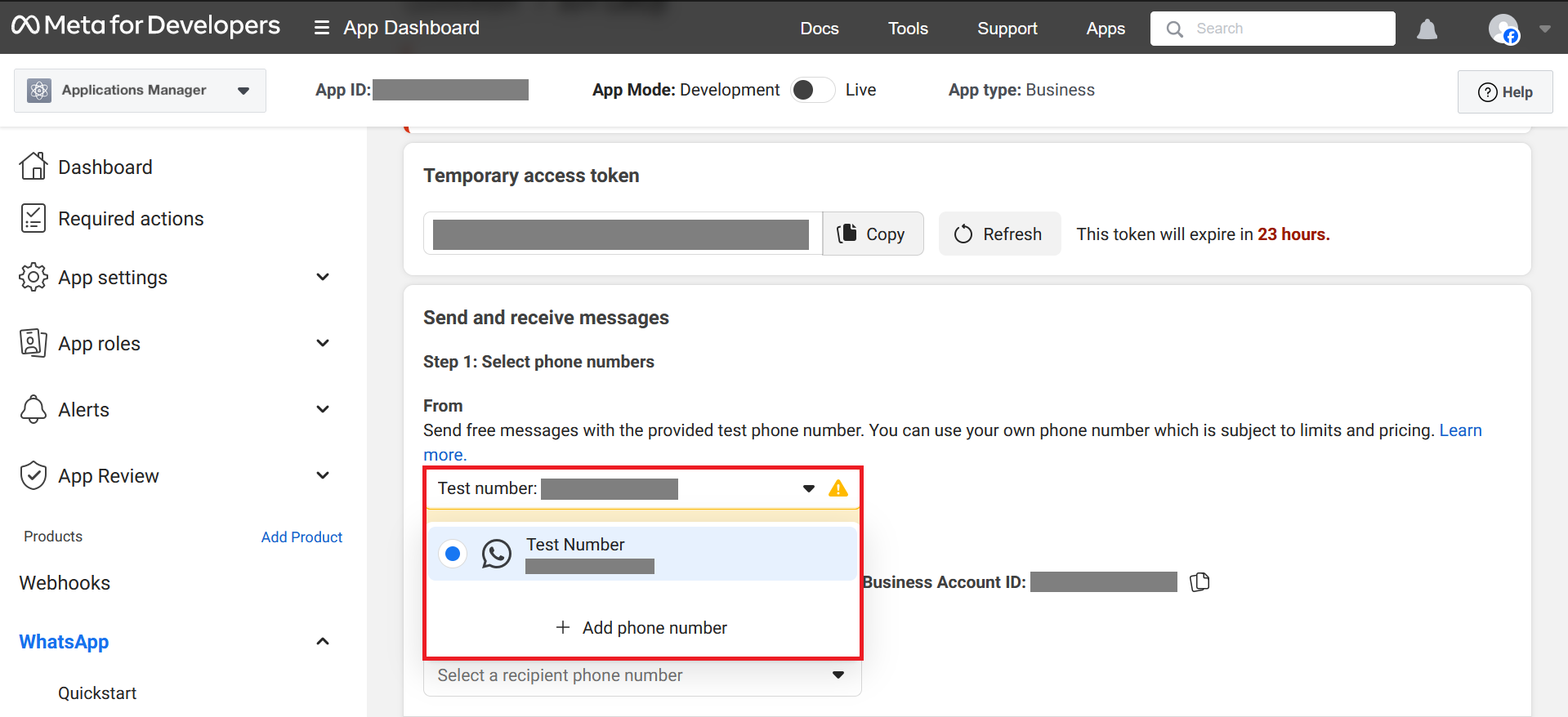
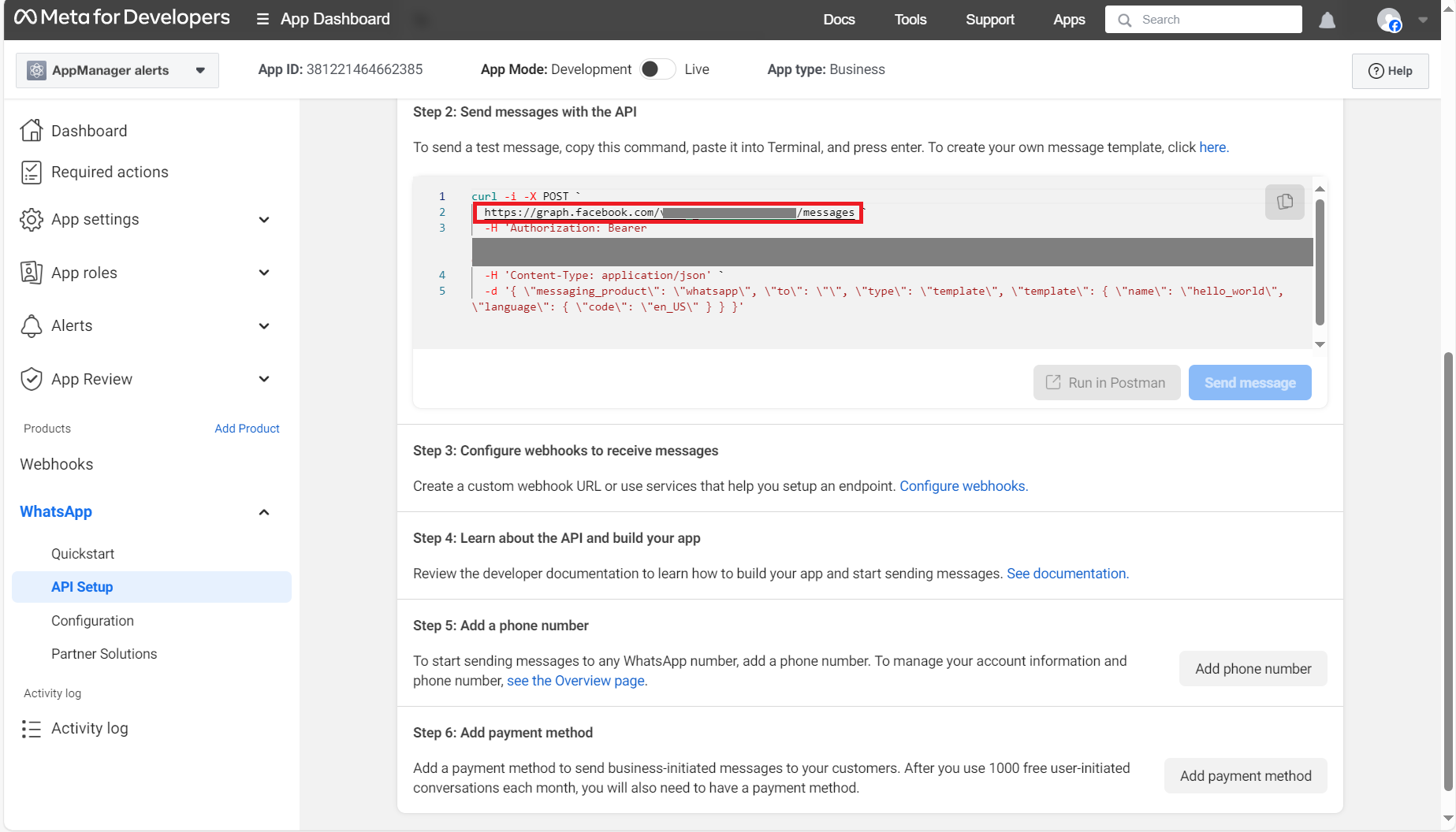
- Under the "Send and receive messages" section, select the "Add phone number" option from the "From" dropdown box(Highlighted in the below screenshot).
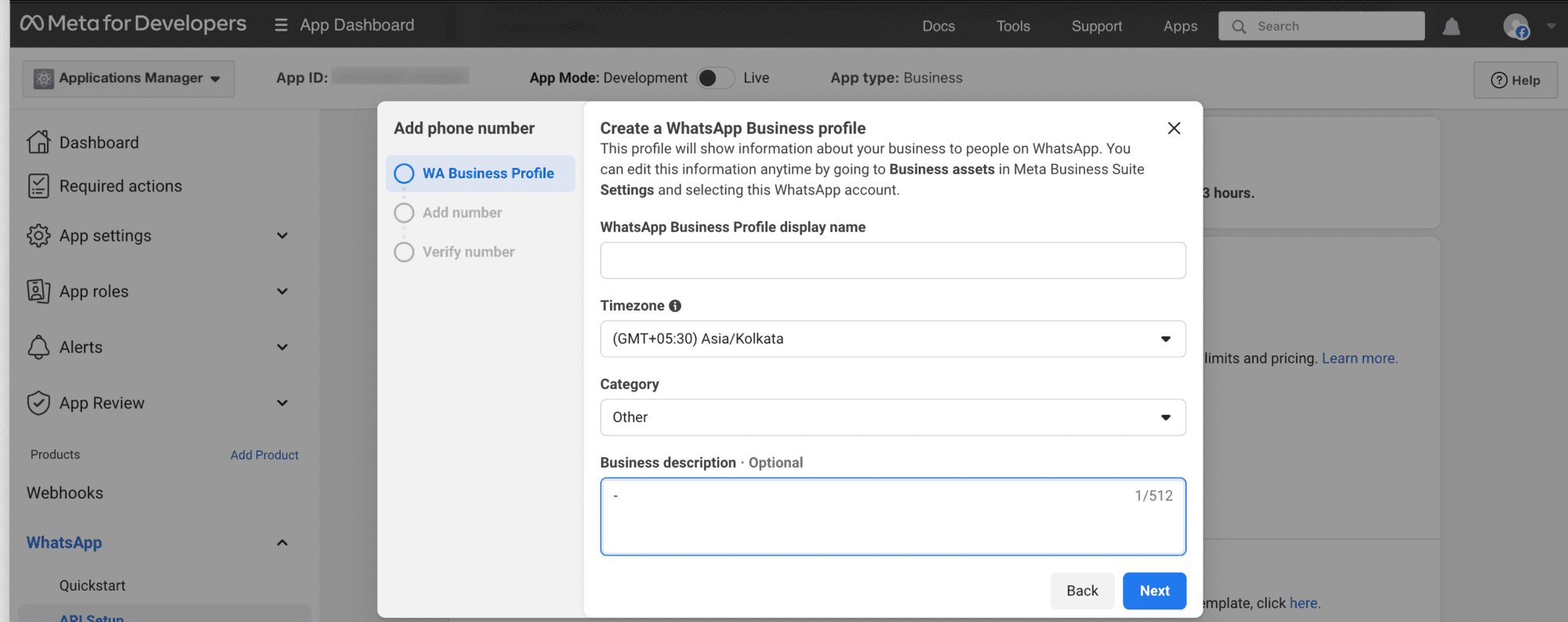
- Now enter the WhatsApp business profile details, and enter the name as "Applications Manager".
- Choose the business category as "Other", and click on "Next".
- Now, enter your WhatsApp business number, and choose the mode of verification.
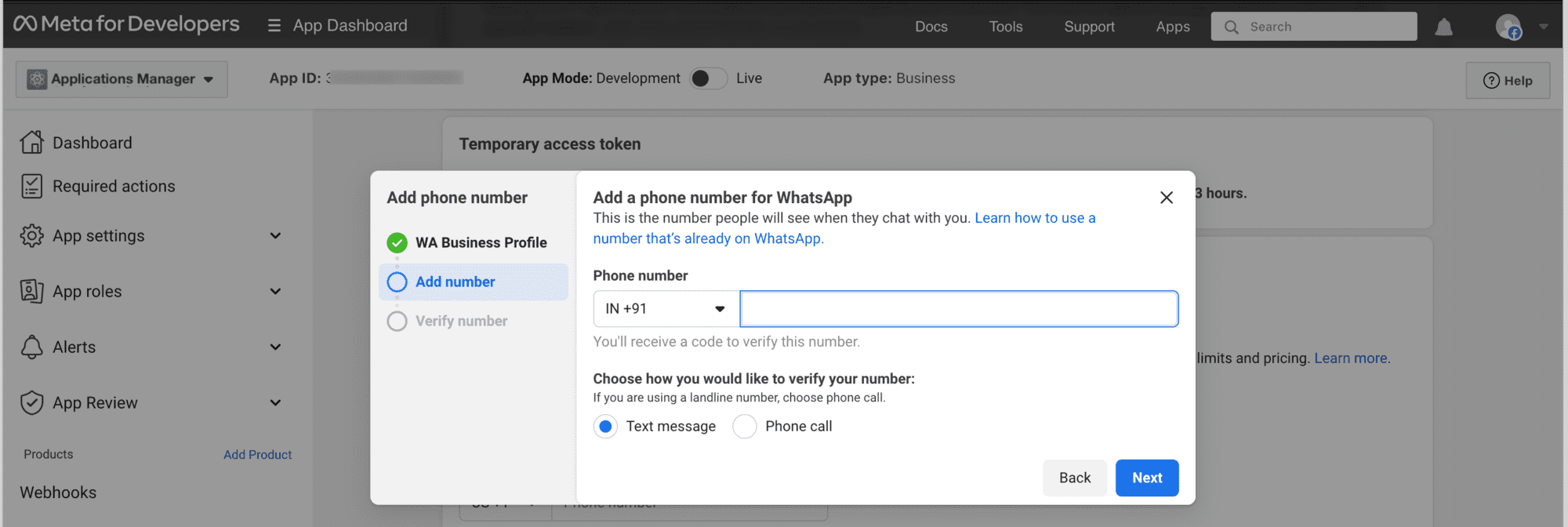
- Once the number has been verified, then it can be used to send messages.
- Now, copy the URL found in the terminal below.
III. Create an user and assign the app as asset
- Open the meta business account, and go to the "Business settings" page.
- Now, under the "Users" section, get to the "System Users" tab, and click on the "Add" button.
- Provide the name of the user as "Applications Manager" and grant them "Employee" access.
- Now that the user has been created, you have to assign the app as an asset.
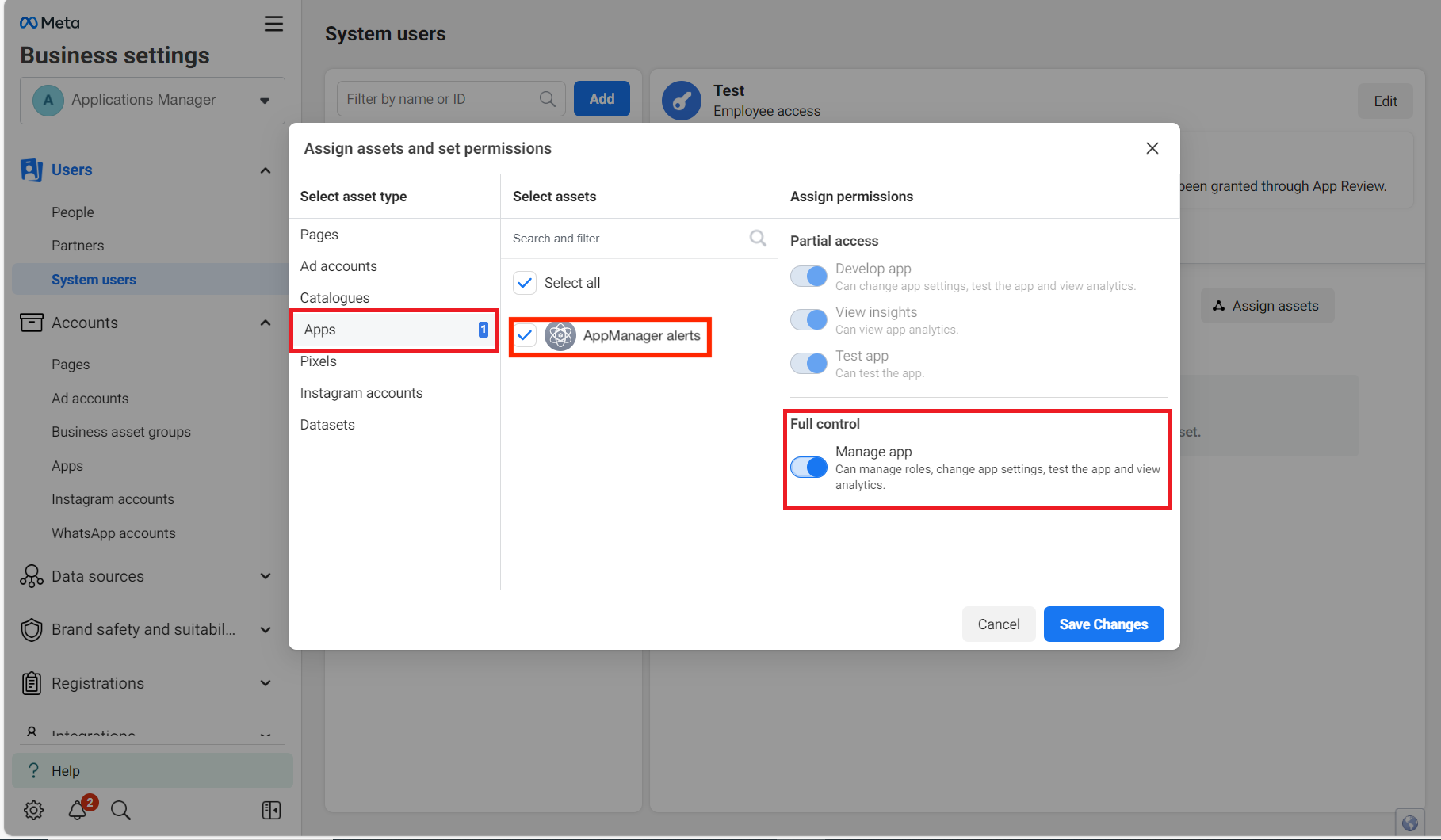
- Now, click on the "Assign Assets" option, and then click on "Apps". Now, choose the app that you just created (i.e. Applications Manager), and enable "Full Control".
IV. Generate the app token from Meta business account
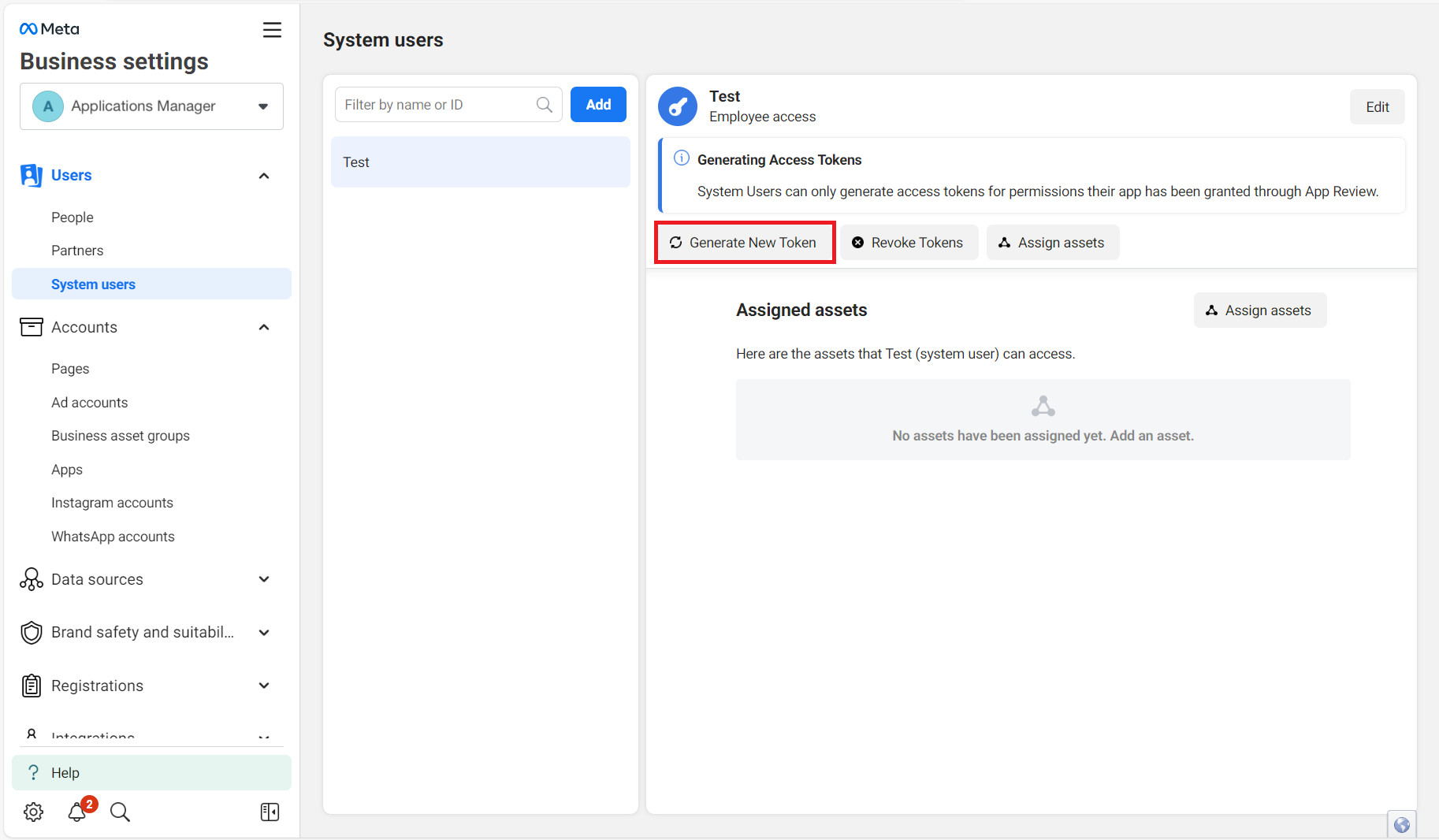
- Once again, go to the "Users" option found under the "System Users" section, and select the created user.
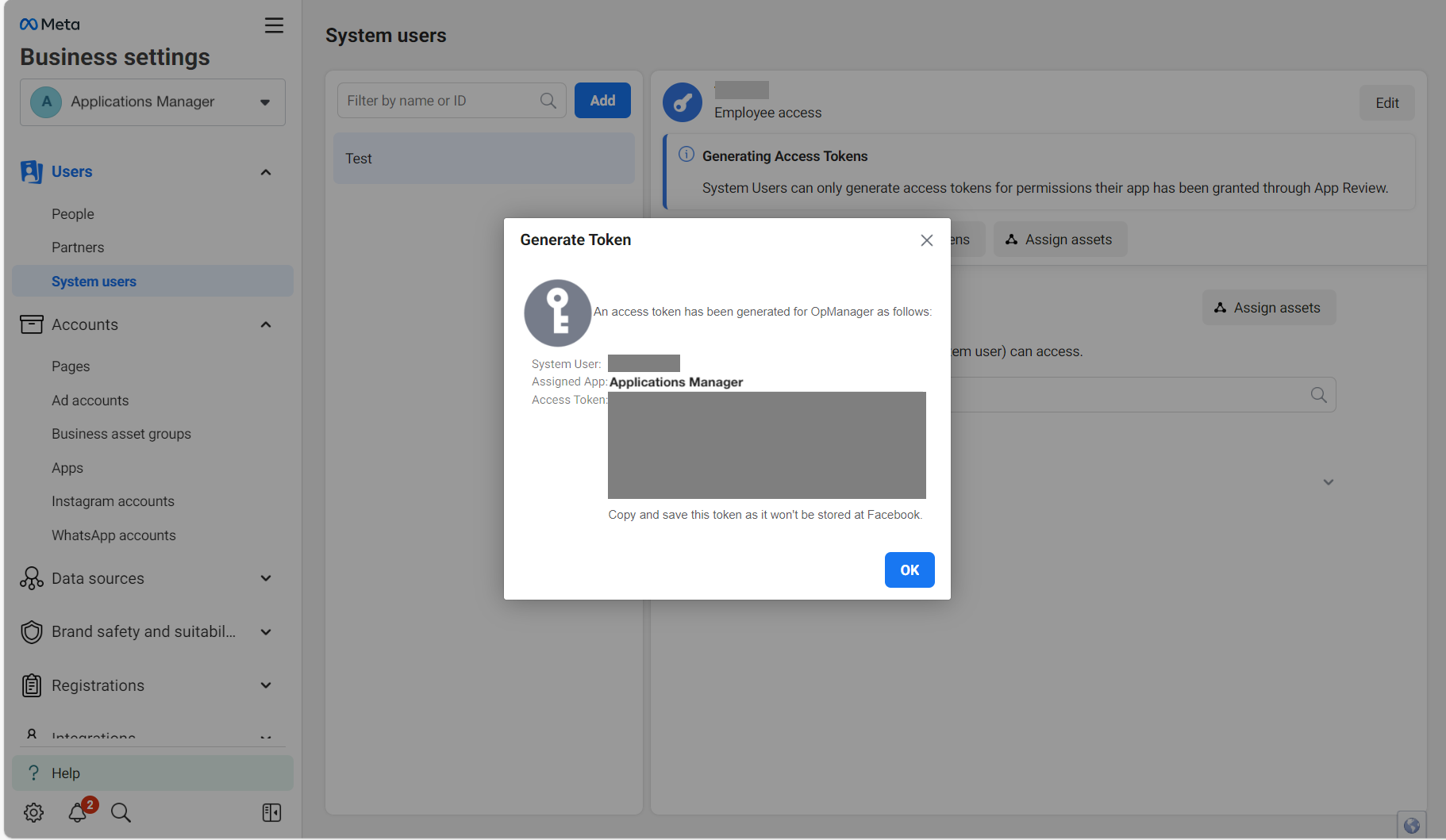
- Now, click on the "Generate New token" option.
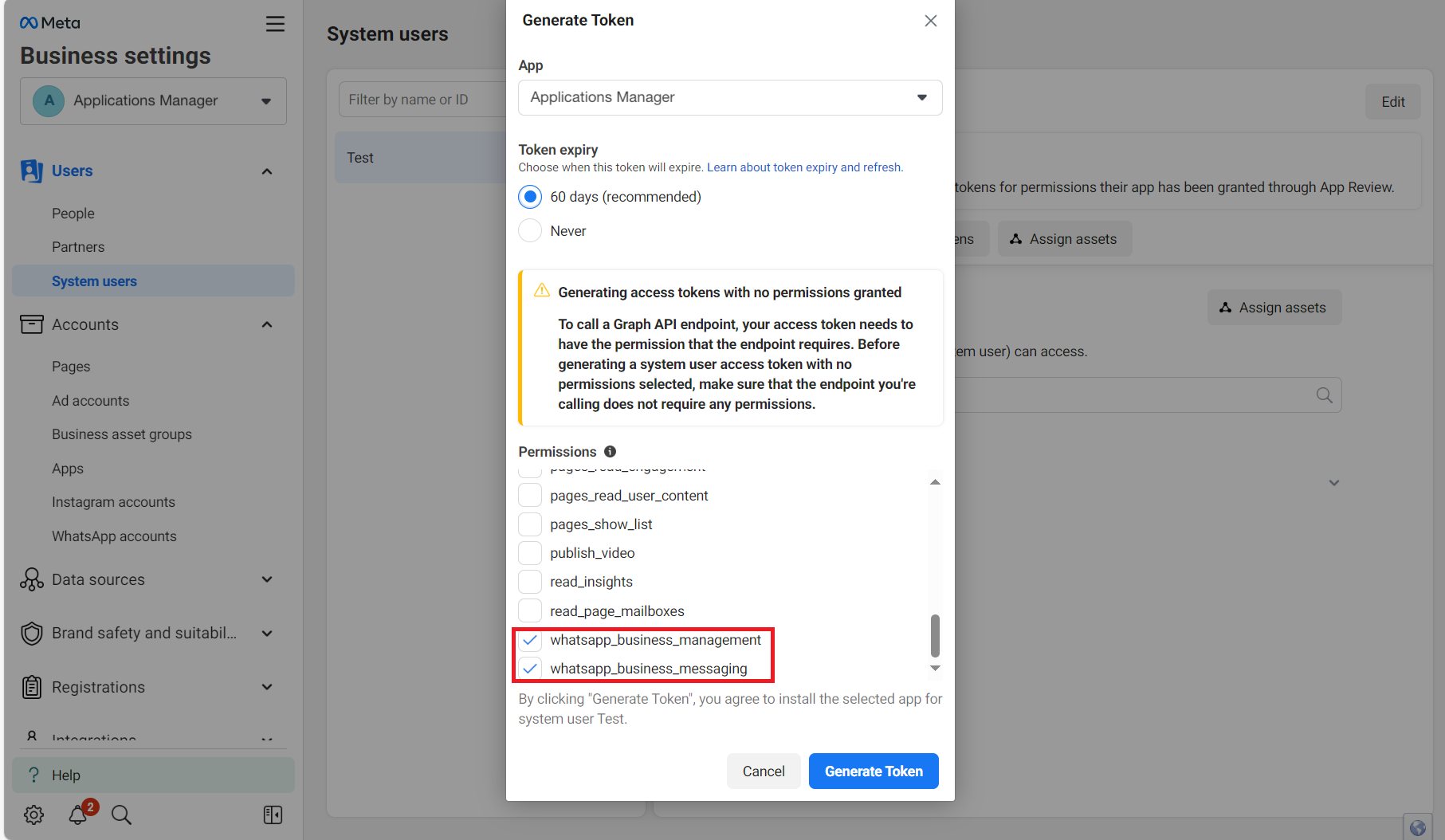
- Now, select the app from the drop-down, and choose the expiry time for your token.
- Enable the following two permissions: WhatsApp_business_management and WhatsApp_business_messaging
- Now, click on "Generate Token".
- Copy and save the token.
V. Creating a Message Template
- Open WhatsApp Manager from your Meta business account.
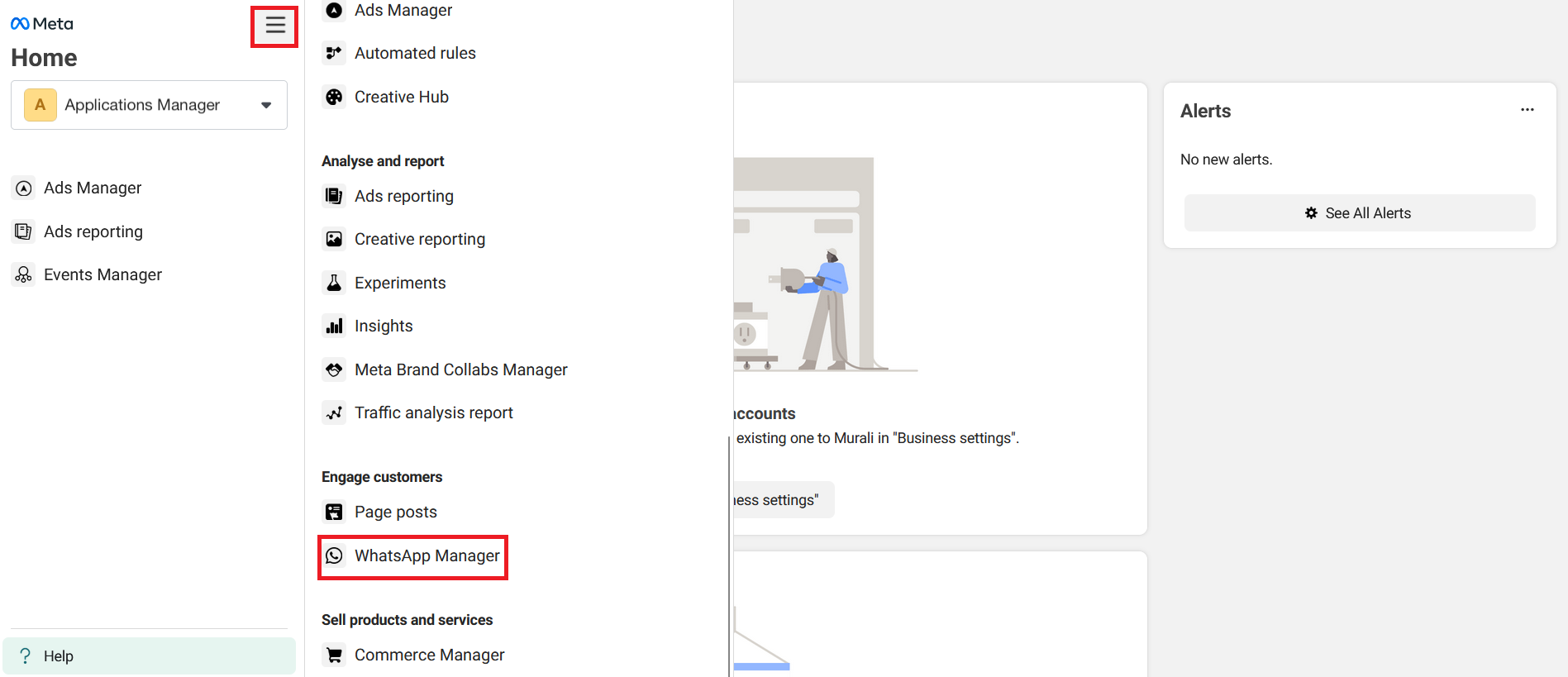
- Click on the "Account Tools" tab found on the left side, and select "Message Templates".
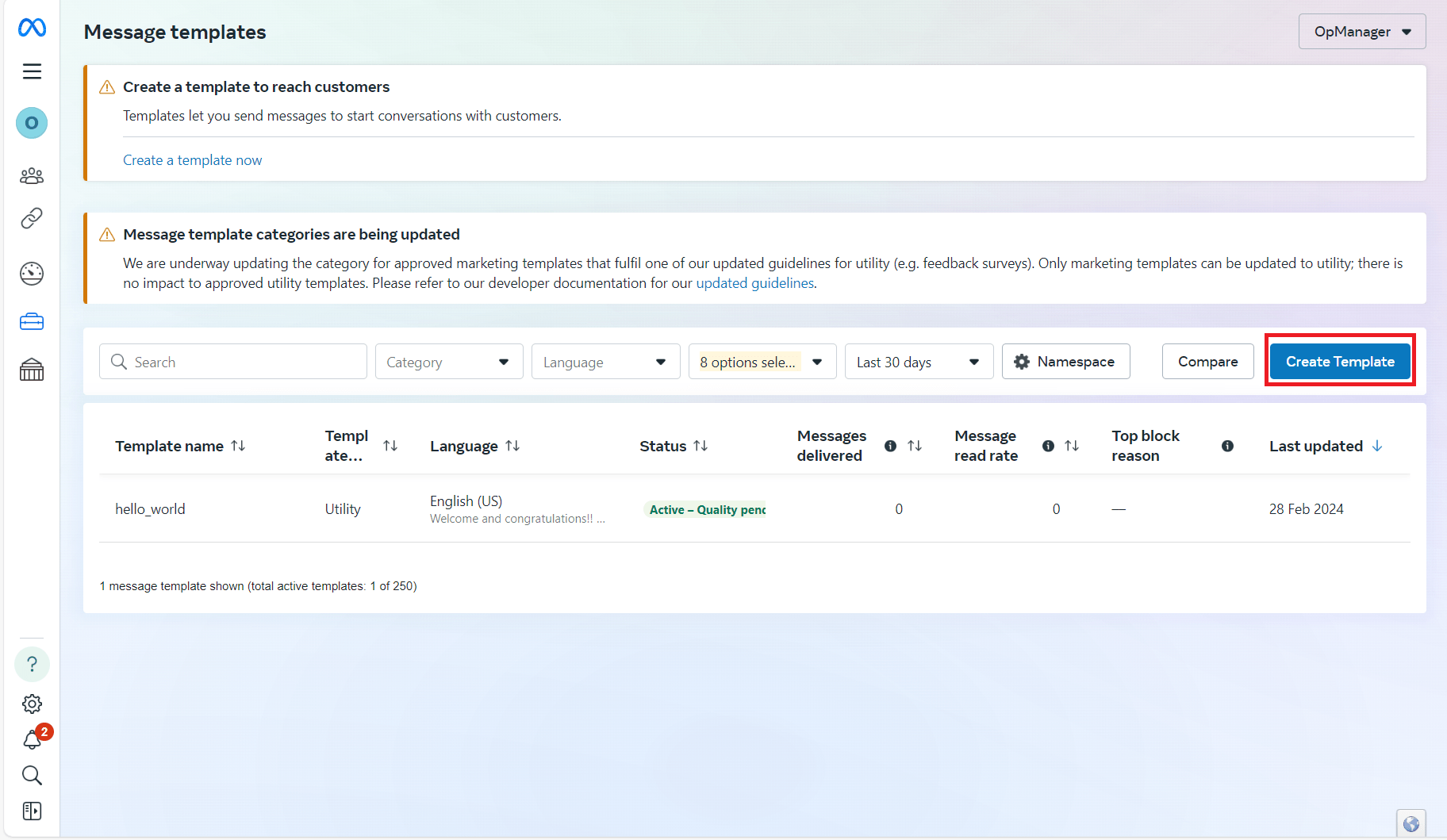
- Click on the "Create Template" option.
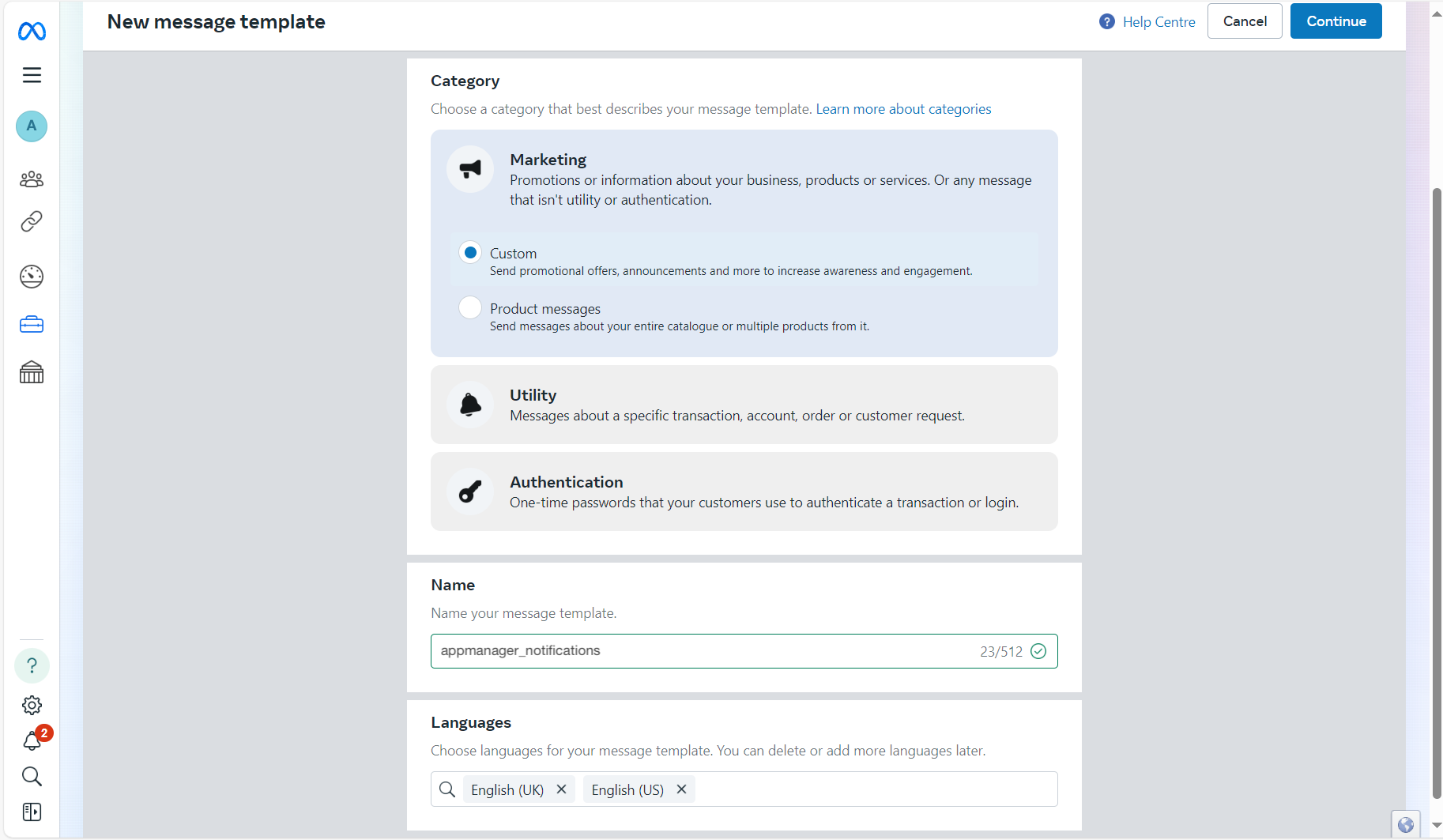
- Under category, choose "Marketing", and select the sub-category as "Custom".
- Give a name for your template, and choose the desired languages for which you want to create the template. Click on "Continue".
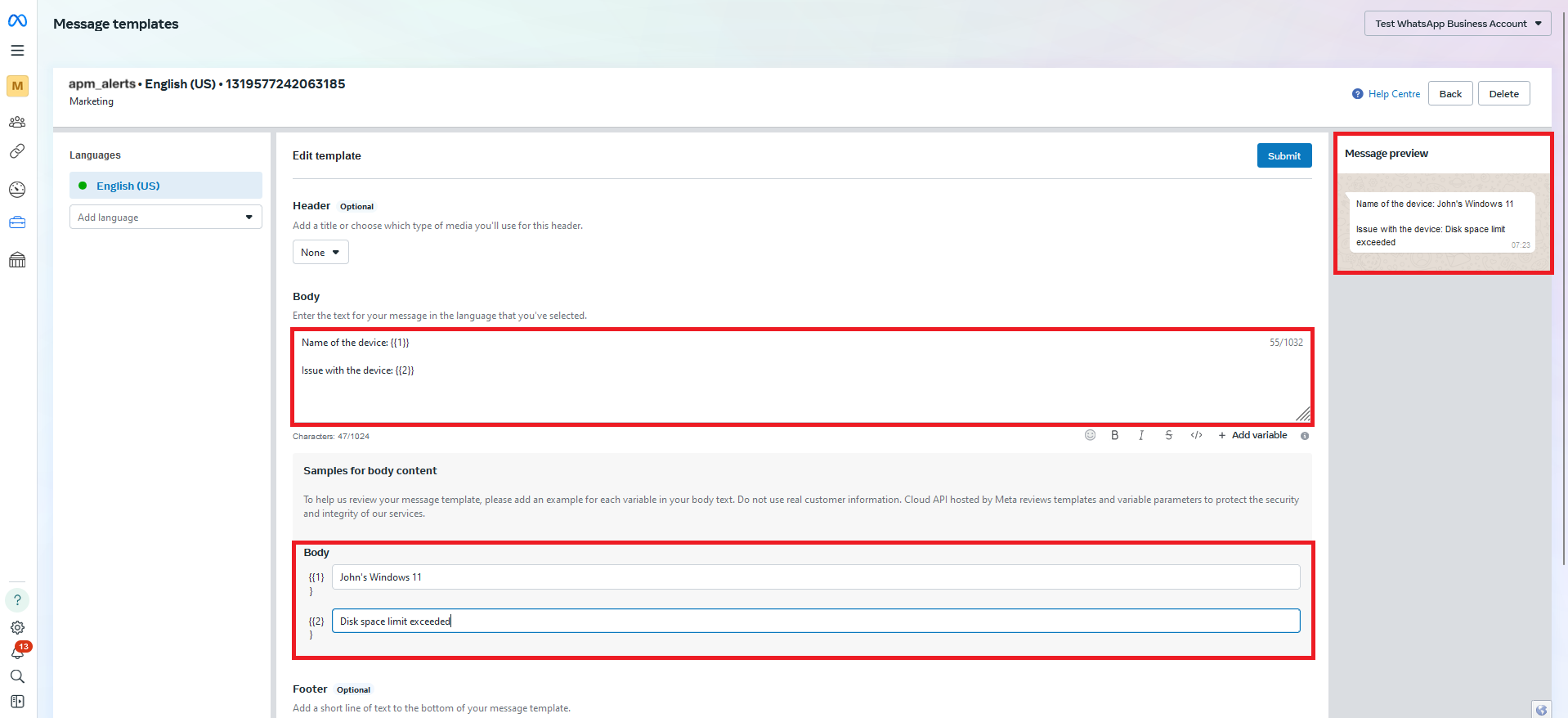
- Under the "Body" section, enter the message content that has to be sent via WhatsApp. Mention the first field name (Name of the device), and then add the variable here. Next, add the second field name (Issue with the device), and then add the next variable here.NOTE: You can also add more than two variables along with the desired information, that you need to be alerted about.
- You can preview the message from the Message preview window available in the top-right corner of the screen.
- Click on "Submit".
- Now, Meta will approve the template after its verification.
Configuring Applications Manager
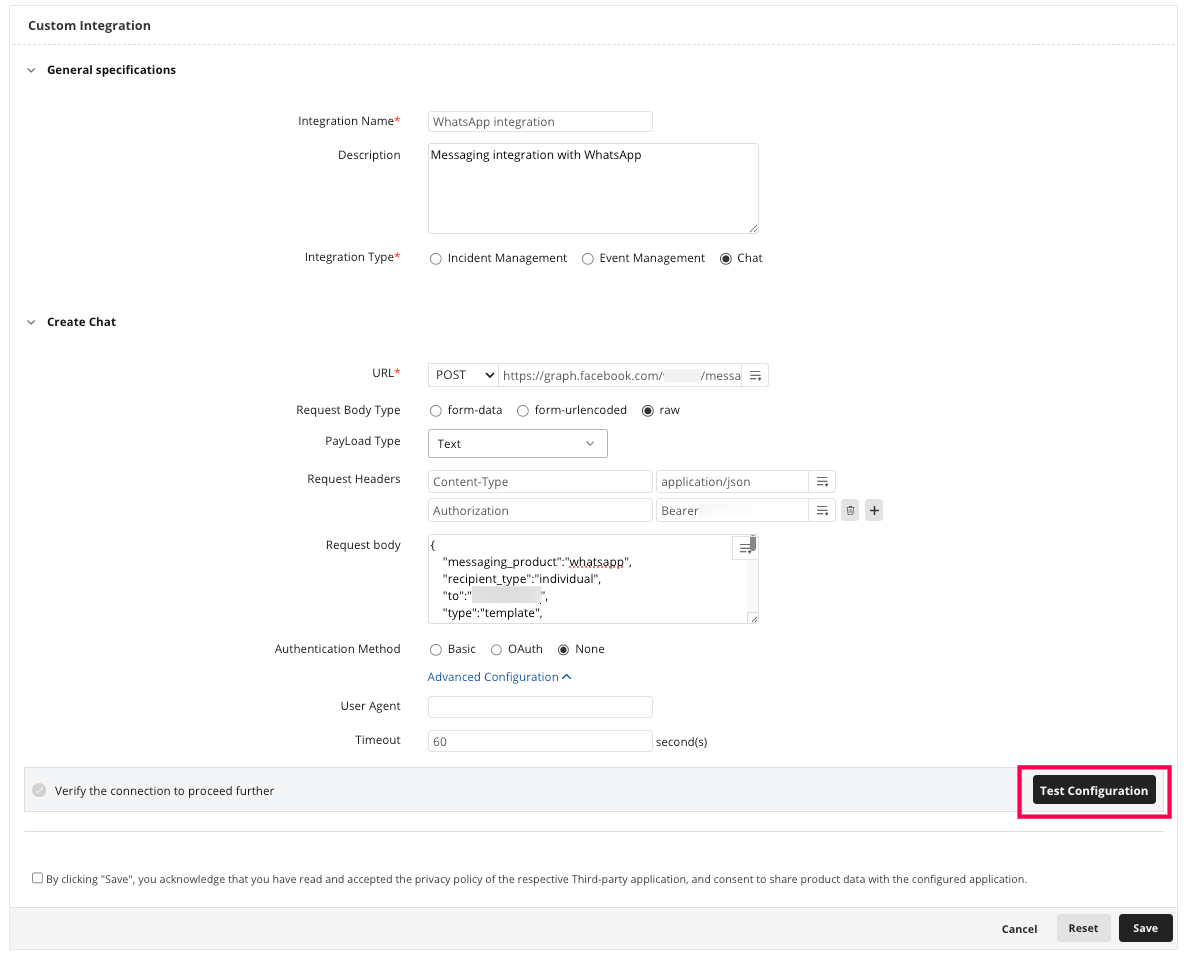
Follow the below steps to integrate WhatsApp from the Applications Manager console:
- Go to Settings -> Product Settings -> Integrations (Add-on Settings) -> New Custom Integration.
- Under the General Specification section, provide a name and description for this integration profile.
- Select the Integration type as Chat.
- Under the Create Incident section, choose the POST method, and enter the integration URL that we obtained earlier, from here.
- Choose the Request Body Type as raw, and the PayLoadType as JSON.
- Under Request Headers, declare the value of Content-type asapplication/json
- Add another request header called Authorization. In its value field, enter the following: Bearer<space><App token created from Meta Business Account>
- Under Request Body, define the input variables that you defined under the body content of Message templates in Meta Business page using the following body content:
{ "messaging_product":"whatsapp", "recipient_type":"individual", "to":"<PhoneNumber>", "type":"template", "template": { "name":"apm_alerts", "language": { "code":"en_US" }, "components": [{ "type":"body", "parameters": [{ "type":"text", "text":"$displayName" }, { "type":"text", "text":"$message" } ] } ] } }where,- recepient_type: Must be individual.
- to: Enter the phone number to which the alerts from Applications Manager should be forwarded as WhatsApp messages.
- type: Must be template
- name: Must be the name of the message template that was created with Meta business account (opm_alerts in the example used).
- code: Enter the code of the language in which you want to receive Applications Manager alerts. (en_US in the example used)
- type (Under components): Must be body
- type (Under Parameters): Enter the text that needs to be sent along with the alerts. (Since we have used two variables in our examples)
- Text 1: Enter the first variable of the parameter that has to be sent as WhatsApp messages. ($displayName in the example used)
- Text 2: Enter the second variable of the parameter that has to be sent as WhatsApp messages.($message in the example used).
Note: Apart from the above variables, you can also send other variables via WhatsApp with the help of Replaceable Tags. Click here to know about the list of supported replaceable tags in Applications Manager.
- Expand Advanced Configuration andspecify the timeout value.
- Use the Test Configuration button to verify the connection.
- Once the test action is successful, select the checkbox stating that you have read and comply to the terms and conditions of the respective third party application you are integrating Applications Manager with, which is WhatsApp in this case.
- Click on Save.
Now that Applications Manager has been integrated with WhatsApp, we have to associate actions for the same. Learn how to associate Custom integration actions

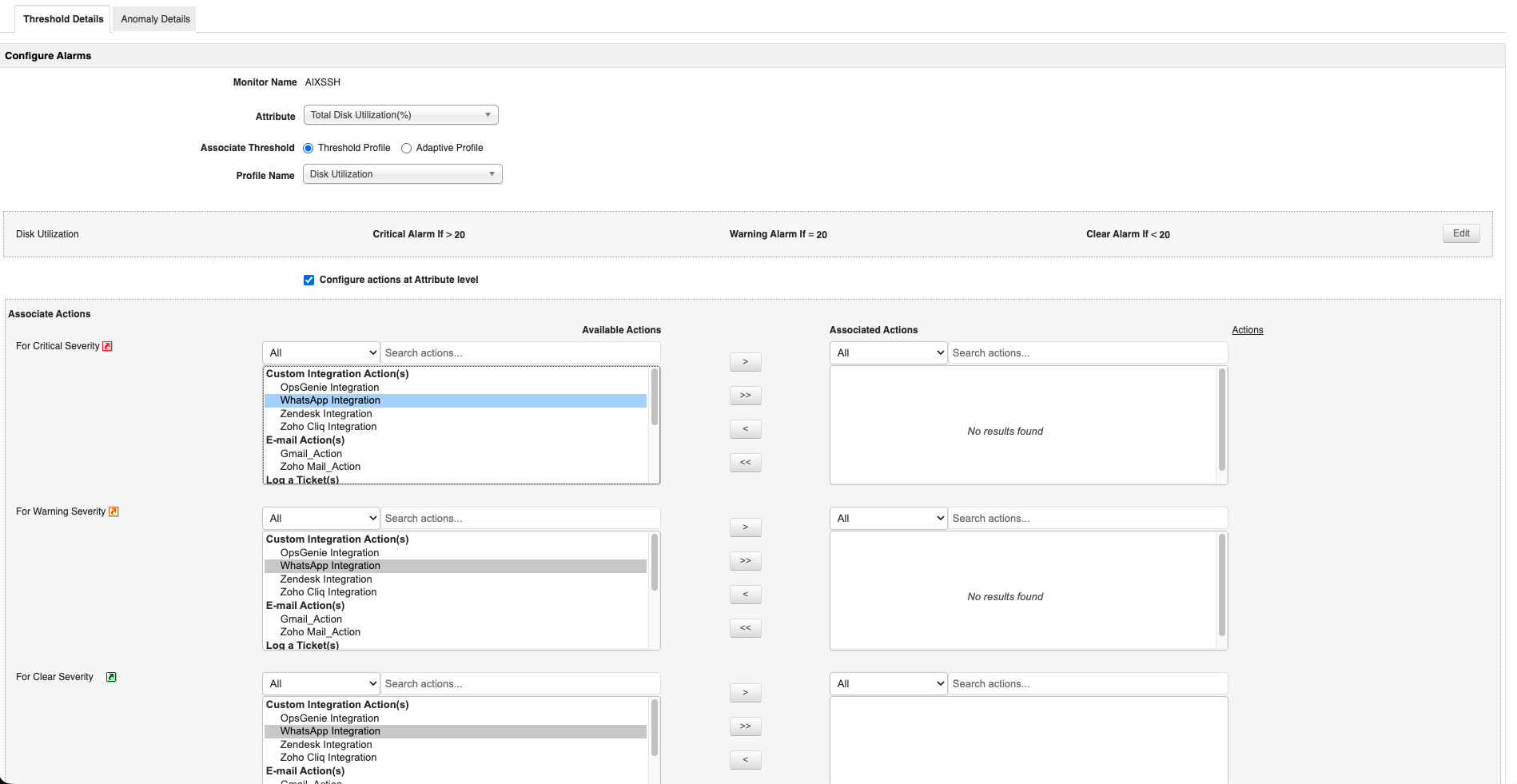
Applications Manager has now been successfully integrated with WhatsApp, and you can receive Applications Manager alerts via WhatsApp messages.
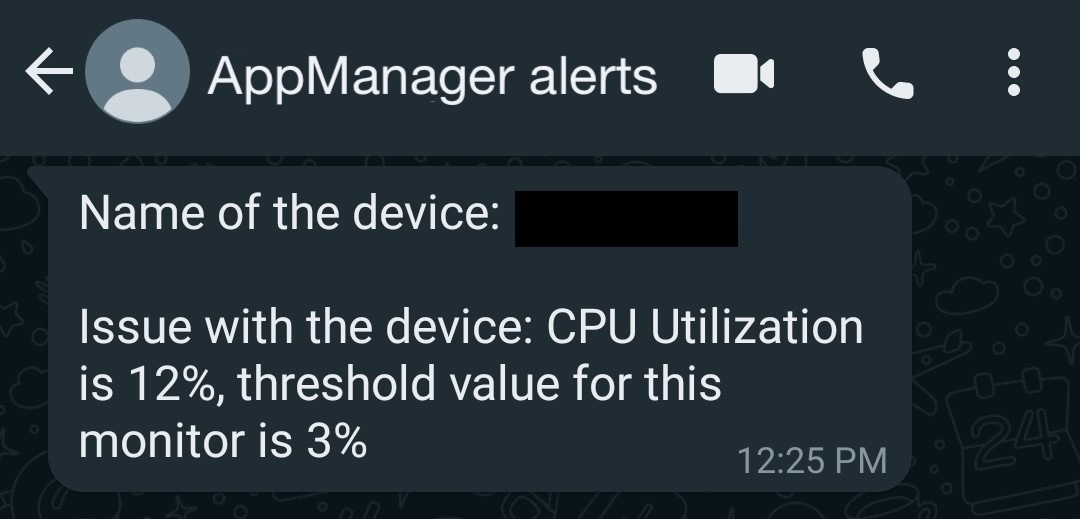
Click here to know about WhatsApp's pricing, and for information regarding messaging limits, click here.

