OpenAI Integration
OpenAI is an AI research and deployment company that provides the GPT family of large language models. With OpenAI, you can generate AI-assisted summaries and insights in Applications Manager using OpenAI models for Generative AI (GenAI)-powered features.
Prerequisites
- Ensure that you have access to an OpenAI Platform account.
- Create or use an API key from the OpenAI Platform.
- Ensure that billing, credits, and usage limits are configured in your OpenAI account.
- If your account has multiple OpenAI organizations, note the organization ID that should be used for Applications Manager.
How to configure OpenAI in Applications Manager
- Go to Settings → Product Settings → Integrations (Add-On Settings).
- Under the AIOps category, select OpenAI. This opens the OpenAI integration configuration page.
- Enter the Organization Name. This is a display name used to identify the integration in Applications Manager.
- Enter the Organization ID from your OpenAI organization settings. Refer to OpenAI organization settings to find the organization ID. This helps route usage and billing to the correct OpenAI organization.
- Enter the API Key generated from the OpenAI Platform. Refer to OpenAI API keys to create or copy an API key.
- Click Fetch Models to retrieve the available OpenAI models for the configured account. You can refer to the OpenAI model catalog before selecting models.
- Select the models you want to make available for GenAI-powered features.
- Click Add Models to add the selected models to the integration.
- Click the star (⭐) icon to set a model as the default, if required. Only one model across all configured GenAI providers should be treated as the default.
- Review and accept the privacy consent statement, then click Save.
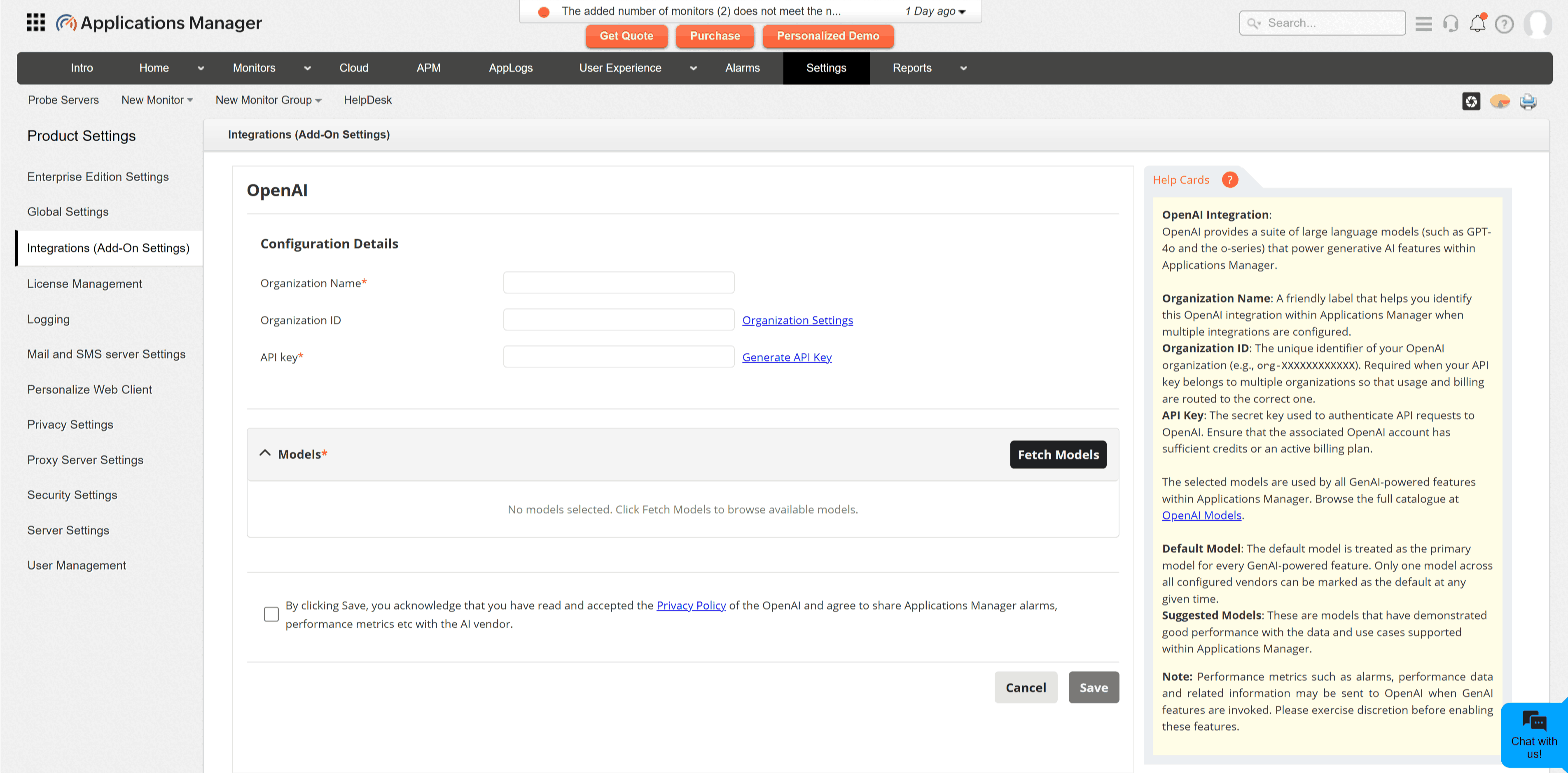
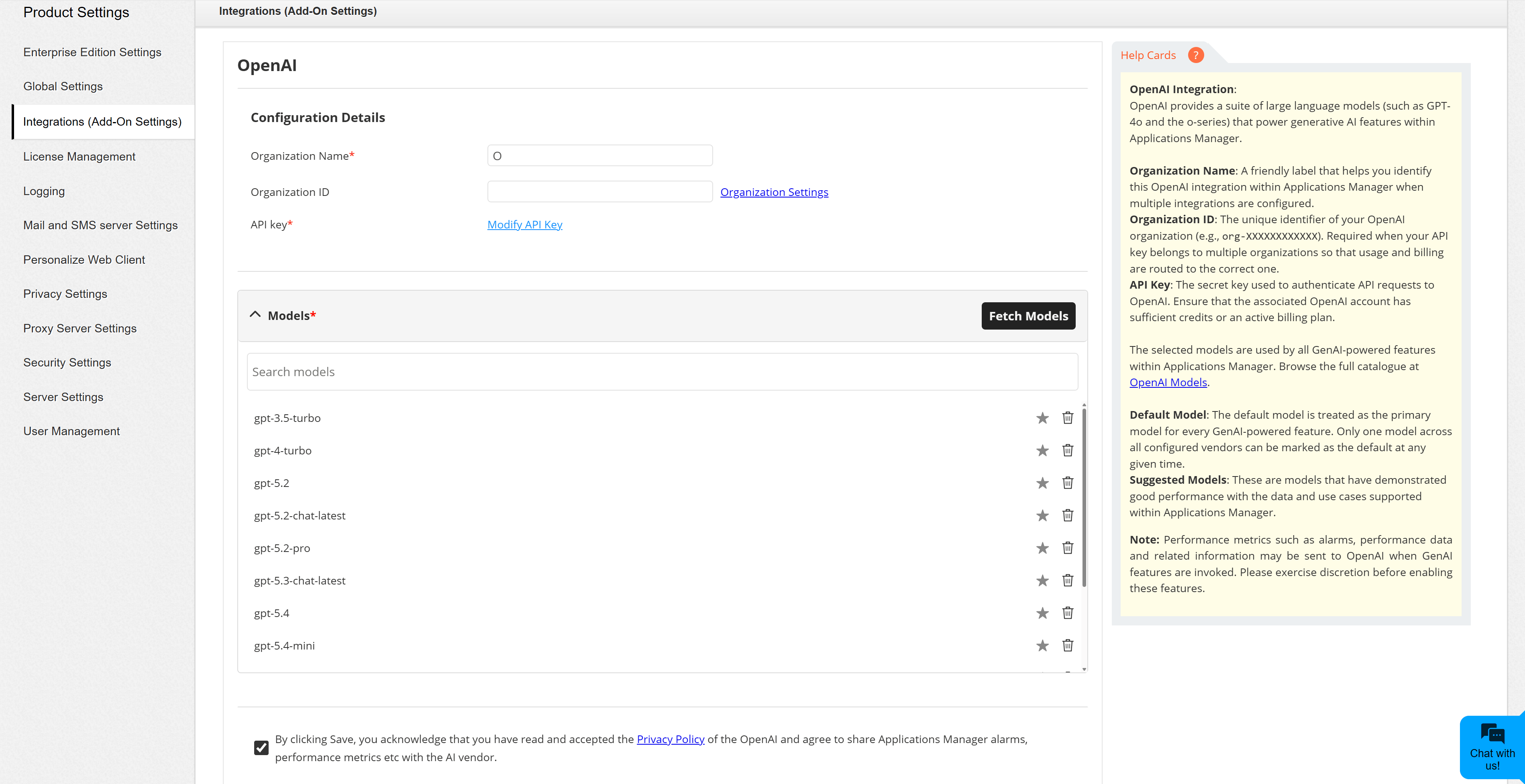
Configuration fields
| Field | Description |
|---|---|
| Organization Name | A friendly name for identifying this OpenAI integration in Applications Manager. |
| Organization ID | The OpenAI organization ID, usually in the org-... format. Required when your OpenAI account belongs to multiple organizations. |
| API Key | The secret key used to connect Applications Manager with OpenAI. Keep this key private and rotate it according to your organization's security policy. |
| Models | The OpenAI models that Applications Manager can use for GenAI-powered features. |
| Default Model | The primary model used when a GenAI-powered feature does not require a specific model selection. |
Note:
- Data required for GenAI-powered features may be sent to OpenAI when those features are used.
- Make sure to review generated output before acting on it.
- If Fetch Models fails, verify the API key, organization ID, OpenAI account status, billing, and network access from the Applications Manager server.