Reports Builder
Report Builder helps you create report templates using different data sources and customize them to suit your requirements. You can configure filters, groupings, output formats (currently Excel (.xlsx) and Word (.docx) are supported), and the report layout.
Report List page
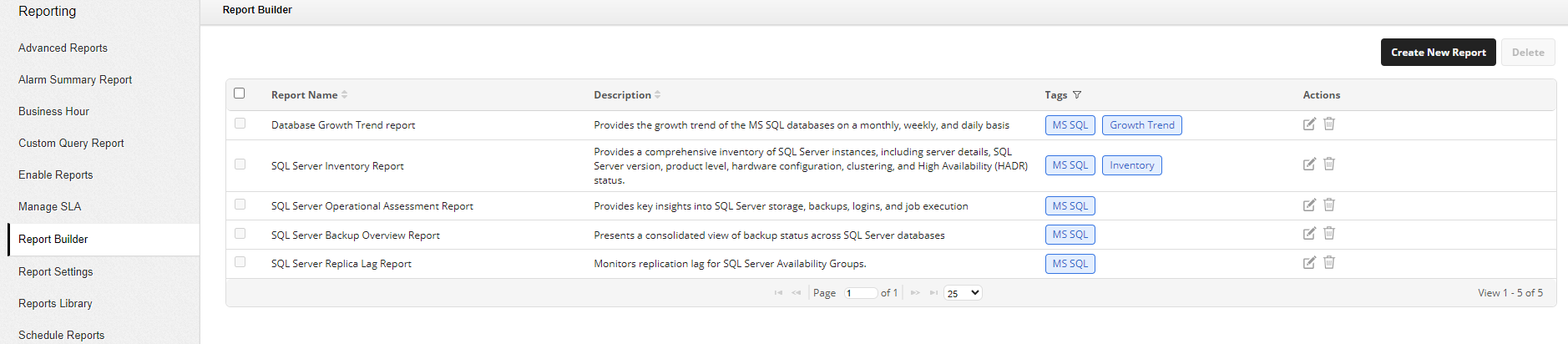
The Report List page displays all configured report templates. The following columns are available:
| Column | Description |
|---|---|
| Report Name | The name assigned to the report template. |
| Report Description | A brief description of the report and its purpose. |
| Tags | Tags associated with the report for easier categorization and searching. |
| Actions | Options to generate, edit/delete the report configuration. |
Note: Applications Manager includes default report templates that are available out of the box. You can use these default report templates to generate custom reports.
Creating a report
- Go to Settings and open Report Builder.
- The Report List page displays the configured reports. Click Create New Report to create a new configuration.
- On the report configuration page, fill in the following fields:
- Report Name - Specify a unique and meaningful name for the report template.
- Report Description - Provide a brief description of the report and its purpose.
- Tags - Select existing tags to categorize the report for easier searching. You can also create new tags from this section.
- Report Configuration File - An XML file that defines the structure and layout of the report. It contains the report's data sources, filters, groupings, and output format.
- Template File - Defines the visual layout of the generated report.
- For Word (.docx) output, the template is a Word document containing placeholders that are replaced with report data during generation.
- For Excel (.xlsx) output, the template is an Excel workbook that defines the report layout and formatting.
- Save the configuration to create the report template.
- Open the saved configuration, configure the required filters, and click Generate Report.
Generating a report
- On the Report List page, select the report you want to generate.
Configure the required filters and click Generate Report.

The report is generated in the background. You will receive a notification via the Notification menu (bell icon) once the report is ready for download.
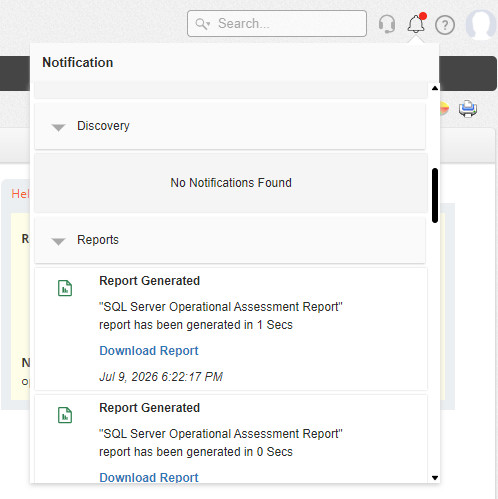
- Click the relevant notification in the Notification menu to access and download the generated report.
Scheduling reports
Report Builder reports can also be scheduled using the Schedule Reports option to generate reports automatically at configured intervals. For more information, refer to Reports Settings.